lock GMC TERRAIN 2010 Owner's Guide
[x] Cancel search | Manufacturer: GMC, Model Year: 2010, Model line: TERRAIN, Model: GMC TERRAIN 2010Pages: 410, PDF Size: 2.55 MB
Page 94 of 410

4-2 Instruments and Controls
Vehicle Messages
Vehicle Messages . . . . . . . . . . . 4-29
Battery Voltage and ChargingMessages . . . . . . . . . . . . . . . . . . 4-29
Brake System Messages . . . . 4-30
Compass Messages . . . . . . . . . 4-30
Cruise Control Messages . . . . 4-30
Door Ajar Messages . . . . . . . . . 4-30
Engine Cooling System Messages . . . . . . . . . . . . . . . . . . 4-31
Engine Oil Messages . . . . . . . . 4-31
Engine Power Messages . . . . 4-32
Fuel System Messages . . . . . . 4-32
Key and Lock Messages . . . . . 4-33 Object Detection System
Messages . . . . . . . . . . . . . . . . . . 4-33
Ride Control System Messages . . . . . . . . . . . . . . . . . . 4-33
Airbag System Messages . . . . 4-34
Safety Belt Messages . . . . . . . 4-34
Anti-Theft Alarm System
Messages . . . . . . . . . . . . . . . . . . 4-34
Service Vehicle Messages . . . 4-34
Tire Messages . . . . . . . . . . . . . . . 4-35
Transmission Messages . . . . . 4-35
Vehicle Reminder Messages . . . . . . . . . . . . . . . . . . 4-36
Washer Fluid Messages . . . . . 4-36
Vehicle Personalization
Vehicle Personalization . . . . . . 4-36
OnStar®System
OnStar®System . . . . . . . . . . . . . 4-41
Page 97 of 410

Instruments and Controls 4-5
A.Air Vents on page 7‑6.
B. Turn and Lane-Change Signals
on page 5‑3.Exterior Lamp
Controlson page 5‑1. Fog
Lamps on page 5‑3.
C. Horn on page 4‑7.
D. Instrument Cluster
on
page 4‑12.
E. Windshield Wiper/Washer
on
page 4‑7. Rear Window
Wiper/Washer on page 4‑8.
F. Power Door Locks
on
page 1‑7.
G. Instrument Panel Storage
on
page 3‑1. H.
Safety Locks on page 1‑8.
I. AM-FM Radio on page 6‑11.
J. Cruise Control
on page 8‑44.
K. Instrument Panel Illumination
Control
on page 5‑4.
L. Steering Wheel Adjustment
on
page 4‑6.
M. Steering Wheel Controls
on
page 4‑6.
N. Ignition Positions on page 8‑28.
O. Climate Control Systems
on
page 7‑1or Automatic Climate
Control System on page 7‑3.
P. Shift Lever. See Automatic
Transmission on page 8‑35. Q.
StabiliTrak System
on
page 8‑42.
R. Cupholders on page 3‑1.
S. Power Outlets on page 4‑10.
T. CD/DVD Player Slot. See CD
Player
on page 6‑18or
CD/DVD Player on page 6‑21.
U. Driver Information Center (DIC) Buttons. See Driver Information
Center (DIC) on page 4‑25.
V. Hazard Warning Flashers
on
page 5‑3.
W. Glove Box on page 3‑1.
Page 98 of 410
4-6 Instruments and Controls
Controls
Steering Wheel
Adjustment
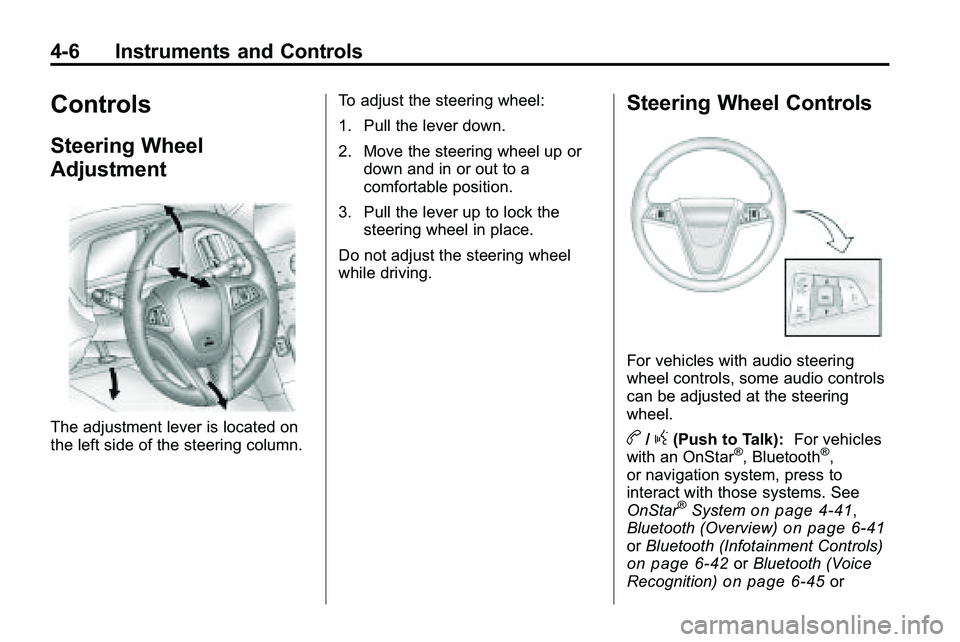
The adjustment lever is located on
the left side of the steering column.To adjust the steering wheel:
1. Pull the lever down.
2. Move the steering wheel up or
down and in or out to a
comfortable position.
3. Pull the lever up to lock the steering wheel in place.
Do not adjust the steering wheel
while driving.
Steering Wheel Controls
For vehicles with audio steering
wheel controls, some audio controls
can be adjusted at the steering
wheel.
b/g(Push to Talk): For vehicles
with an OnStar®, Bluetooth®,
or navigation system, press to
interact with those systems. See
OnStar
®Systemon page 4‑41,
Bluetooth (Overview)on page 6‑41or Bluetooth (Infotainment Controls)on page 6‑42orBluetooth (Voice
Recognition)on page 6‑45or
Page 100 of 410
4-8 Instruments and Controls
Windshield Washer
Pull the lever toward you to spray
washer fluid on the windshield. The
spray continues until the lever is
released. The wipers will run a few
times. SeeWasher Fluid
on
page 9‑22for information on filling
the windshield washer fluid
reservoir.
{WARNING
In freezing weather, do not use
your washer until the windshield
is warmed. Otherwise the washer
fluid can form ice on the
windshield, blocking your vision.
Rear Window
Wiper/Washer
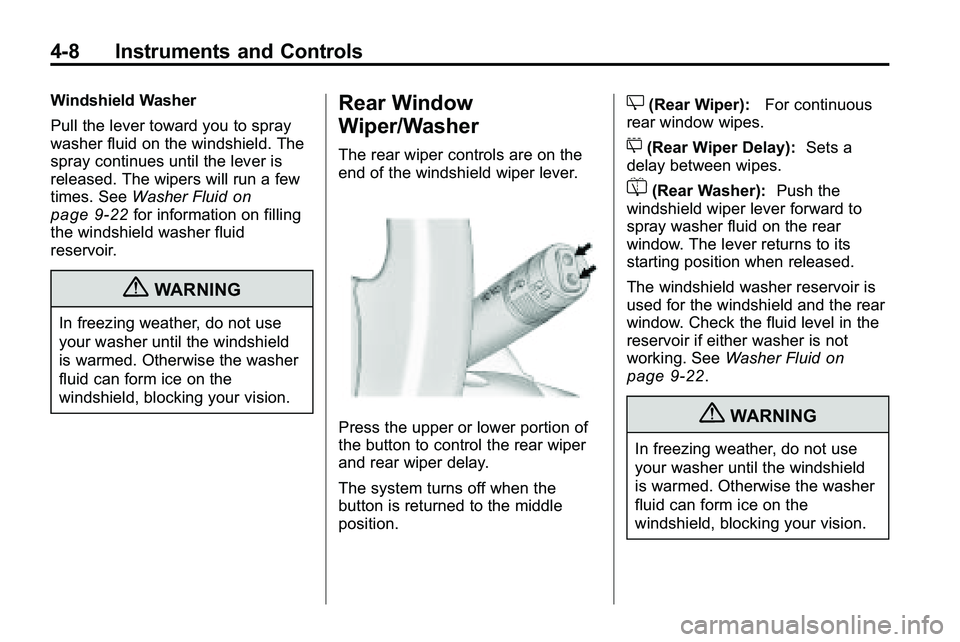
The rear wiper controls are on the
end of the windshield wiper lever.
Press the upper or lower portion of
the button to control the rear wiper
and rear wiper delay.
The system turns off when the
button is returned to the middle
position.
Z(Rear Wiper): For continuous
rear window wipes.
5(Rear Wiper Delay): Sets a
delay between wipes.
=(Rear Washer): Push the
windshield wiper lever forward to
spray washer fluid on the rear
window. The lever returns to its
starting position when released.
The windshield washer reservoir is
used for the windshield and the rear
window. Check the fluid level in the
reservoir if either washer is not
working. See Washer Fluid
on
page 9‑22.
{WARNING
In freezing weather, do not use
your washer until the windshield
is warmed. Otherwise the washer
fluid can form ice on the
windshield, blocking your vision.
Page 101 of 410
Instruments and Controls 4-9
Compass
The vehicle may have a compass
display on the Driver Information
Center (DIC). The compass
receives its heading and other
information from Global Positioning
System (GPS) antenna, StabiliTrak,
and vehicle speed information.
Avoid covering the GPS antenna for
long periods of time with objects
that may interfere with the antenna's
ability to receive a satellite signal.
SeeMulti-Band Antenna
on
page 6‑18for the location of the
vehicle's antennas. The compass
system is designed to operate for a
certain number of miles or degrees
of turn before needing a signal from
the GPS satellites. When the
compass display shows CAL, drive
the vehicle for a short distance in
an open area where it can receive a
GPS signal. The compass system
will automatically determine when GPS signal is restored and provide
a heading again. See
Compass
Messages
on page 4‑30for more
information on the messages that
may be displayed for the compass.
Clock (With Date Display)
The infotainment system controls,
located on the instrument panel, are
used to access the time and date
settings through the menu system.
See Operation
on page 6‑7for
information about how to use the
menu system.
Setting the Time and Date
1. Turn the infotainment
system ON.
2. Press the CONFIG button and select Time and Date Settings.
3. Select Set Time or Set Date.
4. Turn the MENU/SEL knob to adjust the highlighted value. 5. Press the MENU/SEL knob
to select the next value.
6. To save the time or date and return to the Time and
Date Settings menu, press
the
0BACK button at any time
or press the MENU/SEL knob
after adjusting the minutes
or year.
Setting the 12/24 Hour Format
1. Turn the infotainment system ON.
2. Press the CONFIG button and select Time and Date Settings.
3. Highlight 12/24 Hour Format.
4. Press the MENU/SEL knob to select the 12 hour or 24 hour
display format.
Page 102 of 410
4-10 Instruments and Controls
Setting the Month & Day
Format
1. Turn the infotainmentsystem ON.
2. Press the CONFIG button and select Time and Date Settings.
3. Highlight Month & Day Format.
4. Press the MENU/SEL knob to select MM/DD (month/day) or
DD/MM (day/month).
Setting the Auto Time Adjust
1. Turn the infotainmentsystem ON.
2. Press the CONFIG button and select Time and Date Settings.
3. Highlight Auto Time Adjust.
4. Press the MENU/SEL knob to turn Auto Time Adjust on or off.
5. Press the MENU/SEL knob to select Time Zone, and then
select the Time Zone.
6. Press the MENU/SEL knob to turn Daylight Savings on or off.
Clock (Without Date
Display)
The infotainment system controls,
located on the instrument panel, are
used to access the time and date
settings through the menu system.
See Operation
on page 6‑7for
information about how to use the
menu system.
Setting the Time
1. Turn the infotainment system ON.
2. Press the CONFIG button and select Time Settings, or press
the
Hbutton.
3. Select Set Time.
4. Turn the MENU/SEL knob to adjust the highlighted value.
5. Press the MENU/SEL knob to select the next value. 6. To save the time and return to
the Time Settings menu, press
the
0BACK button at any time
or press the SELECT button
after adjusting the minutes.
Setting the 12/24 Hour Format
1. Turn the infotainment system ON.
2. Press the CONFIG button and select Time Settings, or press
the
Hbutton.
3. Highlight 12/24 Hour Format.
4. Press the MENU/SEL knob to select the 12 hour or 24 hour
display format.
Power Outlets
The accessory power outlets can
be used to connect electrical
equipment, such as a cellular
phone.
Page 108 of 410
4-16 Instruments and Controls
as a system check. If you are using
remote start to start the vehicle from
a distance, if equipped, you may not
see the system check. Then, after
several more seconds, the status
indicator will light either ON or OFF,
or either the on or off symbol to let
you know the status of the right front
passenger frontal airbag.
If the word ON or the on symbol is
lit on the passenger airbag status
indicator, it means that the right
front passenger frontal airbag is
enabled (may inflate).
If the word OFF or the off symbol is
lit on the passenger airbag status
indicator, it means that the
passenger sensing system has
turned off the right front passenger
frontal airbag.
If, after several seconds, both status
indicator lights remain on, or if there
are no lights at all, there may be a
problem with the lights or the
passenger sensing system. See
your dealer/retailer for service.{WARNING
If the airbag readiness light ever
comes on and stays on, it means
that something may be wrong
with the airbag system. To help
avoid injury to yourself or others,
have the vehicle serviced right
away. SeeAirbag Readiness
Light
on page 4‑15for more
information, including important
safety information.
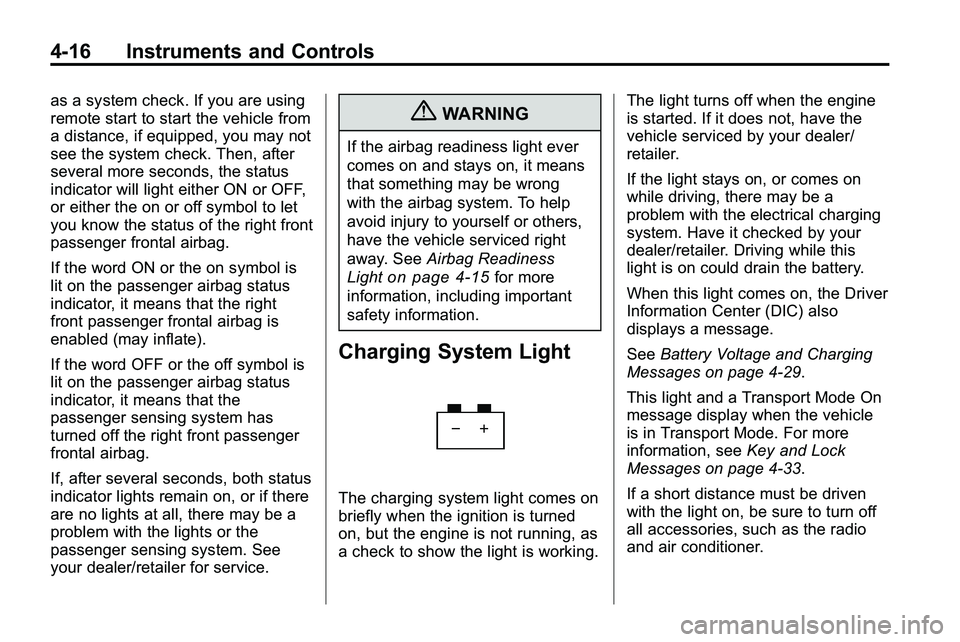
Charging System Light
The charging system light comes on
briefly when the ignition is turned
on, but the engine is not running, as
a check to show the light is working. The light turns off when the engine
is started. If it does not, have the
vehicle serviced by your dealer/
retailer.
If the light stays on, or comes on
while driving, there may be a
problem with the electrical charging
system. Have it checked by your
dealer/retailer. Driving while this
light is on could drain the battery.
When this light comes on, the Driver
Information Center (DIC) also
displays a message.
See
Battery Voltage and Charging
Messages on page 4‑29.
This light and a Transport Mode On
message display when the vehicle
is in Transport Mode. For more
information, see Key and Lock
Messages on page 4‑33.
If a short distance must be driven
with the light on, be sure to turn off
all accessories, such as the radio
and air conditioner.
Page 112 of 410

4-20 Instruments and Controls
When the ignition is on, the brake
system warning light comes on
when the parking brake is set. The
light stays on if the parking brake
does not fully release. If it stays on
after the parking brake is fully
released, there is a brake problem.
Have the brake system inspected
immediately.
{WARNING
The brake system might not be
working properly if the brake
system warning light is on.
Driving with the brake system
warning light on can lead to a
crash. If the light is still on after
the vehicle has been pulled off
the road and carefully stopped,
have the vehicle towed for
service.If the light comes on while driving, a
chime sounds. Pull off the road and
stop. The pedal might be harder to
push or go closer to the floor.
It might also take longer to stop.
If the light is still on, have the
vehicle towed for service. See
Towing the Vehicle on page 9‑81.
Antilock Brake System
(ABS) Warning Light
For vehicles with the Antilock Brake
System (ABS), this light comes on
briefly when the engine is started.
If the light does not come on, have it
fixed so it will be ready to warn if
there is a problem. If the ABS light stays on, turn the
ignition off. If the light comes on
while driving, stop as soon as it is
safely possible and turn the ignition
off. A chime may also sound when
the light comes on steady. Then
start the engine again to reset the
system. If the ABS light stays on,
or comes on again while driving, the
vehicle needs service. If the regular
brake system warning light is not
on, the vehicle still has brakes, but
not antilock brakes. If the regular
brake system warning light is also
on, the vehicle does not have
antilock brakes and there is a
problem with the regular brakes.
See
Brake System Warning Lighton page 4‑19.
For vehicles with a Driver
Information Center (DIC), see
Driver Information Center (DIC)
on
page 4‑25for all brake related DIC
messages.
Page 125 of 410
Instruments and Controls 4-33
Key and Lock Messages
Replace Battery In Remote Key
This message displays when the
battery in the Remote Keyless Entry
(RKE) transmitter needs to be
replaced.
Transport Mode On
This message displays when the
ignition is held in START for
15 seconds. The battery light may
also be flashing when this message
is displayed. To turn this message
off, start the vehicle and hold the
key in the START position for
15 seconds.
Object Detection System
Messages
Park Assist Off
This message is displayed when the
park assist system has been turned
off. SeeUltrasonic Parking Assist
on page 8‑47.
Service Park Assist
This message is displayed if there is
a problem with the park assist
system. Take the vehicle to your
dealer/retailer for service.
Ride Control System
Messages
All Wheel Drive Off
If your vehicle has the All-Wheel
Drive (AWD) system, this message
displays when the rear drive system
is overheating. This message turns
off when the rear drive system cools
down. If the warning message stays
on for a while, you need to reset the
warning message. To reset the
warning message, turn the ignition
off and then back on again. If the
message stays on, see your dealer/
retailer right away. See All-Wheel
Drive
on page 8‑38for more
information.
Service All Wheel Drive
If your vehicle has the All-Wheel
Drive (AWD) system, this message
displays if a problem occurs with
this system. If this message
appears, stop as soon as possible
and turn off the vehicle. Restart the
vehicle and check for the message
on the DIC display. If the message
is still displayed or appears again
when you begin driving, the AWD
system needs service. See your
dealer/retailer.
Service Traction Control
This message displays when there
is a problem with the Traction
Control System (TCS). When this
message is displayed, the system
will not limit wheel spin. Adjust your
driving accordingly. See your dealer/
retailer for service.
Page 128 of 410
4-36Instruments andControls
Vehicle Reminder
Messages
Ice Possible DriveWithCare
Thismessag eis displaye dwhe nice
condition sar epossible .
Turn Wiper Control to
Intermittent First
Thismessag eis displaye dwhe n
attemptin gto adjus tth eintermitten t
wipe rspee dwithou tintermitten t
selecte don th ewipe rcontrol .Se e
Windshiel dWiper/Wa she r on
page 4-7.
V ehicle
Personalization
Th eaudi osyste mcontrol sar euse d
t o acces sth e personalizatio n
menu sfo rcustomizin gvehicl e
features .
CONFI G(Configuration) :Pres s
t o acces sth e Configuratio n
Setting sMenu .
MEN U/SELEC TKnob :Pres sth e
cente rof thi skno bto ente rth e
menu san dselec tmen uitems .T ur n
th e kno bto scrol lthroug hthe
menus .
0BACK:Pres sto exi tor mov e
backward sin a menu .
Entering thePersonalization
Menus
1 . Tur nthe infotainmen tsyste mon
an dpres sth e CONFI Gbutto nto
acces sth e Configuratio n
Setting smenu . 2
. Tur nth eMEN U/SELEC Tkno b
t o highligh tVehicl eSettings .
3 . Pres sth ecente rof th e
MEN U/SELEC Tkno bto selec t
th eVehicl eSetting smenu .
Th efollowin glis tof men uitem swil l
b e available :
.Climatean dAirQualit y
.Comfor tan dConvenienc e
.Collision/Detectio nSystem s
.Language s
.Lighting
.PowerDoo rLock s
.Remot eLock/Unlock/Star t
.Returnto Factor ySetting s
T ur nth eMEN U/SELEC Tkno bto
highligh tth emenu .Pres sth ekno
b
t o selec tit.Eac hof th emenu sis
detaile din th efollowin ginformation .
Al lo f th emenu sma yno tbe
available .Onl ythos etie dto th e
feature son you rvehicl ewil lb e
shown .