lock GMC TERRAIN 2010 Service Manual
[x] Cancel search | Manufacturer: GMC, Model Year: 2010, Model line: TERRAIN, Model: GMC TERRAIN 2010Pages: 410, PDF Size: 2.55 MB
Page 131 of 410
Instruments and Controls 4-39
Vehicle Locator Lights
This allows the vehicle locator lights
to be turned on or off.
Press the MENU / SELECT knob
when“Vehicle Locator Lights” is
highlighted to toggle between “On”
or “Off”. Press
0BACK to confirm
the selection and go back to the
last menu.
Exit Lighting
This allows the selection of how
long the exterior lamps stay on
when leaving the vehicle when it is
dark outside.
Press the MENU / SELECT knob
when “Exit Lighting” is highlighted.
Turn the knob to select “Off”,
“30 Seconds”, “1 Minute”,
or “2 Minutes”. Press the knob
to confirm and go back to the
last menu.
Power Door Locks
Select Power Door Locks and the
following will be displayed:
.Unlocked Door Anti Lock Out
.Auto Door Unlock
.Delayed Door Lock
Unlocked Door Anti Lock Out
When on, this feature will keep the
driver's door from locking when the
door is open. If off is selected, the
Delayed Door Lock menu will be
available.
Press the MENU / SELECT knob
when “Unlocked Door Anti Lock
Out” is highlighted to toggle
between “On”or“Off”. Press
0BACK to confirm the selection
and go back to the last menu. Auto Door Unlock
This allows selection of which of the
doors will automatically unlock when
the vehicle is shifted into P (Park).
Press the MENU / SELECT knob
when
“Auto Door Unlock” is
highlighted. Turn the knob to select
“All Doors”, “Driver Door”, or “Off”.
Press the knob to confirm and go
back to the last menu.
Delayed Door Lock
When on, this feature will delay the
locking of the doors. If you want to
override the delay you can press the
power door lock on the instrument
panel.
Press the MENU / SELECT knob
when “Delayed Door Lock” is
highlighted. Turn the knob to select
“On” or“Off”. Press the knob to
confirm and go back to the
last menu.
Page 132 of 410
4-40 Instruments and Controls
Remote Lock/Unlock/Start
Select Remote Lock/Unlock/Start
and the following will be displayed:
.Remote Unlock Light Feedback
.Remote Lock Feedback
.Remote Door Unlock
.Memory Remote Recall
.Remote Vehicle Start
Remote Unlock Light Feedback
When on, the exterior lamps will
flash when unlocking the vehicle
with the RKE transmitter.
Press the MENU / SELECT knob
when “Remote Unlock Light
Feedback” is highlighted. Turn the
knob to select “Flash Lights”or
“Off”. Press the knob to confirm
and go back to the last menu.
Remote Lock Feedback
This allows selection of what type of
feedback is given when unlocking
the vehicle with the RKE transmitter. Press the MENU / SELECT knob
when
“Remote Lock Feedback” is
highlighted. Turn the knob to select
“Lights and Horn”, “Lights Only”,
“Horn Only”, or “Off”. Press the knob
to confirm and go back to the
last menu.
Remote Door Unlock
This allows selection of which doors
will unlock when pressing the unlock
button on the RKE transmitter.
Press the MENU / SELECT knob
when “Remote Door Unlock” is
highlighted. Turn the knob to select
“All Doors” or“Driver Door”. Press
the knob to confirm and go back to
the last menu.
Memory Remote Recall
This allows the “Memory Remote
Recall” feature to be turned on or
off. “Memory Remote Recall” is
when the memorized settings will be
recalled as you unlock the vehicle. Press the MENU / SELECT knob
when
“Memory Remote Recall” is
highlighted to toggle between “On”
or “Off”. Press
0BACK to confirm
the selection and go back to the
last menu.
Remote Vehicle Start
This allows the “Remote Vehicle
Start” to be turned on or off, if the
vehicle has this feature.
Press the MENU / SELECT knob
when “Remote Vehicle Start” is
highlighted to toggle between “On”
or “Off”. Press
0BACK to confirm
the selection and go back to the
last menu.
Return to Factory Settings
Select “Return to Factory Settings”
to return all of the vehicle
personalization to the default
settings. Turn the knob to select
“Yes” or“No”. Press the knob to
confirm and go back to the
last menu.
Page 133 of 410
Instruments and Controls 4-41
OnStar®System
OnStar®uses several innovative
technologies and live advisors to
provide a wide range of safety,
security, navigation, diagnostics,
and calling services.
Automatic Crash Response
In a crash, built in sensors can
automatically alert an OnStar
advisor who is immediately
connected to the vehicle to see
if you need help.
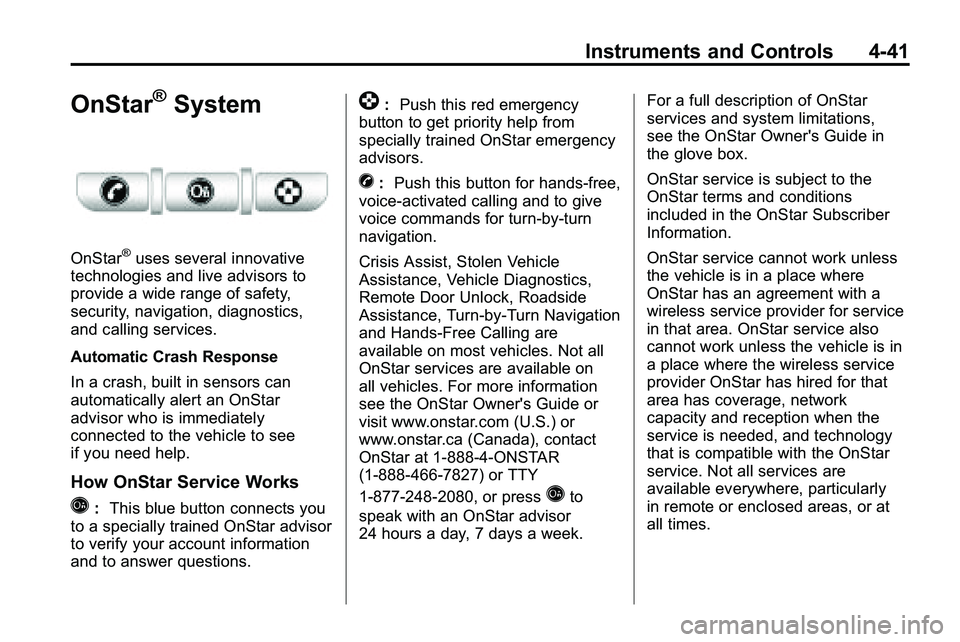
How OnStar Service Works
Q: This blue button connects you
to a specially trained OnStar advisor
to verify your account information
and to answer questions.
]: Push this red emergency
button to get priority help from
specially trained OnStar emergency
advisors.
X: Push this button for hands‐free,
voice‐activated calling and to give
voice commands for turn‐by‐turn
navigation.
Crisis Assist, Stolen Vehicle
Assistance, Vehicle Diagnostics,
Remote Door Unlock, Roadside
Assistance, Turn‐by‐Turn Navigation
and Hands‐Free Calling are
available on most vehicles. Not all
OnStar services are available on
all vehicles. For more information
see the OnStar Owner's Guide or
visit www.onstar.com (U.S.) or
www.onstar.ca (Canada), contact
OnStar at 1-888-4-ONSTAR
(1‐888‐466‐7827) or TTY
1‐877‐248‐2080, or press
Qto
speak with an OnStar advisor
24 hours a day, 7 days a week. For a full description of OnStar
services and system limitations,
see the OnStar Owner's Guide in
the glove box.
OnStar service is subject to the
OnStar terms and conditions
included in the OnStar Subscriber
Information.
OnStar service cannot work unless
the vehicle is in a place where
OnStar has an agreement with a
wireless service provider for service
in that area. OnStar service also
cannot work unless the vehicle is in
a place where the wireless service
provider OnStar has hired for that
area has coverage, network
capacity and reception when the
service is needed, and technology
that is compatible with the OnStar
service. Not all services are
available everywhere, particularly
in remote or enclosed areas, or at
all times.
Page 138 of 410
5-4 Lighting
Interior Lighting
Instrument Panel
Illumination Control
This control is located on the
instrument panel, to the left of the
steering column.
D(Instrument Panel
Brightness): Turn clockwise or
counterclockwise to brighten or dim
the lights.
Dome Lamps
The dome lamp controls are located
in the overhead console. To change
the settings, press the following:
*(Dome Lamp Override): Turns
the lamp off, even when a door
is open.
1(Door): The lamp comes on
automatically when a door is
opened.
+(On): Turns the dome lamp on.
Reading Lamps
The reading lamps are located on
the overhead console. These lamps
come on automatically when any
door is opened.
For manual operation, press the
button next to each lamp to turn it
on or off.
Lighting Features
Entry Lighting
The dome lamp, cargo lamp and
foot lamp inside the vehicle come
on when any door is opened, if the
dome lamp is in the door position. In
addition, these lamps come on
when the Remote Keyless Entry
(RKE) unlock button is pressed.
They stay on for 20 seconds or until
a door is opened. After the door is
opened and then closed, the light
remains on for 20 seconds, or until
the ignition is turned to ON/RUN.
Page 142 of 410
6-4 Infotainment System
F. FAV
.Radio: Opens the
favorites list.
G. TONE
.Opens the tone menu.
H. CONFIG
.Opens the settings menu.
I. MENU/SEL
.Press: Opens the menus
and selects menu items.
.Turn: Highlights menu items
or sets values while in a
menu. Manually selects
radio stations while
listening to the radio.
J. CD Slot
.Insert a CD. K.
k
.CD: Pauses the CD.
L. CD
.Selects the CD player when
listening to a different audio
source.
M.
ZCD Eject
.Removes a disc from the
CD slot.
N.
lSEEK
.Radio: Seeks the next
station.
.CD: Selects the next track
or fast forwards within a
track. O. INFO
.Radio: Shows available
information about the
current station.
.CD: Shows available
information about the
current track.
P.
5/0
.Opens the phone
main menu.
.Mutes the audio system.
Q.
H
.Opens the clock menu.
R.
0BACK
.Menu: Moves one
level back.
.Character Input: Deletes
the last character.
Page 154 of 410
6-16 Infotainment System
Time Shifting (Radio with
CD/DVD and MEM)
The radio with MEM time shift
feature can rewind 20 minutes of
XM content. While listening to the
radio, the content from the current
channel is always being buffered.
Press the
kbutton to pause the
radio. The radio displays the time
shift status bar. The status bar
shows the amount of content that is
stored in the buffer and the current
pause point.
To resume playback from the
current pause point, press the
kbutton again. The radio is no
longer live, but played from the time
shift buffer. A status bar displays
below the channel number.
Press and hold the
gSEEK or
lSEEK buttons to fast forward or
rewind through the time shift buffer.
Hold
lSEEK until the end of the
recorded buffer resumes live
playback. Press and release the
gSEEK or
lSEEK buttons to go to the next
or previous song in the time shift
buffer.
When the channel is changed, the
buffer is cleared and automatically
restarted for the current channel.
Content from a previously tuned
station is no longer available.
The time shift feature is not
available while recording or with
other sources of playback.
Pausing XM with the Vehicle
Turned Off
If XM is paused when the vehicle is
turned off, the radio continues to
buffer the current radio station for
up to 20 minutes. If the vehicle is
turned back on within 20 minutes,
the radio resumes playback from the
paused point.
XM Messages
XL (Explicit Language
Channels): These channels, or any
others, can be blocked by request,
by calling 1-800-852-XMXM (9696).
XM Updating: The encryption code
in the receiver is being updated, no
action is required. This process
should take no longer than
30 seconds.
Loading XM: The audio system is
acquiring and processing audio and
text data, no action is needed. This
message should disappear shortly.
Channel Off Air: This channel is
not currently in service. Tune in to
another channel.
Channel Unauth: This channel is
blocked or cannot be received with
your XM Subscription package.
Channel Unavailable: This
previously assigned channel is no
longer assigned. Tune to another
station.
Page 155 of 410
Infotainment System 6-17
No Artist Info:The system is
working properly. No artist
information is available at this time
on this channel.
No Title Info: The system is
working properly. No song title
information is available at this time
on this channel.
No CAT Info: The system is
working properly. No category
information is available at this time
on this channel.
No Information: The system is
working properly. No text or
informational messages are
available at this time on this
channel.
No XM Signal: The system is
working properly. The vehicle may
be in a location where the XM signal
is being blocked. When the vehicle
is moved into an open area, the
signal should return. CAT Not Found:
The system is
working properly. There are no
channels available for the selected
category.
XM Radio ID: If tuned to channel 0,
this message alternates with the XM
Radio 8 digit radio ID label. This
label is needed to activate the
service.
Unknown: If this message is
received when tuned to channel 0,
there could be a receiver fault.
Consult with your dealer/retailer.
Check Antenna: If this message
does not clear within a short period
of time, the receiver could have a
fault. Consult with your dealer/
retailer.
XM Not Available: If this message
does not clear within a short period
of time, the receiver could have a
fault. Consult with your dealer/
retailer.Radio Reception
Frequency interference and static
can occur during normal radio
reception if items such as cell phone
chargers, vehicle convenience
accessories, and external electronic
devices are plugged into the
accessory power outlet. If there is
interference or static, unplug the
item from the accessory power
outlet.
FM
FM signals only reach about 16 to
65 km (10 to 40 miles). Although the
radio has a built-in electronic circuit
that automatically works to reduce
interference, some static can occur,
especially around tall buildings or
hills, causing the sound to fade in
and out.
Page 174 of 410
6-36 Infotainment System
Video Screens
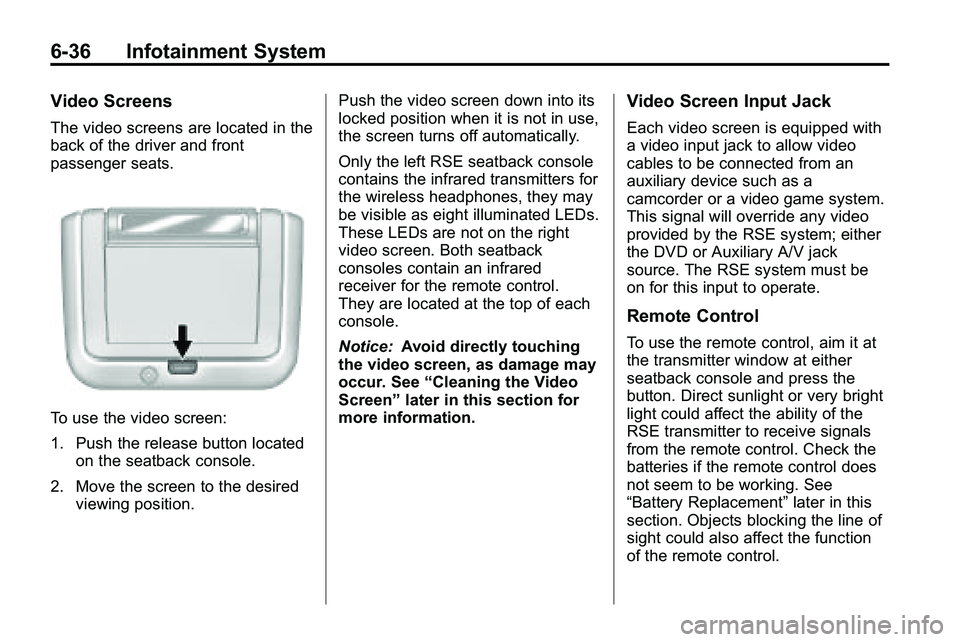
The video screens are located in the
back of the driver and front
passenger seats.
To use the video screen:
1. Push the release button locatedon the seatback console.
2. Move the screen to the desired viewing position. Push the video screen down into its
locked position when it is not in use,
the screen turns off automatically.
Only the left RSE seatback console
contains the infrared transmitters for
the wireless headphones, they may
be visible as eight illuminated LEDs.
These LEDs are not on the right
video screen. Both seatback
consoles contain an infrared
receiver for the remote control.
They are located at the top of each
console.
Notice:
Avoid directly touching
the video screen, as damage may
occur. See “Cleaning the Video
Screen” later in this section for
more information.
Video Screen Input Jack
Each video screen is equipped with
a video input jack to allow video
cables to be connected from an
auxiliary device such as a
camcorder or a video game system.
This signal will override any video
provided by the RSE system; either
the DVD or Auxiliary A/V jack
source. The RSE system must be
on for this input to operate.
Remote Control
To use the remote control, aim it at
the transmitter window at either
seatback console and press the
button. Direct sunlight or very bright
light could affect the ability of the
RSE transmitter to receive signals
from the remote control. Check the
batteries if the remote control does
not seem to be working. See
“Battery Replacement” later in this
section. Objects blocking the line of
sight could also affect the function
of the remote control.
Page 204 of 410
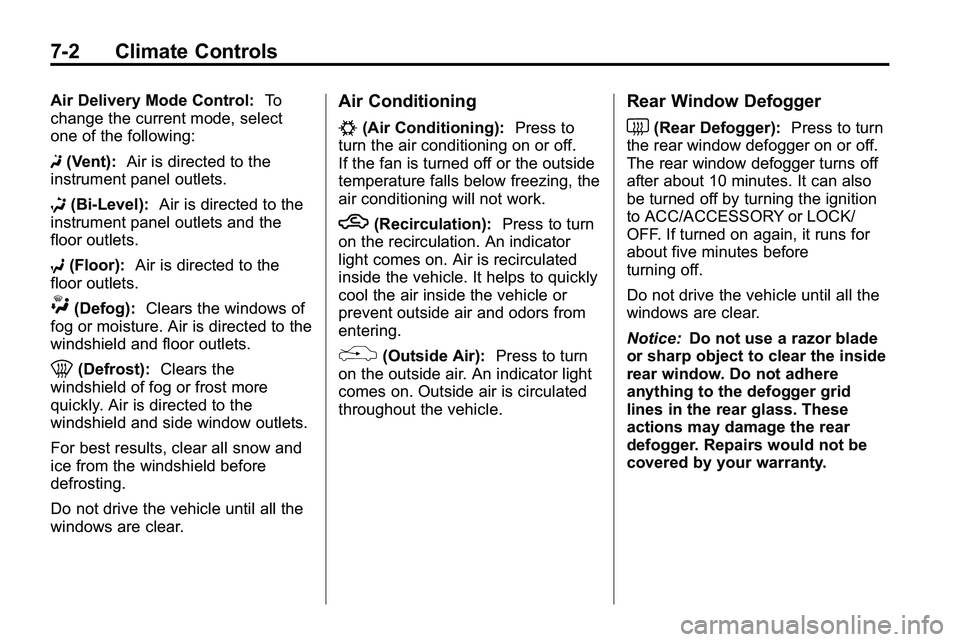
7-2 Climate Controls
Air Delivery Mode Control:To
change the current mode, select
one of the following:
F (Vent): Air is directed to the
instrument panel outlets.
* (Bi-Level): Air is directed to the
instrument panel outlets and the
floor outlets.
7 (Floor): Air is directed to the
floor outlets.
W(Defog): Clears the windows of
fog or moisture. Air is directed to the
windshield and floor outlets.
0(Defrost): Clears the
windshield of fog or frost more
quickly. Air is directed to the
windshield and side window outlets.
For best results, clear all snow and
ice from the windshield before
defrosting.
Do not drive the vehicle until all the
windows are clear.
Air Conditioning
#(Air Conditioning): Press to
turn the air conditioning on or off.
If the fan is turned off or the outside
temperature falls below freezing, the
air conditioning will not work.
h(Recirculation): Press to turn
on the recirculation. An indicator
light comes on. Air is recirculated
inside the vehicle. It helps to quickly
cool the air inside the vehicle or
prevent outside air and odors from
entering.
%(Outside Air): Press to turn
on the outside air. An indicator light
comes on. Outside air is circulated
throughout the vehicle.
Rear Window Defogger
<(Rear Defogger): Press to turn
the rear window defogger on or off.
The rear window defogger turns off
after about 10 minutes. It can also
be turned off by turning the ignition
to ACC/ACCESSORY or LOCK/
OFF. If turned on again, it runs for
about five minutes before
turning off.
Do not drive the vehicle until all the
windows are clear.
Notice: Do not use a razor blade
or sharp object to clear the inside
rear window. Do not adhere
anything to the defogger grid
lines in the rear glass. These
actions may damage the rear
defogger. Repairs would not be
covered by your warranty.
Page 208 of 410

7-6 Climate Controls
Rear Window Defogger
<(Rear Defogger):Press to turn
the rear window defogger on or off.
The rear window defogger turns off
after about 10 minutes. It can also
be turned off by turning the ignition
to ACC/ACCESSORY or LOCK/
OFF. If turned on again, it runs for
about five minutes before
turning off.
Do not drive the vehicle until all the
windows are clear.
Notice: Do not use a razor blade
or sharp object to clear the inside
rear window. Do not adhere
anything to the defogger grid
lines in the rear glass. These
actions may damage the rear
defogger. Repairs would not be
covered by your warranty.
L/M(Driver and Passenger
Heated Seats): For vehicles with
heated seats, see Heated Front
Seats on page 2‑7.
Sensors
The solar sensor, located on top
of the instrument panel near the
windshield, monitors the solar heat.
The climate control system uses
the information to adjust the
temperature, fan speed,
recirculation, and air delivery mode.
Do not cover the solar sensor or the
system will not work properly.
Air Vents
Use the air outlets, located in the
center and on the side of the
instrument panel, to direct the
airflow. Use the thumbwheels
located near the center air outlets,
to open or close off the airflow.
Operation Tips
.Clear away any ice, snow,
or leaves from air inlets at the
base of the windshield that could
block the flow of air into the
vehicle.
.Keep the path under the front
seats clear of objects to help
circulate the air inside of the
vehicle more effectively.
.Use of non‐GM approved hood
deflectors can adversely affect
the performance of the system.
Check with your dealer/retailer
before adding equipment to the
outside of the vehicle.