light GMC TERRAIN 2010 Workshop Manual
[x] Cancel search | Manufacturer: GMC, Model Year: 2010, Model line: TERRAIN, Model: GMC TERRAIN 2010Pages: 410, PDF Size: 2.55 MB
Page 145 of 410
Infotainment System 6-7
P.5/0(Phone/Mute)
.Opens the phone
main menu.
.Mutes the audio system.
Q. DEL
.MEM: Deletes the current
track from MEM.
R.
0BACK
.Menu: Moves one
level back.
.Character Input: Deletes
the last character.
Operation
Controls
The infotainment system is operated
by using the pushbuttons,
multifunction knobs, menus that are
shown on the display, and steering
wheel controls, if equipped.
Turning the System On or Off
VOL/O(Volume/Power): Press
to turn the system on and off.
Automatic Switch‐Off
If the infotainment system has been
turned on after the ignition is turned
off, the system will turn off
automatically after ten minutes.
Volume Control
VOL/O(Volume/Power): Turn to
adjust the volume.
5/0(Mute): For vehicles with
OnStar®, press and hold5/0to
mute the infotainment system. Press
and hold
5/0again, or turn the
VOL/
Oknob to cancel mute.
For vehicles without OnStar
®, press5/0to mute the infotainment
system. Press
5/0again, or turn
the VOL/
Oknob to cancel mute.
Menu System
Controls
The MENU/SEL knob and the
0BACK button are used to
navigate the menu system.
MENU/SEL (Menu/Select):
Press to:
.Enter the menu system.
.Select or activate the highlighted
menu option.
.Confirm a set value.
.Turn a system setting on or off.
Page 146 of 410
6-8 Infotainment System
Turn to:
.Highlight a menu option.
.Select a value.
0BACK:Press to:
.Exit a menu.
.Return from a submenu screen
to the previous menu screen.
.Delete the last character in a
sequence.
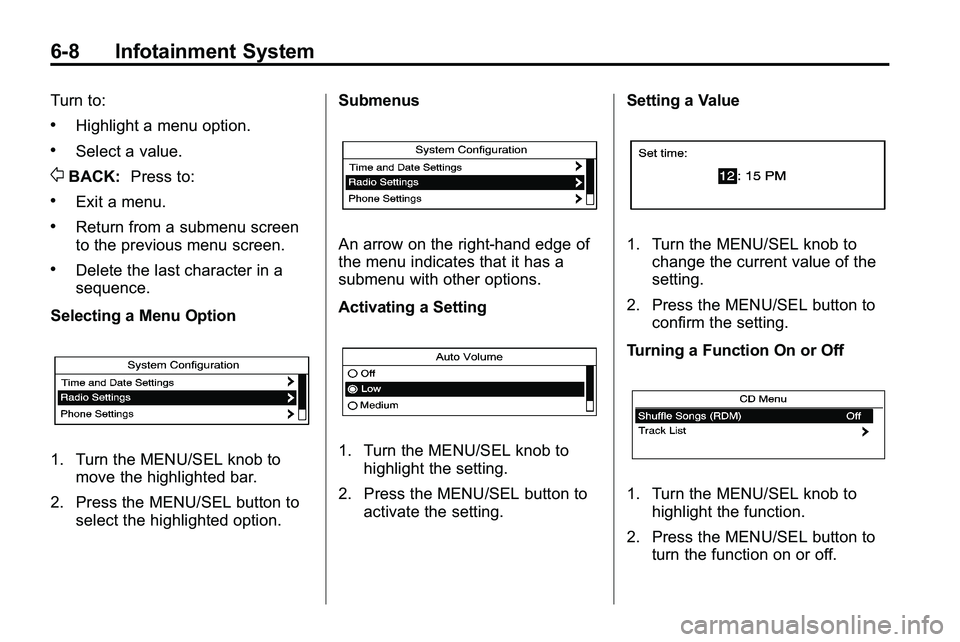
Selecting a Menu Option
1. Turn the MENU/SEL knob to move the highlighted bar.
2. Press the MENU/SEL button to select the highlighted option. Submenus
An arrow on the right‐hand edge of
the menu indicates that it has a
submenu with other options.
Activating a Setting
1. Turn the MENU/SEL knob to
highlight the setting.
2. Press the MENU/SEL button to activate the setting. Setting a Value
1. Turn the MENU/SEL knob to
change the current value of the
setting.
2. Press the MENU/SEL button to confirm the setting.
Turning a Function On or Off
1. Turn the MENU/SEL knob to highlight the function.
2. Press the MENU/SEL button to turn the function on or off.
Page 147 of 410

Infotainment System 6-9
Entering a Character Sequence
1. Turn the MENU/SEL knob tohighlight the character.
2. Press the MENU/SEL button to select the character.
Press the
0BACK button to delete
the last character in the sequence
or press and hold to delete the
entire character sequence.
Audio Settings
The audio settings can be set for
each radio band and each audio
player source.
To quickly reset an audio setting
value to 0:
1. Press the TONE button.
2. Select the audio setting. 3. Press and hold the MENU/SEL
button until the value changes
to 0.
Press the
0BACK button to go
back to the Tone Settings menu.
Adjusting the Treble, Midrange,
and Bass
1. Press the TONE button.
2. Select Treble, Midrange, or Bass.
3. Select the value.
Press the
0BACK button to go
back to the Tone Settings menu. Adjusting the Fader and Balance
1. Press the TONE button.
2. Select Fader or Balance.
3. Select the value.
Press the
0BACK button to go
back to the Tone Settings menu.
Adjusting the EQ (Equalizer)
For vehicles that have an equalizer:
1. Press the TONE button.
2. Select EQ.
3. Select the setting.
Page 152 of 410

6-14 Infotainment System
Satellite Radio
Vehicles with an XM™Satellite
Radio tuner and a valid XM Satellite
Radio subscription can receive XM
programming.
XM Satellite Radio Service
XM is a satellite radio service that is
based in the 48 contiguous United
States and 10 Canadian provinces.
XM Satellite Radio has a wide
variety of programming and
commercial-free music,
coast-to-coast, and in digital-quality
sound. A service fee is required to
receive the XM service. For more
information, contact XM at
www.xmradio.com or call
1-800-929-2100 in the U.S. and
www.xmradio.ca or call
1-877-438-9677 in Canada.
Control Buttons
The buttons used to control the
XM radio are:
RADIO/BAND: Press to turn the
radio on and choose between AM,
FM, and XM™, if equipped.
gSEEK /lSEEK: Press to go
to the previous or next station.
FAV: Press to open the
favorites list.
k: Press to pause and resume
time shifted data. See “Time Shifting
(Radio with CD/DVD and MEM)”
later in this section.
1 to 6: Press to select preset
stations.
MENU/SEL: Turn to select stations.
Press to open the XM Satellite
Radio menu.
Selecting the XM Band
Press the RADIO/BAND button to
choose between the AM, FM and
XM bands. The last channel played
in that band begins to play when
that band is selected.
XM Categories
XM channels are organized in
categories.
Removing or Adding Categories
Channels in a category that have
been removed can still be accessed
by using the
gSEEK orlSEEK
buttons, or the MENU/SEL knob.
To add or remove categories:
1. Press the CONFIG button.
2. Select Radio Settings.
3. Select XM Categories.
4. Turn the MENU/SEL knob to highlight the category.
5. Press the MENU/SEL knob to remove or add the category.
Page 153 of 410
Infotainment System 6-15
Selecting an XM Channel
XM channels can be selected by
using
gSEEK,lSEEK, the
MENU/SEL knob, or the menu
system.
Selecting a Channel Using
gSEEK orlSEEK
(Radio with CD)
.Press and releasegSEEK or
lSEEK to go to the previous
or next channel.
.Press and holdgSEEK
or
lSEEK to scroll through the
previous or next channel until
the channel is reached.
Selecting a Channel Using
gSEEK orlSEEK (Radio
with CD/DVD and MEM)
Press and release
gSEEK
or
lSEEK to go to the previous
or next channel. Selecting a Channel Using the
MENU/SEL Knob
To select an XM channel using the
MENU/SEL knob:
Turn the MENU/SEL knob to
highlight an XM channel, the
channel is selected after a short
delay.
To select a channel using the menu:
1. Turn the menu knob and select
Channel List.
2. Select the desired channel.
Selecting a Channel Using the
Menu System
1. Turn the MENU/SEL knob.
2. Select XM Category List.
3. Select the category.
4. Select the channel.
Storing an XM Channel as a
Favorite
Channels from all bands can be
stored in any order in the favorite
pages.
Up to six channels can be stored in
each favorite page and the number
of available favorite pages can
be set.
Storing a Channel as a Favorite
To store the channel to a position
in the list, press and hold the
corresponding 1 to 6 button until the
channel can be heard again.
Retrieving Channels
Press the FAV button to open a
favorite page or to change to
another favorite page. Briefly press
one of the 1 to 6 buttons to retrieve
the channel.
Page 156 of 410
6-18 Infotainment System
AM
The range for most AM stations is
greater than for FM, especially at
night. The longer range can cause
station frequencies to interfere with
each other. Static can occur when
things like storms and power lines
interfere with radio reception. When
this happens, try reducing the treble
on the radio.
XM™Satellite Radio Service
XM Satellite Radio Service gives
digital radio reception from
coast-to-coast in the 48 contiguous
United States, and in Canada. Just
as with FM, tall buildings or hills can
interfere with satellite radio signals,
causing the sound to fade in and
out. In addition, traveling or standing
under heavy foliage, bridges,
garages, or tunnels may cause loss
of the XM signal for a period of time.
Cellular Phone Usage
Cellular phone usage can cause
interference with the vehicle's radio.
Multi-Band Antenna
The multi-band antenna is located
on the roof of the vehicle. The
antenna is used for the AM/FM
radio, OnStar, the XM Satellite
Radio Service System, and GPS
(Global Positioning System); if the
vehicle has these features. Keep
the antenna clear of obstructions for
clear reception. If the vehicle has a
sunroof and it is open, the
performance of the AM/FM radio,
OnStar, XM system, and GPS can
be affected.
Audio Players
CD Player
The CD player can play audio CDs
and MP3 CDs.
The CD player will not play
8 cm (3 in.) CDs.
Care of CDs
Sound quality can be reduced due
to disc quality, recording method,
quality of the music recorded, and
how the disc has been handled.
Handle discs carefully and store
them in their original cases or other
protective cases away from direct
sunlight and dust. If the bottom
surface of a disc is damaged, the
disc may not play properly or at all.
Do not touch the bottom surface of
a disc while handling it; this could
damage the surface. Pick up discs
by grasping the outer edges or the
edge of the hole and the outer edge.
Page 159 of 410
Infotainment System 6-21
CD/DVD Player
The CD/DVD player can play
CDs, DVD‐As, MP3/WMA CDs,
MP3/WMA DVDs, and DVD‐Vs.
The CD/DVD player will not play
8 cm (3 in.) discs.
Care of CDs and DVDs
Sound quality can be reduced due
to disc quality, recording method,
quality of the music recorded, and
how the disc has been handled.
Handle discs carefully and store
them in their original cases or other
protective cases away from direct
sunlight and dust. If the bottom
surface of a disc is damaged, the
disc may not play properly or at all.
Do not touch the bottom surface of
a disc while handling it; this could
damage the surface. Pick up discs
by grasping the outer edges or the
edge of the hole and the outer edge.
If the bottom surface of a disc is
dirty, take a soft lint free cloth,
or dampen a clean soft cloth in a
mild neutral detergent solutionmixed with water, and clean it. Wipe
the disc from the center to the
outer edge.
Care of the CD/DVD Player
Do not add a label to a disc, as it
could get caught in the CD/DVD
player. If a label is needed, label the
top of the recorded disc with a
marking pen.
Do not use disc lens cleaners
because they could contaminate the
lens of the disc optics and damage
the CD/DVD player.
Notice:
If a label is added to a
CD, or more than one CD is
inserted into the slot at a time,
or an attempt is made to play
scratched or damaged CDs, the
CD player could be damaged.
While using the CD player, use
only CDs in good condition
without any label, load one CD at
a time, and keep the CD player
and the loading slot free of
foreign materials, liquids, and
debris.
Control Buttons
The buttons used to control the
CD/DVD player are:
MEM/DVD/AUX: Press to choose
between the MEM, CD/DVD,
and AUX.
lSEEK orgSEEK : Press to
select tracks or to fast forward or
rewind within a track.
INFO: Press to display additional
information about the disc that may
be available.
MENU/SEL: Turn to select tracks.
Z(Eject):Press to remove
a disc.
k: Press to pause a CD, DVD‐A,
or DVD‐V, press again to resume
playback. Press and hold to stop a
DVD‐V disc.
Inserting a CD or DVD
With the printed side facing up,
insert a disc into the slot until it is
drawn in.
Page 163 of 410
Infotainment System 6-25
Recording to MEM
Press
OREC, then select Record
Current Song or Record All Songs
on Disc. If the track has started
playing, the system will restart the
track and begin recording from the
beginning of the track. When the
song recording is completed, the
message Song Recorded to MEM
displays, and there may be a slight
pause.
Songs recorded to MEM are stored
as the current date, disc and track
number.
Re-recording a Previously
Recorded Disc
If the disc or track has already been
recorded to MEM, the message The
Song(s) is Already Recorded
displays. Stopping the Recording
Press theOREC button while
recording from an audio CD to
display the stop recording option.
Select Stop Recording Song
to MEM.
Renaming Recorded Discs
Discs that have been recorded to
MEM can be renamed.
1. Press the MENU/SEL knob.
2. Select Rename Recorded Discs.
3. Select the disc.
4. Select Album or Artist to rename either one.
5. Use the menu knob to enter the character sequence. See
Operation
on page 6‑7for
more information.
Recording From MP3/WMA
Discs or USB Storage Devices
USB Host Support
The USB connector uses the USB
standards, 1.1 and 2.0. USB Supported Devices
.USB Flash Drives
.Portable USB Hard Drives
Recording to MEM
Press
OREC, then select Record
Current Song or Record Current
Folder.
The information stored by MEM is
titled according to the ID3 tag
associated with it.
Re-recording a Previously
Recorded Disc
If the disc or track has already been
recorded to MEM, the message The
Song(s) is Already Recorded
displays.
Stopping the Recording
Press the
OREC button while
recording from an MP3/WMA CD or
USB storage device to display the
stop recording option. Select Stop
Recording Song to MEM.
Page 172 of 410
6-34 Infotainment System
Push the On/Off button to turn on
the headphones. A light on the
headphones comes on. If the light
does not come on, check the
batteries. Intermittent sound or static
can also indicate weak batteries.
See“Battery Replacement” later in
this section for more information.
Infrared transmitters are on the
top of the left seatback video
screen. The headphones shut off
automatically to save the battery
power if the RSE system is shut off
or if the headphones are out of
range of the transmitters for more
than three minutes. Moving too far
forward or stepping out of the
vehicle, can cause the headphones
to lose the signal or have static.
The headphones may automatically
turn off after four hours of
continuous use.
To adjust the volume on the
headphones, use the volume
control. For best audio performance, the
headphones must be worn correctly,
with the headband over the top of
the head. L (Left) and R (Right)
are above the ear pads and
are indicators as to how the
headphones should be placed
on the head.
Notice:
Do not store the
headphones in heat or direct
sunlight. This could damage the
headphones and repairs will not
be covered by the warranty.
Storage in extreme cold can
weaken the batteries. Keep the
headphones stored in a cool, dry
place.
If the foam ear pads become worn
or damaged, they can be replaced
separately from the headphones.
See your dealer/retailer for more
information. Battery Replacement
To change the batteries:
1. Loosen the screw to the battery
door located on the left side of
the headphones.
2. Slide the battery door open.
3. Replace the two AAA batteries.
4. Replace the battery door and tighten the screw.
Remove the batteries if the
headphones are not going to be
used for a long period of time.
Audio/Video (A/V) Jacks
If available, the A/V jacks are
located on the rear of the floor
console. They allow audio or video
cables to be connected from an
auxiliary device such as a
camcorder or a video game system.
The A/V jacks are color coded:
.Yellow for video input.
.White for left audio input.
.Red for right audio input.
Page 174 of 410
6-36 Infotainment System
Video Screens
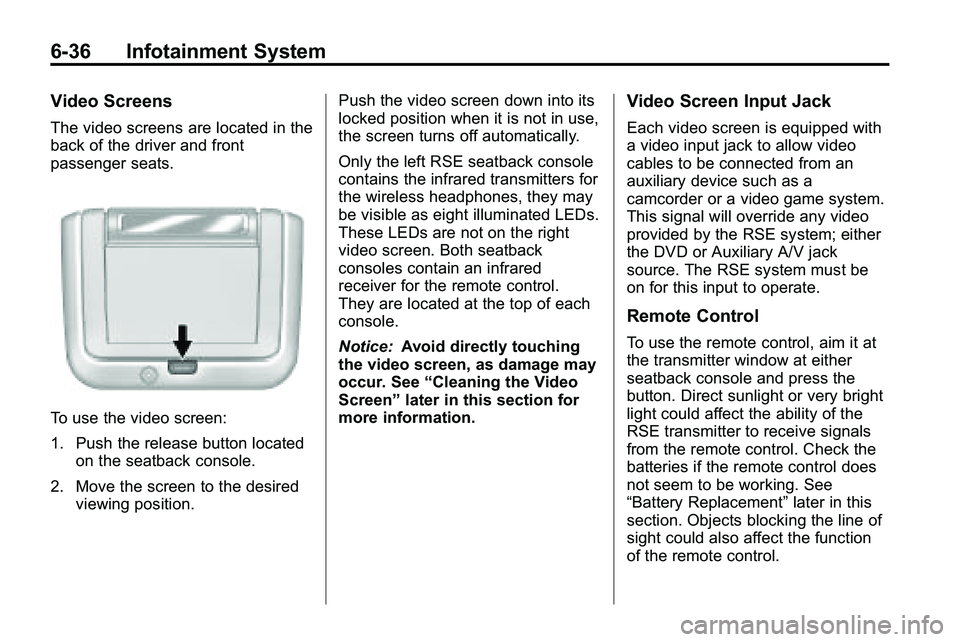
The video screens are located in the
back of the driver and front
passenger seats.
To use the video screen:
1. Push the release button locatedon the seatback console.
2. Move the screen to the desired viewing position. Push the video screen down into its
locked position when it is not in use,
the screen turns off automatically.
Only the left RSE seatback console
contains the infrared transmitters for
the wireless headphones, they may
be visible as eight illuminated LEDs.
These LEDs are not on the right
video screen. Both seatback
consoles contain an infrared
receiver for the remote control.
They are located at the top of each
console.
Notice:
Avoid directly touching
the video screen, as damage may
occur. See “Cleaning the Video
Screen” later in this section for
more information.
Video Screen Input Jack
Each video screen is equipped with
a video input jack to allow video
cables to be connected from an
auxiliary device such as a
camcorder or a video game system.
This signal will override any video
provided by the RSE system; either
the DVD or Auxiliary A/V jack
source. The RSE system must be
on for this input to operate.
Remote Control
To use the remote control, aim it at
the transmitter window at either
seatback console and press the
button. Direct sunlight or very bright
light could affect the ability of the
RSE transmitter to receive signals
from the remote control. Check the
batteries if the remote control does
not seem to be working. See
“Battery Replacement” later in this
section. Objects blocking the line of
sight could also affect the function
of the remote control.