lock GMC YUKON 2021 Workshop Manual
[x] Cancel search | Manufacturer: GMC, Model Year: 2021, Model line: YUKON, Model: GMC YUKON 2021Pages: 433, PDF Size: 6.54 MB
Page 131 of 433
GMC Yukon/Yukon XL/Denali Owner Manual (GMNA-Localizing-U.S./
Canada/Mexico-13690468) - 2021 - crc - 8/14/20
128 Instruments and Controls
.Auto Wipe in Reverse Gear
Automatic Entry/Egress Assist
This feature specifies if the vehicle will
automatically lower to make it easier to
enter or exit the vehicle.
Touch Off or On.
Chime Volume
This determines the chime volume level.
Touch the controls on the infotainment
display to adjust the volume.
Hands Free Liftgate/Trunk Control
The liftgate may be operated with a kicking
motion under the left corner of the rear
bumper. See Liftgate018.
Touch Off, On-Open and Close,
or On-Open Only.
Reverse Tilt Mirror
When on, the driver, passenger, or both
driver and passenger outside mirrors will tilt
downward when the vehicle is shifted into
R (Reverse) to improve visibility of the
ground near the rear wheels. They may
move from their tilted position when the
vehicle is shifted out of R (Reverse) or
turned off. See Reverse Tilt Mirrors 030. Touch Off, On - Driver and Passenger, On -
Driver, or On - Passenger.
Remote Mirror Folding
When on, the outside mirrors will remotely
fold or unfold when the Remote Key
Qor
Kbutton is pressed and held. See
Folding
Mirrors 029.
Touch Off or On.
Rain Sense Wipers
This setting automatically turns on the
wipers when moisture is detected and the
wiper switch is in intermittent mode.
Touch Disabled or Enabled.
Auto Wipe in Reverse Gear
When on and the front wiper is on, the rear
wiper will automatically activate when the
vehicle is shifted into R (Reverse).
Touch Off or On.
Lighting
Touch and the following may display:
.Vehicle Locator Lights
.Exit Lighting
.Automatic High Beam Assist Vehicle Locator Lights
This setting flashes the vehicle’s headlamps
when
Kis pressed on the Remote Key.
Touch Off or On.
Exit Lighting
This setting specifies how long the
headlamps stay on after the vehicle is
turned off and exited.
Touch Off, 30 Seconds, 60 Seconds,
or 120 Seconds.
Automatic High Beam Assist
This setting specifies how the high beams
adjust based on the vehicle environment.
See Exterior Lamp Controls 0134.
Touch IntelliBeam or Adaptive Headlight
System.
Power Door Locks
Touch and the following may display:
.Auto Door Lock
.Auto Door Unlock
.Delayed Door Lock
Page 132 of 433
GMC Yukon/Yukon XL/Denali Owner Manual (GMNA-Localizing-U.S./
Canada/Mexico-13690468) - 2021 - crc - 8/14/20
Instruments and Controls 129
Auto Door Lock
When this feature is turned on, all doors
will automatically lock when the vehicle is
shifted out of P (Park) or when the vehicle
starts moving.
Select Off or On.
Auto Door Unlock
This setting allows selection of which doors
will automatically unlock when the vehicle is
shifted into P (Park).
Touch Off, All Doors, or Driver Door.
Delayed Door Lock
When on, this feature will delay the locking
of the doors. To override the delay, press
the power door lock switch on the door.
Touch Off or On.
Remote Lock, Unlock, and Start
Touch and the following may display:
.Remote Unlock Light Feedback
.Remote Lock Feedback
.Remote Door Unlock
.Remote Start Auto Cool Seats
.Remote Start Auto Heat Seats
.Remote Window Operation
.Passive Door Unlock
.Passive Door Lock
.Remote Left in Vehicle Alert
.Remote Removed from Vehicle Alert
Remote Unlock Light Feedback
When on, the exterior lamps will flash when
unlocking the vehicle with the Remote Key.
Touch Off or Flash Lights.
Remote Lock Feedback
This allows selection of what type of
feedback is given when locking the vehicle
with the Remote Key.
Touch Off, Lights and Horn, Lights Only,
or Horn Only.
Remote Door Unlock
This allows selection of which doors will
unlock when pressing
Kon the
Remote Key.
Touch All Doors or Driver Door.
Remote Start Auto Cool Seats
If equipped and turned on, this feature will
turn on the ventilated seats when using
remote start on warm days. See Heated and
Ventilated Front Seats 044 and
Remote Vehicle Start 014. Touch Off or On.
Remote Start Auto Heat Seats
If equipped and turned on, this feature will
turn on the heated seats when using remote
start on cold days. See
Heated and
Ventilated Front Seats 044 and
Remote Vehicle Start 014.
If equipped with Auto Heated Steering
Wheel, this feature will turn on when the
Remote Start Auto Heated Seats turn on.
Touch Off or On.
Remote Window Operation
If equipped, this feature enables remote
operation of the windows with the Remote
Key. See Remote Keyless Entry (RKE) System
Operation 08.
Touch Off or On.
Passive Door Unlock
This allows the selection of what doors will
unlock when using the button on the driver
door to unlock the vehicle.
Touch Off, All Doors or Driver Door Only.
Page 133 of 433
GMC Yukon/Yukon XL/Denali Owner Manual (GMNA-Localizing-U.S./
Canada/Mexico-13690468) - 2021 - crc - 8/14/20
130 Instruments and Controls
Passive Door Lock
This allows passive locking to be turned on
or off and selects feedback. SeeRemote
Keyless Entry (RKE) System Operation 08.
Touch Off, On with Horn Chirp, or On.
Remote Left in Vehicle Alert
This feature sounds an alert when the
Remote Key is left in the vehicle.
Touch Off or On.
Remote Removed from Vehicle Alert
This feature beeps the horn 3 times when
exiting a running vehicle with the
Remote Key.
Touch Off or On.
Ride Height
Touch and the following may display:
.Automatic Entry/Egress
Automatic Entry/Egress
This feature specifies if the vehicle will
automatically lower to make it easier to
enter or exit the vehicle.
Touch Off or On.
Running Boards
Touch and the following may display:
.Automatic Running Boards
.Deploy Running Boards
Automatic Running Boards
This feature specifies the position and use of
the running boards. See Power Assist Steps
0 25.
Touch Off or On.
Deploy Running Boards
This feature moves the running boards to a
deployed position so they can be used with
the doors closed.
Touch Off or Deploy.
Seating Position
Touch and the following may display:
.Seat Entry Memory
.Seat Exit Memory
Seat Entry Memory
This feature automatically recalls the
previously stored 1 or 2 button positions
when the ignition is changed from off to on
or ACC/ACCESSORY. See Memory Seats041.
Touch Off or On. Seat Exit Memory
This feature automatically recalls the
previously stored exit button position when
the ignition is changed from on or ACC/
ACCESSORY to off and the driver door is
open. See
Memory Seats 041.
Touch Off or On.
Suspension
Touch and the following may display:
.Service Mode
.Alignment Mode
Service Mode
This feature disables the air suspension
system and is used to prevent unintended
raising or lowering of the suspension..
Touch Off or On.
Alignment Mode
This feature will optimize the vehicle height
to provide the most accurate wheel
alignment.
Touch Off or On.
Teen Driver
See “Teen Driver” underSettings 0187.
Page 134 of 433
GMC Yukon/Yukon XL/Denali Owner Manual (GMNA-Localizing-U.S./
Canada/Mexico-13690468) - 2021 - crc - 8/14/20
Instruments and Controls 131
Valet Mode
This will lock the infotainment system and
steering wheel controls. It may also limit
access to vehicle storage locations,
if equipped.
To enable valet mode:1. Enter a four-digit code on the keypad.
2. Select Enter to go to the confirmation screen.
3. Re-enter the four-digit code.
Touch Lock or Unlock to lock or unlock the
system. Touch Back to go back to the
previous menu.
Universal Remote System
See Radio Frequency Statement 0407.
Universal Remote System
Programming
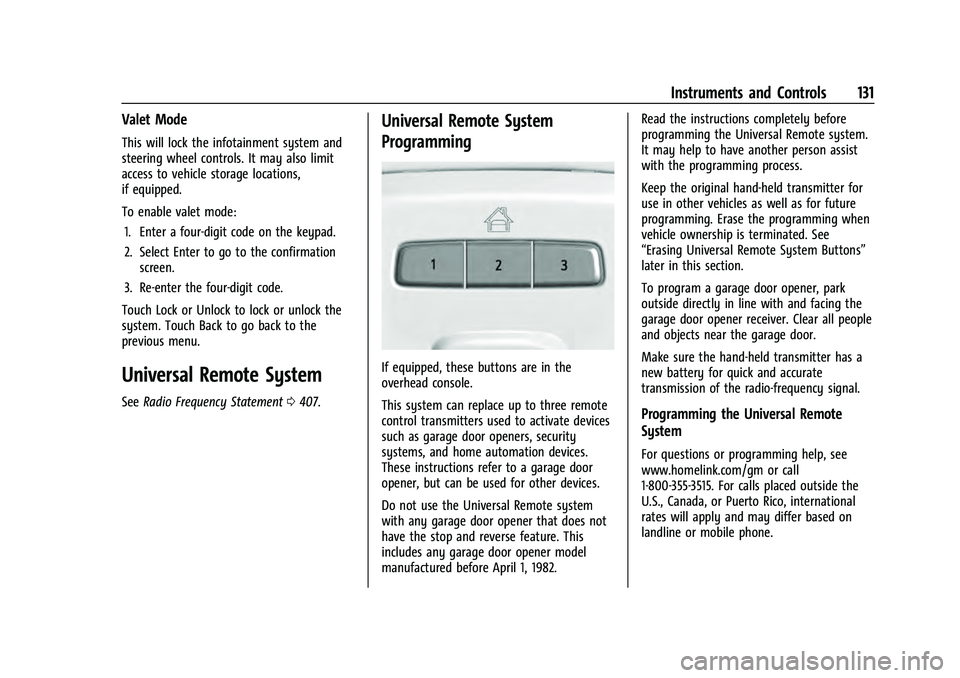
If equipped, these buttons are in the
overhead console.
This system can replace up to three remote
control transmitters used to activate devices
such as garage door openers, security
systems, and home automation devices.
These instructions refer to a garage door
opener, but can be used for other devices.
Do not use the Universal Remote system
with any garage door opener that does not
have the stop and reverse feature. This
includes any garage door opener model
manufactured before April 1, 1982. Read the instructions completely before
programming the Universal Remote system.
It may help to have another person assist
with the programming process.
Keep the original hand-held transmitter for
use in other vehicles as well as for future
programming. Erase the programming when
vehicle ownership is terminated. See
“Erasing Universal Remote System Buttons”
later in this section.
To program a garage door opener, park
outside directly in line with and facing the
garage door opener receiver. Clear all people
and objects near the garage door.
Make sure the hand-held transmitter has a
new battery for quick and accurate
transmission of the radio-frequency signal.
Programming the Universal Remote
System
For questions or programming help, see
www.homelink.com/gm or call
1-800-355-3515. For calls placed outside the
U.S., Canada, or Puerto Rico, international
rates will apply and may differ based on
landline or mobile phone.
Page 138 of 433
GMC Yukon/Yukon XL/Denali Owner Manual (GMNA-Localizing-U.S./
Canada/Mexico-13690468) - 2021 - crc - 8/14/20
Lighting 135
The system turns the high-beam headlamps
on when it is dark enough and there is no
other traffic present.
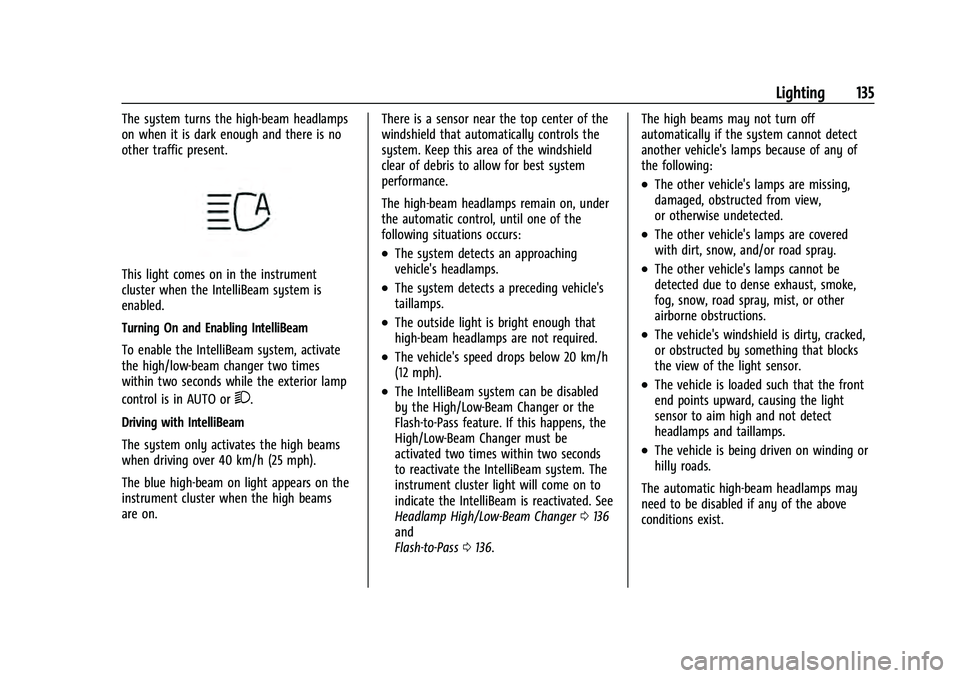
This light comes on in the instrument
cluster when the IntelliBeam system is
enabled.
Turning On and Enabling IntelliBeam
To enable the IntelliBeam system, activate
the high/low-beam changer two times
within two seconds while the exterior lamp
control is in AUTO or
2.
Driving with IntelliBeam
The system only activates the high beams
when driving over 40 km/h (25 mph).
The blue high-beam on light appears on the
instrument cluster when the high beams
are on. There is a sensor near the top center of the
windshield that automatically controls the
system. Keep this area of the windshield
clear of debris to allow for best system
performance.
The high-beam headlamps remain on, under
the automatic control, until one of the
following situations occurs:
.The system detects an approaching
vehicle's headlamps.
.The system detects a preceding vehicle's
taillamps.
.The outside light is bright enough that
high-beam headlamps are not required.
.The vehicle's speed drops below 20 km/h
(12 mph).
.The IntelliBeam system can be disabled
by the High/Low-Beam Changer or the
Flash-to-Pass feature. If this happens, the
High/Low-Beam Changer must be
activated two times within two seconds
to reactivate the IntelliBeam system. The
instrument cluster light will come on to
indicate the IntelliBeam is reactivated. See
Headlamp High/Low-Beam Changer
0136
and
Flash-to-Pass 0136. The high beams may not turn off
automatically if the system cannot detect
another vehicle's lamps because of any of
the following:
.The other vehicle's lamps are missing,
damaged, obstructed from view,
or otherwise undetected.
.The other vehicle's lamps are covered
with dirt, snow, and/or road spray.
.The other vehicle's lamps cannot be
detected due to dense exhaust, smoke,
fog, snow, road spray, mist, or other
airborne obstructions.
.The vehicle's windshield is dirty, cracked,
or obstructed by something that blocks
the view of the light sensor.
.The vehicle is loaded such that the front
end points upward, causing the light
sensor to aim high and not detect
headlamps and taillamps.
.The vehicle is being driven on winding or
hilly roads.
The automatic high-beam headlamps may
need to be disabled if any of the above
conditions exist.
Page 142 of 433
GMC Yukon/Yukon XL/Denali Owner Manual (GMNA-Localizing-U.S./
Canada/Mexico-13690468) - 2021 - crc - 8/14/20
Lighting 139
Interior Lighting
Instrument Panel Illumination
Control
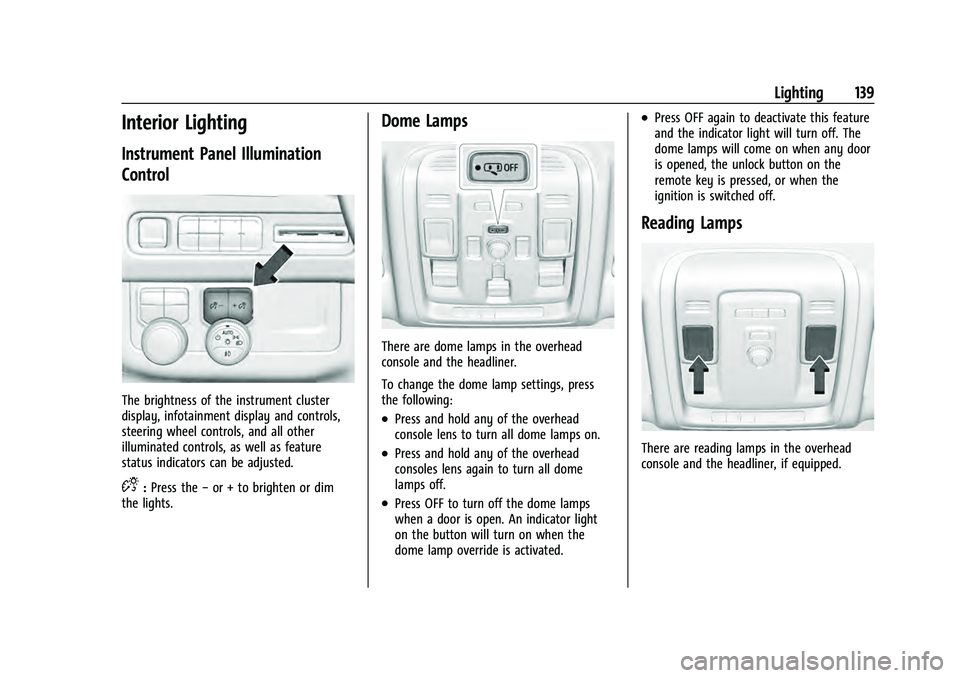
The brightness of the instrument cluster
display, infotainment display and controls,
steering wheel controls, and all other
illuminated controls, as well as feature
status indicators can be adjusted.
D:Press the −or + to brighten or dim
the lights.
Dome Lamps
There are dome lamps in the overhead
console and the headliner.
To change the dome lamp settings, press
the following:
.Press and hold any of the overhead
console lens to turn all dome lamps on.
.Press and hold any of the overhead
consoles lens again to turn all dome
lamps off.
.Press OFF to turn off the dome lamps
when a door is open. An indicator light
on the button will turn on when the
dome lamp override is activated.
.Press OFF again to deactivate this feature
and the indicator light will turn off. The
dome lamps will come on when any door
is opened, the unlock button on the
remote key is pressed, or when the
ignition is switched off.
Reading Lamps
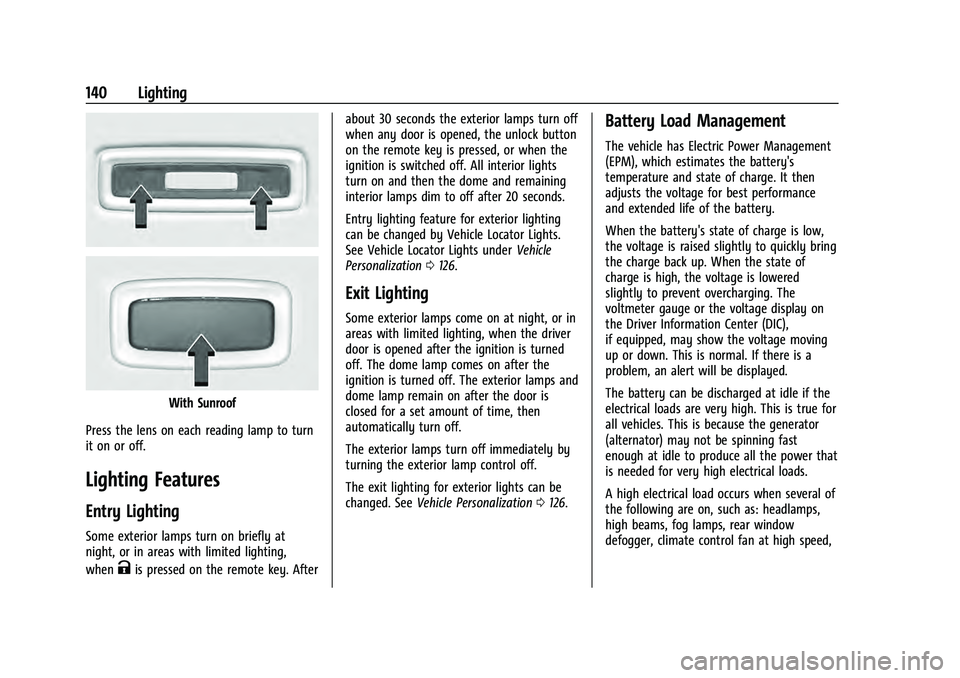
There are reading lamps in the overhead
console and the headliner, if equipped.
Page 143 of 433
GMC Yukon/Yukon XL/Denali Owner Manual (GMNA-Localizing-U.S./
Canada/Mexico-13690468) - 2021 - crc - 8/14/20
140 Lighting
With Sunroof
Press the lens on each reading lamp to turn
it on or off.
Lighting Features
Entry Lighting
Some exterior lamps turn on briefly at
night, or in areas with limited lighting,
when
Kis pressed on the remote key. After about 30 seconds the exterior lamps turn off
when any door is opened, the unlock button
on the remote key is pressed, or when the
ignition is switched off. All interior lights
turn on and then the dome and remaining
interior lamps dim to off after 20 seconds.
Entry lighting feature for exterior lighting
can be changed by Vehicle Locator Lights.
See Vehicle Locator Lights under
Vehicle
Personalization 0126.
Exit Lighting
Some exterior lamps come on at night, or in
areas with limited lighting, when the driver
door is opened after the ignition is turned
off. The dome lamp comes on after the
ignition is turned off. The exterior lamps and
dome lamp remain on after the door is
closed for a set amount of time, then
automatically turn off.
The exterior lamps turn off immediately by
turning the exterior lamp control off.
The exit lighting for exterior lights can be
changed. See Vehicle Personalization 0126.
Battery Load Management
The vehicle has Electric Power Management
(EPM), which estimates the battery's
temperature and state of charge. It then
adjusts the voltage for best performance
and extended life of the battery.
When the battery's state of charge is low,
the voltage is raised slightly to quickly bring
the charge back up. When the state of
charge is high, the voltage is lowered
slightly to prevent overcharging. The
voltmeter gauge or the voltage display on
the Driver Information Center (DIC),
if equipped, may show the voltage moving
up or down. This is normal. If there is a
problem, an alert will be displayed.
The battery can be discharged at idle if the
electrical loads are very high. This is true for
all vehicles. This is because the generator
(alternator) may not be spinning fast
enough at idle to produce all the power that
is needed for very high electrical loads.
A high electrical load occurs when several of
the following are on, such as: headlamps,
high beams, fog lamps, rear window
defogger, climate control fan at high speed,
Page 159 of 433
GMC Yukon/Yukon XL/Denali Owner Manual (GMNA-Localizing-U.S./
Canada/Mexico-13690468) - 2021 - crc - 8/14/20
156 Infotainment System
if equipped. Select Turn-by-Turn Directions
from the Services tab of the OnStar app to
call an Advisor or select a recent or favorite
destination. Touch the navigation icons to
select home, address or place. A destination
transfer from OnStar will show the detail
view of the destination when it is
transferred from OnStar to the Navigation
application. See www.onstar.com for a
coverage map. Services vary by model. Map
coverage is available in the United States,
Puerto Rico, and Canada.
Wi-Fi Hotspot
Touch to display the Settings page, which
shows the configurations for the vehicle
hotspot and allows them to be changed.
For more information, see www.onstar.com.
Rear Seat Infotainment
Rear Seat Infotainment (RSI)
System
If equipped, the system includes two rear
USB-C ports, two HDMI ports, two wireless
headphones, and video touchscreen displays
in back of the driver and passenger seats.The RSI system may not operate properly
until the temperature is above
−20 °C (−4 °F)
and below 55 °C (131 °F).
System Operation
To use:
1. Double-tap anywhere on either screen to Power On and view the Home screen.
2. Touch
}on the status bar to turn off
the screen.
The screens can be turned on and off
through each individual touchscreen
independently from the other and through
front seat control.
Playback of any media playing through that
specific screen is paused when the screen is
turned off.
Screens can be locked via front seat control.
If Remember Screen Power Status was
selected in the settings, the screens will
return to the same Power Status as when
the vehicle was turned off. See “Remember
Screen Power Status” later in this section.
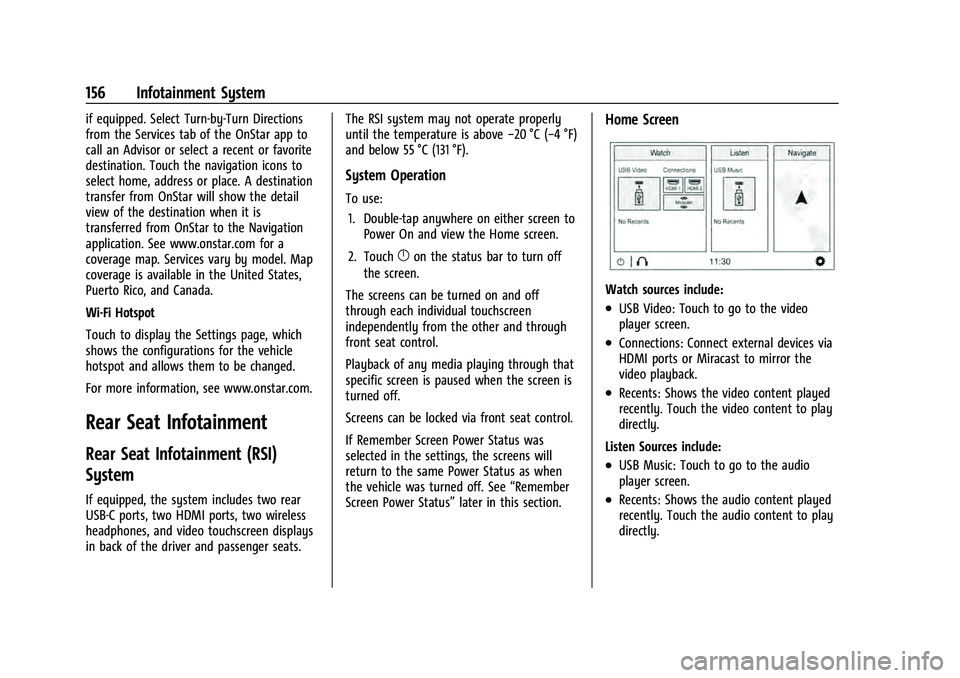
Home Screen
Watch sources include:
.USB Video: Touch to go to the video
player screen.
.Connections: Connect external devices via
HDMI ports or Miracast to mirror the
video playback.
.Recents: Shows the video content played
recently. Touch the video content to play
directly.
Listen Sources include:
.USB Music: Touch to go to the audio
player screen.
.Recents: Shows the audio content played
recently. Touch the audio content to play
directly.
Page 190 of 433
GMC Yukon/Yukon XL/Denali Owner Manual (GMNA-Localizing-U.S./
Canada/Mexico-13690468) - 2021 - crc - 8/14/20
Infotainment System 187
Press{on the center stack to return to the
Home Page.
Features are subject to change. For further
information on how to set up Android Auto
and Apple CarPlay in the vehicle, see
my.gmc.com.
Android Auto is provided by Google and is
subject to Google’s terms and privacy policy.
Apple CarPlay is provided by Apple and is
subject to Apple’s terms and privacy policy.
Data plan rates apply. For Android Auto
support see https://support.google.com/
androidauto. For Apple CarPlay support see
www.apple.com/ios/carplay/. Apple or
Google may change or suspend availability
at any time. Android Auto, Android, Google,
Google Play, and other marks are
trademarks of Google Inc.; Apple CarPlay is a
trademark of Apple Inc.
Press
{on the center stack to exit Android
Auto or Apple CarPlay. To enter back into
Android Auto or Apple CarPlay, press and
hold
{on the center stack.
Apple CarPlay and Android Auto can be
disabled from the infotainment system. To
do this, touch Home, Settings, and then touch the Apps tab along the top of the
display. Use the On/Off toggled to turn off
Apple CarPlay or Android Auto.
Settings
Certain settings can be managed in the
Owner Center sites when an account is
established, and may be modified if other
users have accessed the vehicle or created
accounts. This may result in changes to the
security or functionality of the infotainment
system. Some settings may also be
transferred to a new vehicle, if equipped. For
instructions, in the U.S. see my.gmc.com or
in Canada see mygmc.ca or mongmc.ca.
Refer to the User Terms and Privacy
Statement for important details. To view,
touch the Settings icon on the Home Page
of the infotainment display.
The settings menu may be organized into
four categories. Select the desired category
by touching System, Apps, Vehicle,
or Personal.
To access the personalization menus:
1. Touch Settings on the Home Page on the infotainment display.
2. Touch the desired category to display a list of available options. 3. Touch to select the desired feature
setting.
4. Touch the options on the infotainment display to disable or enable a feature.
5. Touch
zto go to the top level of the
Settings menu.
System
The menu may contain the following:
Time / Date
Use the following features to set the clock:
.Automatic Time and Date: Touch Off or
On to enable or disable automatic update
of the time and date. When this feature
is on, the time and date cannot be
manually set.
.Set Time: Touch to manually set the time
using the controls on the infotainment
display.
.Set Date: Touch to manually set the date
using the controls on the infotainment
display.
.Automatic Time Zone (if equipped): Touch
Off or On to disable or enable automatic
update of the time zone based on vehicle
location. When this feature is on, the
time zone cannot be manually set.
Page 191 of 433
GMC Yukon/Yukon XL/Denali Owner Manual (GMNA-Localizing-U.S./
Canada/Mexico-13690468) - 2021 - crc - 8/14/20
188 Infotainment System
.Select Time Zone: Touch to manually set
the time zone. Touch a time zone from
the list.
.Use 24-hour Format: Touch to specify the
clock format shown.
Touch Off or On to disable or enable.
Language
This will set the display language used on
the infotainment display. It may also use
the selected language for voice recognition
and audio feedback. Touch Language and
touch the appropriate language.
Phones
Touch to connect to a different cell phone or
mobile device source, disconnect a cell
phone or media device, or delete a cell
phone or media device.
Wi-Fi Networks
This will show connected and available Wi-Fi
networks.
If a 4G LTE data package is not active on the
vehicle, the infotainment system can be
connected to an external protected Wi-Fi
network, such as a mobile device or home
hotspot, to utilize connected services. Wi-Fi Hotspot
Touch and the following may display:.Wi-Fi Services: This allows devices to use
the vehicle hotspot.
Touch the controls on the infotainment
display to disable or enable.
.Wi-Fi Name: Touch to change the vehicle
Wi-Fi name.
.Wi-Fi Password: Touch to change the
vehicle Wi-Fi password.
.Connected Devices: Touch to show
connected devices.
.Share Hotspot Data: Touch On to allow
devices to use the vehicle hotspot and its
data, or touch Off to allow devices to
only use the vehicle hotspot but not
its data.
Privacy
Touch and the following may display:
.Location Services: This setting enables or
disables sharing of vehicle location
outside the vehicle. Emergency services
will not be affected when Off is selected.
.Data Services: If equipped, this setting
determines if data sharing can be used by
features including Wi-Fi, Hotspot, and
applications. Touch Off to disable data services. Emergency services and phone
calls, such as calls with OnStar Advisors or
others, will not be affected when Off is
selected.
.Voice Recognition Sharing: This setting
determines if voice commands can be
shared with a cloud-based voice
recognition system. Touch Off to prevent
the sharing and possible recording of your
voice commands with this system. This
may limit the system’s ability to
understand your voice commands and
may disable some features.
.Types: This setting lists all
Android-defined as dangerous permissions
currently used by the infotainment
system, the number of applications that
have requested this permission, and the
number of applications that are allowed
to use this permission.
.Used By Applications: This setting lists all
applications that are requested or are
using Android-defined as dangerous
permissions. Only requested and active
permissions are shown.
Display
Touch and the following may display: