display HONDA ACCORD 2013 9.G Owners Manual
[x] Cancel search | Manufacturer: HONDA, Model Year: 2013, Model line: ACCORD, Model: HONDA ACCORD 2013 9.GPages: 595, PDF Size: 20.67 MB
Page 383 of 595
uuBluetooth ® HandsFreeLink ®u HFL Menus
382Features
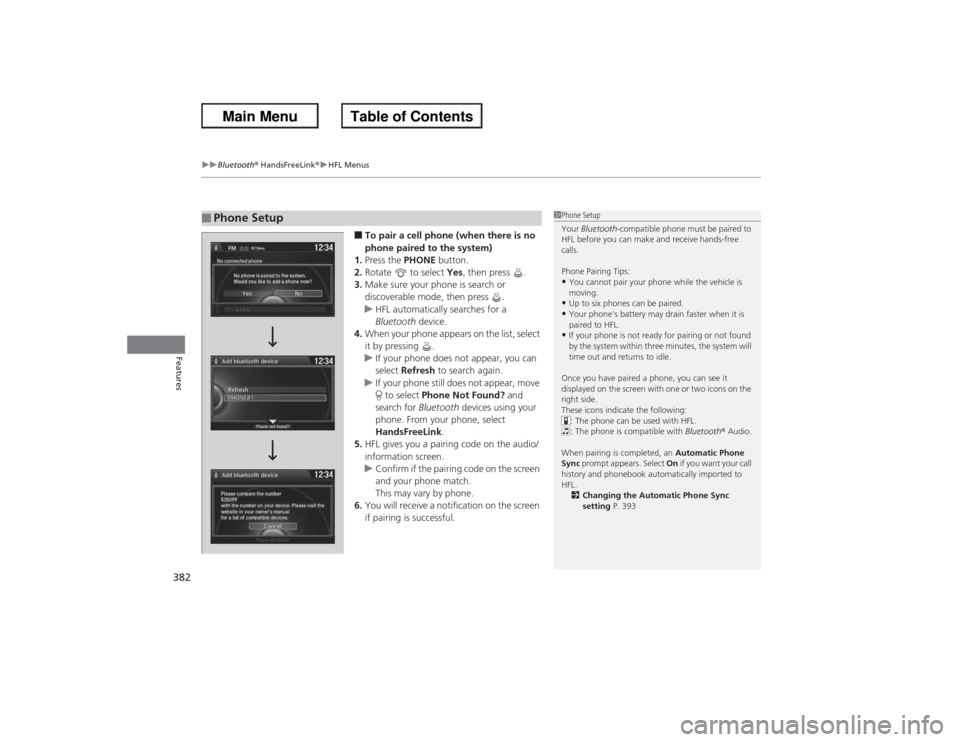
■To pair a cell phone (when there is no
phone paired to the system)
1. Press the PHONE button.
2. Rotate to select Yes, then press .
3. Make sure your phone is search or
discoverable mode, then press .
u HFL automatically searches for a
Bluetooth device.
4. When your phone appears on the list, select
it by pressing .
u If your phone does not appear, you can
select Refresh to search again.
u If your phone still does not appear, move
to select Phone Not Found? and
search for Bluetooth devices using your
phone. From your phone, select
HandsFreeLink .
5. HFL gives you a pairing code on the audio/
information screen.
u Confirm if the pairing code on the screen
and your phone match.
This may vary by phone.
6. You will receive a notification on the screen
if pairing is successful.
■Phone Setup
1Phone Setup
Your Bluetooth -compatible phone must be paired to
HFL before you can make and receive hands-free
calls.
Phone Pairing Tips:•You cannot pair your phone while the vehicle is
moving.•Up to six phones can be paired.•Your phone's battery may drain faster when it is
paired to HFL.•If your phone is not ready for pairing or not found
by the system within three minutes, the system will
time out and returns to idle.
Once you have paired a phone, you can see it
displayed on the screen with one or two icons on the
right side.
These icons indicate the following: : The phone can be used with HFL.
: The phone is compatible with Bluetooth® Audio.
When pairing is completed, an Automatic Phone
Sync prompt appears. Select On if you want your call
history and phonebook automatically imported to
HFL. 2 Changing the Automatic Phone Sync
setting P. 393
Page 406 of 595
Continued
405
uuBluetooth® HandsFreeLink ®u HFL Menus
Features
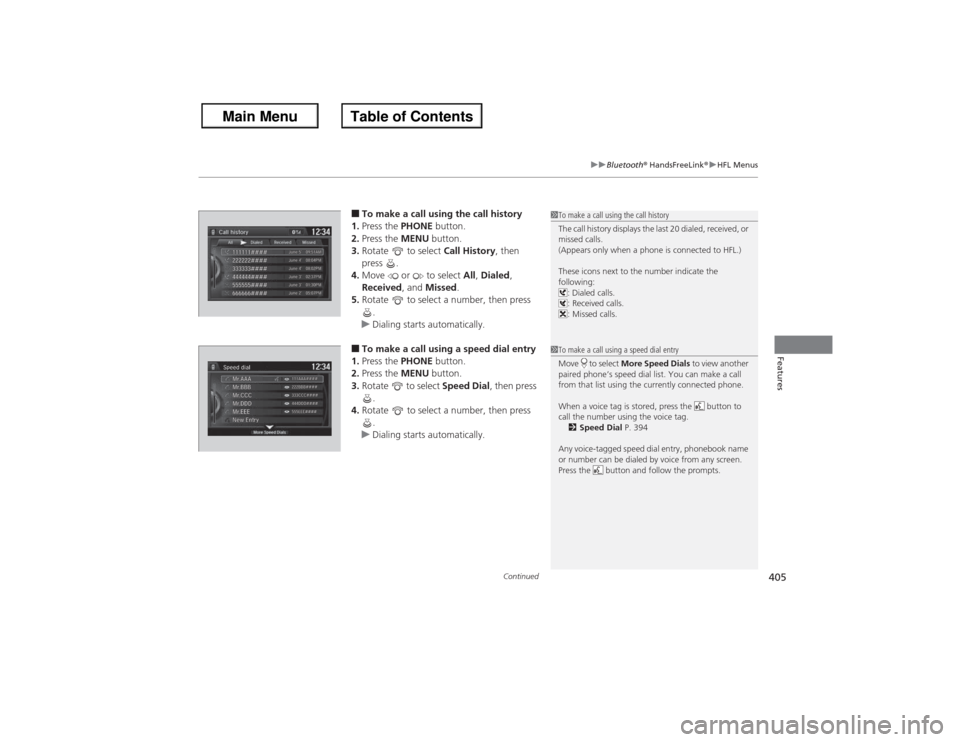
■To make a call using the call history
1. Press the PHONE button.
2. Press the MENU button.
3. Rotate to select Call History, then
press .
4. Move or to select All, Dialed ,
Received, and Missed.
5. Rotate to select a number, then press
.
u Dialing starts automatically.■To make a call using a speed dial entry
1. Press the PHONE button.
2. Press the MENU button.
3. Rotate to select Speed Dial, then press
.
4. Rotate to select a number, then press
.
u Dialing starts automatically.
1To make a call using the call history
The call history displays the last 20 dialed, received, or
missed calls.
(Appears only when a phone is connected to HFL.)
These icons next to the number indicate the
following:
: Dialed calls.
: Received calls.
: Missed calls.1To make a call using a speed dial entry
Move to select More Speed Dials to view another
paired phone’s speed dial list. You can make a call
from that list using the currently connected phone.
When a voice tag is stor ed, press the button to
call the number using the voice tag. 2 Speed Dial P. 394
Any voice-tagged speed dial entry, phonebook name
or number can be dialed by voice from any screen.
Press the button and follow the prompts.
Page 409 of 595
uuBluetooth ® HandsFreeLink ®u HFL Menus
408Features
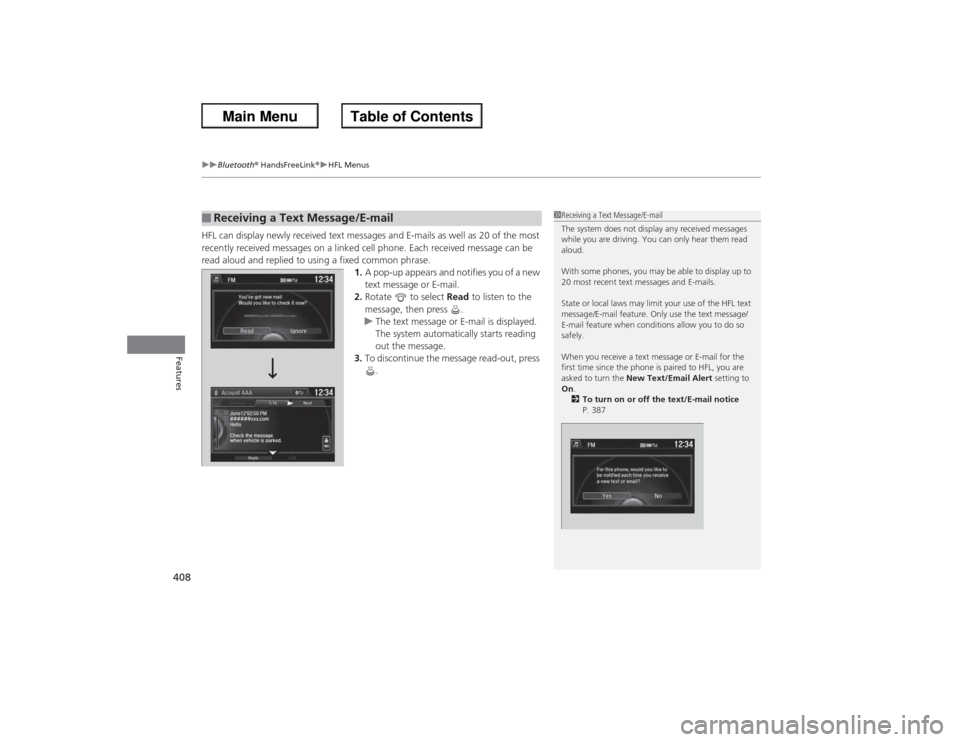
HFL can display newly received text messages and E-mails as well as 20 of the most
recently received messages on a linked cell phone. Each received message can be
read aloud and replied to using a fixed common phrase. 1.A pop-up appears and notifies you of a new
text message or E-mail.
2. Rotate to select Read to listen to the
message, then press .
u The text message or E-mail is displayed.
The system automatically starts reading
out the message.
3. To discontinue the message read-out, press
.■Receiving a Text Message/E-mail
1Receiving a Text Message/E-mail
The system does not display any received messages
while you are driving. You can only hear them read
aloud.
With some phones, you may be able to display up to
20 most recent text messages and E-mails.
State or local laws may limit your use of the HFL text
message/E-mail feature. Only use the text message/
E-mail feature when conditions allow you to do so
safely.
When you receive a text message or E-mail for the
first time since the phone is paired to HFL, you are
asked to turn the New Text/Email Alert setting to
On .
2 To turn on or off the text/E-mail notice
P. 387
Page 411 of 595
uuBluetooth ® HandsFreeLink ®u HFL Menus
410Features
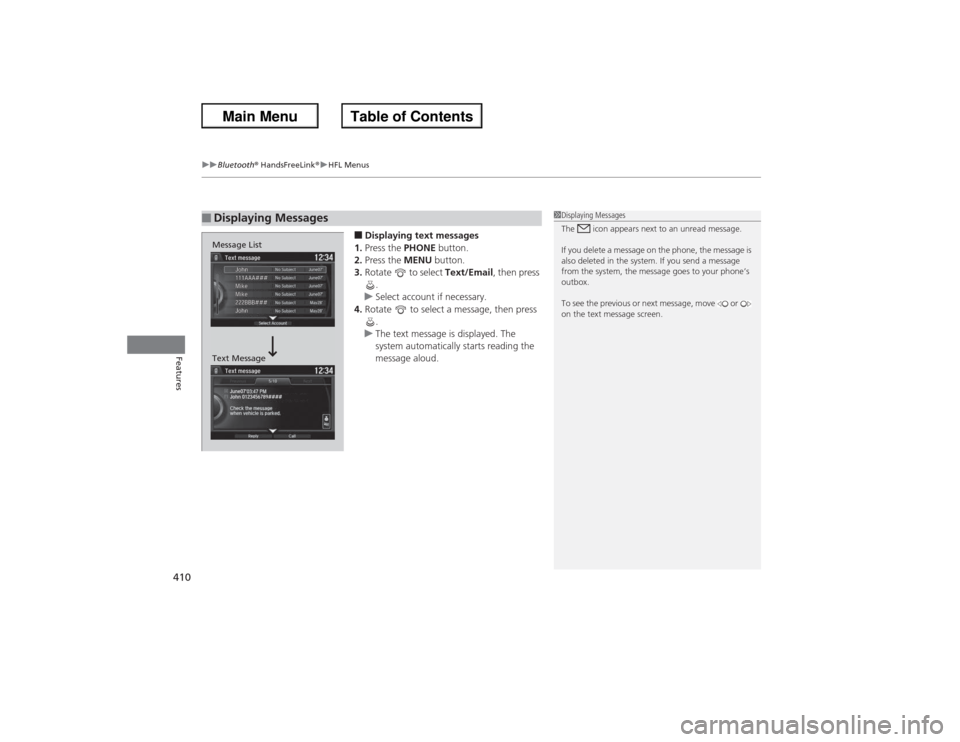
■Displaying text messages
1. Press the PHONE button.
2. Press the MENU button.
3. Rotate to select Text/Email, then press
.
u Select account if necessary.
4. Rotate to select a message, then press
.
u The text message is displayed. The
system automatically starts reading the
message aloud.
■Displaying Messages
1Displaying Messages
The icon appears next to an unread message.
If you delete a message on the phone, the message is
also deleted in the system. If you send a message
from the system, the message goes to your phone’s
outbox.
To see the previous or next message, move or
on the text message screen.
Message List
Text Message
Page 412 of 595
Continued
411
uuBluetooth® HandsFreeLink ®u HFL Menus
Features
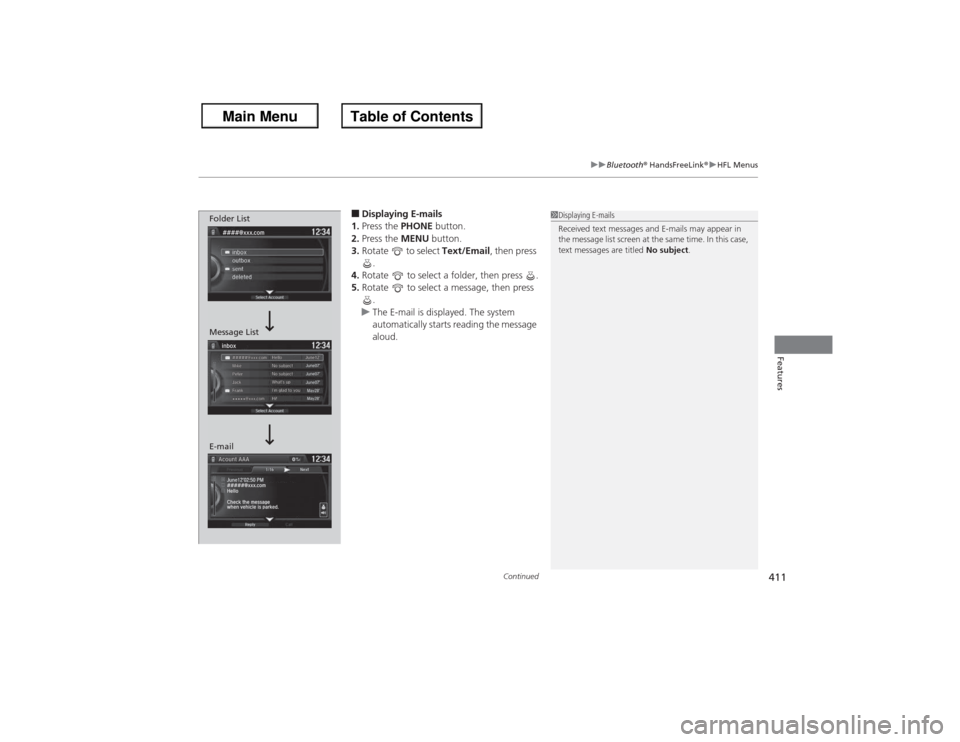
■Displaying E-mails
1. Press the PHONE button.
2. Press the MENU button.
3. Rotate to select Text/Email , then press
.
4. Rotate to select a folder, then press .
5. Rotate to select a message, then press
.
u The E-mail is displayed. The system
automatically starts reading the message
aloud.
1Displaying E-mails
Received text messages and E-mails may appear in
the message list screen at the same time. In this case,
text messages are titled No subject.
Folder List
Message List
E-mail
Page 413 of 595
uuBluetooth ® HandsFreeLink ®u HFL Menus
412Features
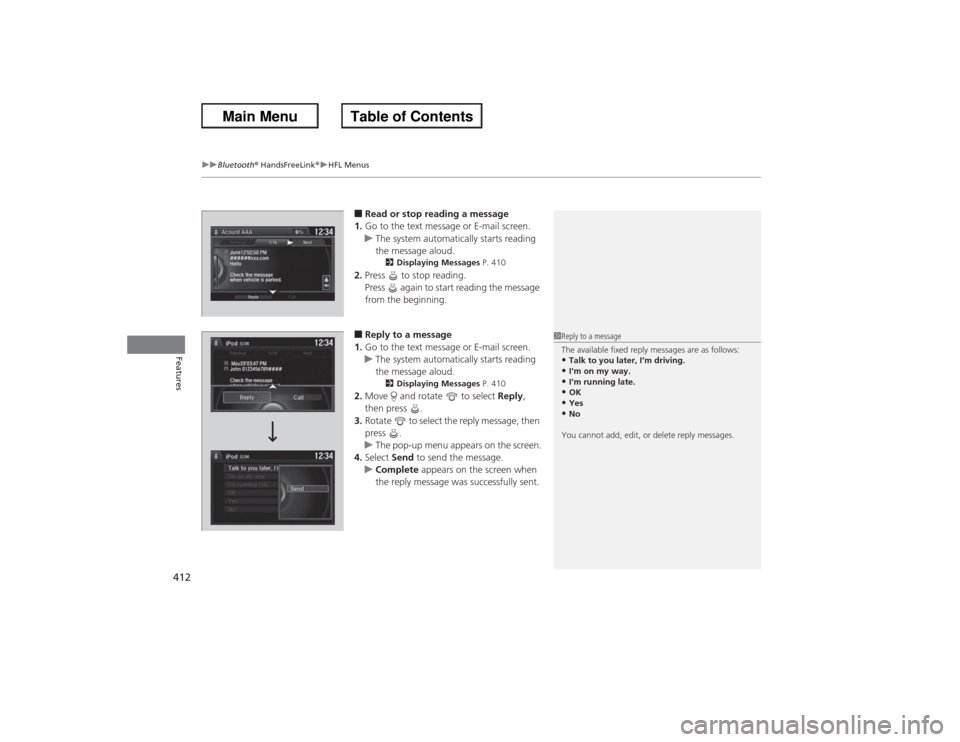
■Read or stop reading a message
1. Go to the text message or E-mail screen.
u The system automatically starts reading
the message aloud.
2 Displaying Messages P. 410
2.Press to stop reading.
Press again to start reading the message
from the beginning.■Reply to a message
1. Go to the text message or E-mail screen.
u The system automatically starts reading
the message aloud.
2 Displaying Messages P. 410
2.Move and rotate to select Reply,
then press .
3. Rotate to select the reply message, then
press .
u The pop-up menu appears on the screen.
4. Select Send to send the message.
u Complete appears on the screen when
the reply message was successfully sent.
1Reply to a message
The available fixed reply messages are as follows:•Talk to you later, I’m driving.•I’m on my way.•I’m running late.•OK•Yes•No
You cannot add, edit, or delete reply messages.
Page 414 of 595
413
uuBluetooth® HandsFreeLink ®u HFL Menus
Features
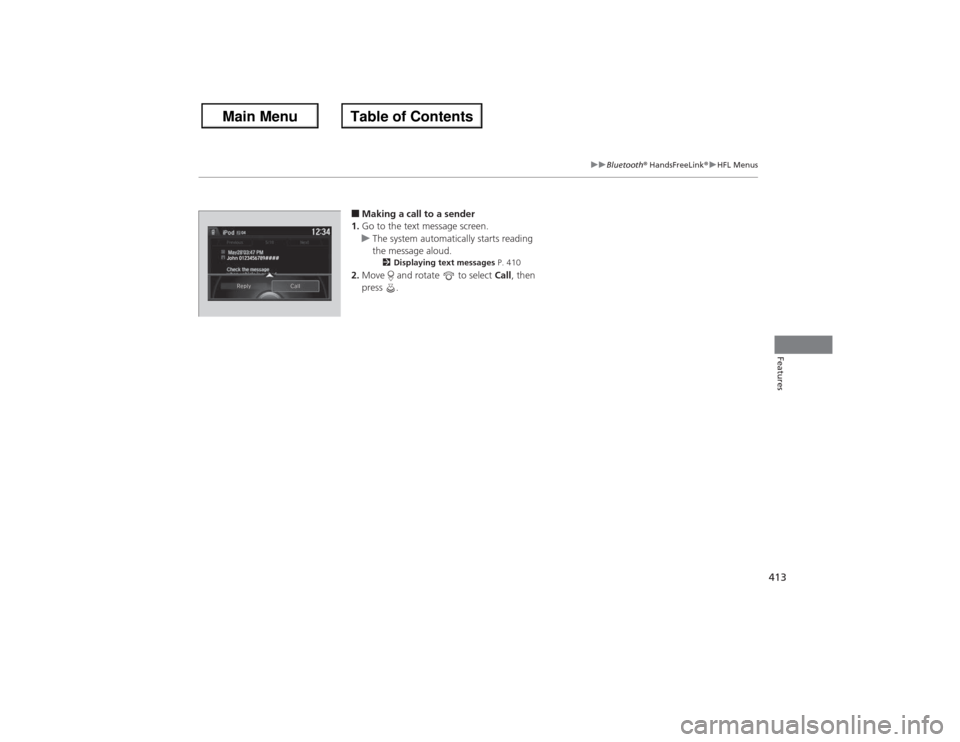
■Making a call to a sender
1. Go to the text message screen.
u The system automatically starts reading
the message aloud.
2 Displaying text messages P. 410
2.Move and rotate to select Call, then
press .
John 0123456789####Reply Call
Page 415 of 595
414Features
Compass
*
When you set the power mode to ON, the compass self-calibrates, and the compass
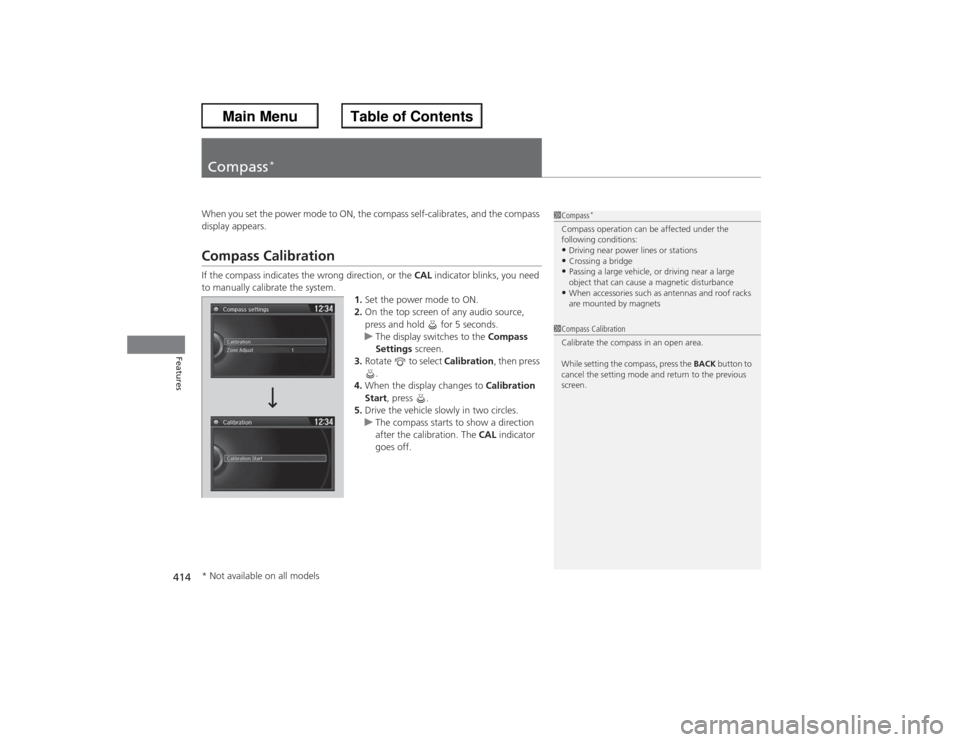
display appears.Compass CalibrationIf the compass indicates the wrong direction, or the CAL indicator blinks, you need
to manually calibrate the system. 1.Set the power mode to ON.
2. On the top screen of any audio source,
press and hold for 5 seconds.
u The display switches to the Compass
Settings screen.
3. Rotate to select Calibration, then press
.
4. When the display changes to Calibration
Start , press .
5. Drive the vehicle slowly in two circles.
u The compass starts to show a direction
after the calibration. The CAL indicator
goes off.
1 Compass
*
Compass operation can be affected under the
following conditions:•Driving near power lines or stations•Crossing a bridge•Passing a large vehicle, or driving near a large
object that can cause a magnetic disturbance•When accessories such as antennas and roof racks
are mounted by magnets
1Compass Calibration
Calibrate the compass in an open area.
While setting the compass, press the BACK button to
cancel the setting mode and return to the previous
screen.
* Not available on all models
Page 416 of 595
415
uuCompass
*uCompass Zone Selection
Features
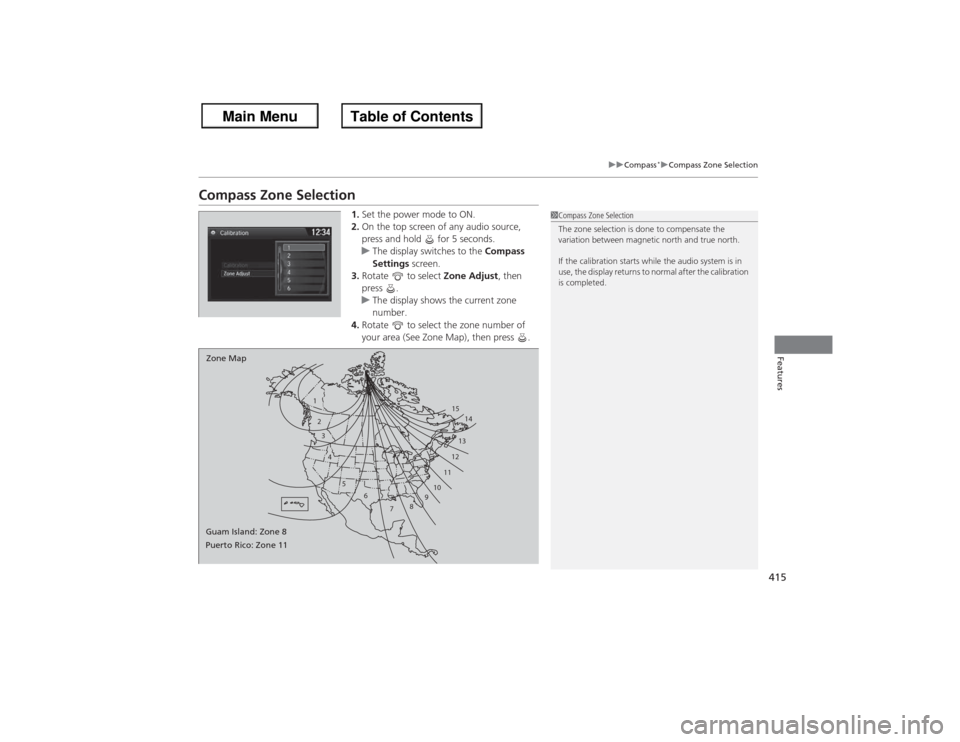
Compass Zone Selection
1. Set the power mode to ON.
2. On the top screen of any audio source,
press and hold for 5 seconds.
u The display switches to the Compass
Settings screen.
3. Rotate to select Zone Adjust, then
press .
u The display shows the current zone
number.
4. Rotate to select the zone number of
your area (See Zone Map), then press .
1
23
4
5 6
78910 11121314
15
Zone Map
Guam Island: Zone 8
Puerto Rico: Zone 11
1 Compass Zone Selection
The zone selection is done to compensate the
variation between magnetic north and true north.
If the calibration starts while the audio system is in
use, the display returns to normal after the calibration
is completed.
Page 436 of 595
435
uuWhen Driving uShifting
Continued
Driving
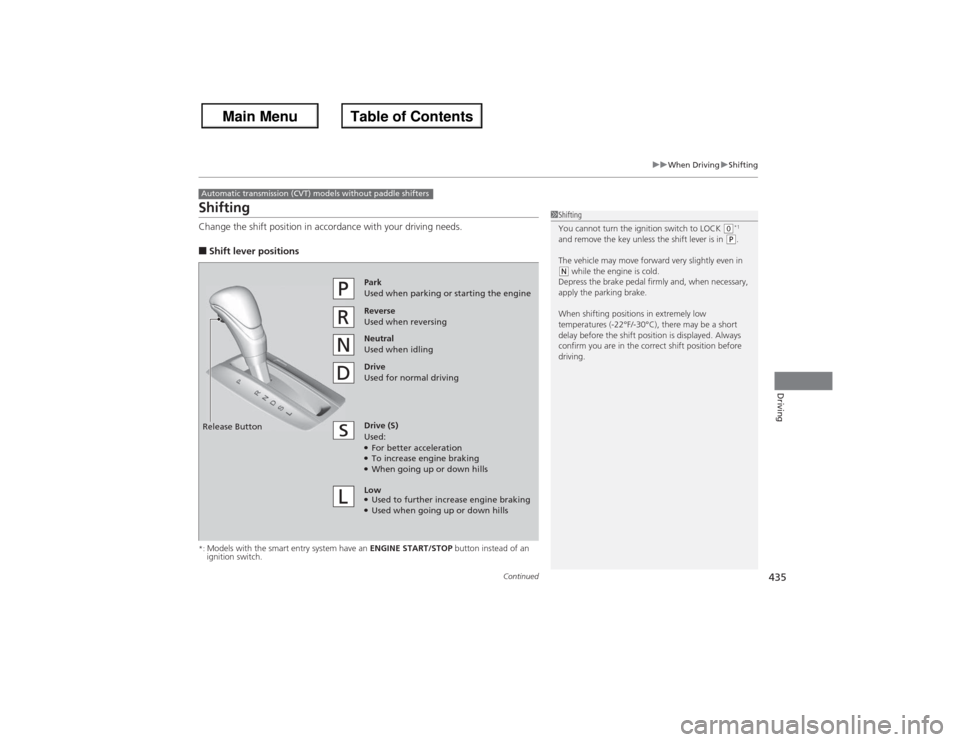
ShiftingChange the shift position in accordance with your driving needs.■Shift lever positions*:Models with the smart entry system have an ENGINE START/STOP button instead of an
ignition switch.Automatic transmission (CVT) models without paddle shifters
1 Shifting
You cannot turn the ignition switch to LOCK
(0*1
and remove the key unless the shift lever is in
(P.
The vehicle may move forward very slightly even in
(N while the engine is cold.
Depress the brake pedal firmly and, when necessary,
apply the parking brake.
When shifting positions in extremely low
temperatures (-22°F/-30°C), there may be a short
delay before the shift position is displayed. Always
confirm you are in the correct shift position before
driving.
Reverse
Used when reversingDrive
Used for normal drivingPark
Used when parking or starting the engine
Neutral
Used when idling
Release ButtonDrive (S)
Used:●For better acceleration●To increase engine braking●When going up or down hills
Low●Used to further increase engine braking●Used when going up or down hills