settings HONDA ACCORD 2013 9.G User Guide
[x] Cancel search | Manufacturer: HONDA, Model Year: 2013, Model line: ACCORD, Model: HONDA ACCORD 2013 9.GPages: 595, PDF Size: 20.67 MB
Page 107 of 595
106Controls
Setting the ClockClockYou can adjust the time in the clock display with the ignition switch is in ON
w *1.
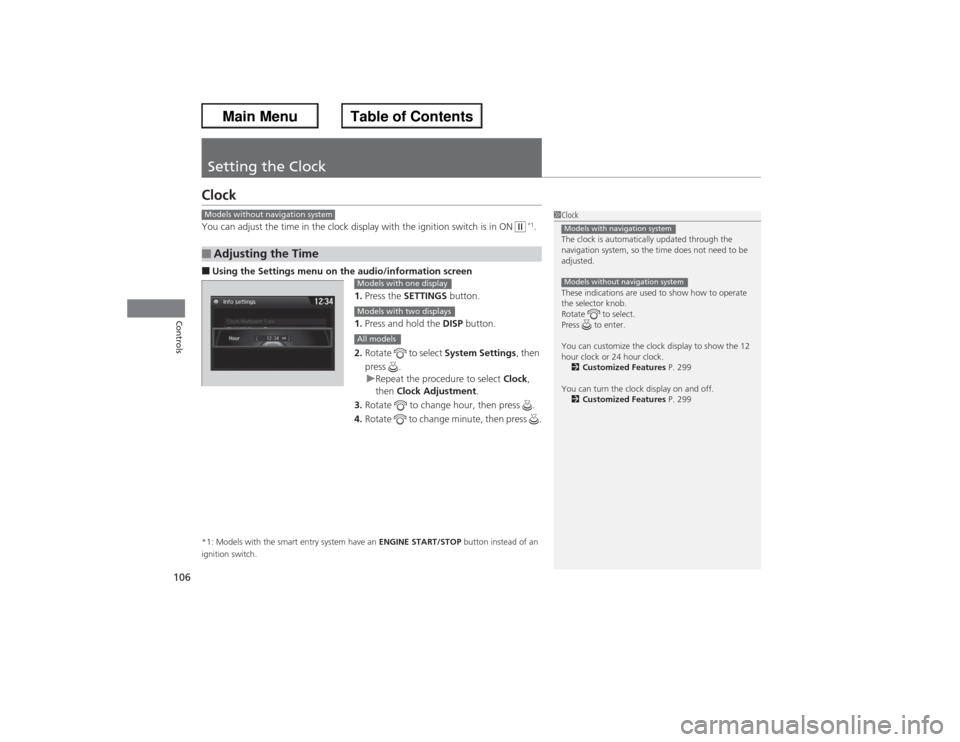
■Using the Settings menu on the audio/information screen
1.Press the SETTINGS button.
1. Press and hold the DISP button.
2. Rotate to select System Settings, then
press . u Repeat the procedure to select Clock,
then Clock Adjustment .
3. Rotate to change hour, then press .
4. Rotate to change minute, then press .*1: Models with the smart entry system have an ENGINE START/STOP button instead of an
ignition switch.■Adjusting the Time
1 Clock
The clock is automatically updated through the
navigation system, so the time does not need to be
adjusted.
These indications are used to show how to operate
the selector knob.
Rotate to select.
Press to enter.
You can customize the clock display to show the 12
hour clock or 24 hour clock.
2 Customized Features P. 299
You can turn the clock display on and off. 2 Customized Features P. 299Models with navigation systemModels without navigation system
Models without navigation system
Models with one displayModels with two displaysAll models
Page 108 of 595
107
uuSetting the Clock uClock
Controls
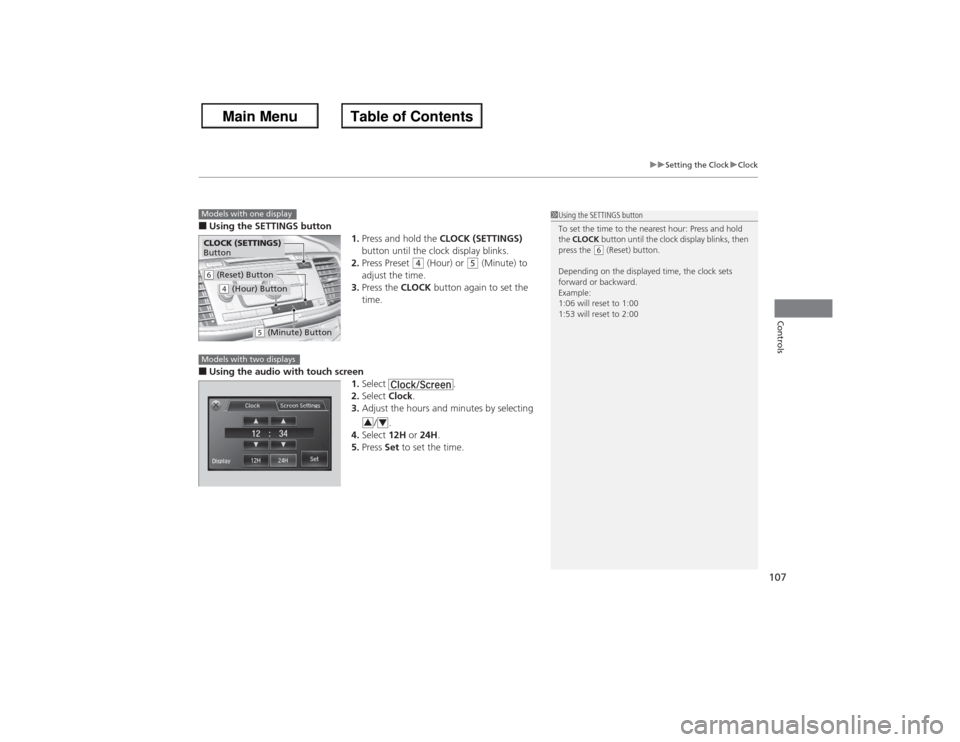
■Using the SETTINGS button
1.Press and hold the CLOCK (SETTINGS)
button until the clock display blinks.
2. Press Preset
(4 (Hour) or
(5 (Minute) to
adjust the time.
3. Press the CLOCK button again to set the
time.
■Using the audio with touch screen
1.Select .
2. Select Clock.
3. Adjust the hours and minutes by selecting
/.
4. Select 12H or 24H .
5. Press Set to set the time.
1Using the SETTINGS button
To set the time to the nearest hour: Press and hold
the CLOCK button until the clock display blinks, then
press the
(6 (Reset) button.
Depending on the displayed time, the clock sets
forward or backward.
Example:
1:06 will reset to 1:00
1:53 will reset to 2:00
Models with one displayCLOCK (SETTINGS)
Button(6 (Reset) Button(4 (Hour) Button
(5 (Minute) Button
Models with two displays
3
4
Page 115 of 595
uuLocking and Unlocking the Doors uLocking/Unlocking the Doors from the Outside
114Controls
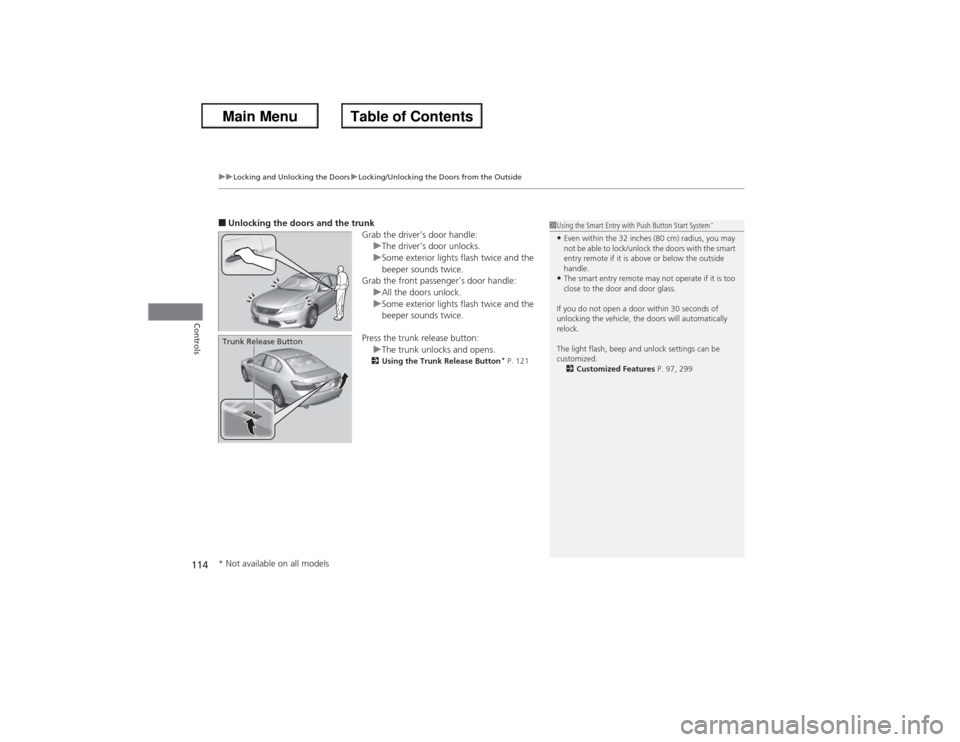
■Unlocking the doors and the trunk
Grab the driver’s door handle:uThe driver’s door unlocks.
u Some exterior lights flash twice and the
beeper sounds twice.
Grab the front passenger’s door handle:
uAll the doors unlock.
u Some exterior lights flash twice and the
beeper sounds twice.
Press the trunk release button: uThe trunk unlocks and opens.
2 Using the Trunk Release Button
* P. 121
Trunk Release Button
1Using the Smart Entry with Push Button Start System
*
•Even within the 32 inches (80 cm) radius, you may
not be able to lock/unlock the doors with the smart
entry remote if it is above or below the outside
handle.•The smart entry remote may not operate if it is too
close to the door and door glass.
If you do not open a door within 30 seconds of
unlocking the vehicle, the doors will automatically
relock.
The light flash, beep and unlock settings can be
customized. 2 Customized Features P. 97, 299
* Not available on all models
Page 171 of 595
uuClimate Control System
*uUsing Automatic Climate Control
170Controls
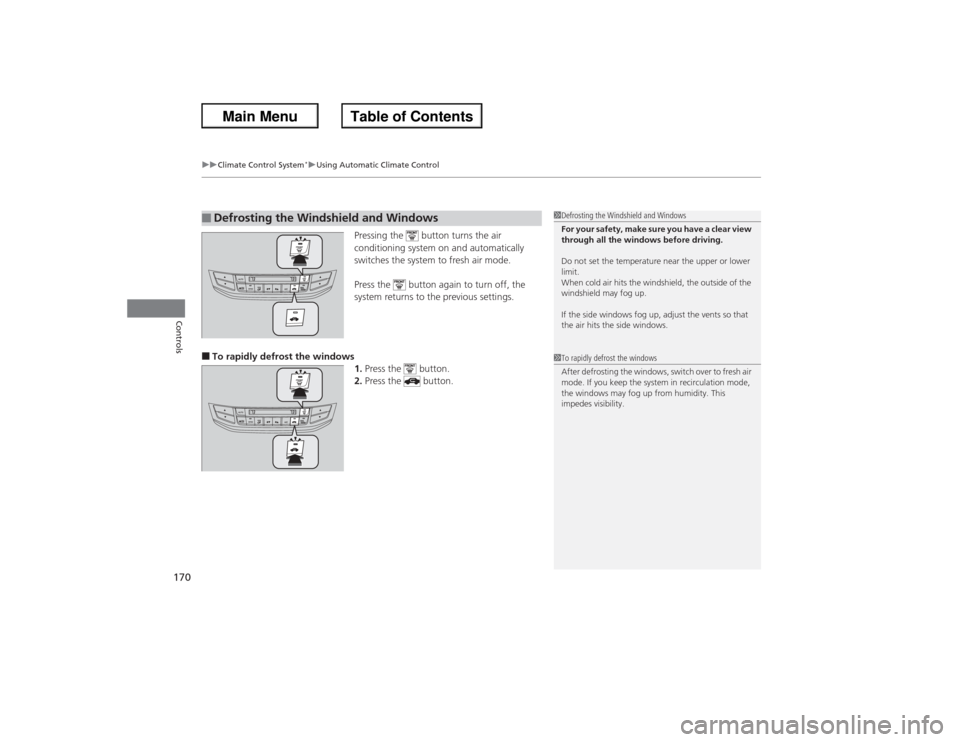
Pressing the button turns the air
conditioning system on and automatically
switches the system to fresh air mode.
Press the button again to turn off, the
system returns to the previous settings.
■To rapidly defrost the windows
1.Press the button.
2. Press the button.■Defrosting the Windshield and Windows
1Defrosting the Windshield and Windows
For your safety, make sure you have a clear view
through all the windows before driving.
Do not set the temperature near the upper or lower
limit.
When cold air hits the windshield, the outside of the
windshield may fog up.
If the side windows fog up, adjust the vents so that
the air hits the side windows.1To rapidly defrost the windows
After defrosting the windows, switch over to fresh air
mode. If you keep the system in recirculation mode,
the windows may fog up from humidity. This
impedes visibility.
Page 184 of 595
Continued
183
uuAudio System Basic Operation uAudio/Information Screen
Features
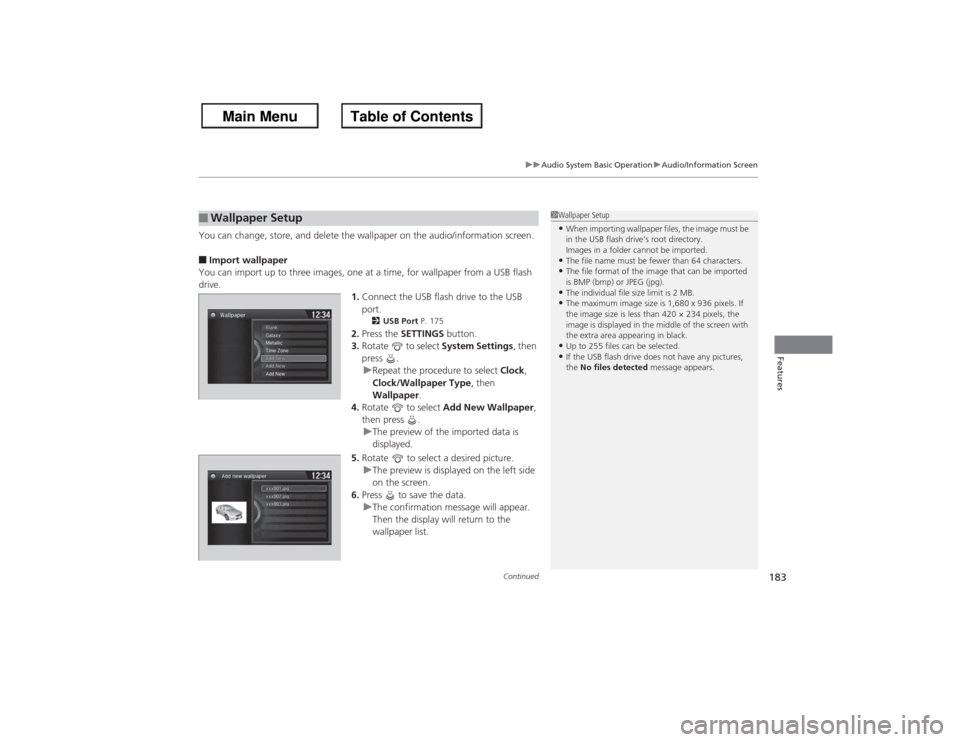
You can change, store, and delete the wallpaper on the audio/information screen.■Import wallpaper
You can import up to three images, one at a time, for wallpaper from a USB flash
drive. 1.Connect the USB flash drive to the USB
port.
2 USB Port P. 175
2.Press the SETTINGS button.
3. Rotate to select System Settings, then
press .
u Repeat the procedure to select Clock,
Clock/Wallpaper Type , then
Wallpaper .
4. Rotate to select Add New Wallpaper ,
then press . u The preview of the imported data is
displayed.
5. Rotate to select a desired picture.
u The preview is displayed on the left side
on the screen.
6. Press to save the data.
u The confirmation message will appear.
Then the display will return to the
wallpaper list.
■Wallpaper Setup
1Wallpaper Setup•When importing wallpaper files, the image must be
in the USB flash drive’s root directory.
Images in a folder cannot be imported.•The file name must be fewer than 64 characters.•The file format of the image that can be imported
is BMP (bmp) or JPEG (jpg).•The individual file size limit is 2 MB.•The maximum image size is 1,680 x 936 pixels. If
the image size is less than 420 × 234 pixels, the
image is displayed in the middle of the screen with
the extra area appearing in black.•Up to 255 files can be selected.•If the USB flash drive does not have any pictures,
the No files detected message appears.
Page 185 of 595
uuAudio System Basic Operation uAudio/Information Screen
184Features
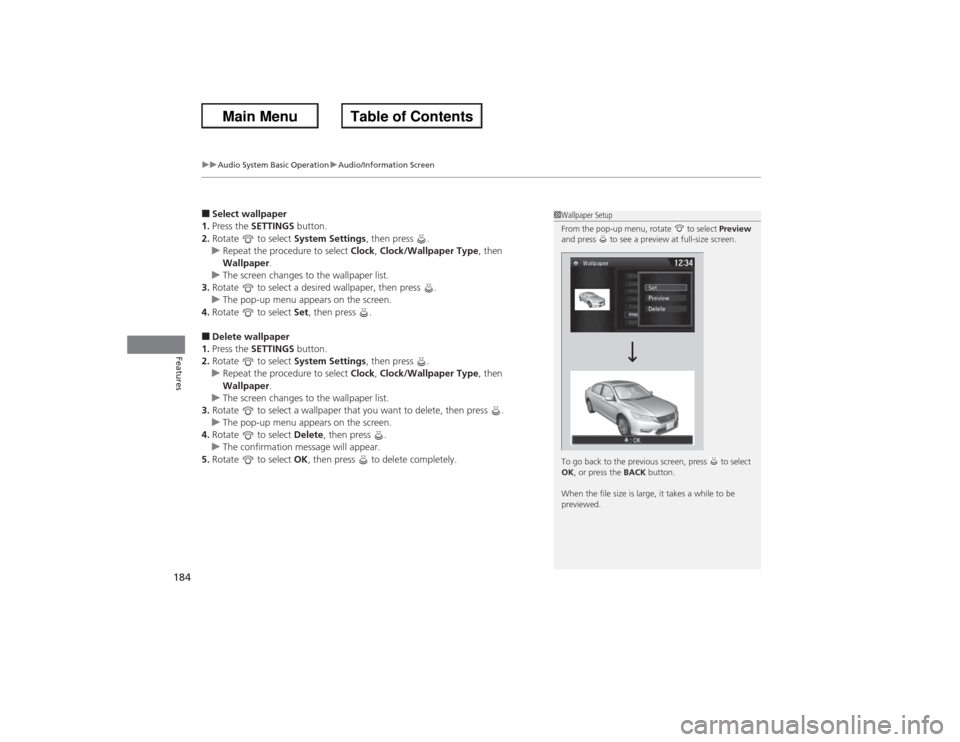
■Select wallpaper
1. Press the SETTINGS button.
2. Rotate to select System Settings, then press .
u Repeat the procedure to select Clock, Clock/Wallpaper Type , then
Wallpaper .
u The screen changes to the wallpaper list.
3. Rotate to select a desired wallpaper, then press .
u The pop-up menu appears on the screen.
4. Rotate to select Set, then press .■Delete wallpaper
1. Press the SETTINGS button.
2. Rotate to select System Settings, then press .
u Repeat the procedure to select Clock, Clock/Wallpaper Type , then
Wallpaper .
u The screen changes to the wallpaper list.
3. Rotate to select a wallpaper that you want to delete, then press .
u The pop-up menu appears on the screen.
4. Rotate to select Delete, then press .
u The confirmation message will appear.
5. Rotate to select OK, then press to delete completely.
1Wallpaper Setup
From the pop-up menu, rotate to select Preview
and press to see a preview at full-size screen.
To go back to the previous screen, press to select
OK , or press the BACK button.
When the file size is large, it takes a while to be
previewed.
Page 186 of 595
185
uuAudio System Basic Operation uAdjusting the Sound
Features
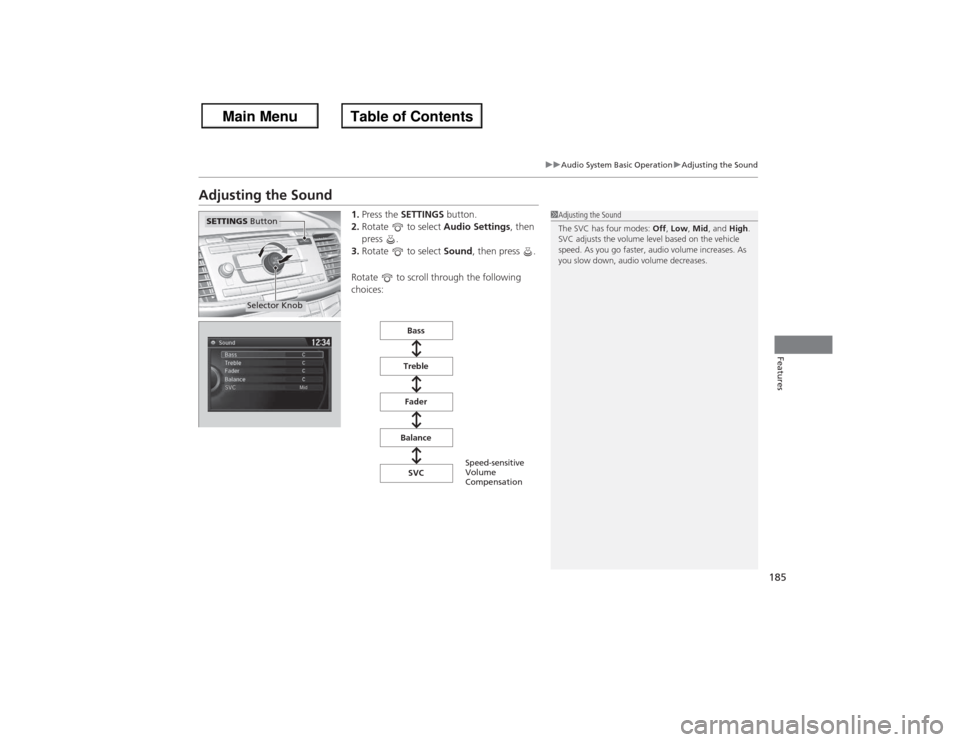
Adjusting the Sound
1. Press the SETTINGS button.
2. Rotate to select Audio Settings, then
press .
3. Rotate to select Sound, then press .
Rotate to scroll through the following
choices:
1 Adjusting the Sound
The SVC has four modes: Off, Low , Mid, and High.
SVC adjusts the volume level based on the vehicle
speed. As you go faster, audio volume increases. As
you slow down, audio volume decreases.
Selector Knob
SETTINGS Button
Speed-sensitive
Volume
Compensation
Bass
Treble Fader
Balance SVC
Page 187 of 595
186
uuAudio System Basic Operation uDisplay Setup
Features
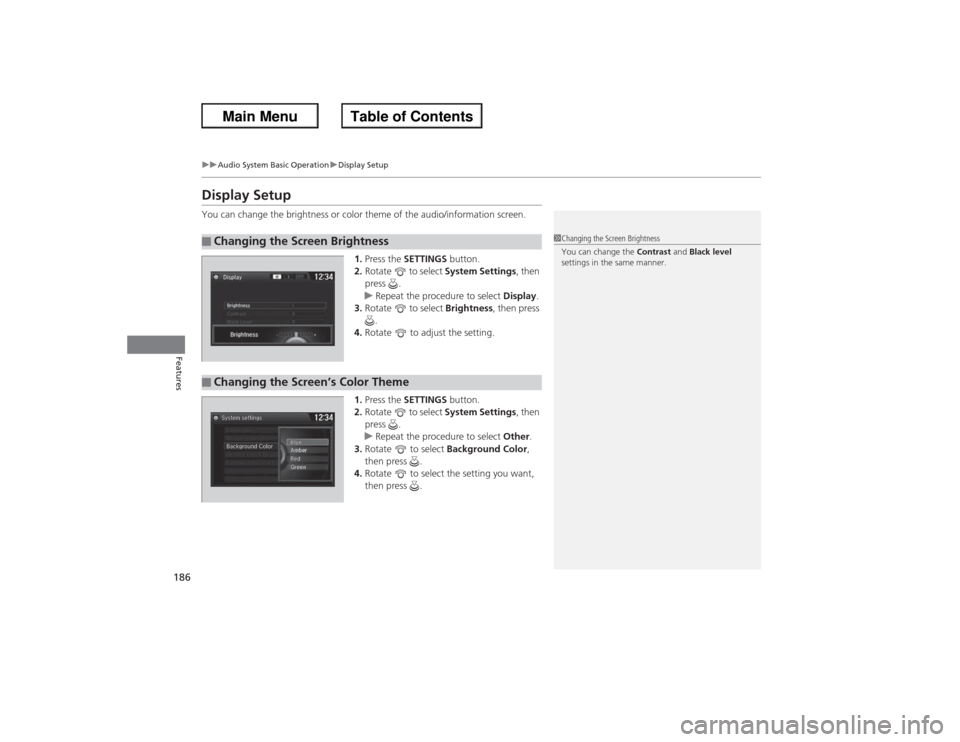
Display SetupYou can change the brightness or color theme of the audio/information screen.
1.Press the SETTINGS button.
2. Rotate to select System Settings, then
press .
u Repeat the procedure to select Display.
3. Rotate to select Brightness, then press
.
4. Rotate to adjust the setting.
1. Press the SETTINGS button.
2. Rotate to select System Settings, then
press .
u Repeat the procedure to select Other.
3. Rotate to select Background Color,
then press .
4. Rotate to select the setting you want,
then press .■Changing the Screen Brightness
1Changing the Screen Brightness
You can change the Contrast and Black level
settings in the same manner.
■Changing the Screen’s Color Theme
Page 204 of 595
203Features
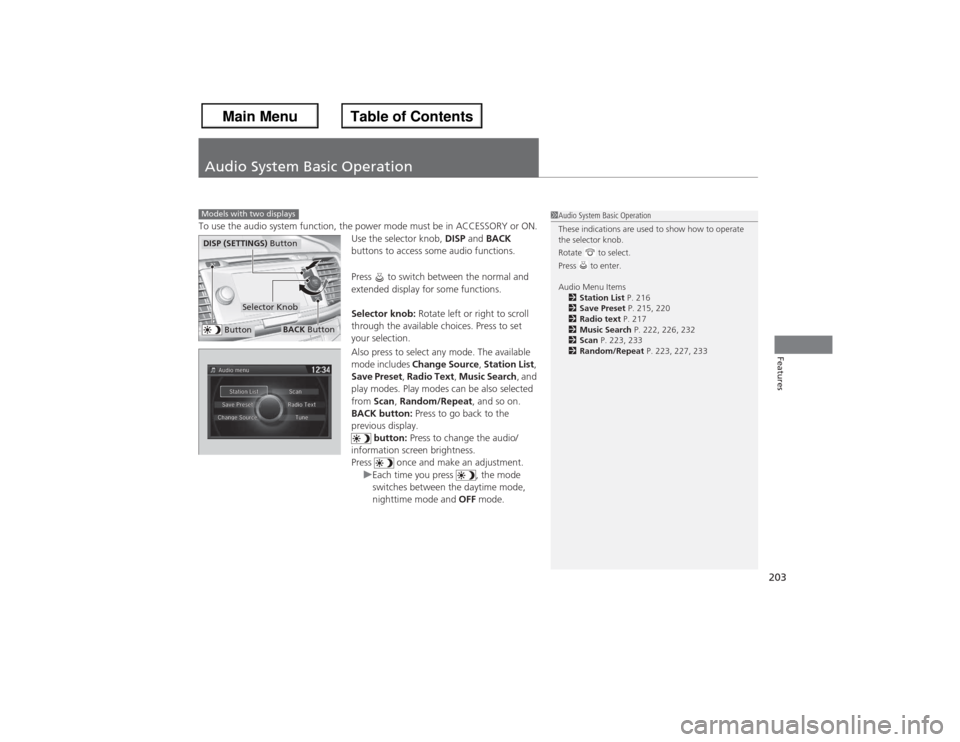
Audio System Basic OperationTo use the audio system function, the power mode must be in ACCESSORY or ON.Use the selector knob, DISP and BACK
buttons to access some audio functions.
Press to switch between the normal and
extended display for some functions.
Selector knob: Rotate left or right to scroll
through the available choices. Press to set
your selection.
Also press to select any mode. The available
mode includes Change Source, Station List,
Save Preset, Radio Text, Music Search , and
play modes. Play modes can be also selected
from Scan, Random/Repeat , and so on.
BACK button: Press to go back to the
previous display.
button: Press to change the audio/
information screen brightness.
Press once and make an adjustment. uEach time you press , the mode
switches between the daytime mode,
nighttime mode and OFF mode.Models with two displays
1Audio System Basic Operation
These indications are used to show how to operate
the selector knob.
Rotate to select.
Press to enter.
Audio Menu Items
2 Station List P. 216
2 Save Preset P. 215, 220
2 Radio text P. 217
2 Music Search P. 222, 226, 232
2 Scan P. 223, 233
2 Random/Repeat P. 223, 227, 233
Button
Selector Knob
DISP (SETTINGS) Button
BACK Button
Page 206 of 595
Continued
205
uuAudio System Basic Operation uAudio with Touch Screen
Features
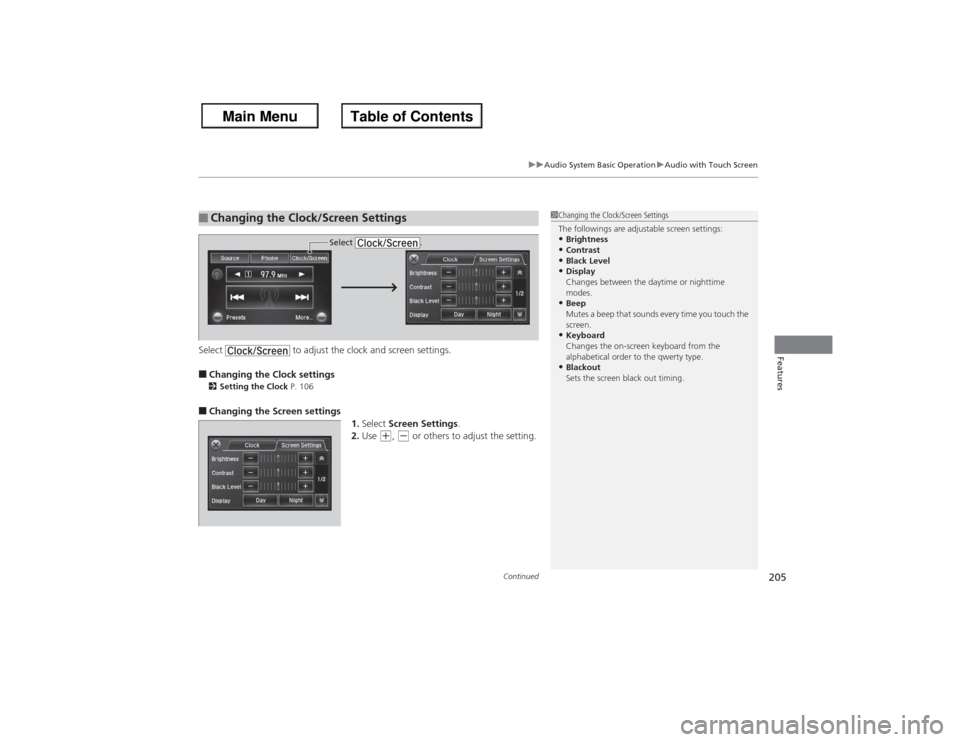
Select to adjust the clock and screen settings.■Changing the Clock settings2Setting the Clock P. 106■Changing the Screen settings
1.Select Screen Settings .
2. Use
(+, (- or others to adjust the setting.
■Changing the Clock/Screen Settings
1Changing the Clock/Screen Settings
The followings are adjustable screen settings:•Brightness•Contrast•Black Level•Display
Changes between the daytime or nighttime
modes.•Beep
Mutes a beep that sounds every time you touch the
screen.•Keyboard
Changes the on-screen keyboard from the
alphabetical order to the qwerty type.•Blackout
Sets the screen black out timing.
Select .