settings HONDA ACCORD 2013 9.G Owner's Guide
[x] Cancel search | Manufacturer: HONDA, Model Year: 2013, Model line: ACCORD, Model: HONDA ACCORD 2013 9.GPages: 595, PDF Size: 20.67 MB
Page 264 of 595
263
uuAudio System Basic Operation uPlaying Hard Disc Drive (HDD) Audio
Continued
Features
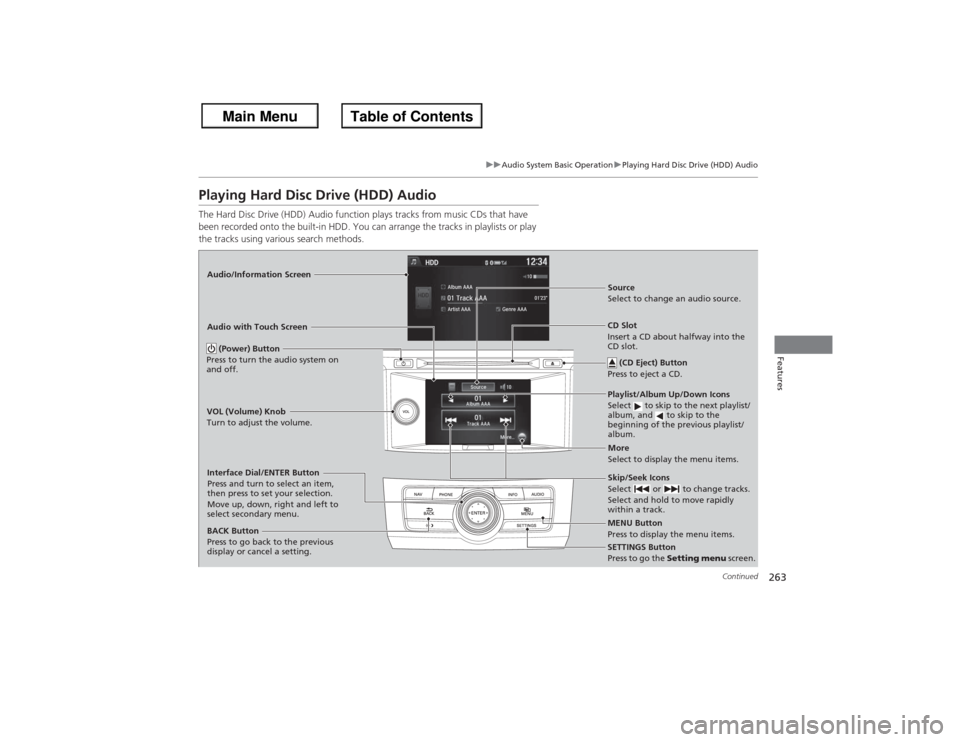
Playing Hard Disc Drive (HDD) AudioThe Hard Disc Drive (HDD) Audio function plays tracks from music CDs that have
been recorded onto the built-in HDD. You can arrange the tracks in playlists or play
the tracks using various search methods.Audio/Information Screen
Audio with Touch Screen
MENU Button
Press to display the menu items.
CD Slot
Insert a CD about halfway into the
CD slot. (CD Eject) Button
Press to eject a CD.Playlist/Album Up/Down Icons
Select to skip to the next playlist/
album, and to skip to the
beginning of the previous playlist/
album.Source
Select to change an audio source.
Skip/Seek Icons
Select or to change tracks.
Select and hold to move rapidly
within a track.More
Select to display the menu items.
(Power) Button
Press to turn the audio system on
and off.BACK Button
Press to go back to the previous
display or cancel a setting.
VOL (Volume) Knob
Turn to adjust the volume.Interface Dial/ENTER Button
Press and turn to select an item,
then press to set your selection.
Move up, down, right and left to
select secondary menu.
SETTINGS Button
Press to go the
Setting menu screen.
Page 273 of 595
uuAudio System Basic Operation uPlaying Hard Disc Drive (HDD) Audio
272Features
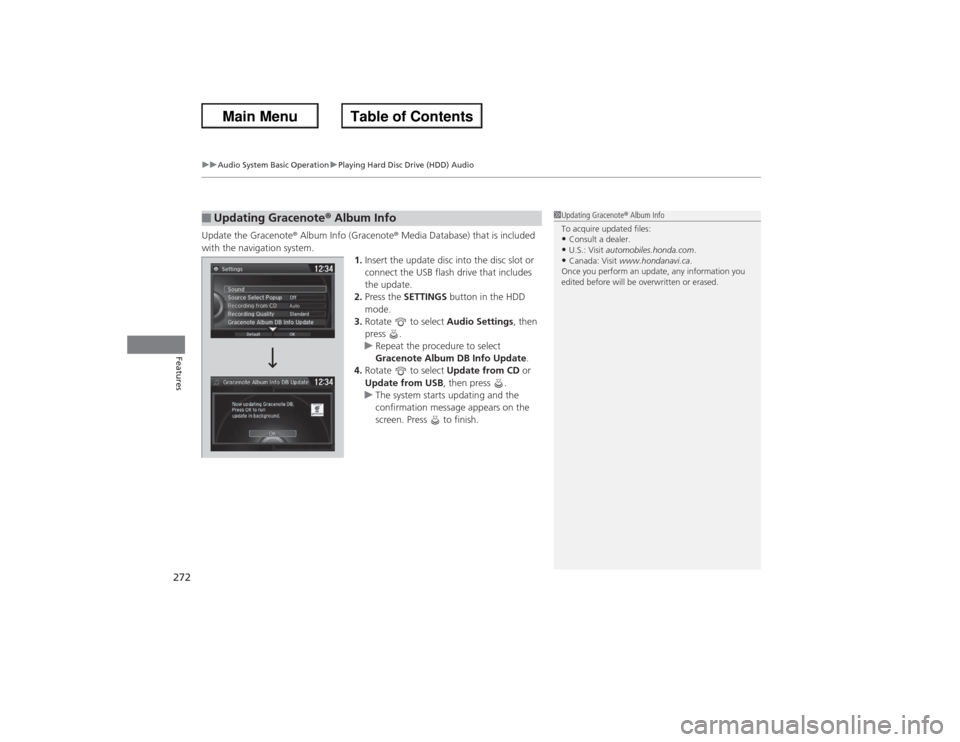
Update the Gracenote ® Album Info (Gracenote ® Media Database) that is included
with the navigation system. 1.Insert the update disc into the disc slot or
connect the USB flash drive that includes
the update.
2. Press the SETTINGS button in the HDD
mode.
3. Rotate to select Audio Settings, then
press .
u Repeat the procedure to select
Gracenote Album DB Info Update .
4. Rotate to select Update from CD or
Update from USB , then press .
u The system starts updating and the
confirmation message appears on the
screen. Press to finish.■Updating Gracenote ® Album Info
1 Updating Gracenote ® Album Info
To acquire updated files:•Consult a dealer.•U.S.: Visit automobiles.honda.com .•Canada: Visit www.hondanavi.ca .
Once you perform an update, any information you
edited before will be overwritten or erased.
Page 278 of 595
277
uuAudio System Basic Operation uSong By Voice
TM (SBV)
Continued
Features
Song By Voice
TM
(SBV)
Use SBV to search for and play music from your HDD or iPod ® using voice
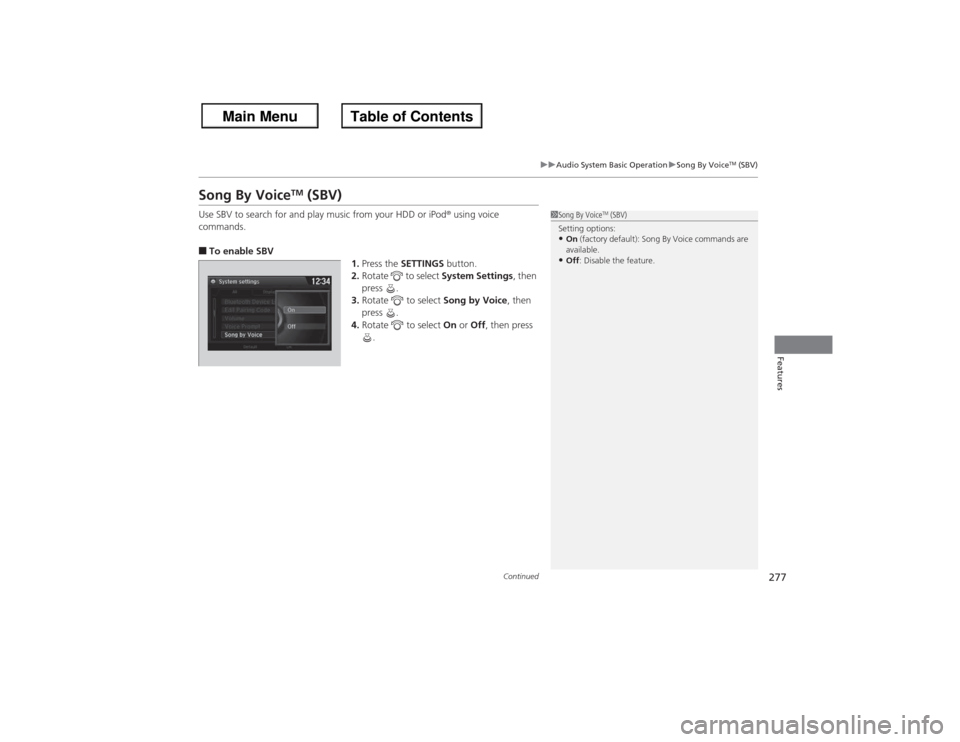
commands.■To enable SBV 1.Press the SETTINGS button.
2. Rotate to select System Settings, then
press .
3. Rotate to select Song by Voice, then
press .
4. Rotate to select On or Off , then press
.
1 Song By Voice
TM (SBV)
Setting options:
•On (factory default): Song By Voice commands are
available.•Off : Disable the feature.
Page 280 of 595
Continued
279
uuAudio System Basic Operation uSong By Voice
TM (SBV)
Features
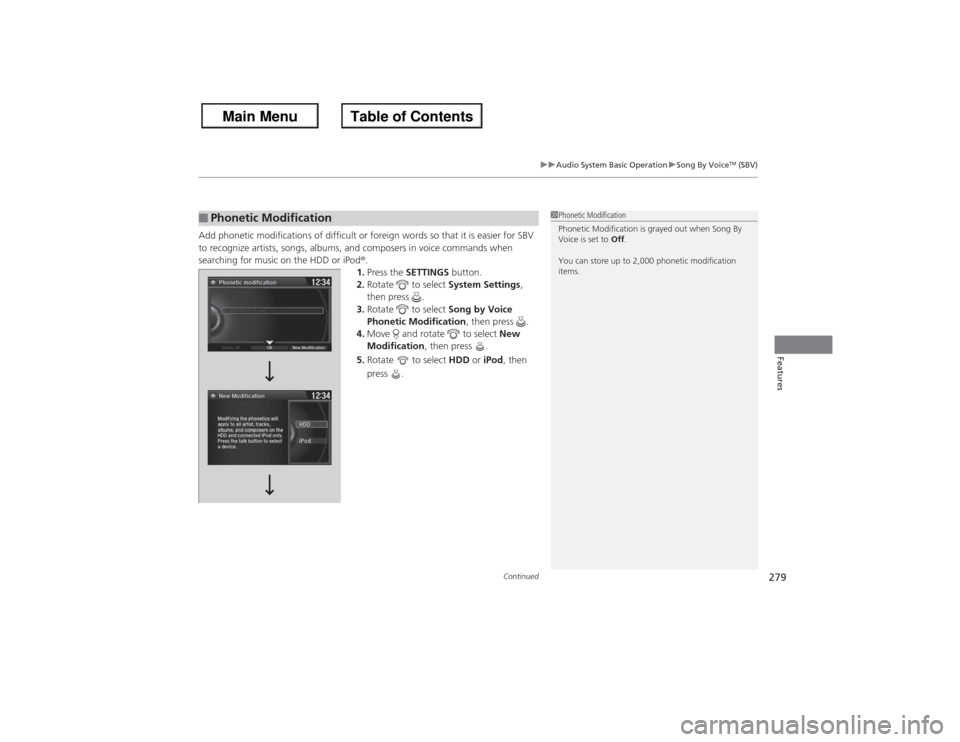
Add phonetic modifications of difficult or foreign words so that it is easier for SBV
to recognize artists, songs, albums, and composers in voice commands when
searching for music on the HDD or iPod ®.
1. Press the SETTINGS button.
2. Rotate to select System Settings,
then press .
3. Rotate to select Song by Voice
Phonetic Modification , then press .
4. Move and rotate to select New
Modification , then press .
5. Rotate to select HDD or iPod , then
press .■Phonetic Modification
1 Phonetic Modification
Phonetic Modification is grayed out when Song By
Voice is set to Off.
You can store up to 2,000 phonetic modification
items.
Page 300 of 595
299
Continued
Features
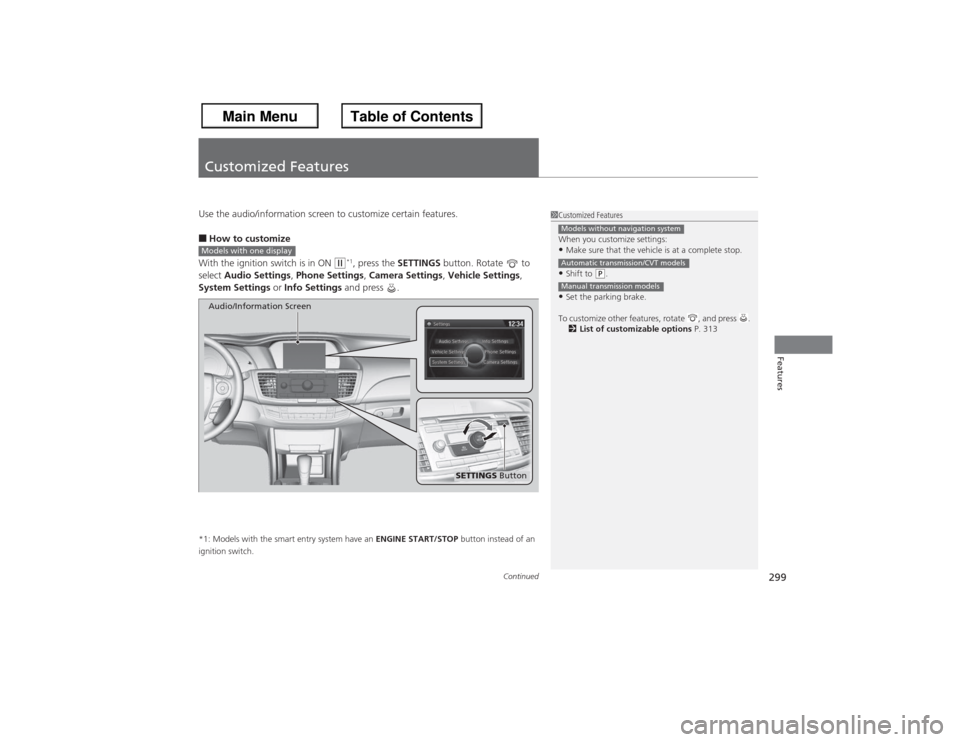
Customized FeaturesUse the audio/information screen to customize certain features.■How to customize
With the ignition switch is in ON
(w*1, press the SETTINGS button. Rotate to
select Audio Settings , Phone Settings , Camera Settings , Vehicle Settings,
System Settings or Info Settings and press .
*1: Models with the smart entry system have an ENGINE START/STOP button instead of an
ignition switch.
1 Customized Features
When you customize settings:•Make sure that the vehicle is at a complete stop.•Shift to
(P.
•Set the parking brake.
To customize other features, rotate , and press . 2 List of customizable options P. 313Models without navigation systemAutomatic transmission/CVT modelsManual transmission models
Models with one display
SETTINGS Button
Audio/Information Screen
Page 301 of 595
300
uuCustomized Features u
Features
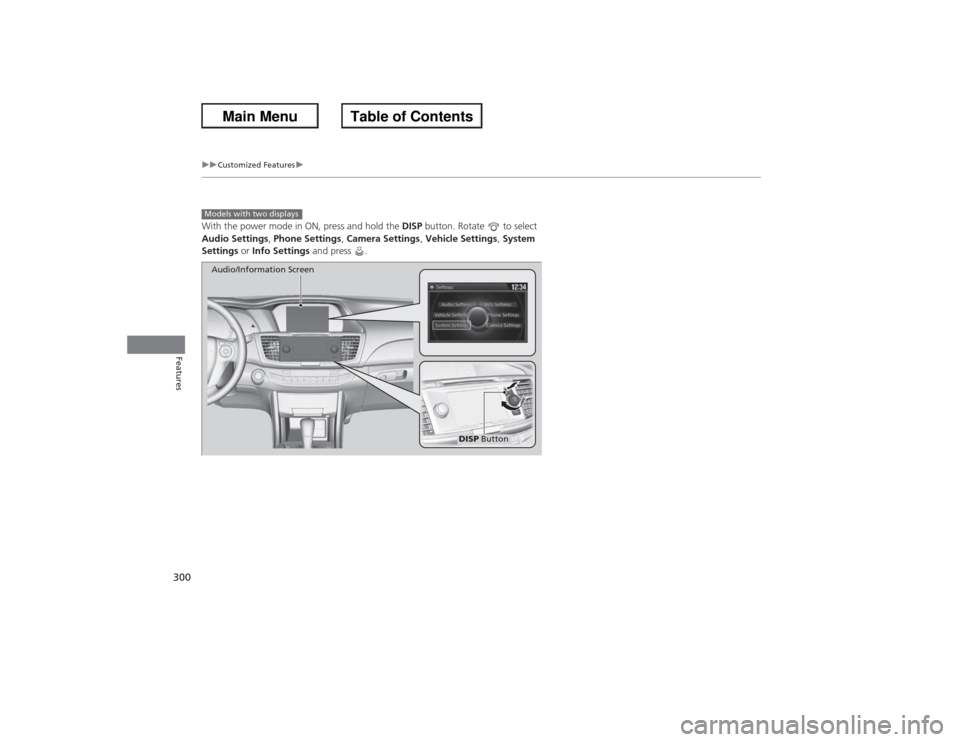
With the power mode in ON, press and hold the DISP button. Rotate to select
Audio Settings , Phone Settings , Camera Settings , Vehicle Settings , System
Settings or Info Settings and press .Models with two displays
DISP Button
Audio/Information Screen
Page 302 of 595
Continued
301
uuCustomized Features u
Features
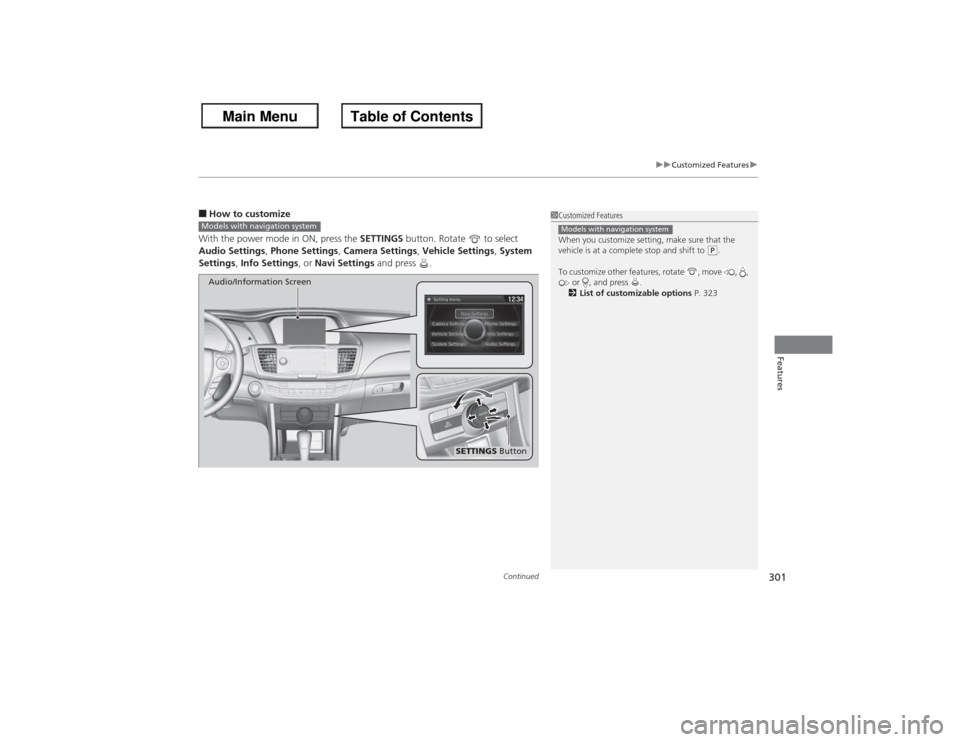
■How to customize
With the power mode in ON, press the SETTINGS button. Rotate to select
Audio Settings, Phone Settings, Camera Settings, Vehicle Settings , System
Settings , Info Settings , or Navi Settings and press .
1Customized Features
When you customize setting, make sure that the
vehicle is at a complete stop and shift to
(P.
To customize other features, rotate , move , , or , and press .
2 List of customizable options P. 323
Models with navigation system
Models with navigation system
SETTINGS Button
Audio/Information Screen
Page 303 of 595
302
uuCustomized Features u
Features
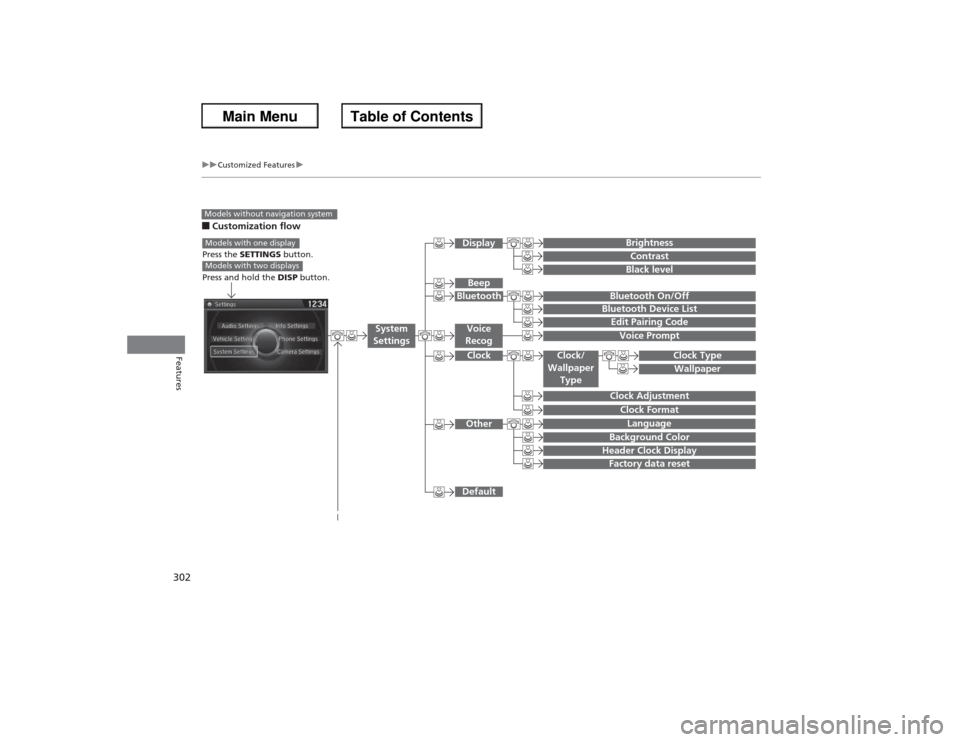
■Customization flowModels without navigation system
Clock FormatBackground ColorHeader Clock DisplayFactory data resetClock Adjustment
Press the SETTINGS button.
Press and hold the DISP button.Models with one displayModels with two displays
Language
Default
Edit Pairing CodeBluetooth On/OffBluetooth Device List
Voice PromptBrightnessContrastBlack level
Beep
Clock/
Wallpaper Type
Clock TypeWallpaper
System
Settings
Voice
RecogBluetoothDisplayClockOther
Page 304 of 595
303
uuCustomized Features u
Continued
Features
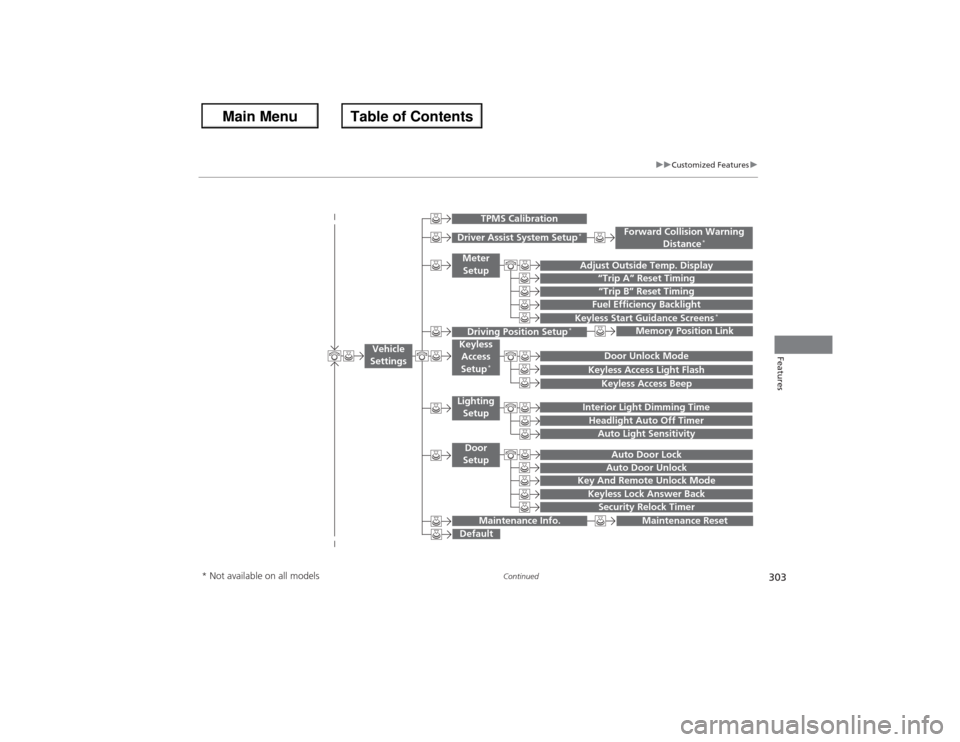
“Trip B” Reset Timing
Adjust Outside Temp. Display
“Trip A” Reset TimingKeyless Access Light FlashAuto Light Sensitivity
Auto Door LockAuto Door Unlock
Fuel Efficiency Backlight
Forward Collision Warning
Distance
*
Door Unlock Mode
Interior Light Dimming TimeHeadlight Auto Off Timer
Memory Position Link
Keyless Start Guidance Screens
*
Key And Remote Unlock ModeKeyless Lock Answer BackSecurity Relock Timer
Maintenance Reset
Default
Vehicle
Settings
Driver Assist System Setup
*
Meter Setup
TPMS Calibration
Driving Position Setup
*
Keyless Access
Setup
*
Lighting SetupDoor
Setup
Maintenance Info.
Keyless Access Beep
* Not available on all models
Page 305 of 595
304
uuCustomized Features u
Features
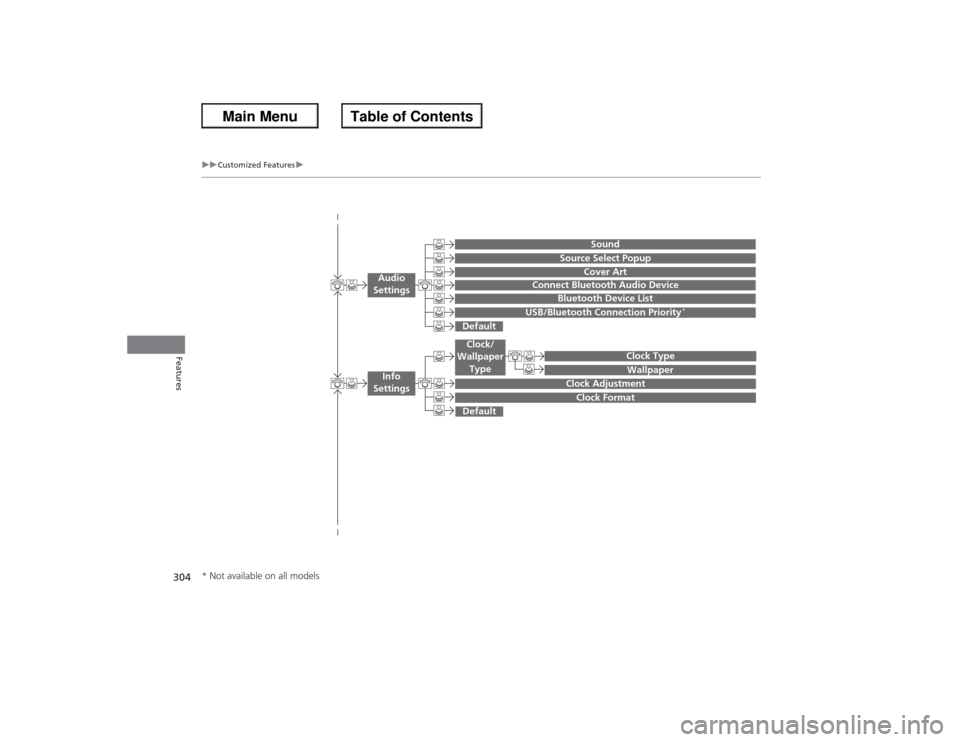
Wallpaper
Source Select Popup
Clock Type
Sound
Default
Cover Art
Connect Bluetooth Audio Device
Bluetooth Device List
USB/Bluetooth Connection Priority
*
Default
Clock AdjustmentClock Format
Audio
Settings
Clock/
Wallpaper Type
Info
Settings
* Not available on all models