Display settings HONDA ACCORD 2013 9.G Workshop Manual
[x] Cancel search | Manufacturer: HONDA, Model Year: 2013, Model line: ACCORD, Model: HONDA ACCORD 2013 9.GPages: 595, PDF Size: 20.67 MB
Page 335 of 595
334
uuCustomized Features uDefaulting All the Settings
Features
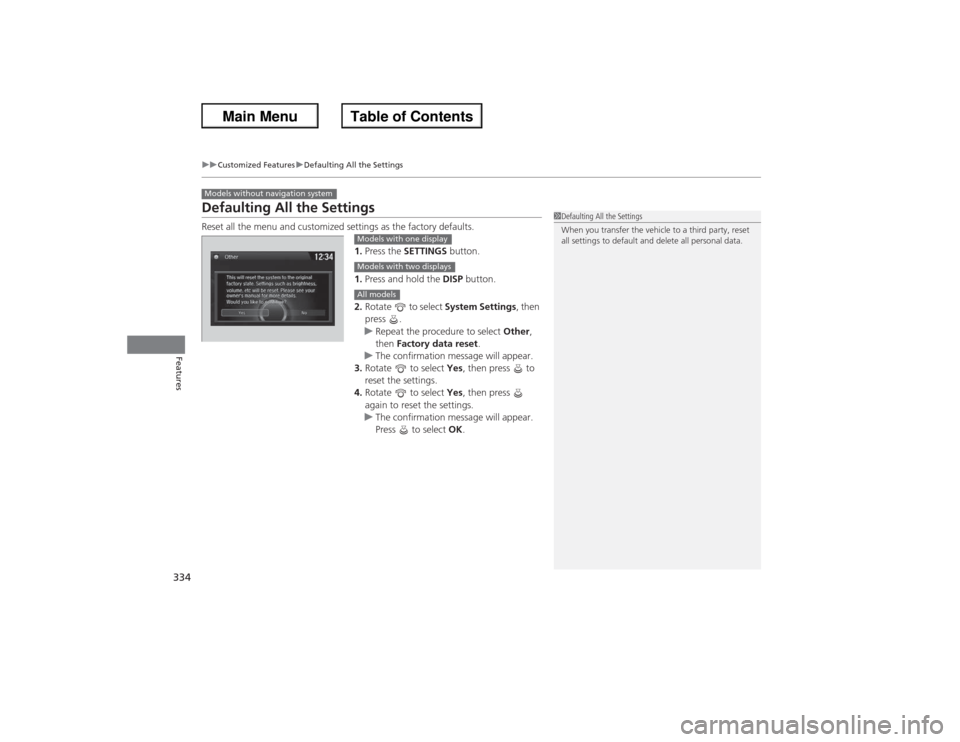
Defaulting All the SettingsReset all the menu and customized settings as the factory defaults.
1.Press the SETTINGS button.
1. Press and hold the DISP button.
2. Rotate to select System Settings, then
press .
u Repeat the procedure to select Other,
then Factory data reset .
u The confirmation message will appear.
3. Rotate to select Yes, then press to
reset the settings.
4. Rotate to select Yes, then press
again to reset the settings.
u The confirmation message will appear.
Press to select OK.Models without navigation system
1Defaulting All the Settings
When you transfer the vehicle to a third party, reset
all settings to default and delete all personal data.
Models with one displayModels with two displaysAll models
Page 343 of 595
342
uuBluetooth ® HandsFreeLink ®u HFL Menus
Features
HFL MenusThe ignition switch must be in ACCESSORY
(q or ON
(w*1 to use HFL.
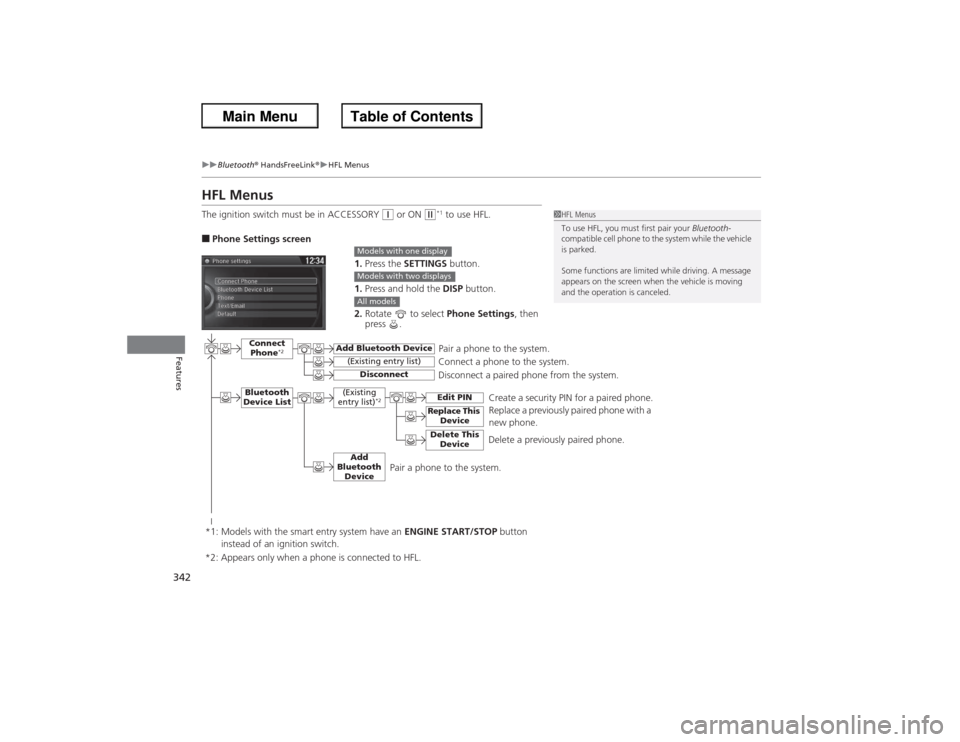
■Phone Settings screen
1.Press the SETTINGS button.
1. Press and hold the DISP button.
2. Rotate to select Phone Settings, then
press .
1 HFL Menus
To use HFL, you must first pair your Bluetooth-
compatible cell phone to the system while the vehicle
is parked.
Some functions are limited while driving. A message
appears on the screen when the vehicle is moving
and the operation is canceled.
Models with one displayModels with two displaysAll models
Pair a phone to the system.
Replace a previously paired phone with a
new phone.
Connect Phone
*2
Bluetooth
Device List
Add Bluetooth Device
Edit PIN
(Existing entry list)
Disconnect
Connect a phone to the system.
Disconnect a paired phone from the system.
*1: Models with the smart entry system have an ENGINE START/STOP button
instead of an ignition switch.
(Existing
entry list)
*2
Replace This DeviceDelete This Device
Delete a previously paired phone.Create a security PIN for a paired phone.
Add
Bluetooth Device
*2: Appears only when a phone is connected to HFL.
Pair a phone to the system.
Page 345 of 595
344
uuBluetooth ® HandsFreeLink ®u HFL Menus
Features
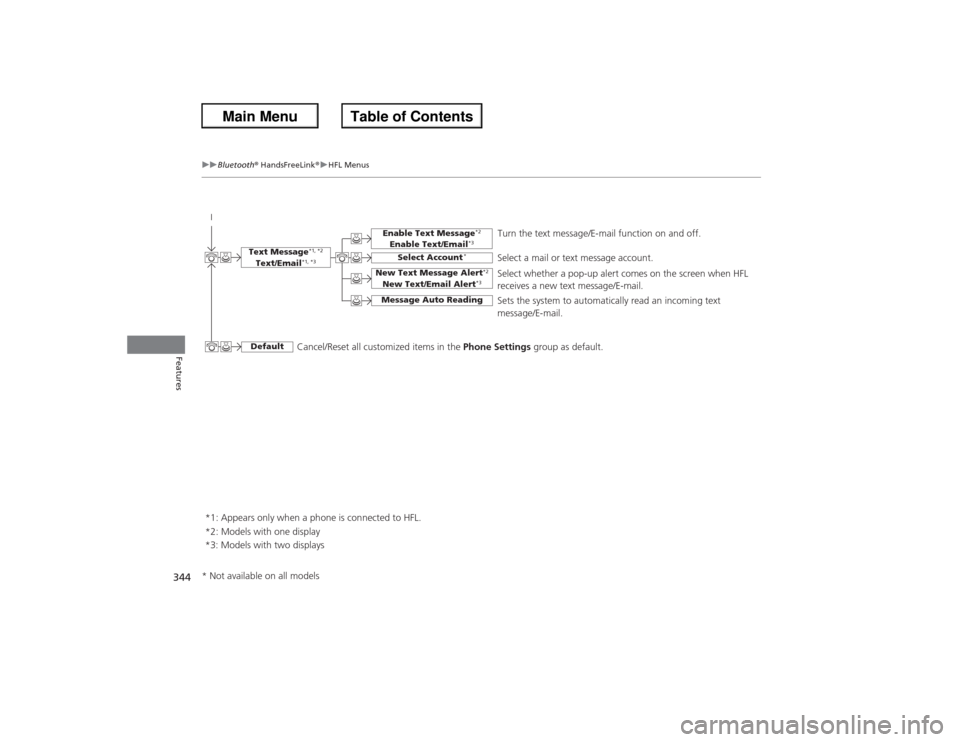
*1: Appears only when a phone is connected to HFL. Turn the text message/E-mail function on and off.
Select Account
*
Select a mail or text message account.
New Text Message Alert
*2
New Text/Email Alert
*3
Message Auto Reading
Select whether a pop-up alert comes on the screen when HFL
receives a new text message/E-mail.
Sets the system to automatically read an incoming text
message/E-mail.
Text Message
*1, *2
Text/Email
*1, *3
Default
Enable Text Message
*2
Enable Text/Email
*3
Cancel/Reset all customized items in the
Phone Settings group as default.
*2: Models with one display
*3: Models with two displays
* Not available on all models
Page 350 of 595
Continued
349
uuBluetooth® HandsFreeLink ®u HFL Menus
Features
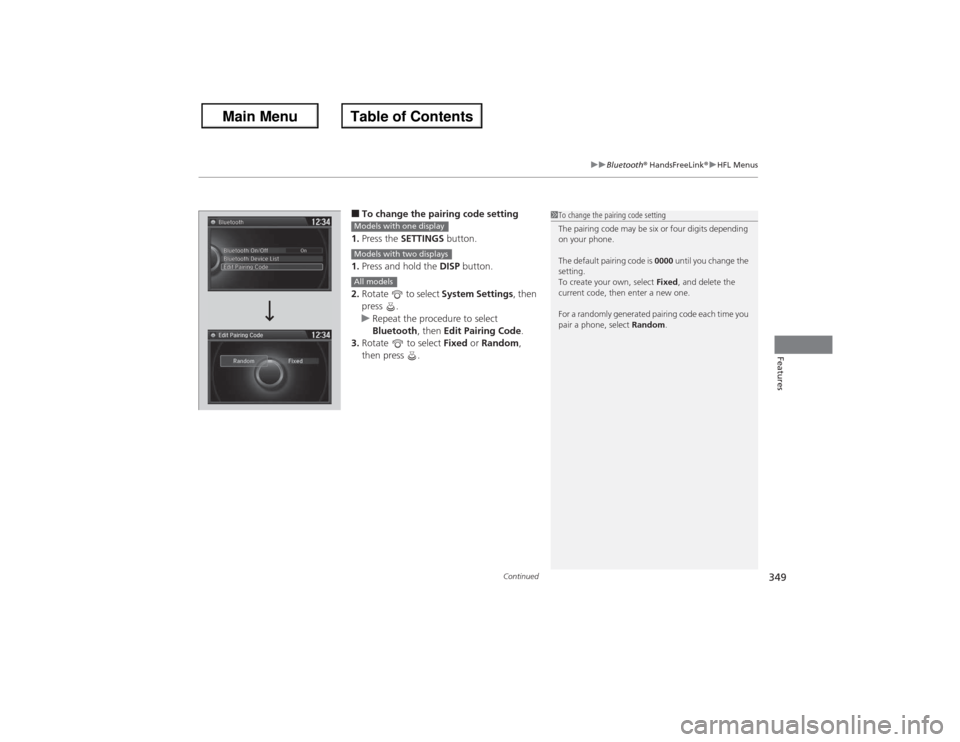
■To change the pairing code setting
1. Press the SETTINGS button.
1. Press and hold the DISP button.
2. Rotate to select System Settings, then
press .
u Repeat the procedure to select
Bluetooth , then Edit Pairing Code .
3. Rotate to select Fixed or Random ,
then press .
1 To change the pairing code setting
The pairing code may be six or four digits depending
on your phone.
The default pairing code is 0000 until you change the
setting.
To create your own, select Fixed, and delete the
current code, then enter a new one.
For a randomly generated pairing code each time you
pair a phone, select Random.
Edit Pairing Code
Models with one displayModels with two displaysAll models
Page 353 of 595
352
uuBluetooth ® HandsFreeLink ®u HFL Menus
Features
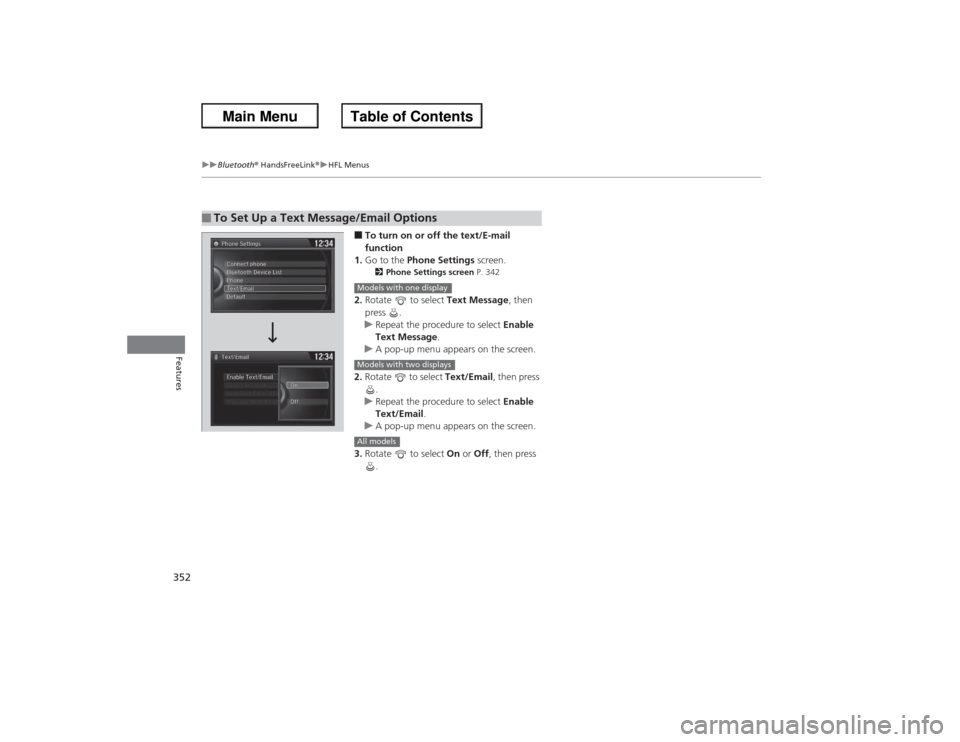
■To turn on or off the text/E-mail
function
1. Go to the Phone Settings screen.2Phone Settings screen P. 342
2.Rotate to select Text Message, then
press .
u Repeat the procedure to select Enable
Text Message .
u A pop-up menu appears on the screen.
2. Rotate to select Text/Email, then press
.
u Repeat the procedure to select Enable
Text/Email .
u A pop-up menu appears on the screen.
3. Rotate to select On or Off , then press
.
■To Set Up a Text Message/Email Options
Models with one displayModels with two displaysAll models
Page 371 of 595
uuBluetooth ® HandsFreeLink ®u HFL Menus
370Features
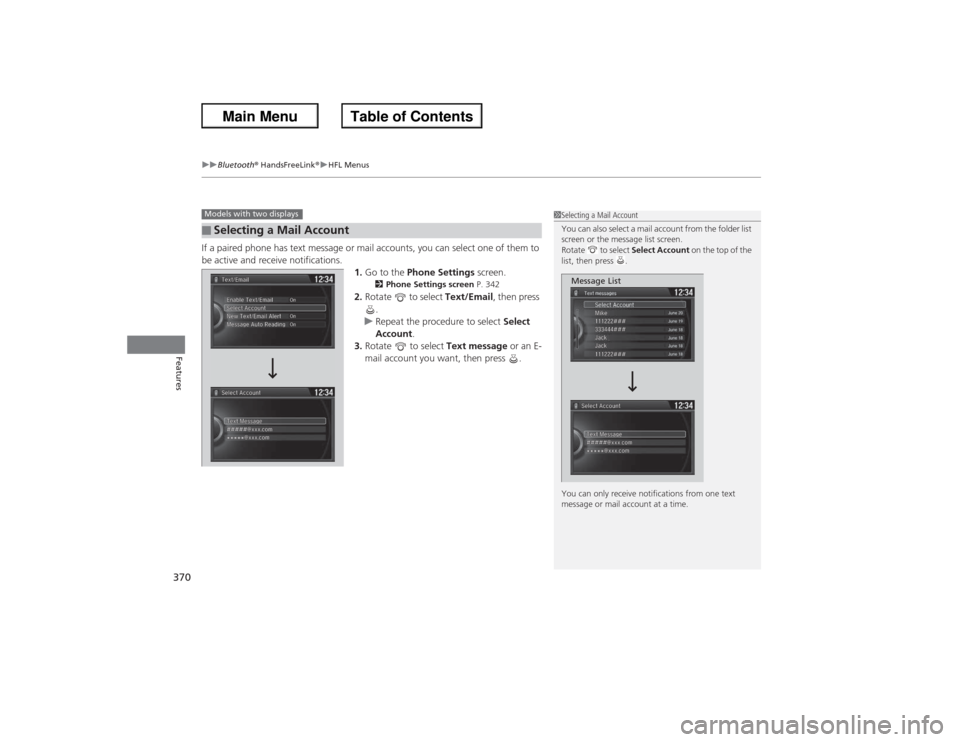
If a paired phone has text message or mail accounts, you can select one of them to
be active and receive notifications.
1.Go to the Phone Settings screen.
2Phone Settings screen P. 342
2.Rotate to select Text/Email, then press
.
u Repeat the procedure to select Select
Account.
3. Rotate to select Text message or an E-
mail account you want, then press .
■Selecting a Mail AccountModels with two displays
1 Selecting a Mail Account
You can also select a mail account from the folder list
screen or the message list screen.
Rotate to select Select Account on the top of the
list, then press .
You can only receive notifications from one text
message or mail account at a time.
Message List
Page 380 of 595
379
uuBluetooth® HandsFreeLink ®u HFL Menus
Continued
Features
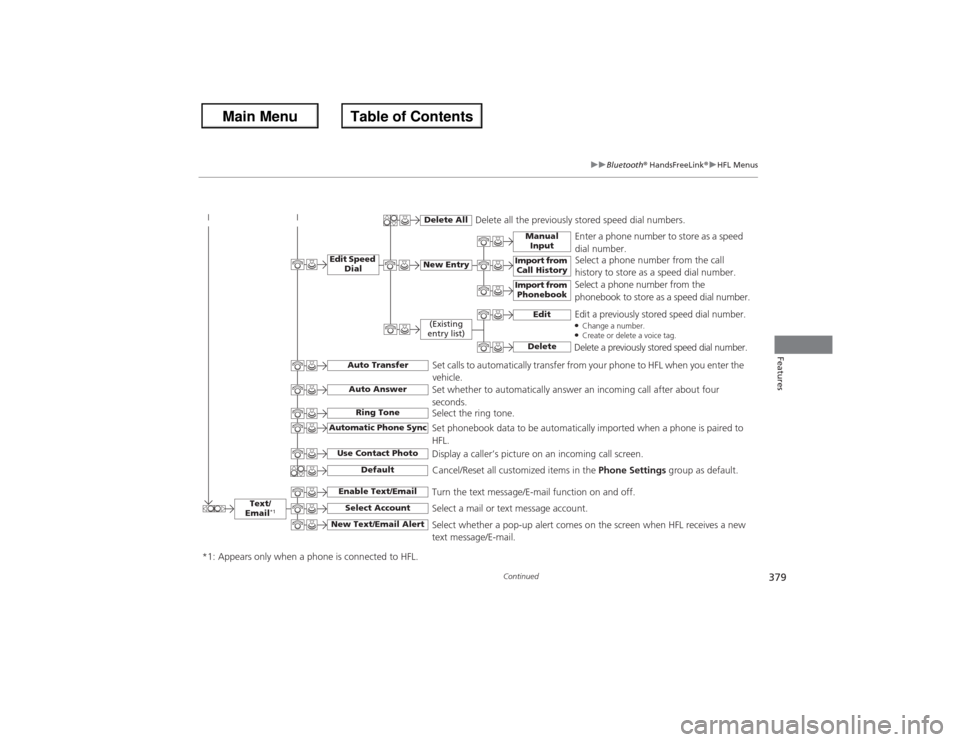
Text/
Email
*1
Manual Input
Edit Speed Dial
New Entry
Import from Call History
*1: Appears only when a phone is connected to HFL.
Import from Phonebook
Delete All
Delete all the previously stored speed dial numbers.
Select a phone number from the call
history to store as a speed dial number.
Select a phone number from the
phonebook to store as a speed dial number. Enter a phone number to store as a speed
dial number.
Edit
Delete
(Existing
entry list)
Edit a previously stored speed dial number.●Change a number.●Create or delete a voice tag.Delete a previously stored speed dial number.
Set calls to automatically transfer from your phone to HFL when you enter the
vehicle.
Auto TransferAuto AnswerRing Tone
Set whether to automatically answer an incoming call after about four
seconds.
Select the ring tone.
Use Contact Photo
Set phonebook data to be automatically imported when a phone is paired to
HFL.
Display a caller’s picture on an incoming call screen.
Automatic Phone Sync
Select Account
Select a mail or text message account.
Enable Text/Email
Turn the text message/E-mail function on and off.
New Text/Email Alert
Select whether a pop-up alert comes on the screen when HFL receives a new
text message/E-mail.
Cancel/Reset all customized items in the Phone Settings group as default.
Default
Page 415 of 595
414Features
Compass
*
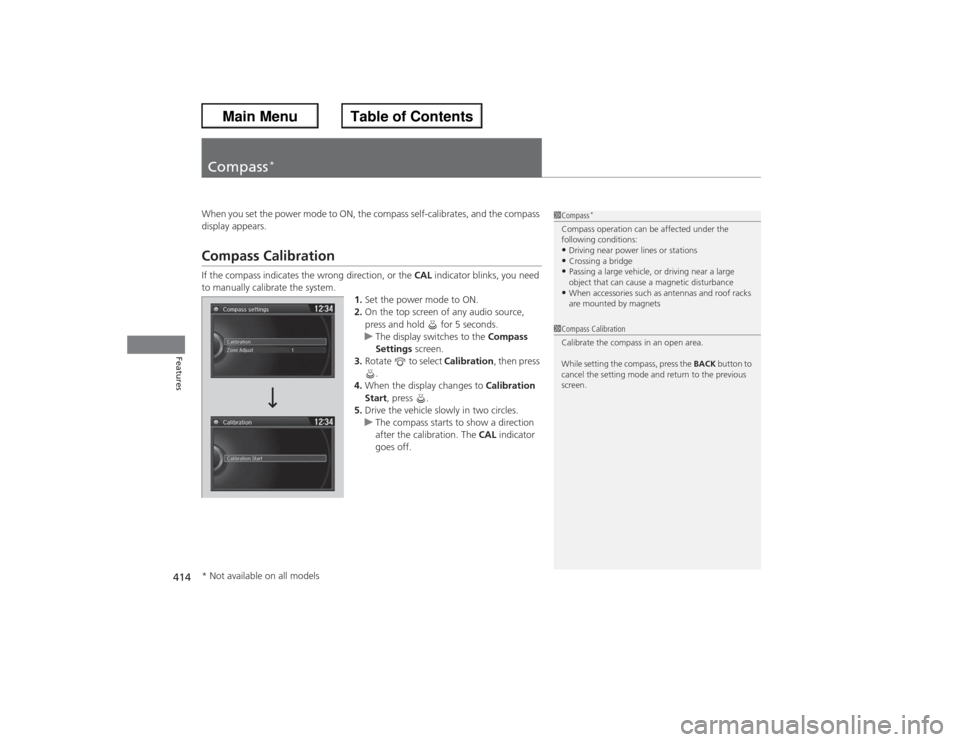
When you set the power mode to ON, the compass self-calibrates, and the compass
display appears.Compass CalibrationIf the compass indicates the wrong direction, or the CAL indicator blinks, you need
to manually calibrate the system. 1.Set the power mode to ON.
2. On the top screen of any audio source,
press and hold for 5 seconds.
u The display switches to the Compass
Settings screen.
3. Rotate to select Calibration, then press
.
4. When the display changes to Calibration
Start , press .
5. Drive the vehicle slowly in two circles.
u The compass starts to show a direction
after the calibration. The CAL indicator
goes off.
1 Compass
*
Compass operation can be affected under the
following conditions:•Driving near power lines or stations•Crossing a bridge•Passing a large vehicle, or driving near a large
object that can cause a magnetic disturbance•When accessories such as antennas and roof racks
are mounted by magnets
1Compass Calibration
Calibrate the compass in an open area.
While setting the compass, press the BACK button to
cancel the setting mode and return to the previous
screen.
* Not available on all models
Page 416 of 595
415
uuCompass
*uCompass Zone Selection
Features
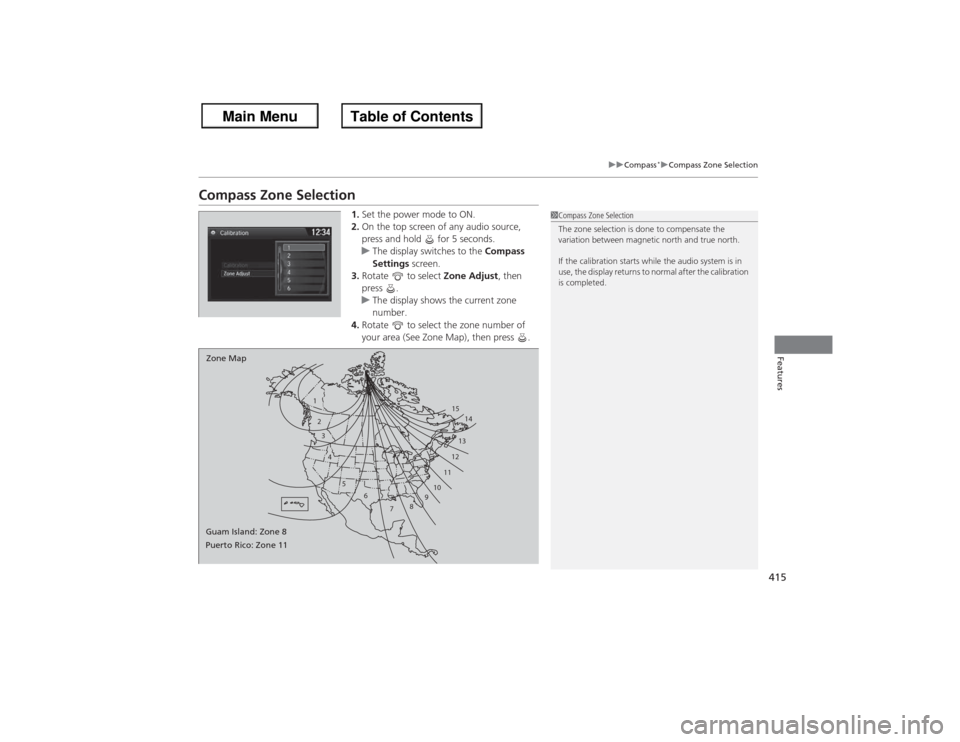
Compass Zone Selection
1. Set the power mode to ON.
2. On the top screen of any audio source,
press and hold for 5 seconds.
u The display switches to the Compass
Settings screen.
3. Rotate to select Zone Adjust, then
press .
u The display shows the current zone
number.
4. Rotate to select the zone number of
your area (See Zone Map), then press .
1
23
4
5 6
78910 11121314
15
Zone Map
Guam Island: Zone 8
Puerto Rico: Zone 11
1 Compass Zone Selection
The zone selection is done to compensate the
variation between magnetic north and true north.
If the calibration starts while the audio system is in
use, the display returns to normal after the calibration
is completed.
Page 469 of 595
uuWhen Driving uLaneWatch
TM*
468Driving
■Customizing the LaneWatch settings
You can customize the following items using the audio/information screen.
• Show with Turn Signal : Selects whether LaneWatch monitor comes on when
you operate the turn signal light lever.
• Reference Lines : Selects whether the guidelines come on on the LaneWatch
monitor.
• Next Maneuver Pop up
*: Selects whether a turn direction screen of the
navigation system interrupts the LaneWatch display.
• Display : Adjusts display settings.
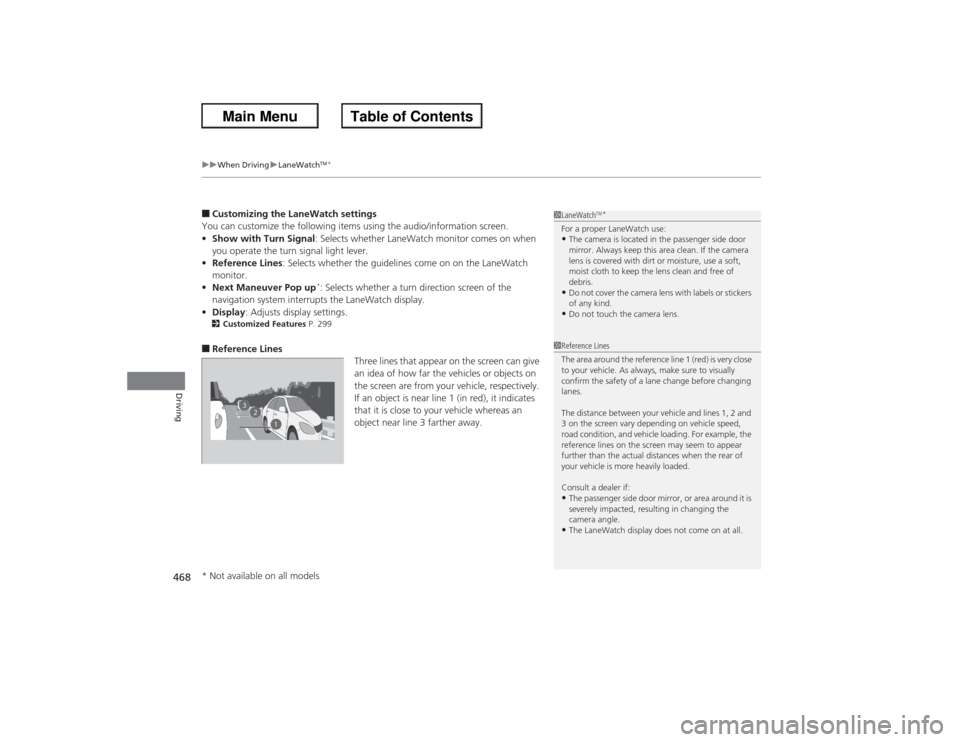
2Customized Features P. 299■Reference Lines
Three lines that appear on the screen can give
an idea of how far the vehicles or objects on
the screen are from your vehicle, respectively.
If an object is near line 1 (in red), it indicates
that it is close to your vehicle whereas an
object near line 3 farther away.
1LaneWatch
TM*
For a proper LaneWatch use:•The camera is located in the passenger side door
mirror. Always keep this area clean. If the camera
lens is covered with dirt or moisture, use a soft,
moist cloth to keep the lens clean and free of
debris.•Do not cover the camera lens with labels or stickers
of any kind.•Do not touch the camera lens.
23
1
1Reference Lines
The area around the reference line 1 (red) is very close
to your vehicle. As always, make sure to visually
confirm the safety of a lane change before changing
lanes.
The distance between your vehicle and lines 1, 2 and
3 on the screen vary depending on vehicle speed,
road condition, and vehicle loading. For example, the
reference lines on the screen may seem to appear
further than the actual distances when the rear of
your vehicle is more heavily loaded.
Consult a dealer if:•The passenger side door mirror, or area around it is
severely impacted, resulting in changing the
camera angle.•The LaneWatch display does not come on at all.
* Not available on all models