reset HONDA ACCORD 2013 9.G Repair Manual
[x] Cancel search | Manufacturer: HONDA, Model Year: 2013, Model line: ACCORD, Model: HONDA ACCORD 2013 9.GPages: 595, PDF Size: 20.67 MB
Page 332 of 595
331
uuCustomized Features u
Continued
Features
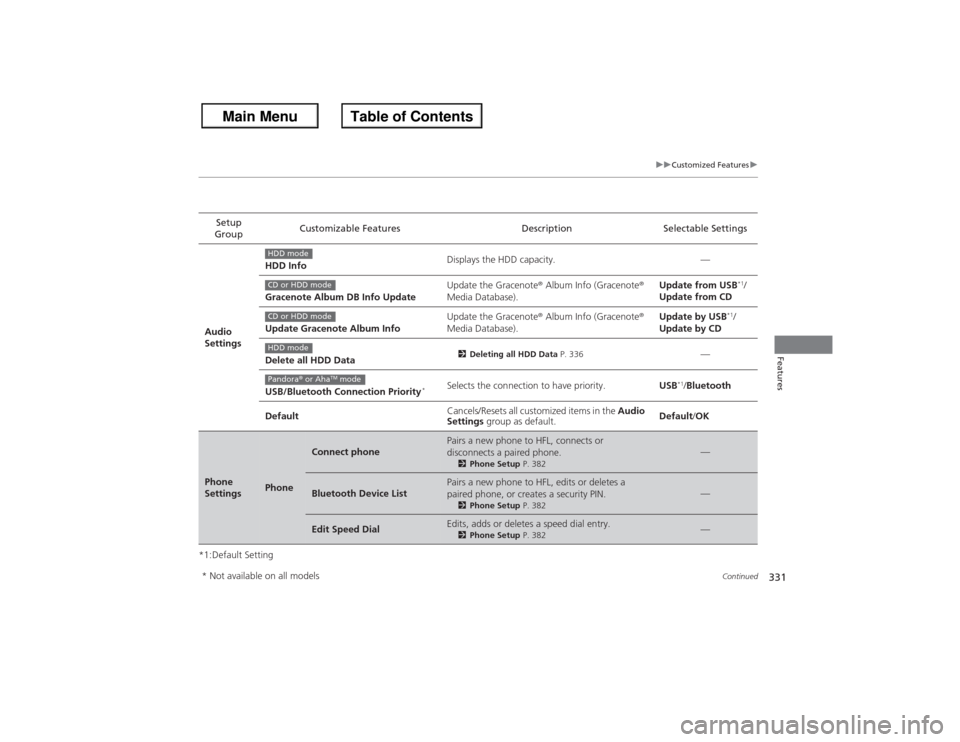
*1:Default SettingSetup
Group Customizable Features Description Selectable Settings
Audio
Settings HDD Info
Displays the HDD capacity. —
Gracenote Album DB Info Update Update the Gracenote
® Album Info (Gracenote ®
Media Database). Update from USB
*1/
Update from CD
Update Gracenote Album Info Update the Gracenote
® Album Info (Gracenote ®
Media Database). Update by USB
*1/
Update by CD
Delete all HDD Data
2 Deleting all HDD Data P. 336
—
USB/Bluetooth Connection Priority
*
Selects the connection to have priority. USB
*1/Bluetooth
Default Cancels/Resets all customized items in the
Audio
Settings group as default. Default
/OK
Phone
Settings
Phone
Connect phone
Pairs a new phone to HFL, connects or
disconnects a paired phone.2 Phone Setup P. 382
—
Bluetooth Device List
Pairs a new phone to HFL, edits or deletes a
paired phone, or creates a security PIN.2Phone Setup P. 382
—
Edit Speed Dial
Edits, adds or deletes a speed dial entry.2Phone Setup P. 382
—
HDD modeCD or HDD modeCD or HDD modeHDD modePandora® or Aha
TM mode
* Not available on all models
Page 334 of 595
333
uuCustomized Features u
Features
*1:Default SettingSetup
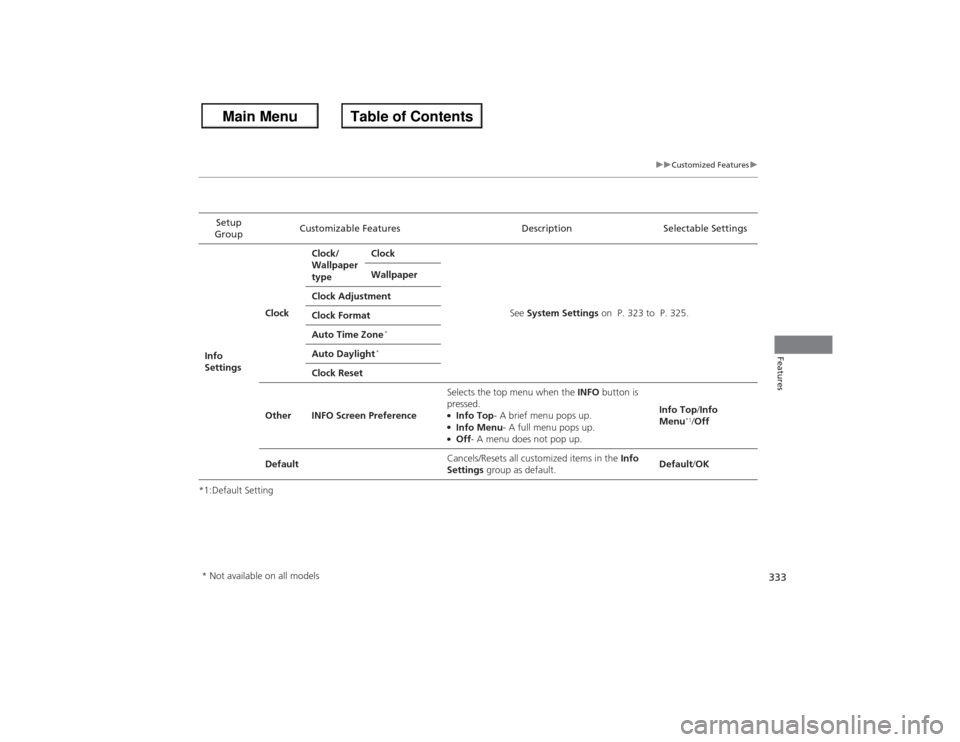
Group Customizable Features Description Selectable Settings
Info
Settings ClockClock/
Wallpaper
type
Clock
See System Settings on P. 323 to P. 325.
Wallpaper
Clock Adjustment
Clock Format
Auto Time Zone
*
Auto Daylight
*
Clock Reset
Other INFO Screen Preference Selects the top menu when the
INFO button is
pressed.
●Info Top - A brief menu pops up.●Info Menu- A full menu pops up.●Off- A menu does not pop up. Info Top
/Info
Menu
*1/ Off
Default Cancels/Resets all customized items in the
Info
Settings group as default. Default
/OK
* Not available on all models
Page 335 of 595
334
uuCustomized Features uDefaulting All the Settings
Features
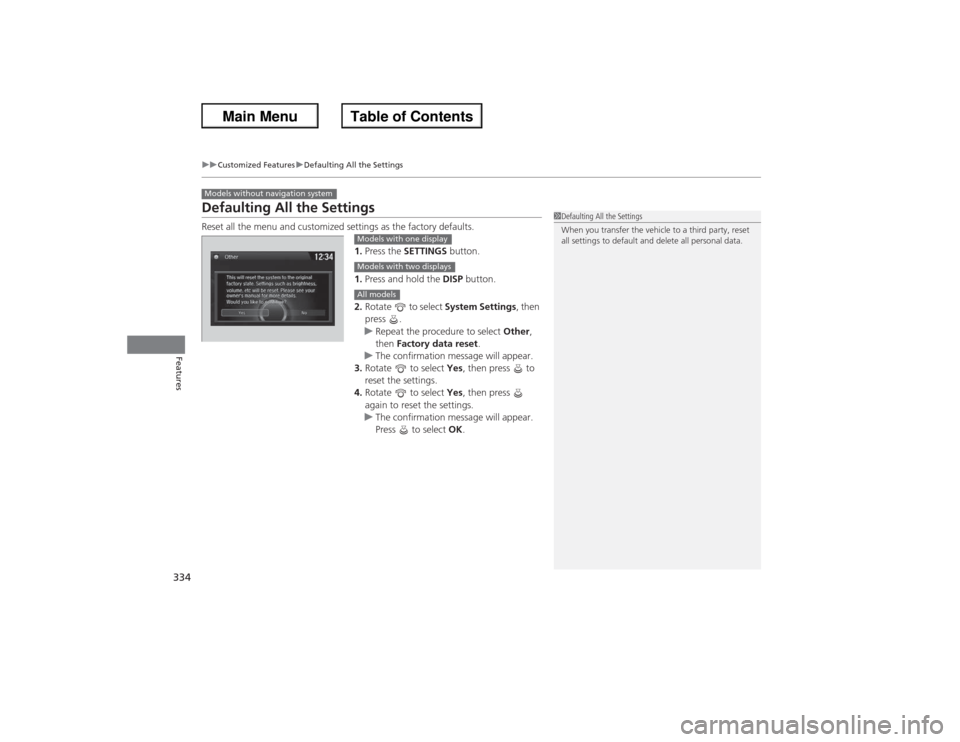
Defaulting All the SettingsReset all the menu and customized settings as the factory defaults.
1.Press the SETTINGS button.
1. Press and hold the DISP button.
2. Rotate to select System Settings, then
press .
u Repeat the procedure to select Other,
then Factory data reset .
u The confirmation message will appear.
3. Rotate to select Yes, then press to
reset the settings.
4. Rotate to select Yes, then press
again to reset the settings.
u The confirmation message will appear.
Press to select OK.Models without navigation system
1Defaulting All the Settings
When you transfer the vehicle to a third party, reset
all settings to default and delete all personal data.
Models with one displayModels with two displaysAll models
Page 336 of 595
335
uuCustomized Features uDefaulting All the Settings
Features
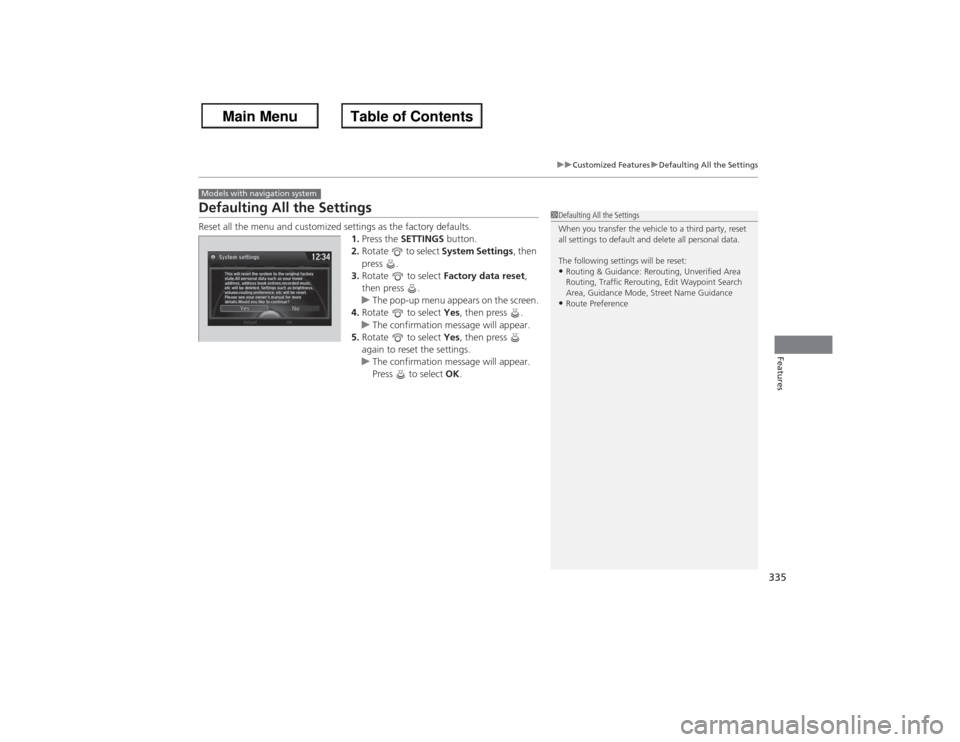
Defaulting All the SettingsReset all the menu and customized settings as the factory defaults.
1.Press the SETTINGS button.
2. Rotate to select System Settings, then
press .
3. Rotate to select Factory data reset,
then press .
u The pop-up menu appears on the screen.
4. Rotate to select Yes, then press .
u The confirmation message will appear.
5. Rotate to select Yes, then press
again to reset the settings.
u The confirmation message will appear.
Press to select OK.Models with navigation system
1Defaulting All the Settings
When you transfer the vehicle to a third party, reset
all settings to default and delete all personal data.
The following settings will be reset:•Routing & Guidance: Rerouting, Unverified Area
Routing, Traffic Rerouting, Edit Waypoint Search
Area, Guidance Mode, Street Name Guidance•Route Preference
Page 337 of 595
336
uuCustomized Features uDeleting all HDD Data
Features
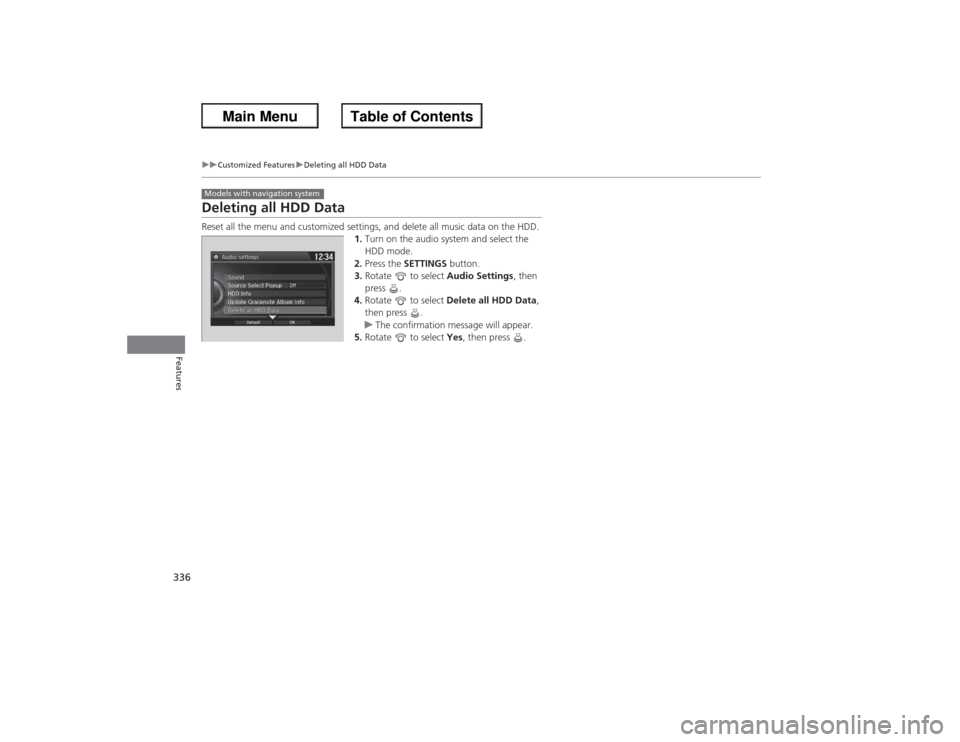
Deleting all HDD DataReset all the menu and customized settings, and delete all music data on the HDD.
1.Turn on the audio system and select the
HDD mode.
2. Press the SETTINGS button.
3. Rotate to select Audio Settings, then
press .
4. Rotate to select Delete all HDD Data,
then press .
u The confirmation message will appear.
5. Rotate to select Yes, then press .Models with navigation system
Page 345 of 595
344
uuBluetooth ® HandsFreeLink ®u HFL Menus
Features
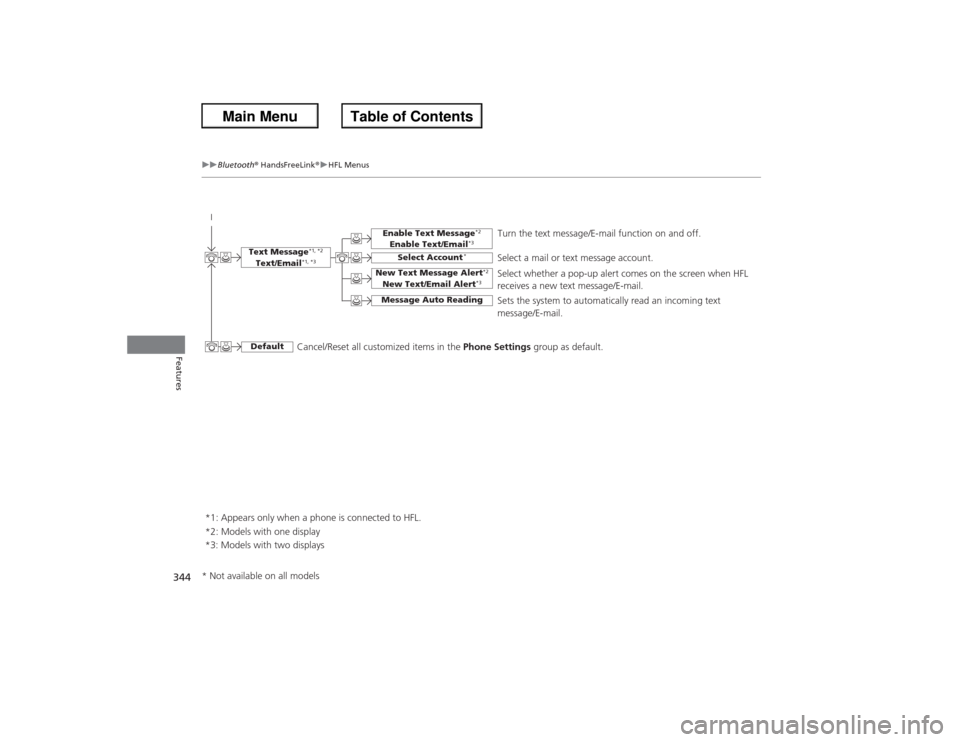
*1: Appears only when a phone is connected to HFL. Turn the text message/E-mail function on and off.
Select Account
*
Select a mail or text message account.
New Text Message Alert
*2
New Text/Email Alert
*3
Message Auto Reading
Select whether a pop-up alert comes on the screen when HFL
receives a new text message/E-mail.
Sets the system to automatically read an incoming text
message/E-mail.
Text Message
*1, *2
Text/Email
*1, *3
Default
Enable Text Message
*2
Enable Text/Email
*3
Cancel/Reset all customized items in the
Phone Settings group as default.
*2: Models with one display
*3: Models with two displays
* Not available on all models
Page 367 of 595
uuBluetooth ® HandsFreeLink ®u HFL Menus
366Features
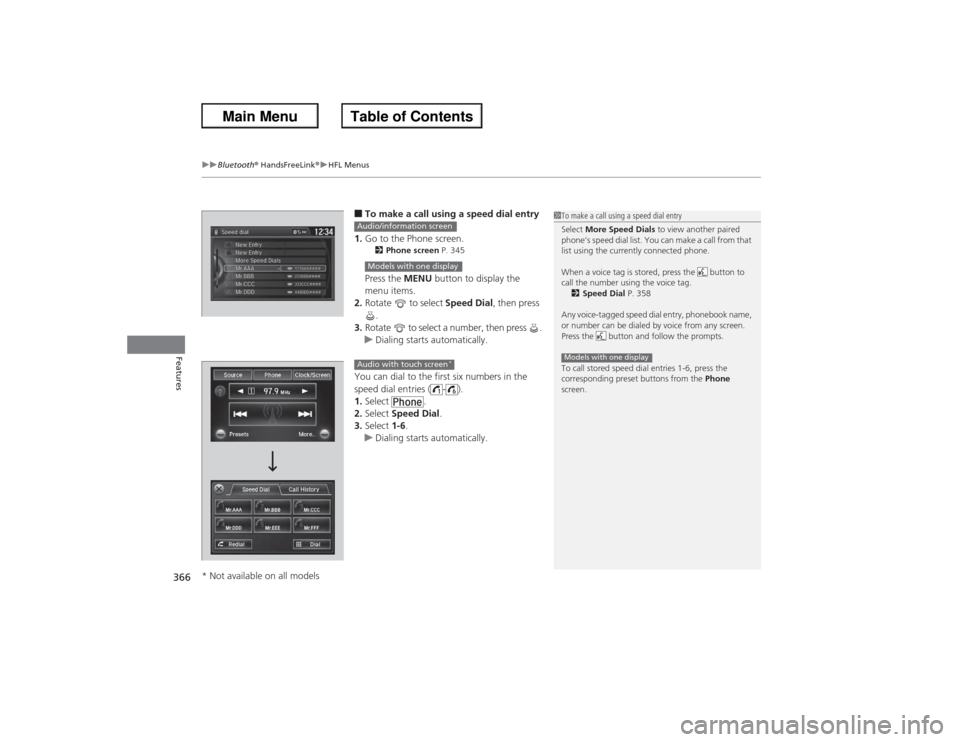
■To make a call using a speed dial entry
1. Go to the Phone screen.2 Phone screen P. 345Press the MENU button to display the
menu items.
2. Rotate to select Speed Dial, then press
.
3. Rotate to select a number, then press .
u Dialing starts automatically.
You can dial to the first six numbers in the
speed dial entries ( - ).
1. Select .
2. Select Speed Dial .
3. Select 1-6.
u Dialing starts automatically.
1To make a call using a speed dial entry
Select More Speed Dials to view another paired
phone’s speed dial list. You can make a call from that
list using the currently connected phone.
When a voice tag is stored, press the button to
call the number using the voice tag. 2 Speed Dial P. 358
Any voice-tagged speed dial entry, phonebook name,
or number can be dialed by voice from any screen.
Press the button and follow the prompts.
To call stored speed dial entries 1-6, press the
corresponding preset buttons from the Phone
screen.Models with one display
Audio/information screenModels with one displayAudio with touch screen
*
* Not available on all models
Page 380 of 595
379
uuBluetooth® HandsFreeLink ®u HFL Menus
Continued
Features
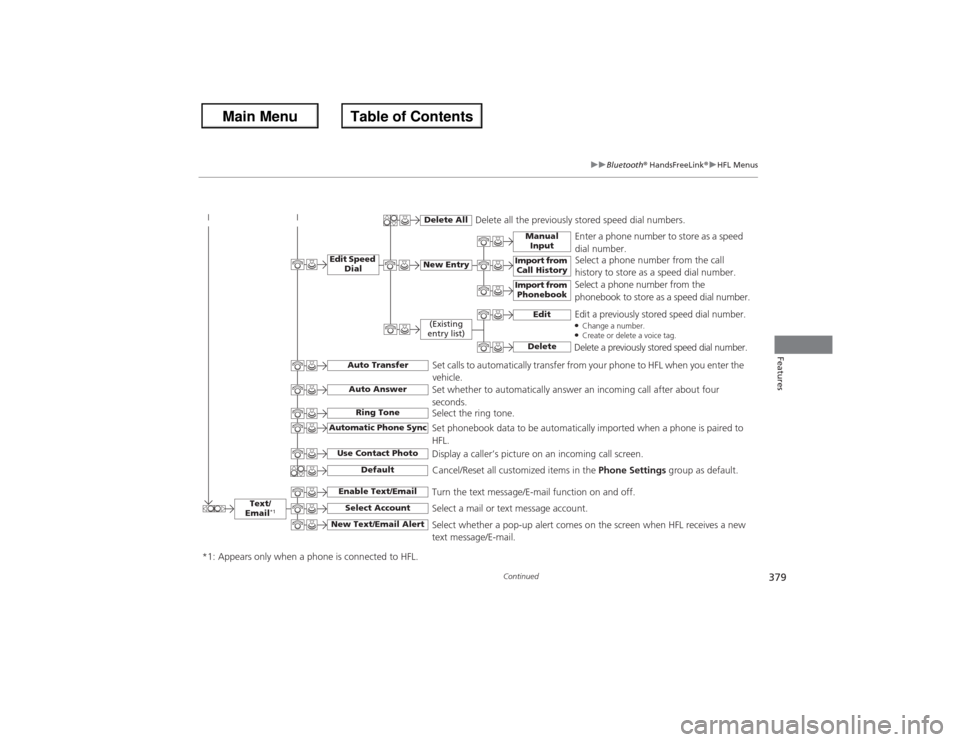
Text/
Email
*1
Manual Input
Edit Speed Dial
New Entry
Import from Call History
*1: Appears only when a phone is connected to HFL.
Import from Phonebook
Delete All
Delete all the previously stored speed dial numbers.
Select a phone number from the call
history to store as a speed dial number.
Select a phone number from the
phonebook to store as a speed dial number. Enter a phone number to store as a speed
dial number.
Edit
Delete
(Existing
entry list)
Edit a previously stored speed dial number.●Change a number.●Create or delete a voice tag.Delete a previously stored speed dial number.
Set calls to automatically transfer from your phone to HFL when you enter the
vehicle.
Auto TransferAuto AnswerRing Tone
Set whether to automatically answer an incoming call after about four
seconds.
Select the ring tone.
Use Contact Photo
Set phonebook data to be automatically imported when a phone is paired to
HFL.
Display a caller’s picture on an incoming call screen.
Automatic Phone Sync
Select Account
Select a mail or text message account.
Enable Text/Email
Turn the text message/E-mail function on and off.
New Text/Email Alert
Select whether a pop-up alert comes on the screen when HFL receives a new
text message/E-mail.
Cancel/Reset all customized items in the Phone Settings group as default.
Default
Page 471 of 595
uuWhen Driving uTPMS (Tire Pressure Monitoring System)
470Driving
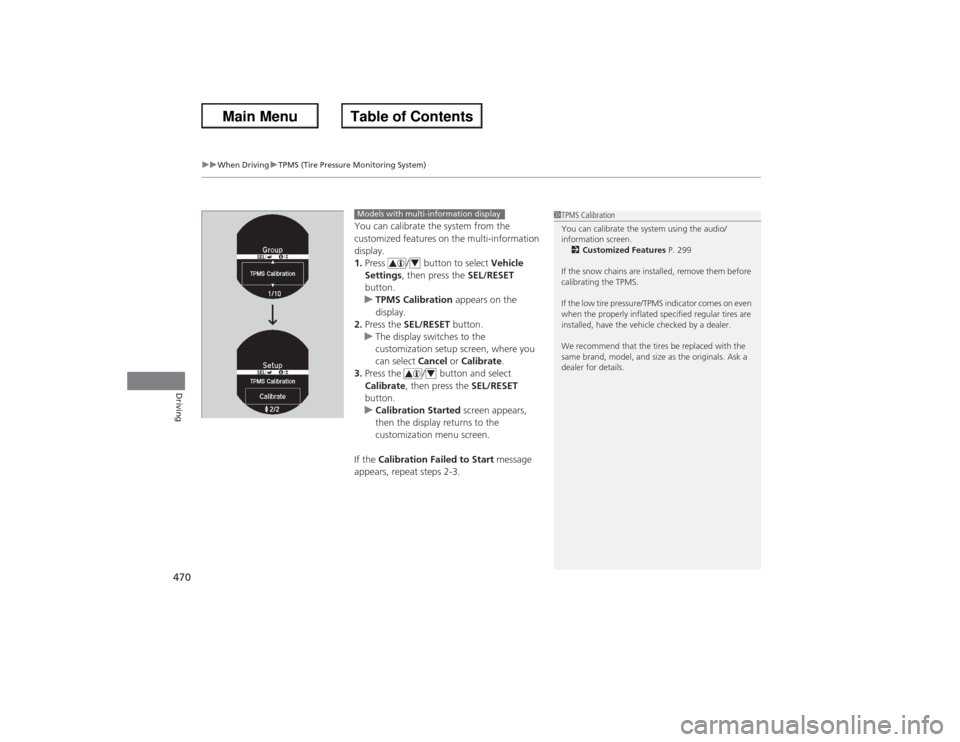
You can calibrate the system from the
customized features on the multi-information
display.
1. Press / button to select Vehicle
Settings , then press the SEL/RESET
button.
u TPMS Calibration appears on the
display.
2. Press the SEL/RESET button.
u The display switches to the
customization setup screen, where you
can select Cancel or Calibrate .
3. Press the / button and select
Calibrate , then press the SEL/RESET
button.
u Calibration Started screen appears,
then the display returns to the
customization menu screen.
If the Calibration Failed to Start message
appears, repeat steps 2-3.
1 TPMS Calibration
You can calibrate the system using the audio/
information screen.
2 Customized Features P. 299
If the snow chains are installed, remove them before
calibrating the TPMS.
If the low tire pressure/TPMS indicator comes on even
when the properly inflated specified regular tires are
installed, have the vehicle checked by a dealer.
We recommend that the tires be replaced with the
same brand, model, and size as the originals. Ask a
dealer for details.
Models with multi-information display
4
4
Page 490 of 595
489
Continued
Maintenance
Maintenance Minder
TM
If the engine oil life is less than 15%, you will see the Maintenance Minder messages
appear on the information display
* or the multi-information display
* every time you
turn the ignition switch to ON
(w*1. The messages notify you when to change the
engine oil, or when to bring your vehicle to a dealer for indicated maintenance
services.
To Use Maintenance Minder
TM
1. Turn the ignition switch to ON
(w*1.
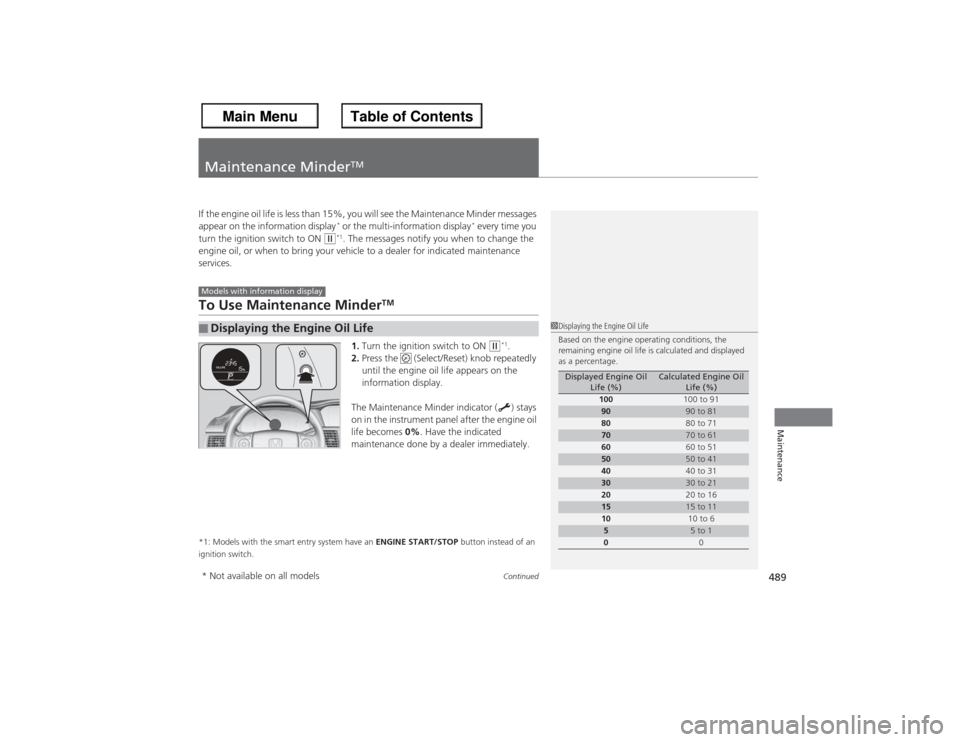
2. Press the (Select/Reset) knob repeatedly
until the engine oil life appears on the
information display.
The Maintenance Minder indicator ( ) stays
on in the instrument panel after the engine oil
life becomes 0%. Have the indicated
maintenance done by a dealer immediately.
*1: Models with the smart entry system have an ENGINE START/STOP button instead of an
ignition switch.■Displaying the Engine Oil LifeModels with information display
1 Displaying the Engine Oil Life
Based on the engine operating conditions, the
remaining engine oil life is calculated and displayed
as a percentage.
Displayed Engine Oil
Life (%)
Calculated Engine Oil Life (%)
100 100 to 91
90
90 to 81
80 80 to 71
70
70 to 61
60 60 to 51
50
50 to 41
40 40 to 31
30
30 to 21
20 20 to 16
15
15 to 11
10 10 to 6
5
5 to 1
0 0
* Not available on all models