display HONDA ACCORD 2014 9.G Owners Manual
[x] Cancel search | Manufacturer: HONDA, Model Year: 2014, Model line: ACCORD, Model: HONDA ACCORD 2014 9.GPages: 595
Page 246 of 595
245
uuAudio System Basic Operation uVoice Control Operation
Continued
Features
Voice Control OperationYour vehicle has a voice control system that allows hands-free operation of most of
the navigation system functions.
The voice control system uses the (Talk) and (hang-up/back) buttons on the
steering wheel and a microphone near the map lights on the ceiling.
To achieve optimum voice recognition when using the navigation voice control
system:
• Make sure the correct screen is displayed for the voice command that you are
using.
• Close the windows and moonroof.
• Adjust the dashboard and side vents so air does not blow onto the microphone
on the ceiling.
• Speak clearly in a clear, natural speaking voice without pausing between words.
• Reduce any background noise if possible. The system may misinterpret your
command if more than one person is speaking at the same time.
• Refer to the Voice Help feature.
2 Refer to the Navigation System Manual
■
Voice Recognition
1Voice Control Operation
When you press the button, a helpful prompt asks
what you would like to do. Press and release the
button again to bypass this prompt and give a
command.1Voice Recognition
The voice control system can only be used from the
driver’s seat because the microphone unit removes
noises from the front passenger’s side.
Page 247 of 595
246
uuAudio System Basic Operation uVoice Control Operation
Features
The system accepts these commands on the
Voice Portal screen.
• Call Your contact name
• Call Phone Number
• Find nearest POI category name
• Go home
• Route menu
• Cancel route
The system accepts these commands on any
screen.
• Call by number
• Call by name
• Call Phone number
• Call your contact name
Contacts that are imported from your
phone to the vehicle are all made available
by voice. Voice Tags can also be recorded
for each of your Speed Dial entries.■
Voice Portal Commands
■
Phone Commands
2 Refer to the Navigation System Manual
The system accepts these commands on any
screen.
•Trip computer
• Traffic information
• Display clock
• Display wallpaper■
Navigation Commands
■
Info Commands
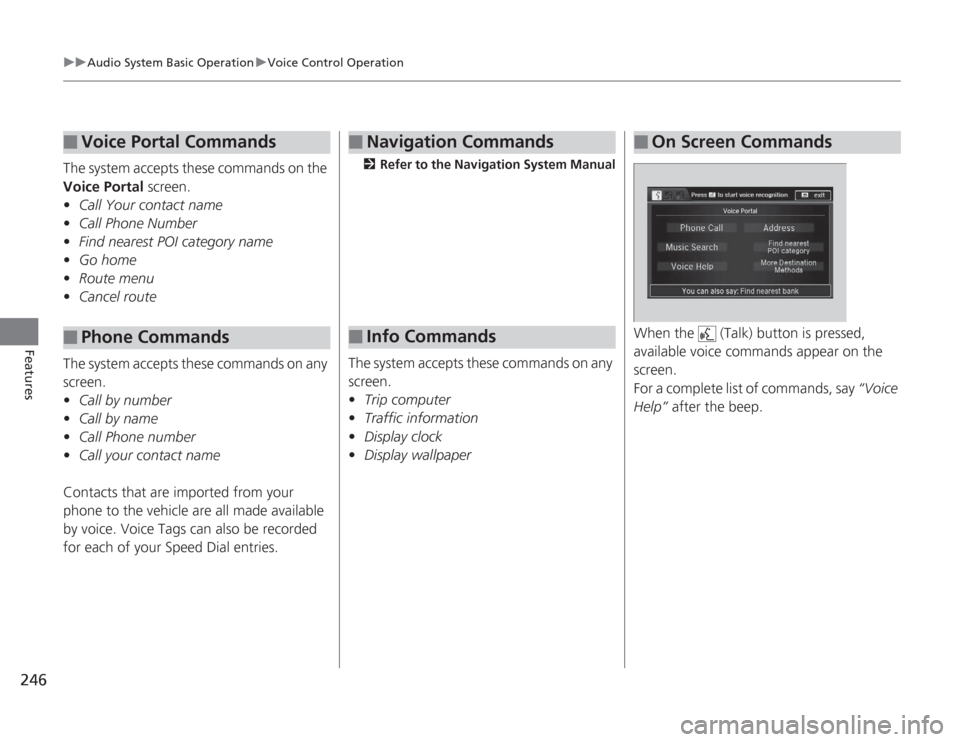
When the (Talk) button is pressed,
available voice commands appear on the
screen.
For a complete list of commands, say “Voice
Help” after the beep.■
On Screen Commands
Page 254 of 595
253
uuAudio System Basic Operation uPlaying AM/FM Radio
Continued
Features
Playing AM/FM Radio
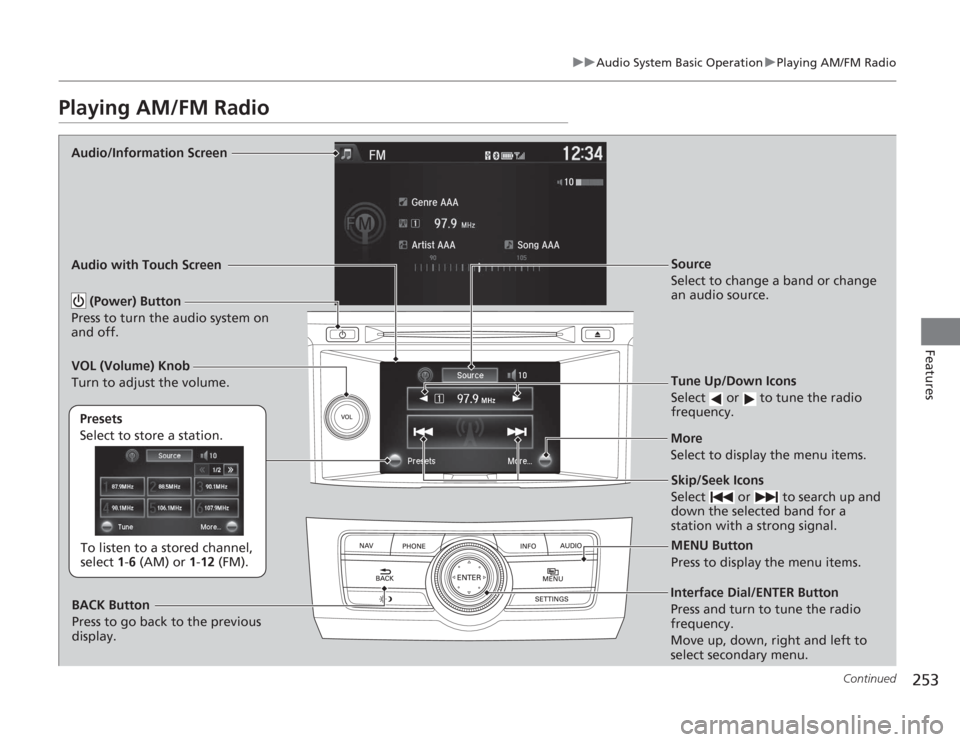
Audio/Information Screen
Audio with Touch Screen
Tune Up/Down Icons
Select or to tune the radio
frequency.
MENU Button
Press to display the menu items.
(Power) Button
Press to turn the audio system on
and off.
Source
Select to change a band or change
an audio source.
To listen to a stored channel,
select 1-6 (AM) or 1- 12 (FM).
Presets
Select to store a station.
Skip/Seek Icons
Select or to search up and
down the selected band for a
station with a strong signal.
More
Select to display the menu items.
BACK Button
Press to go back to the previous
display.
VOL (Volume) Knob
Turn to adjust the volume.Interface Dial/ENTER Button
Press and turn to tune the radio
frequency.
Move up, down, right and left to
select secondary menu.
Page 255 of 595
uuAudio System Basic Operation uPlaying AM/FM Radio
254Features
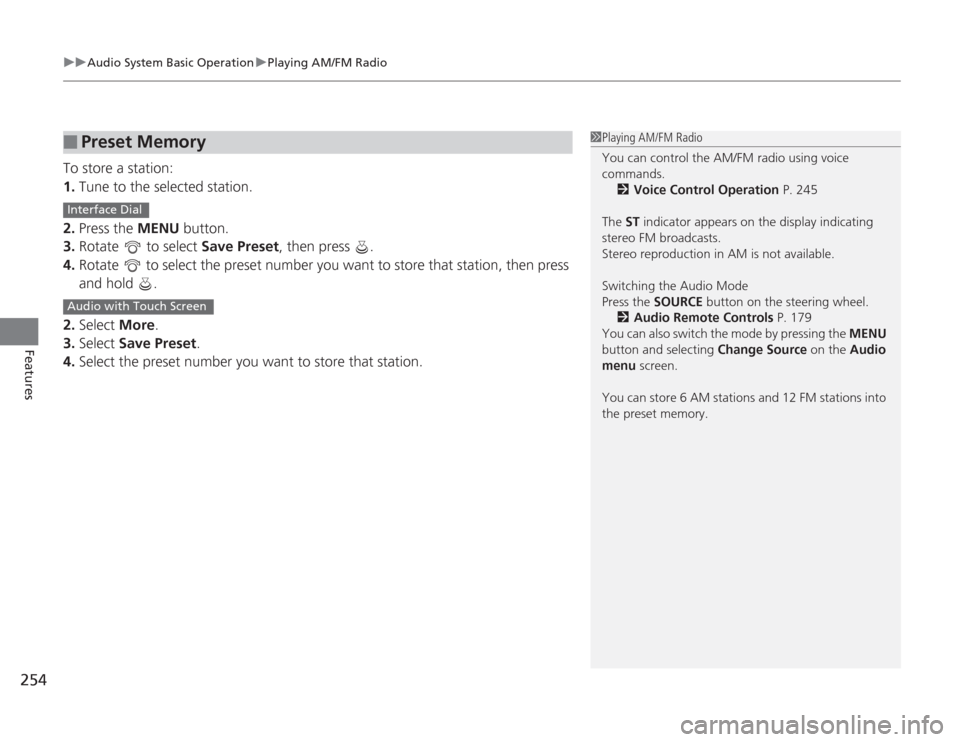
To store a station:
1. Tune to the selected station.
2. Press the MENU button.
3. Rotate to select Save Preset, then press .
4. Rotate to select the preset number you want to store that station, then press \
and hold .
2. Select More.
3. Select Save Preset .
4. Select the preset number you want to store that station.■
Preset Memory
1Playing AM/FM Radio
You can control the AM/FM radio using voice
commands.
2 Voice Control Operation P. 245
The ST indicator appears on the display indicating
stereo FM broadcasts.
Stereo reproduction in AM is not available.
Switching the Audio Mode
Press the SOURCE button on the steering wheel.
2 Audio Remote Controls P. 179
You can also switch the mode by pressing the MENU
button and selecting Change Source on the Audio
menu screen.
You can store 6 AM stations and 12 FM stations into
the preset memory.
Interface DialAudio with Touch Screen
Page 256 of 595
Continued
255
uuAudio System Basic Operation uPlaying AM/FM Radio
Features
Provides text data information related to your selected RDS-capable FM station.■
To find an RDS station from Station List
1. Press the MENU button while listening to an FM station.
2. Rotate to select Station List, then press .
3. Rotate to select the station, then press .
■
Manual update
Updates your available station list at any time.
1. Press the MENU button while listening to an FM station.
2. Rotate to select Station List, then press .
3. Rotate to select Refresh, then press .
■
Radio Data System (RDS)
1Radio Data System (RDS)
When you select an RDS-capable FM station, the RDS
automatically turns on, and the frequency display
changes to the station name. However, when the
signals of that station become weak, the display
changes from the station name to the frequency.
Page 257 of 595
256
uuAudio System Basic Operation uPlaying AM/FM Radio
Features
■
Radio text
Display the radio text information of the selected RDS station.
1. Press the MENU button.
2. Rotate to select Radio Text, then press .
■
Scan
Samples each of the strongest stations on the selected band for 10 seconds.
1. Press the MENU button.
2. Rotate to select Scan, then press .
To turn off scan, press to select Cancel Scan, or press the BACK button.
1. Select More.
2. Select Scan.
To turn off scan, select Cancel Scan.Interface DialAudio with Touch Screen
Page 258 of 595
257
uuAudio System Basic Operation uPlaying XM ® Radio
Continued
Features
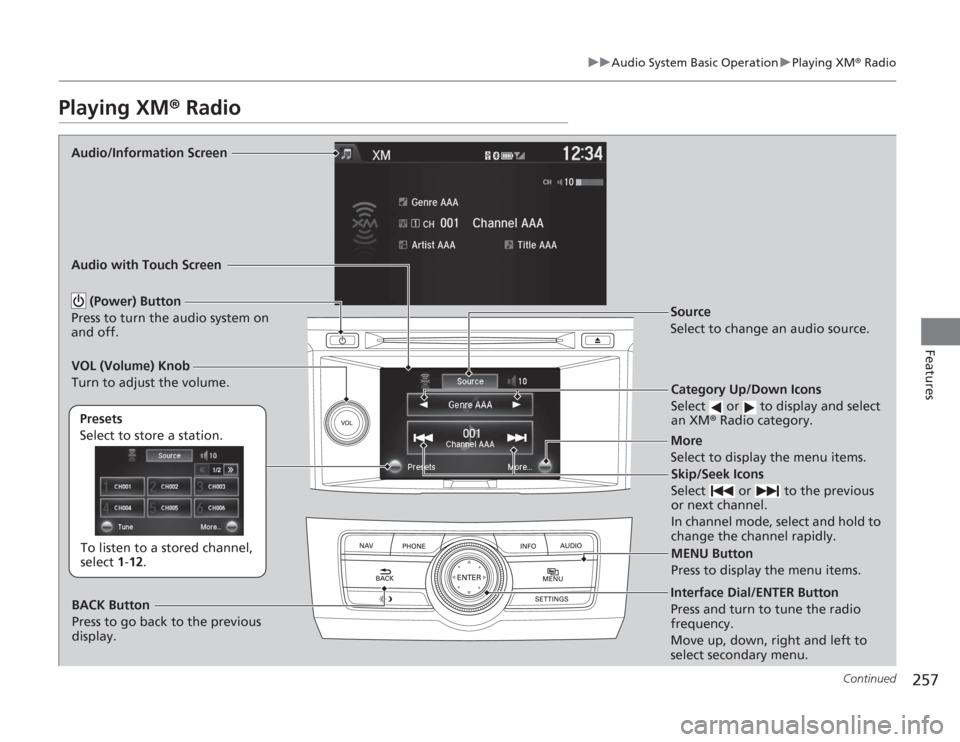
Playing XM ® Radio
Audio/Information Screen
Audio with Touch Screen
Category Up/Down Icons
Select or to display and select
an XM® Radio category.
MENU Button
Press to display the menu items.
(Power) Button
Press to turn the audio system on
and off.
Source
Select to change an audio source.
To listen to a stored channel,
select 1-12.
Presets
Select to store a station.
Skip/Seek Icons
Select or to the previous
or next channel.
In channel mode, select and hold to
change the channel rapidly.More
Select to display the menu items.
BACK Button
Press to go back to the previous
display.
VOL (Volume) Knob
Turn to adjust the volume.Interface Dial/ENTER Button
Press and turn to tune the radio
frequency.
Move up, down, right and left to
select secondary menu.
Page 261 of 595
260
uuAudio System Basic Operation uPlaying a CD
Features
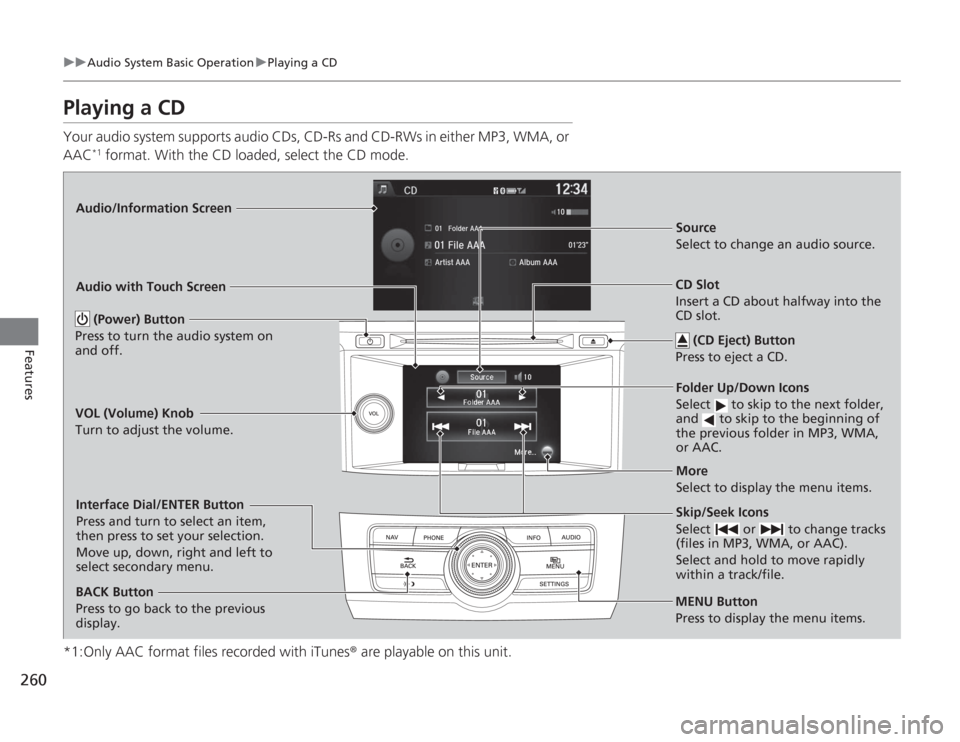
Playing a CDYour audio system supports audio CDs, CD-Rs and CD-RWs in either MP3, WMA, or
AAC
*1 format. With the CD loaded, select the CD mode.
*1:Only AAC format files recorded with iTunes ® are playable on this unit.
Audio/Information Screen
Audio with Touch Screen
MENU Button
Press to display the menu items.
CD Slot
Insert a CD about halfway into the
CD slot. (CD Eject) Button
Press to eject a CD.Folder Up/Down Icons
Select to skip to the next folder,
and to skip to the beginning of
the previous folder in MP3, WMA,
or AAC.Source
Select to change an audio source.
Skip/Seek Icons
Select or to change tracks
(files in MP3, WMA, or AAC).
Select and hold to move rapidly
within a track/file.More
Select to display the menu items.
(Power) Button
Press to turn the audio system on
and off.
BACK Button
Press to go back to the previous
display.
VOL (Volume) Knob
Turn to adjust the volume.Interface Dial/ENTER Button
Press and turn to select an item,
then press to set your selection.
Move up, down, right and left to
select secondary menu.
Page 262 of 595
Continued
261
uuAudio System Basic Operation uPlaying a CD
Features
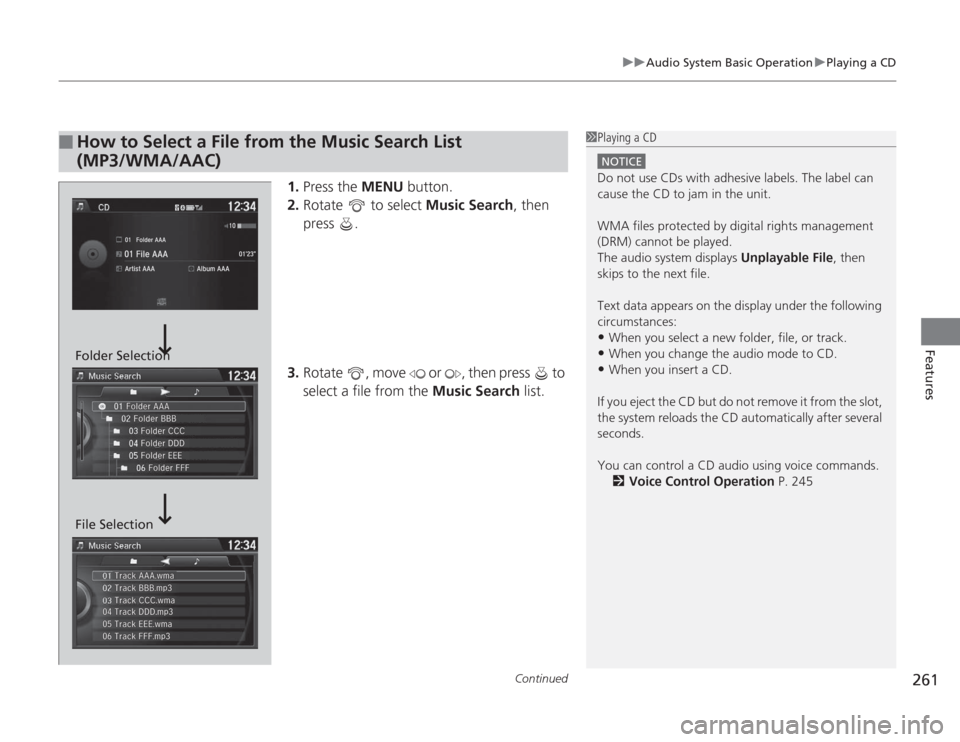
1. Press the MENU button.
2. Rotate to select Music Search, then
press .
3. Rotate , move or , then press to
select a file from the Music Search list.
■
How to Select a File from the Music Search List
(MP3/WMA/AAC)
1Playing a CD
NOTICEDo not use CDs with adhesive labels. The label can
cause the CD to jam in the unit.
WMA files protected by digital rights management
(DRM) cannot be played.
The audio system displays Unplayable File, then
skips to the next file.
Text data appears on the display under the following
circumstances:•When you select a new folder, file, or track.•When you change the audio mode to CD.•When you insert a CD.
If you eject the CD but do not remove it from the slot,
the system reloads the CD automatically after several
seconds.
You can control a CD audio using voice commands. 2 Voice Control Operation P. 245
Folder Selection
File Selection
Page 264 of 595
263
uuAudio System Basic Operation uPlaying Hard Disc Drive (HDD) Audio
Continued
Features
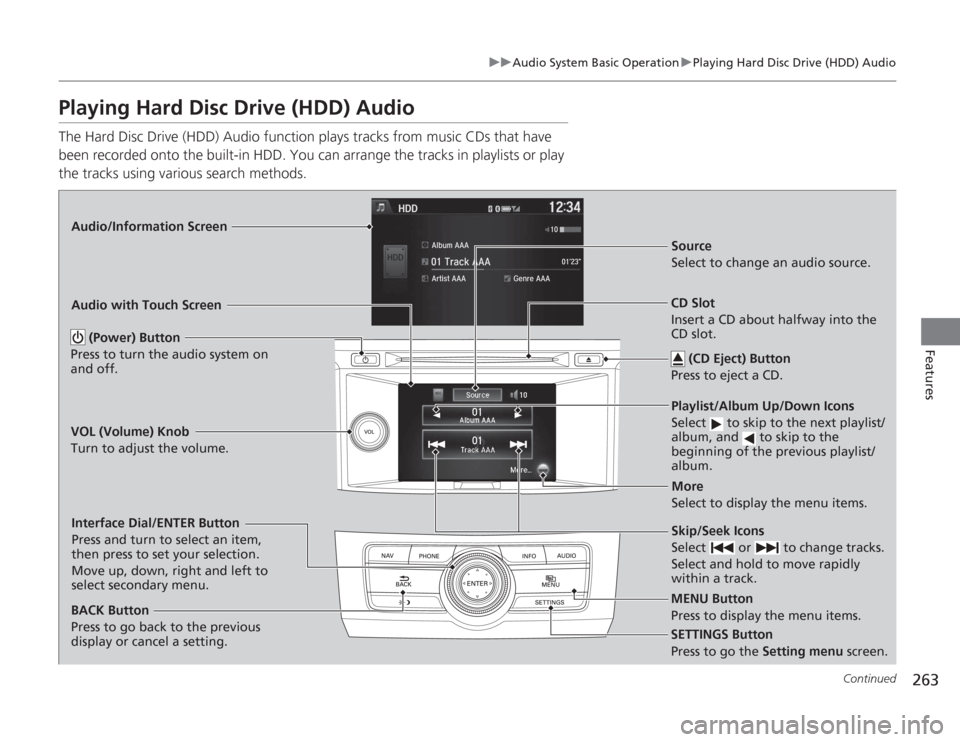
Playing Hard Disc Drive (HDD) AudioThe Hard Disc Drive (HDD) Audio function plays tracks from music CDs that have
been recorded onto the built-in HDD. You can arrange the tracks in playlists or play
the tracks using various search methods.
Audio/Information Screen
Audio with Touch Screen
MENU Button
Press to display the menu items.
CD Slot
Insert a CD about halfway into the
CD slot. (CD Eject) Button
Press to eject a CD.Playlist/Album Up/Down Icons
Select to skip to the next playlist/
album, and to skip to the
beginning of the previous playlist/
album.Source
Select to change an audio source.
Skip/Seek Icons
Select or to change tracks.
Select and hold to move rapidly
within a track.More
Select to display the menu items.
(Power) Button
Press to turn the audio system on
and off.
BACK Button
Press to go back to the previous
display or cancel a setting.
VOL (Volume) Knob
Turn to adjust the volume.Interface Dial/ENTER Button
Press and turn to select an item,
then press to set your selection.
Move up, down, right and left to
select secondary menu.
SETTINGS Button
Press to go the
Setting menu screen.