display HONDA ACCORD 2014 9.G Owners Manual
[x] Cancel search | Manufacturer: HONDA, Model Year: 2014, Model line: ACCORD, Model: HONDA ACCORD 2014 9.GPages: 595
Page 297 of 595
296
uuGeneral Information on the Audio System uRecommended CDs
Features
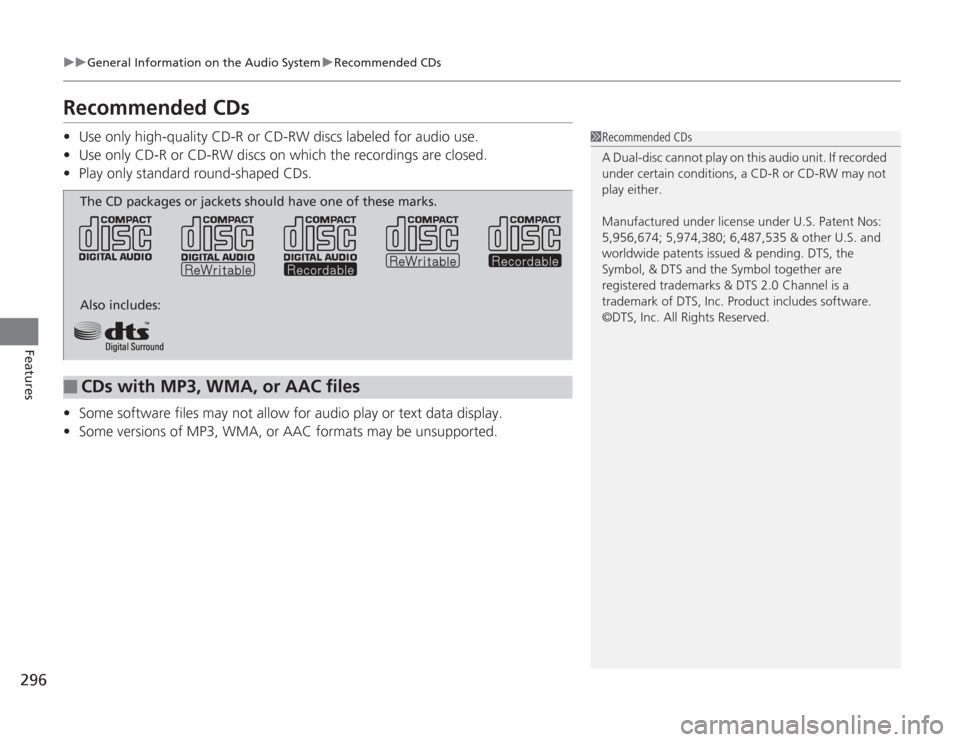
Recommended CDs• Use only high-quality CD-R or CD-RW discs labeled for audio use.
• Use only CD-R or CD-RW discs on which the recordings are closed.
• Play only standard round-shaped CDs.
• Some software files may not allow for audio play or text data display.
• Some versions of MP3, WMA, or AAC formats may be unsupported.
1Recommended CDs
A Dual-disc cannot play on this audio unit. If recorded
under certain conditions, a CD-R or CD-RW may not
play either.
Manufactured under license under U.S. Patent Nos:
5,956,674; 5,974,380; 6,487,535 & other U.S. and
worldwide patents issued & pending. DTS, the
Symbol, & DTS and the Symbol together are
registered trademarks & DTS 2.0 Channel is a
trademark of DTS, Inc. Product includes software.
©DTS, Inc. All Rights Reserved.
■
CDs with MP3, WMA, or AAC filesThe CD packages or jackets should have one of these marks.
Also includes:
Page 299 of 595
298
uuGeneral Information on the Audio System uCompatible iPod ®, iPhone ®, and USB Flash Drives
Features
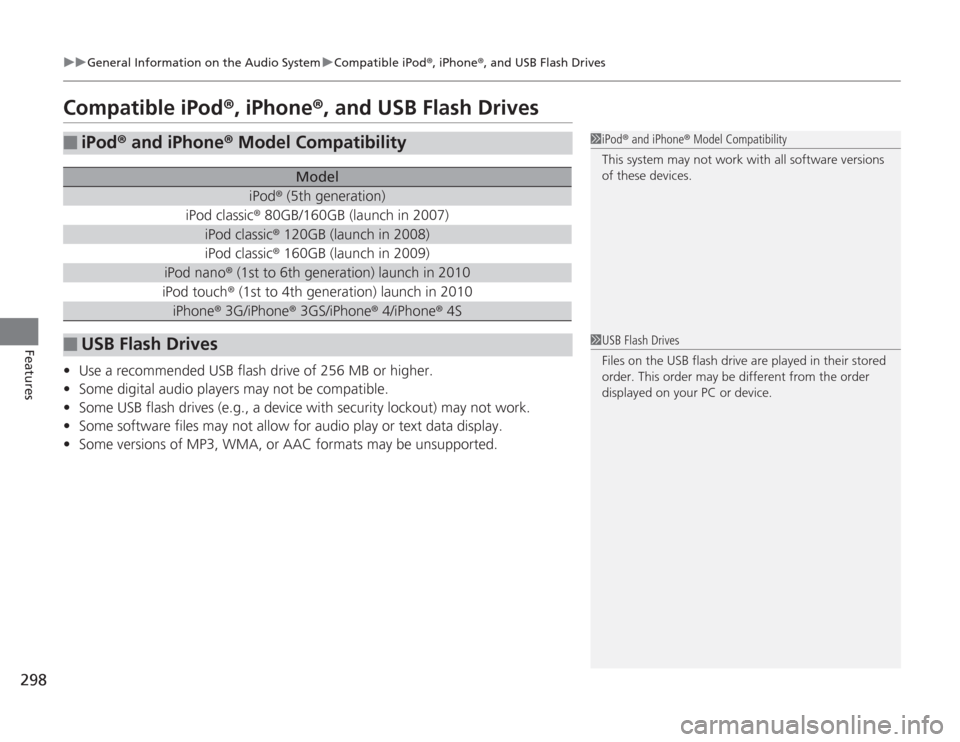
Compatible iPod ®, iPhone ®, and USB Flash Drives• Use a recommended USB flash drive of 256 MB or higher.
• Some digital audio players may not be compatible.
• Some USB flash drives (e.g., a device with security lockout) may not work.
• Some software files may not allow for audio play or text data display.
• Some versions of MP3, WMA, or AAC formats may be unsupported.■
iPod ® and iPhone ® Model Compatibility
Model
iPod ® (5th generation)
iPod classic ® 80GB/160GB (launch in 2007)
iPod classic® 120GB (launch in 2008)iPod classic ® 160GB (launch in 2009)
iPod nano® (1st to 6th generation) launch in 2010iPod touch ® (1st to 4th generation) launch in 2010iPhone® 3G/iPhone ® 3GS/iPhone ® 4/iPhone® 4S
■
USB Flash Drives
1iPod® and iPhone ® Model Compatibility
This system may not work with all software versions
of these devices.1 USB Flash Drives
Files on the USB flash drive are played in their stored
order. This order may be different from the order
displayed on your PC or device.
Page 300 of 595
299
Continued
Features
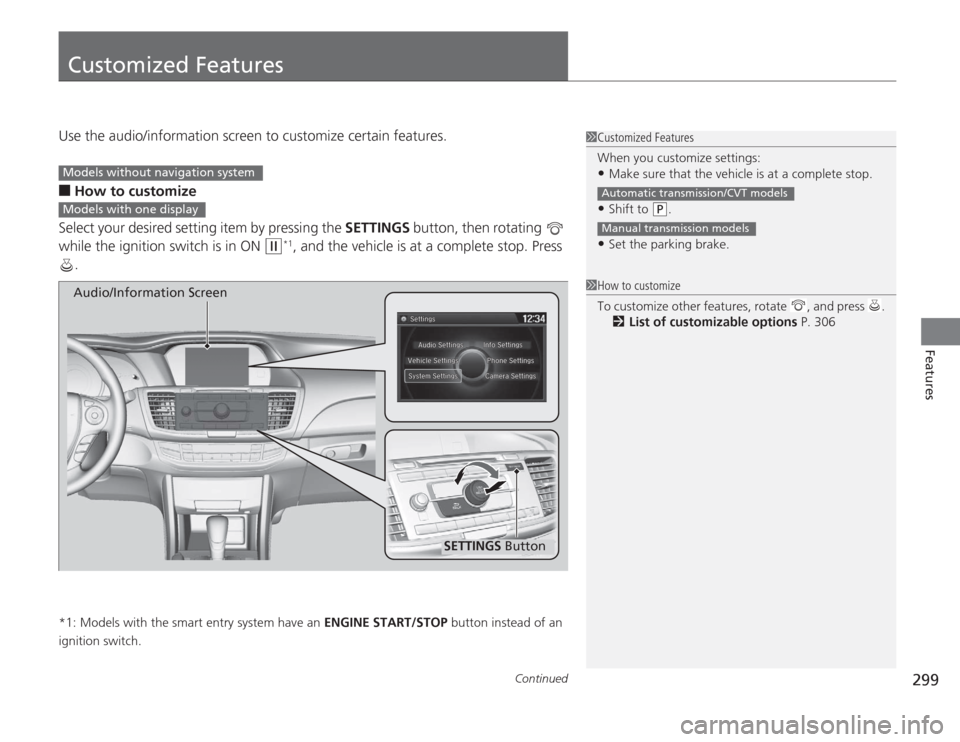
Customized FeaturesUse the audio/information screen to customize certain features.■
How to customize
Select your desired setting item by pressing the SETTINGS button, then rotating
while the ignition switch is in ON
(w
*1, and the vehicle is at a complete stop. Press
.
*1: Models with the smart entry system have an ENGINE START/STOP button instead of an
ignition switch.
1 Customized Features
When you customize settings:•Make sure that the vehicle is at a complete stop.•Shift to
(P
.
•Set the parking brake.Automatic transmission/CVT modelsManual transmission models
1 How to customize
To customize other features, rotate , and press .
2 List of customizable options P. 306
Models without navigation systemModels with one display
SETTINGS Button
Audio/Information Screen
Page 301 of 595
300
uuCustomized Features u
Features
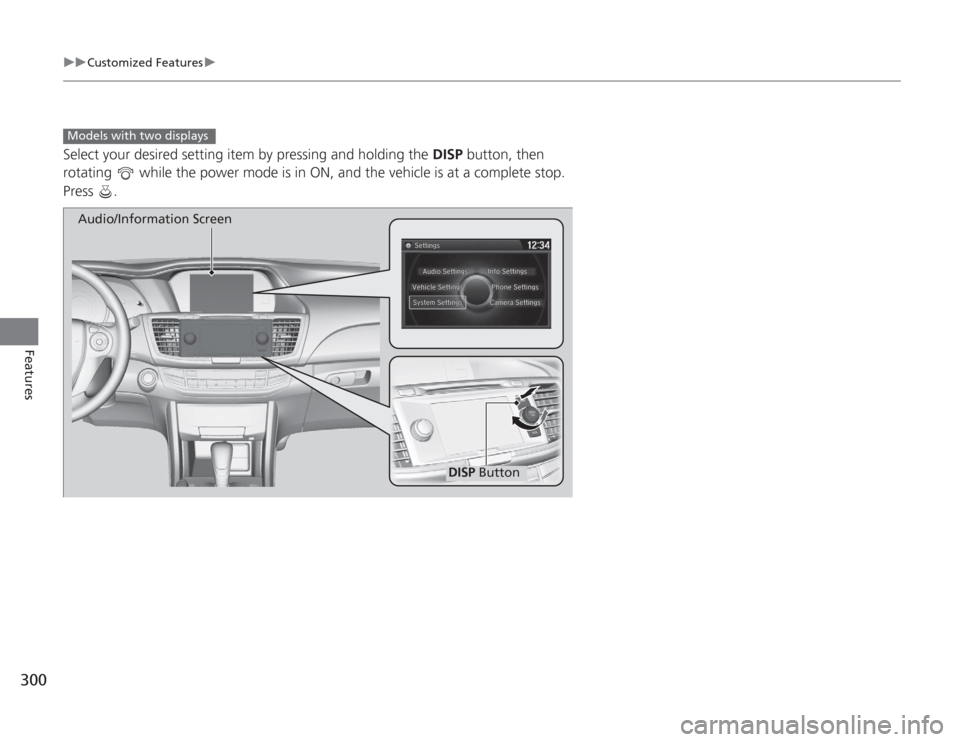
Select your desired setting item by pressing and holding the DISP button, then
rotating while the power mode is in ON, and the vehicle is at a complete stop.
Press .Models with two displays
DISP Button
Audio/Information Screen
Page 302 of 595
301
uuCustomized Features u
Continued
Features
■
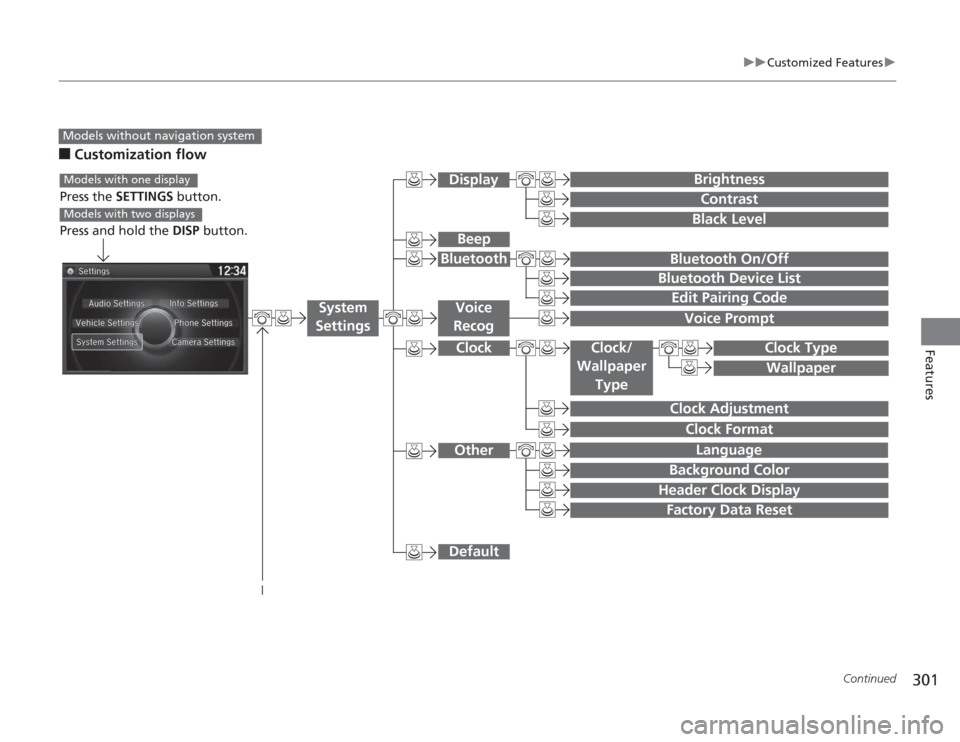
Customization flowModels without navigation system
Clock Format
Background ColorHeader Clock DisplayFactory Data ResetClock Adjustment
Press the SETTINGS button.
Press and hold the DISP button.Models with one displayModels with two displays
Language
Default
Edit Pairing CodeBluetooth On/OffBluetooth Device List
Voice PromptBrightnessContrastBlack Level
Beep
Clock/
Wallpaper
Type
Clock TypeWallpaper
System
Settings
Voice
Recog
BluetoothDisplayClockOther
Page 303 of 595
302
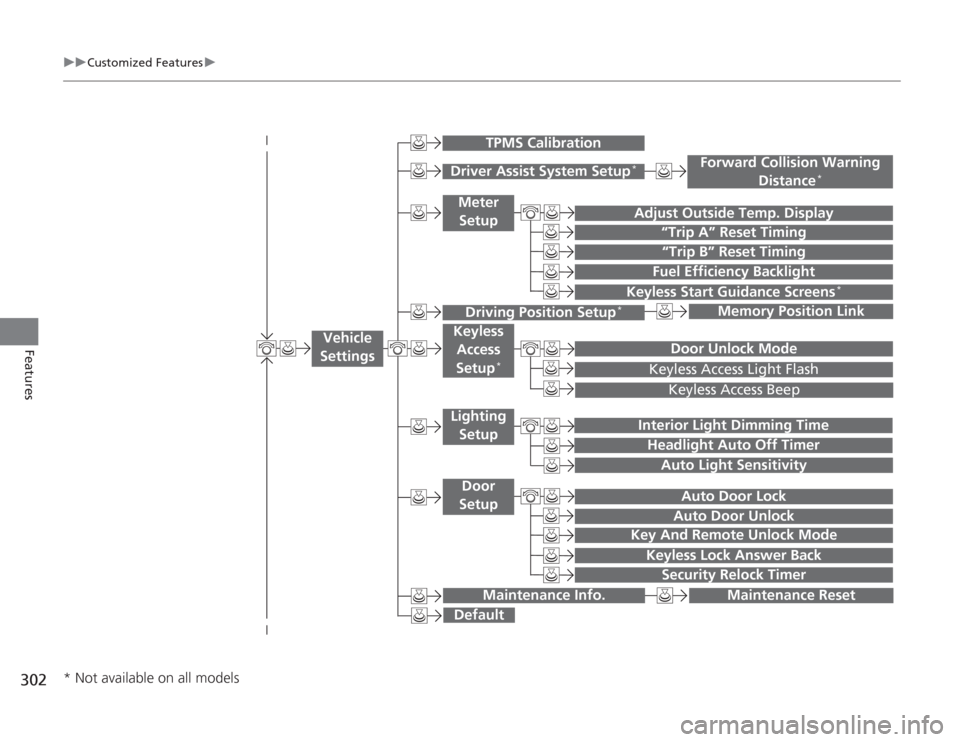
uuCustomized Features u
Features
“Trip B” Reset Timing
Adjust Outside Temp. Display
“Trip A” Reset Timing
Keyless Access Light FlashAuto Light Sensitivity
Auto Door LockAuto Door Unlock
Fuel Efficiency Backlight
Forward Collision Warning
Distance
*
Door Unlock Mode
Interior Light Dimming TimeHeadlight Auto Off Timer
Memory Position Link
Keyless Start Guidance Screens
*
Key And Remote Unlock Mode
Keyless Lock Answer Back
Security Relock Timer
Maintenance Reset
Default
Vehicle
Settings
Driver Assist System Setup
*
Meter
Setup
TPMS Calibration
Driving Position Setup
*
Keyless Access
Setup
*
Lighting SetupDoor
Setup
Maintenance Info.
Keyless Access Beep
* Not available on all models
Page 305 of 595
304
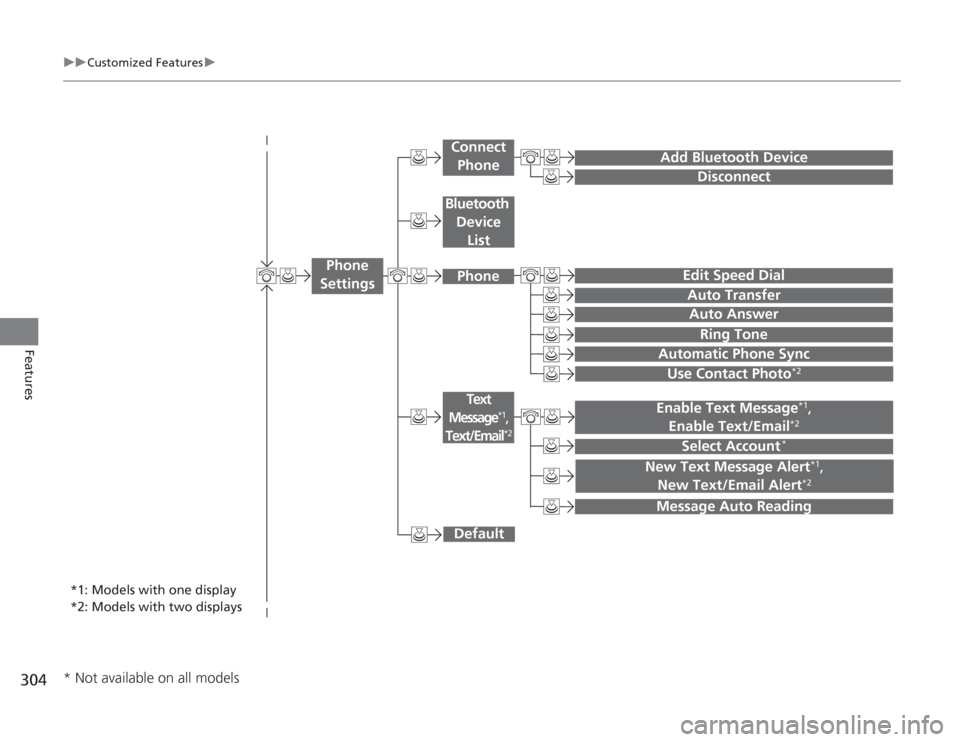
uuCustomized Features u
Features
Add Bluetooth Device
Disconnect
Edit Speed DialAuto Transfer
Auto AnswerRing Tone
Automatic Phone Sync
Default
Use Contact Photo
*2
Enable Text Message
*1,
Enable Text/Email
*2
Select Account
*
Message Auto ReadingNew Text Message Alert
*1,
New Text/Email Alert
*2
*1: Models with one display
*2: Models with two displays
Phone
Settings
Connect Phone
Text
Message
*1,
Text/Email
*2
Bluetooth
Device ListPhone
* Not available on all models
Page 306 of 595
305
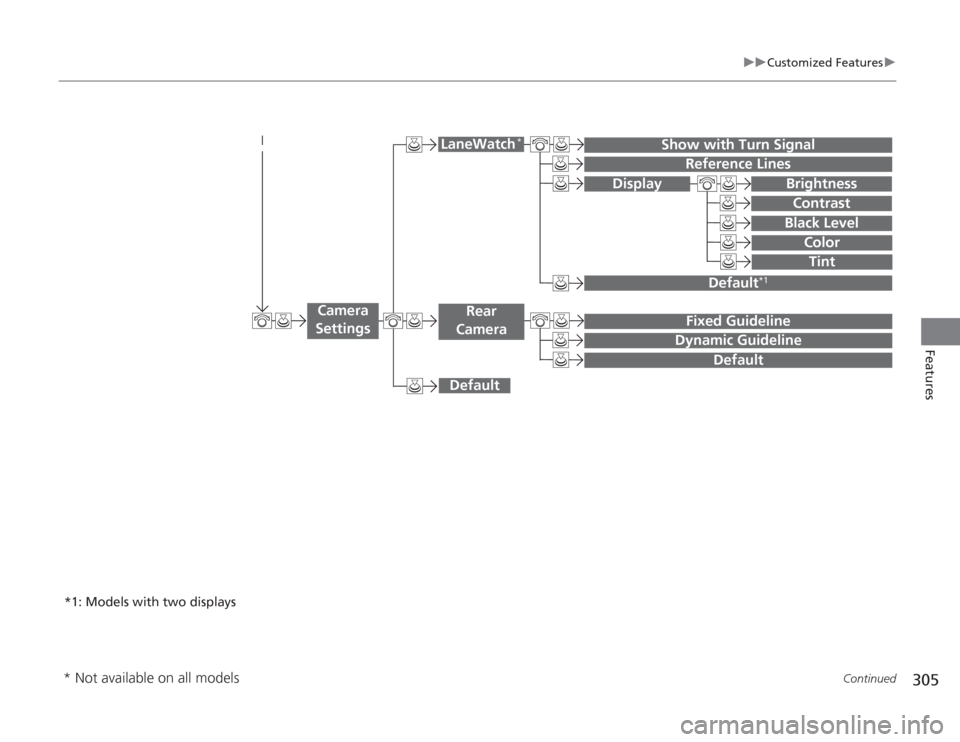
uuCustomized Features u
Continued
Features
Display
Show with Turn Signal
Reference Lines
Default
*1
Default
Default
Fixed GuidelineDynamic Guideline
Camera
Settings
LaneWatch
*
Rear
Camera
BrightnessContrastBlack Level
ColorTint
*1: Models with two displays* Not available on all models
Page 307 of 595
306
uuCustomized Features u
Features
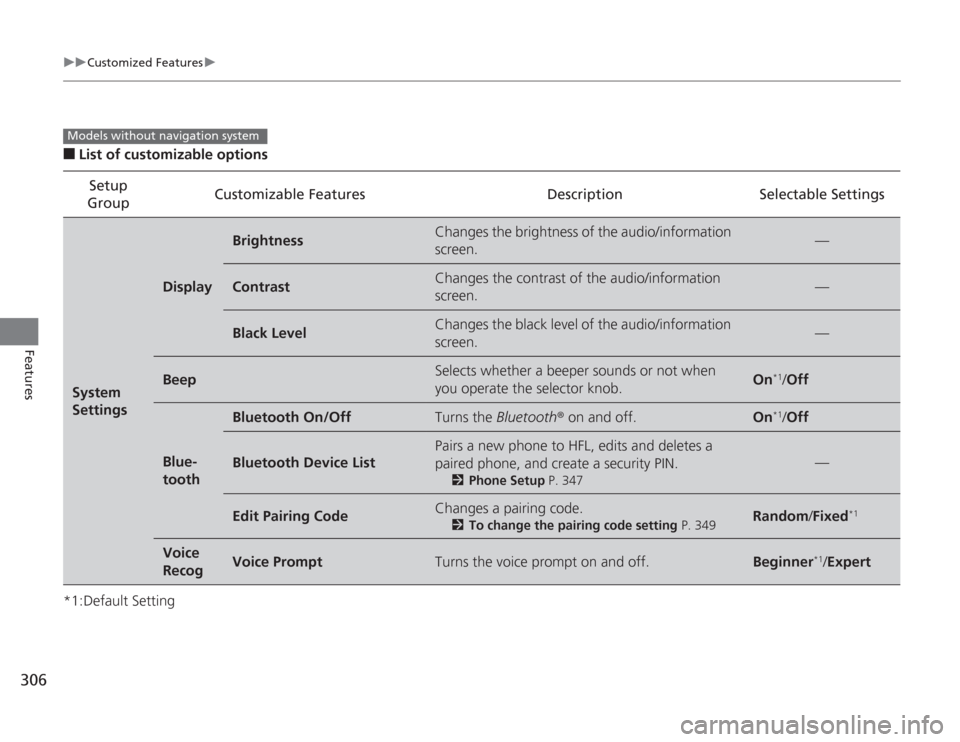
■
List of customizable options
*1:Default Setting Setup
Group Customizable Features Description Selectable SettingsSystem
Settings
Display
Brightness
Changes the brightness of the audio/information
screen.
—
Contrast
Changes the contrast of the audio/information
screen.
—
Black Level
Changes the black level of the audio/information
screen.
—
Beep
Selects whether a beeper sounds or not when
you operate the selector knob.
On
*1/
Off
Blue-
tooth
Bluetooth On/Off
Turns the Bluetooth ® on and off.
On
*1/Off
Bluetooth Device List
Pairs a new phone to HFL, edits and deletes a
paired phone, and create a security PIN.
2 Phone Setup P. 347
—
Edit Pairing Code
Changes a pairing code.
2To change the pairing code setting P. 349
Random/Fixed
*1
Voice
Recog
Voice Prompt
Turns the voice prompt on and off.
Beginner
*1/Expert
Models without navigation system
Page 308 of 595
307
uuCustomized Features u
Continued
Features
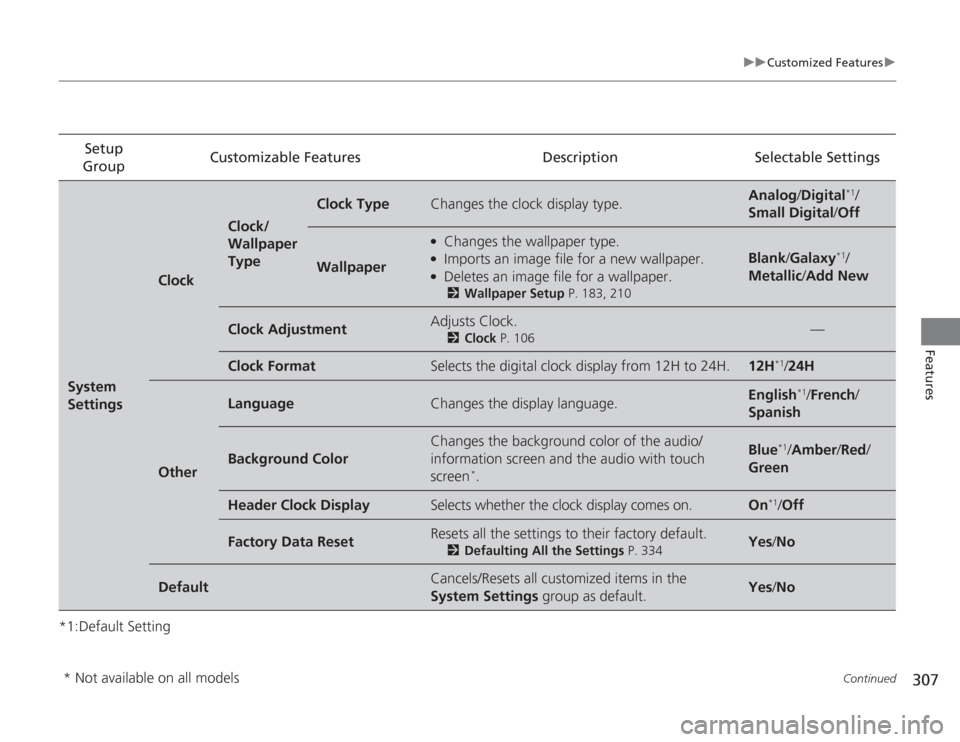
*1:Default SettingSetup
Group Customizable Features Description Selectable SettingsSystem
Settings
Clock
Clock/
Wallpaper
Type
Clock Type
Changes the clock display type.
Analog
/Digital
*1/
Small Digital /Off
Wallpaper
●
Changes the wallpaper type.
●
Imports an image file for a new wallpaper.
●
Deletes an image file for a wallpaper.2 Wallpaper Setup P. 183, 210
Blank/Galaxy
*1/
Metallic /Add New
Clock Adjustment
Adjusts Clock.
2 Clock P. 106
—
Clock Format
Selects the digital clock display from 12H to 24H.
12H
*1/24H
Other
Language
Changes the display language.
English
*1/ French /
Spanish
Background Color
Changes the background color of the audio/
information screen and the audio with touch
screen
*.
Blue
*1/ Amber /Red /
Green
Header Clock Display
Selects whether the clock display comes on.
On
*1/ Off
Factory Data Reset
Resets all the settings to their factory default.
2 Defaulting All the Settings P. 334
Yes /No
Default
Cancels/Resets all customized items in the
System Settings group as default.
Yes/No
* Not available on all models