Lash HONDA ACCORD 2014 9.G Owner's Guide
[x] Cancel search | Manufacturer: HONDA, Model Year: 2014, Model line: ACCORD, Model: HONDA ACCORD 2014 9.GPages: 595
Page 276 of 595
Continued
275
uuAudio System Basic Operation uPlaying an iPod ®
Features
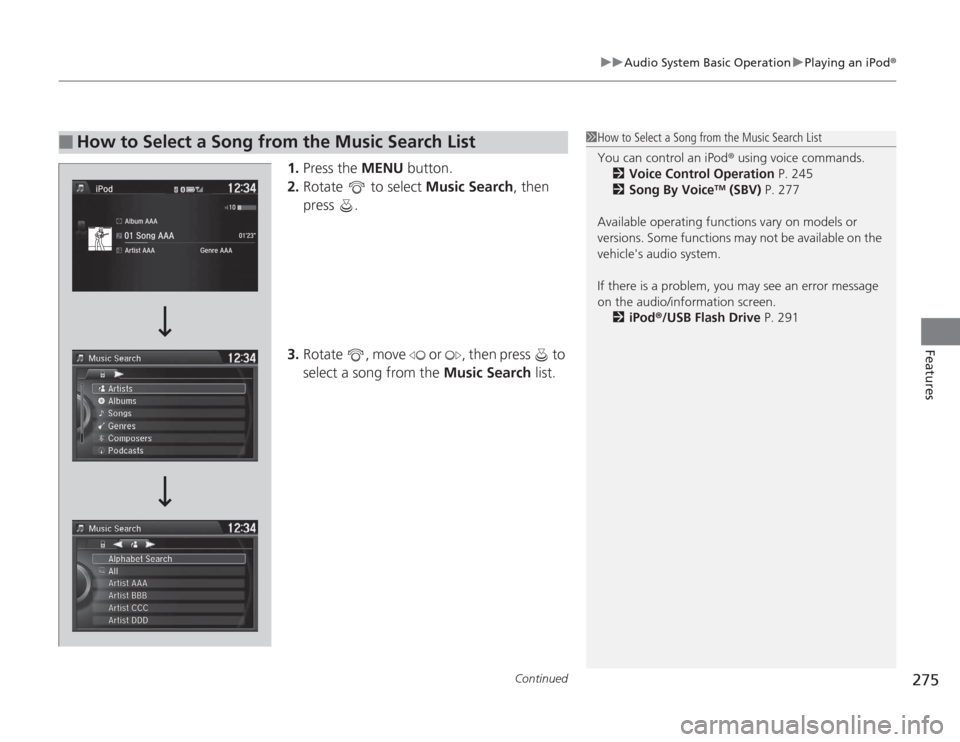
1.Press the MENU button.
2. Rotate to select Music Search, then
press .
3. Rotate , move or , then press to
select a song from the Music Search list.
■
How to Select a Song from the Music Search List
1How to Select a Song from the Music Search List
You can control an iPod ® using voice commands.
2 Voice Control Operation P. 245
2 Song By Voice
TM (SBV) P. 277
Available operating functions vary on models or
versions. Some functions may not be available on the
vehicle's audio system.
If there is a problem, you may see an error message
on the audio/information screen. 2 iPod ®/USB Flash Drive P. 291
Page 285 of 595
284
uuAudio System Basic Operation uPlaying a USB Flash Drive
Features
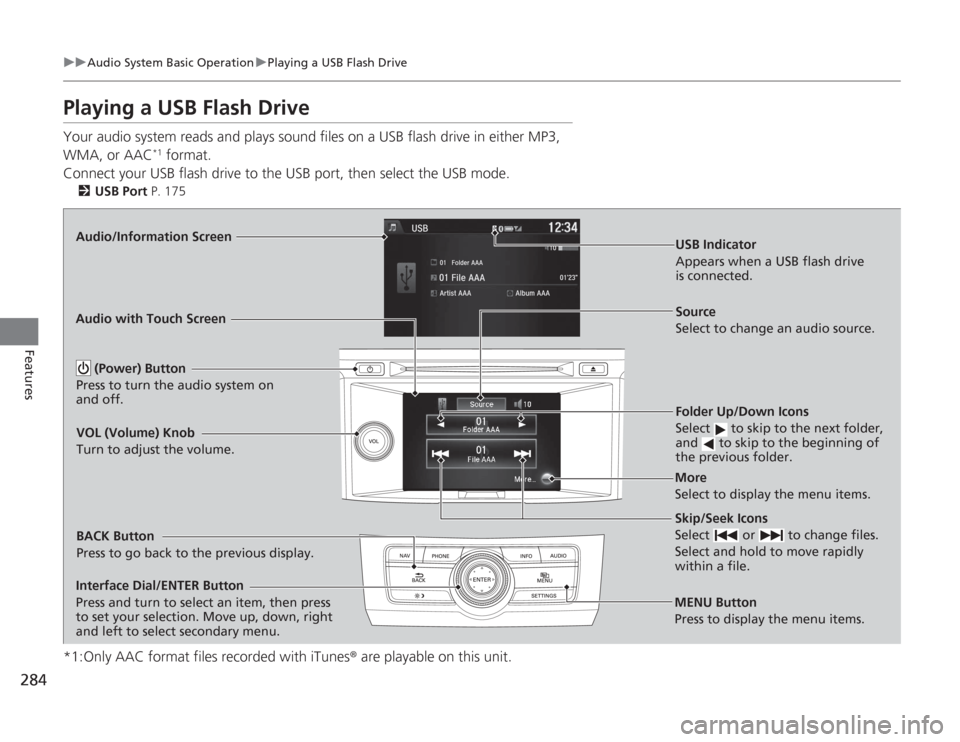
Playing a USB Flash DriveYour audio system reads and plays sound files on a USB flash drive in either MP3,
WMA, or AAC
*1 format.
Connect your USB flash drive to the USB port, then select the USB mode.
2 USB Port P. 175
*1:Only AAC format files recorded with iTunes ® are playable on this unit.
Audio/Information Screen
BACK Button
Press to go back to the previous display.
More
Select to display the menu items. Source
Select to change an audio source.
USB Indicator
Appears when a USB flash drive
is connected.Folder Up/Down Icons
Select to skip to the next folder,
and to skip to the beginning of
the previous folder.Skip/Seek Icons
Select or to change files.
Select and hold to move rapidly
within a file.
(Power) Button
Press to turn the audio system on
and off.
VOL (Volume) Knob
Turn to adjust the volume.
Interface Dial/ENTER Button
Press and turn to select an item, then press
to set your selection. Move up, down, right
and left to select secondary menu.
Audio with Touch Screen
MENU Button
Press to display the menu items.
Page 286 of 595
Continued
285
uuAudio System Basic Operation uPlaying a USB Flash Drive
Features
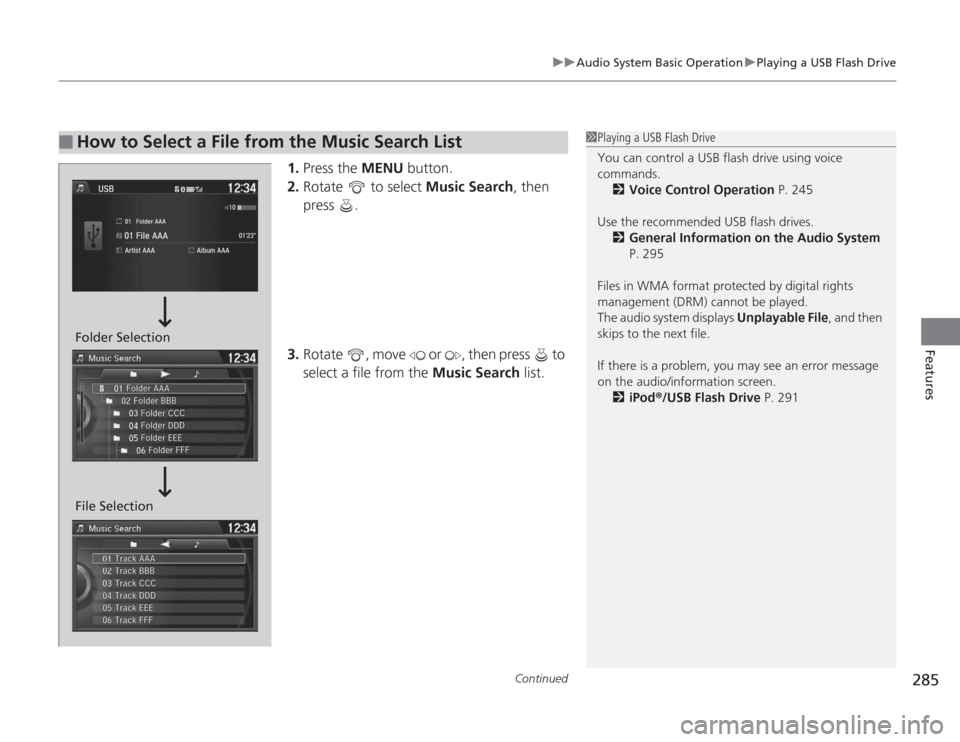
1. Press the MENU button.
2. Rotate to select Music Search, then
press .
3. Rotate , move or , then press to
select a file from the Music Search list.
■
How to Select a File from the Music Search List
1Playing a USB Flash Drive
You can control a USB flash drive using voice
commands.
2 Voice Control Operation P. 245
Use the recommended USB flash drives. 2 General Information on the Audio System
P. 295
Files in WMA format protected by digital rights
management (DRM) cannot be played.
The audio system displays Unplayable File, and then
skips to the next file.
If there is a problem, you may see an error message
on the audio/information screen. 2 iPod ®/USB Flash Drive P. 291
Folder Selection
File Selection
Page 287 of 595
uuAudio System Basic Operation uPlaying a USB Flash Drive
286Features
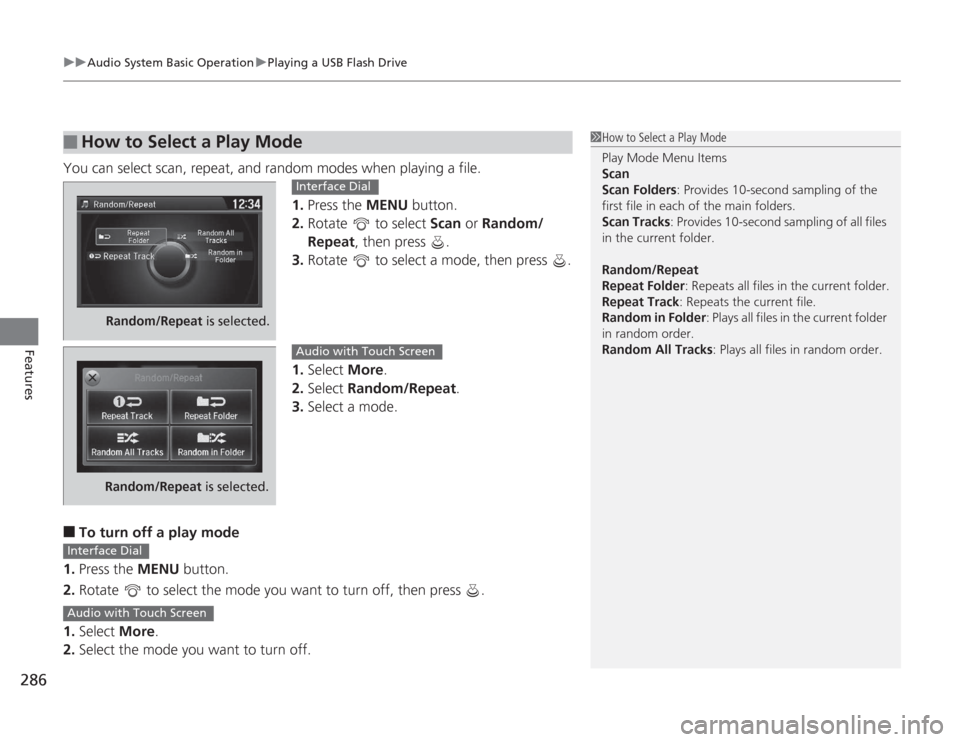
You can select scan, repeat, and random modes when playing a file.
1.Press the MENU button.
2. Rotate to select Scan or Random/
Repeat, then press .
3. Rotate to select a mode, then press .
1. Select More.
2. Select Random/Repeat .
3. Select a mode.■
To turn off a play mode
1. Press the MENU button.
2. Rotate to select the mode you want to turn off, then press .
1. Select More.
2. Select the mode you want to turn off.
■
How to Select a Play Mode
1How to Select a Play Mode
Play Mode Menu Items
Scan
Scan Folders : Provides 10-second sampling of the
first file in each of the main folders.
Scan Tracks: Provides 10-second sampling of all files
in the current folder.
Random/Repeat
Repeat Folder : Repeats all files in the current folder.
Repeat Track: Repeats the current file.
Random in Folder : Plays all files in the current folder
in random order.
Random All Tracks : Plays all files in random order.
Random/Repeat is selected.
Interface Dial
Random/Repeat is selected.
Audio with Touch Screen
Interface DialAudio with Touch Screen
Page 292 of 595
291
uuAudio Error Messages uiPod® /USB Flash Drive
Features
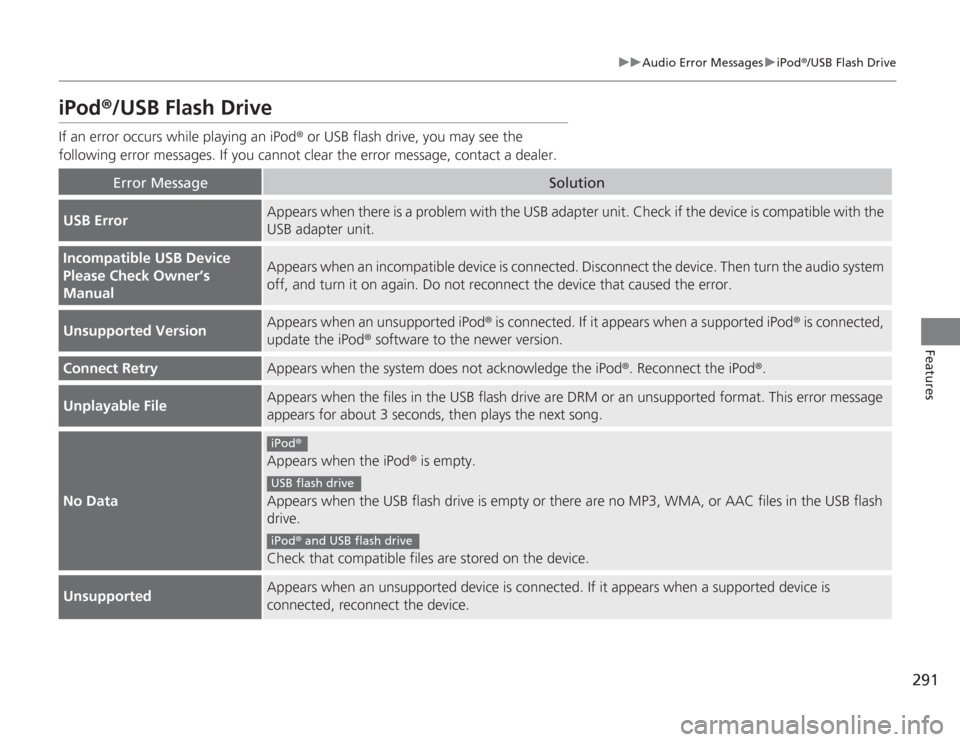
iPod®/USB Flash DriveIf an error occurs while playing an iPod ® or USB flash drive, you may see the
following error messages. If you cannot clear the error message, contact a dealer.
Error Message
Solution
USB Error
Appears when there is a problem with the USB adapter unit. Check if the device is compatible with the
USB adapter unit.
Incompatible USB Device
Please Check Owner’s
Manual
Appears when an incompatible device is connected. Disconnect the device. Then turn the audio system
off, and turn it on again. Do not reconnect the device that caused the error.
Unsupported Version
Appears when an unsupported iPod ® is connected. If it appears when a supported iPod ® is connected,
update the iPod ® software to the newer version.
Connect Retry
Appears when the system does not acknowledge the iPod ®. Reconnect the iPod®.
Unplayable File
Appears when the files in the USB flash drive are DRM or an unsupported format. This error message
appears for about 3 seconds, then plays the next song.
No Data
Appears when the iPod ® is empty.
Appears when the USB flash drive is empty or there are no MP3, WMA, or AAC files in the USB flash
drive.
Check that compatible files are stored on the device.
Unsupported
Appears when an unsupported device is connected. If it appears when a supported device is
connected, reconnect the device.iPod ®USB flash driveiPod® and USB flash drive
Page 299 of 595
298
uuGeneral Information on the Audio System uCompatible iPod ®, iPhone ®, and USB Flash Drives
Features
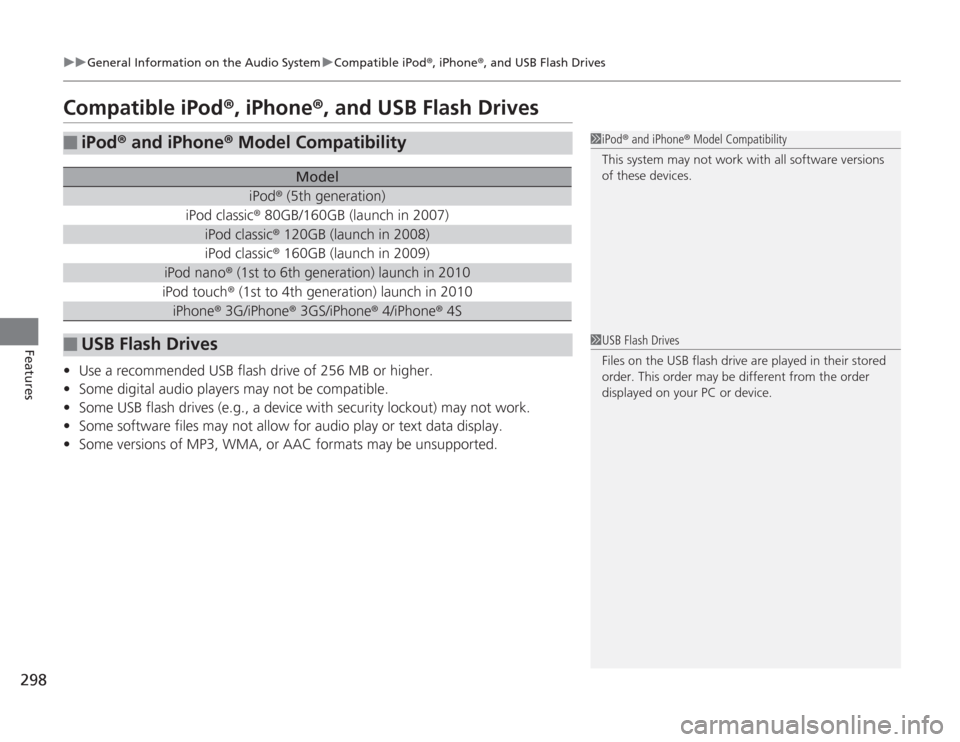
Compatible iPod ®, iPhone ®, and USB Flash Drives• Use a recommended USB flash drive of 256 MB or higher.
• Some digital audio players may not be compatible.
• Some USB flash drives (e.g., a device with security lockout) may not work.
• Some software files may not allow for audio play or text data display.
• Some versions of MP3, WMA, or AAC formats may be unsupported.■
iPod ® and iPhone ® Model Compatibility
Model
iPod ® (5th generation)
iPod classic ® 80GB/160GB (launch in 2007)
iPod classic® 120GB (launch in 2008)iPod classic ® 160GB (launch in 2009)
iPod nano® (1st to 6th generation) launch in 2010iPod touch ® (1st to 4th generation) launch in 2010iPhone® 3G/iPhone ® 3GS/iPhone ® 4/iPhone® 4S
■
USB Flash Drives
1iPod® and iPhone ® Model Compatibility
This system may not work with all software versions
of these devices.1 USB Flash Drives
Files on the USB flash drive are played in their stored
order. This order may be different from the order
displayed on your PC or device.
Page 303 of 595
302
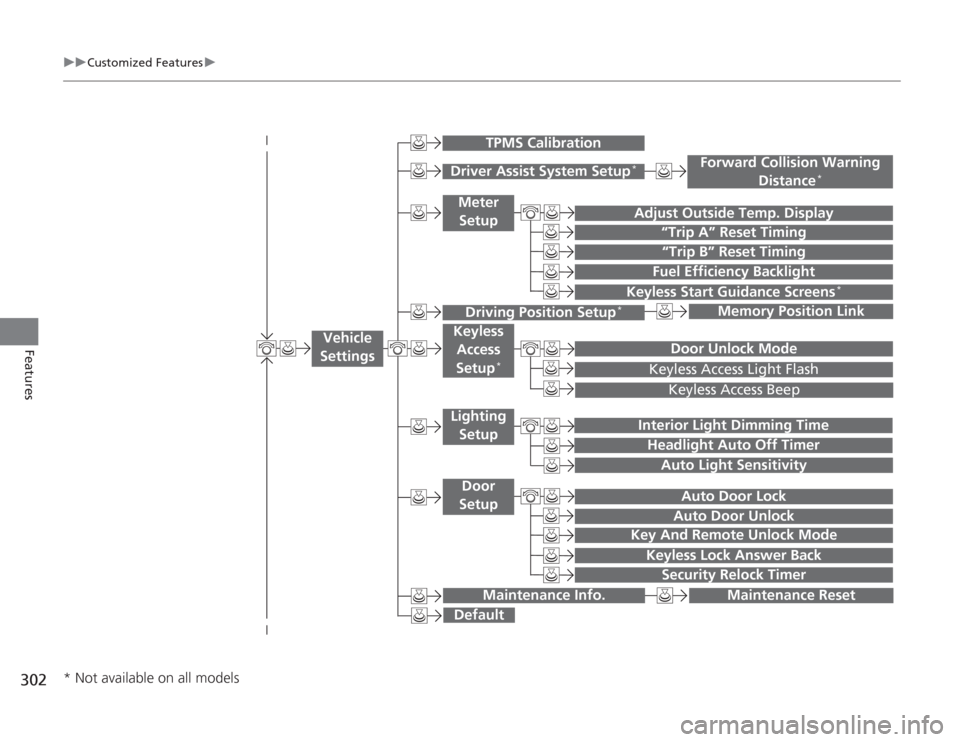
uuCustomized Features u
Features
“Trip B” Reset Timing
Adjust Outside Temp. Display
“Trip A” Reset Timing
Keyless Access Light FlashAuto Light Sensitivity
Auto Door LockAuto Door Unlock
Fuel Efficiency Backlight
Forward Collision Warning
Distance
*
Door Unlock Mode
Interior Light Dimming TimeHeadlight Auto Off Timer
Memory Position Link
Keyless Start Guidance Screens
*
Key And Remote Unlock Mode
Keyless Lock Answer Back
Security Relock Timer
Maintenance Reset
Default
Vehicle
Settings
Driver Assist System Setup
*
Meter
Setup
TPMS Calibration
Driving Position Setup
*
Keyless Access
Setup
*
Lighting SetupDoor
Setup
Maintenance Info.
Keyless Access Beep
* Not available on all models
Page 310 of 595
309
uuCustomized Features u
Continued
Features
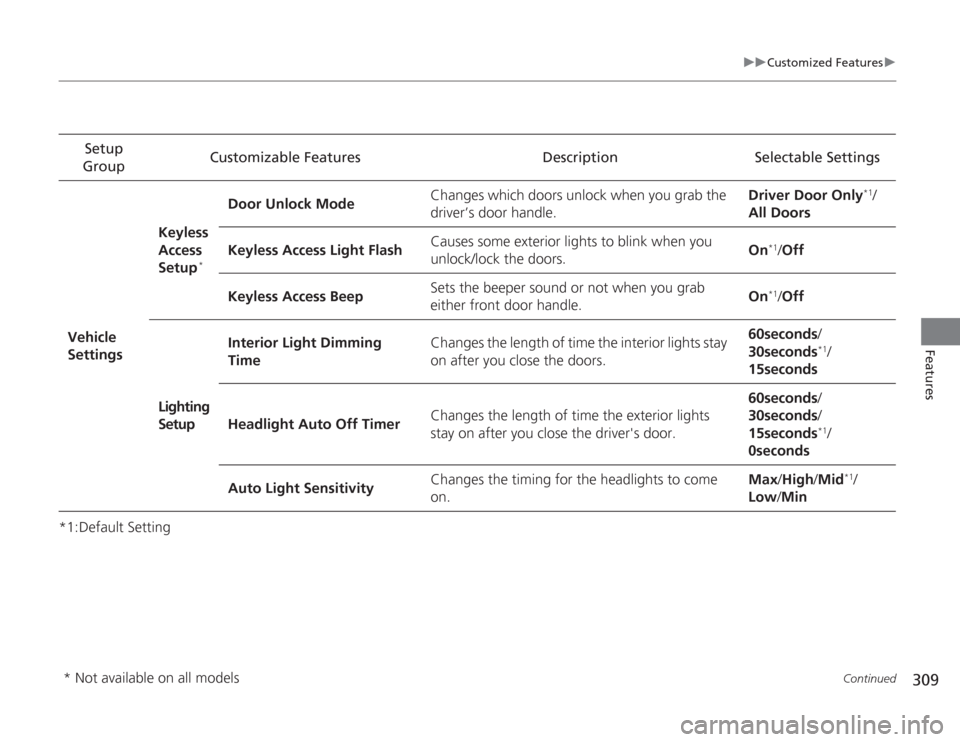
*1:Default SettingSetup
Group Customizable Features Description Selectable Settings
Vehicle
Settings Keyless
Access
Setup
*
Door Unlock Mode
Changes which doors unlock when you grab the
driver’s door handle. Driver Door Only
*1/
All Doors
Keyless Access Light Flash Causes some exterior lights to blink when you
unlock/lock the doors.
On
*1/
Off
Keyless Access Beep Sets the beeper sound or not when you grab
either front door handle. On*1/
Off
Lighting
Setup Interior Light Dimming
Time
Changes the length of time the interior lights stay
on after you close the doors. 60seconds
/
30seconds
*1/
15seconds
Headlight Auto Off Timer Changes the length of time the exterior lights
stay on after you close the driver's door. 60seconds
/
30seconds /
15seconds*1/
0seconds
Auto Light Sensitivity Changes the timing for the headlights to come
on. Max
/High /Mid
*1/
Low /Min
* Not available on all models
Page 311 of 595
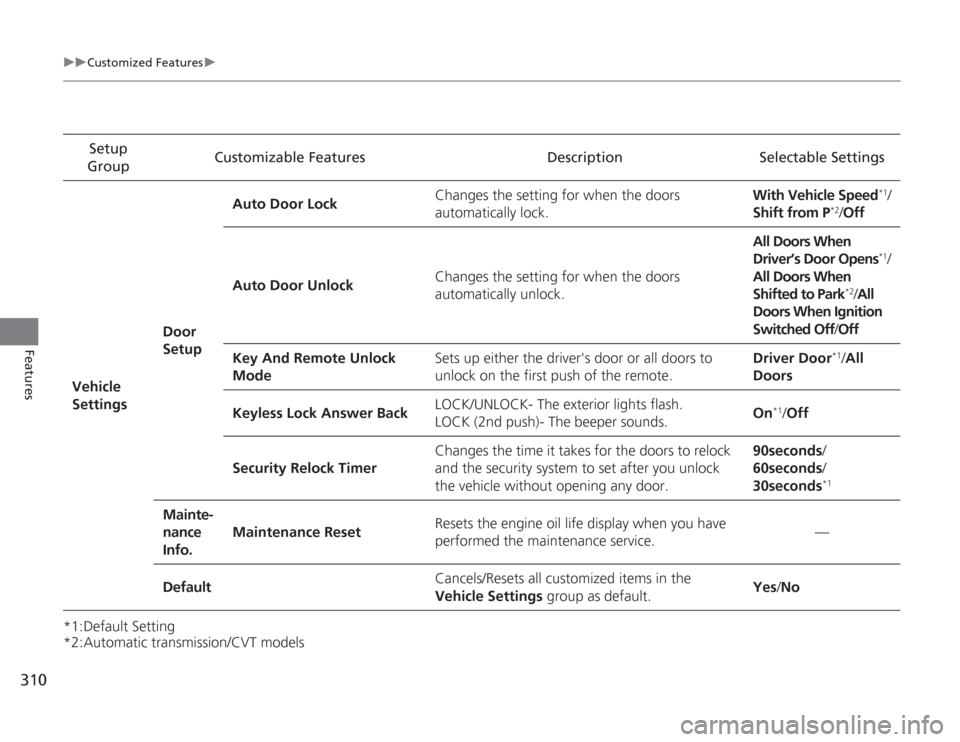
310
uuCustomized Features u
Features
*1:Default Setting
*2:Automatic transmission/CVT modelsSetup
Group Customizable Features Description Selectable Settings
Vehicle
Settings Door
SetupAuto Door Lock
Changes the setting for when the doors
automatically lock. With Vehicle Speed
*1/
Shift from P
*2/ Off
Auto Door Unlock Changes the setting for when the doors
automatically unlock. All Doors When
Driver’s Door Opens
*1/
All Doors When
Shifted to Park
*2/ All
Doors When Ignition
Switched Off /Off
Key And Remote Unlock
Mode Sets up either the driver's door or all doors to
unlock on the first push of the remote. Driver Door
*1/
All
Doors
Keyless Lock Answer Back LOCK/UNLOCK- The exterior lights flash.
LOCK (2nd push)- The beeper sounds.
On
*1/
Off
Security Relock Timer Changes the time it takes for the doors to relock
and the security system to set after you unlock
the vehicle without opening any door. 90seconds/
60seconds/
30seconds
*1
Mainte-
nance
Info.
Maintenance Reset
Resets the engine oil life display when you have
performed the maintenance service. —
Default Cancels/Resets all customized items in the
Vehicle Settings
group as default. Yes
/No
Page 320 of 595
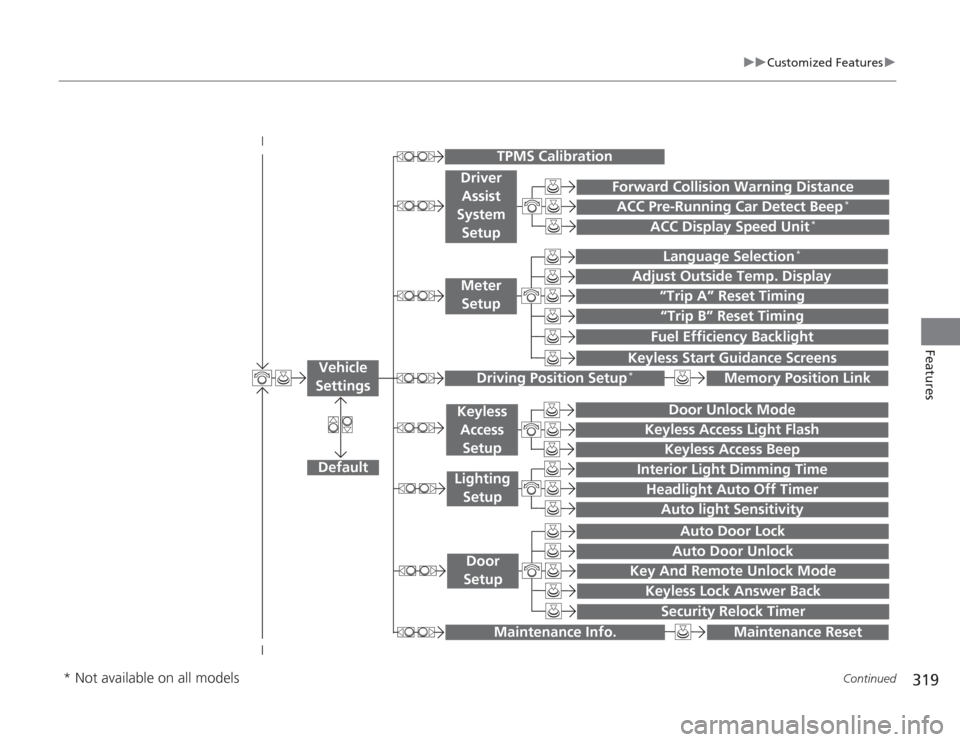
319
uuCustomized Features u
Continued
Features
“Trip A” Reset Timing“Trip B” Reset TimingFuel Efficiency Backlight
Language Selection
*
Adjust Outside Temp. Display
Forward Collision Warning DistanceACC Pre-Running Car Detect Beep
*
ACC Display Speed Unit
*
Keyless Start Guidance Screens
Default
Memory Position Link
Door Unlock Mode
Keyless Access Light Flash
Interior Light Dimming TimeHeadlight Auto Off Timer
Auto light Sensitivity
Key And Remote Unlock Mode
Keyless Lock Answer Back
Security Relock Timer
Auto Door LockAuto Door Unlock
Maintenance Reset
TPMS Calibration
Vehicle
Settings
Meter SetupDriver Assist
System
Setup
Driving Position Setup
*
Keyless Access
SetupLighting SetupDoor
Setup
Maintenance Info.
Keyless Access Beep
* Not available on all models