ECO mode HONDA ACCORD 2014 9.G Workshop Manual
[x] Cancel search | Manufacturer: HONDA, Model Year: 2014, Model line: ACCORD, Model: HONDA ACCORD 2014 9.GPages: 595
Page 176 of 595
175
uuAudio System uUSB Port
Features
USB Port
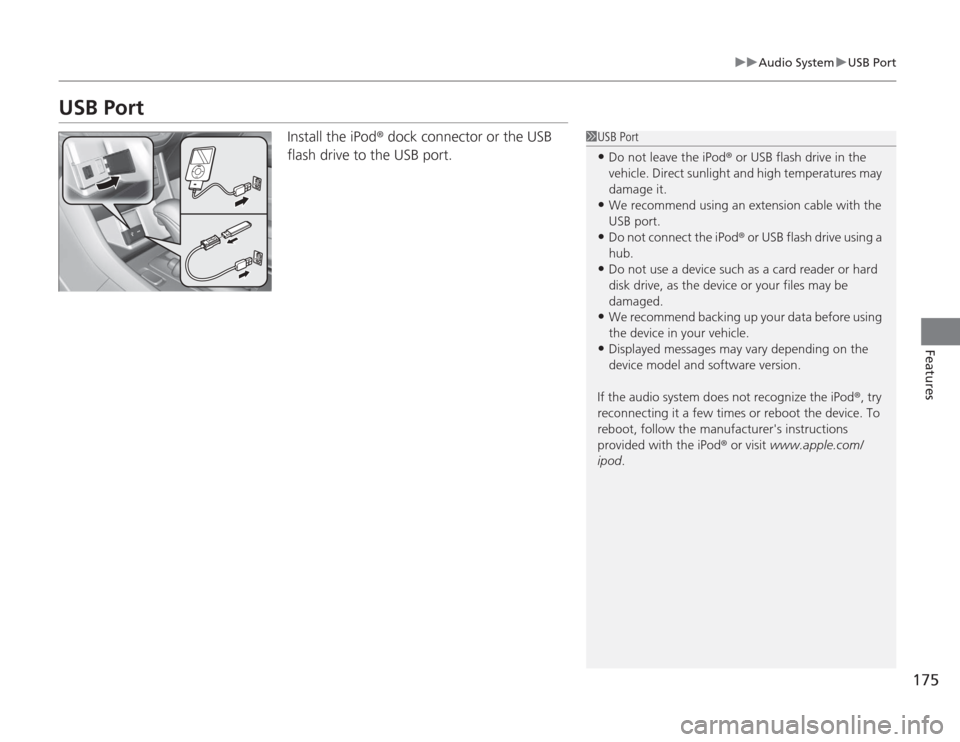
Install the iPod ® dock connector or the USB
flash drive to the USB port.
1 USB Port•Do not leave the iPod ® or USB flash drive in the
vehicle. Direct sunlight and high temperatures may
damage it.•We recommend using an extension cable with the
USB port.•Do not connect the iPod ® or USB flash drive using a
hub.•Do not use a device such as a card reader or hard
disk drive, as the device or your files may be
damaged.•We recommend backing up your data before using
the device in your vehicle.•Displayed messages may vary depending on the
device model and software version.
If the audio system does not recognize the iPod ®, try
reconnecting it a few times or reboot the device. To
reboot, follow the manufacturer's instructions
provided with the iPod ® or visit www.apple.com/
ipod .
Page 178 of 595
177
uuAudio System uAudio System Theft Protection
*
Features
Audio System Theft Protection
*
The audio system is disabled when it is disconnected from the power source, such as
when the battery is disconnected or goes dead.■
Reactivating the audio system
1. Set the power mode to ON, and turn on the audio system.
u If you set the power mode to ACCESSORY, you will be requested to enter the
audio security code. See step 3.
2. Press and hold the power button again for more than two seconds.
u The audio system is reactivated when the system’s control unit recognizes that
the system is in your vehicle.
If the control unit fails to recognize, Enter PIN Code appears on the audio/
information screen.
3. If the two steps do not work, you can enter the audio security code using the
touch screen. If you enter an incorrect digit, continue to the last digit, then try
again. If you do not enter code correctly after 10 tries, leave the system for one
hour before trying again, or visit a dealer to have the system reset.
1Audio System Theft Protection
*
Find the audio system's security code and serial
number label in your owner’s manual kit.
We recommend that you write down the serial
number in this owner’s manual.
Do not store the label in your vehicle. If you lose the
label, you must first retrieve the serial number, and
then obtain the code.
You can find out about your serial number and
security code from a dealer.
You can register the security code at Owner Link
(owners.honda.com. ), and find information on how
to retrieve the serial number and obtain the code at
radio-navicode.honda.com .U.S. models
* Not available on all models
Page 189 of 595
uuAudio System Basic Operation uPlaying AM/FM Radio
188Features
Provides text data information related to your selected RDS-capable FM station.■
To find an RDS station from Station List
1. Press while listening to an FM station.
2. Rotate to select the station, then press .
■
Manual update
Updates your available station list at any time.
1. Press while listening to an FM station.
2. Rotate to select Refresh, then press .
■
Radio Data System (RDS)
1Playing AM/FM Radio
The ST indicator appears on the display indicating
stereo FM broadcasts.
Stereo reproduction in AM is not available.
Switching the Audio Mode
Press the SOURCE button on the steering wheel.
2 Audio Remote Controls P. 179
You can also switch the mode by pressing the MENU
button and selecting Change Source on the MENU
screen.
You can store 6 AM stations and 12 FM stations into
the preset memory.1 Radio Data System (RDS)
When you select an RDS-capable FM station, the RDS
automatically turns on, and the frequency display
changes to the station name. However, when the
signals of that station become weak, the display
changes from the station name to the frequency.
Page 192 of 595
Continued
191
uuAudio System Basic Operation uPlaying a CD
Features
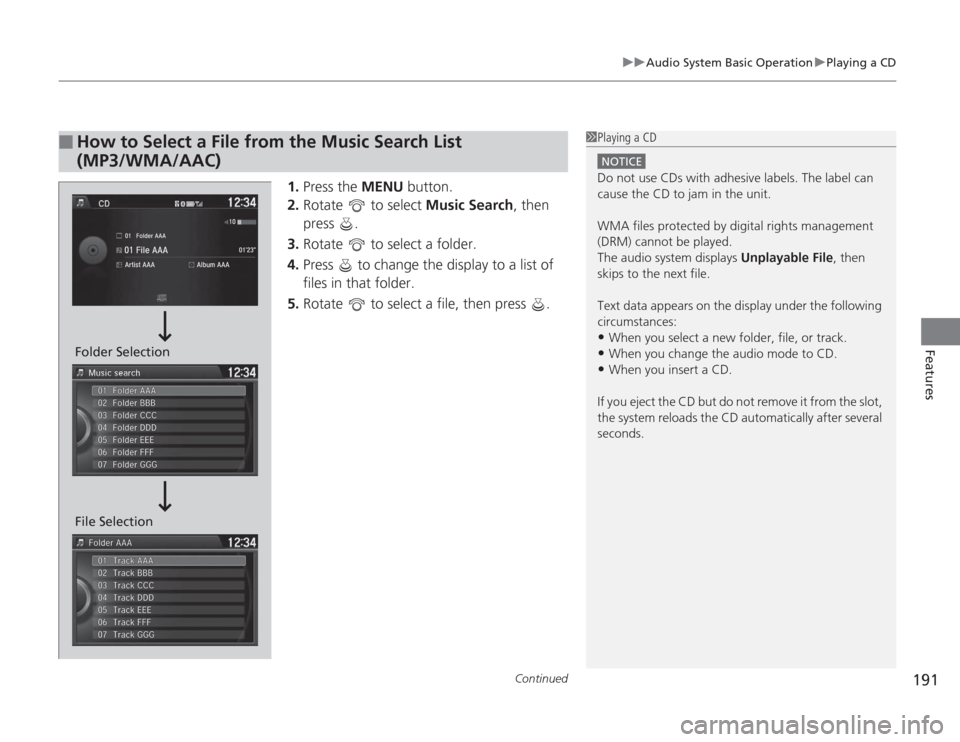
1. Press the MENU button.
2. Rotate to select Music Search, then
press .
3. Rotate to select a folder.
4. Press to change the display to a list of
files in that folder.
5. Rotate to select a file, then press .
■
How to Select a File from the Music Search List
(MP3/WMA/AAC)
1Playing a CD
NOTICEDo not use CDs with adhesive labels. The label can
cause the CD to jam in the unit.
WMA files protected by digital rights management
(DRM) cannot be played.
The audio system displays Unplayable File, then
skips to the next file.
Text data appears on the display under the following
circumstances:•When you select a new folder, file, or track.•When you change the audio mode to CD.•When you insert a CD.
If you eject the CD but do not remove it from the slot,
the system reloads the CD automatically after several
seconds.
File Selection Folder Selection
Page 193 of 595
uuAudio System Basic Operation uPlaying a CD
192Features
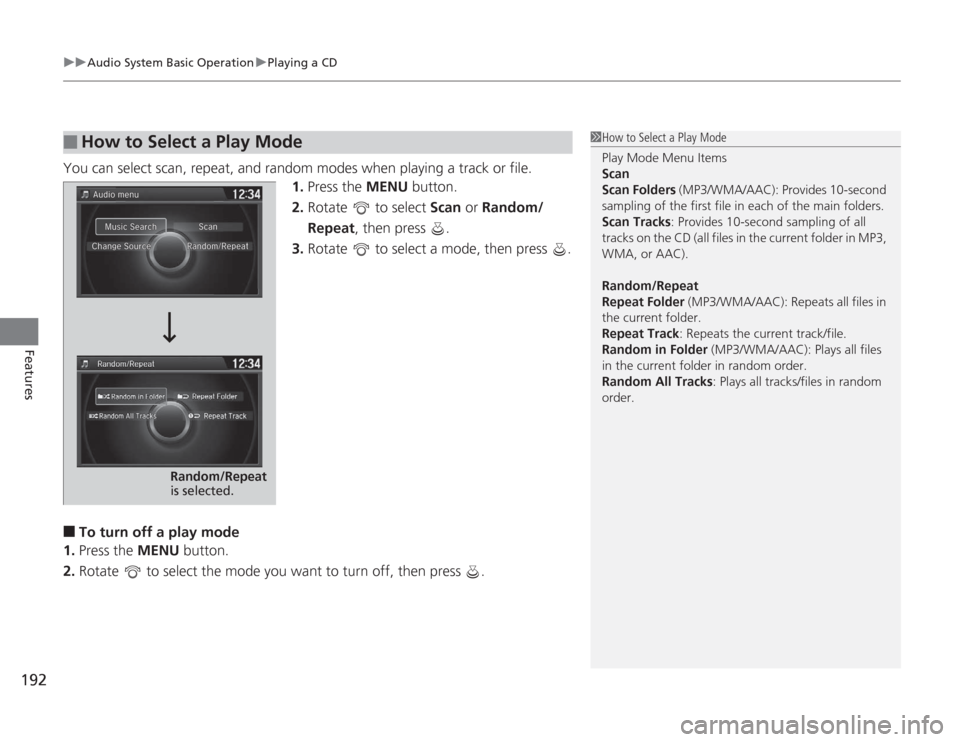
You can select scan, repeat, and random modes when playing a track or file.
1.Press the MENU button.
2. Rotate to select Scan or Random/
Repeat, then press .
3. Rotate to select a mode, then press .■
To turn off a play mode
1. Press the MENU button.
2. Rotate to select the mode you want to turn off, then press .
■
How to Select a Play Mode
1How to Select a Play Mode
Play Mode Menu Items
Scan
Scan Folders (MP3/WMA/AAC): Provides 10-second
sampling of the first file in each of the main folders.
Scan Tracks: Provides 10-second sampling of all
tracks on the CD (all files in the current folder in MP3,
WMA, or AAC).
Random/Repeat
Repeat Folder (MP3/WMA/AAC): Repeats all files in
the current folder.
Repeat Track: Repeats the current track/file.
Random in Folder (MP3/WMA/AAC): Plays all files
in the current folder in random order.
Random All Tracks : Plays all tracks/files in random
order.
Random/Repeat
is selected.
Page 201 of 595
uuAudio System Basic Operation uPlaying a USB Flash Drive
200Features
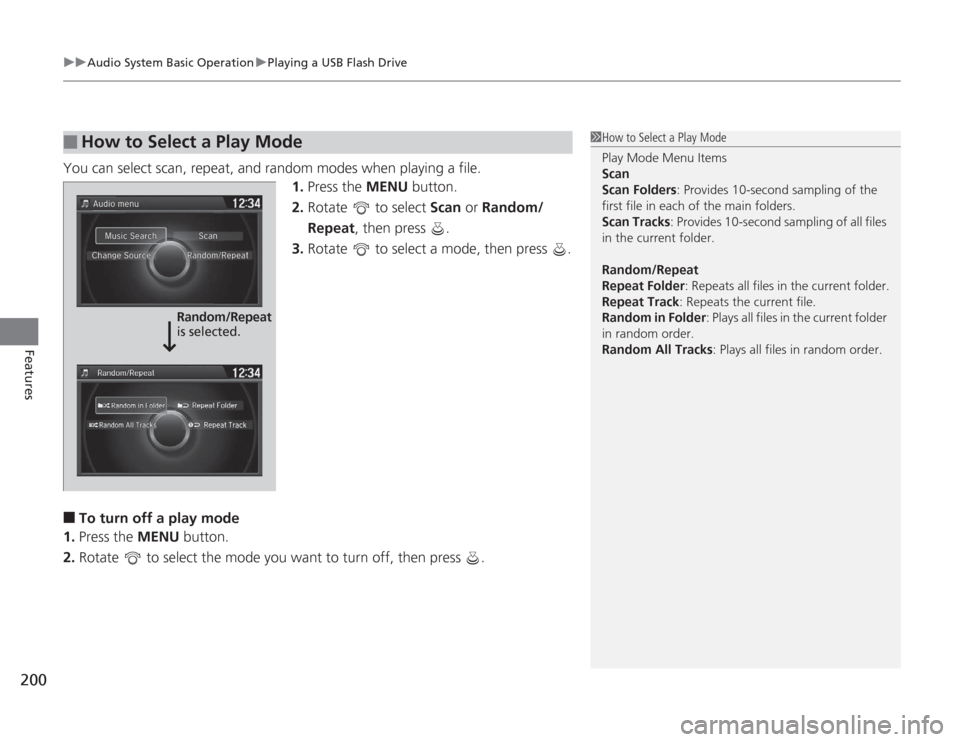
You can select scan, repeat, and random modes when playing a file.
1.Press the MENU button.
2. Rotate to select Scan or Random/
Repeat, then press .
3. Rotate to select a mode, then press .■
To turn off a play mode
1. Press the MENU button.
2. Rotate to select the mode you want to turn off, then press .
■
How to Select a Play Mode
1How to Select a Play Mode
Play Mode Menu Items
Scan
Scan Folders : Provides 10-second sampling of the
first file in each of the main folders.
Scan Tracks: Provides 10-second sampling of all files
in the current folder.
Random/Repeat
Repeat Folder : Repeats all files in the current folder.
Repeat Track: Repeats the current file.
Random in Folder : Plays all files in the current folder
in random order.
Random All Tracks : Plays all files in random order.
Random/Repeat
is selected.
Page 203 of 595
uuAudio System Basic Operation uPlaying Bluetooth ® Audio
202Features
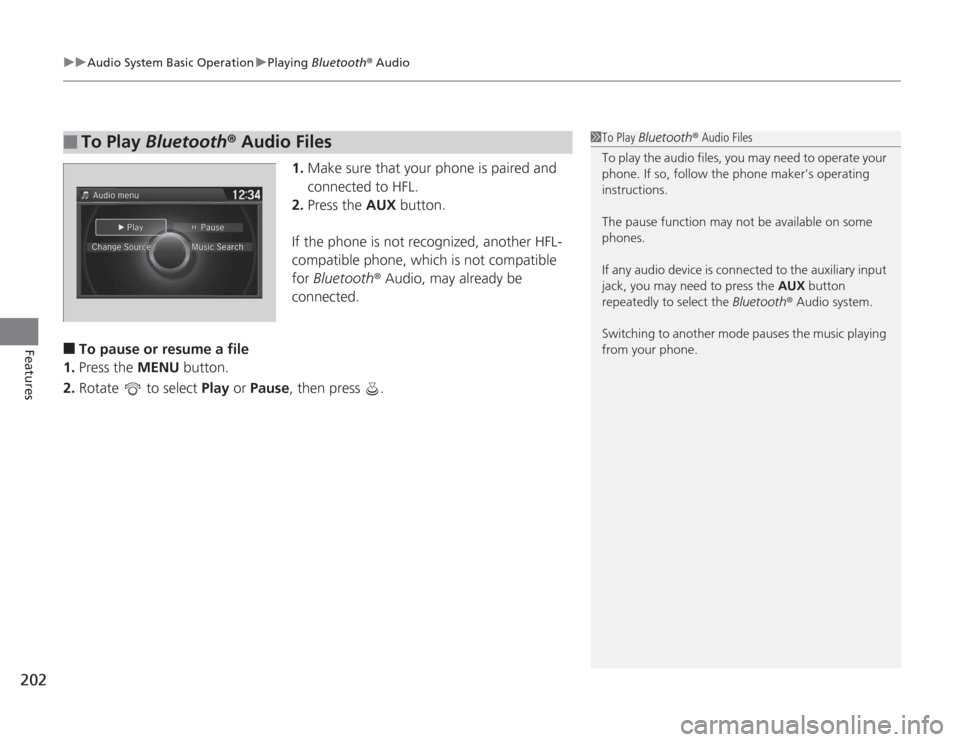
1. Make sure that your phone is paired and
connected to HFL.
2. Press the AUX button.
If the phone is not recognized, another HFL-
compatible phone, which is not compatible
for Bluetooth ® Audio, may already be
connected.
■
To pause or resume a file
1. Press the MENU button.
2. Rotate to select Play or Pause , then press .
■
To Play Bluetooth® Audio Files
1To Play Bluetooth ® Audio Files
To play the audio files, you may need to operate your
phone. If so, follow the phone maker's operating
instructions.
The pause function may not be available on some
phones.
If any audio device is connected to the auxiliary input
jack, you may need to press the AUX button
repeatedly to select the Bluetooth® Audio system.
Switching to another mode pauses the music playing
from your phone.
Page 222 of 595
221
uuAudio System Basic Operation uPlaying a CD
Continued
Features
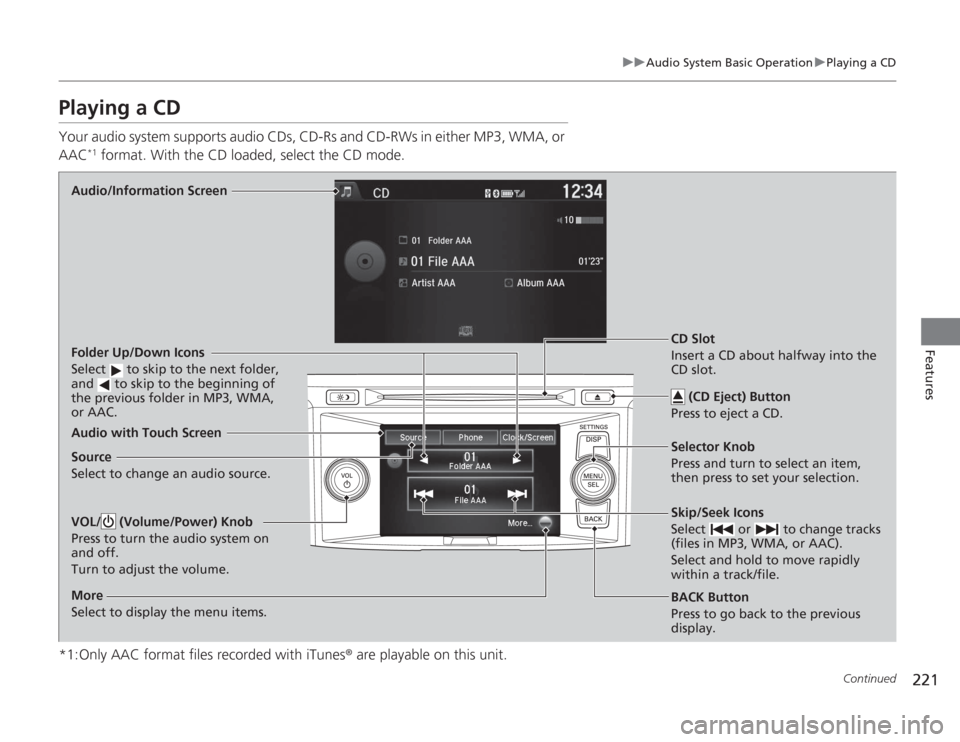
Playing a CDYour audio system supports audio CDs, CD-Rs and CD-RWs in either MP3, WMA, or
AAC
*1 format. With the CD loaded, select the CD mode.
*1:Only AAC format files recorded with iTunes ® are playable on this unit.
Audio/Information Screen
Audio with Touch Screen
BACK Button
Press to go back to the previous
display. Selector Knob
Press and turn to select an item,
then press to set your selection.VOL/ (Volume/Power) Knob
Press to turn the audio system on
and off.
Turn to adjust the volume.
Skip/Seek Icons
Select or to change tracks
(files in MP3, WMA, or AAC).
Select and hold to move rapidly
within a track/file.
More
Select to display the menu items.Folder Up/Down Icons
Select to skip to the next folder,
and to skip to the beginning of
the previous folder in MP3, WMA,
or AAC.Source
Select to change an audio source.CD Slot
Insert a CD about halfway into the
CD slot.
(CD Eject) Button
Press to eject a CD.
Page 223 of 595
uuAudio System Basic Operation uPlaying a CD
222Features
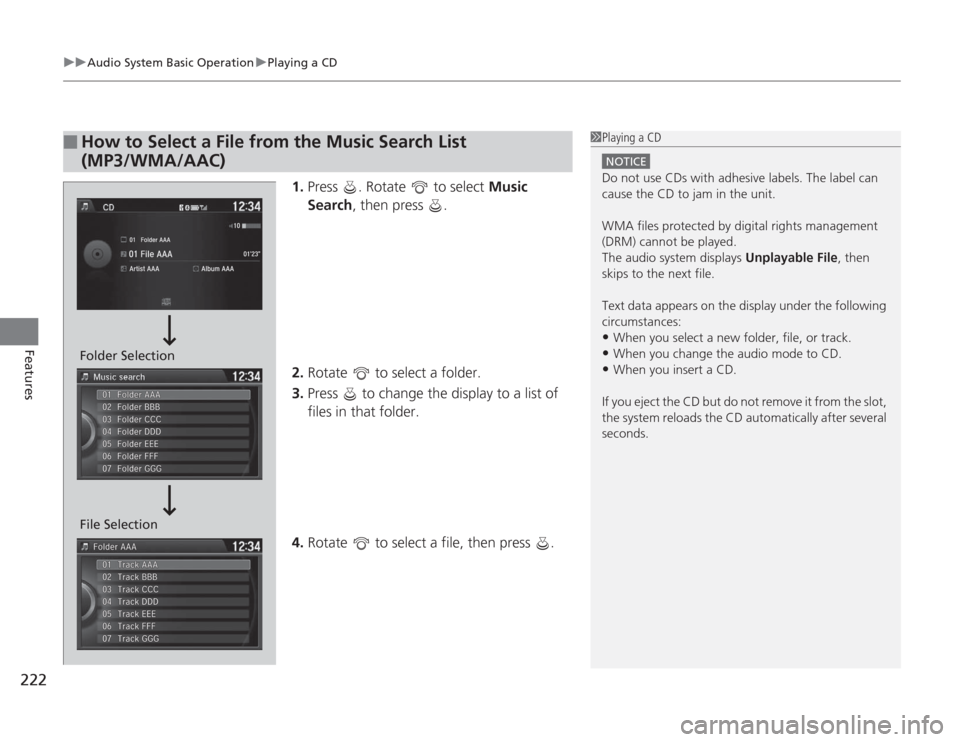
1. Press . Rotate to select Music
Search , then press .
2. Rotate to select a folder.
3. Press to change the display to a list of
files in that folder.
4. Rotate to select a file, then press .
■
How to Select a File from the Music Search List
(MP3/WMA/AAC)
1Playing a CD
NOTICEDo not use CDs with adhesive labels. The label can
cause the CD to jam in the unit.
WMA files protected by digital rights management
(DRM) cannot be played.
The audio system displays Unplayable File, then
skips to the next file.
Text data appears on the display under the following
circumstances:•When you select a new folder, file, or track.•When you change the audio mode to CD.•When you insert a CD.
If you eject the CD but do not remove it from the slot,
the system reloads the CD automatically after several
seconds.
Folder Selection
File Selection
Page 224 of 595
223
uuAudio System Basic Operation uPlaying a CD
Features
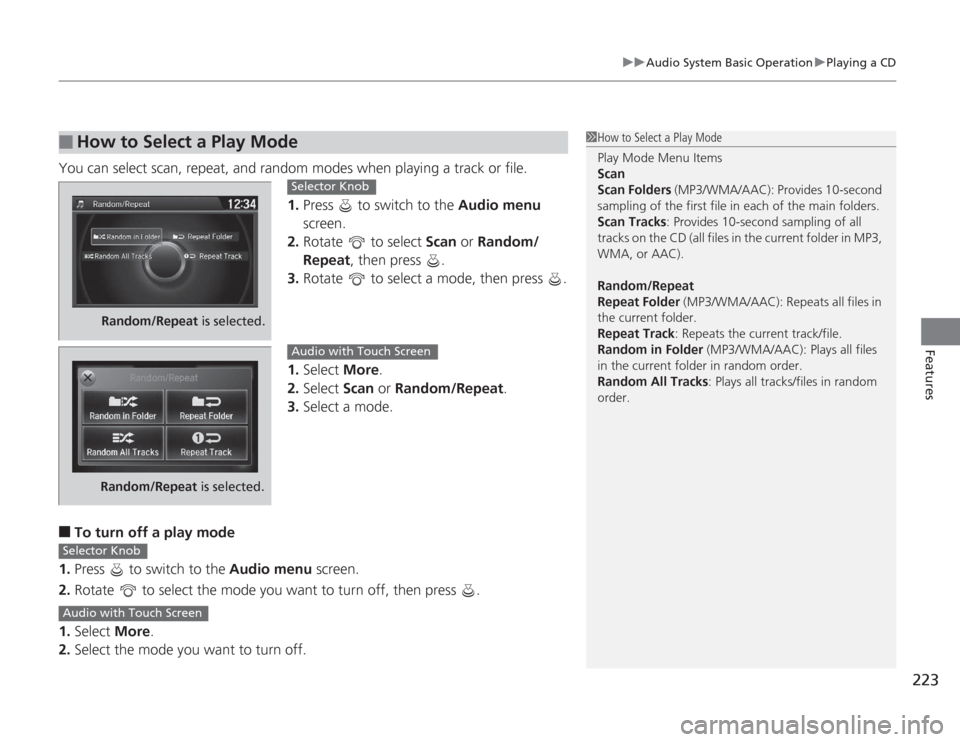
You can select scan, repeat, and random modes when playing a track or file.
1.Press to switch to the Audio menu
screen.
2. Rotate to select Scan or Random/
Repeat , then press .
3. Rotate to select a mode, then press .
1. Select More.
2. Select Scan or Random/Repeat .
3. Select a mode.■
To turn off a play mode
1. Press to switch to the Audio menu screen.
2. Rotate to select the mode you want to turn off, then press .
1. Select More.
2. Select the mode you want to turn off.
■
How to Select a Play Mode
1How to Select a Play Mode
Play Mode Menu Items
Scan
Scan Folders (MP3/WMA/AAC): Provides 10-second
sampling of the first file in each of the main folders.
Scan Tracks: Provides 10-second sampling of all
tracks on the CD (all files in the current folder in MP3,
WMA, or AAC).
Random/Repeat
Repeat Folder (MP3/WMA/AAC): Repeats all files in
the current folder.
Repeat Track: Repeats the current track/file.
Random in Folder (MP3/WMA/AAC): Plays all files
in the current folder in random order.
Random All Tracks : Plays all tracks/files in random
order.
Random/Repeat is selected.
Selector Knob
Random/Repeat is selected.
Audio with Touch Screen
Selector KnobAudio with Touch Screen