USB HONDA ACCORD 2022 Owner's Manual
[x] Cancel search | Manufacturer: HONDA, Model Year: 2022, Model line: ACCORD, Model: HONDA ACCORD 2022Pages: 657, PDF Size: 11.42 MB
Page 315 of 657
313
uuAudio System Basic Operation uApple CarPlay
Continued
Features
Apple CarPlay
If you connect an Apple CarPlay-compatib le iPhone to the system via the USB port
in the center pocket or wirelessly*, you can use the audio/information screen,
instead of the iPhone display, to make a phone call, listen to music, view maps
(navigation), and access messages.
2 USB Ports P. 247
■Phone
Access the contact list, make phone calls, or listen to voicemail.
■Messages
Check and reply to text messages, or have messages read to you.
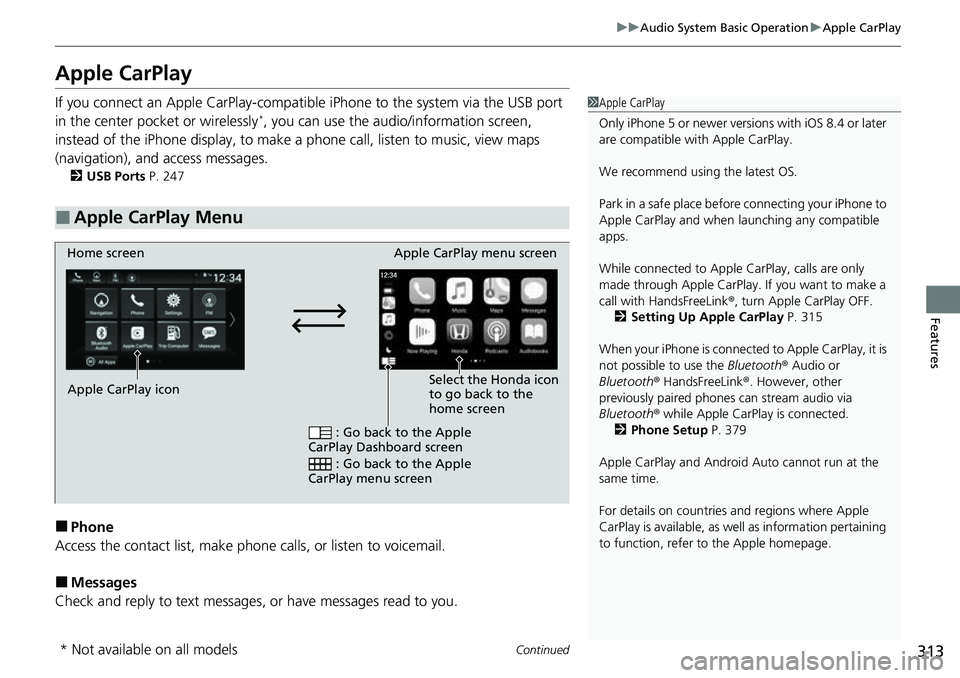
■Apple CarPlay Menu
1 Apple CarPlay
Only iPhone 5 or newer versi ons with iOS 8.4 or later
are compatible with Apple CarPlay.
We recommend using the latest OS.
Park in a safe place before connecting your iPhone to
Apple CarPlay and when launching any compatible
apps.
While connected to Apple CarPlay, calls are only
made through Apple CarPlay. If you want to make a
call with HandsFreeLink ®, turn Apple CarPlay OFF.
2 Setting Up Apple CarPlay P. 315
When your iPhone is connected to Apple CarPlay, it is
not possible to use the Bluetooth® Audio or
Bluetooth ® HandsFreeLink ®. However, other
previously paired phones can stream audio via
Bluetooth ® while Apple CarPlay is connected.
2 Phone Setup P. 379
Apple CarPlay and Android Auto cannot run at the
same time.
For details on c ountries and regions where Apple
CarPlay is available, as well as information pertaining
to function, refer to the Apple homepage.
Home screen
Apple CarPlay icon Apple CarPlay menu screen
: Go back to the Apple
CarPlay Dashboard screen
: Go back to the Apple
CarPlay menu screen
Select the Honda icon
to go back to the
home screen
* Not available on all models
Page 317 of 657
Continued315
uuAudio System Basic Operation uApple CarPlay
Features
After you have connected your iPhone to the system via the front USB port or
wirelessly*, use the following procedure to set up Apple CarPlay. Use of Apple
CarPlay will result in the transmission of certain user and vehicle information (such
as vehicle location, speed, an d status) to your iPhone to enhance the Apple CarPlay
experience. You will n eed to consent to the sharing of this information on the audio/
information screen.
■Setting Up Apple CarPlay1 Setting Up Apple CarPlay
Only initialize Apple CarPlay when you are safely
parked.
When Apple CarPlay first detects your iPhone, you
will need to set up your iPhone. Refer to the
instruction manual that came with your iPhone.
You can also use the method below to set up Apple
CarPlay:
Select HOME Settings Smartphone Connection
Apple CarPlay Select device
Select HOME Settings Connections
Smartphone Connection Apple CarPlay
Select device
Use of user and vehicle information
The use and handling of user and vehicle information
transmitted to/from your iP hone by Apple CarPlay is
governed by the Apple iOS terms and conditions and
Apple’s Privacy Policy.
Models with wire less Apple CarPlay
and wireless Android Auto
Models without wireless Apple CarPlay
and wireless Android Auto
* Not available on all models
Page 318 of 657
uuAudio System Basic Operation uApple CarPlay
316
Features
1. Connect the iPhone to the USB port using the USB cable.
2 USB Ports P. 247
uThe confirmation screen will be displayed.
2. Select Yes.
u If you do not allow this consent, select No.
You may change the consent settings under the Connections
*1/Smartphone
Connection*2 settings menu.
■Connect Apple CarPlay wirele ssly on the home screen
1. Press the button.
2. Select Smartphone Connection .
3. Select + Connect New Device.
4. Pair the iPhone to the vehicle’s Bluetooth® HandsFreeLink ® (HFL) system.
2Phone Setup P. 379
5.Select Yes.
u If your iPhone asks for permission to accept an Apple CarPlay connection,
accept to connect.
*1 : Models without wireless Apple Ca rPlay and wireless Android Auto
*2 : Models with wireless Apple Ca rPlay and wireless Android Auto
■Connecting Apple CarPlay Using the USB Cable to the USB
Port
■Connect Apple CarPlay Wirelessly*1 Connect Apple CarPlay Wirelessly*
Wireless Apple CarP lay and AT&T Hotspot cannot be
used at the same time. When using Apple CarPlay
and AT&T Hotspot at the same time, connect to
Apple CarPlay wi th a USB cable.
* Not available on all models
Page 322 of 657
320
uuAudio System Basic Operation uAndroid Auto
Features
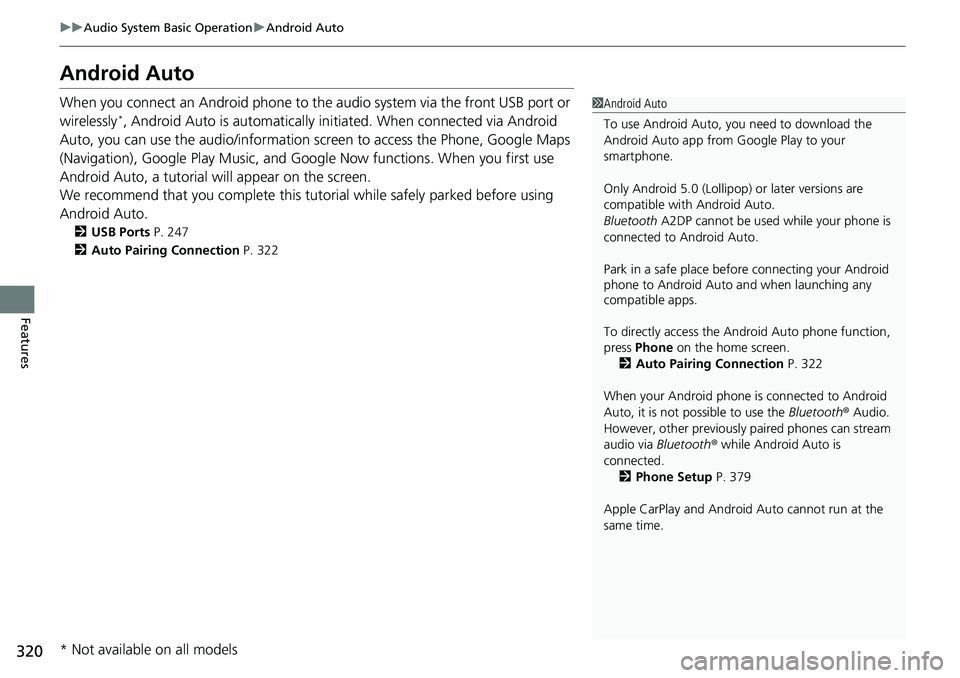
Android Auto
When you connect an Android phone to the audio system via the front USB port or
wirelessly*, Android Auto is automatically initiated. When connected via Android
Auto, you can use the audio/information screen to access the Phone, Google Maps
(Navigation), Google Play Music, and Google Now functions. When you first use
Android Auto, a tutorial w ill appear on the screen.
We recommend that you complete this tuto rial while safely parked before using
Android Auto.
2 USB Ports P. 247
2 Auto Pairing Connection P. 322
1Android Auto
To use Android Auto, you need to download the
Android Auto app from Google Play to your
smartphone.
Only Android 5.0 (Lollipop) or later versions are
compatible with Android Auto.
Bluetooth A2DP cannot be used while your phone is
connected to Android Auto.
Park in a safe place befo re connecting your Android
phone to Android Auto and when launching any
compatible apps.
To directly access the Android Auto phone function,
press Phone on the home screen.
2 Auto Pairing Connection P. 322
When your Android phone is connected to Android
Auto, it is not possible to use the Bluetooth® Audio.
However, other previously paired phones can stream
audio via Bluetooth ® while Android Auto is
connected. 2 Phone Setup P. 379
Apple CarPlay and Android Auto cannot run at the
same time.
* Not available on all models
Page 324 of 657
322
uuAudio System Basic Operation uAndroid Auto
Features
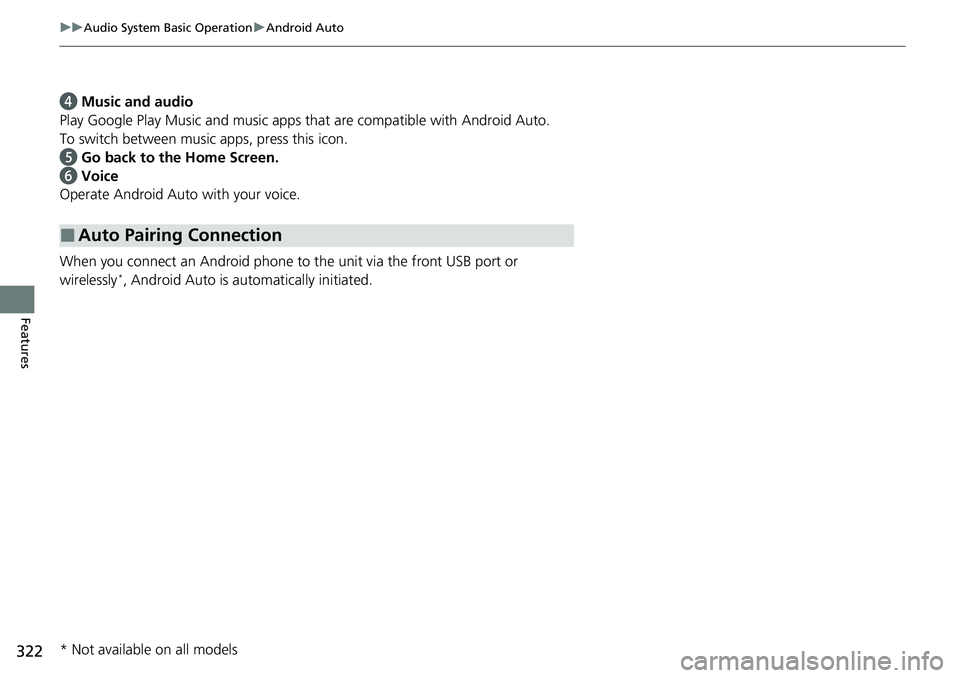
d Music and audio
Play Google Play Music and music apps that are compatible with Android Auto.
To switch between music apps, press this icon.
e Go back to the Home Screen.
f Voice
Operate Android Auto with your voice.
When you connect an Android phone to the unit via the front USB port or
wirelessly
*, Android Auto is automatically initiated.
■Auto Pairing Connection
* Not available on all models
Page 325 of 657
Continued323
uuAudio System Basic Operation uAndroid Auto
Features
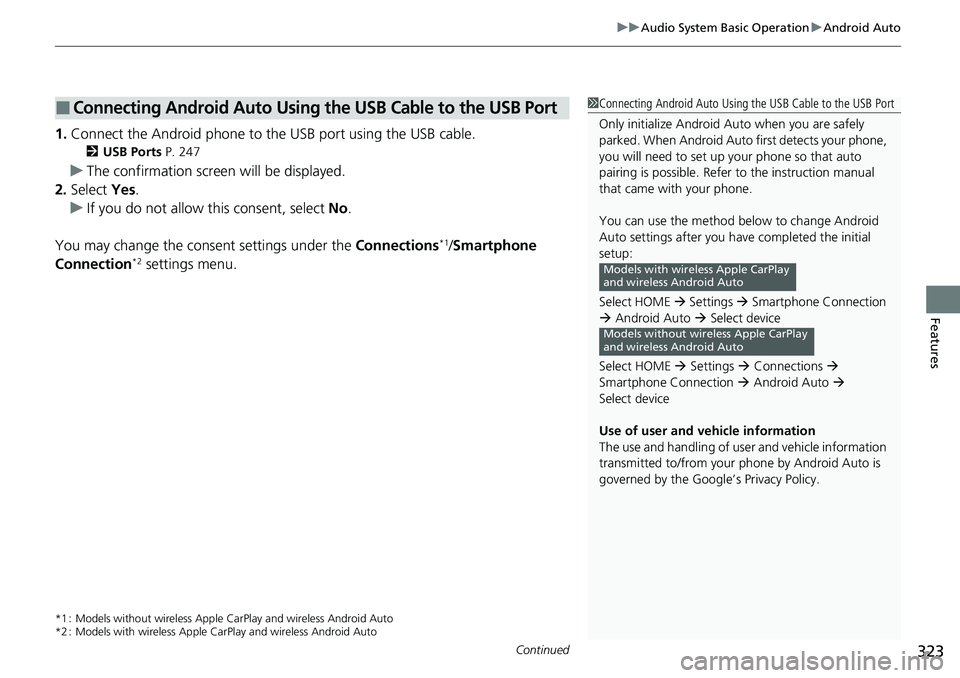
1. Connect the Android phone to the USB port using the USB cable.
2 USB Ports P. 247
uThe confirmation screen will be displayed.
2. Select Yes.
u If you do not allow this consent, select No .
You may change the consent settings under the Connections
*1/Smartphone
Connection*2 settings menu.
*1 : Models without wireless Apple Ca rPlay and wireless Android Auto
*2 : Models with wireless Apple CarPlay and wireless Android Auto
■Connecting Android Auto Using the USB Cable to the USB Port1Connecting Android Auto Using the USB Cable to the USB Port
Only initialize Android Auto when you are safely
parked. When Android Auto first detects your phone,
you will need to set up your phone so that auto
pairing is possibl e. Refer to the instruction manual
that came with your phone.
You can use the method below to change Android
Auto settings after you ha ve completed the initial
setup:
Select HOME Settings Smartphone Connection
Android Auto Select device
Select HOME Settings Connections
Smartphone Connection Android Auto
Select device
Use of user and vehicle information
The use and handling of user and vehicle information
transmitted to/from your phone by Android Auto is
governed by the Google’s Privacy Policy.
Models with wire less Apple CarPlay
and wireless Android Auto
Models without wireless Apple CarPlay
and wireless Android Auto
Page 326 of 657
uuAudio System Basic Operation uAndroid Auto
324
Features
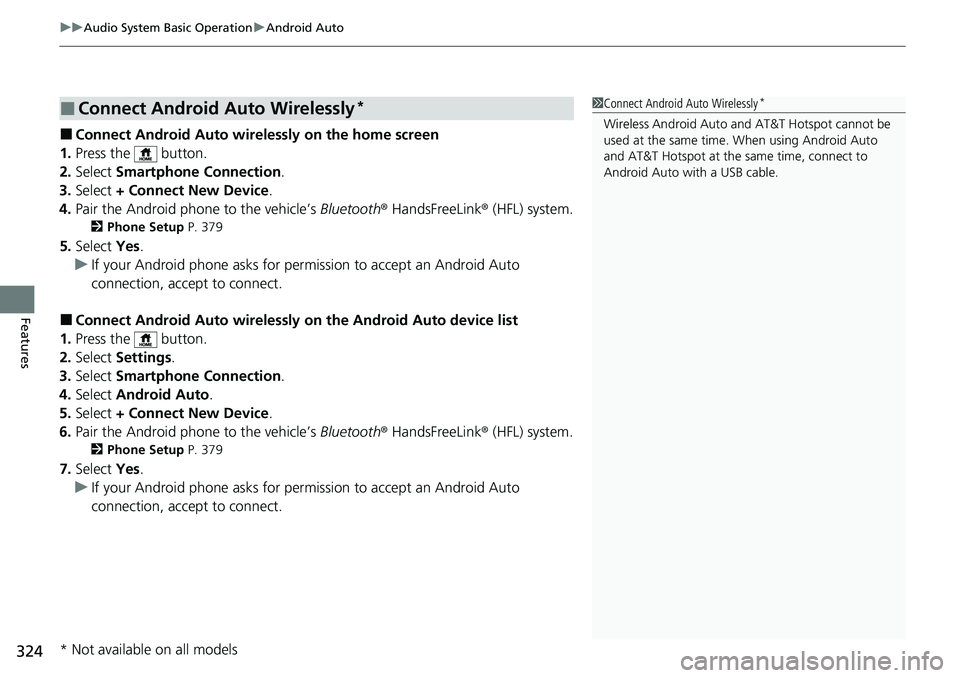
■Connect Android Auto wirelessly on the home screen
1. Press the button.
2. Select Smartphone Connection .
3. Select + Connect New Device.
4. Pair the Android phone to the vehicle’s Bluetooth® HandsFreeLink ® (HFL) system.
2Phone Setup P. 379
5.Select Yes.
u If your Android phone asks for permission to accept an Android Auto
connection, accept to connect.
■Connect Android Auto wirelessly on the Android Auto device list
1. Press the button.
2. Select Settings .
3. Select Smartphone Connection .
4. Select Android Auto .
5. Select + Connect New Device.
6. Pair the Android phone to the vehicle’s Bluetooth® HandsFreeLink ® (HFL) system.
2Phone Setup P. 379
7.Select Yes.
u If your Android phone asks for permission to accept an Android Auto
connection, accept to connect.
■Connect Android Auto Wirelessly*1Connect Android Auto Wirelessly*
Wireless Android Auto and AT&T Hotspot cannot be
used at the same time. When using Android Auto
and AT&T Hotspot at the same time, connect to
Android Auto with a USB cable.
* Not available on all models
Page 329 of 657
327
Features
Audio Error Messages
iPod/USB Flash Drive
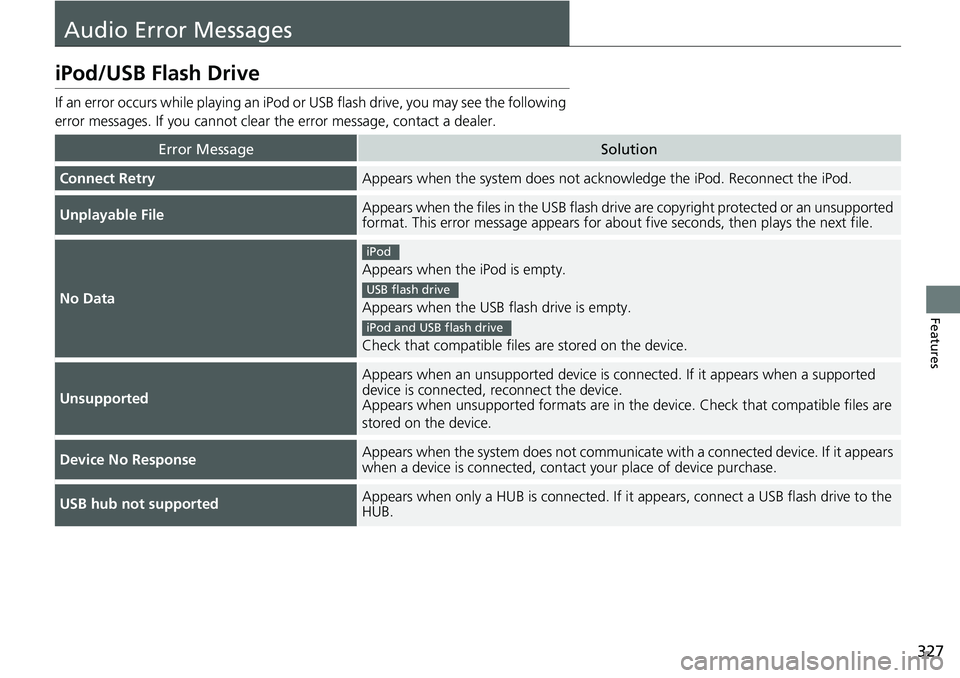
If an error occurs while playing an iPod or USB flash drive, you may see the following
error messages. If you cannot clear the error message, contact a dealer.
Error MessageSolution
Connect RetryAppears when the system does not acknowledge the iPod. Reconnect the iPod.
Unplayable FileAppears when the files in the USB flash drive are copyright protected or an unsupported
format. This error message appears for about five seconds, then plays the next file.
No Data
Appears when the iPod is empty.
Appears when the USB flash drive is empty.
Check that compatible files are stored on the device.
Unsupported
Appears when an unsupported device is connected. If it appears when a supported
device is connected, reconnect the device.
Appears when unsupported formats are in the device. Check that compatible files are
stored on the device.
Device No ResponseAppears when the system does not communicat e with a connected device. If it appears
when a device is connected, contact your place of device purchase.
USB hub not supportedAppears when only a HUB is conn ected. If it appears, connect a USB flash drive to the
HUB.
iPod
USB flash drive
iPod and USB flash drive
Page 332 of 657
330
uuGeneral Information on the Audio System uCompatible iPod, iPhone, and USB Flash Drives
Features
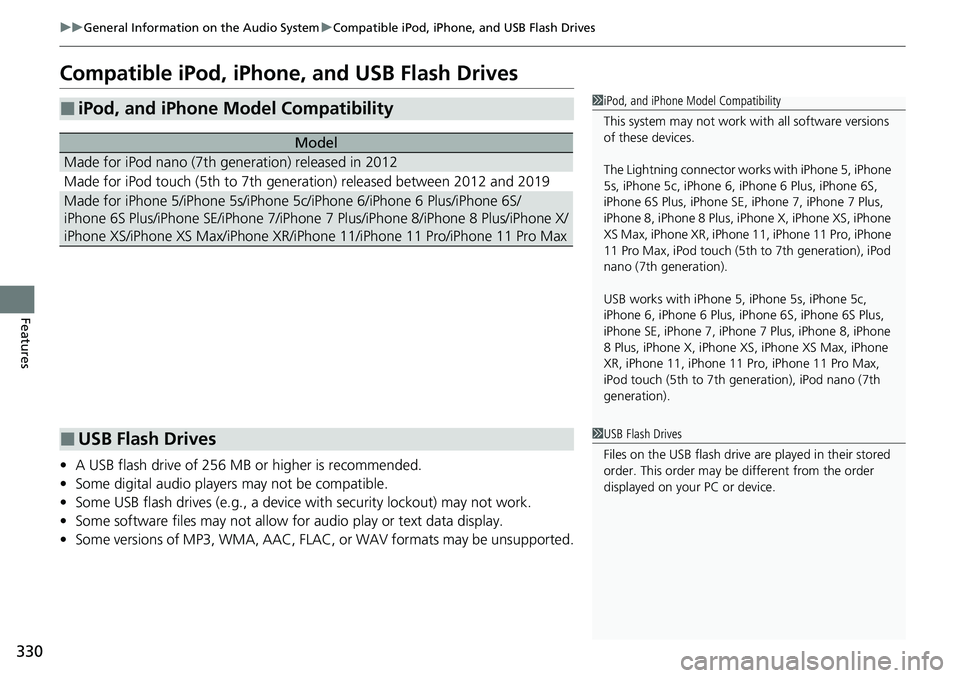
Compatible iPod, iPhone, and USB Flash Drives
• A USB flash drive of 256 MB or higher is recommended.
• Some digital audio players may not be compatible.
• Some USB flash drives (e.g., a device with security lockout) may not work.
• Some software files may not allow for audio play or text data display.
• Some versions of MP3, WMA, AAC, FLAC, or WAV formats may be unsupported.
■iPod, and iPhone Model Compatibility
Model
Made for iPod nano (7th generation) released in 2012
Made for iPod touch (5th to 7th generation) released between 2012 and 2019
Made for iPhone 5/iPhone 5s/iPhone 5c/iPhone 6/iPhone 6 Plus/iPhone 6S/
iPhone 6S Plus/iPhone SE/iPhone 7/iPhone 7 Plus/iPhone 8/iPhone 8 Plus/iPhone X/
iPhone XS/iPhone XS Max/iPhone XR/iPhon e 11/iPhone 11 Pro/iPhone 11 Pro Max
1iPod, and iPhone Model Compatibility
This system may not work with all software versions
of these devices.
The Lightning connector work s with iPhone 5, iPhone
5s, iPhone 5c, iPhone 6, iPhone 6 Plus, iPhone 6S,
iPhone 6S Plus, iPhone SE, iPhone 7, iPhone 7 Plus,
iPhone 8, iPhone 8 Plus, iP hone X, iPhone XS, iPhone
XS Max, iPhone XR, iPhone 11, iPhone 11 Pro, iPhone
11 Pro Max, iPod touch (5th to 7th generation), iPod
nano (7th generation).
USB works with iPhone 5, iPhone 5s, iPhone 5c,
iPhone 6, iPhone 6 Plus, iPhone 6S, iPhone 6S Plus,
iPhone SE, iPhone 7, iPhone 7 Plus, iPhone 8, iPhone
8 Plus, iPhone X, iPhone XS, iPhone XS Max, iPhone
XR, iPhone 11, iPhone 11 Pro, iPhone 11 Pro Max,
iPod touch (5th to 7th ge neration), iPod nano (7th
generation).
■USB Flash Drives1 USB Flash Drives
Files on the USB flash drive are played in their stored
order. This order may be different from the order
displayed on your PC or device.
Page 648 of 657
Index
646
Index
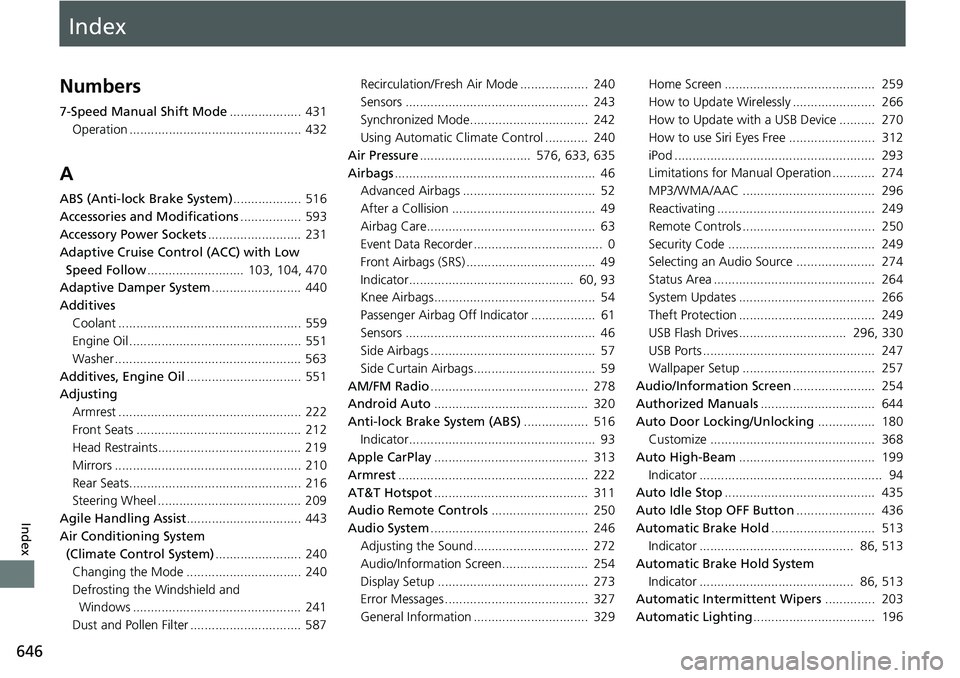
Index
Numbers
7-Speed Manual Shift Mode.................... 431
Operation ................................................ 432
A
ABS (Anti-lock Brake System) ................... 516
Accessories and Modifications ................. 593
Accessory Power Sockets .......................... 231
Adaptive Cruise Control (ACC) with Low
Speed Follow ........................... 103, 104, 470
Adaptive Damper System ......................... 440
Additives
Coolant ................................................... 559
Engine Oil ................................................ 551
Washer .................................................... 563
Additives, Engine Oil ................................ 551
Adjusting
Armrest ................................................... 222
Front Seats .............................................. 212
Head Restraints........................................ 219
Mirrors .................................................... 210
Rear Seats................................................ 216
Steering Wheel ........................................ 209
Agile Handling Assist ................................ 443
Air Conditioning System (Climate Control System) ........................ 240
Changing the Mode ................................ 240
Defrosting the Windshield and Windows ............................................... 241
Dust and Pollen Filter ............................... 587 Recirculation/Fresh Air Mode ................... 240
Sensors ................................................... 243
Synchronized Mode................................. 242
Using Automatic Climate Control ............ 240
Air Pressure ............................... 576, 633, 635
Airbags ........................................................ 46
Advanced Airbags ..................................... 52
After a Collision ........................................ 49
Airbag Care............................................... 63
Event Data Recorder .................................... 0
Front Airbags (SRS) .................................... 49
Indicator.............................................. 60, 93
Knee Airbags............................................. 54
Passenger Airbag Off Indicator .................. 61
Sensors ..................................................... 46
Side Airbags .............................................. 57
Side Curtain Airbags.................................. 59
AM/FM Radio ............................................ 278
Android Auto ........................................... 320
Anti-lock Brake System (ABS) .................. 516
Indicator.................................................... 93
Apple CarPlay ........................................... 313
Armrest ..................................................... 222
AT&T Hotspot ........................................... 311
Audio Remote Controls ........................... 250
Audio System ............................................ 246
Adjusting the Sound................................ 272
Audio/Information Screen........................ 254
Display Setup .......................................... 273
Error Messages ........................................ 327
General Information ................................ 329 Home Screen .......................................... 259
How to Update Wirelessly ....................... 266
How to Update with a USB Device .......... 270
How to use Siri Eyes Free ........................ 312
iPod ........................................................ 293
Limitations for Manual Operation ............ 274
MP3/WMA/AAC ..................................... 296
Reactivating ............................................ 249
Remote Controls ..................................... 250
Security Code ......................................... 249
Selecting an Audio Source ...................... 274
Status Area ............................................. 264
System Updates ...................................... 266
Theft Protection ...................................... 249
USB Flash Drives.............................. 296, 330
USB Ports ................................................ 247
Wallpaper Setup ..................................... 257
Audio/Information Screen ....................... 254
Authorized Manuals ................................ 644
Auto Door Locking/Unlocking ................ 180
Customize .............................................. 368
Auto High-Beam ...................................... 199
Indicator ................................................... 94
Auto Idle Stop .......................................... 435
Auto Idle Stop OFF Button ...................... 436
Automatic Brake Hold ............................. 513
Indicator ........................................... 86, 513
Automatic Brake Hold System
Indicator ........................................... 86, 513
Automatic Intermittent Wipers .............. 203
Automatic Lighting .................................. 196