ad blue HONDA ACCORD HYBRID 2017 9.G Quick Guide
[x] Cancel search | Manufacturer: HONDA, Model Year: 2017, Model line: ACCORD HYBRID, Model: HONDA ACCORD HYBRID 2017 9.GPages: 80, PDF Size: 10.35 MB
Page 43 of 80

78 || 79
Using Speed Dial and Call History
Make calls quickly using stored speed dial entries or call history numbe\
rs.
Using voice commands
Press the Talk button before you say each command.
1.
Say “Call” followed by the stored voice tag name.
For example, “
Call Anthony Smith.”
Using the menu
1.
Press the PHoNe button.
2.
Press the MeNU button.
3.
Select Speed Dial or Call History.
4.
Scroll through the list to find the entry you want
to call, and select it to call.
Mr.AAA111AAA####
555EEE#### 444DDD#### 333CCC####
222BBB####
Mr.EEE Mr.DDD
Mr.CCC
Mr.BBB
Using the Phonebook When your phone is paired, its entire phonebook can be automatically imp\
orted to
the system. Automatic Phone Sync must be turned on.
Using voice commands
Press the Talk button before you say each command.
1.
Say “Dial by name.”
2.
Say the phonebook name and phone type. For
example, “John Smith mobile.”
Using the menu
Use the selector knob or interface dial to make and enter selections. Th\
is method
is inoperable while the vehicle is moving.
1.
Press the PHoNe button.
2.
Press the MeNU button.
3.
Select Phonebook.
4.
Scroll through the list to find the name and
number you want to call, and select it to call.
Models with one display
SMS Text Messaging
receive and send messages from your paired and connected phone. visit
handsfreelink.com (U.S.) or handsfreelink.ca (Canada) to check phone compatibility.
Standard message rates apply. This feature is limited while the vehicle is moving.
Receiving and Responding to Messages
When you receive a new message, a pop-up appears on the display. Use the
selector knob to view the message when the vehicle is stopped. You can also
reply to it using fixed phrases or call the sender.
1.
When the prompt appears, select read.
2.
The message is displayed, and the system reads
it aloud.
To reply: With the message open, press the
selector knob to enter the T
ext Message Menu.
Select
reply, and choose one of the six available
responses. Select Send to send the message. Y
ou
cannot create a new text message.
To call the sender: With the message open, press
the selector knob to enter the T
ext Message
Menu. Select Call.
BLUETOOTH® HANDSFreeLINK®BLUETOOTH® HANDSFreeLINK®
Page 44 of 80
80 || 81
Models with touchscreen
Basic HFL Operation
Make and receive phone calls using the vehicle’s audio system, without handling
your phone.
visit handsfreelink.com
(U.S.) or handsfreelink.ca (Canada) to check
phone compatibility.
If your iPhone is connected to Apple CarPlay or Android Auto, calls can \
only be
made through Apple CarPlay or Android Auto, not through Bluetooth HandsFreeLink.
To reduce the potential for driver distraction, certain manual functions \
may be
inoperable or grayed out while the vehicle is moving. Stop or pull over \
to perform
the function. Voice commands are also available.
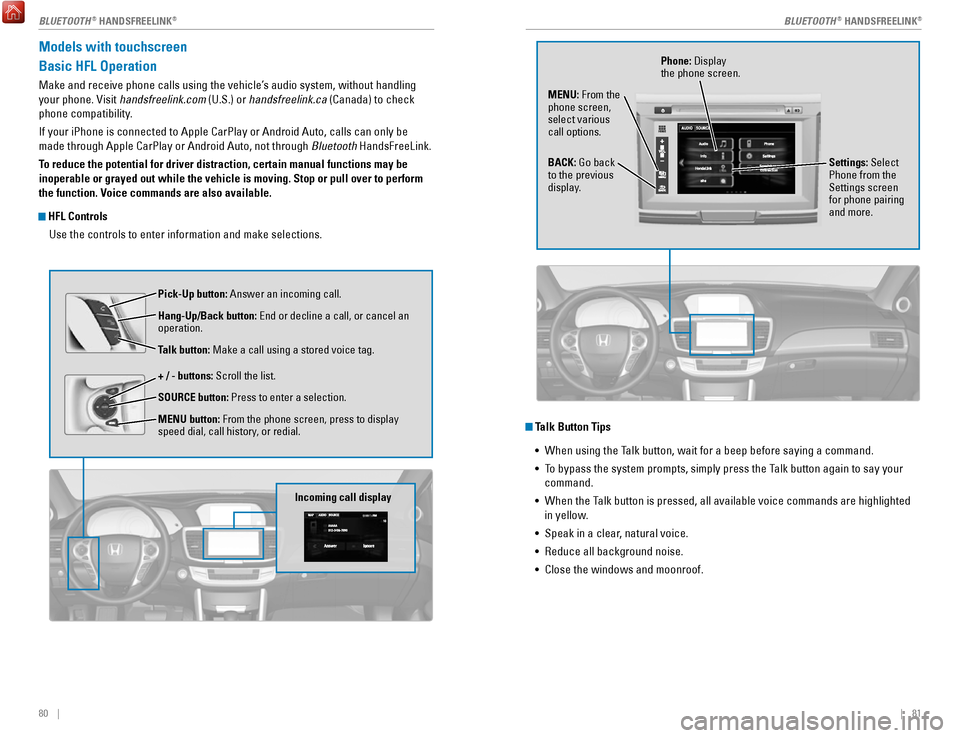
HFL Controls
Use the controls to enter information and make selections.
Pick-Up button: Answer an incoming call.
Hang-Up/Back button:
end or decline a call, or cancel an
operation.
Talk button:
Make a call using a stored voice tag.
+ / - buttons: Scroll the list.
SOURCE button: Press to enter a selection.
MENU button: From the phone screen, press to display
speed dial, call history, or redial.
Incoming call display
Talk Button Tips •
When using the Talk button, wait for a beep before saying a command.
•
To bypass the system prompts, simply press the Talk button again to say your
command.
•
When the Talk button is pressed, all available voice commands are highlighted
in yellow
.
•
Speak in a clear, natural voice.
•
reduce all background noise.
•
Close the windows and moonroof.
Phone: Display
the phone screen.
MENU: From the
phone screen,
select various
call options.
BACK: Go back
to the previous
display. Settings: Select
Phone from the
Settings screen
for phone pairing
and more.
BLUETOOTH® HANDSFreeLINK®BLUETOOTH® HANDSFreeLINK®
Page 45 of 80

82 || 83
Models with touchscreen
Pairing a Phone
To use hands-free phone and streaming audio functions, you must first p\
air your
phone to the system. This can only be done when the vehicle is stopped. \
Use the
touchscreen to make and enter selections.
When there is an active connection to Apple CarPlay (see page 66) or A\
ndroid
Auto (see page 67), pairing of additional Bluetooth-compatible devices is disabled.
1.
From the HoMe screen, select Settings.
2.
Select Phone.
3.
Select Bluetooth Device List
4.
Select Add Bluetooth Device.
5.
Make sure your phone is in discovery mode. Select
oK.
6.
The system searches for your phone. Select your
phone when it appears on the list.
If your phone does not appear:
Select Phone Not Found and search for
HandsFreeLink from your phone.
7.
The system gives you a pairing code. Compare it to
the code that appears on your phone, and connect
when prompted.
8.
The system asks if you want to enable options:
HondaLink Assist: Select
on to enable emergency
collision notification (see page 86).
Automatic Phone Sync: Select
on to automatically
import contacts and call history from your phone.
9.
Press BACK to exit the menu.
State or local laws may prohibit the operation of
handheld electronic devices while operating a vehicle.
Models with touchscreen
Making a Call
You can make a call using several methods.
When there is an active connection with Apple CarPlay, phone calls may be placed
only through CarPlay (see page 66).
Dialing a Number
enter a 10-digit phone number to call.
Using voice commands
Press the Talk button before you say each command.
1.
Say “Call by number.”
2.
Say the phone number. For example,
“3-1-0-5-5-5-1-2-3-4.”
3.
The system begins to dial.
Using the touchscreen
Manual operation is limited while the vehicle is moving.
voice commands are
always available.
1.
From the HoMe screen, select Phone.
2.
Select MeNU.
3.
Select Dial.
4.
enter the phone number. Select the green phone
icon to call.
Storing Speed Dial Entries
Store up to 20 numbers for quick dialing.
1.
From the HoMe screen, select Phone.
2.
Select MeNU.
3.
Select Speed Dial, then select New entry.
4.
Select an entry method.
5.
If desired, you can create a voice tag for the number.
Follow the prompts.
BLUETOOTH® HANDSFreeLINK®BLUETOOTH® HANDSFreeLINK®
Page 46 of 80

84 || 85
Using Speed Dial and Call History
Make calls quickly using stored speed dial entries or call history numbe\
rs.
Using voice commands
Press the Talk button before you say each command.
1.
Say “Dial by name.”
2.
Say the stored voice tag name. For example,
“John Smith.”
Using the touchscreen
1.
From the Home screen, select Phone.
2.
Scroll through the list to find the entry you want
to call, and select it to call.
Using the Phonebook When your phone is paired, its entire phonebook can be automatically imp\
orted to
the system. Automatic Phone Sync must be turned on.
Using voice commands
Press the Talk button before you say each command.
1.
Say “Call by name.”
2.
Say the phonebook name and phone type. For
example, “John Smith mobile.”
Using the touchscreen
Manual operation is limited while the vehicle is moving.
voice commands are
always available.
1.
From the HoMe screen, select Phone.
2.
Select MeNU.
3.
Select Phonebook.
4.
Scroll through the list to find the name and
number you want to call, and select it to call.
Models with touchscreen
SMS Text Messaging and E-Mail
receive and send messages from your paired and connected phone. visit
handsfreelink.honda.com (U.S.) or www .handsfreelink.ca (Canada) to check phone
compatibility. Standard message rates apply. This feature is limited while the vehicle
is moving.
Receiving and Responding to Messages
When you receive a new message, a pop-up appears on the touchscreen. You can
view the message when the vehicle is stopped. You can also reply to it using fixed
phrases or call the sender.
1.
When the prompt appears, select read.
2.
The message is displayed, and the system reads
it aloud.
To reply: With the message open, select reply,
and choose one of the six available responses.
Select Send to send the message. Y
ou cannot
create a new text message.
To call the sender: With the message open, select
Call.
Selecting an Account
If your phone has both text message and e-mail accounts, you can select \
only one
of them at a time to be active and receive notifications.
1.
From the HoMe screen, select Settings.
2.
Select Phone.
3.
Select Select Account.
4.
Select Text Message or an e-mail account.
BLUETOOTH® HANDSFreeLINK®BLUETOOTH® HANDSFreeLINK®
Page 47 of 80

86 || 87
Models with touchscreen
HondaLink® Assist
Automatically attempts to connect and talk to an operator who can locate\
your
vehicle and send emergency help in the event of a collision.
visit www
.hondalink.
com (U.S.) or honda.ca/hondalinkassist (Canada) for more information.
1.
Make sure your phone is on and paired to
Bluetooth® HandsFreeLink® (see page 82).
2.
Select Call Now, or the system automatically
connects after 10 seconds. The vehicle information
and its position are sent to the operator.
3.
Select Talk Now to immediately talk to the operator.
4.
When the call is complete, select Hang Up or press
the Hang Up/Back button on the steering wheel.
For vehicles equipped with HondaLink Assist, owner activation constitute\
s authorization for Honda to
collect information from your vehicle needed to provide the service, and\
agreement to the Terms of
Use at www.hondalink.com/TermsAndConditions. In a crash, HondaLink Assist will attempt to notify
emergency services but NEITHER Honda NOR ITS SERVICE PROVIDERS GUARANTEE\
THAT SUCH
NOTIFICATION WILL OCCUR.
Models with touchscreen
Siri® Eyes Free
Activate Siri through your vehicle when an iPhone is paired to the syste\
m.
visit handsfreelink.honda.com
(U.S.) or honda.ca/siri (Canada) to check phone
compatibility.
(Talk) Button
Press and hold until the display changes as shown.
Press again to cancel Siri.
Appears
when Siri
Eyes Free is
activated.
Here are some examples of Siri commands:
“Call John Smith”
“Read my new text message”
“Find a nearby sushi restaurant”
Notes:
•
Any requests that include visual feedback from Siri on your phone are no\
t
displayed in the vehicle.
•
Certain commands rely on the iPhone’s features and existing apps.
•
To hear turn-by-turn directions or songs through the vehicle, set the aud\
io source
to Bluetooth
Audio.
Siri and iPhone are trademarks of Apple, Inc.
“Remind me to pick up dinner”
“Set up a meeting today at 3 p.m.”
“Play song XYZ”
BLUETOOTH® HANDSFreeLINK®BLUETOOTH® HANDSFreeLINK®
Page 55 of 80
102 || 103
DRIVING
DRIVING
Braking
Slow down or stop your vehicle, and keep it from moving when parked.
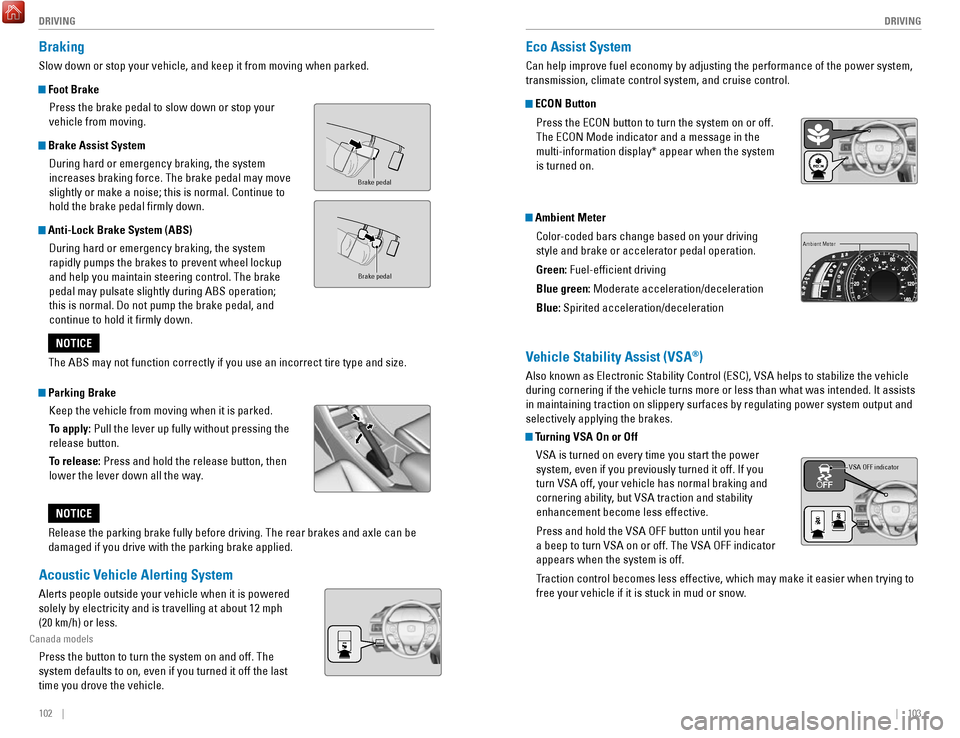
Foot Brake
Press the brake pedal to slow down or stop your
vehicle from moving.
Brake Assist System During hard or emergency braking, the system
increases braking force. The brake pedal may move
slightly or make a noise; this is normal. Continue to
hold the brake pedal firmly down.
Anti-Lock Brake System (ABS) During hard or emergency braking, the system
rapidly pumps the brakes to prevent wheel lockup
and help you maintain steering control. The brake
pedal may pulsate slightly during ABS operation;
this is normal. Do not pump the brake pedal, and
continue to hold it firmly down.
Parking BrakeKeep the vehicle from moving when it is parked.
To apply: Pull the lever up fully without pressing the
release button.
To release: Press and hold the release button, then
lower the lever down all the way.
Brake peda l
Brake pedal
The ABS may not function correctly if you use an incorrect tire type and\
size.
NOTICE
release the parking brake fully before driving. The rear brakes and axle \
can be
damaged if you drive with the parking brake applied.
NOTICE
Acoustic Vehicle Alerting System
Alerts people outside your vehicle when it is powered
solely by electricity and is travelling at about 12 mph
(20 km/h) or less.
Canada models
Press the button to turn the system on and off. The
system defaults to on, even if you turned it off the last
time you drove the vehicle.
Eco Assist System
Can help improve fuel economy by adjusting the performance of the power \
system,
transmission, climate control system, and cruise control.
ECON Button
Press the
eCoN button to turn the system on or off.
The
eCoN Mode indicator and a message in the
multi-information display* appear when the system
is turned on.
Ambient Meter
Color-coded bars change based on your driving
style and brake or accelerator pedal operation.
Green: Fuel-efficient driving
Blue green: Moderate acceleration/deceleration
Blue: Spirited acceleration/deceleration
Ambient Meter
Vehicle Stability Assist (VSA®)
Also known as electronic Stability Control (eSC), vSA helps to stabilize the vehicle
during cornering if the vehicle turns more or less than what was intende\
d. It assists
in maintaining traction on slippery surfaces by regulating power system \
output and
selectively applying the brakes.
Turning VSA On or Off
vSA is turned on every time you start the power
system, even if you previously turned it off. If you
turn
vSA off, your vehicle has normal braking and
cornering ability, but
vSA traction and stability
enhancement become less effective.
Press and hold the
vSA oFF button until you hear
a beep to turn
vSA on or off. The vSA oFF indicator
appears when the system is off.
Traction control becomes less effective, which may make it easier when t
rying to
free your vehicle if it is stuck in mud or snow.
VSA OFF indicator
Page 56 of 80
104 || 105
DRIVING
DRIVING
SPORT Mode
enhances the throttle response for more driving enjoyment. SPorT mode is set to
off every time the vehicle is started. When in SP
orT mode, the ambient meter (see
page 103) changes to blue.
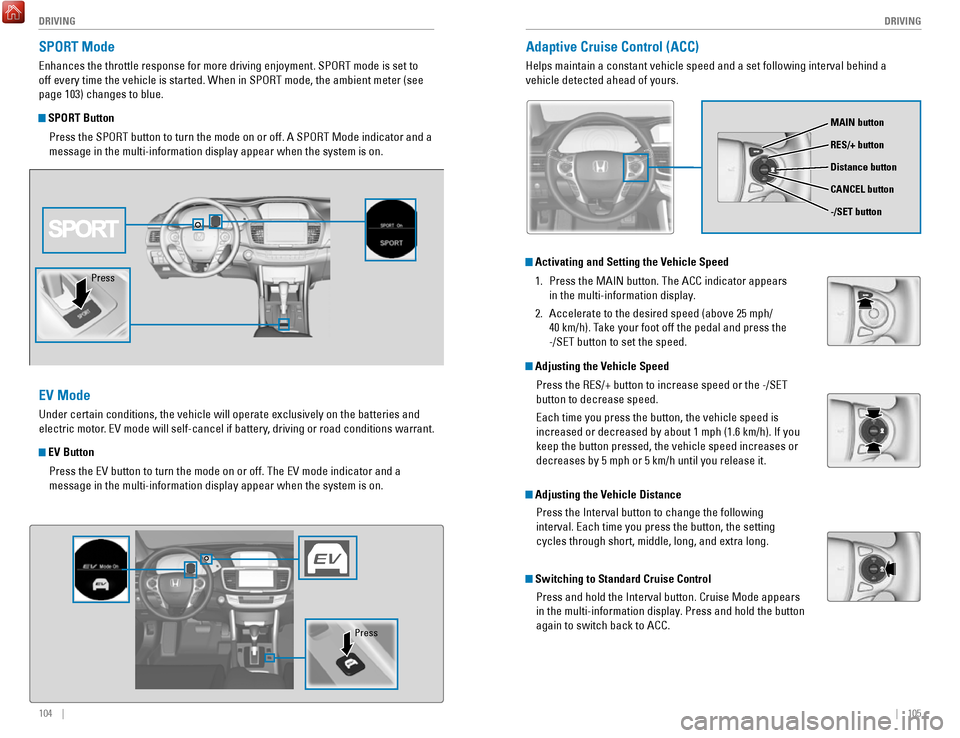
SPORT Button
Press the SP
orT button to turn the mode on or off. A SPorT Mode indicator and a
message in the multi-information display appear when the system is on.
EV Mode
Under certain conditions, the vehicle will operate exclusively on the ba\
tteries and
electric motor.
ev mode will self-cancel if battery, driving or road conditions warrant.
EV Button
Press the
ev button to turn the mode on or off. The ev mode indicator and a
message in the multi-information display appear when the system is on.
Press
Press
Adaptive Cruise Control (ACC)
Helps maintain a constant vehicle speed and a set following interval beh\
ind a
vehicle detected ahead of yours.
Activating and Setting the Vehicle Speed
1.
Press the MAIN button. The ACC indicator appears
in the multi-information display.
2.
Accelerate to the desired speed (above 25 mph/
40 km/h). Take your foot off the pedal and press the
-/S
eT button to set the speed.
Adjusting the Vehicle Speed
Press the
reS/+ button to increase speed or the -/SeT
button to decrease speed.
each time you press the button, the vehicle speed is
increased or decreased by about 1 mph (1.6 km/h). If you
keep the button pressed, the vehicle speed increases or
decreases by 5 mph or 5 km/h until you release it.
Adjusting the Vehicle Distance
Press the Interval button to change the following
interval.
each time you press the button, the setting
cycles through short, middle, long, and extra long.
Switching to Standard Cruise Control
Press and hold the Interval button. Cruise Mode appears
in the multi-information display. Press and hold the button
again to switch back to ACC.
MAIN button
RES/+ button
CANCEL button
-/SET button
Distance button
Page 68 of 80
128 || 129
M
AINTENANCEMAINTENANCE
Maintenance Minder Service Codes
These codes indicate what services are due on your vehicle.
*1: If a message Service does not appear more than 12 months after the display is reset, change \
the
CoDe
engine oil every year.
#: See information on maintenance and emissions warranty.
A
Maintenance Main Items
B
replace engine oil*1
Inspect front and rear brakes/service as necessary
Check parking brake adjustment replace engine oil
*1 and oil filter
Inspect tie rod ends, steering gearbox, and boots
Inspect suspension components
Inspect driveshaft boots
Inspect brake hoses and lines (Including ABS/vSA)
Inspect exhaust system#Inspect all fluid levels and condition of fluids
Inspect fuel lines and connection s#
*
Check expiration date for TrK bottle
*2: If you drive in dusty conditions, replace the air cleaner element every \
15,000 miles (24,000 km).
* from diesel-powered vehicles, replace the dust and pollen filter every\
15,000 miles (24,000 km).
3:
If you drive primarily in urban areas that have high concentrations of s\
oot in the air from industry and
4: Driving in mountainous areas at very low vehicle speeds results in highe\
r transmission temperatures.
CoDe
1
Maintenance Sub Items
rotate tires
2
This requires transmission fluid changes more frequently than recommen\
ded by the Maintenance
Minder. If you regularly drive your vehicle under these conditions, have the transmission fluid c hanged every 47,500 miles (75,000 km) or 3 years.
replace air cleaner element*2
3
replace dust and pollen filter*3
4
replace transmission fluid*4
Inspect valve clearance
5
replace spark plugs
replace engine coolant
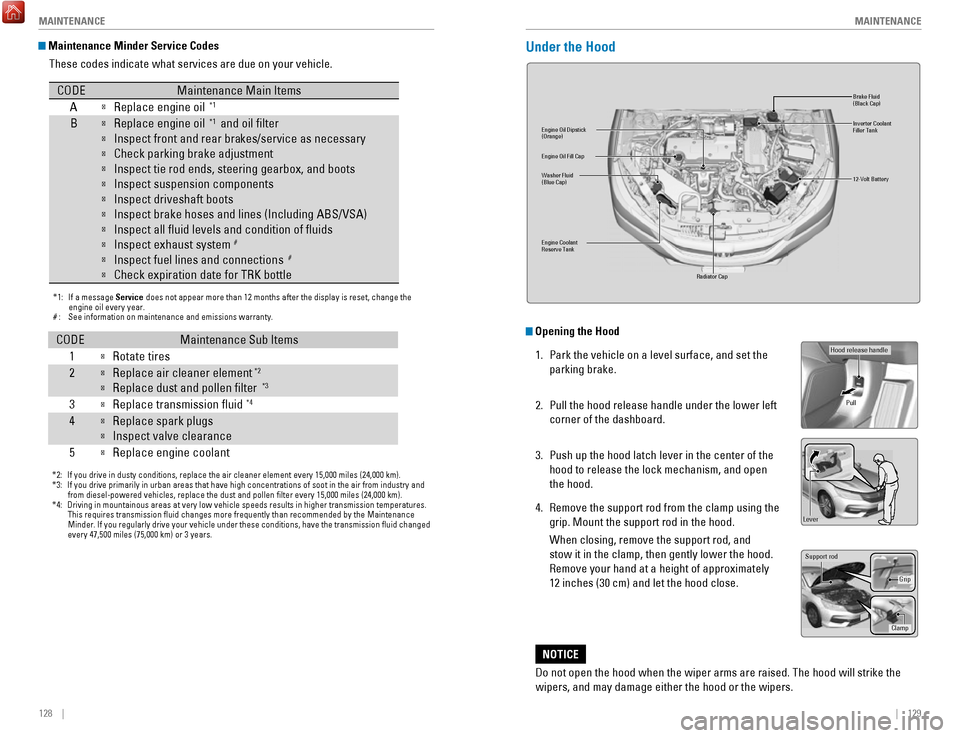
Under the Hood
Br ake Fluid
(Black Cap)
engine Coolant
reserve Tank radiator Cap
Washer Fluid
(Blue Cap) engine oil Dipstick
(orange)
12-volt Batter y
engine oil Fill Cap
Inverter Coolant
Filler Tank
Opening the Hood
1.
Park the vehicle on a level surface, and set the
parking brake.
2.
Pull the hood release handle under the lower left
corner of the dashboard.
3.
Push up the hood latch lever in the center of the
hood to release the lock mechanism, and open
the hood.
4.
remove the support rod from the clamp using the
grip. Mount the support rod in the hood.
When closing, remove the support rod, and
stow it in the clamp, then gently lower the hood.
remove your hand at a height of approximately
12 inches (30 cm) and let the hood close.
Do not open the hood when the wiper arms are raised. The hood will strik\
e the
wipers, and may damage either the hood or the wipers.
NOTICE
Hood release handle Pull
Lever
Support ro d
Grip
Clamp
Page 76 of 80
144 || 145
CUSTOMER INFORMATION
SPECIFICATIONS
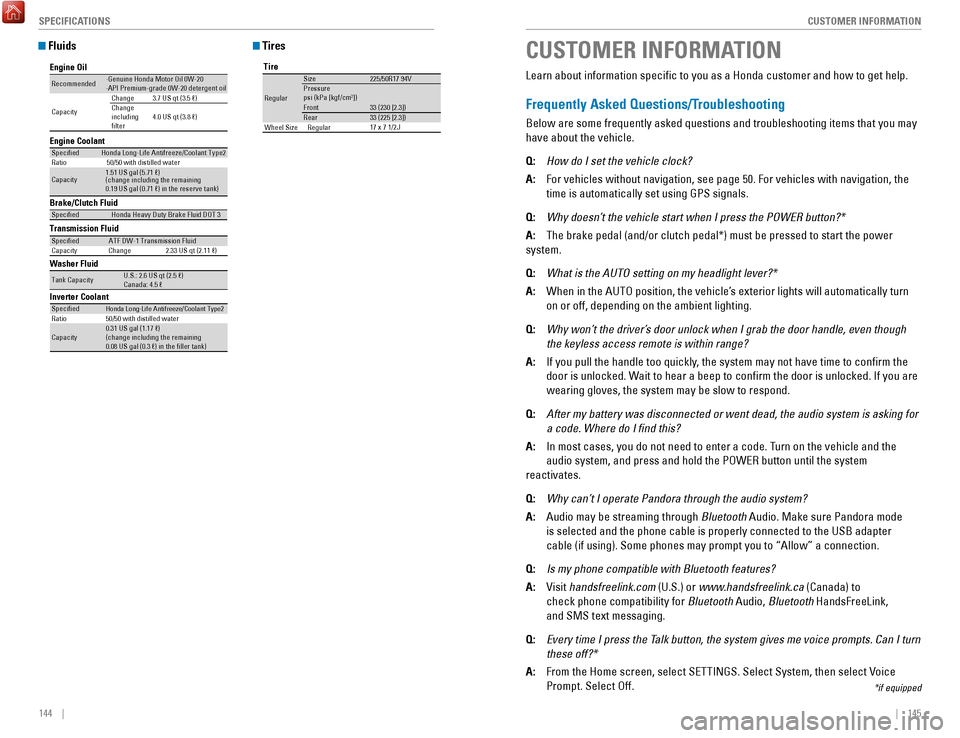
Fluids
Brake/Clutch Fluid
Transmission Fluid
Specie dHonda Heavy Duty Brake Fluid DOT 3
SpeciedATF DW-1 Transmission Fluid
Capacity Change 2.33 US qt (2.11 )
Engine Oil
Engine Coolan
t
Recommended·Genuine Honda Motor Oil 0W-2 0
·API Premium-grade 0W-20 detergent oi l
Capacity Change
3.7 US qt (3.5 )
Change
including
lter 4.0 US qt (3.8 )
Specie
dHonda Long-Life Anti freeze/Coolant Type 2
Ratio 50/50 with distilled wate r
Capacity1.51 US gal (5.71 )
(change including the remaining
0.19 US gal (0.71 ) in the reserve tank )
Washer Fluid
Tank CapacityU.S.: 2.6 US qt (2.5 )
Canada: 4.5
Inverter CoolantSpecie d
Ratio
Capacity
Honda Long-Life Anti freeze/Coolant Type 250/50 with distilled wate r
0.31 US gal (1.17 )
(change including the remaining
0.08 US gal (0.3 ) in the ller tank)
Tires
Tire
re gular
Size 225/50r17 94vPressure
Front psi (kPa [kgf/c m2])
33 (230 [2.3])
rear 33 (225 [2.3])
17 x 7 1/2 JWheel Size regular
CUSTOMER INFORMATION
*if equipped
Learn about information specific to you as a Honda customer and how to\
get help.
Frequently Asked Questions/Troubleshooting
Below are some frequently asked questions and troubleshooting items that\
you may
have about the vehicle.
Q:
How do I set the vehicle clock?
A:
For vehicles without navigation, see page 50. For vehicles with navigati\
on, the
time is automatically set using GPS signals.
Q:
Why doesn’t the vehicle start when I press the POWER button?*
A:
The brake pedal (and/or clutch pedal*) must be pressed to start the po\
wer
system.
Q:
What is the AUTO setting on my headlight lever?*
A:
When in the AUTo position, the vehicle’s exterior lights will automatically turn
on or off, depending on the ambient lighting.
Q:
Why won’t the driver’s door unlock when I grab the door handle, even though
the keyless access remote is within range?
A:
If you pull the handle too quickly, the system may not have time to confirm the
door is unlocked. Wait to hear a beep to confirm the door is unlocked. If you are
wearing gloves, the system may be slow to respond.
Q:
After my battery was disconnected or went dead, the audio system is aski\
ng for
a code. Where do I find this?
A:
In most cases, you do not need to enter a code. Turn on the vehicle and the
audio system, and press and hold the PoWer button until the system
reactivates.
Q:
Why can’t I operate Pandora through the audio system?
A:
Audio may be streaming through Bluetooth Audio. Make sure Pandora mode
is selected and the phone cable is properly connected to the USB adapter\
cable (if using). Some phones may prompt you to “Allow” a connec\
tion.
Q:
Is my phone compatible with Bluetooth features?
A:
visit handsfreelink.com (U.S.) or
www.handsfreelink.ca (Canada) to
check phone compatibility for Bluetooth Audio,
Bluetooth HandsFreeLink,
and SMS text messaging.
Q:
Every time I press the Talk button, the system gives me voice prompts. Can I turn
these off?*
A:
From the Home screen, select SeTTINGS. Select System, then select voice
Prompt. Select off.
Page 78 of 80
148 || 149
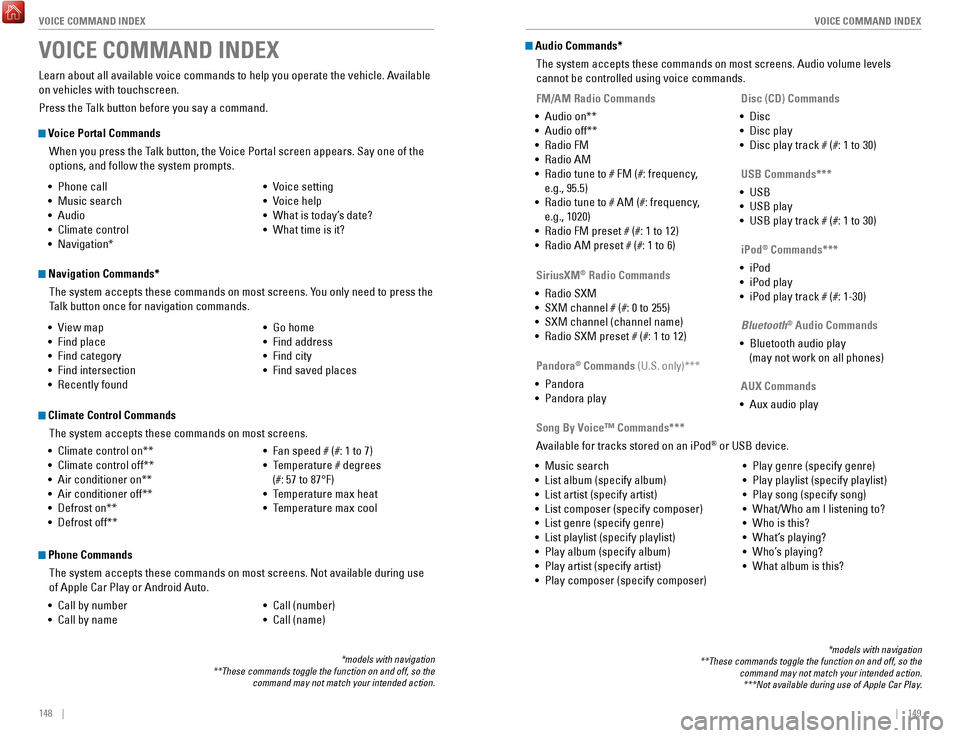
VOICE COMMAND INDEX
VOICE COMMAND INDEX
Voice Portal Commands
When you press the Talk button, the
voice Portal screen appears. Say one of the
options, and follow the system prompts.
Navigation Commands*
The system accepts these commands on most screens. You only need to press the
Talk button once for navigation commands.
Learn about all available voice commands to help you operate the vehicle\
. Available
on vehicles with touchscreen.
Press the Talk button before you say a command.
VOICE COMMAND INDEX
• Phone call
•
Music search
•
Audio
•
Climate control
•
Navigation* •
voice setting
•
voice help
•
What is today’s date?
•
What time is it?
•
view map
•
Find place
•
Find category
•
Find intersection
•
recently found •
Go home
•
Find address
•
Find city
•
Find saved places
*models with navigation
**These commands toggle the function on and off, so the command may not match your intended action.
Climate Control Commands
The system accepts these commands on most screens.
•
Climate control on**
•
Climate control off**
•
Air conditioner on**
•
Air conditioner off**
•
Defrost on**
•
Defrost off** •
Fan speed # (#: 1 to 7)
•
Temperature # degrees
(#: 57 to 87°F)
•
Temperature max heat
•
Temperature max cool
Phone Commands
The system accepts these commands on most screens. Not available during \
use
of Apple Car Play or Android Auto.
•
Call by number
•
Call by name •
Call (number)
•
Call (name)
Audio Commands*
The system accepts these commands on most screens. Audio volume levels
cannot be controlled using voice commands.
FM/AM Radio Commands
•
Audio on**
•
Audio off**
•
radio FM
•
radio AM
•
radio tune to # FM (#: frequency,
e.g., 95.5)
•
radio tune to # AM (#: frequency,
e.g., 1020)
•
radio FM preset # (#: 1 to 12)
•
radio AM preset # (#: 1 to 6)
SiriusXM
® Radio Commands
•
radio SXM
•
SXM channel # (#: 0 to 255)
•
SXM channel (channel name)
•
radio SXM preset # (#: 1 to 12) Disc (CD) Commands
•
Disc
•
Disc play
•
Disc play track # (#: 1 to 30)
USB Commands***
•
USB
•
USB play
•
USB play track # (#: 1 to 30)
Pandora
® Commands (U.S. only)***
•
Pandora
•
Pandora play iPod
® Commands***
•
iPod
•
iPod play
•
iPod play track # (#: 1-30)
Bluetooth
® Audio Commands
•
Bluetooth audio play
(may not work on all phones)
AUX Commands
•
Aux audio play
•
Music search
•
List album (specify album)
•
List artist (specify artist)
•
List composer (specify composer)
•
List genre (specify genre)
•
List playlist (specify playlist)
•
Play album (specify album)
•
Play artist (specify artist)
•
Play composer (specify composer) •
Play genre (specify genre)
•
Play playlist (specify playlist)
•
Play song (specify song)
•
What/Who am I listening to?
•
Who is this?
•
What’s playing?
•
Who’s playing?
•
What album is this?
Song By Voice™ Commands***
Available for tracks stored on an iPod
® or USB device.
*models with navigation
**These commands toggle the function on and off, so the command may not match your intended action.***Not available during use of Apple Car Play.