light HONDA ACCORD HYBRID 2017 9.G Quick Guide
[x] Cancel search | Manufacturer: HONDA, Model Year: 2017, Model line: ACCORD HYBRID, Model: HONDA ACCORD HYBRID 2017 9.GPages: 80, PDF Size: 10.35 MB
Page 26 of 80

44 || 45
V
EHICLE CONTROLSVEHICLE CONTROLS
Adjusting the Steering Wheel
The steering wheel height and distance from your body can be adjusted so\
that you
can comfortably grip the steering wheel in an appropriate driving postur\
e.
1.
Pull up the steering wheel adjustment lever.
2.
Move the steering wheel up or down, and in
or out.
3.
Push down the steering wheel adjustment
lever to lock the steering wheel in position.
To adjus t
To lock
Lever
Adjusting the steering wheel position while driving may cause you to los\
e
control of the vehicle and be seriously injured in a crash.
Adjust the steering wheel only when the vehicle is stopped.
WARNING
Driving Position Memory System*
You can store two driver’s seat positions into memory when the vehicle is on using
the buttons on the driver’s door.
1.
Adjust the seat to your preferred position.
2.
Press SeT.
3.
Press and hold memory button 1 or 2. You will hear
two beeps when the memory is set.
4.
Press one of the memory buttons to recall
previously stored positions.
When you unlock and open the driver’s door with a remote
transmitter, the seat adjusts automatically to one of the two preset positions.
Memory
button 1
Memory
button 2
SET button
Adjusting the Mirrors
Adjust the angle of the mirrors for the best visibility when you are sit\
ting in the
correct driving position.
Rearview Mirror with Day/Night Positions*
Manually adjust the position to reduce headlight
glare from vehicles behind you. Flip the tab to switch
between day and night positions.
Automatic Dimming Rearview Mirror*When driving after dark, the automatic dimming
function reduces the glare from headlights behind
you.
The function cancels when the shift lever is in
reverse (r).
Power Door MirrorsAdjust the power door mirrors when the vehicle is on.
L/R selector switch: Select the left or right mirror.
After adjusting the mirror, return the switch to the
center position.
Mirror position adjustment switch: Press the switch
left, right, up, or down to move the mirror.
Selector switch
Adjustment switch
Tab
Daytime
position
Night position
Sensor
*if equipped
Page 27 of 80

46 || 47
V
EHICLE CONTROLSVEHICLE CONTROLS
HomeLink® Universal Transceiver*
Program your vehicle to operate up to three remote-controlled devices ar\
ound
your home—such as garage doors, lighting, or home security systems—\
using the
buttons on the ceiling.
Training a Button
Park near the system you want to program, and follow the instructions in\
the
flowchart below.
To retrain a button or erase codes, see the
owner’s Manual on the owner
Information CD or at owners.honda.com
(U.S.) or www.myhonda.ca (Canada).
If you need help, visit www.homelink.com or call (800) 355-3515.
Press and release the HomeLink
button. Press and release the button on
the remote every 2 seconds.
Does the LED change from slowly blinking
to constantly on or rapidly blinking? This
should take less than one minute.
Press and hold the
HomeLink button
again. Training
complete
YES
NO
HomeLink indicator
rapidly blinks. HomeLink LED
remains on.
YES
NO
YES
NO
Position the remote transmitter you wish
to link 1–3 inches (3–8 cm) from the
HomeLink button you want to program.1
Press and release the desired HomeLink
button. Hold the button on the remote
transmitter.
Does the HomeLink indicator (LED) change
from slowly blinking to constantly on or
rapidly blinking? This should take less than
one minute.
2
aThe remote has a rolling code. Press the
“learn” button on the remote-controlled
device (e.g., garage door opener) .
Press and hold the HomeLink button
again; the remote-controlled device
should operate. Within 30 seconds, press and hold the
programmed HomeLink button for
2 seconds.a
Press and hold the programmed HomeLink button for about a second.Does the device (garage door opener) work?
3
b
4
5
*if equipped
Indicator
Buttons
Climate Control System
The automatic climate control system can maintain your preferred interio\
r
temperature by selecting the proper mix of heated or cooled air and fan \
speed. Use
the buttons on the dashboard to control the system.
AUTO button: Press, then
use the temperature
control buttons to set your
preferred temperature.
Driver’s side
temperature
control
buttons
A/C
button
Fan
control
buttons Recirculation button:
Recirculation mode
(indicator on):
recirculates air from
the vehicle’s interior
.
Fresh air mode
(indicator off):
Maintains outside
ventilation.
Rear
defogger/
heated door
mirrors
button*
Windshield
defroster
button
ON/OFF
button
Mode button:
Change airflow
location.
Passenger’s
side
temperature
control
buttons
SYNC button:
Press to set the
passenger’s side
temperature to
the same as the
driver’s side.
Page 29 of 80
50 || 51
AUDIO AND CONNECTIVITY
V
EHICLE CONTROLS
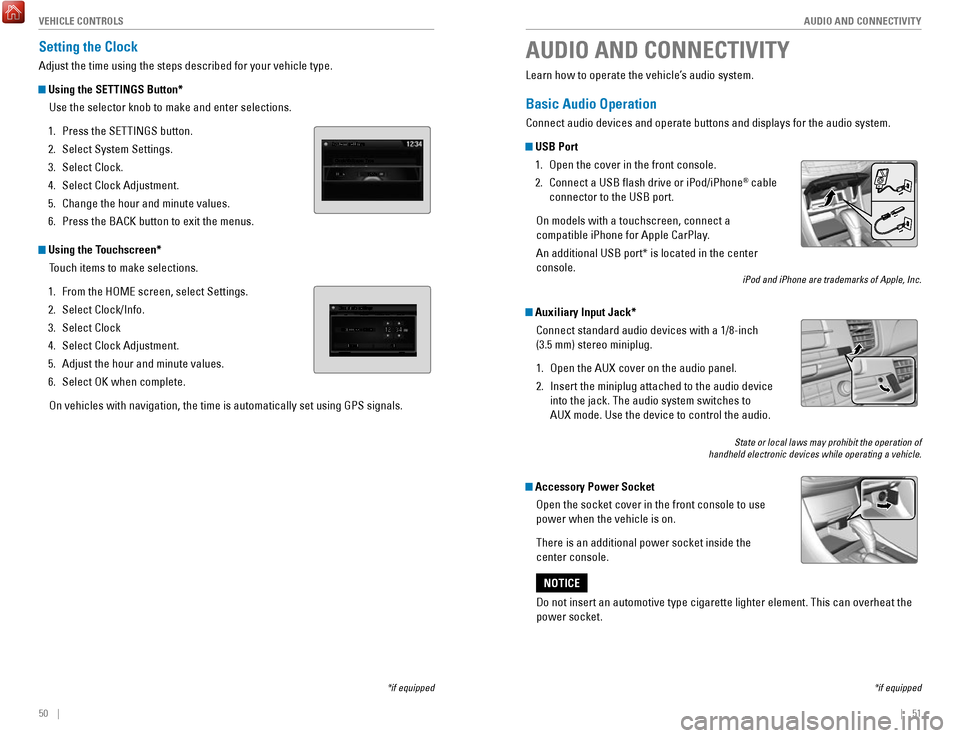
Setting the Clock
Adjust the time using the steps described for your vehicle type.
Using the SETTINGS Button*
Use the selector knob to make and enter selections.
1.
Press the SeTTINGS button.
2.
Select System Settings.
3.
Select Clock.
4.
Select Clock Adjustment.
5.
Change the hour and minute values.
6.
Press the BACK button to exit the menus.
Using the Touchscreen* Touch items to make selections.
1.
From the HoMe screen, select Settings.
2.
Select Clock/Info.
3.
Select Clock
4.
Select Clock Adjustment.
5.
Adjust the hour and minute values.
6.
Select oK when complete.
on vehicles with navigation, the time is automatically set using GPS sign\
als.
*if equipped
AUDIO AND CONNECTIVITY
*if equipped
Learn how to operate the vehicle’s audio system.
Basic Audio Operation
Connect audio devices and operate buttons and displays for the audio sys\
tem.
USB Port 1.
open the cover in the front console.
2.
Connect a USB flash drive or iPod/iPhone® cable
connector to the USB port.
on models with a touchscreen, connect a
compatible iPhone for Apple CarPlay.
An additional USB port* is located in the center
console.
iPod and iPhone are trademarks of Apple, Inc.
Auxiliary Input Jack*
Connect standard audio devices with a 1/8-inch
(3.5 mm) stereo miniplug.
1.
open the AUX cover on the audio panel.
2.
Insert the miniplug attached to the audio device
into the jack. The audio system switches to
AUX
mode. Use the device to control the audio.
State or local laws may prohibit the operation of
handheld electronic devices while operating a vehicle.
Accessory Power Socket
open the socket cover in the front console to use
power when the vehicle is on.
There is an additional power socket inside the
center console.
Do not insert an automotive type cigarette lighter element. This can ove\
rheat the
power socket.
NOTICE
Page 30 of 80
52 || 53
AUDIO AND CONNECTIVITY
AUDIO AND CONNECTIVITY
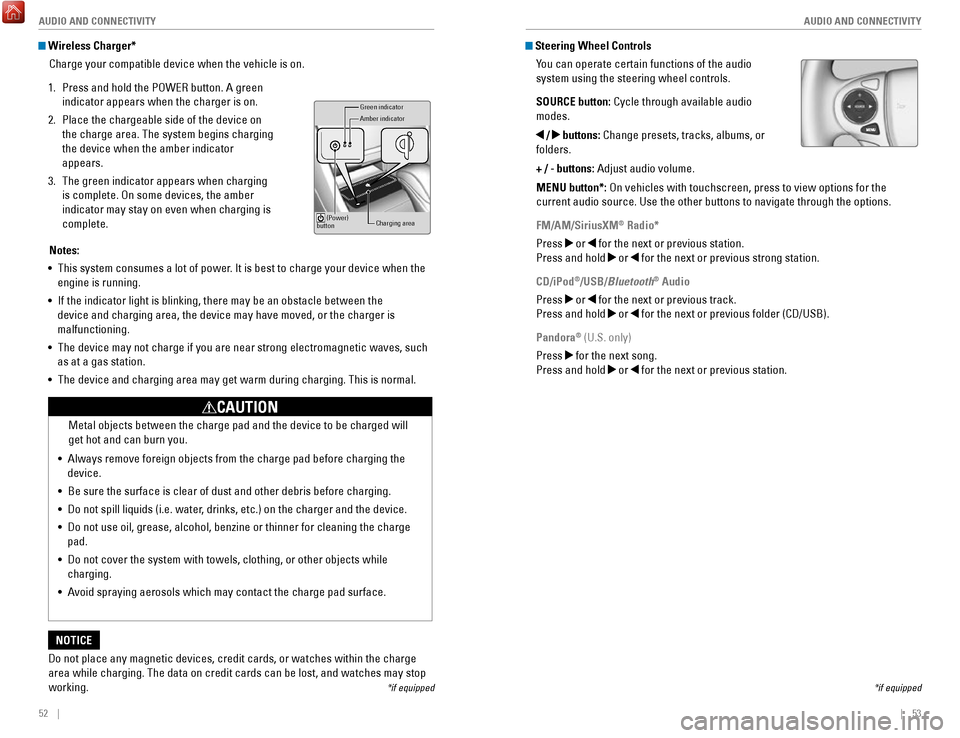
Wireless Charger*
Charge your compatible device when the vehicle is on.
1.
Press and hold the PoWer button. A green
indicator appears when the charger is on.
2.
Place the chargeable side of the device on
the charge area. The system begins charging
the device when the amber indicator
appears.
3.
The green indicator appears when charging
is complete.
on some devices, the amber
indicator may stay on even when charging is
complete.
Gr een indicator
Amber indicator
Charging area
(Power)
button
Notes:
•
This system consumes a lot of power. It is best to charge your device when the
engine is running.
•
If the indicator light is blinking, there may be an obstacle between the\
device and charging area, the device may have moved, or the charger is
malfunctioning.
•
The device may not charge if you are near strong electromagnetic waves, \
such
as at a gas station.
•
The device and charging area may get warm during charging. This is norma\
l.
Do not place any magnetic devices, credit cards, or watches within the c\
harge area while charging. The data on credit cards can be lost, and watches m\
ay stop
working.
NOTICE Metal objects between the charge pad and the device to be charged will
get hot and can burn you.
•
Always remove foreign objects from the charge pad before charging the
device.
•
Be sure the surface is clear of dust and other debris before charging.
•
Do not spill liquids (i.e. water, drinks, etc.) on the charger and the device.
•
Do not use oil, grease, alcohol, benzine or thinner for cleaning the cha\
rge
pad.
•
Do not cover the system with towels, clothing, or other objects while
charging.
•
Avoid spraying aerosols which may contact the charge pad surface.
CAUTION
*if equipped
Steering Wheel Controls You can operate certain functions of the audio
system using the steering wheel controls.
SOURCE button: Cycle through available audio
modes.
/ buttons: Change presets, tracks, albums, or
folders.
+ / - buttons: Adjust audio volume.
MENU button*:
on vehicles with touchscreen, press to view options for the
current audio source. Use the other buttons to navigate through the opti\
ons.
FM/AM/SiriusXM
® Radio*
Press
or for the next or previous station.
Press and hold
or for the next or previous strong station.
CD/iPod
®/USB/Bluetooth® Audio
Press
or for the next or previous track.
Press and hold
or for the next or previous folder (CD/USB).
Pandora
® (U.S. only)
Press
for the next song.
Press and hold
or for the next or previous station.
*if equipped
Page 44 of 80
80 || 81
Models with touchscreen
Basic HFL Operation
Make and receive phone calls using the vehicle’s audio system, without handling
your phone.
visit handsfreelink.com
(U.S.) or handsfreelink.ca (Canada) to check
phone compatibility.
If your iPhone is connected to Apple CarPlay or Android Auto, calls can \
only be
made through Apple CarPlay or Android Auto, not through Bluetooth HandsFreeLink.
To reduce the potential for driver distraction, certain manual functions \
may be
inoperable or grayed out while the vehicle is moving. Stop or pull over \
to perform
the function. Voice commands are also available.
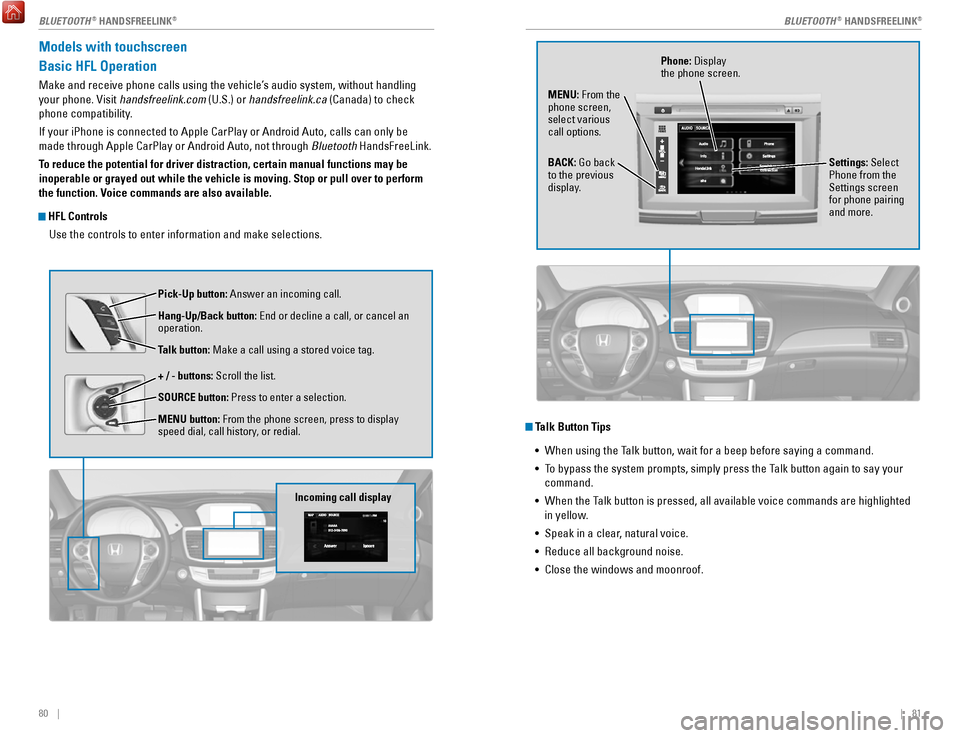
HFL Controls
Use the controls to enter information and make selections.
Pick-Up button: Answer an incoming call.
Hang-Up/Back button:
end or decline a call, or cancel an
operation.
Talk button:
Make a call using a stored voice tag.
+ / - buttons: Scroll the list.
SOURCE button: Press to enter a selection.
MENU button: From the phone screen, press to display
speed dial, call history, or redial.
Incoming call display
Talk Button Tips •
When using the Talk button, wait for a beep before saying a command.
•
To bypass the system prompts, simply press the Talk button again to say your
command.
•
When the Talk button is pressed, all available voice commands are highlighted
in yellow
.
•
Speak in a clear, natural voice.
•
reduce all background noise.
•
Close the windows and moonroof.
Phone: Display
the phone screen.
MENU: From the
phone screen,
select various
call options.
BACK: Go back
to the previous
display. Settings: Select
Phone from the
Settings screen
for phone pairing
and more.
BLUETOOTH® HANDSFreeLINK®BLUETOOTH® HANDSFreeLINK®
Page 51 of 80
94 || 95
DRIVING
NAVIGATION
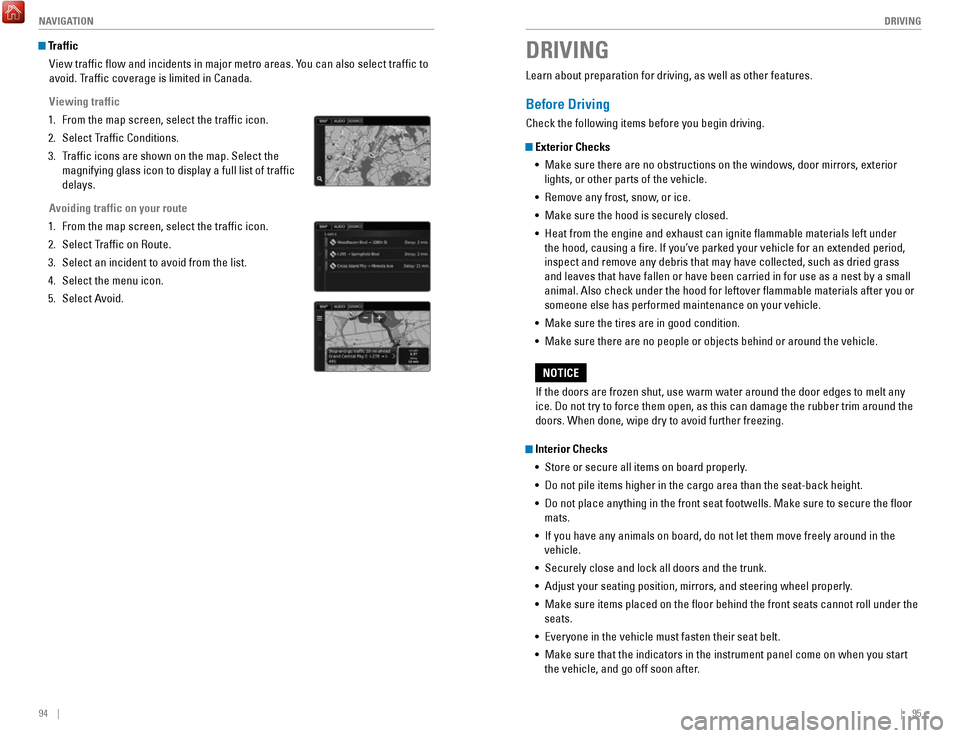
Traffic
view traffic flow and incidents in major metro areas. You can also select traffic to
avoid. T
raffic coverage is limited in Canada.
Viewing traffic
1.
From the map screen, select the traffic icon.
2.
Select Traffic Conditions.
3.
Traffic icons are shown on the map. Select the
magnifying glass icon to display a full list of traffic
delays.
Avoiding traffic on your route
1.
From the map screen, select the traffic icon.
2.
Select Traffic on route.
3.
Select an incident to avoid from the list.
4.
Select the menu icon.
5.
Select Avoid.
DRIVING
Learn about preparation for driving, as well as other features.
Before Driving
Check the following items before you begin driving.
Exterior Checks •
Make sure there are no obstructions on the windows, door mirrors, exteri\
or
lights, or other parts of the vehicle.
•
remove any frost, snow, or ice.
•
Make sure the hood is securely closed.
•
Heat from the engine and exhaust can ignite flammable materials left u\
nder
the hood, causing a fire. If you’ve parked your vehicle for an exte\
nded period,
inspect and remove any debris that may have collected, such as dried gra\
ss and leaves that have fallen or have been carried in for use as a nest by\
a small animal. Also check under the hood for leftover flammable materials aft\
er you or
someone else has performed maintenance on your vehicle.
•
Make sure the tires are in good condition.
•
Make sure there are no people or objects behind or around the vehicle.
Interior Checks •
Store or secure all items on board properly.
•
Do not pile items higher in the cargo area than the seat-back height.
•
Do not place anything in the front seat footwells. Make sure to secure t\
he floor
mats.
•
If you have any animals on board, do not let them move freely around in \
the
vehicle.
•
Securely close and lock all doors and the trunk.
•
Adjust your seating position, mirrors, and steering wheel properly.
•
Make sure items placed on the floor behind the front seats cannot roll\
under the
seats.
•
everyone in the vehicle must fasten their seat belt.
•
Make sure that the indicators in the instrument panel come on when you s\
tart
the vehicle, and go off soon after.
If the doors are frozen shut, use warm water around the door edges to me\
lt any
ice. Do not try to force them open, as this can damage the rubber trim a\
round the
doors. When done, wipe dry to avoid further freezing.
NOTICE
Page 53 of 80
98 || 99
DRIVING
DRIVING
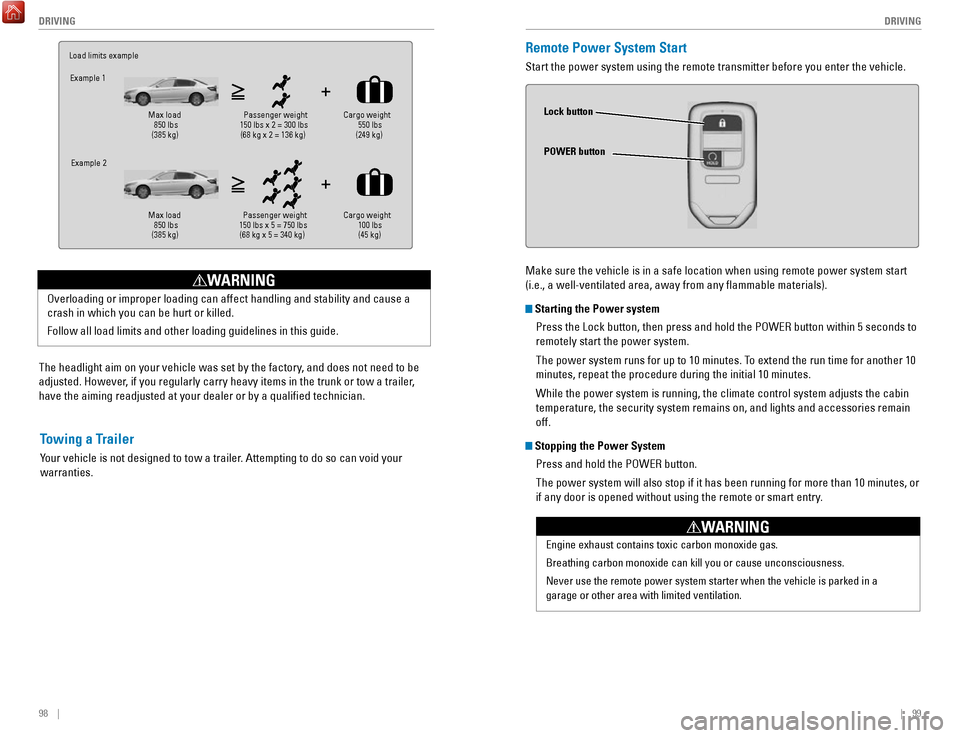
The headlight aim on your vehicle was set by the factory, and does not need to be
adjusted. However, if you regularly carry heavy items in the trunk or tow a trailer,
have the aiming readjusted at your dealer or by a qualified technician\
.
overloading or improper loading can affect handling and stability and cau\
se a
crash in which you can be hurt or killed.
Follow all load limits and other loading guidelines in this guide.
WARNING
Load limits example
Example 1
Max load 850 lbs
(385 kg ) Passenger weight
150 lbs x 2 = 300 lbs (68 kg x 2 = 136 kg )Cargo
weight
550 lbs
(249 kg )
Example 2
Max load
850 lbs
(385 kg ) Passenger weight
150 lbs x 5 = 750 lbs (68 kg x 5 = 340 kg) Cargo weight
100 lbs
(45 kg)
Towing a Trailer
Your vehicle is not designed to tow a trailer. Attempting to do so can void your
warranties.
Remote Power System Start
Start the power system using the remote transmitter before you enter the\
vehicle.
Make sure the vehicle is in a safe location when using remote power system start
(i.e., a well-ventilated area, away from any flammable materials).
Starting the Power system
Press the Lock button, then press and hold the P
oWer button within 5 seconds to
remotely start the power system.
The power system runs for up to 10 minutes. To extend the run time for another 10
minutes, repeat the procedure during the initial 10 minutes.
While the power system is running, the climate control system adjusts th\
e cabin
temperature, the security system remains on, and lights and accessories remain
off.
Stopping the Power System
Press and hold the P
oWer button.
The power system will also stop if it has been running for more than 10 \
minutes, or
if any door is opened without using the remote or smart entry
.
engine exhaust contains toxic carbon monoxide gas.
Breathing carbon monoxide can kill you or cause unconsciousness.
Never use the remote power system starter when the vehicle is parked in \
a
garage or other area with limited ventilation.
WARNING
Lock button
POWER button
Page 54 of 80
100 || 101
DRIVING
DRIVING
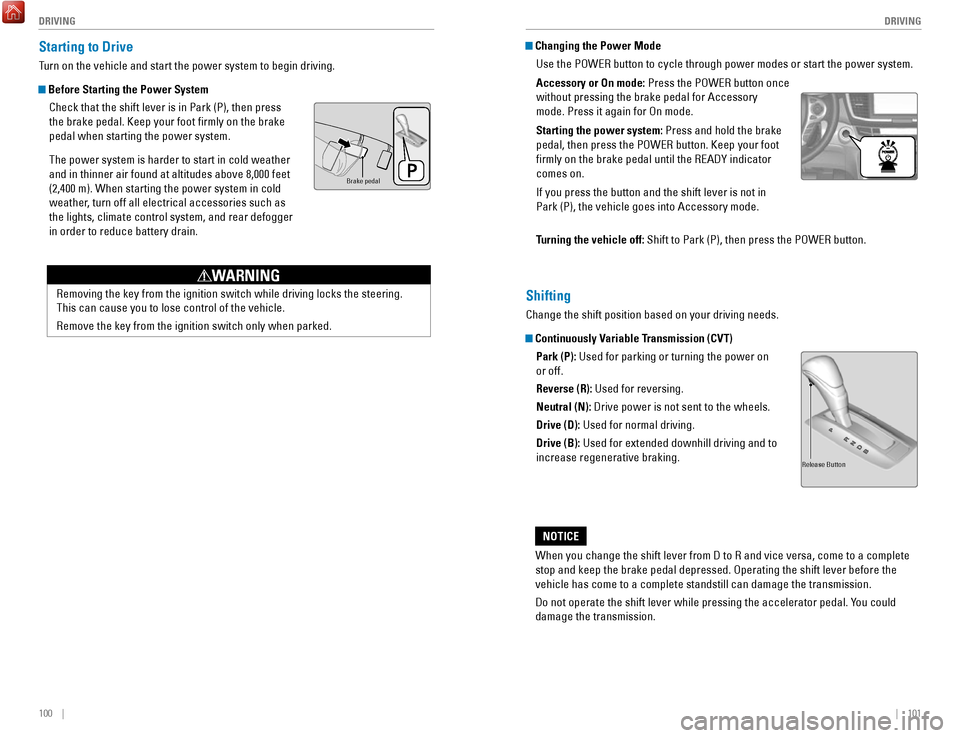
Starting to Drive
Turn on the vehicle and start the power system to begin driving.
Before Starting the Power System
Check that the shift lever is in Park (P), then press
the brake pedal. Keep your foot firmly on the brake
pedal when starting the power system.
The power system is harder to start in cold weather
and in thinner air found at altitudes above 8,000 feet
(2,400 m). When starting the power system in cold
weather, turn off all electrical accessories such as
the lights, climate control system, and rear defogger
in order to reduce battery drain.
Brake peda l
removing the key from the ignition switch while driving locks the steerin\
g.
This can cause you to lose control of the vehicle.
remove the key from the ignition switch only when parked.
WARNING
Changing the Power Mode
Use the P
oWer button to cycle through power modes or start the power system.
Accessory or On mode: Press the P
oWer button once
without pressing the brake pedal for Accessory
mode. Press it again for
on mode.
Starting the power system: Press and hold the brake
pedal, then press the P
oWer button. Keep your foot
firmly on the brake pedal until the
reADY indicator
comes on.
If you press the button and the shift lever is not in
Park (P), the vehicle goes into Accessory mode.
Turning the vehicle off:
Shift to Park (P), then press the P
oWer button.
Shifting
Change the shift position based on your driving needs.
Continuously Variable Transmission (CVT)Park (P): Used for parking or turning the power on
or off.
Reverse (R): Used for reversing.
Neutral (N): Drive power is not sent to the wheels.
Drive (D): Used for normal driving.
Drive (B): Used for extended downhill driving and to
increase regenerative braking.
When you change the shift lever from D to
r and vice versa, come to a complete
stop and keep the brake pedal depressed.
operating the shift lever before the
vehicle has come to a complete standstill can damage the transmission.
Do not operate the shift lever while pressing the accelerator pedal. You could
damage the transmission.
NOTICE
release Button
Page 55 of 80
102 || 103
DRIVING
DRIVING
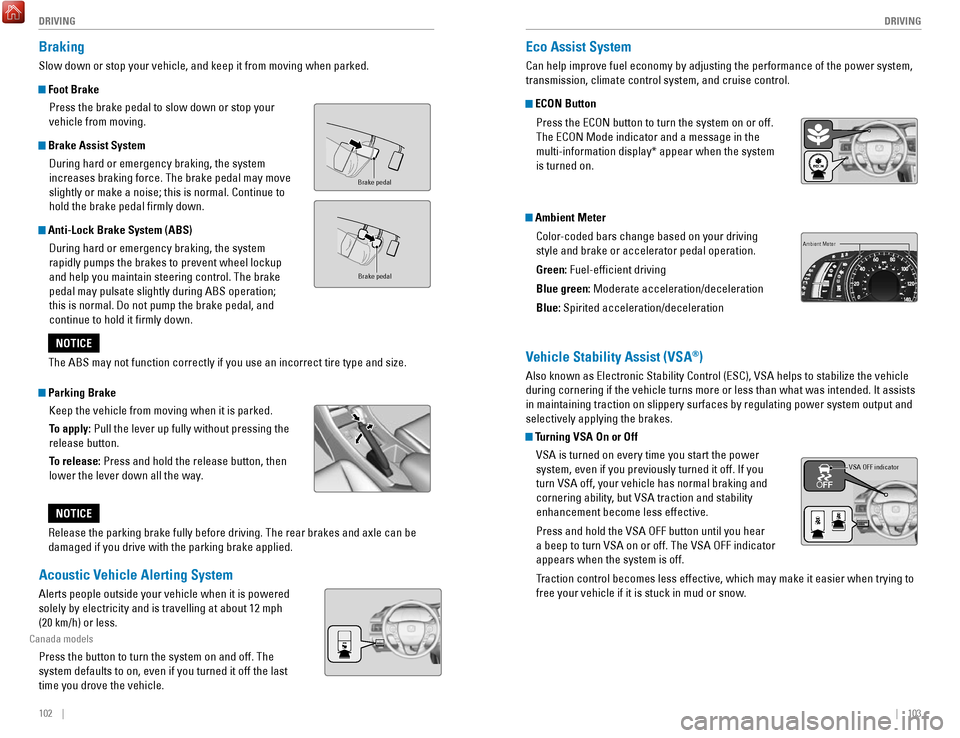
Braking
Slow down or stop your vehicle, and keep it from moving when parked.
Foot Brake
Press the brake pedal to slow down or stop your
vehicle from moving.
Brake Assist System During hard or emergency braking, the system
increases braking force. The brake pedal may move
slightly or make a noise; this is normal. Continue to
hold the brake pedal firmly down.
Anti-Lock Brake System (ABS) During hard or emergency braking, the system
rapidly pumps the brakes to prevent wheel lockup
and help you maintain steering control. The brake
pedal may pulsate slightly during ABS operation;
this is normal. Do not pump the brake pedal, and
continue to hold it firmly down.
Parking BrakeKeep the vehicle from moving when it is parked.
To apply: Pull the lever up fully without pressing the
release button.
To release: Press and hold the release button, then
lower the lever down all the way.
Brake peda l
Brake pedal
The ABS may not function correctly if you use an incorrect tire type and\
size.
NOTICE
release the parking brake fully before driving. The rear brakes and axle \
can be
damaged if you drive with the parking brake applied.
NOTICE
Acoustic Vehicle Alerting System
Alerts people outside your vehicle when it is powered
solely by electricity and is travelling at about 12 mph
(20 km/h) or less.
Canada models
Press the button to turn the system on and off. The
system defaults to on, even if you turned it off the last
time you drove the vehicle.
Eco Assist System
Can help improve fuel economy by adjusting the performance of the power \
system,
transmission, climate control system, and cruise control.
ECON Button
Press the
eCoN button to turn the system on or off.
The
eCoN Mode indicator and a message in the
multi-information display* appear when the system
is turned on.
Ambient Meter
Color-coded bars change based on your driving
style and brake or accelerator pedal operation.
Green: Fuel-efficient driving
Blue green: Moderate acceleration/deceleration
Blue: Spirited acceleration/deceleration
Ambient Meter
Vehicle Stability Assist (VSA®)
Also known as electronic Stability Control (eSC), vSA helps to stabilize the vehicle
during cornering if the vehicle turns more or less than what was intende\
d. It assists
in maintaining traction on slippery surfaces by regulating power system \
output and
selectively applying the brakes.
Turning VSA On or Off
vSA is turned on every time you start the power
system, even if you previously turned it off. If you
turn
vSA off, your vehicle has normal braking and
cornering ability, but
vSA traction and stability
enhancement become less effective.
Press and hold the
vSA oFF button until you hear
a beep to turn
vSA on or off. The vSA oFF indicator
appears when the system is off.
Traction control becomes less effective, which may make it easier when t
rying to
free your vehicle if it is stuck in mud or snow.
VSA OFF indicator
Page 59 of 80

Can assist you when there is a possibility of your vehicle colliding wit\
h a vehicle or a
pedestrian detected")
110 || 111
DRIVING
DRIVING
Collision Mitigation Braking System™ (CMBS™)
Can assist you when there is a possibility of your vehicle colliding wit\
h a vehicle or a
pedestrian detected in front of yours.
The system can give you visual, audible, and tactile alerts when a poten\
tial collision
is determined, and reduce your vehicle speed to help minimize collision \
severity
when a collision is deemed unavoidable.
When a potential collision with a detected oncoming vehicle is determine\
d, a B
rAKe
message appears in the multi-information display, the head-up warning lights flash,
a beep sounds, and the steering wheel vibrates.
The system activates when:
•
The speed difference between your vehicle and a vehicle or pedestrian de\
tected
in front of you is about 3 mph (5 km/h) and over with a chance of a co\
llision.
•
Your vehicle speed is about 62 mph (100 km/h) or less and there is a ch\
ance of a
collision with an oncoming detected vehicle or a pedestrian in front of \
you.
Alert Stages
The system has three alert stages for a possible collision. Depending on\
the
circumstances or CMBS settings, CMBS may not go through all of the stage\
s
before initiating the last stage.
Stage 1:
visual and audible warning, steering wheel vibrations
Stage 2:
visual and audible warning, light brake application
Stage 3:
visual and audible warning, strong brake application
Beep Head-up
warning lights Steering vibrations
Important Safety Reminder
CMBS is designed to reduce the severity of an unavoidable collision. It \
does not
prevent collisions nor stop the vehicle automatically. It is still your responsibility to
operate the brake pedal and steering wheel appropriately according to th\
e driving
conditions.
Turning CMBS On or Off
Press and hold the CMBS
oFF button. A beep sounds
and a message appears in the multi-information display.
The CMBS indicator appears when the system is off.CMBS oFF
button
Changing Settings
Determine the warning timing. The vehicle must be in Park (P).
1.
From the HoMe screen, select Settings.
2.
Select vehicle Settings.
3.
Select Driver Assist System Setup.
4.
Select Forward Collision Warning Distance.
5.
Select Long, Normal, or Short.
6.
Press BACK to exit the menu.
Parking Sensor System*
When the system senses an object when you are parking or backing up, ind\
icators
appear on the upper display and a series of beeps will sound.
Turning the System On or Off Press the parking sensor button to turn the system
on or off. A green indicator light appears on the
button when the system is on.
Screen indicators