clock setting HONDA ACCORD HYBRID 2019 User Guide
[x] Cancel search | Manufacturer: HONDA, Model Year: 2019, Model line: ACCORD HYBRID, Model: HONDA ACCORD HYBRID 2019Pages: 727, PDF Size: 24.78 MB
Page 266 of 727
264 uu Audio System Basic Operation u Playing Pandora ®
Features Playing Pandora ®Your audio system allows you to listen to music from the Pandora ® app on a
compatible smartphone.
This function is available when the phone is paired and connected to the vehicle’s
Bluetooth ® HandsFreeLink ® (HFL) system, or with an iPhone, you can connect using
your USB cable to the USB port. 2 Phone Setup P. 409
2 USB Port(s) P. 245 1 Playing Pandora ®
Pandora ® , the Pandora logo, and the Pandora trade
dress are trademarks or registered trademarks of
Pandora Media, Inc., used with permission. Pandora
is only available in certai n countries. Visit the Pandora
website for more information.
To find out if your phone is compatible with this
feature, visit automobiles.honda.com /handsfreelink/
or call 1-888-528-7876.
To use this service in your vehicle, the Pandora ® app
must first be installed on your phone. Visit
www.pandora.com . for more information.
Find the music you love and let the music you love
find you. Pandora ® gives you a personalized music
experience that continually evolves with your tastes.
Create personalized stati ons from songs, artists or
genres. Not sure where to start? Use our voice search
to easily find stations th at match your mood or
activity.
If you cannot operate Pandora ® through the audio
system, it may be streaming through Bluetooth ®
Audio. Make sure Pandora ® mode on your audio
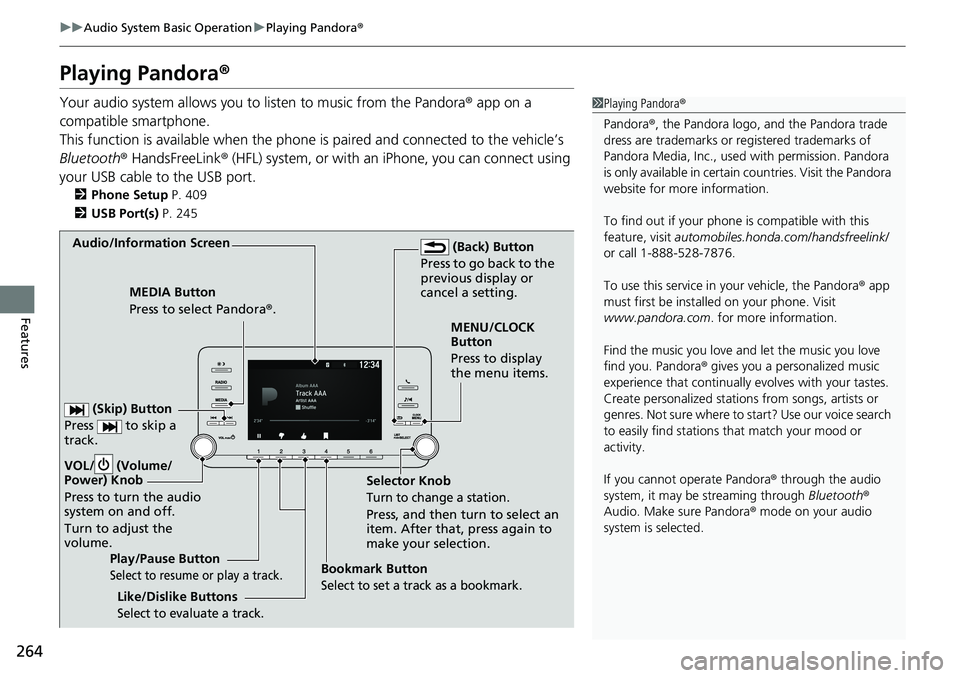
system is selected.Audio/Information Screen
Selector Knob
Turn to change a station.
Press, and then turn to select an
item. After that, press again to
make your selection.VOL/ (Volume/
Power) Knob
Press to turn the audio
system on and off.
Turn to adjust the
volume. (Back) Button
Press to go back to the
previous display or
cancel a setting.MEDIA Button
Press to select Pandora ® .
Play/Pause Button
Select to resume or play a track. (Skip) Button
Press to skip a
track.
Like/Dislike Buttons
Select to evaluate a track. MENU/CLOCK
Button
Press to display
the menu items.
Bookmark Button
Select to set a track as a bookmark.
Page 277 of 727
275uu Audio System Basic Operation u Audio/Information Screen
Continued
Features
■ Trip Computer
Displays the trip computer information.
• Current Drive tab: Displays the current trip information.
• Trip A / Trip B tab: Displays information for the current and three previous drives.
The information is stored every time you reset Trip A/B.
To reset the Trip A/B, select Settings , then select Delete Trip History .
To change the setting of how to reset Trip A/B, select OK .
■ Clock
Displays the clock.
■ System Updates
Updates the software version of the audio system. 2 System Updates P. 286
■ FM/AM/SiriusXM *
/USB1/USB2 *
/Bluetooth Audio/Smartphone Connection
Displays the each audio information.
■ Settings
Enters the customizing menu screen. 2 Customized Features P. 381
■ Navigation *
Displays the navigation screen.
2 Refer to the Navigation System Manual
* Not available on all models
Page 279 of 727
Continued
277uu Audio System Basic Operation u Audio/Information Screen
Features
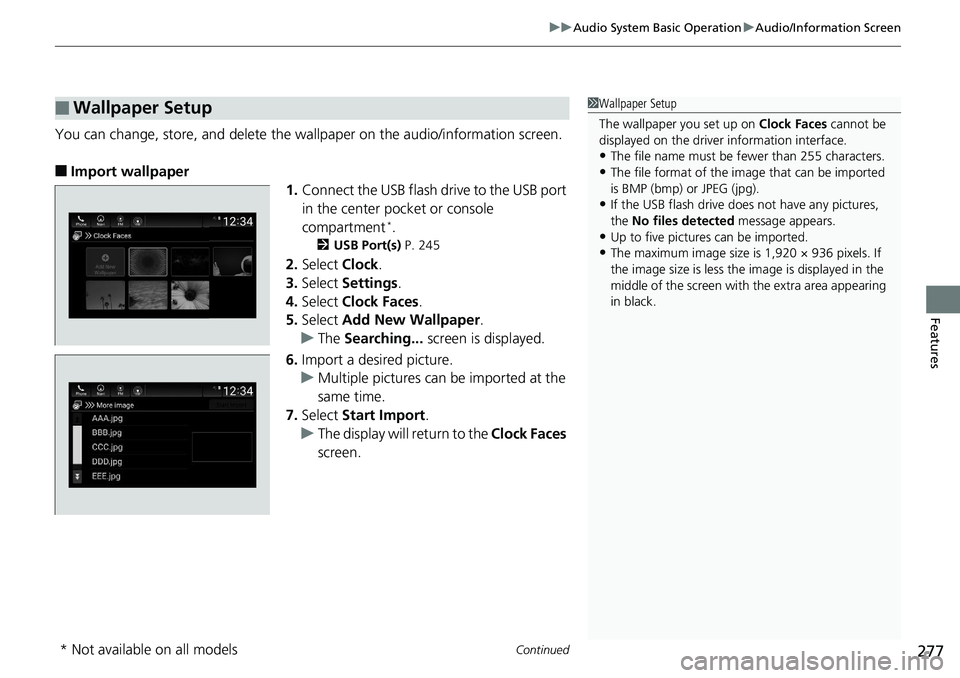
You can change, store, and delete the wa llpaper on the audio/information screen.
■ Import wallpaper
1. Connect the USB flash drive to the USB port
in the center pocket or console
compartment *
.2 USB Port(s) P. 245
2. Select Clock .
3. Select Settings .
4. Select Clock Faces .
5. Select Add New Wallpaper .
u The Searching... screen is displayed.
6. Import a desired picture.
u Multiple pictures can be imported at the
same time.
7. Select Start Import .
u The display will return to the Clock Faces
screen.■ Wallpaper Setup 1 Wallpaper Setup
The wallpaper you set up on Clock Faces cannot be
displayed on the driver information interface.
• The file name must be fewer than 255 characters.
• The file format of the im age that can be imported
is BMP (bmp) or JPEG (jpg).
• If the USB flash drive doe s not have any pictures,
the No files detected message appears.
• Up to five pictur es can be imported.
• The maximum image size is 1,920 × 936 pixels. If
the image size is less the image is displayed in the
middle of the screen with the extra area appearing
in black.
* Not available on all models
Page 280 of 727
uu Audio System Basic Operation u Audio/Information Screen
278
Features ■ Select wallpaper
1. Select Clock .
2. Select Settings .
3. Select Clock Faces .
4. Select a desired wallpaper.
5. Select Set .
u The display will return to the Clock Faces screen.
■ To view wallpaper once it is set
1. Press the button.
2. Select Clock .
■ Delete wallpaper
1. Select Clock .
2. Select Settings .
3. Select Clock Faces .
4. Select a desired wallpaper.
5. Select Delete .
6. Select Yes .
u The display will return to the Clock Faces screen. 1 Wallpaper Setup
You cannot delete the in itial imported wallpapers.
Page 366 of 727
364 uu General Information on the Audio System u About Open Source Licenses
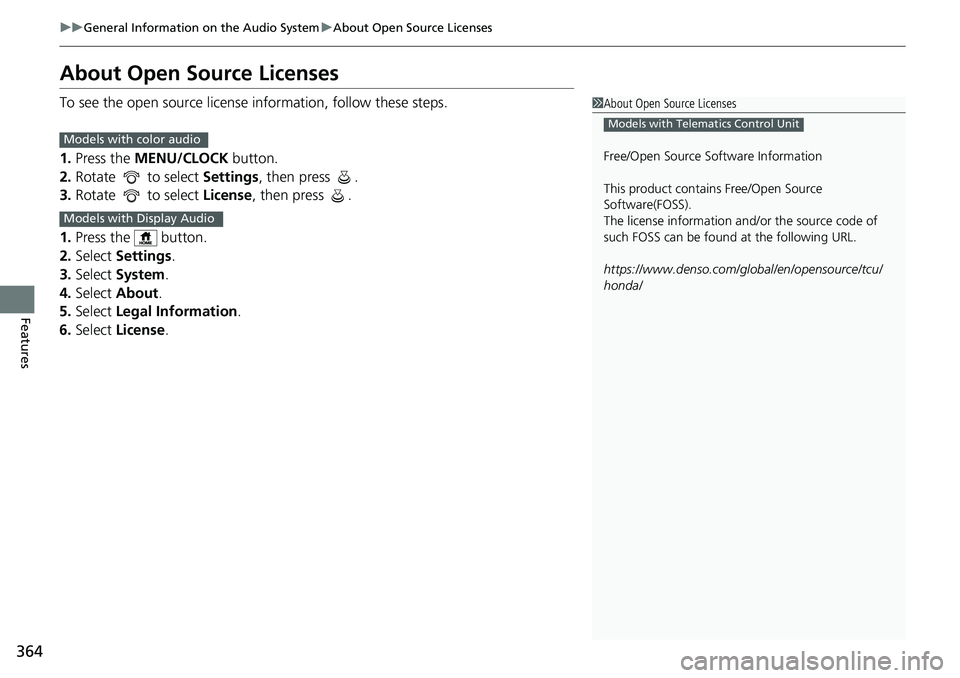
Features About Open Source Licenses To see the open source license information, follow these steps.
1. Press the MENU/CLOCK button.
2. Rotate to select Settings , then press .
3. Rotate to select License , then press .
1. Press the button.
2. Select Settings .
3. Select System .
4. Select About .
5. Select Legal Information .
6. Select License . 1 About Open Source Licenses
Free/Open Source Software Information
This product contains Free/Open Source
Software(FOSS).
The license information and/ or the source code of
such FOSS can be found at the following URL.
https://www.denso.com/global/en/opensource/tcu/
honda/ Models with Telematics Control Unit
Models with color audio
Models with Display Audio
Page 372 of 727
370
Features Customized Features Use the audio/information screen to customize certain features.
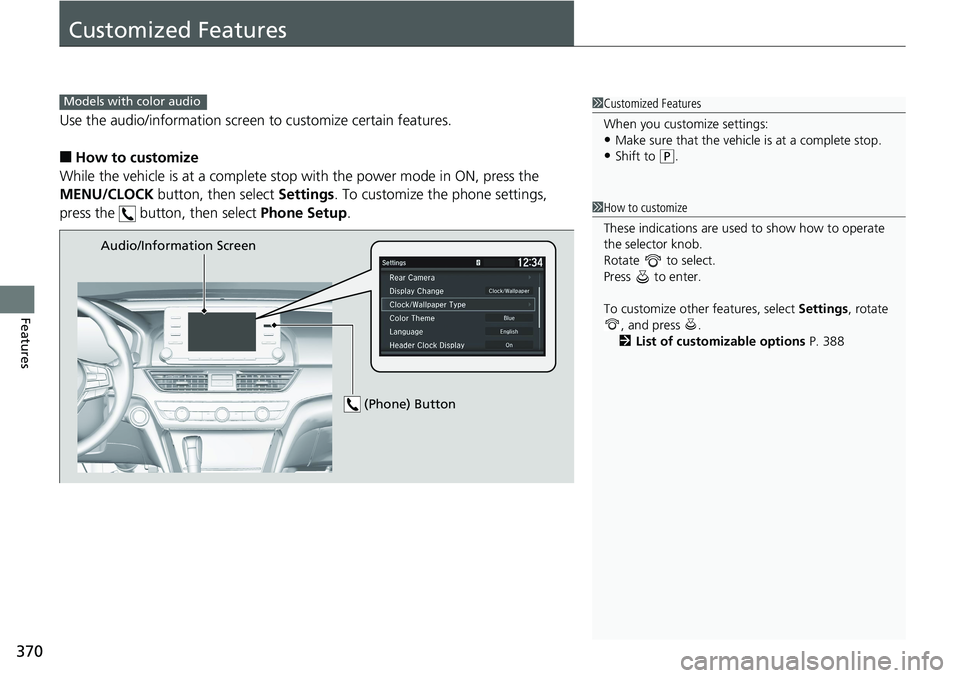
■ How to customize
While the vehicle is at a complete stop with the power mode in ON, press the
MENU/CLOCK button, then select Settings . To customize the phone settings,
press the button, then select Phone Setup . 1 Customized Features
When you customize settings:
• Make sure that the vehicle is at a complete stop.
• Shift to ( P
.Models with color audio
1 How to customize
These indications are used to show how to operate
the selector knob.
Rotate to select.
Press to enter.
To customize other features, select Settings , rotate
, and press .
2 List of customizable options P. 388Audio/Information Screen
(Phone) Button
Page 373 of 727
371 uu Customized Features u
Continued
Features
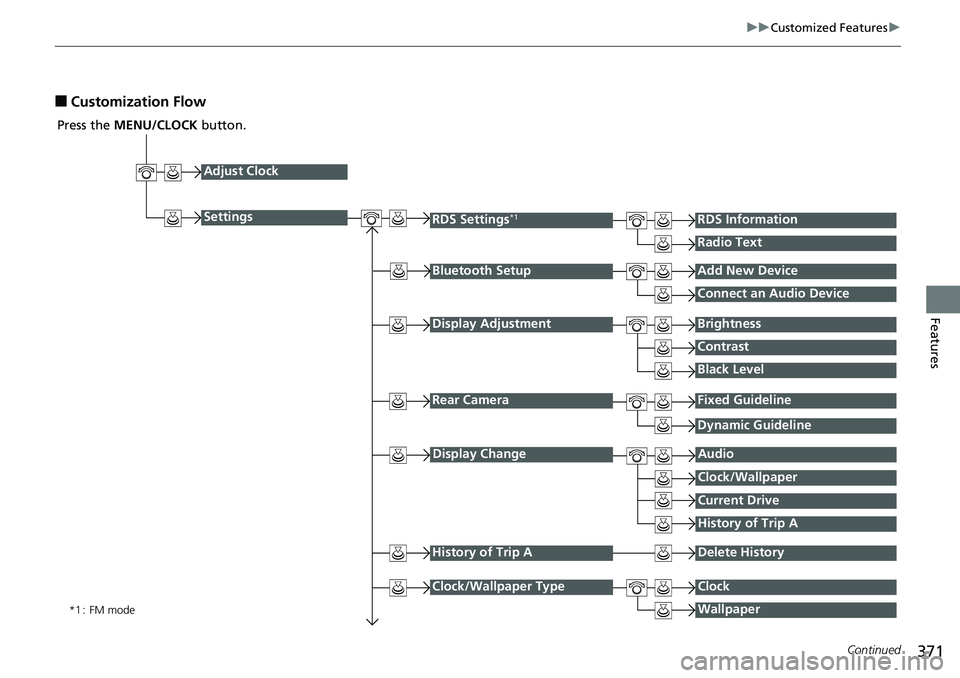
■ Customization FlowPress the MENU/CLOCK button.
Adjust Clock
Settings
Bluetooth Setup Add New Device
Connect an Audio Device
Display Adjustment Brightness
Contrast
Black Level
Rear Camera Fixed GuidelineRDS Settings *1
RDS Information
Radio Text
*1 : FM mode Dynamic Guideline
Display Change Audio
Current Drive
History of Trip AClock/Wallpaper
History of Trip A Delete History
Clock/Wallpaper Type Clock
Wallpaper
Page 374 of 727
372 uu Customized Features u
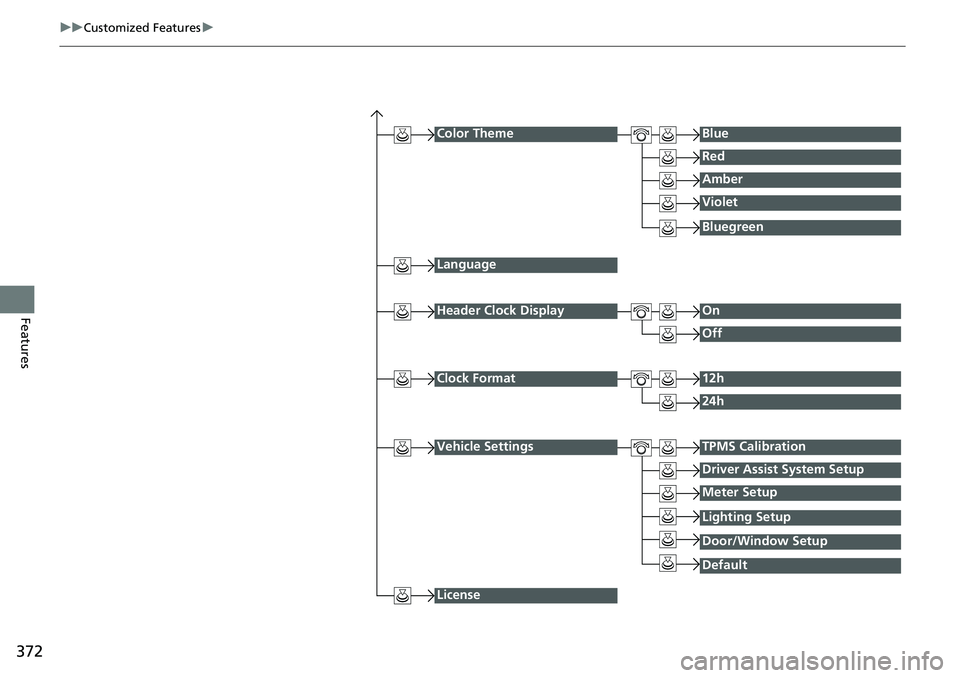
Features Color Theme Blue
Red
Amber
Violet
Language
Clock Format 12h
24h
License Bluegreen
Header Clock Display On
Off
Vehicle Settings TPMS Calibration
Driver Assist System Setup
Meter Setup
DefaultLighting Setup
Door/Window Setup
Page 376 of 727
374 uu Customized Features u
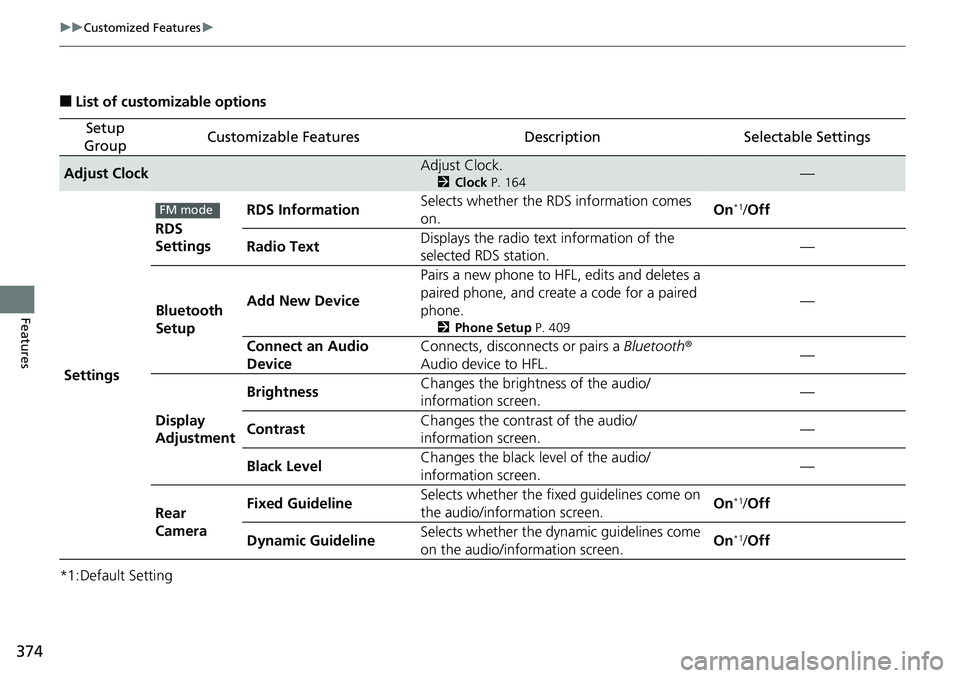
Features ■ List of customizable options
*1:Default Setting Setup
Group Customizable Features Description Selectable Settings
Adjust Clock Adjust Clock. 2 Clock P. 164
—
Settings RDS
Settings RDS Information Selects whether the RDS information comes
on. On *1
/ Off
Radio Text Displays the radio text information of the
selected RDS station. —
Bluetooth
Setup Add New Device Pairs a new phone to HFL, edits and deletes a
paired phone, and create a code for a paired
phone. 2 Phone Setup P. 409
—
Connect an Audio
Device Connects, disconnects or pairs a Bluetooth ®
Audio device to HFL. —
Display
Adjustment Brightness Changes the brightness of the audio/
information screen. —
Contrast Changes the contrast of the audio/
information screen. —
Black Level Changes the black level of the audio/
information screen. —
Rear
Camera Fixed Guideline Selects whether the fixed guidelines come on
the audio/information screen. On *1
/ Off
Dynamic Guideline Selects whether the dy namic guidelines come
on the audio/information screen. On *1
/ OffFM mode
Page 377 of 727
375 uu Customized Features u
Continued
Features
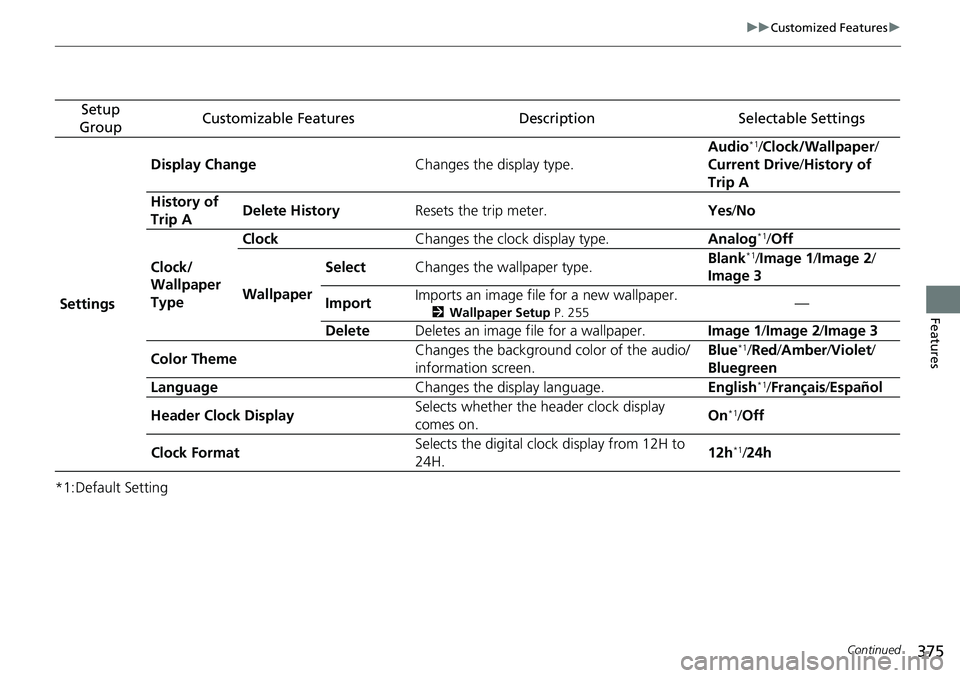
*1:Default Setting Setup
Group Customizable Features Description Selectable Settings
Settings Display Change Changes the display type. Audio *1
/ Clock/Wallpaper /
Current Drive / History of
Trip A
History of
Trip A Delete History Resets the trip meter. Yes / No
Clock/
Wallpaper
Type Clock Changes the clock display type. Analog *1
/ Off
Wallpaper Select Changes the wallpaper type. Blank *1
/ Image 1 / Image 2 /
Image 3
Import Imports an image file for a new wallpaper. 2 Wallpaper Setup P. 255
—
Delete Deletes an image file for a wallpaper. Image 1 / Image 2 / Image 3
Color Theme Changes the background color of the audio/
information screen. Blue *1
/ Red / Amber / Violet /
Bluegreen
Language Changes the display language. English *1
/ Français / Español
Header Clock Display Selects whether the header clock display
comes on. On *1
/ Off
Clock Format Selects the digital clock display from 12H to
24H. 12h *1
/ 24h