turn signal HONDA ACCORD HYBRID 2019 User Guide
[x] Cancel search | Manufacturer: HONDA, Model Year: 2019, Model line: ACCORD HYBRID, Model: HONDA ACCORD HYBRID 2019Pages: 727, PDF Size: 24.78 MB
Page 262 of 727
uu Audio System Basic Operation u Playing AM/FM Radio
260
Features Provides text data information related to your selected RDS-capable FM station.
■ To find an RDS station from Station List
1. Press while listening to an FM station.
2. Rotate to select the station, then press .
■ Update List
Updates your available station list at any time.
1. Press while listening to an FM station.
2. Rotate to select Update List , then press .
■ Radio text
Displays the radio text informat ion of the selected RDS station.
1. Press the MENU/CLOCK button.
2. Rotate to select Settings , then press .
3. Rotate to select RDS Settings , then press .
4. Rotate to select Radio Text , then press .
■ Scan
Samples each of the strongest stations on the selected band for 10 seconds.
1. Press the MENU/CLOCK button.
2. Rotate to select Scan , then press .
To turn off scan, press .■ Radio Data System (RDS) 1 Playing AM/FM Radio
The ST indicator appears on the display indicating
stereo FM broadcasts.
Stereo reproduction in AM is not available.
Switching the Audio Mode
Press the SOURCE button on the steering wheel.
2 Audio Remote Controls P. 248
You can store 6 AM stations and 12 FM stations into
the preset memory. FM1 and FM2 let you store 6
stations each.
1 Radio Data System (RDS)
When you select an RDS-capable FM station, the RDS
automatically turns on, and the frequency display
changes to the station name. However, when the
signals of that station become weak, the display
changes from the statio n name to the frequency.
Page 300 of 727
298 uu Audio System Basic Operation u Playing AM/FM Radio
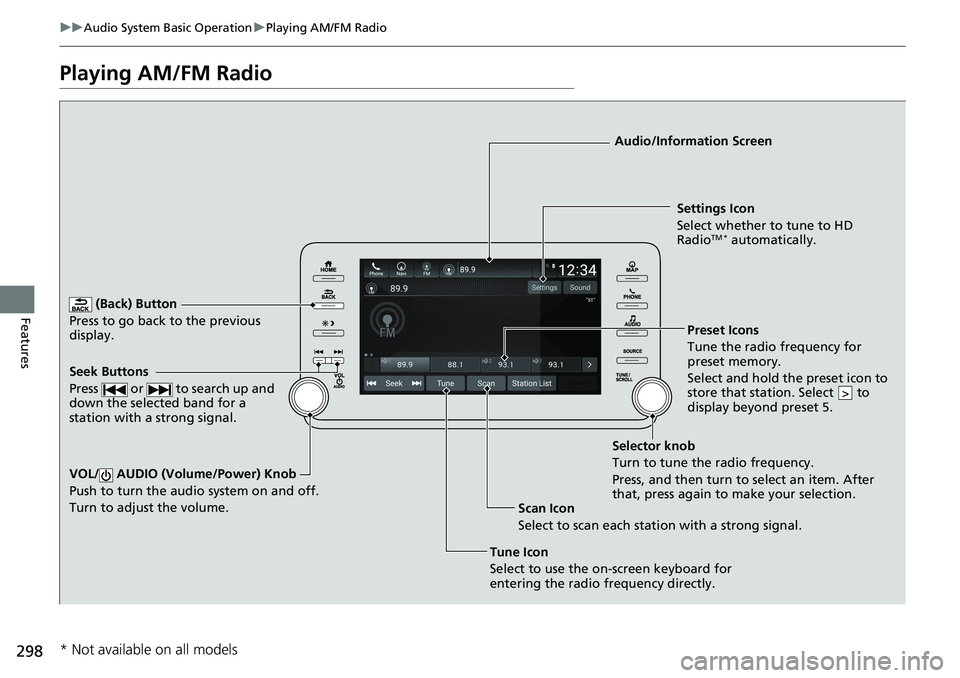
Features Playing AM/FM Radio (Back) Button
Press to go back to the previous
display.
Seek Buttons
Press or to search up and
down the selected band for a
station with a strong signal.
VOL/ AUDIO (Volume/Power) Knob
Push to turn the audi o system on and off.
Turn to adjust the volume.
Tune Icon
Select to use the on-screen keyboard for
entering the radio frequency directly. Audio/Information Screen
Scan Icon
Select to scan each station with a strong signal. Preset Icons
Tune the radio frequency for
preset memory.
Select and hold the preset icon to
store that station. Select to
display beyond preset 5. >Settings Icon
Select whether to tune to HD
Radio TM *
automatically.
Selector knob
Turn to tune the radio frequency.
Press, and then turn to select an item. After
that, press again to make your selection.
* Not available on all models
Page 302 of 727
uu Audio System Basic Operation u Playing AM/FM Radio
300
Features Samples each of the strongest stations on the selected band for 10 seconds. To turn
off scan, select Stop or .
Provides text data information related to your selected RDS-capable FM station.
■ To find an RDS station from Station List
1. Select Station List to display a list while listening to an FM station.
2. Select the station.
■ Manual update
Updates your available station list at any time.
1. Select Station List to display a list while listening to an FM station.
2. Select Refresh .
■ Scan
Samples each of the strongest stations on the selected band for 10 seconds. To turn
off scan, select Stop or .■ Scan
■ Radio Data System (RDS) 1 Radio Data System (RDS)
When you select an RDS-capable FM station, the RDS
automatically turns on, and the frequency display
changes to the station name. However, when the
signals of that station become weak, the display
changes from the statio n name to the frequency.
Page 304 of 727
302 uu Audio System Basic Operation u Playing SiriusXM ® Radio *
Features Playing SiriusXM ® Radio *
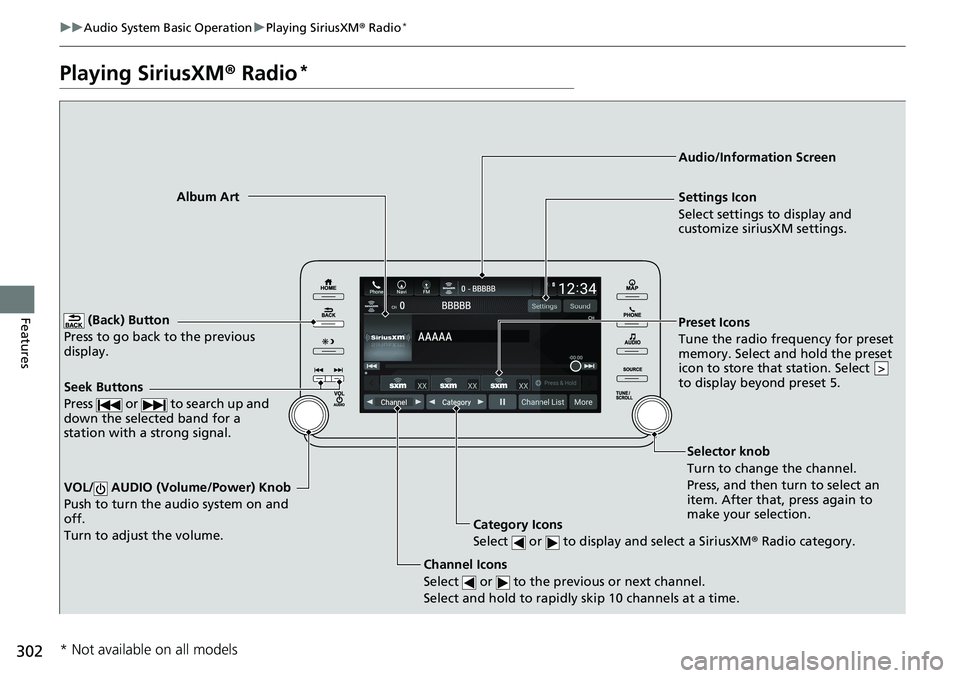
(Back) Button
Press to go back to the previous
display.
Channel Icons
Select or to the previous or next channel.
Select and hold to rapidly skip 10 channels at a time.VOL/ AUDIO (Volume/Power) Knob
Push to turn the audio system on and
off.
Turn to adjust the volume. Category Icons
Select or to display and select a SiriusXM ® Radio category.Audio/Information Screen
Preset Icons
Tune the radio frequency for preset
memory. Select and hold the preset
icon to store that station. Select
to display beyond preset 5. >Album Art
Settings Icon
Select settings to display and
customize siriusXM settings.
Seek Buttons
Press or to search up and
down the selected band for a
station with a strong signal.
Selector knob
Turn to change the channel.
Press, and then turn to select an
item. After that, press again to
make your selection.
* Not available on all models
Page 379 of 727
377 uu Customized Features u
Continued
Features
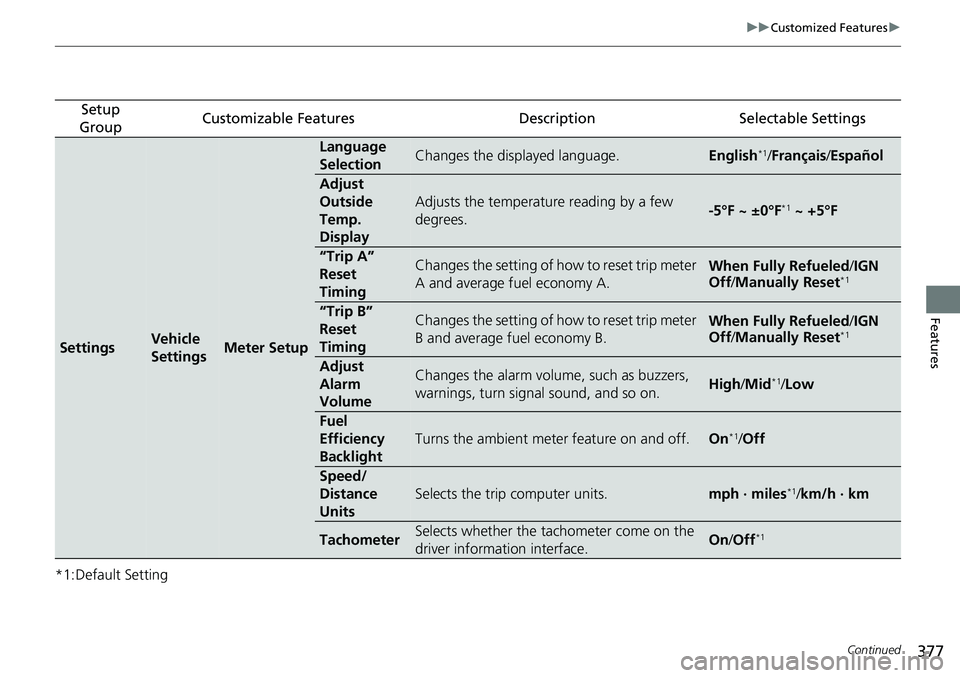
*1:Default Setting Setup
Group Customizable Features Description Selectable Settings
Settings Vehicle
Settings Meter Setup Language
Selection Changes the displayed language. English *1
/ Français / Español
Adjust
Outside
Temp.
Display Adjusts the temperature reading by a few
degrees. -5°F ~ ±0°F *1
~ +5°F
“Trip A”
Reset
Timing Changes the setting of how to reset trip meter
A and average fuel economy A. When Fully Refueled / IGN
Off / Manually Reset *1
“Trip B”
Reset
Timing Changes the setting of how to reset trip meter
B and average fuel economy B. When Fully Refueled / IGN
Off / Manually Reset *1
Adjust
Alarm
Volume Changes the alarm volume, such as buzzers,
warnings, turn signal sound, and so on. High / Mid *1
/ Low
Fuel
Efficiency
Backlight Turns the ambient meter feature on and off. On *1
/ Off
Speed/
Distance
Units Selects the trip computer units. mph · miles *1
/ km/h · km
Tachometer Selects whether the tachometer come on the
driver information interface. On / Off *1
Page 389 of 727
387 uu Customized Features u
Continued
Features
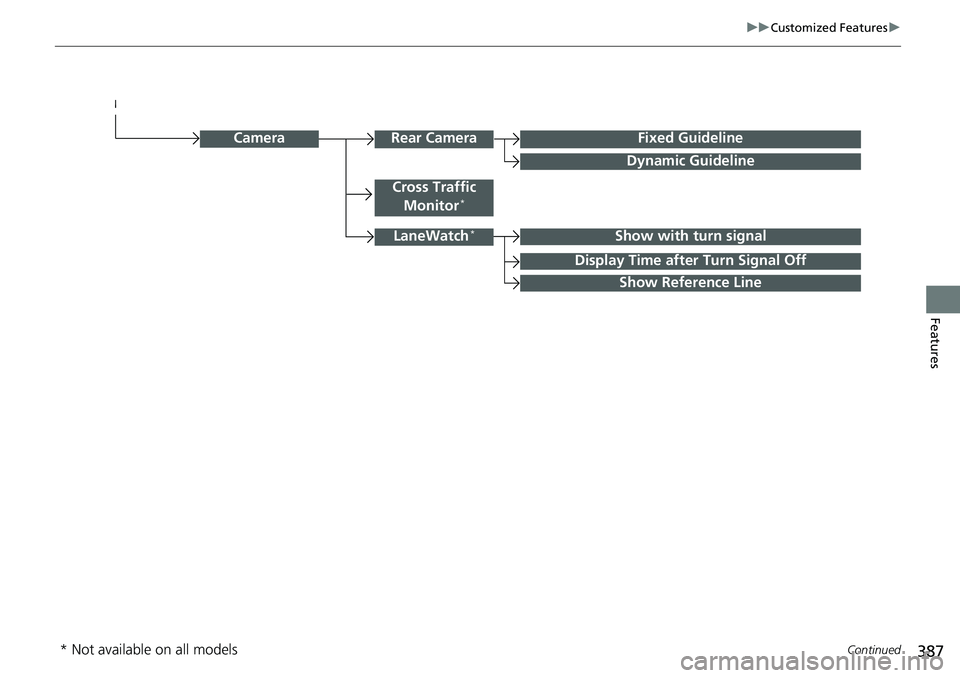
Camera
Show with turn signalLaneWatch *
Show Reference LineRear Camera Fixed Guideline
Dynamic Guideline
Cross Traffic
Monitor *
Display Time after Turn Signal Off
* Not available on all models
Page 395 of 727
393 uu Customized Features u
Continued
Features
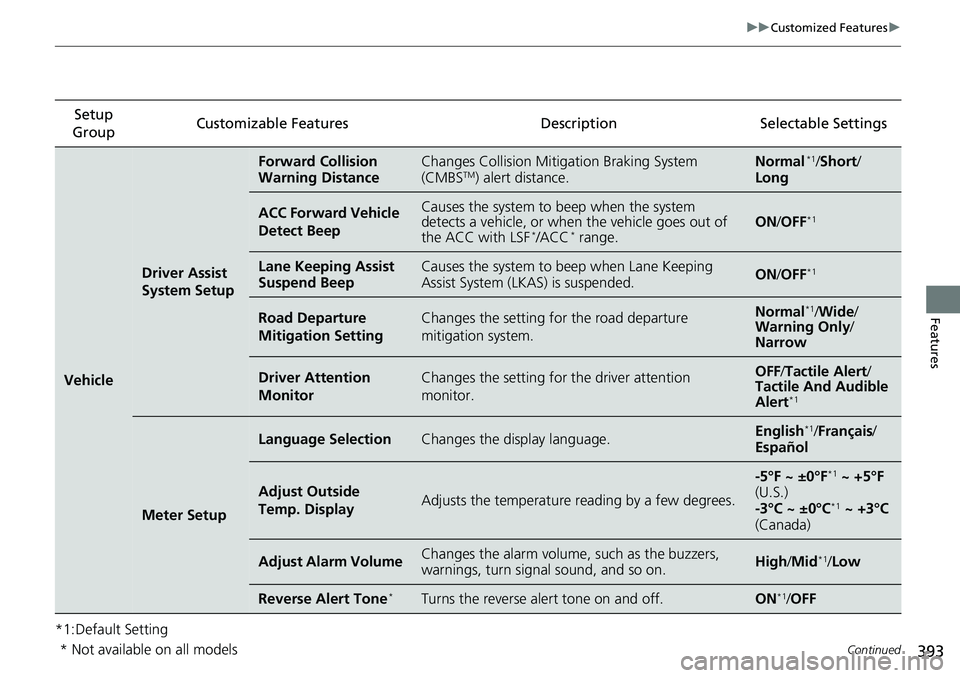
*1:Default Setting Setup
Group Customizable Features Description Selectable Settings
Vehicle Driver Assist
System Setup Forward Collision
Warning Distance Changes Collision Mitiga tion Braking System
(CMBS TM
) alert distance. Normal *1
/ Short /
Long
ACC Forward Vehicle
Detect Beep Causes the system to beep when the system
detects a vehicle, or when the vehicle goes out of
the ACC with LSF *
/ACC *
range. ON / OFF *1
Lane Keeping Assist
Suspend Beep Causes the system to beep when Lane Keeping
Assist System (LKAS) is suspended. ON / OFF *1
Road Departure
Mitigation Setting Changes the setting fo r the road departure
mitigation system. Normal *1
/ Wide /
Warning Only /
Narrow
Driver Attention
Monitor Changes the setting for the driver attention
monitor. OFF / Tactile Alert /
Tactile And Audible
Alert *1
Meter Setup Language Selection Changes the display language. English *1
/ Français /
Español
Adjust Outside
Temp. Display Adjusts the temperature reading by a few degrees. -5°F ~ ±0°F *1
~ +5°F
(U.S.)
-3°C ~ ±0°C *1
~ +3°C
(Canada)
Adjust Alarm Volume Changes the alarm volume, such as the buzzers,
warnings, turn signal sound, and so on. High / Mid *1
/ Low
Reverse Alert Tone *
Turns the reverse alert tone on and off. ON *1
/ OFF
* Not available on all models
Page 400 of 727
398 uu Customized Features u
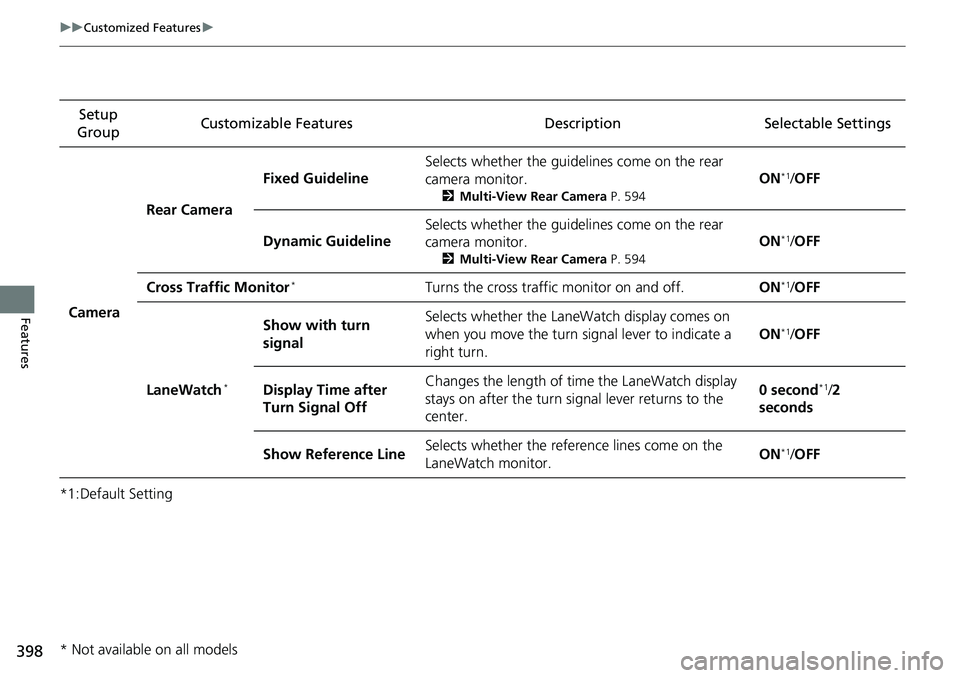
Features *1:Default Setting Setup
Group Customizable Features Description Selectable Settings
Camera Rear Camera Fixed Guideline Selects whether the guidelines come on the rear
camera monitor. 2 Multi-View Rear Camera P. 594
ON *1
/ OFF
Dynamic Guideline Selects whether the guidelines come on the rear
camera monitor. 2 Multi-View Rear Camera P. 594
ON *1
/ OFF
Cross Traffic Monitor *
Turns the cross traffic monitor on and off. ON *1
/ OFF
LaneWatch *
Show with turn
signal Selects whether the LaneWatch display comes on
when you move the turn signal lever to indicate a
right turn. ON *1
/ OFF
Display Time after
Turn Signal Off Changes the length of time the LaneWatch display
stays on after the turn signal lever returns to the
center. 0 second *1
/ 2
seconds
Show Reference Line Selects whether the reference lines come on the
LaneWatch monitor. ON *1
/ OFF
* Not available on all models
Page 505 of 727
Continued
503uu When Driving u Blind spot information System *
Driving
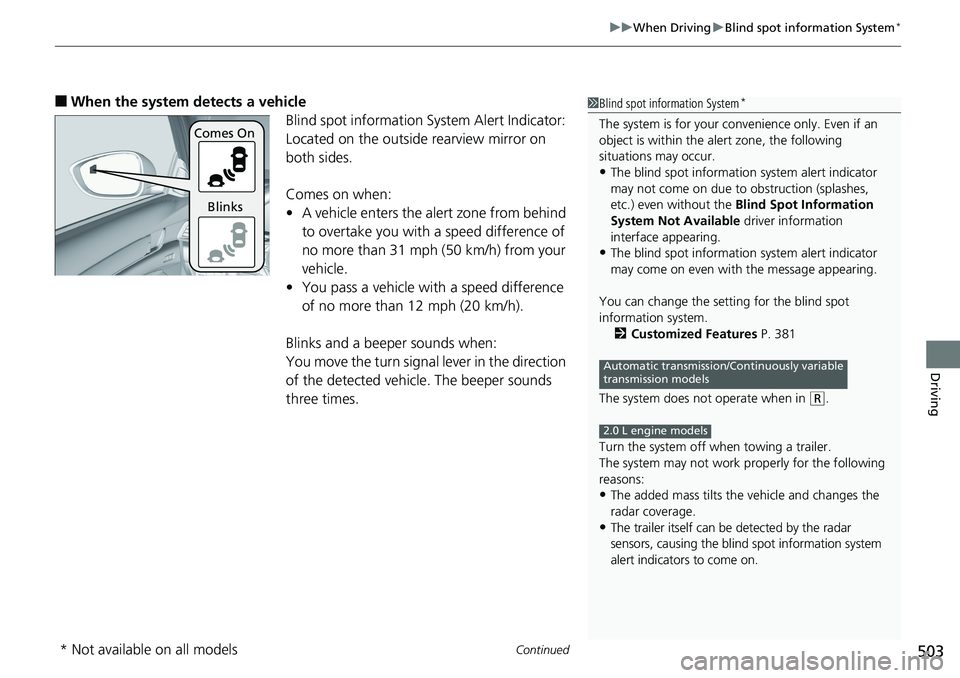
■ When the system detects a vehicle
Blind spot information System Alert Indicator:
Located on the outside rearview mirror on
both sides.
Comes on when:
• A vehicle enters the alert zone from behind
to overtake you with a speed difference of
no more than 31 mph (50 km/h) from your
vehicle.
• You pass a vehicle with a speed difference
of no more than 12 mph (20 km/h).
Blinks and a beeper sounds when:
You move the turn signal lever in the direction
of the detected vehicle. The beeper sounds
three times. 1 Blind spot information System *
The system is for your convenience only. Even if an
object is within the alert zone, the following
situations may occur.
• The blind spot informatio n system alert indicator
may not come on due to obstruction (splashes,
etc.) even without the Blind Spot Information
System Not Available driver information
interface appearing.
• The blind spot informatio n system alert indicator
may come on even with the message appearing.
You can change the setting for the blind spot
information system.
2 Customized Features P. 381
The system does not operate when in ( R
.
Turn the system off when towing a trailer.
The system may not work properly for the following
reasons:
• The added mass tilts the vehicle and changes the
radar coverage.
• The trailer itself can be detected by the radar
sensors, causing the blind spot information system
alert indicators to come on. Automatic transmission/Continuously variable
transmission models
2.0 L engine modelsComes On
Blinks
* Not available on all models
Page 507 of 727
505 uu When Driving u LaneWatch TM
*
Continued
Driving
LaneWatch TM
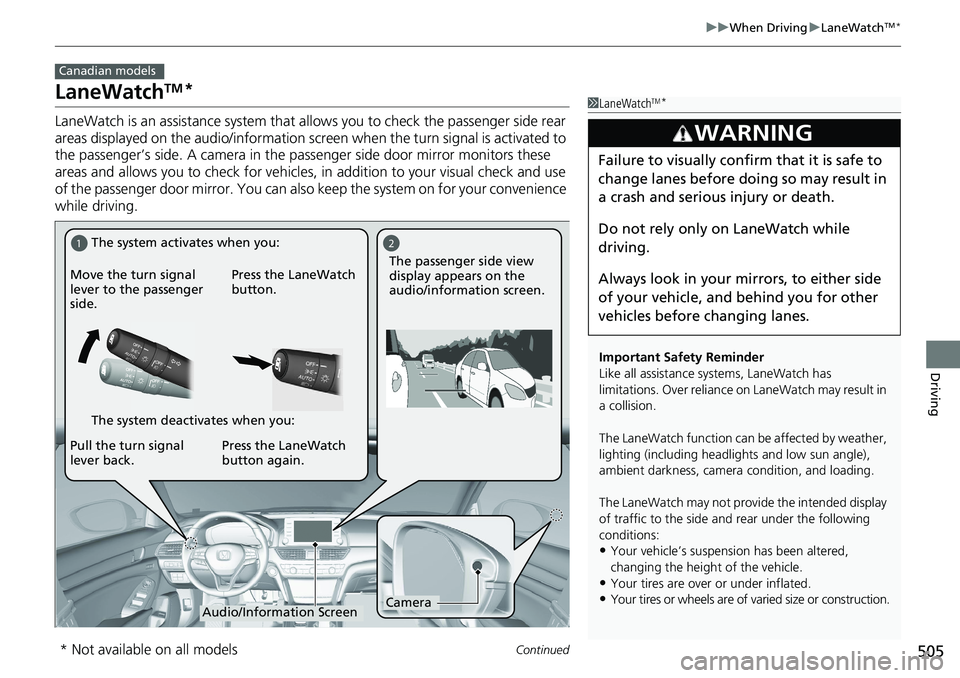
*LaneWatch is an assistance system that al lows you to check the passenger side rear
areas displayed on the audio/information screen when the turn signal is activated to
the passenger’s side. A camera in the pa ssenger side door mirror monitors these
areas and allows you to check for vehicles, in addition to your visual check and use
of the passenger door mirror. You can also keep the system on for your convenience
while driving. Canadian models
1 LaneWatch TM
*
Important Safety Reminder
Like all assistance systems, LaneWatch has
limitations. Over reliance on LaneWatch may result in
a collision.
The LaneWatch func tion can be affect ed by weather,
lighting (including headli ghts and low sun angle),
ambient darkness, camera condition, and loading.
The LaneWatch may not prov ide the intended display
of traffic to the side a nd rear under the following
conditions:
• Your vehicle’s suspension has been altered,
changing the height of the vehicle.
• Your tires are over or under inflated.
• Your tires or wheels are of varied size or construction.3
WARNING Failure to visually confirm that it is safe to
change lanes before doing so may result in
a crash and serious injury or death.
Do not rely only on LaneWatch while
driving.
Always look in your mi rrors, to either side
of your vehicle, and behind you for other
vehicles before changing lanes.1 2
Camera
Audio/Information ScreenMove the turn signal
lever to the passenger
side. Press the LaneWatch
button.
Pull the turn signal
lever back. Press the LaneWatch
button again. The passenger side view
display appears on the
audio/information screen.The system activates when you:
The system deactivates when you:
* Not available on all models