ECO mode HONDA ACCORD SEDAN 2020 (in English) Manual PDF
[x] Cancel search | Manufacturer: HONDA, Model Year: 2020, Model line: ACCORD SEDAN, Model: HONDA ACCORD SEDAN 2020Pages: 728, PDF Size: 34.06 MB
Page 247 of 728
245
Features
This chapter describes how to operate technology features.
Audio SystemAbout Your Audio System ................ 246
USB Port(s) ....................................... 247
Audio System Theft Protection ......... 249
Audio Remote Controls .................... 250
Audio System Basic Operation ........ 254
Audio/Information Screen ................ 255
Adjusting the Sound ........................ 259
Display Setup ................................... 260
Playing AM/FM Radio ....................... 261
Playing an iPod ................................ 263
Playing Pandora ®.............................. 266
Playing a USB Flash Drive ................. 268
Models with color audio
Playing Bluetooth ® Audio................. 271
Siri ® Eyes Free .................................. 274
Audio System Basic Operation ........ 275
Audio/Information Screen ................ 276
System Updates ............................... 288
Adjusting the Sound ........................ 294
Display Setup ................................... 295
Voice Control Operation .................. 297
Playing AM/FM Radio ....................... 300
Playing SiriusXM ® Radio
*................. 304
Playing an iPod ................................ 315
Playing a USB Flash Drive ................. 318
Playing Bluetooth ® Audio................. 321
Models with Display Audio
HondaLink ®..................................... 323
HondaLink ® Service*........................ 327
Wi-Fi Connection ............................. 332
Near Field Communication (NFC)
*... 334
Siri ® Eyes Free .................................. 337
Apple CarPlay ®................................ 338
Android Auto
TM............................... 341
Audio Error Messages ...................... 345
General Information on the Audio System ............................................. 350
Customized Features ................ 372, 383
HomeLink ® Universal Transceiver
*..... 402
Bluetooth® HandsFreeLink® ..... 405, 429
Refuel Recommend .............................. 454
* Not available on all models
Page 249 of 728
247
uuAudio System uUSB Port(s)
Continued
Features
USB Port(s)
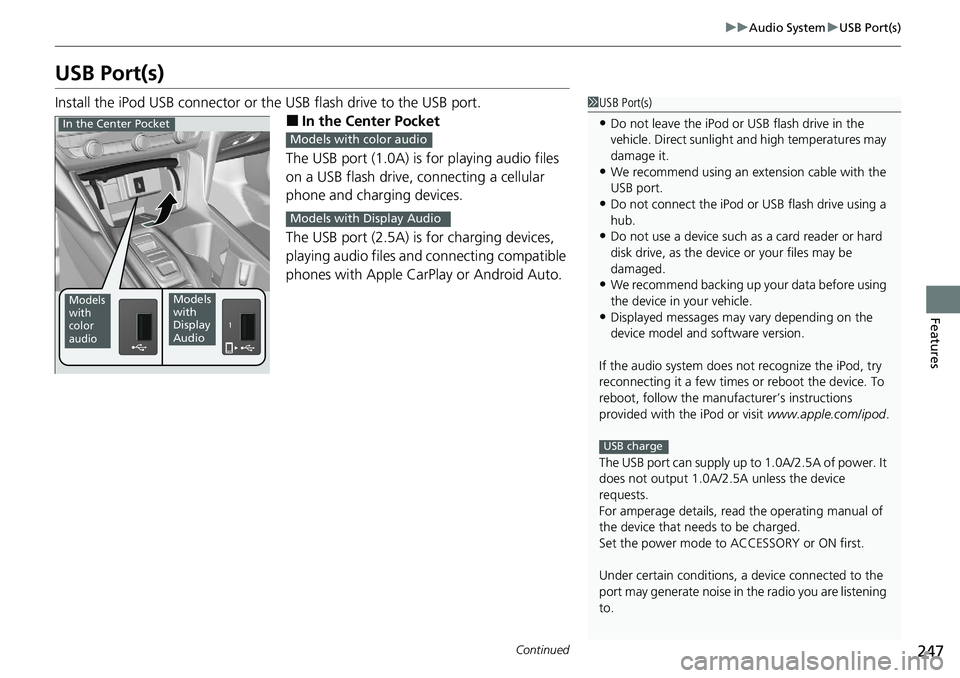
Install the iPod USB connector or the USB flash drive to the USB port.
■In the Center Pocket
The USB port (1.0A) is for playing audio files
on a USB flash drive, connecting a cellular
phone and charging devices.
The USB port (2.5A) is for charging devices,
playing audio files and connecting compatible
phones with Apple CarPlay or Android Auto.
1 USB Port(s)
•Do not leave the iPod or USB flash drive in the
vehicle. Direct sunlight and high temperatures may
damage it.
•We recommend using an ex tension cable with the
USB port.
•Do not connect the iPod or USB flash drive using a
hub.
•Do not use a device such as a card reader or hard
disk drive, as the device or your files may be
damaged.
•We recommend backing up yo ur data before using
the device in your vehicle.
•Displayed messages may vary depending on the
device model and software version.
If the audio system does not recognize the iPod, try
reconnecting it a few times or reboot the device. To
reboot, follow the manufac turer’s instructions
provided with the iPod or visit www.apple.com/ipod.
The USB port can supply up to 1.0A/2.5A of power. It
does not output 1.0A/2.5A unless the device
requests.
For amperage details, read the operating manual of
the device that ne eds to be charged.
Set the power mode to ACCESSORY or ON first.
Under certain condi tions, a device connected to the
port may generate noise in the radio you are listening
to.
USB charge
Models
with
color
audioModels
with
Display
Audio
In the Center PocketModels with color audio
Models with Display Audio
Page 251 of 728
249
uuAudio System uAudio System Theft Protection
Features
Audio System Theft Protection
The audio system is disabled when it is disconnected from the power source, such as
when the battery is disconnected or goes dead. In certain conditions, the system
may display a code entry screen. If this occurs, reactivate the audio system.
■Reactivating the audio system
1. Set the power mode to ON.
2. Turn on the audio system.
3. Press and hold the audio system power knob for more than two seconds.
u The audio system is reac tivated when the audio co ntrol unit establishes a
connection with the vehicl e control unit. If the control unit fails to recognize
the audio unit, you must go to a dealer and have the audio unit checked.
Page 264 of 728
uuAudio System Basic Operation uPlaying AM/FM Radio
262
Features
Provides text data information related to your selected RDS-capable FM station.
■To find an RDS station from Station List
1. Press while listening to an FM station.
2. Rotate to select the station, then press .
■Update List
Updates your available station list at any time.
1. Press while listening to an FM station.
2. Rotate to select Update List, then press .
■Radio text
Displays the radio text informat ion of the selected RDS station.
1. Press the MENU/CLOCK button.
2. Rotate to select Settings, then press .
3. Rotate to select RDS Settings, then press .
4. Rotate to select Radio Text, then press .
■Scan
Samples each of the strongest stations on the selected band for 10 seconds.
1. Press the MENU/CLOCK button.
2. Rotate to select Scan, then press .
To turn off scan, press .
■Radio Data System (RDS)1 Playing AM/FM Radio
The ST indicator appears on the display indicating
stereo FM broadcasts.
Stereo reproduction in AM is not available.
Switching the Audio Mode
Press the SOURCE button on the steering wheel.
2 Audio Remote Controls P. 250
You can store 6 AM stations and 12 FM stations into
the preset memory. FM1 and FM2 let you store 6
stations each.
1 Radio Data System (RDS)
When you select an RDS-capable FM station, the RDS
automatically turns on, and the frequency display
changes to the station name. However, when the
signals of that station become weak, the display
changes from the statio n name to the frequency.
Page 270 of 728
268
uuAudio System Basic Operation uPlaying a USB Flash Drive
Features
Playing a USB Flash Drive
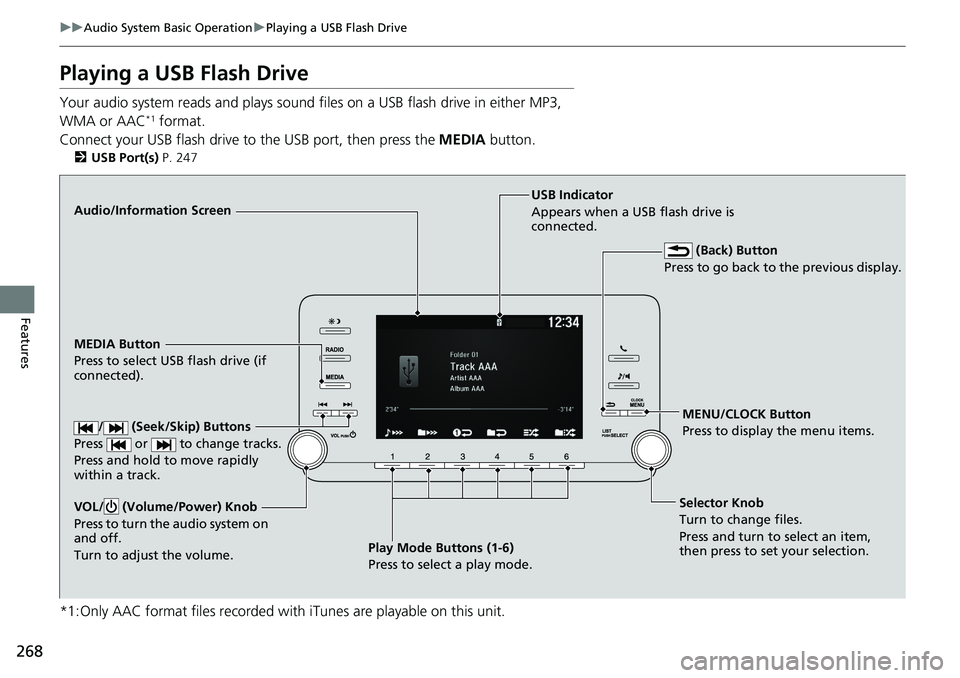
Your audio system reads and plays sound files on a USB flash drive in either MP3,
WMA or AAC*1 format.
Connect your USB flash drive to the USB port, then press the MEDIA button.
2USB Port(s) P. 247
*1:Only AAC format files recorded with iTunes are playable on this unit.
Audio/Information Screen
MEDIA Button
Press to select USB flash drive (if
connected).
MENU/CLOCK Button
Press to display the menu items.
Selector Knob
Turn to change files.
Press and turn to select an item,
then press to set your selection.
VOL/ (Volume/Power) Knob
Press to turn the audio system on
and off.
Turn to adjust the volume.USB Indicator
Appears when a USB flash drive is
connected.
(Back) Button
Press to go back to the previous display.
/ (Seek/Skip) Buttons
Press or to change tracks.
Press and hold to move rapidly
within a track.
Play Mode Buttons (1-6)
Press to select a play mode.
Page 272 of 728
uuAudio System Basic Operation uPlaying a USB Flash Drive
270
Features
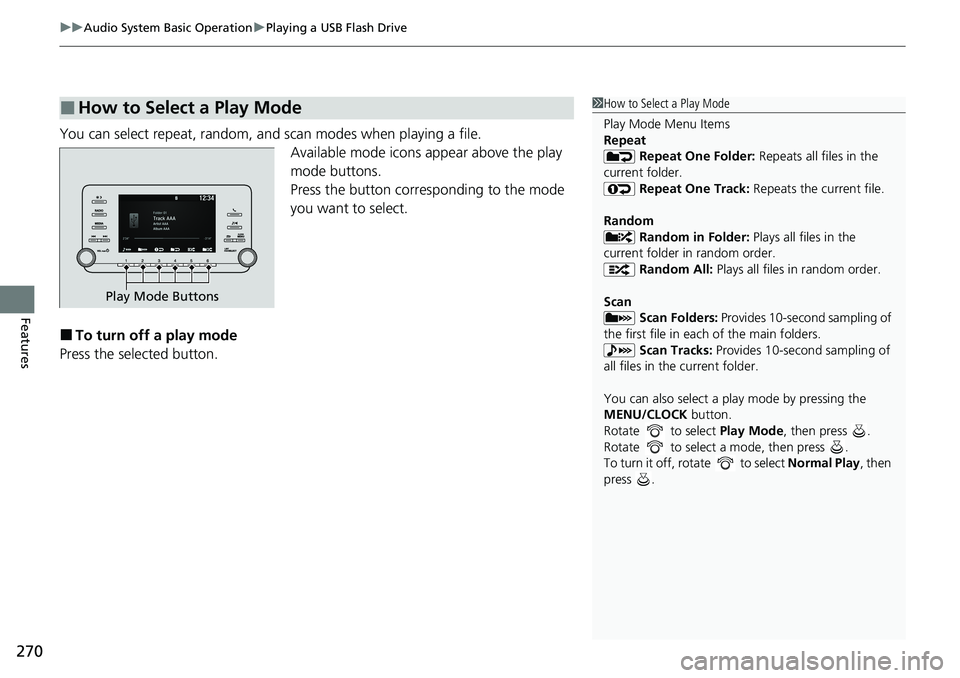
You can select repeat, random, and scan modes when playing a file.
Available mode icons appear above the play
mode buttons.
Press the button corresponding to the mode
you want to select.
■To turn off a play mode
Press the selected button.
■How to Select a Play Mode1 How to Select a Play Mode
Play Mode Menu Items
Repeat
Repeat One Folder: Repeats all files in the
current folder. Repeat One Track: Repeats the current file.
Random Random in Folder: Plays all files in the
current folder in random order. Random All: Plays all files in random order.
Scan Scan Folders: Provides 10-second sampling of
the first file in each of the main folders.
Scan Tracks: Provides 10-second sampling of
all files in the current folder.
You can also select a pl ay mode by pressing the
MENU/CLOCK button.
Rotate to select Play Mode, then press .
Rotate to select a mode, then press .
To turn it off, rotate to select Normal Play, then
press .
Play Mode Buttons
Page 274 of 728
uuAudio System Basic Operation uPlaying Bluetooth ® Audio
272
Features
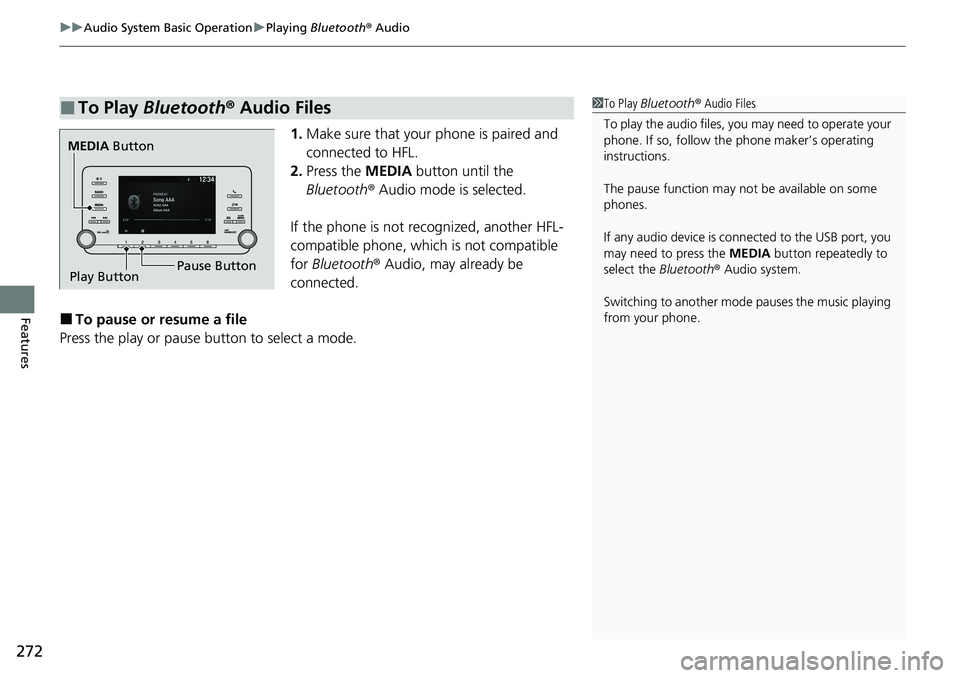
1. Make sure that your phone is paired and
connected to HFL.
2. Press the MEDIA button until the
Bluetooth ® Audio mode is selected.
If the phone is not recognized, another HFL-
compatible phone, which is not compatible
for Bluetooth ® Audio, may already be
connected.
■To pause or resume a file
Press the play or pause button to select a mode.
■To Play Bluetooth ® Audio Files1 To Play Bluetooth ® Audio Files
To play the audio files, y ou may need to operate your
phone. If so, follow the phone maker’s operating
instructions.
The pause function may no t be available on some
phones.
If any audio device is connected to the USB port, you
may need to press the MEDIA button repeatedly to
select the Bluetooth® Audio system.
Switching to another mode pauses the music playing
from your phone.
MEDIA Button
Play Button Pause Button
Page 294 of 728
uuAudio System Basic Operation uSystem Updates
292
Features
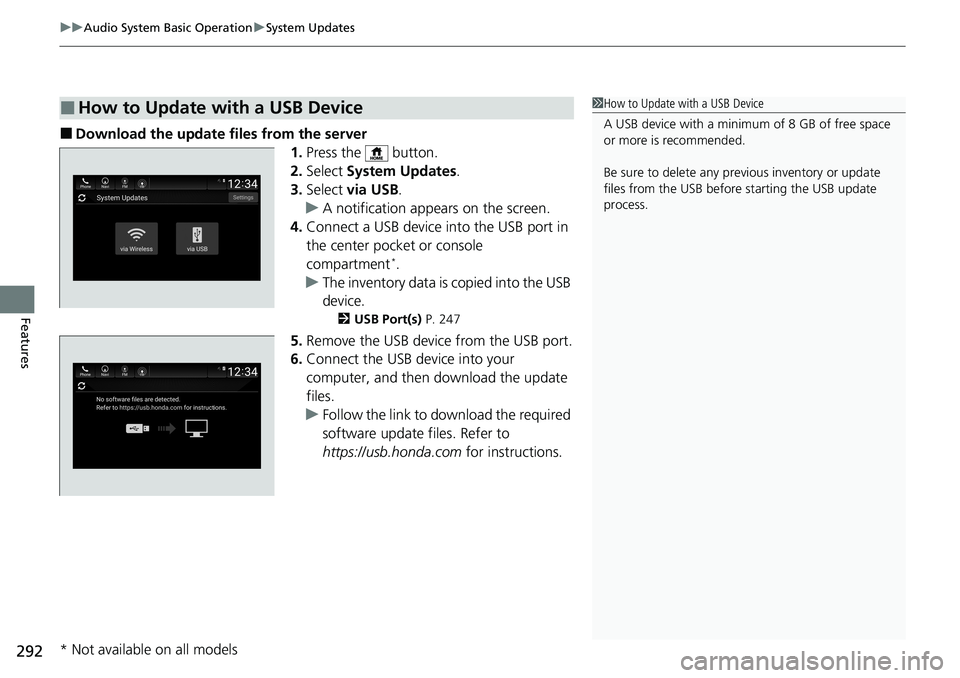
■Download the update files from the server
1.Press the button.
2. Select System Updates .
3. Select via USB .
u A notification appears on the screen.
4. Connect a USB device into the USB port in
the center pocket or console
compartment
*.
u The inventory data is copied into the USB
device.
2 USB Port(s) P. 247
5.Remove the USB device from the USB port.
6. Connect the USB device into your
computer, and then download the update
files.
u Follow the link to download the required
software update files. Refer to
https://usb.honda.com for instructions.
■How to Update with a USB Device1How to Update with a USB Device
A USB device with a minimum of 8 GB of free space
or more is recommended.
Be sure to delete any pr evious inventory or update
files from the USB before starting the USB update
process.
* Not available on all models
Page 299 of 728
297
uuAudio System Basic Operation uVoice Control Operation
Continued
Features
Voice Control Operation
Your vehicle has a voice control syst em that allows hands-free operation.
The voice control system uses the (tal k) and (back) buttons on the steering
wheel and a microphone near the map lights on the ceiling.
To achieve optimum voice recognition when using the voice control system:
• Make sure the correct screen is displa yed for the voice command that you are
using.
The system recognizes only certain commands.
Available voice commands.
2 Voice Portal Screen P. 298
•Close the windows and moonroof*.
• Adjust the dashboard and side vents so air does not blow onto the microphone
on the ceiling.
• Speak clearly in a clear, natural speaking voice without pausing between words.
• Reduce any background noise if possible. The system may misinterpret your
command if more than one person is speaking at the same time.
■Voice Recognition
1Voice Control Operation
When you press the button, a helpful prompt asks
what you would like to do. Press and release the
button again to bypass this prompt and give a
command.
* Not available on all models
Page 301 of 728
299
uuAudio System Basic Operation uVoice Control Operation
Features
The system accepts navigation command on
the dedicated screen for the voice
recognition of the navigation.
2 Refer to the Navigation System Manual
•Voice Help
• Cancel
• Back
Voice Help are readout voice guidance for
Help on current screen.
*1: Models with navigation system
■Navigation Commands*1
■Standard Commands