display HONDA CIVIC 2013 9.G Workshop Manual
[x] Cancel search | Manufacturer: HONDA, Model Year: 2013, Model line: CIVIC, Model: HONDA CIVIC 2013 9.GPages: 367, PDF Size: 8.43 MB
Page 170 of 367
169
uuAudio System Basic Operation uPlaying Internet Radio
Features
You can operate some of the Pandora ® menu items from your vehicle’s audio
system. The available items are:
• Station List (QuickMix is also available)
• Like
• Dislike
• Resume/Pause
• Skip
• Bookmark this song
• Bookmark this artist■Operating a menu item
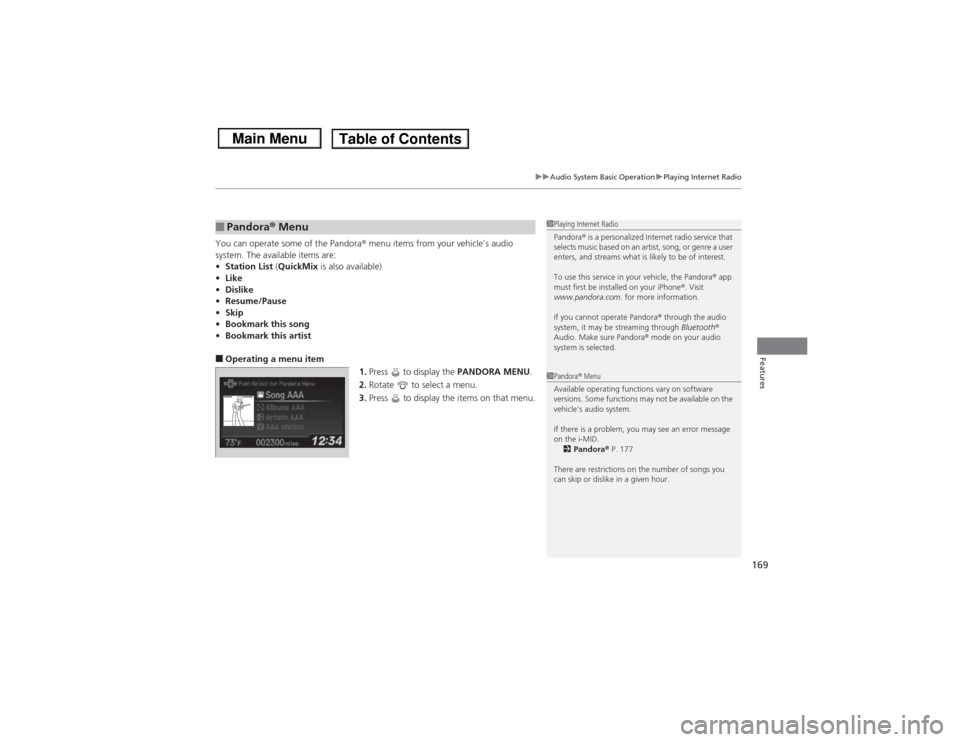
1.Press to display the PANDORA MENU.
2. Rotate to select a menu.
3. Press to display the items on that menu.■Pandora® Menu
1Playing Internet Radio
Pandora ® is a personalized Internet radio service that
selects music based on an artist, song, or genre a user
enters, and streams what is likely to be of interest.
To use this service in your vehicle, the Pandora ® app
must first be installed on your iPhone ®. Visit
www.pandora.com. for more information.
If you cannot operate Pandora ® through the audio
system, it may be streaming through Bluetooth®
Audio. Make sure Pandora ® mode on your audio
system is selected.1 Pandora ® Menu
Available operating functions vary on software
versions. Some functions may not be available on the
vehicle's audio system.
If there is a problem, you may see an error message
on the i-MID. 2 Pandora ® P. 177
There are restrictions on the number of songs you
can skip or dislike in a given hour.
Page 171 of 367
170
uuAudio System Basic Operation uPlaying a USB Flash Drive
Features
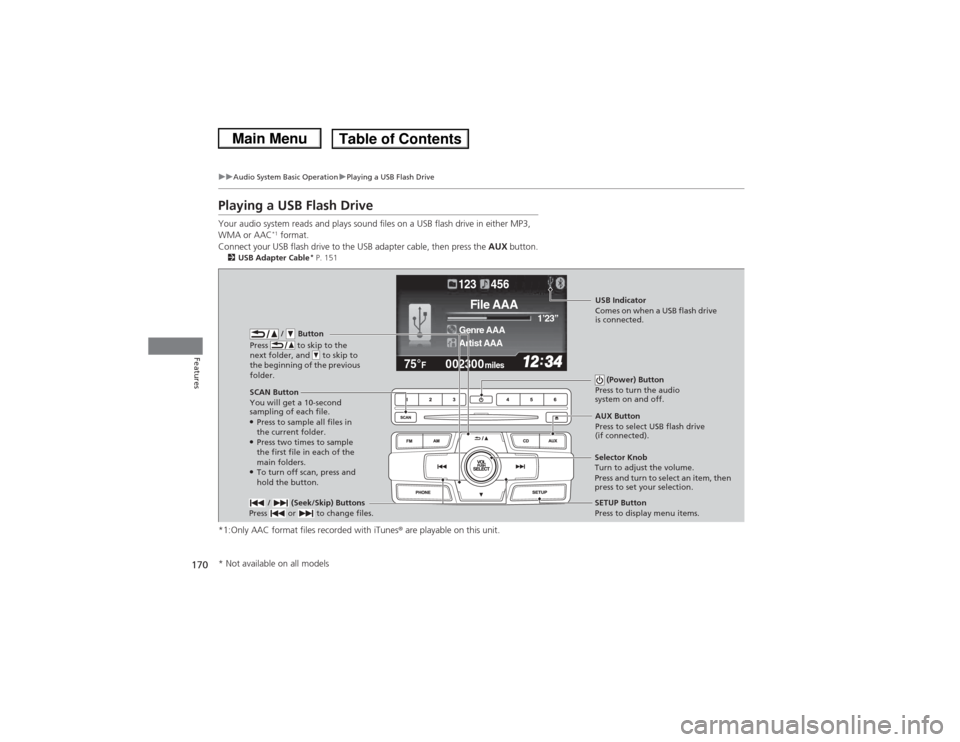
Playing a USB Flash DriveYour audio system reads and plays sound files on a USB flash drive in either MP3,
WMA or AAC
*1 format.
Connect your USB flash drive to the USB adapter cable, then press the AUX button.
2USB Adapter Cable
* P. 151
*1:Only AAC format files recorded with iTunes ® are playable on this unit.
002300
75°
F miles
Genre AAA 1’23’’File AAAArtist AAA123 456
/ Button
Press to skip to the
next folder, and to skip to
the beginning of the previous
folder.
SCAN Button
You will get a 10-second
sampling of each file.●Press to sample all files in
the current folder.●Press two times to sample
the first file in each of the
main folders.●To turn off scan, press and
hold the button. (Power) Button
Press to turn the audio
system on and off. / (Seek/Skip) Buttons
Press or to change files.
SETUP Button
Press to display menu items.
Selector Knob
Turn to adjust the volume.
Press and turn to select an item, then
press to set your selection. AUX Button
Press to select USB flash drive
(if connected).USB Indicator
Comes on when a USB flash drive
is connected.
* Not available on all models
Page 172 of 367
Continued
171
uuAudio System Basic Operation uPlaying a USB Flash Drive
Features
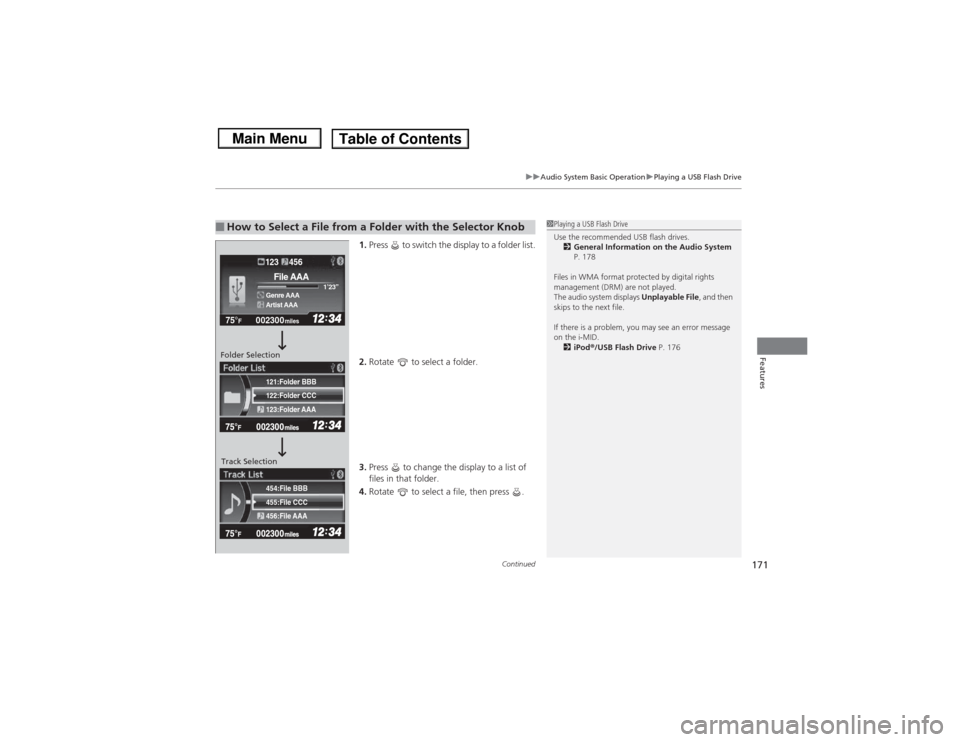
1. Press to switch the display to a folder list.
2. Rotate to select a folder.
3. Press to change the display to a list of
files in that folder.
4. Rotate to select a file, then press .
■How to Select a File from a Folder with the Selector Knob
1Playing a USB Flash Drive
Use the recommended USB flash drives.
2 General Information on the Audio System
P. 178
Files in WMA format protected by digital rights
management (DRM) are not played.
The audio system displays Unplayable File, and then
skips to the next file.
If there is a problem, you may see an error message
on the i-MID.
2 iPod ®/USB Flash Drive P. 176
455:File CCC
456:File AAA 454:File BBB122:Folder CCC
123:Folder AAA 121:Folder BBB002300
75°
F miles
Genre AAA 1’23’’File AAAArtist AAA123 456
Folder Selection
Track Selection
Page 174 of 367
173
uuAudio System Basic Operation uPlaying Bluetooth® Audio
Continued
Features
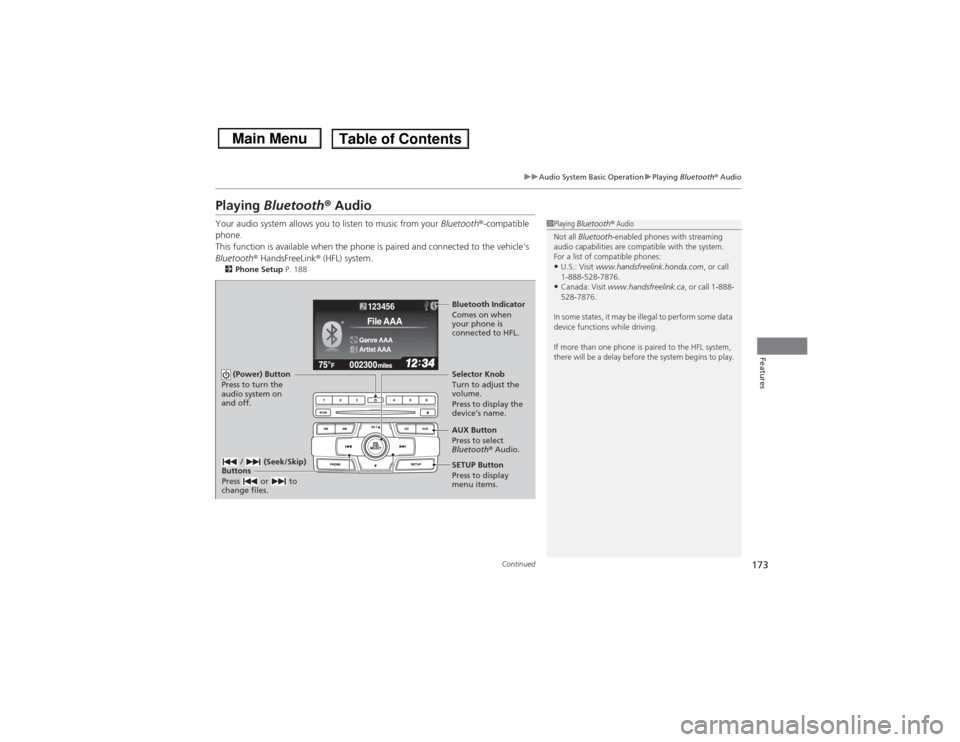
Playing Bluetooth ® AudioYour audio system allows you to listen to music from your Bluetooth®-compatible
phone.
This function is available when the phone is paired and connected to the vehicle's
Bluetooth ® HandsFreeLink ® (HFL) system.2 Phone Setup P. 188
1Playing Bluetooth ® Audio
Not all Bluetooth -enabled phones with streaming
audio capabilities are compatible with the system.
For a list of compatible phones:•U.S.: Visit www.handsfreelink.honda.com , or call
1-888-528-7876.•Canada: Visit www.handsfreelink.ca , or call 1-888-
528-7876.
In some states, it may be illegal to perform some data
device functions while driving.
If more than one phone is paired to the HFL system,
there will be a delay before the system begins to play.
123456Genre AAAFile AAAArtist AAA
(Power) Button
Press to turn the
audio system on
and off.
SETUP Button
Press to display
menu items. Selector Knob
Turn to adjust the
volume.
Press to display the
device’s name.
AUX Button
Press to select
Bluetooth® Audio.
/ (Seek/Skip)
Buttons
Press or to
change files.Bluetooth Indicator
Comes on when
your phone is
connected to HFL.
Page 176 of 367
175Features
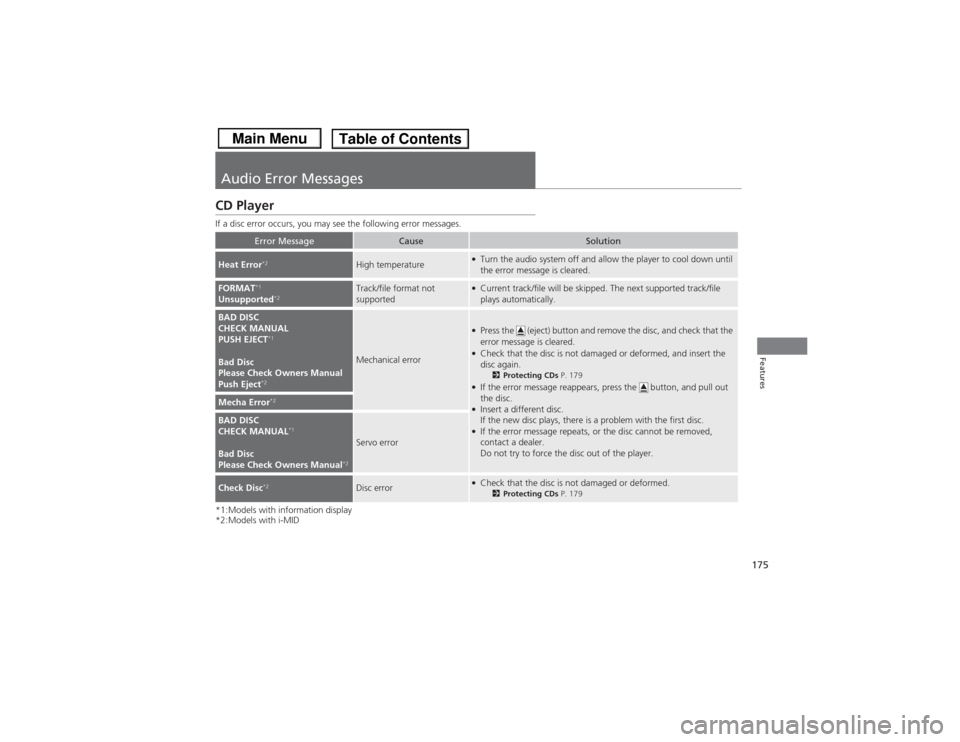
Audio Error MessagesCD PlayerIf a disc error occurs, you may see the following error messages.
*1:Models with information display
*2:Models with i-MID
Error Message
Cause
Solution
Heat Error
*2
High temperature
●Turn the audio system off and allow the player to cool down until
the error message is cleared.
FORMAT
*1
Unsupported
*2
Track/file format not
supported
●Current track/file will be skipped. The next supported track/file
plays automatically.
BAD DISC
CHECK MANUAL
PUSH EJECT
*1
Bad Disc
Please Check Owners Manual
Push Eject
*2
Mechanical error
●Press the (eject) button and remove the disc, and check that the
error message is cleared.●Check that the disc is not damaged or deformed, and insert the
disc again.
2Protecting CDs P. 179
●If the error message reappears, press the button, and pull out
the disc.●Insert a different disc.
If the new disc plays, there is a problem with the first disc.●If the error message repeats, or the disc cannot be removed,
contact a dealer.
Do not try to force the disc out of the player.
Mecha Error
*2
BAD DISC
CHECK MANUAL
*1
Bad Disc
Please Check Owners Manual
*2
Servo error
Check Disc
*2
Disc error
●Check that the disc is not damaged or deformed.
2Protecting CDs P. 179
Page 179 of 367
178Features
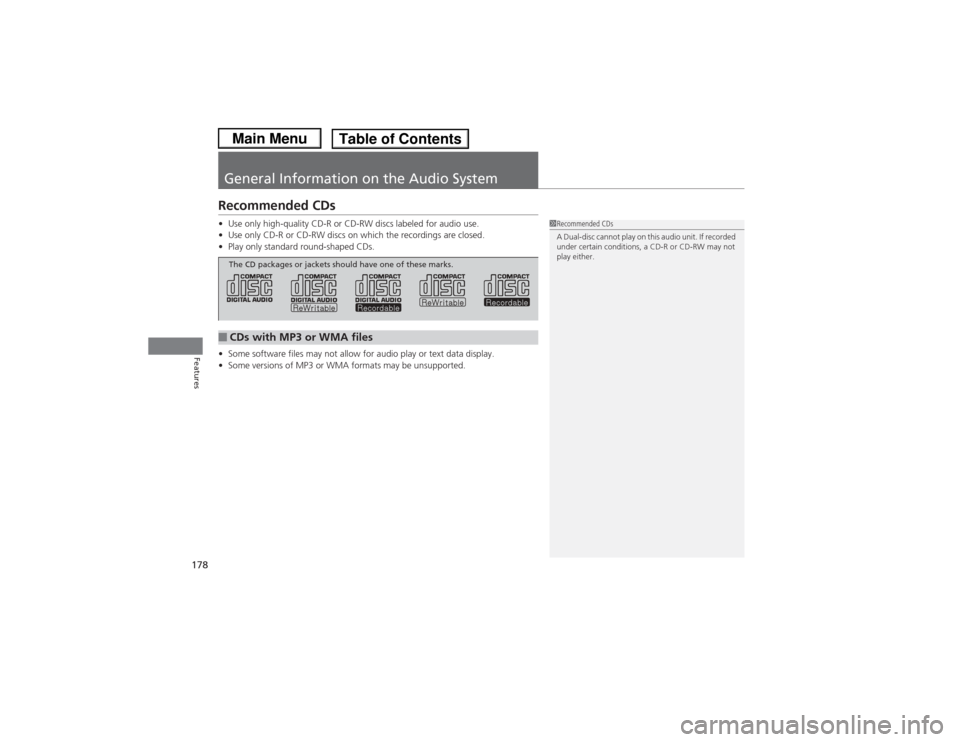
General Information on the Audio SystemRecommended CDs•Use only high-quality CD-R or CD-RW discs labeled for audio use.
• Use only CD-R or CD-RW discs on which the recordings are closed.
• Play only standard round-shaped CDs.
• Some software files may not allow for audio play or text data display.
• Some versions of MP3 or WMA formats may be unsupported.
1Recommended CDs
A Dual-disc cannot play on this audio unit. If recorded
under certain conditions, a CD-R or CD-RW may not
play either.
■CDs with MP3 or WMA filesThe CD packages or jackets should have one of these marks.
Page 181 of 367
180
uuGeneral Information on the Audio System uCompatible iPod ® and USB Flash Drives
Features
Compatible iPod® and USB Flash Drives• Use a recommended USB flash drive of 256 MB or higher.
• Some digital audio players may not be compatible.
• Some USB flash drives (e.g., a device with security lockout) may not work.
• Some software files may not allow for audio play or text data display.
• Some versions of MP3, WMA, or AAC formats may be unsupported.■iPod ® Model Compatibility
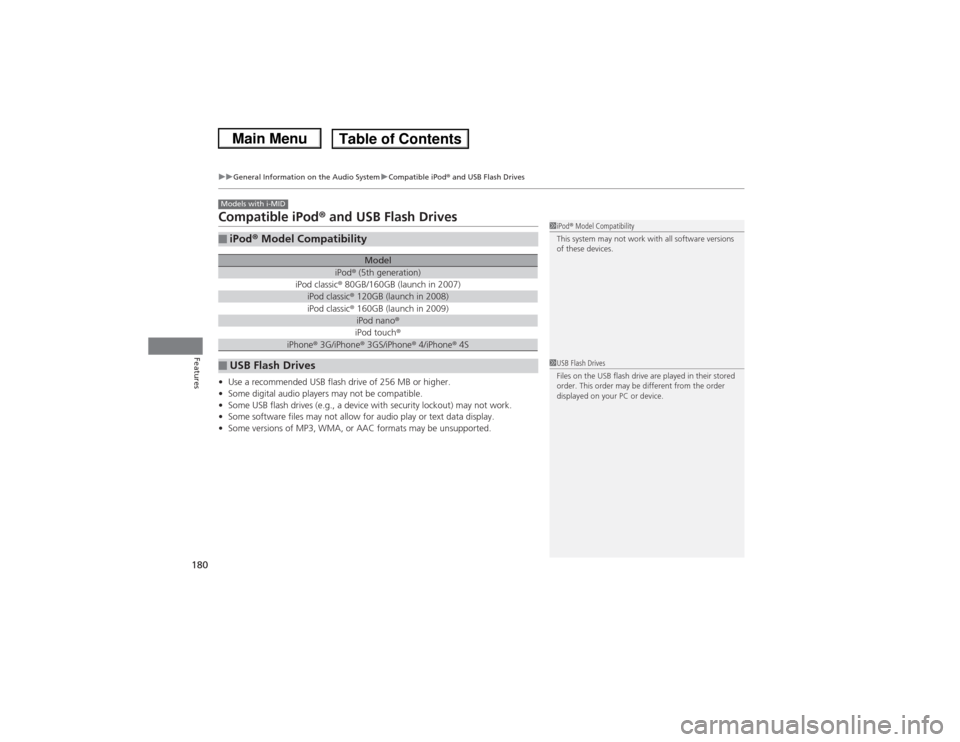
Model
iPod ® (5th generation)
iPod classic ® 80GB/160GB (launch in 2007)iPod classic ® 120GB (launch in 2008)iPod classic ® 160GB (launch in 2009)
iPod nano ®iPod touch ®
iPhone® 3G/iPhone® 3GS/iPhone® 4/iPhone ® 4S
■USB Flash DrivesModels with i-MID
1 iPod ® Model Compatibility
This system may not work with all software versions
of these devices.1 USB Flash Drives
Files on the USB flash drive are played in their stored
order. This order may be different from the order
displayed on your PC or device.
Page 183 of 367
uuBluetooth® HandsFreeLink ®
*uUsing HFL
182Features
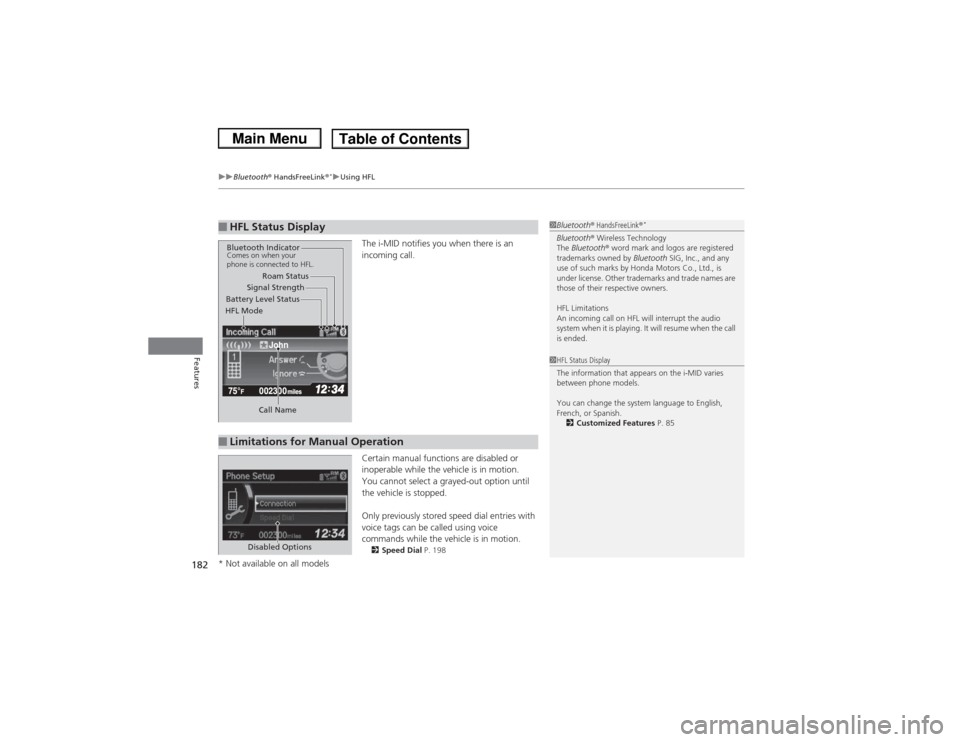
The i-MID notifies you when there is an
incoming call.
Certain manual functions are disabled or
inoperable while the vehicle is in motion.
You cannot select a grayed-out option until
the vehicle is stopped.
Only previously stored speed dial entries with
voice tags can be called using voice
commands while the vehicle is in motion.2 Speed Dial P. 198
■HFL Status Display
1Bluetooth ® HandsFreeLink ®
*
Bluetooth® Wireless Technology
The Bluetooth ® word mark and logos are registered
trademarks owned by Bluetooth SIG, Inc., and any
use of such marks by Honda Motors Co., Ltd., is
under license. Other trademarks and trade names are
those of their respective owners.
HFL Limitations
An incoming call on HFL will interrupt the audio
system when it is playing. It will resume when the call
is ended.
John
Signal Strength
HFL Mode Battery Level Status Roam Status
Call Name
Bluetooth IndicatorComes on when your
phone is connected to HFL.■Limitations for Manual Operation
1 HFL Status Display
The information that appears on the i-MID varies
between phone models.
You can change the system language to English,
French, or Spanish.
2 Customized Features P. 85
Disabled Options
* Not available on all models
Page 184 of 367
183
uuBluetooth® HandsFreeLink ®
*uHFL Menus
Continued
Features
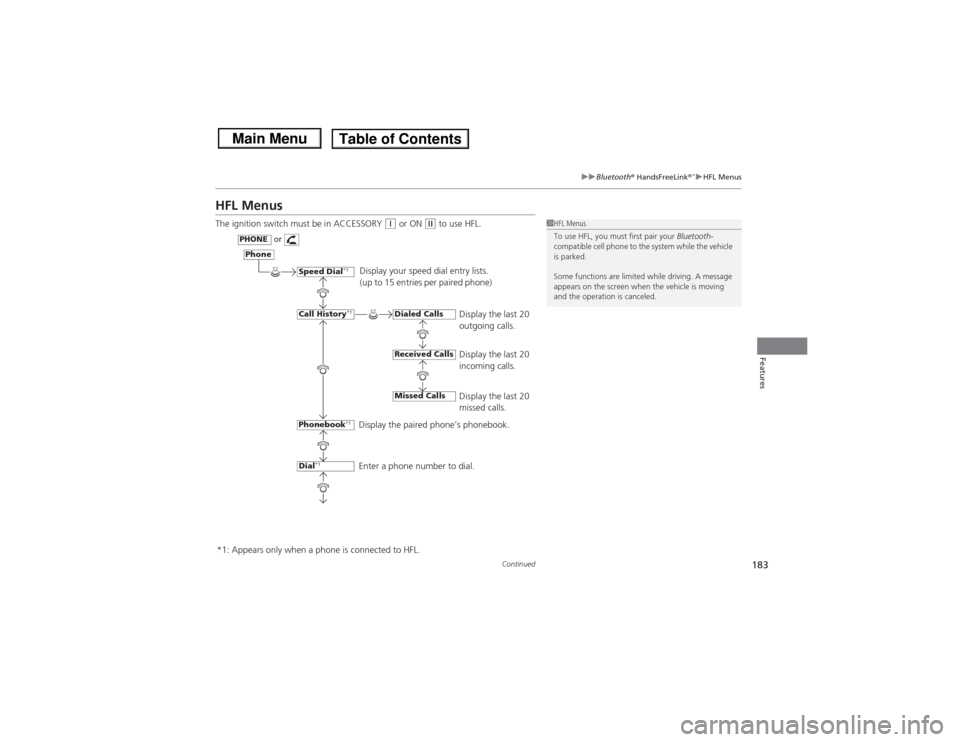
HFL MenusThe ignition switch must be in ACCESSORY
(q or ON
(w to use HFL.
1HFL Menus
To use HFL, you must first pair your Bluetooth-
compatible cell phone to the system while the vehicle
is parked.
Some functions are limited while driving. A message
appears on the screen when the vehicle is moving
and the operation is canceled.
Display your speed dial entry lists.
(up to 15 entries per paired phone)
Display the last 20
outgoing calls.
Display the last 20
incoming calls.
Display the last 20
missed calls.
Display the paired phone’s phonebook.
Enter a phone number to dial.
Phone
Speed Dial
*1
Call History
*1
PHONE
or
Phonebook
*1
Dial
*1
Dialed CallsReceived CallsMissed Calls
*1: Appears only when a phone is connected to HFL.
Page 185 of 367
184
uuBluetooth® HandsFreeLink ®
*uHFL Menus
Features
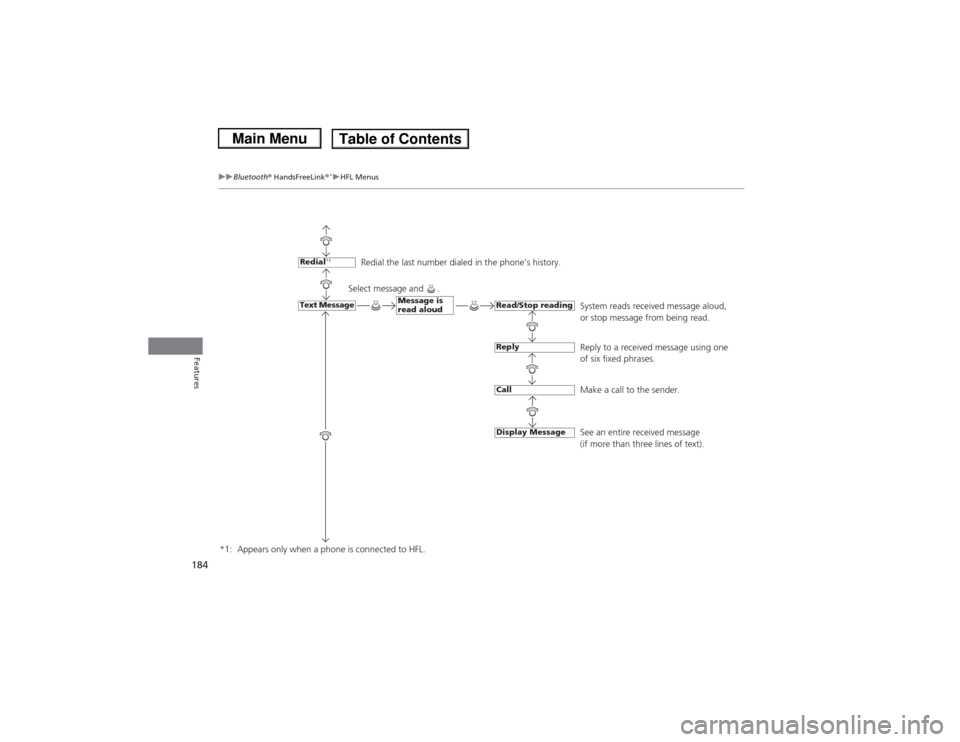
Redial the last number dialed in the phone’s history.
System reads received message aloud,
or stop message from being read.
Reply to a received message using one
of six fixed phrases.
Make a call to the sender.
See an entire received message
(if more than three lines of text).
Redial
*1
Message is
read aloud
Text Message
Read/Stop readingReplyCallDisplay Message
*1: Appears only when a phone is connected to HFL. Select message and .