display HONDA CIVIC 2013 9.G Repair Manual
[x] Cancel search | Manufacturer: HONDA, Model Year: 2013, Model line: CIVIC, Model: HONDA CIVIC 2013 9.GPages: 367, PDF Size: 8.43 MB
Page 189 of 367
uuBluetooth® HandsFreeLink ®
*uHFL Menus
188Features
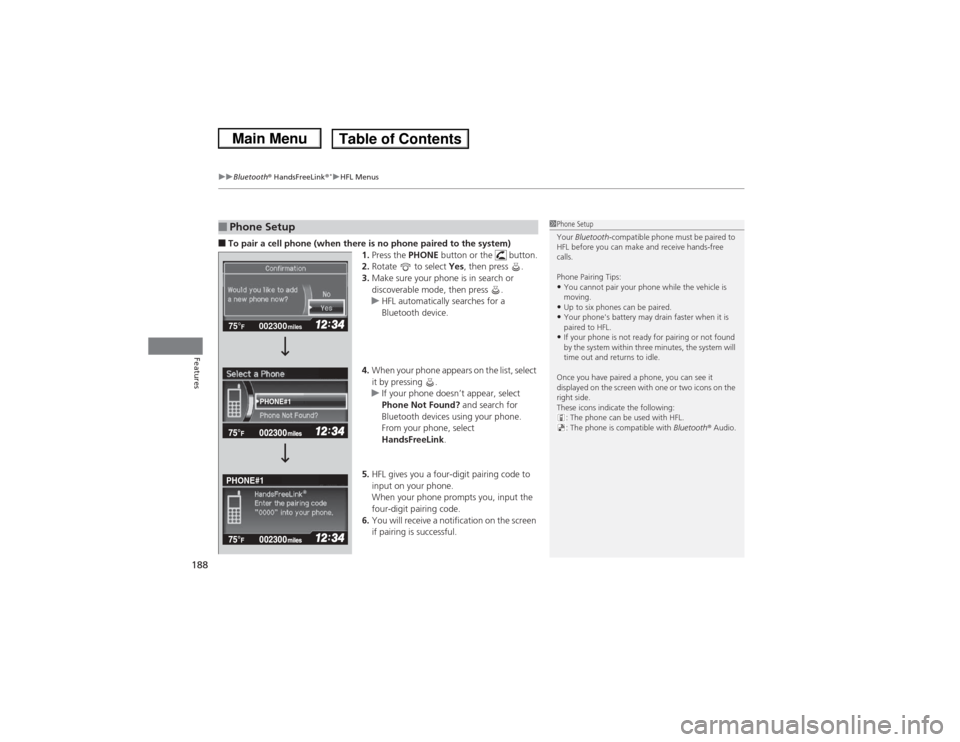
■To pair a cell phone (when there is no phone paired to the system)
1.Press the PHONE button or the button.
2. Rotate to select Yes, then press .
3. Make sure your phone is in search or
discoverable mode, then press .
u HFL automatically searches for a
Bluetooth device.
4. When your phone appears on the list, select
it by pressing .
u If your phone doesn’t appear, select
Phone Not Found? and search for
Bluetooth devices using your phone.
From your phone, select
HandsFreeLink .
5. HFL gives you a four-digit pairing code to
input on your phone.
When your phone prompts you, input the
four-digit pairing code.
6. You will receive a notification on the screen
if pairing is successful.■Phone Setup
1Phone Setup
Your Bluetooth -compatible phone must be paired to
HFL before you can make and receive hands-free
calls.
Phone Pairing Tips:•You cannot pair your phone while the vehicle is
moving.•Up to six phones can be paired.•Your phone's battery may drain faster when it is
paired to HFL.•If your phone is not ready for pairing or not found
by the system within three minutes, the system will
time out and returns to idle.
Once you have paired a phone, you can see it
displayed on the screen with one or two icons on the
right side.
These icons indicate the following: : The phone can be used with HFL.
: The phone is compatible with Bluetooth® Audio.
002300
75°
F miles
PHONE#1
PHONE#1
Page 196 of 367
Continued
195
uuBluetooth® HandsFreeLink ®
*uHFL Menus
Features
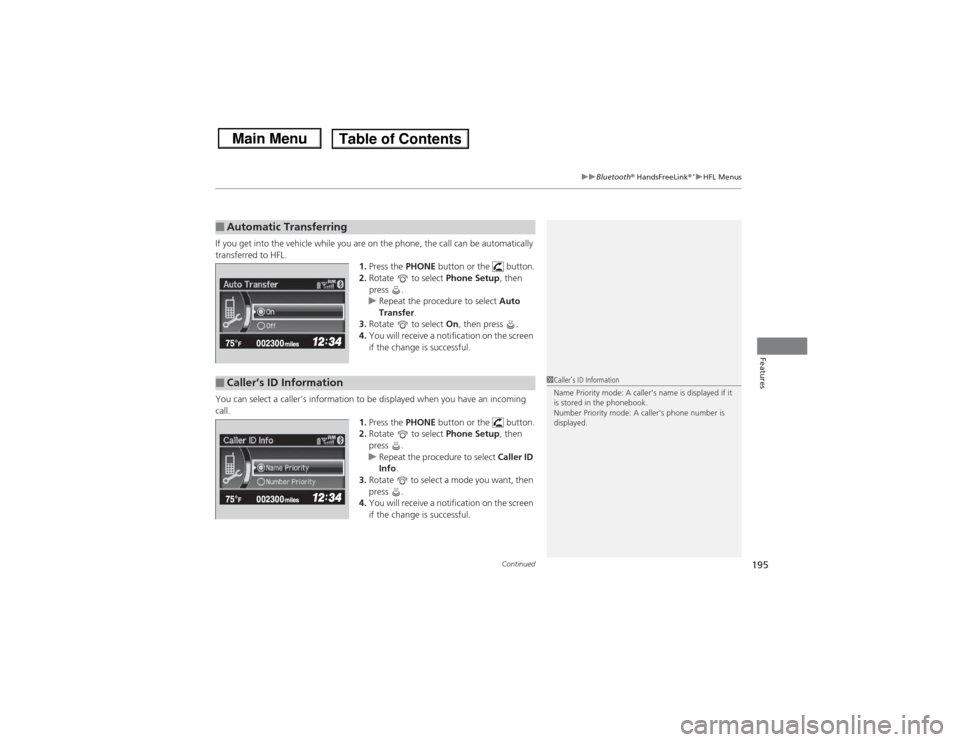
If you get into the vehicle while you are on the phone, the call can be automatically
transferred to HFL.
1.Press the PHONE button or the button.
2. Rotate to select Phone Setup, then
press .
u Repeat the procedure to select Auto
Transfer .
3. Rotate to select On, then press .
4. You will receive a notification on the screen
if the change is successful.
You can select a caller’s information to be displayed when you have an incoming
call. 1.Press the PHONE button or the button.
2. Rotate to select Phone Setup, then
press .
u Repeat the procedure to select Caller ID
Info .
3. Rotate to select a mode you want, then
press .
4. You will receive a notification on the screen
if the change is successful.■Automatic Transferring■Caller’s ID Information
1Caller’s ID Information
Name Priority mode: A caller’s name is displayed if it
is stored in the phonebook.
Number Priority mode: A caller’s phone number is
displayed.
Page 205 of 367
uuBluetooth® HandsFreeLink ®
*uHFL Menus
204Features
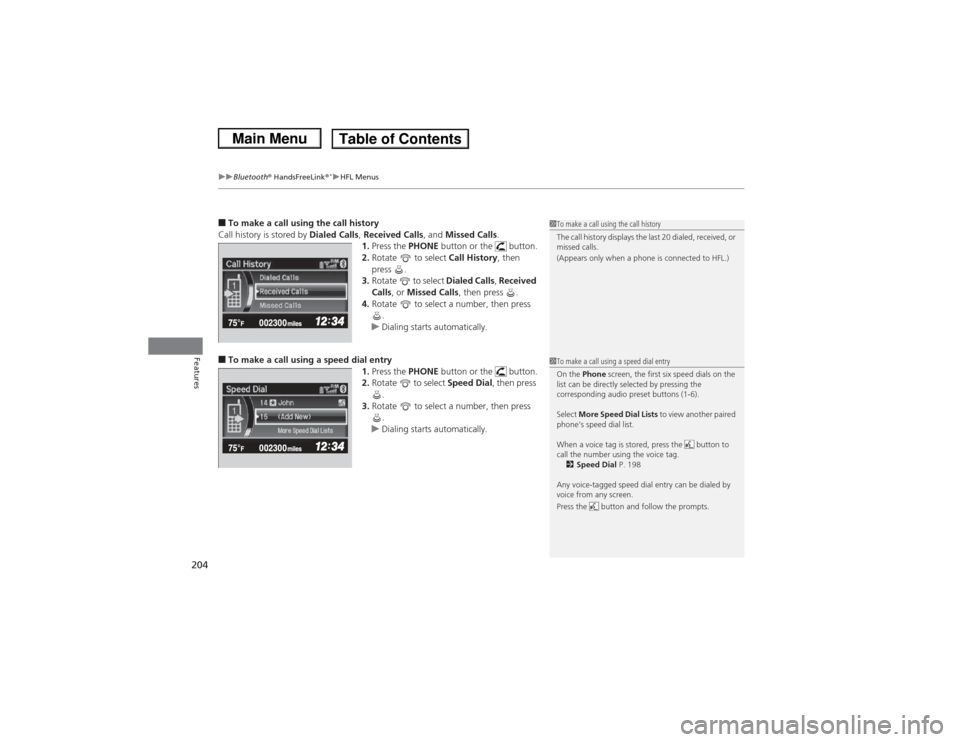
■To make a call using the call history
Call history is stored by Dialed Calls, Received Calls , and Missed Calls.
1. Press the PHONE button or the button.
2. Rotate to select Call History, then
press .
3. Rotate to select Dialed Calls, Received
Calls , or Missed Calls , then press .
4. Rotate to select a number, then press
.
u Dialing starts automatically.■To make a call using a speed dial entry
1.Press the PHONE button or the button.
2. Rotate to select Speed Dial, then press
.
3. Rotate to select a number, then press
.
u Dialing starts automatically.
1To make a call using the call history
The call history displays the last 20 dialed, received, or
missed calls.
(Appears only when a phone is connected to HFL.)1To make a call using a speed dial entry
On the Phone screen, the first six speed dials on the
list can be directly selected by pressing the
corresponding audio preset buttons (1-6).
Select More Speed Dial Lists to view another paired
phone’s speed dial list.
When a voice tag is stored, press the button to
call the number using the voice tag. 2 Speed Dial P. 198
Any voice-tagged speed dial entry can be dialed by
voice from any screen.
Press the button and follow the prompts.
Page 208 of 367
Continued
207
uuBluetooth® HandsFreeLink ®
*uHFL Menus
Features
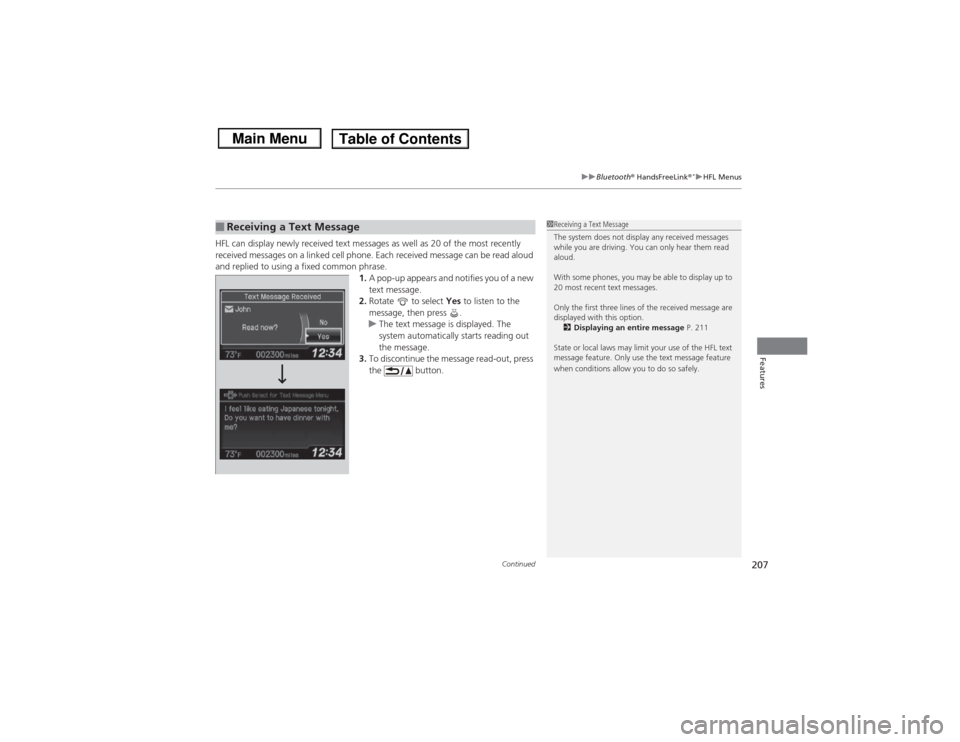
HFL can display newly receiv ed text messages as well as 20 of the most recently
received messages on a linked cell phone. Each received message can be read aloud
and replied to using a fixed common phrase. 1.A pop-up appears and notifies you of a new
text message.
2. Rotate to select Yes to listen to the
message, then press .
u The text message is displayed. The
system automatically starts reading out
the message.
3. To discontinue the message read-out, press
the button.■Receiving a Text Message
1Receiving a Text Message
The system does not display any received messages
while you are driving. You can only hear them read
aloud.
With some phones, you may be able to display up to
20 most recent text messages.
Only the first three lines of the received message are
displayed with this option.
2 Displaying an entire message P. 211
State or local laws may limit your use of the HFL text
message feature. Only use the text message feature
when conditions allow you to do so safely.
Page 209 of 367
uuBluetooth® HandsFreeLink ®
*uHFL Menus
208Features
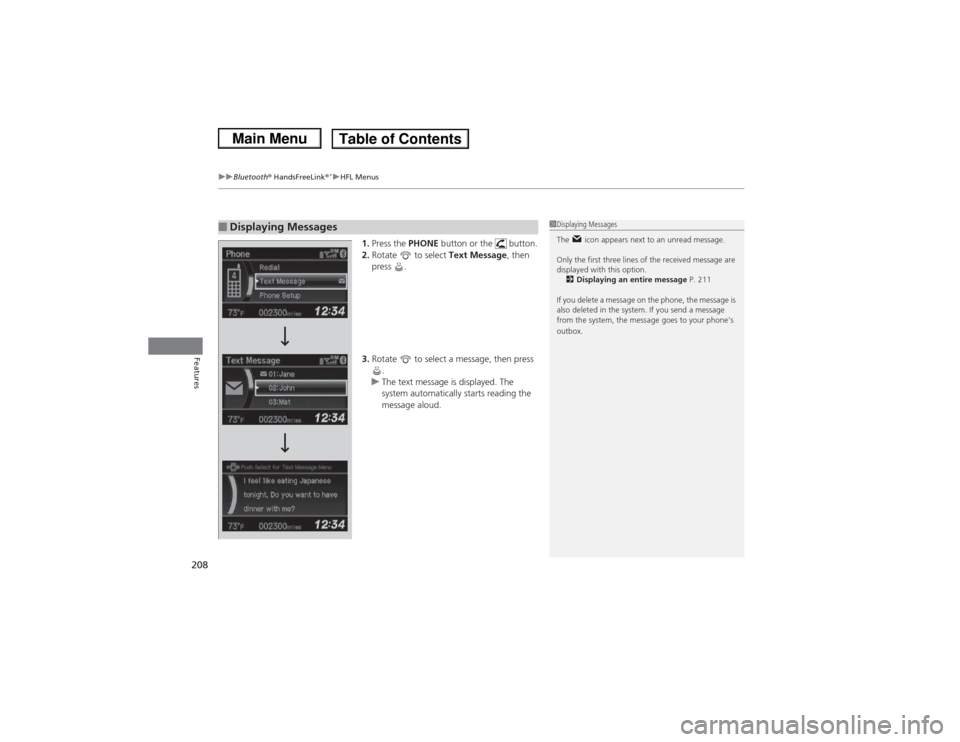
1. Press the PHONE button or the button.
2. Rotate to select Text Message, then
press .
3. Rotate to select a message, then press
.
u The text message is displayed. The
system automatically starts reading the
message aloud.
■Displaying Messages
1Displaying Messages
The icon appears next to an unread message.
Only the first three lines of the received message are
displayed with this option.
2 Displaying an entire message P. 211
If you delete a message on the phone, the message is
also deleted in the system. If you send a message
from the system, the message goes to your phone’s
outbox.
Page 210 of 367
Continued
209
uuBluetooth® HandsFreeLink ®
*uHFL Menus
Features
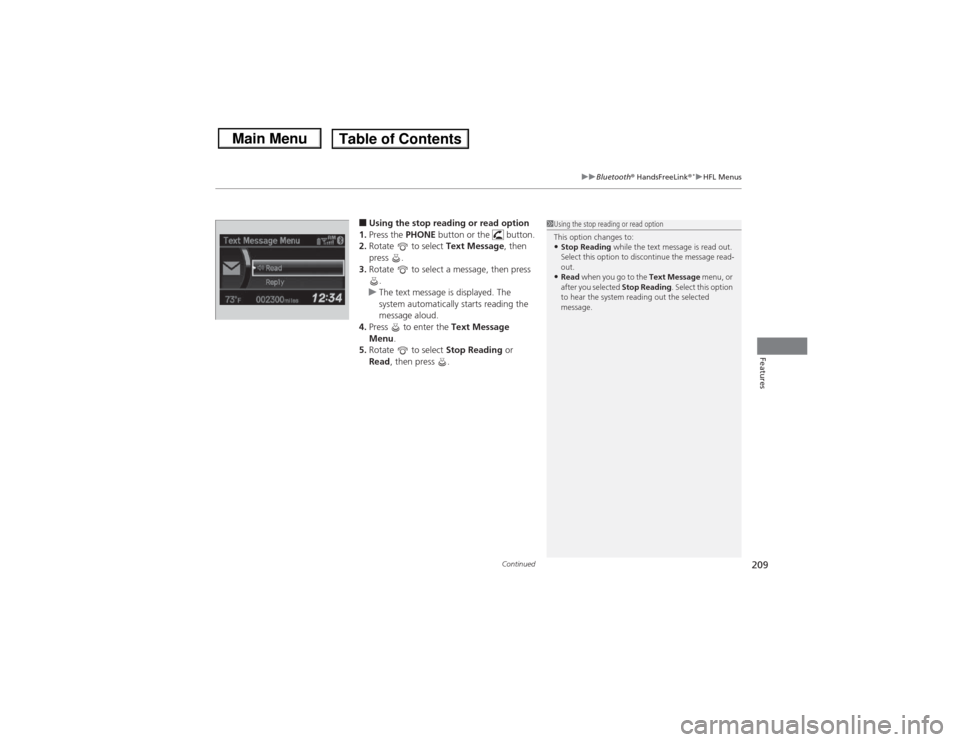
■Using the stop reading or read option
1. Press the PHONE button or the button.
2. Rotate to select Text Message, then
press .
3. Rotate to select a message, then press
.
u The text message is displayed. The
system automatically starts reading the
message aloud.
4. Press to enter the Text Message
Menu .
5. Rotate to select Stop Reading or
Read , then press .
1Using the stop reading or read option
This option changes to:•Stop Reading while the text message is read out.
Select this option to discontinue the message read-
out.•Read when you go to the Text Message menu, or
after you selected Stop Reading. Select this option
to hear the system reading out the selected
message.
Page 211 of 367
uuBluetooth® HandsFreeLink ®
*uHFL Menus
210Features
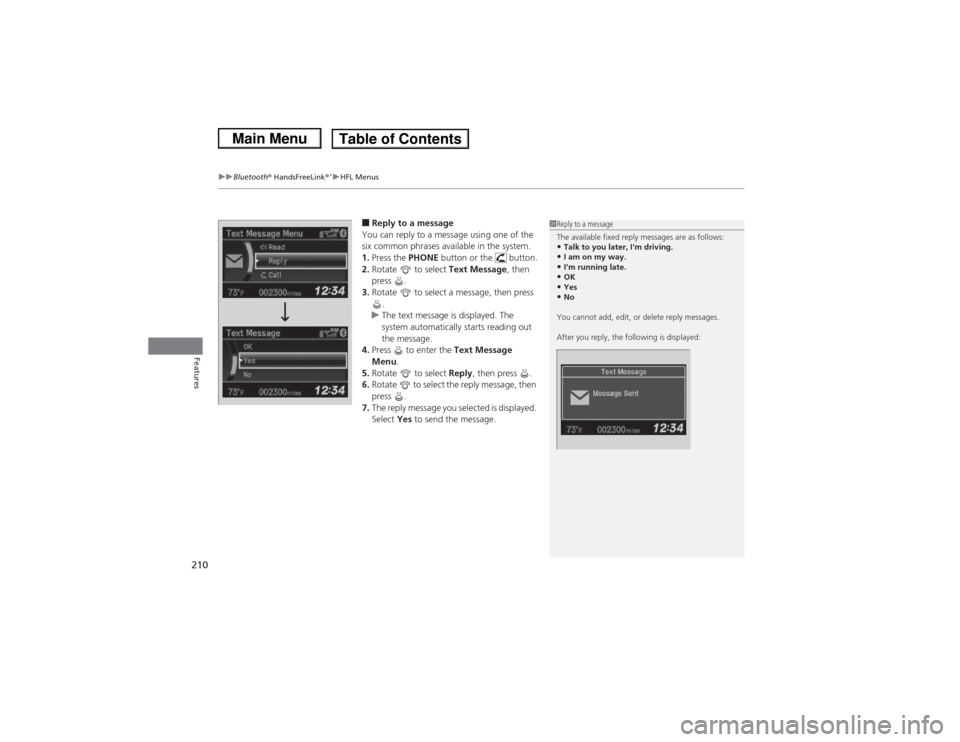
■Reply to a message
You can reply to a message using one of the
six common phrases available in the system.
1. Press the PHONE button or the button.
2. Rotate to select Text Message, then
press .
3. Rotate to select a message, then press
.
u The text message is displayed. The
system automatically starts reading out
the message.
4. Press to enter the Text Message
Menu .
5. Rotate to select Reply, then press .
6. Rotate to select the reply message, then
press .
7. The reply message you selected is displayed.
Select Yes to send the message.
1Reply to a message
The available fixed reply messages are as follows:•Talk to you later, I'm driving.•I am on my way.•I'm running late.•OK•Yes•No
You cannot add, edit, or delete reply messages.
After you reply, the following is displayed:
Page 212 of 367
211
uuBluetooth® HandsFreeLink ®
*uHFL Menus
Features
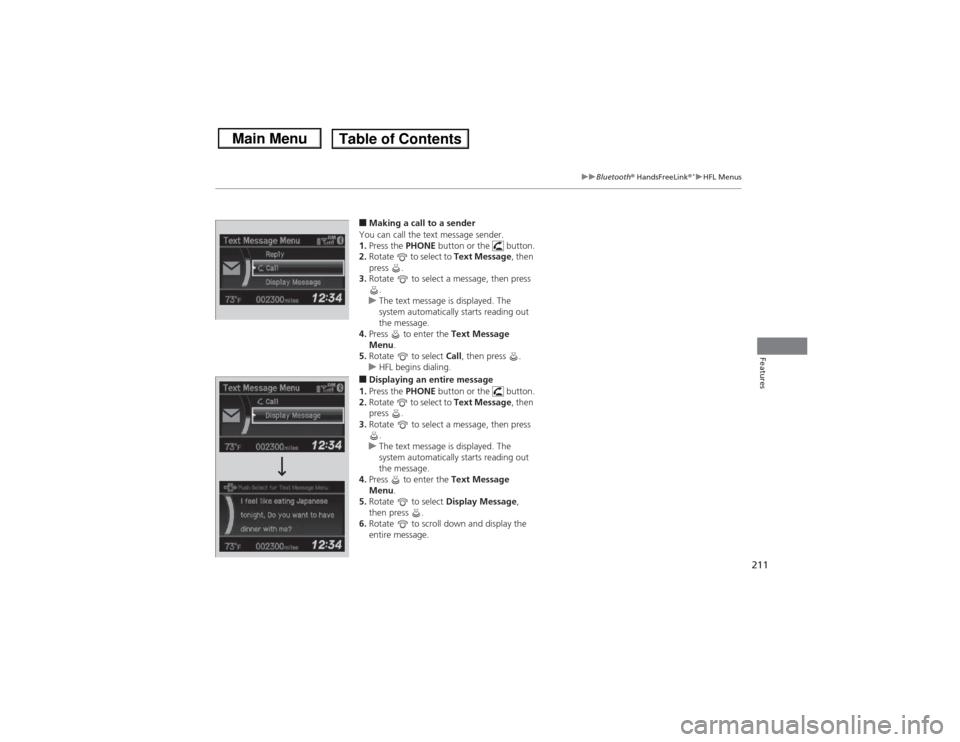
■Making a call to a sender
You can call the text message sender.
1. Press the PHONE button or the button.
2. Rotate to select to Text Message , then
press .
3. Rotate to select a message, then press
.
u The text message is displayed. The
system automatically starts reading out
the message.
4. Press to enter the Text Message
Menu .
5. Rotate to select Call, then press .
u HFL begins dialing. ■Displaying an entire message
1. Press the PHONE button or the button.
2. Rotate to select to Text Message , then
press .
3. Rotate to select a message, then press
.
u The text message is displayed. The
system automatically starts reading out
the message.
4. Press to enter the Text Message
Menu .
5. Rotate to select Display Message,
then press .
6. Rotate to scroll down and display the
entire message.
Page 239 of 367
238
uuWhen Driving uTPMS (Tire Pressure Monitoring System)
Driving
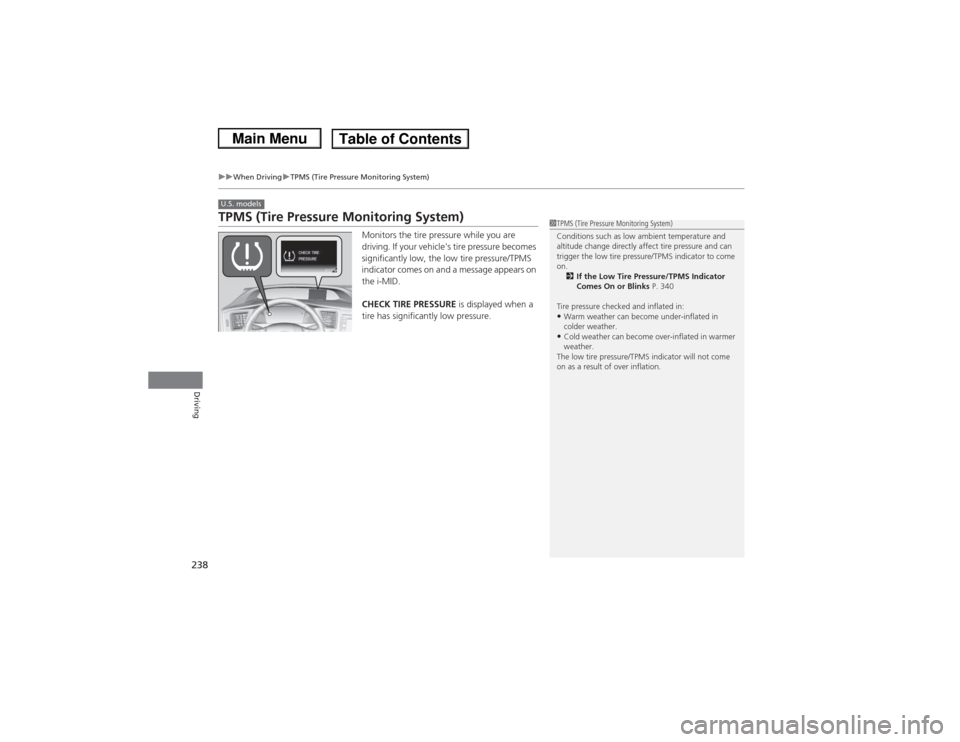
TPMS (Tire Pressure Monitoring System)
Monitors the tire pressure while you are
driving. If your vehicl e's tire pressure becomes
significantly low, the low tire pressure/TPMS
indicator comes on and a message appears on
the i-MID.
CHECK TIRE PRESSURE is displayed when a
tire has significantly low pressure.
U.S. models
1 TPMS (Tire Pressure Monitoring System)
Conditions such as low ambient temperature and
altitude change directly affect tire pressure and can
trigger the low tire pressure/TPMS indicator to come
on.
2 If the Low Tire Pressure/TPMS Indicator
Comes On or Blinks P. 340
Tire pressure checked and inflated in:•Warm weather can become under-inflated in
colder weather.•Cold weather can become over-inflated in warmer
weather.
The low tire pressure/TPMS indicator will not come
on as a result of over inflation.
Page 247 of 367
246Driving
Rearview Camera
*
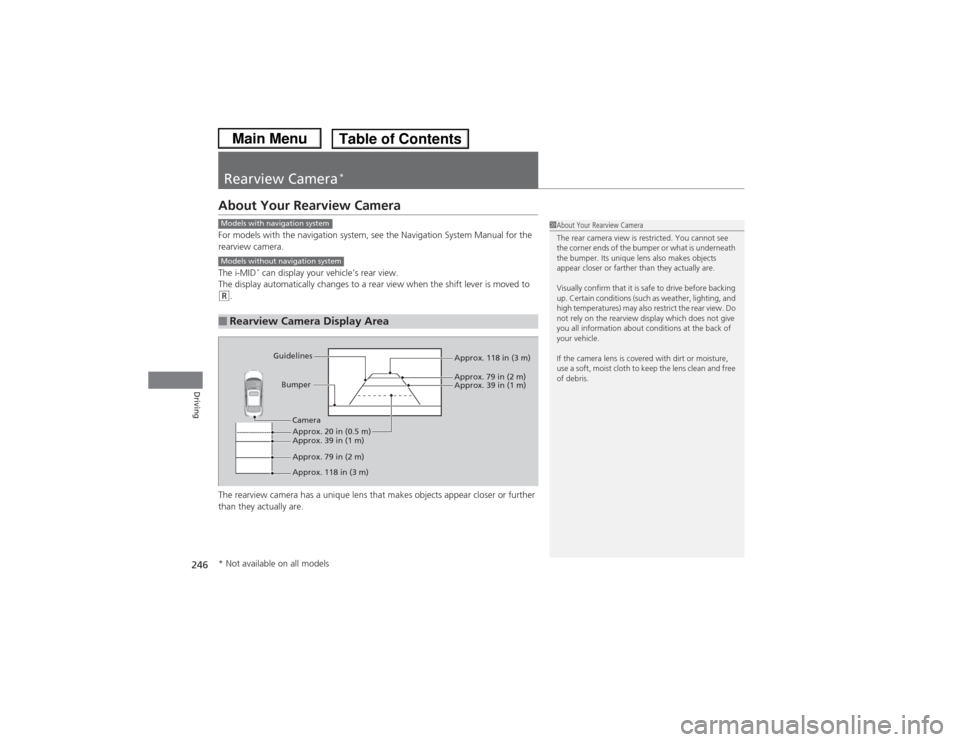
About Your Rearview CameraFor models with the navigation system, see the Navigation System Manual for the
rearview camera.
The i-MID
* can display your vehicle’s rear view.
The display automatically changes to a rear view when the shift lever is moved to
(R.
The rearview camera has a unique lens that makes objects appear closer or further
than they actually are.■Rearview Camera Display Area
1 About Your Rearview Camera
The rear camera view is restricted. You cannot see
the corner ends of the bumper or what is underneath
the bumper. Its unique lens also makes objects
appear closer or farther than they actually are.
Visually confirm that it is safe to drive before backing
up. Certain conditions (such as weather, lighting, and
high temperatures) may also restrict the rear view. Do
not rely on the rearview display which does not give
you all information about conditions at the back of
your vehicle.
If the camera lens is covered with dirt or moisture,
use a soft, moist cloth to keep the lens clean and free
of debris.
Models with navigation systemModels without navigation system
Bumper
Guidelines
Approx. 118 in (3 m)
Approx. 79 in (2 m) Approx. 39 in (1 m)
Approx. 20 in (0.5 m)
Approx. 118 in (3 m) Approx. 79 in (2 m) Approx. 39 in (1 m)
Camera
* Not available on all models