reset HONDA CIVIC 2022 User Guide
[x] Cancel search | Manufacturer: HONDA, Model Year: 2022, Model line: CIVIC, Model: HONDA CIVIC 2022Pages: 700, PDF Size: 13.98 MB
Page 142 of 700
Continued141
uuGauges and Driver Information Interface uDriver Information Interface (Right Side Area)
Instrument Panel
■Average fuel economy
Shows the estimated average fuel economy of each trip meter in mpg or l/100 km.
The display is updated at set intervals. Wh en a trip meter is reset, the average fuel
economy is also reset.
■Instant fuel economy
Shows the instant fuel economy as a bar graph in mpg or l/100 km.
■Range
Shows the estimated distance you can trave l on the remaining fuel. This estimated
distance is based on the vehicle’s current fuel economy.
1 Average fuel economy
You can change when to reset the average fuel
economy.
2 Customized Features P. 363
1Range
The driving range displayed is only an estimate and
may differ to the actual distance the vehicle can
travel.
Page 144 of 700
Continued143
uuGauges and Driver Information Interface uDriver Information Interface (Right Side Area)
Instrument Panel
■Trip meter
2 Trip meter P. 140
■Elapsed time
Shows the time elapsed since Trip A or Trip B was reset.
■Average speed
Shows the average speed in mph or km/h since Trip A or Trip B was reset.
■Compass
Shows the compass screen.
■Turn-by-Turn Directions
When driving guidance is provided by the navigation system, Apple CarPlay or
Android Auto, turn-by-turn directions to your destination appear.
2 Refer to the Navigation System Manual
2 Apple CarPlay P. 319
2 Android Auto P. 258
■Navigation
1Elapsed time
You can change when to reset the elapsed time.
2 Customized Features P. 363
1Average speed
You can change when to reset the average speed.
2 Customized Features P. 363
1Navigation
When the compass or turn-by-turn directions are
displayed, you can contro l some navigation system
functions on the driver information interface by
pressing the right selector wheel.
2 Refer to the Navigation System Manual
You can select whether to have the turn-by-turn
display come on or not dur ing the route guidance.
2 Customized Features P. 363
Turn-by-turn directions may not be available for all
apps.
Page 147 of 700
uuGauges and Driver Information Interface uDriver Information Interface (Right Side Area)
146
Instrument Panel
■The Driver Attention Monitor resets when:
• The engine is turned off.
• The driver unfastens the seat belt and op ens the door while the vehicle is stopped.
■For the Driver Attention Monitor to function:
• The vehicle must be traveling above 25 mph (40 km/h).
• The electric power steering (EPS) system indicator must be off.
■Depending on driving conditions or other factors, the Driver Attention
Monitor may not function in the following circumstances:
• The steering assist function of the Lane Keeping Assist System (LKAS) is active.
2Lane Keeping Assist System (LKAS) P. 516
•The condition of the road is poor, e.g. the surface is unpaved or bumpy.
• It is windy.
• The driver is frequently op erating the vehicle in an assertive manner such as
changing lanes or accelerating.
■Customizing
You can change the Driver Attention Monitor settings. Select Tactile And Audible
Alert , Tactile Alert , or OFF.
2Customized Features P. 363
1For the Driver Attention Monitor to function:
The bars on the driver information interface remain
grayed out unless the Driv er Attention Monitor is
functioning.
Page 217 of 700
uuInterior Convenience Items uOther Interior Convenience Items
216
Controls
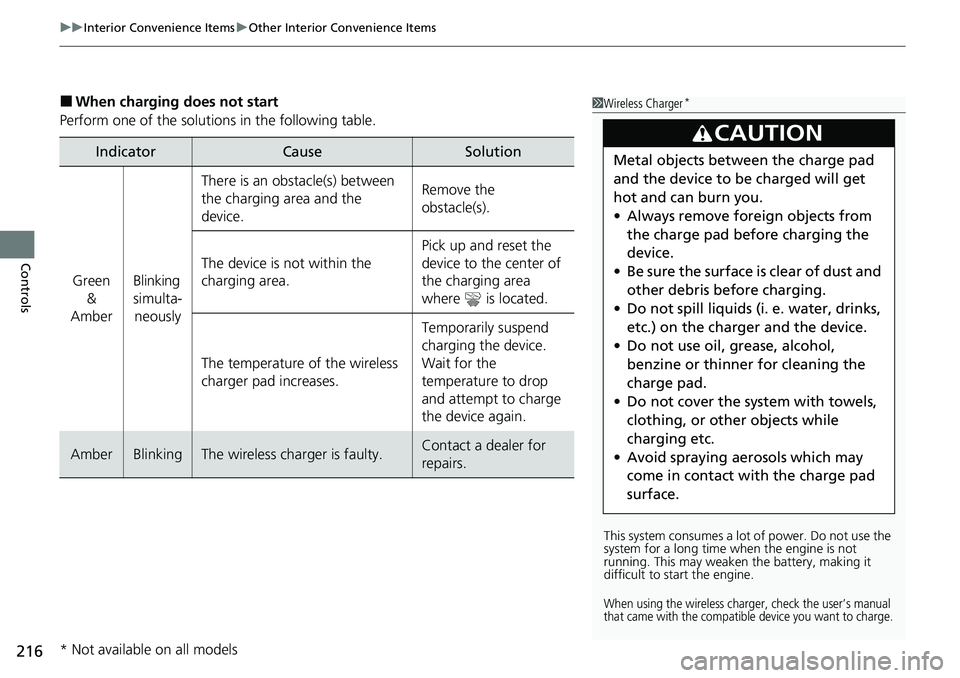
■When charging does not start
Perform one of the solution s in the following table.
IndicatorCauseSolution
Green
&
AmberBlinking
simulta- neously
There is an obstacle(s) between
the charging area and the
device.Remove the
obstacle(s).
The device is not within the
charging area. Pick up and reset the
device to the center of
the charging area
where is located.
The temperature of the wireless
charger pad increases. Temporarily suspend
charging the device.
Wait for the
temperature to drop
and attempt to charge
the device again.
AmberBlinkingThe wireless charger is faulty.Contact a dealer for
repairs.
1
Wireless Charger*
This system consumes a lot of power. Do not use the
system for a long time when the engine is not
running. This may weaken the battery, making it
difficult to start the engine.
When using the wireless charge r, check the user’s manual
that came with the compatible device you want to charge.
3CAUTION
Metal objects between the charge pad
and the device to be charged will get
hot and can burn you.
• Always remove foreign objects from
the charge pad before charging the
device.
• Be sure the surface is clear of dust and
other debris before charging.
• Do not spill liquids (i. e. water, drinks,
etc.) on the charger and the device.
• Do not use oil, grease, alcohol,
benzine or thinner for cleaning the
charge pad.
• Do not cover the system with towels,
clothing, or other objects while
charging etc.
• Avoid spraying aerosols which may
come in contact with the charge pad
surface.
* Not available on all models
Page 235 of 700
234
uuAudio System uAudio Remote Controls
Features
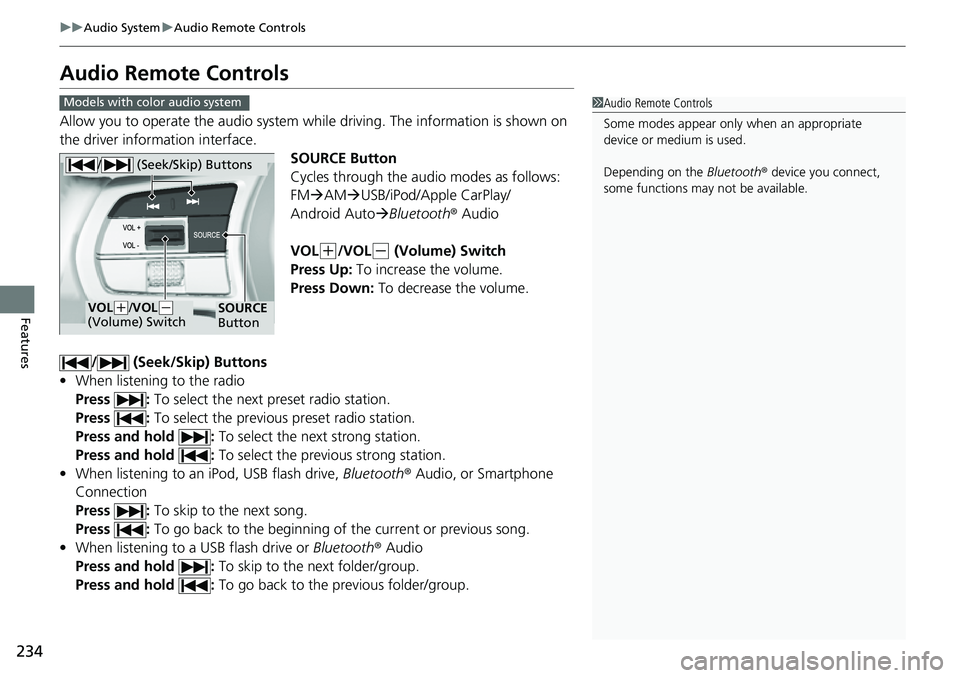
Audio Remote Controls
Allow you to operate the audio system wh ile driving. The information is shown on
the driver information interface.
SOURCE Button
Cycles through the audio modes as follows:
FMAM USB/iPod/Apple CarPlay/
Android Auto Bluetooth ® Audio
VOL
(+/VOL(- (Volume) Switch
Press Up: To increase the volume.
Press Down: To decrease the volume.
/ (Seek/Skip) Buttons
• When listening to the radio
Press : To select the next preset radio station.
Press : To select the previous preset radio station.
Press and hold : To select the next strong station.
Press and hold : To select the previous strong station.
• When listening to an iPod, USB flash drive, Bluetooth® Audio, or Smartphone
Connection
Press : To skip to the next song.
Press : To go back to the beginning of the current or previous song.
• When listening to a USB flash drive or Bluetooth® Audio
Press and hold : To skip to the next folder/group.
Press and hold : To go back to the previous folder/group.
1Audio Remote Controls
Some modes appear only when an appropriate
device or medium is used.
Depending on the Bluetooth® device you connect,
some functions may not be available.Models with color audio system
/ (Seek/Skip) Buttons
SOURCE
ButtonVOL( +/VOL(-
(Volume) Switch
Page 236 of 700
235
uuAudio System uAudio Remote Controls
Continued
Features
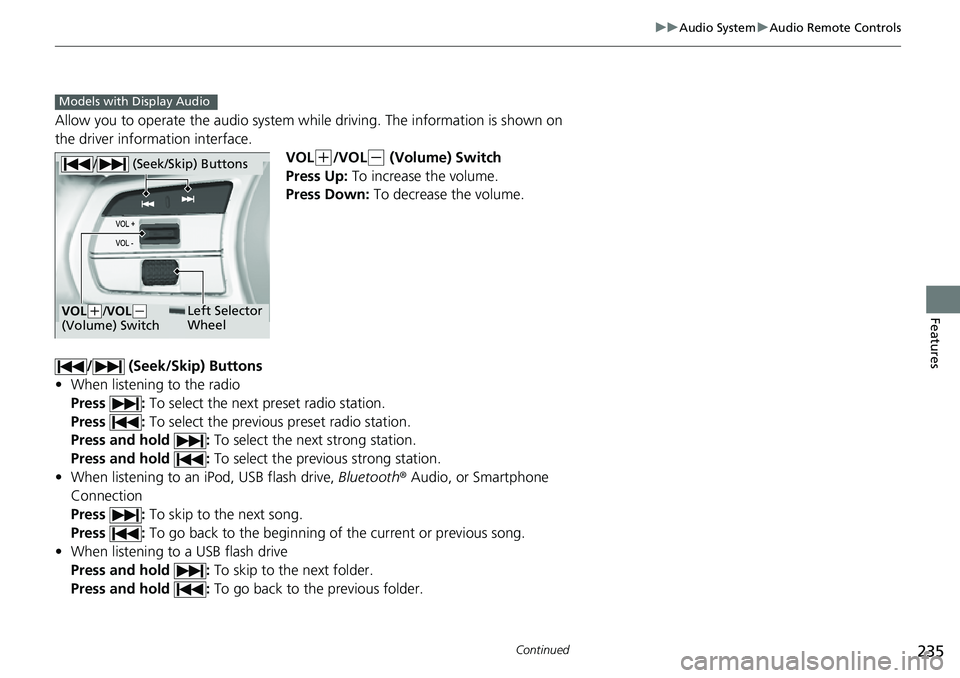
Allow you to operate the audio system whil e driving. The information is shown on
the driver information interface.
VOL
(+/VOL(- (Volume) Switch
Press Up: To increase the volume.
Press Down: To decrease the volume.
/ (Seek/Skip) Buttons
• When listening to the radio
Press : To select the next preset radio station.
Press : To select the previous preset radio station.
Press and hold : To select the next strong station.
Press and hold : To select the previous strong station.
• When listening to an iPod, USB flash drive, Bluetooth® Audio, or Smartphone
Connection
Press : To skip to the next song.
Press : To go back to the beginning of the current or previous song.
• When listening to a USB flash drive
Press and hold : To skip to the next folder.
Press and hold : To go back to the previous folder.
Models with Display Audio
/ (Seek/Skip) Buttons
Left Selector
WheelVOL(+/VOL(-
(Volume) Switch
Page 241 of 700
240
uuAudio System Basic Operation uPlaying AM/FM Radio
Features
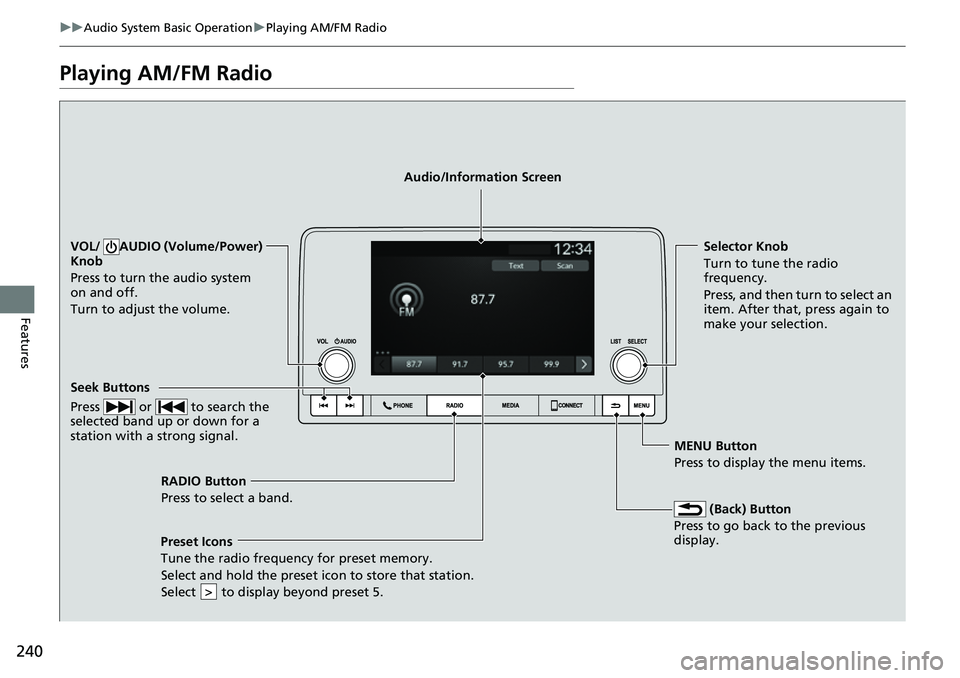
Playing AM/FM Radio
RADIO Button
Press to select a band.
(Back) Button
Press to go back to the previous
display.
Seek Buttons
Press or to search the
selected band up or down for a
station with a strong signal.
VOL/ AUDIO (Volume/Power)
Knob
Press to turn the audio system
on and off.
Turn to adjust the volume.Selector Knob
Turn to tune the radio
frequency.
Press, and then turn to select an
item. After that, press again to
make your selection.
MENU Button
Press to display the menu items.
Audio/Information Screen
Preset Icons
Tune the radio frequency for
preset memory.
Select and hold the preset icon to store that station.
Select to display beyond preset 5.
>
Page 242 of 700
241
uuAudio System Basic Operation uPlaying AM/FM Radio
Features
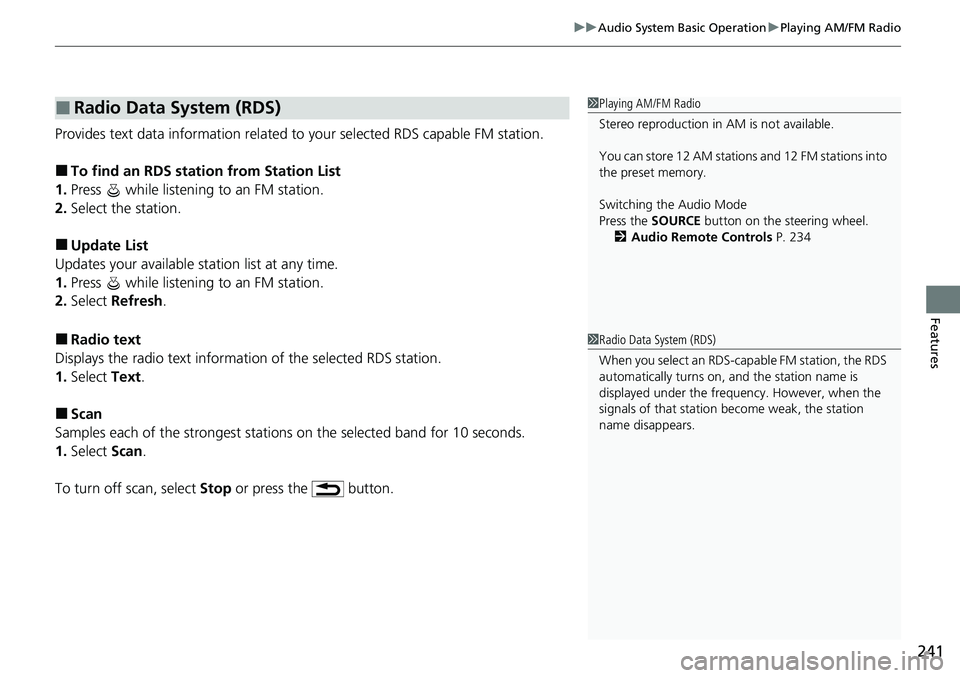
Provides text data information related to your selected RDS capable FM station.
■To find an RDS station from Station List
1. Press while listening to an FM station.
2. Select the station.
■Update List
Updates your available st ation list at any time.
1. Press while listening to an FM station.
2. Select Refresh .
■Radio text
Displays the radio text information of the selected RDS station.
1. Select Text.
■Scan
Samples each of the strongest stations on the selected band for 10 seconds.
1. Select Scan.
To turn off scan, select Stop or press the button.
■Radio Data System (RDS)1Playing AM/FM Radio
Stereo reproduction in AM is not available.
You can store 12 AM stations and 12 FM stations into
the preset memory.
Switching the Audio Mode
Press the SOURCE button on the steering wheel.
2 Audio Remote Controls P. 234
1Radio Data System (RDS)
When you select an RDS-capable FM station, the RDS
automatically turns on, and the station name is
displayed under the frequency. However, when the
signals of that station become weak, the station
name disappears.
Page 267 of 700
266
uuAudio System Basic Operation uAudio/Information Screen
Features
■Trip Computer
Displays the trip computer information.
• Current Drive tab: Displays the current trip information.
• Trip A /Trip B tab: Displays information for the current and three previous drives.
The information is stored ever y time you reset Trip A/B.
To reset the Trip A/B, select Settings, then select Delete Trip History .
To change the setting of how to reset Trip A/B, select Settings, then select “Trip A”
Reset Timing or “Trip B” Reset Timing .
■System Updates
Updates the software versi on of the audio system.
2System Updates P. 275
■Clock
Displays the clock.
■Smart Shortcuts
Displays the Smart Shortcuts screen.
2Smart Shortcuts P. 314
■Display Mode
Displays the brightness bar.
Page 271 of 700
uuAudio System Basic Operation uAudio/Information Screen
270
Features
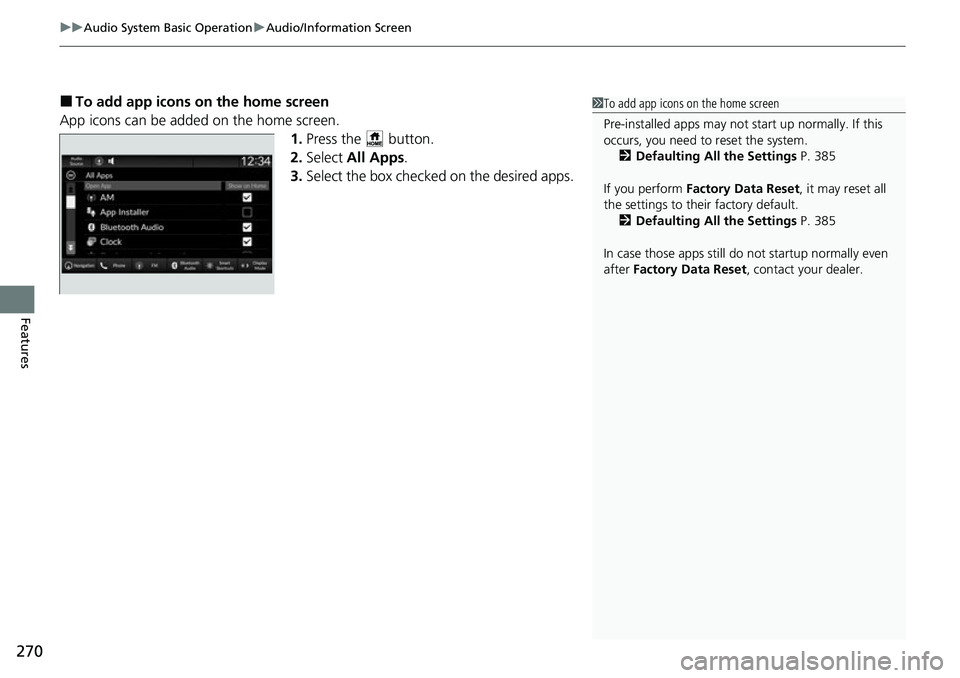
■To add app icons on the home screen
App icons can be added on the home screen. 1.Press the button.
2. Select All Apps .
3. Select the box checked on the desired apps.1To add app icons on the home screen
Pre-installed apps may not start up normally. If this
occurs, you need to reset the system.
2 Defaulting All the Settings P. 385
If you perform Factory Data Reset , it may reset all
the settings to their factory default. 2 Defaulting All the Settings P. 385
In case those apps still do not startup normally even
after Factory Data Reset , contact your dealer.