reset HONDA CIVIC 2022 Owner's Manual
[x] Cancel search | Manufacturer: HONDA, Model Year: 2022, Model line: CIVIC, Model: HONDA CIVIC 2022Pages: 700, PDF Size: 13.98 MB
Page 281 of 700
280
uuAudio System Basic Operation uAdjusting the Sound
Features
Adjusting the Sound
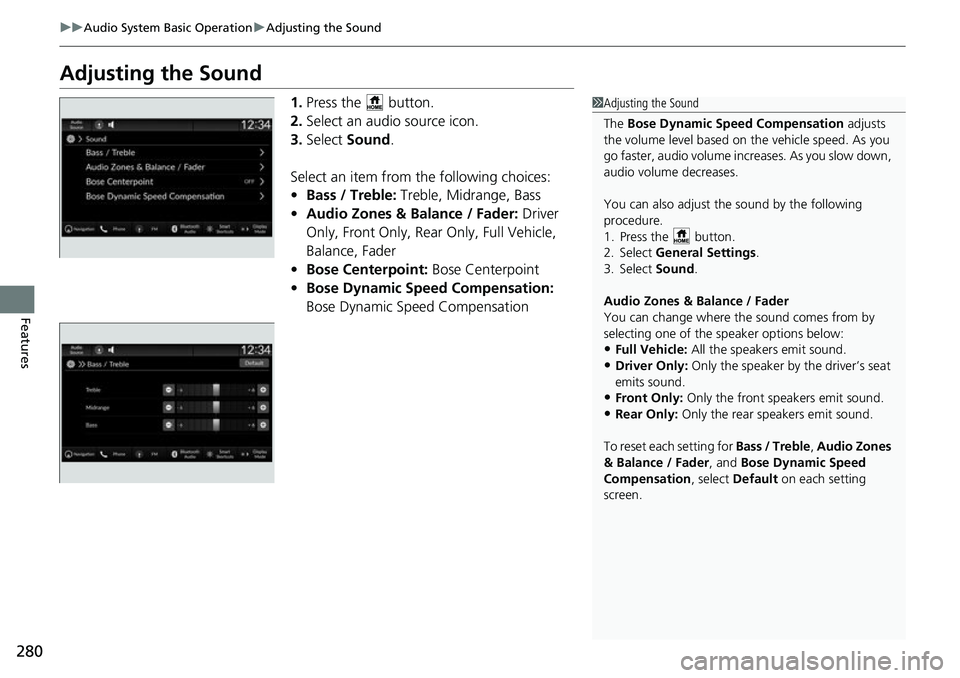
1. Press the button.
2. Select an audio source icon.
3. Select Sound.
Select an item from the following choices:
• Bass / Treble: Treble, Midrange, Bass
• Audio Zones & Balance / Fader: Driver
Only, Front Only, Rear Only, Full Vehicle,
Balance, Fader
• Bose Centerpoint: Bose Centerpoint
• Bose Dynamic Speed Compensation:
Bose Dynamic Speed Compensation1 Adjusting the Sound
The Bose Dynamic Speed Compensation adjusts
the volume level based on th e vehicle speed. As you
go faster, audio volume increases. As you slow down,
audio volume decreases.
You can also adjust the sound by the following
procedure.
1. Press the button.
2. Select General Settings .
3. Select Sound .
Audio Zones & Balance / Fader
You can change where the sound comes from by
selecting one of the speaker options below:
•Full Vehicle: All the speakers emit sound.•Driver Only: Only the speaker by the driver’s seat
emits sound.
•Front Only: Only the front speakers emit sound.•Rear Only: Only the rear speakers emit sound.
To reset each setting for Bass / Treble , Audio Zones
& Balance / Fader , and Bose Dynamic Speed
Compensation , select Default on each setting
screen.
Page 282 of 700
281
uuAudio System Basic Operation uDisplay Setup
Continued
Features
Display Setup
You can set the screen brightness.
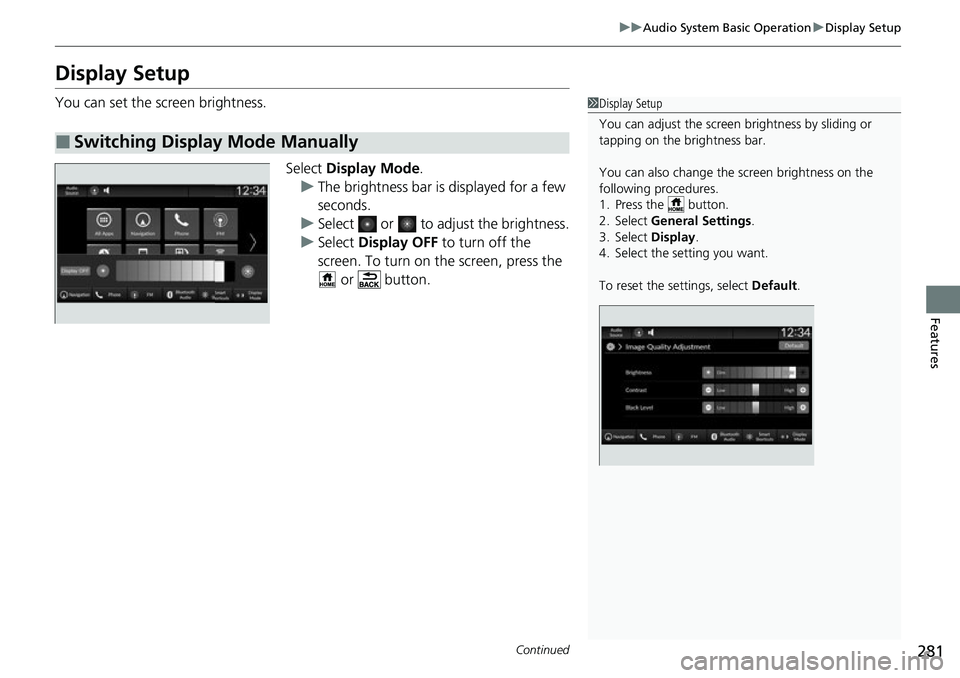
Select Display Mode .
u The brightness bar is displayed for a few
seconds.
u Select or to adjust the brightness.
u Select Display OFF to turn off the
screen. To turn on the screen, press the
or button.
■Switching Display Mode Manually
1 Display Setup
You can adjust the screen brightness by sliding or
tapping on the brightness bar.
You can also change the screen brightness on the
following procedures.
1. Press the button.
2. Select General Settings.
3. Select Display .
4. Select the setting you want.
To reset the settings, select Default.
Page 287 of 700
286
uuAudio System Basic Operation uPlaying AM/FM Radio
Features
Playing AM/FM Radio
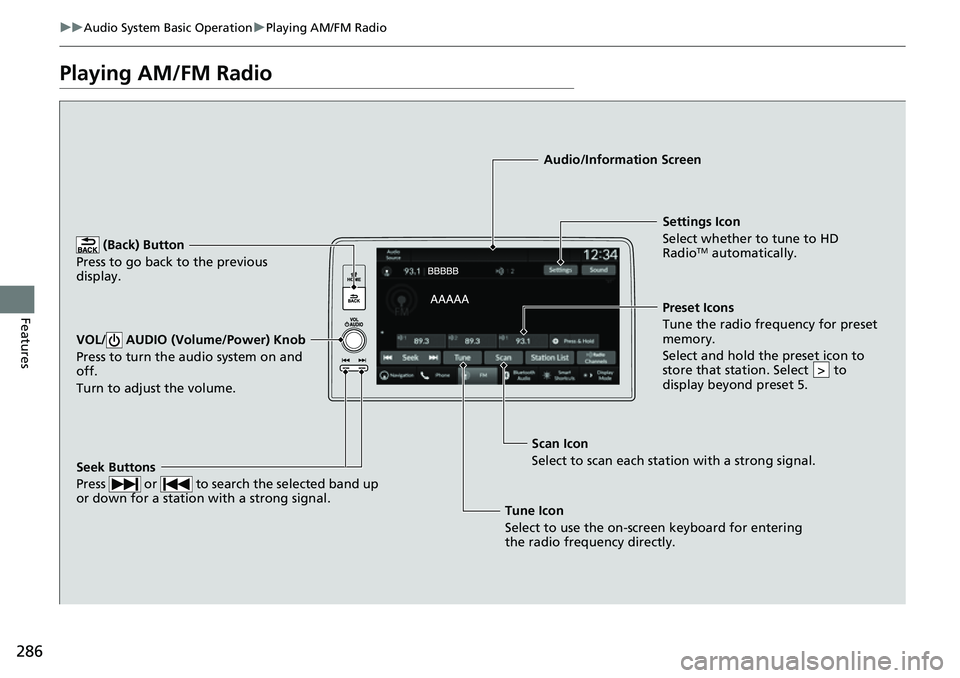
(Back) Button
Press to go back to the previous
display.
Seek Buttons
Press or to search the selected band up
or down for a station with a strong signal.
VOL/ AUDIO (Volume/Power) Knob
Press to turn the audio system on and
off.
Turn to adjust the volume.
Settings Icon
Select whether to tune to HD
Radio
TM automatically.
Tune Icon
Select to use the on-screen keyboard for entering
the radio frequency directly. Audio/Information Screen
Scan Icon
Select to sca n each stat
ion with a strong signal.
Preset Icons
Tune the radio frequency for preset
memory.
Select and hold the preset icon to
store that station. Select to
display beyond preset 5.
>
Page 288 of 700
Continued287
uuAudio System Basic Operation uPlaying AM/FM Radio
Features
To store a station:
1. Tune to the selected station.
2. Select and hold the preset ic on to store that station.
u Selecting Press & Hold can be set a new preset station.
Lists the strongest stations on the selected band.
1. Select Station List to display a list.
2. Select the station.
■Manual update
Updates your available st ation list at any time.
1. Select Station List to display a list.
2. Select Refresh .
■Preset Memory
■Station List
1Preset Memory
The ST indicator appears on the display indicating
stereo FM broadcasts.
Stereo reproduction in AM is not available.
Switching the Audio Mode
Roll the left selector wheel or select Audio Source
on the screen. 2 Audio Remote Controls P. 234
You can store 12 AM/FM st ations into preset
memory.
HD Radio Technology manufactured under license
from iBiquity Digi tal Corporation. U.S. and Foreign
Patents. For patents see http://dts.com/patents. HD
Radio, Artist Experience, and the HD, HD Radio, and
“ARC” logos are registered trademarks or
trademarks of iBiquity Di gital Corporation in the
United States and/ or other countries.
Page 291 of 700
290
uuAudio System Basic Operation uPlaying SiriusXM ® Radio
Features
Playing SiriusXM ® Radio
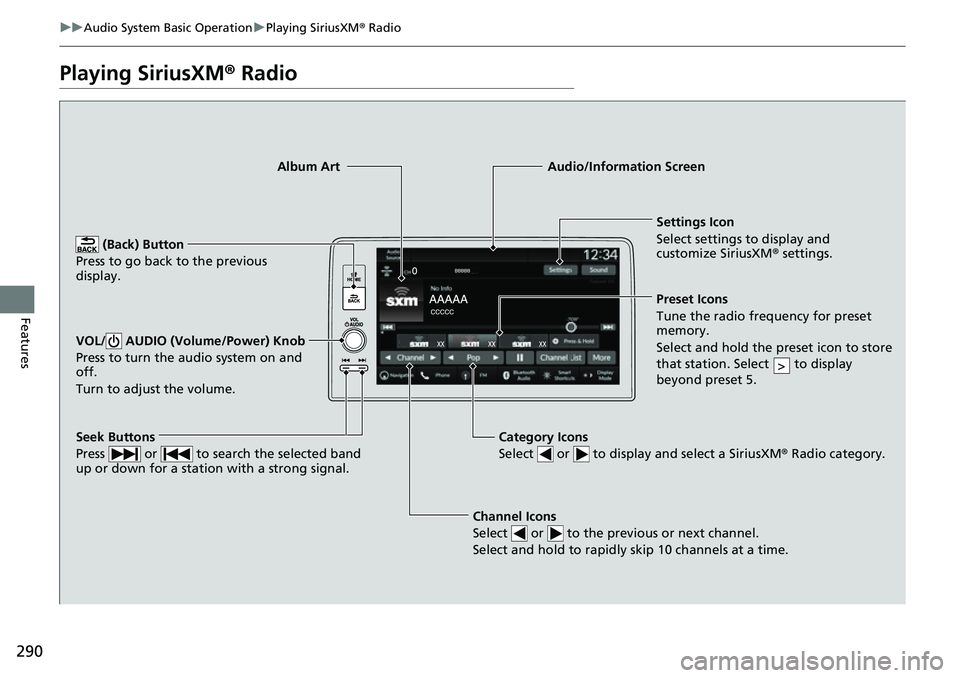
Channel Icons
Select or to the previous or next channel.
Select and hold to rapidly skip 10 channels at a time.
Settings Icon
Select settings to display and
customize SiriusXM ® settings.
Category Icons
Select or to display and select a SiriusXM ® Radio category.
Audio/Information Screen
Preset Icons
Tune the radio frequency for prese t
memory.
Select and hold the preset icon to store
that station. Select to display
beyond preset 5.
>
Seek Buttons
Press or to search the selected band
up or down for a station with a strong signal.
Album Art
(Back) Button
Press to go back to the previous
display.
VOL/ AUDIO (Volume/Power) Knob
Press to turn the audio system on and
off.
Turn to adjust the volume.
Page 292 of 700
Continued291
uuAudio System Basic Operation uPlaying SiriusXM ® Radio
Features
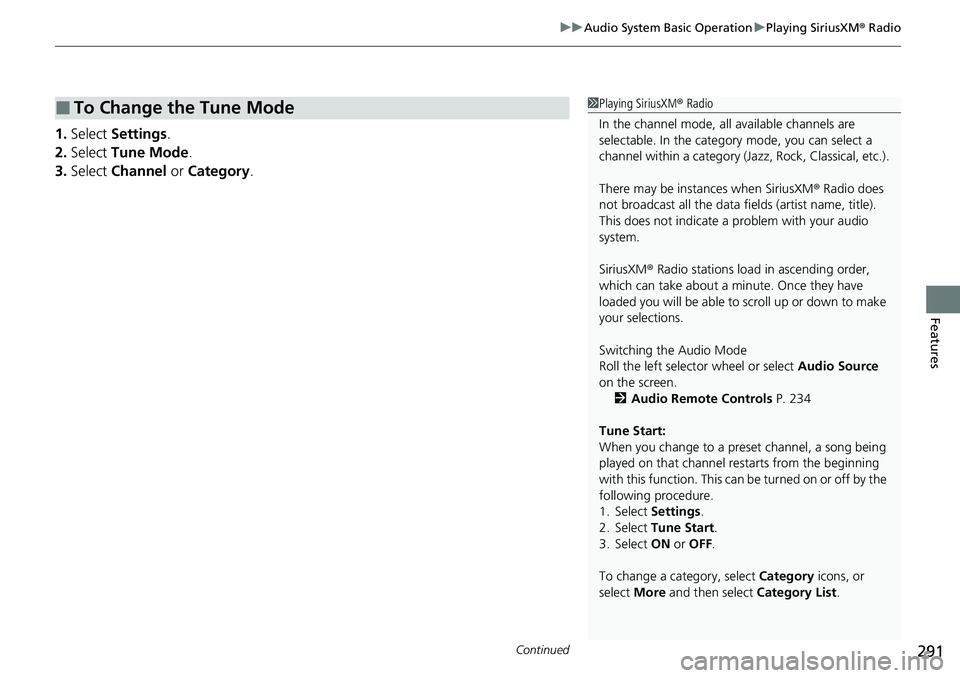
1. Select Settings .
2. Select Tune Mode .
3. Select Channel or Category .
■To Change the Tune Mode1Playing SiriusXM ® Radio
In the channel mode, all available channels are
selectable. In the categor y mode, you can select a
channel within a ca tegory (Jazz, Rock, Classical, etc.).
There may be instances when SiriusXM ® Radio does
not broadcast all the data fi elds (artist name, title).
This does not indicate a problem with your audio
system.
SiriusXM ® Radio stations load in ascending order,
which can take about a minute. Once they have
loaded you will be able to scroll up or down to make
your selections.
Switching the Audio Mode
Roll the left selector wheel or select Audio Source
on the screen.
2 Audio Remote Controls P. 234
Tune Start:
When you change to a preset channel, a song being
played on that channel restarts from the beginning
with this function. This can be turned on or off by the
following procedure.
1. Select Settings .
2. Select Tune Start .
3. Select ON or OFF .
To change a category, select Category icons, or
select More and then select Category List.
Page 293 of 700
uuAudio System Basic Operation uPlaying SiriusXM ® Radio
292
Features
To store a channel:
1. Tune to the selected channel.
2. Select and hold the preset ic on to store that channel.
u Selecting Press & Hold can be set a new preset channel.
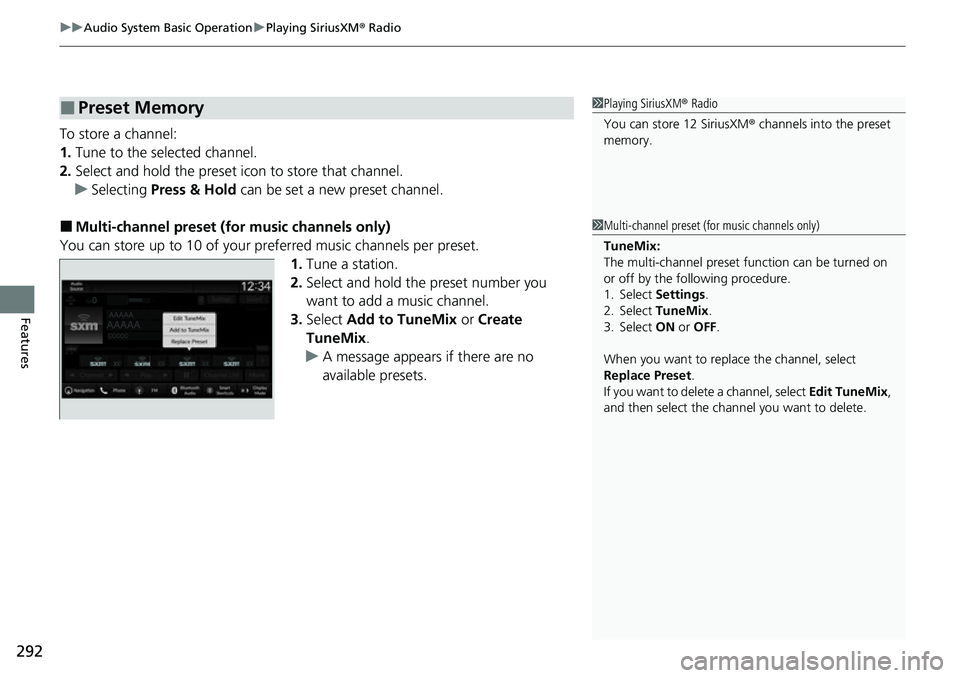
■Multi-channel preset (for music channels only)
You can store up to 10 of your pref erred music channels per preset.
1. Tune a station.
2. Select and hold the preset number you
want to add a music channel.
3. Select Add to TuneMix or Create
TuneMix .
u A message appears if there are no
available presets.
■Preset Memory1Playing SiriusXM ® Radio
You can store 12 SiriusXM ® channels into the preset
memory.
1 Multi-channel preset (for music channels only)
TuneMix:
The multi-channel preset function can be turned on
or off by the following procedure.
1. Select Settings .
2. Select TuneMix.
3. Select ON or OFF .
When you want to replac e the channel, select
Replace Preset .
If you want to delete a channel, select Edit TuneMix,
and then select the channel you want to delete.
Page 295 of 700
uuAudio System Basic Operation uPlaying SiriusXM ® Radio
294
Features
The system can record up to the last 60 minutes of your currently tuned channel’s
broadcast, as well as the last 30 minutes of your preset channel’s broadcast, starting
from the moment you turn the vehicle on. If you tuned to a preset channel, the
system records up to 60 minutes of a broadcast instead of up to 30 minutes. You
can rewind and replay the last 30 or 60 minutes of a broadcast.
Move the position you want to replay by selecting or .
To play or pause on playback m ode, select the play/pause icon.
■Returning to real-time broadcast
Select and hold .
■Replay Function1 Replay Function
The system starts storing broadcast in memory when
the power mode is turned ON. You can go back to
the program from that point.
You can no longer repl ay any program once the
power mode is turned off as it erases memory.
You can check how long the program has been
stored in memory from th e audio/information screen.
After 30 or 60 minutes of recording the system will
automatically start deleting the oldest data.
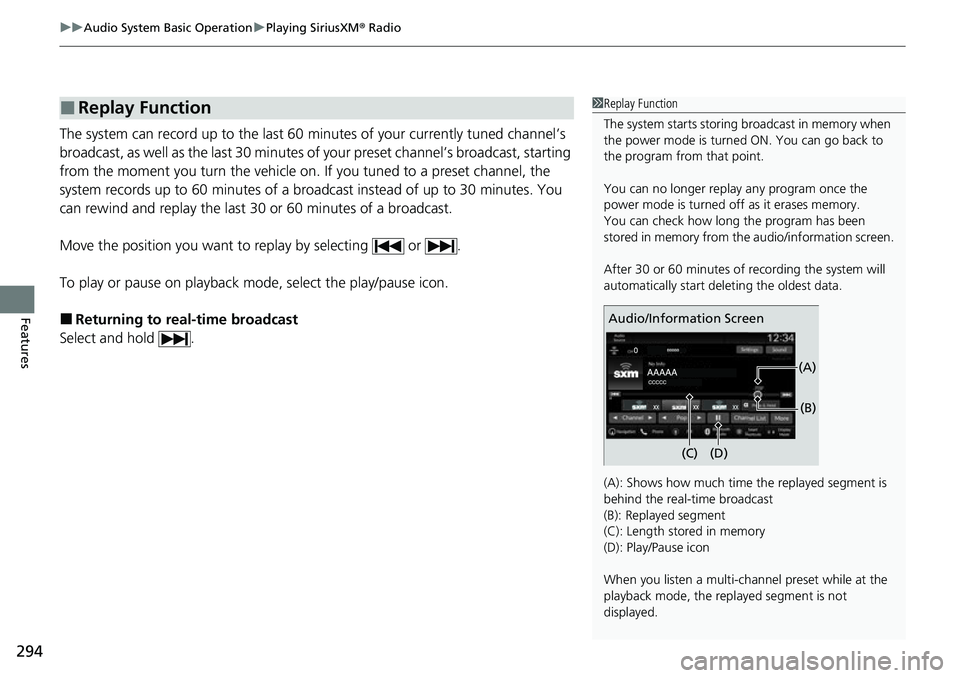
(A): Shows how much time the replayed segment is
behind the real-time broadcast
(B): Replayed segment
(C): Length stored in memory
(D): Play/Pause icon
When you listen a multi-channel preset while at the
playback mode, the repl ayed segment is not
displayed.
Audio/Information Screen
(C) (B)
(A)
(D)
Page 300 of 700
Continued299
uuAudio System Basic Operation uPlaying SiriusXM ® Radio
Features
Sample each channel on the selected mode for 10 seconds.
1. Select More.
2. Select Scan.
You can change a scan mode by the following procedure.
1. Select Settings .
2. Select Scan Mode .
3. Select Channel or Preset .
To turn off scan, select Stop.
■Scan1Scan
The “Scan Songs in Preset s” function is based on
TuneScan
TM technology of SiriusXM ®.
The “Featured Channels ” function is based on
Featured Favorites
TM technology of SiriusXM ®.
TuneScan
TM and Featured FavoritesTM are registered
trademarks of SiriusXM ® Radio, Inc.
Page 301 of 700
300
uuAudio System Basic Operation uPlaying SiriusXM ® Radio
Features
Change the SiriusXM ® settings.
1. Select Settings .
2. Select an option.
• TuneMix: Turns multiple channel mix preset on and off.
• Tune Mode: Choose whether to group by category or channel number when
changing channels.
2 To Change the Tune Mode P. 291
•Scan Mode: Select the scan mode fro m all channels or presets.
2Scan P. 299
•Tune Start: Start the currently playing song at the beginning when you switch to
a music channel preset.
2 Tune Start: P. 291
•Sports Notifi cations Setup: Set to receive sports alerts such as scores from your
favorite teams.
2 Live Sports Alert P. 295
•Traffic & Weather Now Setup: Set to receive traffic and weather information.
2Traffic and Weather Information P. 296
•Manage Program Alerts: Change settings for the alert function.
2Manage Program Alert P. 298
■SiriusXM® Settings