audio HONDA CIVIC 2023 Owners Manual
[x] Cancel search | Manufacturer: HONDA, Model Year: 2023, Model line: CIVIC, Model: HONDA CIVIC 2023Pages: 840, PDF Size: 26.53 MB
Page 324 of 840
uuAudio System Basic Operation uPlaying SiriusXM ® Radio
322
Features
While listening to other channels, you can receive sports alerts such as scores from
the games of your favorite teams.
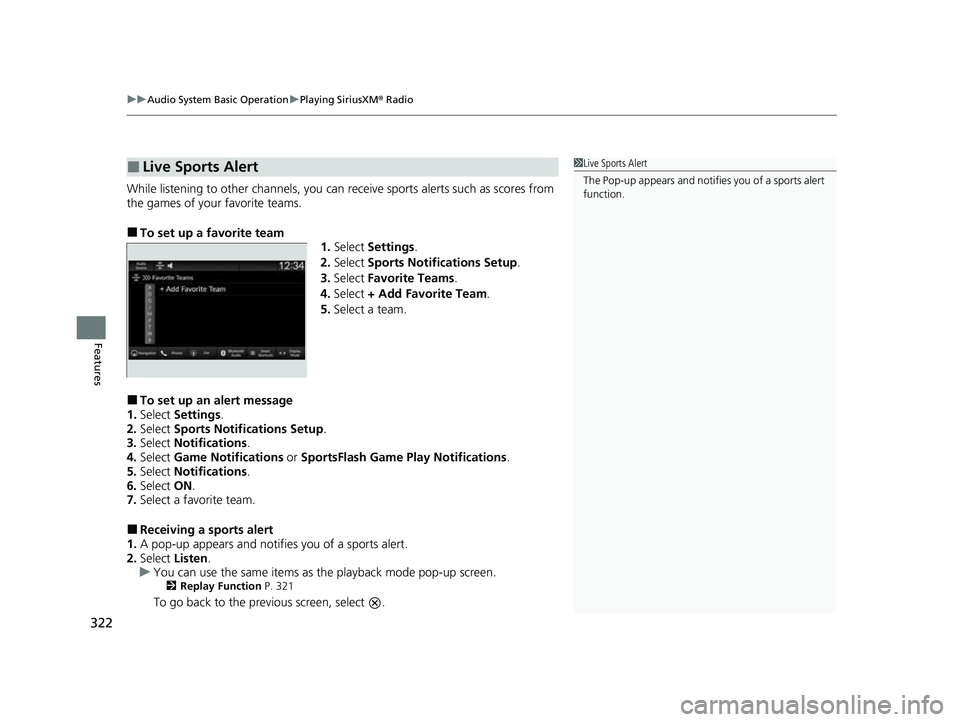
■To set up a favorite team
1.Select Settings .
2. Select Sports Notifi cations Setup .
3. Select Favorite Teams .
4. Select + Add Favorite Team .
5. Select a team.
■To set up an alert message
1. Select Settings .
2. Select Sports Notifi cations Setup .
3. Select Notifications.
4. Select Game Notifications or SportsFlash Game Play Notifications.
5. Select Notifications.
6. Select ON.
7. Select a favorite team.
■Receiving a sports alert
1. A pop-up appears and notifies you of a sports alert.
2. Select Listen.
u You can use the same items as th e playback mode pop-up screen.
2Replay Function P. 321
To go back to the previous screen, select .
■Live Sports Alert1Live Sports Alert
The Pop-up appears and notifie s you of a sports alert
function.
23 CIVIC HATCHBACK TYPE R-31T406100_03.book 322 ページ 2022年6月23日 木曜日 午後9時28分
Page 325 of 840
Continued323
uuAudio System Basic Operation uPlaying SiriusXM ® Radio
Features
You can receive traffic and weather information.
■To set up a traffic & weather information
1. Select Settings .
2. Select Traffic & Weather Now Setup .
3. Select Selected City .
4. Select the region.
u When you do not want to receive the information, select No Market
Selected .
■Listening a traffic and weather information
1. Select the status icon.
2. Select the traffic and weather information.
u Play mode can also use the any items same as playback mode.
2 Replay Function P. 321
To go back to the previous screen, select .
■Traffic and Weather Information1Traffic and Weather Information
When traffic and weather information is received, a
notification is displayed in the header area.
2 Status Area P. 301
Traffic & Weather Now are registered trademarks of
SiriusXM ® Radio, Inc.
23 CIVIC HATCHBACK TYPE R-31T406100_03.book 323 ページ 2022年6月23日 木曜日 午後9時28分
Page 326 of 840
uuAudio System Basic Operation uPlaying SiriusXM ® Radio
324
Features
You can view a channel schedule or receive an alert when your favorite program is
about to start.
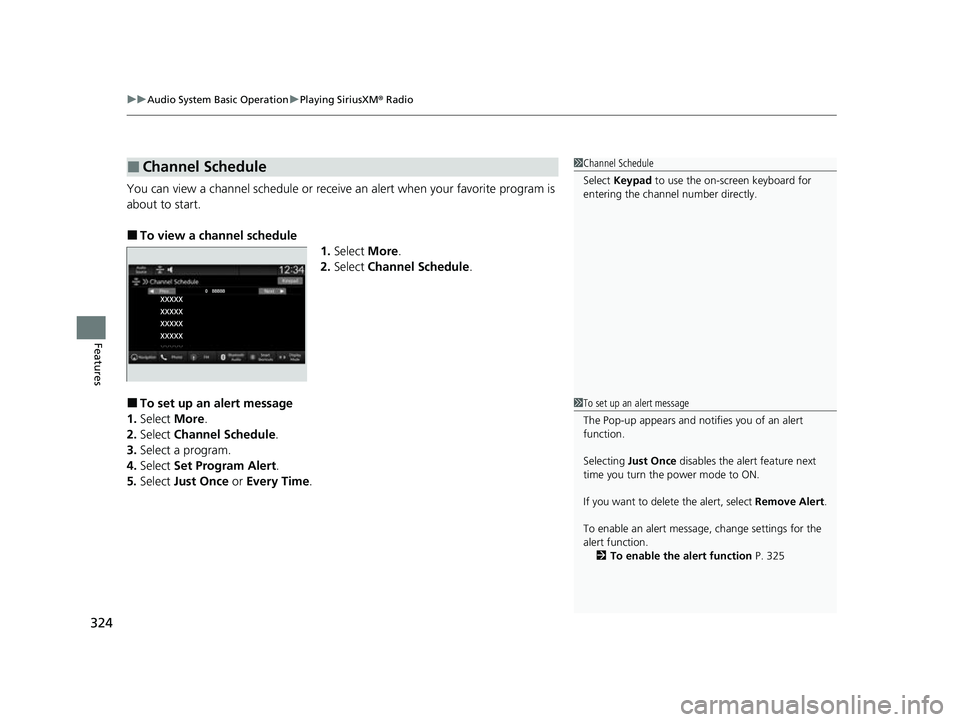
■To view a channel schedule
1.Select More.
2. Select Channel Schedule .
■To set up an alert message
1. Select More.
2. Select Channel Schedule .
3. Select a program.
4. Select Set Program Alert .
5. Select Just Once or Every Time .
■Channel Schedule1Channel Schedule
Select Keypad to use the on-screen keyboard for
entering the channel number directly.
1To set up an alert message
The Pop-up appears and not ifies you of an alert
function.
Selecting Just Once disables the alert feature next
time you turn the power mode to ON.
If you want to delete the alert, select Remove Alert.
To enable an alert message, change settings for the
alert function. 2 To enable the alert function P. 325
23 CIVIC HATCHBACK TYPE R-31T406100_03.book 324 ページ 2022年6月23日 木曜日 午後9時28分
Page 327 of 840
325
uuAudio System Basic Operation uPlaying SiriusXM ® Radio
Continued
Features
You can change settings for the alert function.
■To enable the alert function
1.Select Settings .
2. Select Manage Program Alerts .
3. Select Notifications .
4. Select ON or OFF .
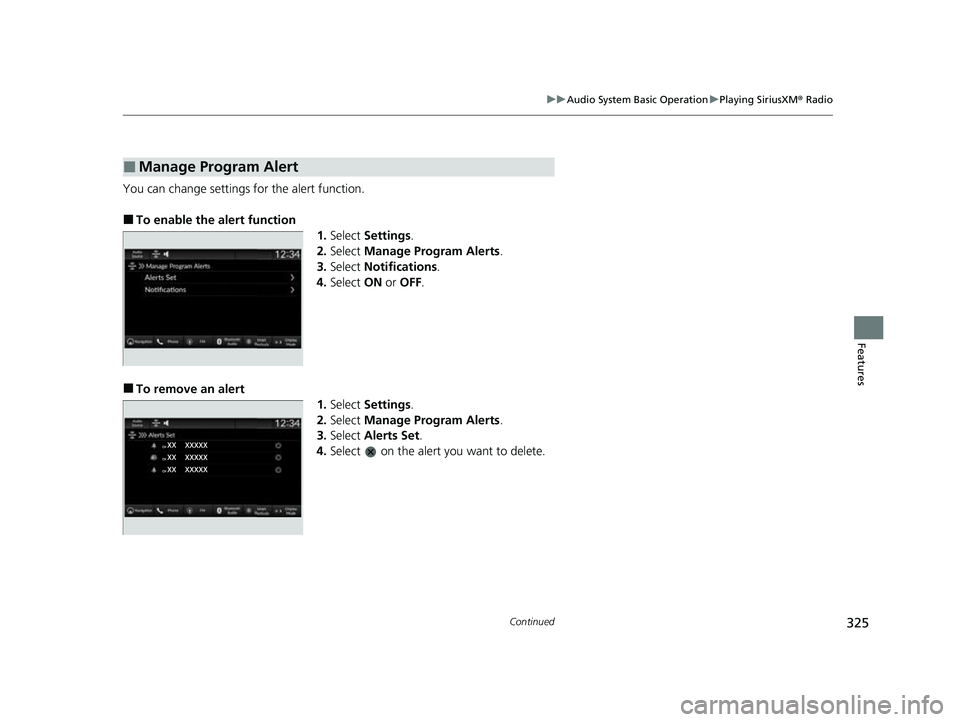
■To remove an alert
1.Select Settings .
2. Select Manage Program Alerts .
3. Select Alerts Set .
4. Select on the alert you want to delete.
■Manage Program Alert
23 CIVIC HATCHBACK TYPE R-31T406100_03.book 325 ページ 2022年6月23日 木曜日 午後9時28分
Page 328 of 840
uuAudio System Basic Operation uPlaying SiriusXM ® Radio
326
Features
Sample each channel on the sele cted mode for 10 seconds.
1. Select More.
2. Select Scan.
You can change a scan mode by the following procedure.
1. Select Settings .
2. Select Scan Mode .
3. Select Channel or Preset.
To turn off scan, select Stop.
■Scan1Scan
The “Scan Songs in Preset s” function is based on
TuneScan
TM technology of SiriusXM ®.
The “Featured Channels ” function is based on
Featured Favorites
TM technology of SiriusXM ®.
TuneScan
TM and Featured FavoritesTM are registered
trademarks of SiriusXM ® Radio, Inc.
23 CIVIC HATCHBACK TYPE R-31T406100_03.book 326 ページ 2022年6月23日 木曜日 午後9時28分
Page 329 of 840
327
uuAudio System Basic Operation uPlaying SiriusXM ® Radio
Features
Change the SiriusXM ® settings.
1. Select Settings .
2. Select an option.
• TuneMix: Turns multiple channel mix preset on and off.
• Tune Mode: Choose whether to group by category or channel number when
changing channels.
2 To Change the Tune Mode P. 318
•Scan Mode: Select the scan mode from all channels or presets.
2Scan P. 326
•Tune Start: Start the currently playing song at the beginning when you switch to
a music channel preset.
2 Tune Start: P. 318
•Sports Notifications Setup: Set to receive sports alerts such as scores from your
favorite teams.
2 Live Sports Alert P. 322
•Traffic & Weather Now Setup: Set to receive traffic and weather information.
2 Traffic and Weather Information P. 323
•Manage Program Alerts: Change settings for the alert function.
2Manage Program Alert P. 325
■SiriusXM® Settings
23 CIVIC HATCHBACK TYPE R-31T406100_03.book 327 ページ 2022年6月23日 木曜日 午後9時28分
Page 330 of 840
328
uuAudio System Basic Operation uPlaying an iPod
Features
Playing an iPod
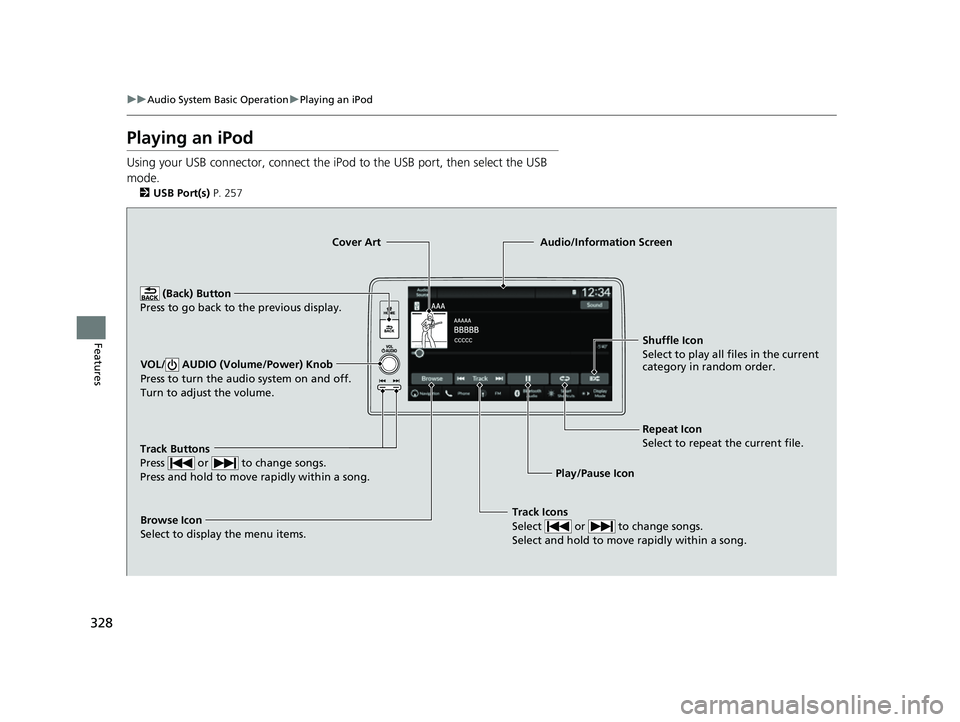
Using your USB connector, connect the iPod to the USB port, then select the USB
mode.
2 USB Port(s) P. 257
Track Icons
Select or to change songs.
Select and hold to move rapidly within a song.
Shuffle Icon
Select to play all files in the current
category in random order.
Cover Art
Audio/Information Screen
Play/Pause Icon
(B
ack)
Button
Pre
ss to go back to the previous display.
VOL/ AUDIO (Volume/Power) Knob
Press to turn the audio system on and off.
Turn to adjust the volume.
Repeat Icon
Select to repeat the current file.
Track Buttons
Press or to change songs.
Press and hold to move rapidly within a song.
Browse Icon
Select to display the menu items.
23 CIVIC HATCHBACK TYPE R-31T406100_03.book 328 ページ 2022年6月23日 木曜日 午後9時28分
Page 331 of 840
Continued329
uuAudio System Basic Operation uPlaying an iPod
Features
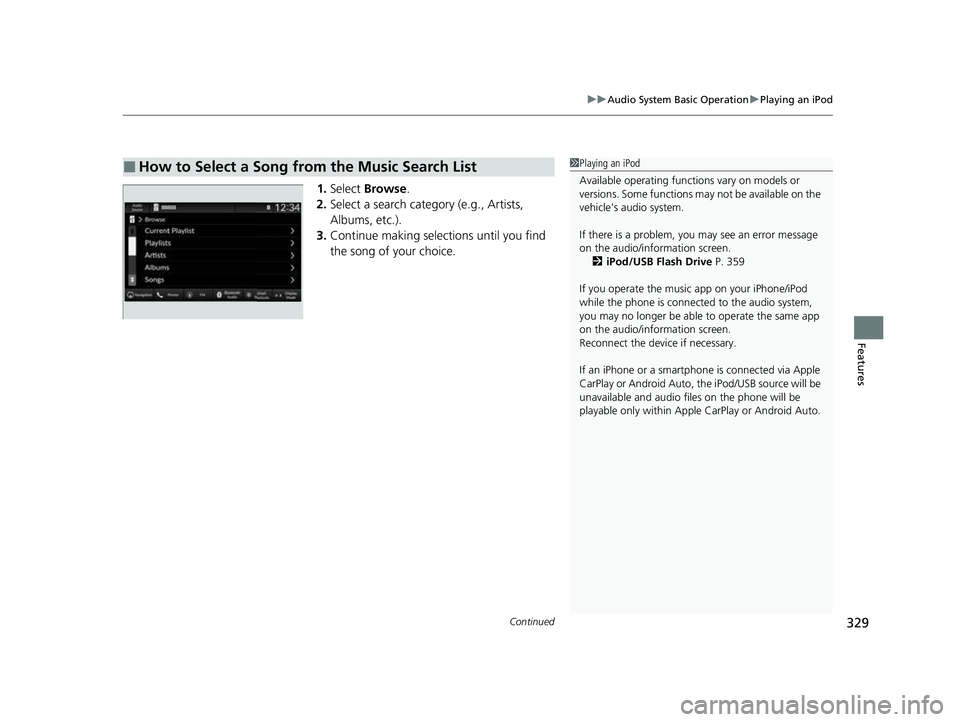
1. Select Browse .
2. Select a search catego ry (e.g., Artists,
Albums, etc.).
3. Continue making selections until you find
the song of your choice.
■How to Select a Song from the Music Search List1Playing an iPod
Available operating functi ons vary on models or
versions. Some functions ma y not be available on the
vehicle's audio system.
If there is a problem, you may see an error message
on the audio/information screen. 2 iPod/USB Flash Drive P. 359
If you operate the musi c app on your iPhone/iPod
while the phone is connected to the audio system,
you may no longer be able to operate the same app
on the audio/information screen.
Reconnect the devi ce if necessary.
If an iPhone or a smartpho ne is connected via Apple
CarPlay or Android Auto, th e iPod/USB source will be
unavailable and audio files on the phone will be
playable only within Appl e CarPlay or Android Auto.
23 CIVIC HATCHBACK TYPE R-31T406100_03.book 329 ページ 2022年6月23日 木曜日 午後9時28分
Page 332 of 840
uuAudio System Basic Operation uPlaying an iPod
330
Features
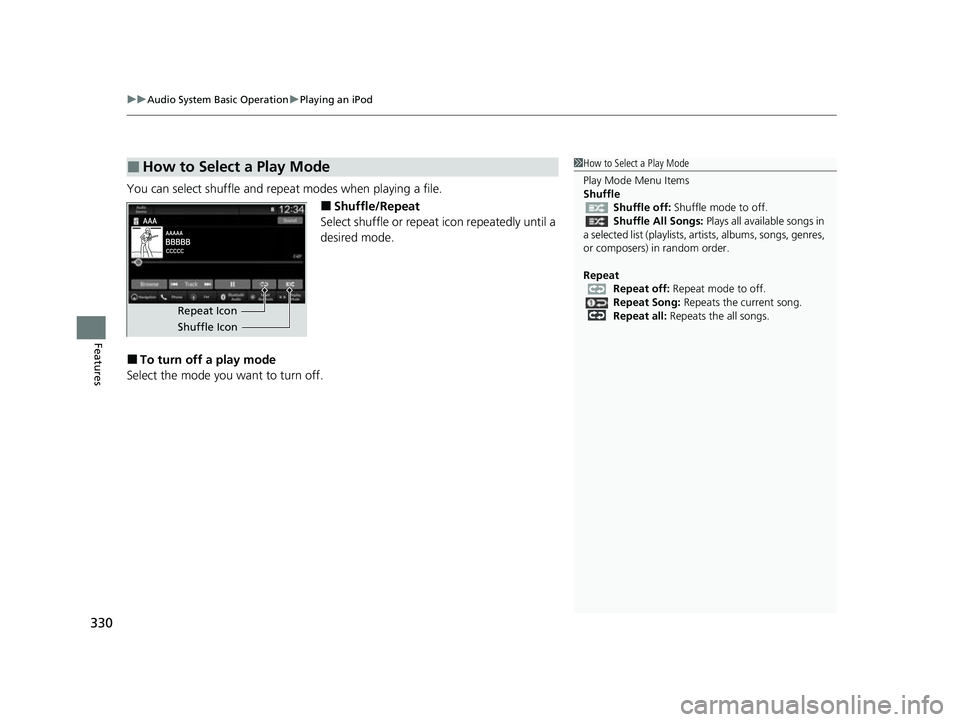
You can select shuffle and repeat modes when playing a file.
■Shuffle/Repeat
Select shuffle or repeat icon repeatedly until a
desired mode.
■To turn off a play mode
Select the mode you want to turn off.
■How to Select a Play Mode1 How to Select a Play Mode
Play Mode Menu Items
Shuffle
Shuffle off: Shuffle mode to off.
Shuffle All Songs: Plays all available songs in
a selected list (playlists, a rtists, albums, songs, genres,
or composers) in random order.
Repeat Repeat off: Repeat mode to off.
Repeat Song: Repeats the current song.
Repeat all: Repeats the all songs.
Repeat Icon
Shuffle Icon
23 CIVIC HATCHBACK TYPE R-31T406100_03.book 330 ページ 2022年6月23日 木曜日 午後9時28分
Page 333 of 840
331
uuAudio System Basic Operation uPlaying a USB Flash Drive
Continued
Features
Playing a USB Flash Drive
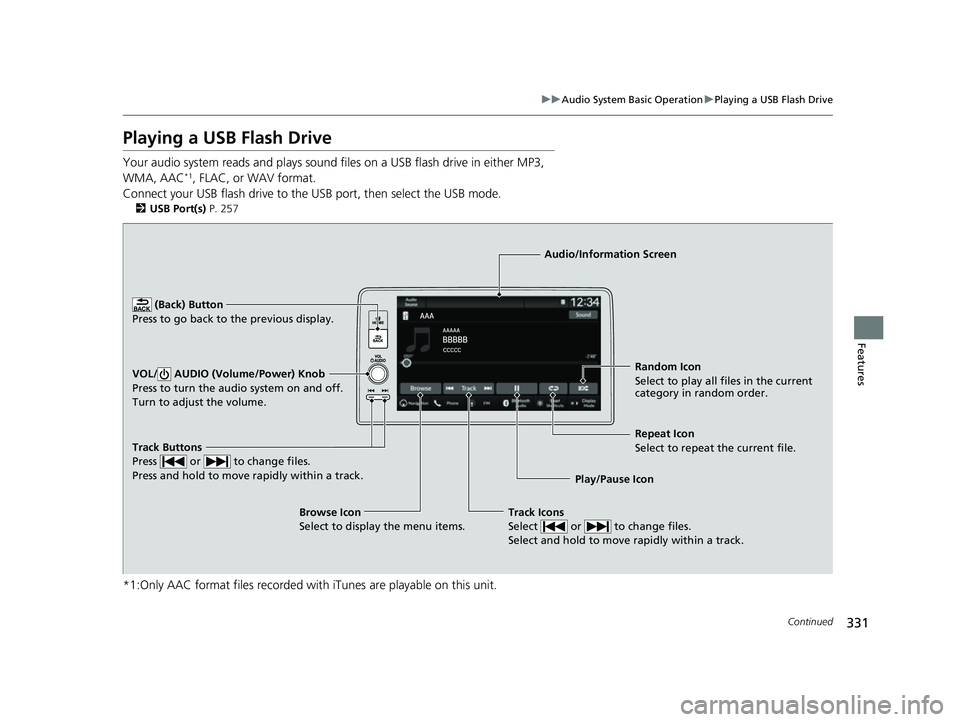
Your audio system reads and plays sound files on a USB flash drive in either MP3,
WMA, AAC*1, FLAC, or WAV format.
Connect your USB flash drive to the USB port, then select the USB mode.
2 USB Port(s) P. 257
*1:Only AAC format files recorded with iTunes are playable on this unit.
Track Buttons
Press or to change files.
Press and hold to move rapidly within a track.
Random Icon
Select to play all files in the current
category in random order.
Audio/Information Screen
Play/Pause Ico n
(Back) Bu
tton
Press to go
back to the previous display.
VOL/ AUDIO (Volume/Power) Knob
Press to turn the audio system on and off.
Turn to adjust the volume.
Track Icons
Select or to change files.
Select and hold to move rapidly within a track.
Repeat Icon
Select to repeat the current file.
Browse Icon
Select to display the menu items.
23 CIVIC HATCHBACK TYPE R-31T406100_03.book 331 ページ 2022年6月23日 木曜日 午後9時28分