phone HONDA CIVIC COUPE 2015 9.G Navigation Manual
[x] Cancel search | Manufacturer: HONDA, Model Year: 2015, Model line: CIVIC COUPE, Model: HONDA CIVIC COUPE 2015 9.GPages: 253, PDF Size: 8.81 MB
Page 31 of 253
uuPersonal Information uAddress Book
30
System Setup
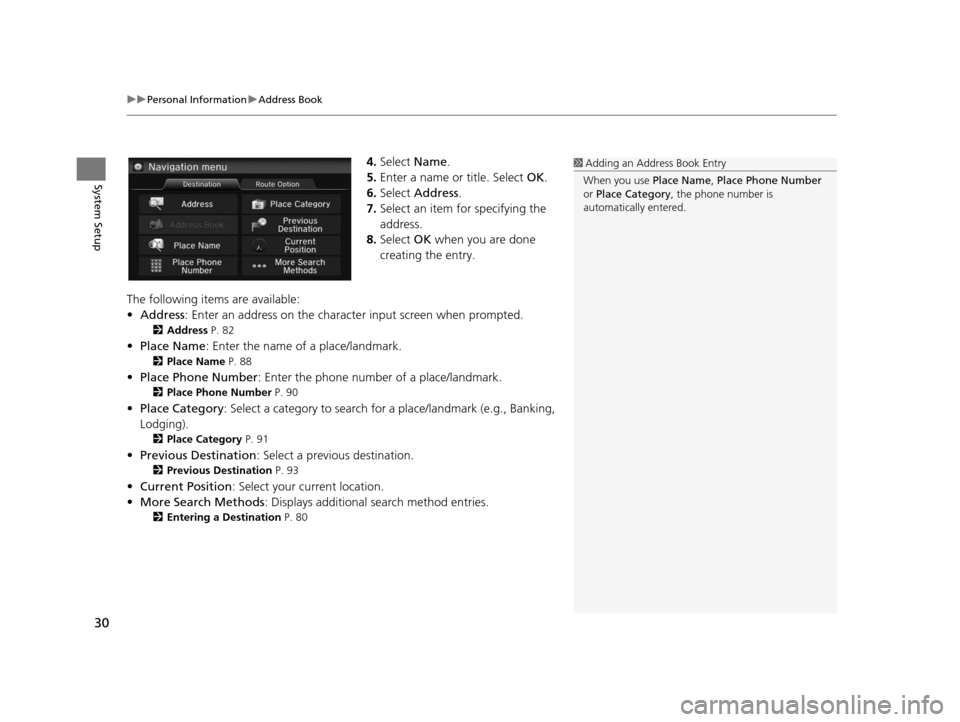
4. Select Name.
5. Enter a name or title. Select OK.
6. Select Address .
7. Select an item for specifying the
address.
8. Select OK when you are done
creating the entry.
The following items are available:
• Address : Enter an address on the characte r input screen when prompted.
2Address P. 82
•Place Name : Enter the name of a place/landmark.
2Place Name P. 88
•Place Phone Number : Enter the phone number of a place/landmark.
2Place Phone Number P. 90
•Place Category : Select a category to search for a place/landmark (e.g., Banking,
Lodging).
2 Place Category P. 91
•Previous Destination : Select a previous destination.
2Previou s Destination P. 93
•Current Position : Select your current location.
• More Search Methods : Displays additional search method entries.
2Entering a Destination P. 80
1Adding an Address Book Entry
When you use Place Name, Place Phone Number
or Place Category , the phone number is
automatically entered.
15 CIVIC NAVI-31TR38300.book 30 ページ 2014年8月7日 木曜日 午前11時49分
Page 32 of 253
Continued31
uuPersonal Information uAddress Book
System SetupH HOME uSetting su Navigation uPer sonal Info uAddre ss Book
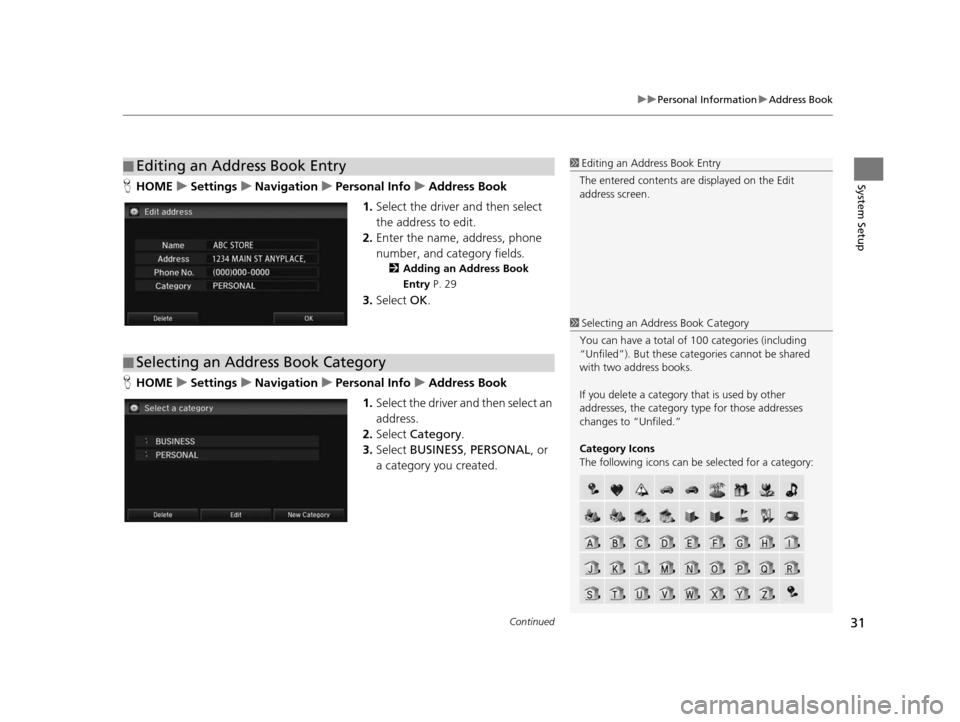
1. Select the driver and then select
the address to edit.
2. Enter the name, address, phone
number, and category fields.
2 Adding an Addre ss Book
Entry P. 29
3.Select OK.
H HOME uSetting su Navigation uPer sonal Info uAddre ss Book
1. Select the driver and then select an
address.
2. Select Category .
3. Select BUSINESS , PERSONAL , or
a category you created.
■ Editing an Address Book Entry1
Editing an Address Book Entry
The entered contents are displayed on the Edit
address screen.
■ Selecting an Address Book Category
1
Selecting an Addr ess Book Category
You can have a total of 100 categories (including
“Unfiled”). But these cate gories cannot be shared
with two address books.
If you delete a category that is used by other
addresses, the category type for those addresses
changes to “Unfiled.”
Category Icon s
The following icons can be selected for a category:
15 CIVIC NAVI-31TR38300.book 31 ページ 2014年8月7日 木曜日 午前11時49分
Page 34 of 253
33
uuPersonal Information uHome Addresses
System Setup
Home Address es
HHOME uSetting su Navigation uPer sonal Info uEdit Go Home 1 or
Edit Go Home 2
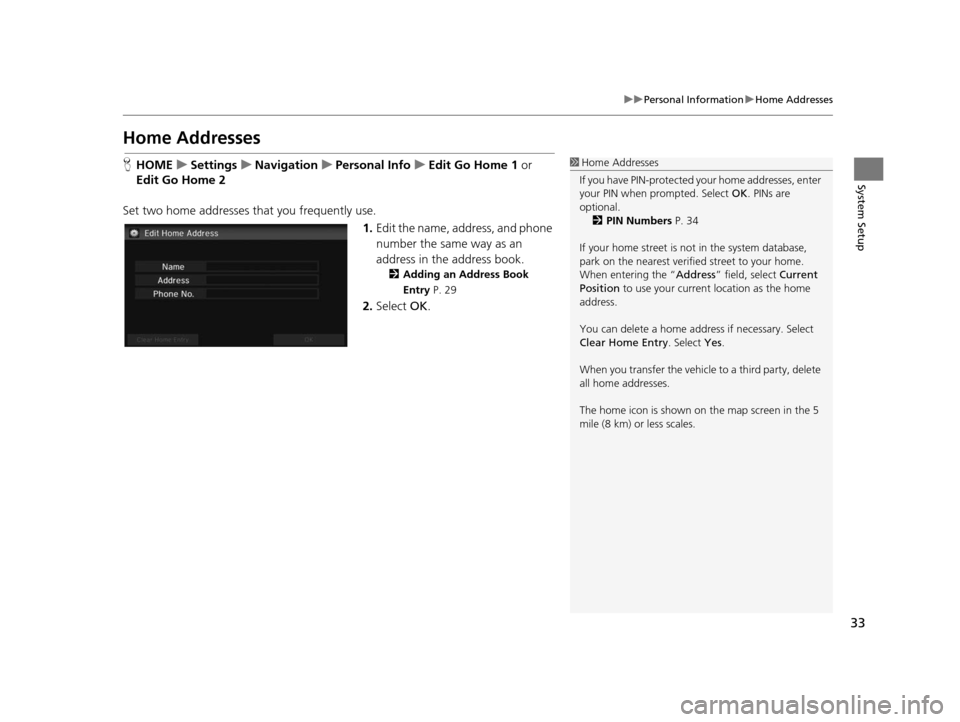
Set two home addresses that you frequently use. 1.Edit the name, address, and phone
number the same way as an
address in the address book.
2 Adding an Addre ss Book
Entry P. 29
2.Select OK.
1Home Addresses
If you have PIN-pr otected your home addresses, enter
your PIN when prompted. Select OK. PINs are
optional.
2 PIN Number s P. 34
If your home street is not in the system database,
park on the nearest verified street to your home.
When entering the “ Address” field, select Current
Position to use your current location as the home
address.
You can delete a home addr ess if necessary. Select
Clear Home Entry . Select Yes.
When you transfer the vehicle to a third party, delete
all home addresses.
The home icon is shown on the map screen in the 5
mile (8 km) or less scales.
15 CIVIC NAVI-31TR38300.book 33 ページ 2014年8月7日 木曜日 午前11時49分
Page 57 of 253
56
uuMap uCurrent Location
System Setup
Current Location
H HOME uSetting su Navigation uMap uCurrent Location
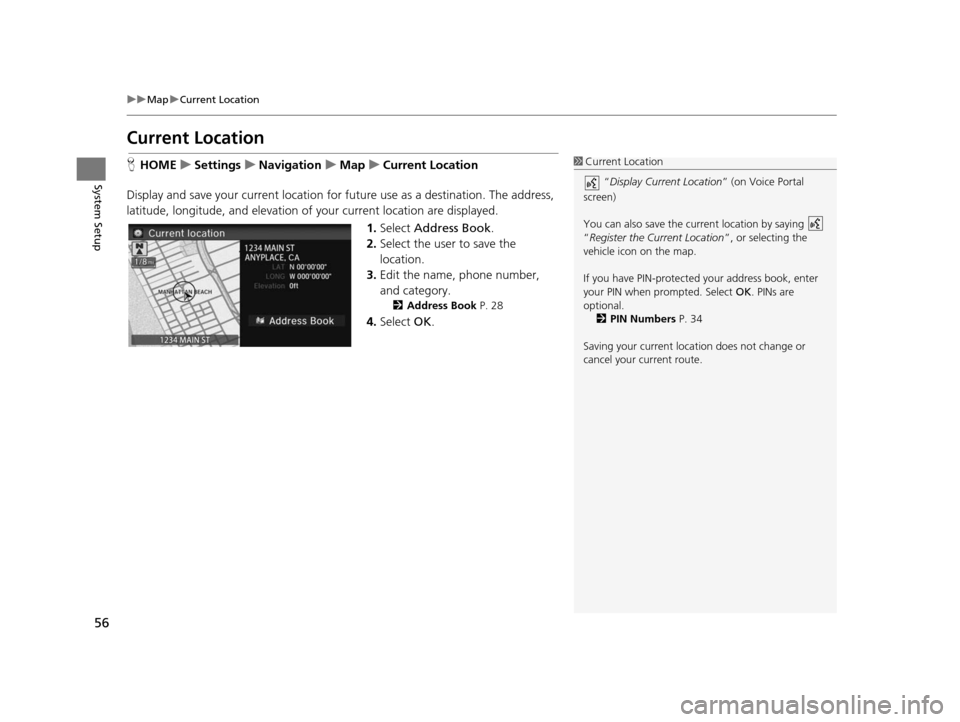
Display and save your current location for future use as a destination. The address,
latitude, longitude, and elevation of your current location are displayed.
1.Select Address Book .
2. Select the user to save the
location.
3. Edit the name, phone number,
and category.
2 Address Book P. 28
4.Select OK.
1Current Location
“Display Current Location ” (on Voice Portal
screen)
You can also save the curre nt location by saying
“Register the Current Location ”, or selecting the
vehicle icon on the map.
If you have PIN-protecte d your address book, enter
your PIN when prompted. Select OK. PINs are
optional. 2 PIN Number s P. 34
Saving your current loca tion does not change or
cancel your current route.
15 CIVIC NAVI-31TR38300.book 56 ページ 2014年8月7日 木曜日 午前11時49分
Page 64 of 253
63
System Setup
System Settings
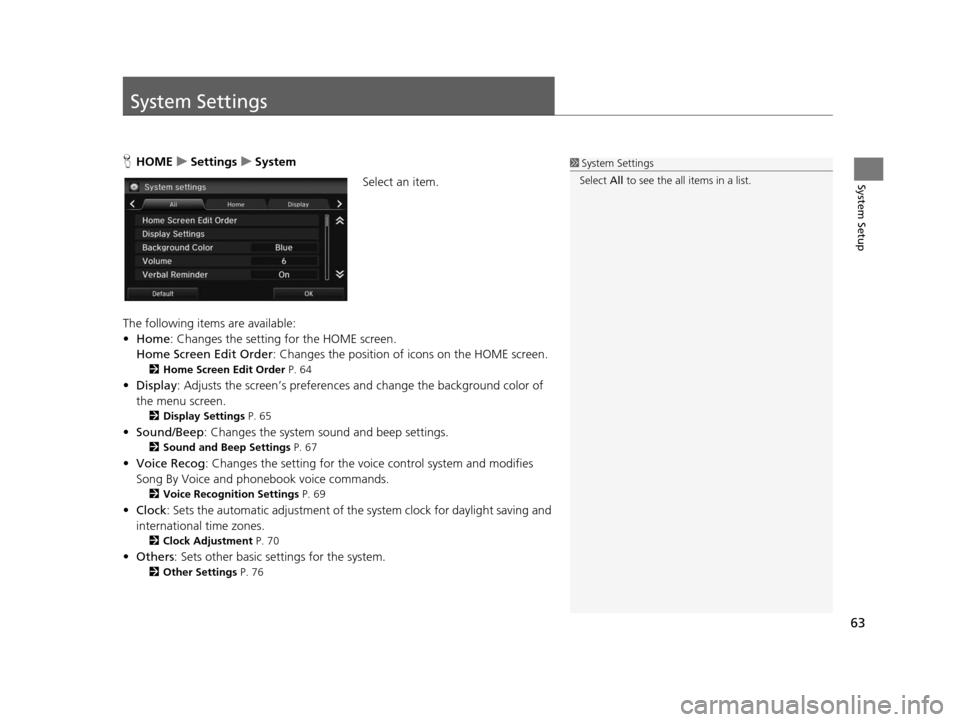
HHOME uSetting su System
Select an item.
The following items are available:
• Home: Changes the setting for the HOME screen.
Home Screen Edit Order : Changes the position of icons on the HOME screen.
2Home Screen Edit Order P. 64
•Display : Adjusts the screen’s preferences and change the background color of
the menu screen.
2 Display Setting s P. 65
•Sound/Beep : Changes the system sound and beep settings.
2Sound and Beep Setting s P. 67
• Voice Recog : Changes the setting for the voice control system and modifies
Song By Voice and phonebook voice commands.
2 Voice Recognition Setting s P. 69
•Clock : Sets the automatic adjustment of the system clock for daylight saving and
international time zones.
2 Clock Adju stment P. 70
•Others: Sets other basic settings for the system.
2 Other Settings P. 76
1System Settings
Select All to see the all items in a list.
15 CIVIC NAVI-31TR38300.book 63 ページ 2014年8月7日 木曜日 午前11時49分
Page 70 of 253
69
System Setup
Voice Recognition Settings
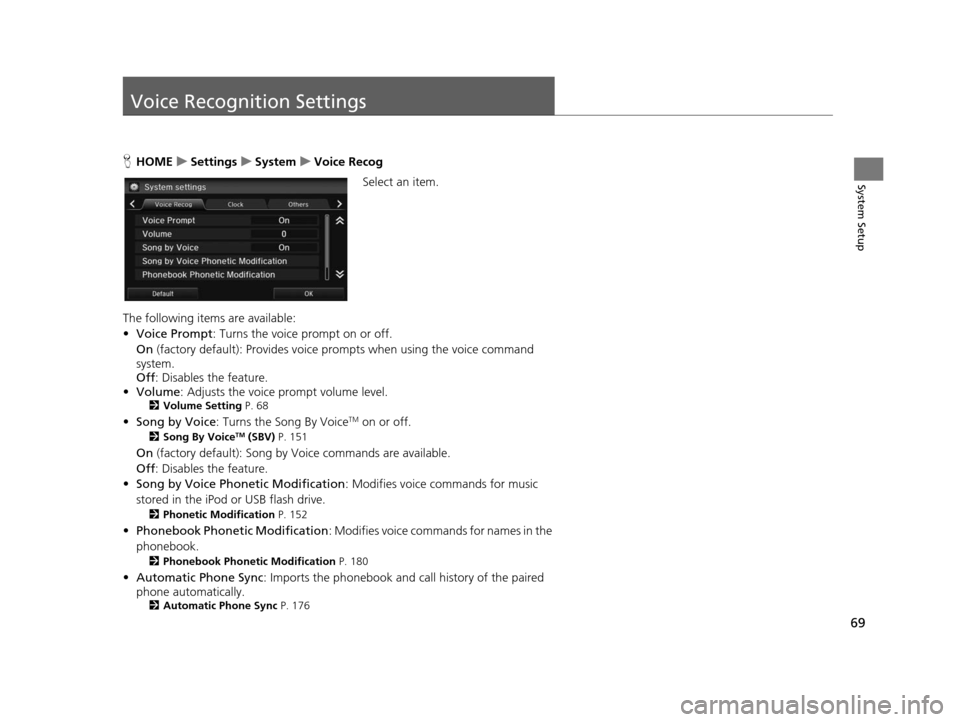
HHOME uSetting su System uVoice Recog
Select an item.
The following items are available:
• Voice Prompt : Turns the voice prompt on or off.
On (factory default): Provides voice prompts when using the voice command
system.
Off : Disables the feature.
• Volume: Adjusts the voice prompt volume level.
2 Volume Setting P. 68
•Song by Voice : Turns the Song By VoiceTM on or off.
2Song By VoiceTM (SBV) P. 151
On (factory default): Song by Voice commands are available.
Off : Disables the feature.
• Song by Voice Phonetic Modification : Modifies voice commands for music
stored in the iPod or USB flash drive.
2 Phonetic Modification P. 152
•Phonebook Ph onetic Modification : Modifies voice commands for names in the
phonebook.
2 Phonebook Phonetic Modification P. 180
•Automatic Phone Sync : Imports the phonebook and call history of the paired
phone automatically.
2 Automatic Phone Sync P. 176
15 CIVIC NAVI-31TR38300.book 69 ページ 2014年8月7日 木曜日 午前11時49分
Page 79 of 253
78
System Setup
Data Reset
Reset Factory Default Setting s
HHOME uSetting su Sys tem uOther su Factory Data Re set
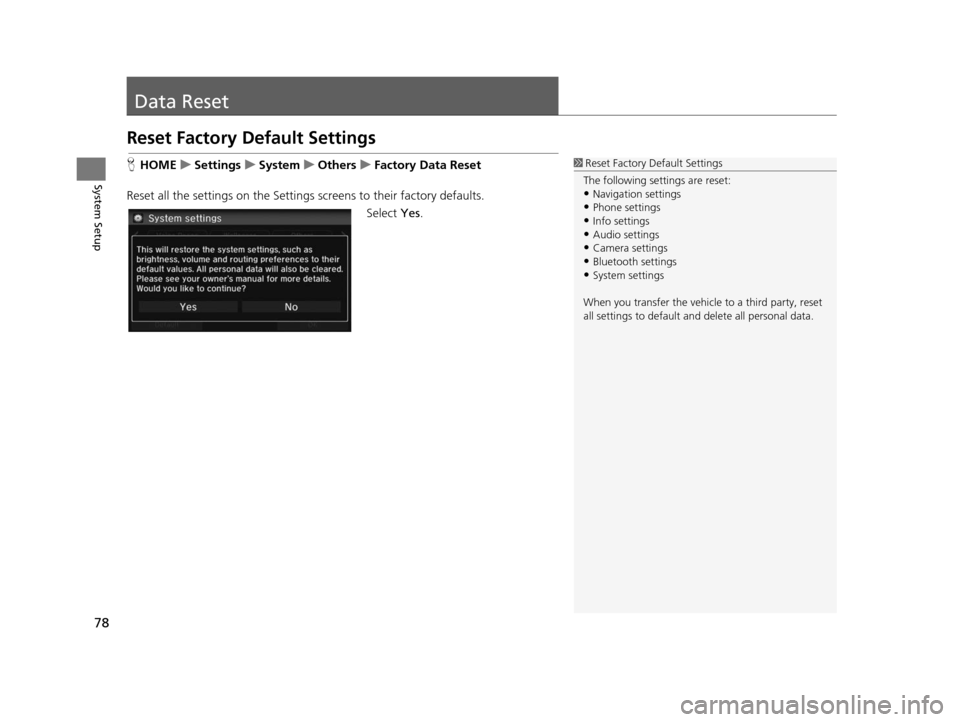
Reset all the settings on the Settings screens to their factory defaults.
Select Yes.1Reset Factory Default Settings
The following settings are reset:
•Navigation settings
•Phone settings
•Info settings•Audio settings
•Camera settings
•Bluetooth settings•System settings
When you transfer the vehicle to a third party, reset
all settings to default a nd delete all personal data.
15 CIVIC NAVI-31TR38300.book 78 ページ 2014年8月7日 木曜日 午前11時49分
Page 80 of 253
79
Navigation
This section describes how to enter a destination, select a route to take, and follow the
route to your destination. It also describes how to change your route or destination along
the way.
Entering a Destination........................... 80
Address ................................................. 82
Address Book ......................................... 87
Place Name ............................................ 88
Place Phone Number .............................. 90
Place Category ....................................... 91
Previous Destination ............................... 93
Intersection ............................................ 94
Coordinate ............................................ 95
Map Input.............................................. 96 Calculating the Route
..............................98
Viewing the Routes .................................99
Driving to Your De stination.................100
Viewing the Route ................................100
Listening to Voice Guidance ..................104
Map Menu ..............................................105
Displaying the Map Menu .....................105
Directions .............................................107
Traffic Rerouting
TM................................109
Changing Your Route ............................111
Adding Waypoints ................................112
Editing the Destination List ....................116
Canceling the Route .............................118
Taking a Detour ....................................118 Avoiding Streets ................................... 119
Changing Your De stination................. 120
Find Nearest Place ................................ 120
Selecting a Destination on the Map ...... 121
Entering a New Destination .................. 122
Re suming Your Trip .............................. 123
15 CIVIC NAVI-31TR38300.book 79 ページ 2014年8月7日 木曜日 午前11時49分
Page 82 of 253
81
uuEntering a Destination u
Navigation
•Place Phone Number : Sets a destination by ente ring the phone number of a
place/landmark.
2 Place Phone Number P. 90
•Place Category : Sets a destination by selecting a place/landmark.
2Place Category P. 91
•Previous Destination : Sets a destination by selecting a previous destination.
2Previou s Destination P. 93
•Go Home 1 or 2: Sets your home address as a destination.
2 Going Home P. 12
•Intersection : Sets a destination (intersectio n) by entering two streets.
2Inter section P. 94
•Coordinate : Sets a destination by enteri ng latitude and longitude.
2Coordinate P. 95
•Map Input : Sets a destination by sc rolling through the map.
2Map Input P. 96
15 CIVIC NAVI-31TR38300.book 81 ページ 2014年8月7日 木曜日 午前11時49分
Page 91 of 253
90
uuEntering a Destination uPlace Phone Number
Navigation
Place Phone Number
H HOME uNavi uMENU uPlace Phone Number
Select a destination by phone number. Only phone numbers in the database are
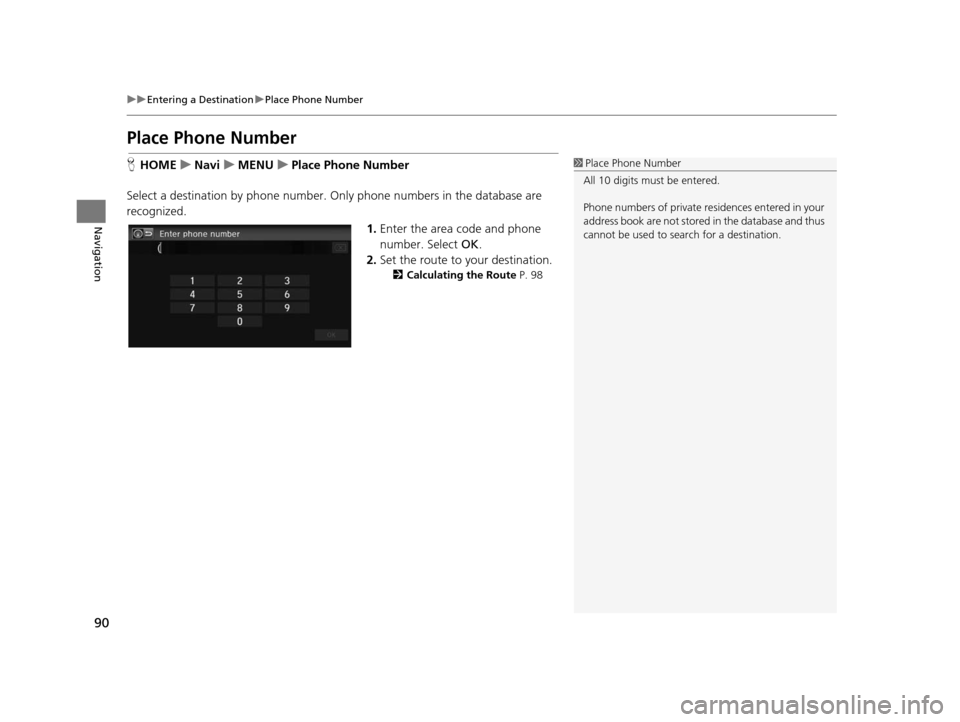
recognized. 1.Enter the area code and phone
number. Select OK.
2. Set the route to your destination.
2 Calculating the Route P. 98
1Place Phone Number
All 10 digits must be entered.
Phone numbers of private re sidences entered in your
address book are not stored in the database and thus
cannot be used to sear ch for a destination.
15 CIVIC NAVI-31TR38300.book 90 ページ 2014年8月7日 木曜日 午前11時49分