phone HONDA CIVIC COUPE 2015 9.G Navigation Manual
[x] Cancel search | Manufacturer: HONDA, Model Year: 2015, Model line: CIVIC COUPE, Model: HONDA CIVIC COUPE 2015 9.GPages: 253, PDF Size: 8.81 MB
Page 155 of 253
154
Audio
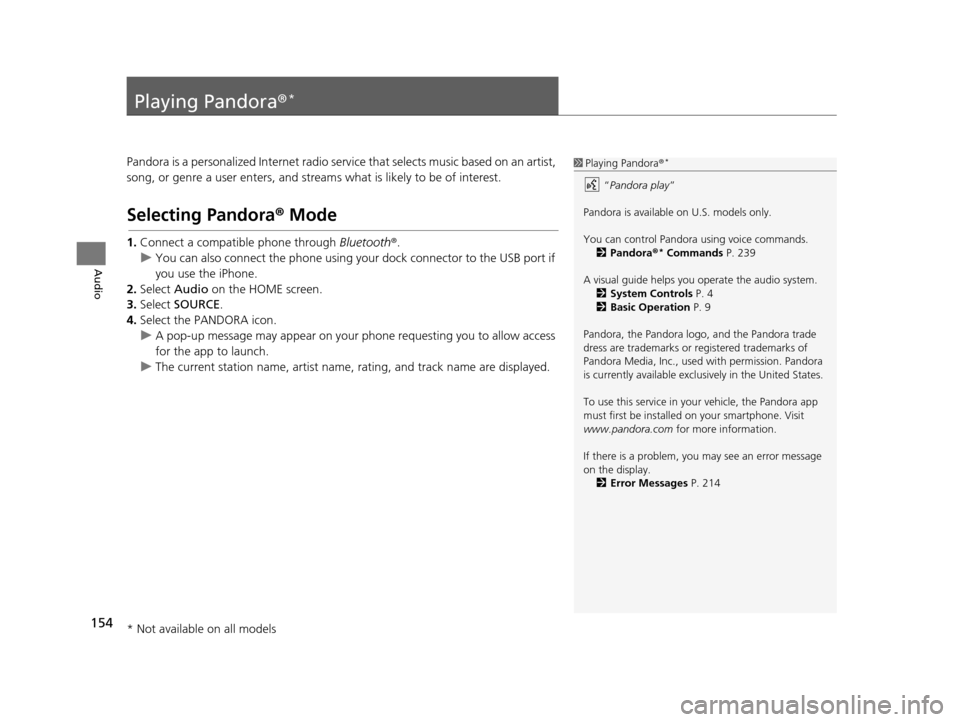
Playing Pandora®*
Pandora is a personalized Internet radio serv ice that selects music based on an artist,
song, or genre a user enters, and stream s what is likely to be of interest.
Selecting Pandora® Mode
1.Connect a compatible phone through Bluetooth®.
u You can also connect the phone using your dock connector to the USB port if
you use the iPhone.
2. Select Audio on the HOME screen.
3. Select SOURCE .
4. Select the PANDORA icon.
u A pop-up message may appear on your phone requesting you to allow access
for the app to launch.
u The current station name, artist name, rating, and track name are displayed.
1Playing Pandora ®*
“Pandora play”
Pandora is available on U.S. models only.
You can control Pandora using voice commands. 2 Pandora ®
* Command s P. 239
A visual guide helps you operate the audio system.
2 System Control s P. 4
2 Basic Operation P. 9
Pandora, the Pandora logo, and the Pandora trade
dress are trademarks or registered trademarks of
Pandora Media, Inc., used with permission. Pandora
is currently available exclusively in the United States.
To use this service in your vehicle, the Pandora app
must first be installed on your smartphone. Visit
www.pandora.com for more information.
If there is a problem, you may see an error message
on the display. 2 Error Me ssages P. 214
* Not available on all models
15 CIVIC NAVI-31TR38300.book 154 ページ 2014年8月7日 木曜日 午前11時49分
Page 162 of 253
161
Audio
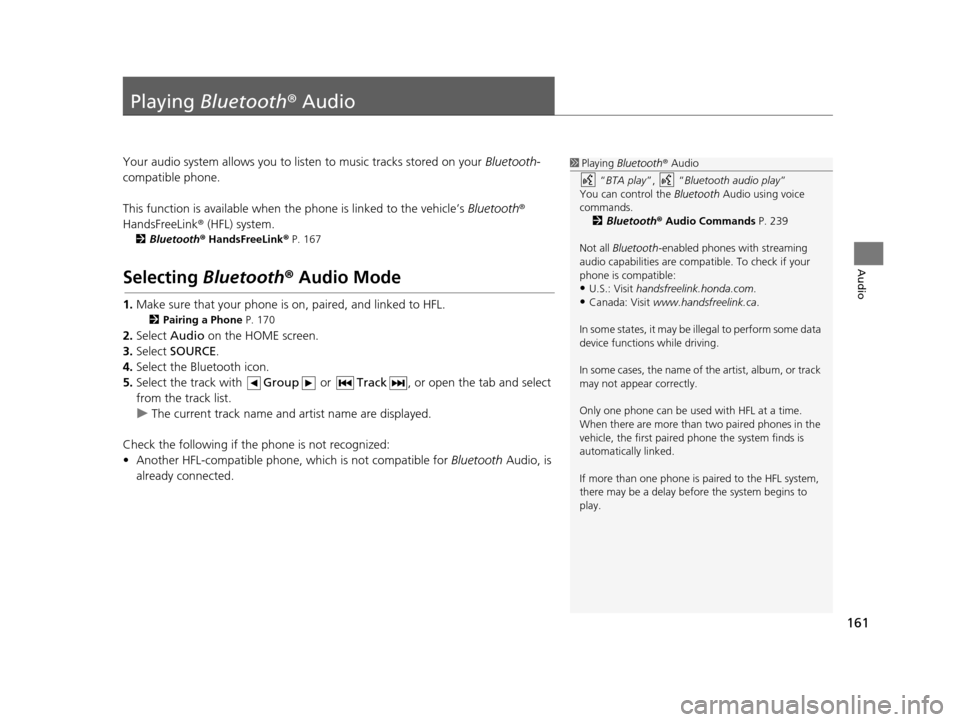
Playing Bluetooth ® Audio
Your audio system allows you to listen to music tracks stored on your Bluetooth-
compatible phone.
This function is available when the phone is linked to the vehicle’s Bluetooth®
HandsFreeLink ® (HFL) system.
2Bluetooth ® Hand sFreeLink ® P. 167
Selecting Bluetooth ® Audio Mode
1. Make sure that your phone is on, paired, and linked to HFL.
2 Pairing a Phone P. 170
2.Select Audio on the HOME screen.
3. Select SOURCE .
4. Select the Bluetooth icon.
5. Select the track with Group or Track , or open the tab and select
from the track list.
u The current track name and artist name are displayed.
Check the following if the phone is not recognized:
• Another HFL-compatible phone, which is not compatible for Bluetooth Audio, is
already connected.
1 Playing Bluetooth ® Audio
“ BTA play ”, “Bluetooth audio play ”
You can control the Bluetooth Audio using voice
commands. 2 Bluetooth® Audio Commands P. 239
Not all Bluetooth -enabled phones with streaming
audio capabilities are compatible. To check if your
phone is compatible:
•U.S.: Visit handsfreelink.honda.com.
•Canada: Visit www.handsfreelink.ca .
In some states, it may be il legal to perform some data
device functions while driving.
In some cases, the name of the artist, album, or track
may not appear correctly.
Only one phone can be used with HFL at a time.
When there are more than two paired phones in the
vehicle, the first paired phone the system finds is
automatically linked.
If more than one phone is paired to the HFL system,
there may be a delay before the system begins to
play.
15 CIVIC NAVI-31TR38300.book 161 ページ 2014年8月7日 木曜日 午前11時49分
Page 168 of 253
167
B l u e t o o t h® HandsFreeLink®
This section describes how to operate Bluetooth® HandsFreeLink ®. You can place and
receive phone calls using your vehicle’s audi o system without handling your cell phone.
Bluetooth® Hand sFreeLink® ................. 168
Pairing a Phone .................................... 170
Bluetooth Setting ................................. 172
Automatic Phone Sync ......................... 176
Setting Up Speed Dialing...................... 177
Phonebook Phonetic Modification ........ 180
Phone Setting ...................................... 182
Making a Call....................................... 183
Receiving a Call .................................... 187
HFL Menus ........................................... 188
Text/E-mail Me ssage ............................ 192
Text/Email Setting ................................ 194
HondaLink Ass ist.................................. 195
15 CIVIC NAVI-31TR38300.book 167 ページ 2014年8月7日 木曜日 午前11時49分
Page 169 of 253
168
Bluetooth® HandsFreeLink ®
Bluetooth® HandsFreeLink ®
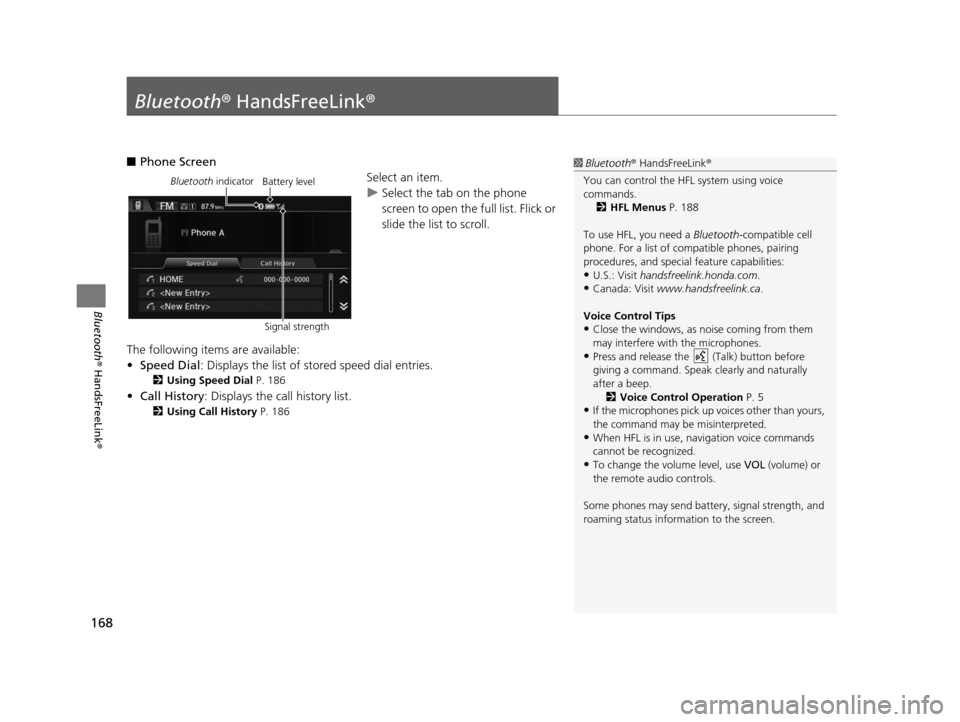
■Phone Screen
Select an item.
uSelect the tab on the phone
screen to open the full list. Flick or
slide the list to scroll.
The following items are available:
• Speed Dial : Displays the list of stored speed dial entries.
2Using Speed Dial P. 186
•Call History: Displays the call history list.
2 Using Call History P. 186
1Bluetooth ® HandsFreeLink ®
You can control the HFL system using voice
commands. 2 HFL Menu s P. 188
To use HFL, you need a Bluetooth-compatible cell
phone. For a list of compatible phones, pairing
procedures, and special feature capabilities:
•U.S.: Visit handsfreelink.honda.com.
•Canada: Visit www.handsfreelink.ca .
Voice Control Tip s
•Close the windows, as noise coming from them
may interfere with the microphones.
•Press and release the (Talk) button before
giving a command. Speak clearly and naturally
after a beep. 2 Voice Control Operation P. 5
•If the microphones pick up vo ices other than yours,
the command may be misinterpreted.
•When HFL is in use, navigation voice commands
cannot be recognized.
•To change the volume level, use VOL (volume) or
the remote audio controls.
Some phones may send batter y, signal strength, and
roaming status information to the screen.
Bluetooth indicator
Signal strengthBattery level
15 CIVIC NAVI-31TR38300.book 168 ページ 2014年8月7日 木曜日 午前11時49分
Page 170 of 253
169
uuBluetooth ® HandsFreeLink ®u
Bluetooth ® HandsFreeLink ®
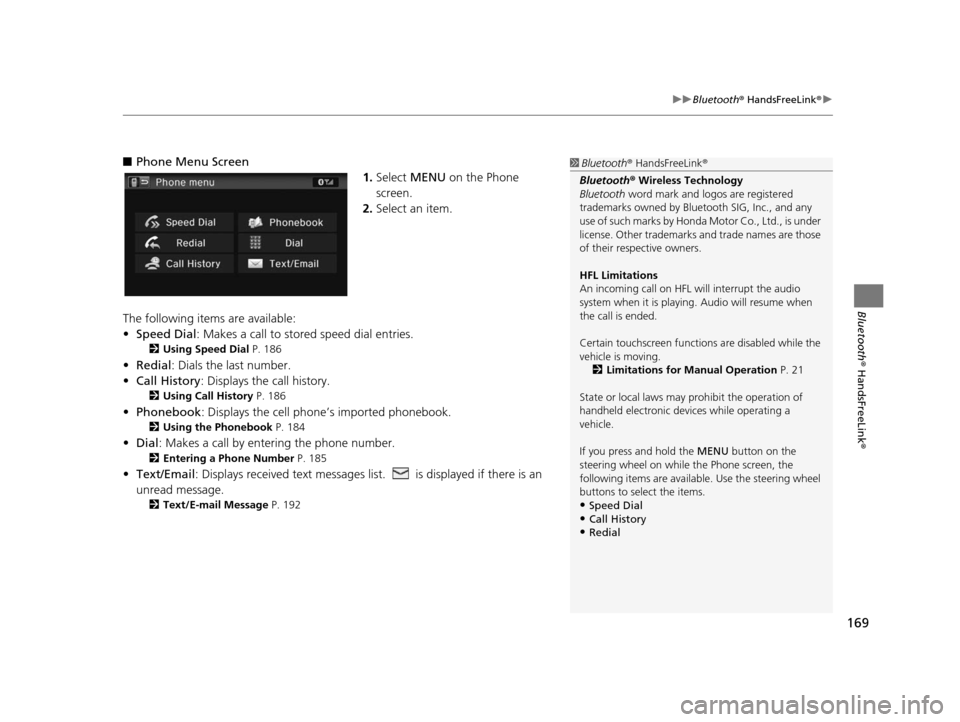
■Phone Menu Screen
1.Select MENU on the Phone
screen.
2. Select an item.
The following items are available:
• Speed Dial : Makes a call to stored speed dial entries.
2Using Speed Dial P. 186
•Redial : Dials the last number.
• Call History: Displays the call history.
2 Using Call History P. 186
•Phonebook : Displays the cell phone’s imported phonebook.
2Using the Phonebook P. 184
•Dial : Makes a call by enteri ng the phone number.
2Entering a Phone Number P. 185
•Text/Email : Displays received text messages lis t. is displayed if there is an
unread message.
2 Text/E-mail Me ssage P. 192
1Bluetooth ® HandsFreeLink ®
Bluetooth ® Wireless Technology
Bluetooth word mark and logos are registered
trademarks owned by Blue tooth SIG, Inc., and any
use of such marks by Honda Motor Co., Ltd., is under
license. Other trademarks and trade names are those
of their respective owners.
HFL Limitation s
An incoming call on HFL will interrupt the audio
system when it is playing. Audio will resume when
the call is ended.
Certain touchscree n functions are disabled while the
vehicle is moving.
2 Limitations for Manual Operation P. 21
State or local laws may pr ohibit the operation of
handheld electronic devi ces while operating a
vehicle.
If you press and hold the MENU button on the steering wheel on while the Phone screen, the
following items are available. Use the steering wheel
buttons to sele ct the items.
•Speed Dial
•Call History•Redial
15 CIVIC NAVI-31TR38300.book 169 ページ 2014年8月7日 木曜日 午前11時49分
Page 171 of 253
170
uuBluetooth ® HandsFreeLink ®u Pairing a Phone
Bluetooth ® HandsFreeLink ®
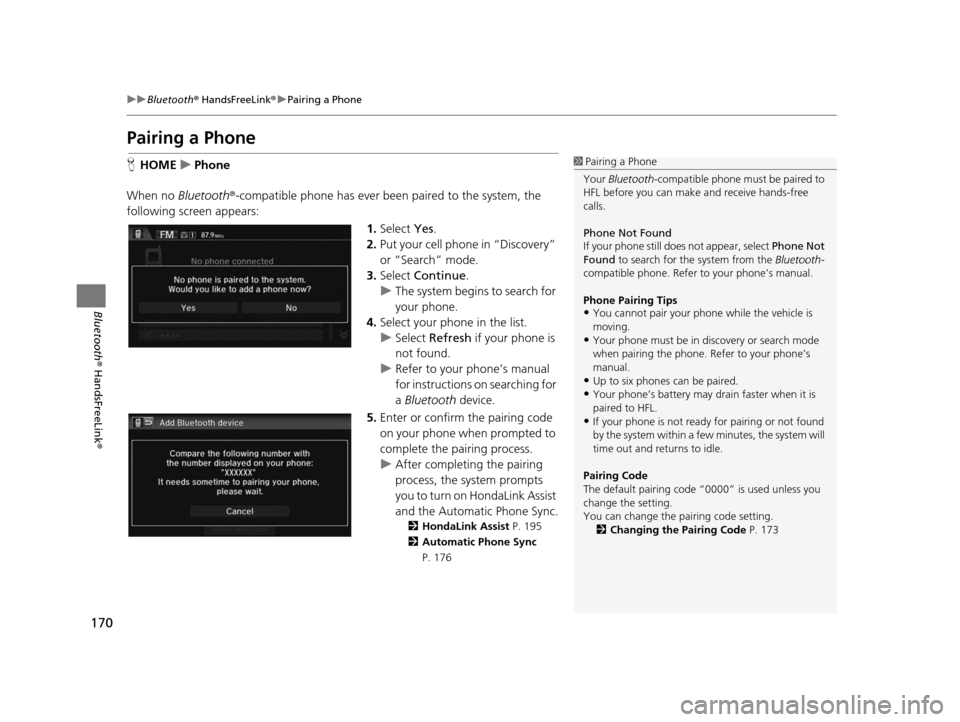
Pairing a Phone
HHOME uPhone
When no Bluetooth®-compatible phone has ever been paired to the system, the
following scre en appears:
1.Select Yes.
2. Put your cell phone in “Discovery”
or “Search” mode.
3. Select Continue .
u The system begins to search for
your phone.
4. Select your phone in the list.
u Select Refresh if your phone is
not found.
u Refer to your phone’s manual
for instructions on searching for
a Bluetooth device.
5. Enter or confirm the pairing code
on your phone when prompted to
complete the pairing process.
u After completing the pairing
process, the system prompts
you to turn on HondaLink Assist
and the Automatic Phone Sync.
2 HondaLink Assist P. 195
2 Automatic Phone Sync
P. 176
1Pairing a Phone
Your Bluetooth -compatible phone must be paired to
HFL before you can make and receive hands-free
calls.
Phone Not Found
If your phone still doe s not appear, select Phone Not
Found to search for the system from the Bluetooth-
compatible phone. Refer to your phone’s manual.
Phone Pairing Tip s
•You cannot pair your phone while the vehicle is
moving.
•Your phone must be in discovery or search mode
when pairing the phone. Refer to your phone’s
manual.
•Up to six phones can be paired.
•Your phone’s battery may dr ain faster when it is
paired to HFL.
•If your phone is not ready for pairing or not found
by the system within a few minutes, the system will
time out and returns to idle.
Pairing Code
The default pair ing code “0000” is used unless you
change the setting.
You can change the pairing code setting. 2 Changing the Pairing Code P. 173
15 CIVIC NAVI-31TR38300.book 170 ページ 2014年8月7日 木曜日 午前11時49分
Page 172 of 253
171
uuBluetooth ® HandsFreeLink ®u Pairing a Phone
Bluetooth ® HandsFreeLink ®
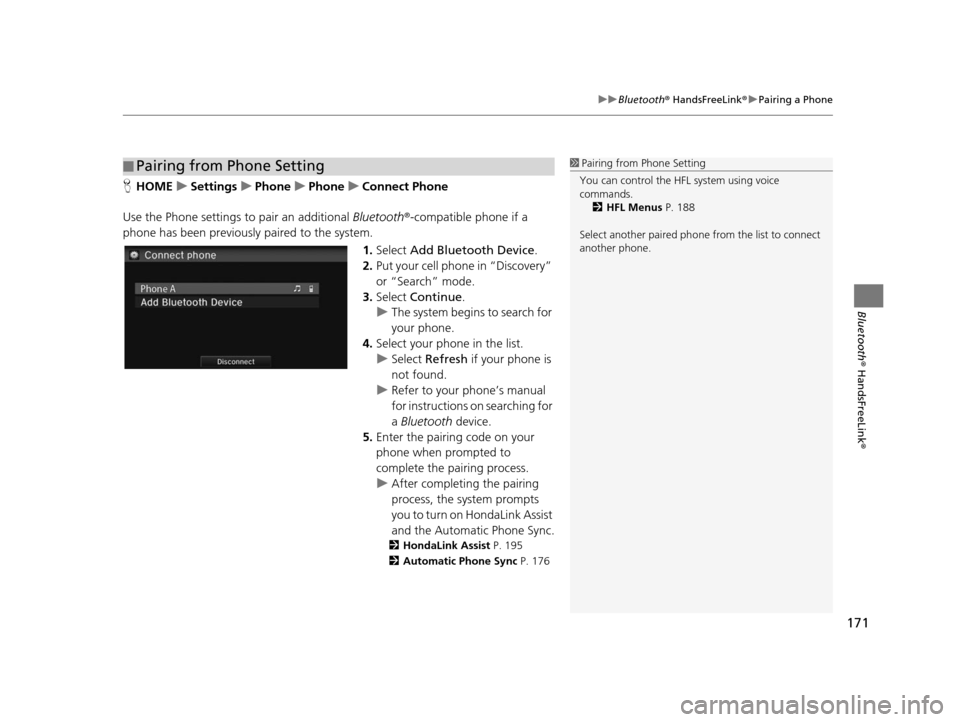
HHOME uSetting su Phone uPhone uConnect Phone
Use the Phone settings to pair an additional Bluetooth®-compatible phone if a
phone has been previously paired to the system.
1.Select Add Bluetooth Device .
2. Put your cell phone in “Discovery”
or “Search” mode.
3. Select Continue .
u The system begins to search for
your phone.
4. Select your phon e in the list.
u Select Refresh if your phone is
not found.
u Refer to your phone’s manual
for instructions on searching for
a Bluetooth device.
5. Enter the pairing code on your
phone when prompted to
complete the pairing process.
u After completing the pairing
process, the system prompts
you to turn on HondaLink Assist
and the Automatic Phone Sync.
2 HondaLink A ssist P. 195
2 Automatic Phone Sync P. 176
■Pairing from Phone Setting1
Pairing from Phone Setting
You can control the HFL system using voice
commands. 2 HFL Menu s P. 188
Select another paired phone from the list to connect
another phone.
15 CIVIC NAVI-31TR38300.book 171 ページ 2014年8月7日 木曜日 午前11時49分
Page 173 of 253
172
uuBluetooth ® HandsFreeLink ®u Bluetooth Setting
Bluetooth ® HandsFreeLink ®
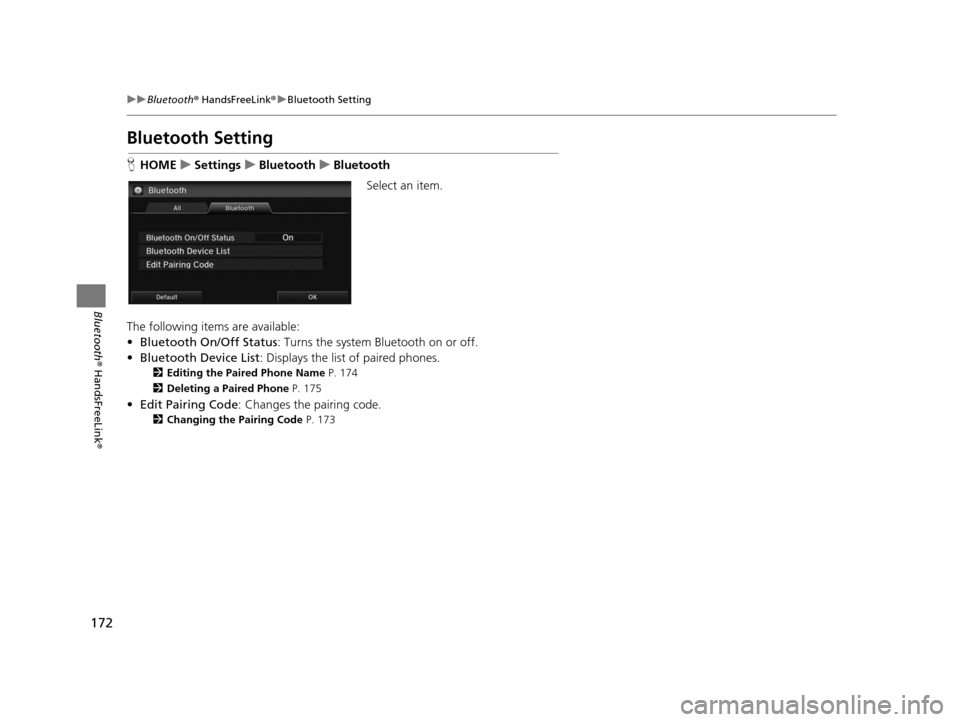
Bluetooth Setting
HHOME uSetting su Bluetooth uBluetooth
Select an item.
The following items are available:
• Bluetooth On/Off Status : Turns the system Bluetooth on or off.
• Bluetooth Device List : Displays the list of paired phones.
2Editing the Paired Phone Name P. 174
2 Deleting a Paired Phone P. 175
•Edit Pairing Code : Changes the pairing code.
2Changing the Pairing Code P. 173
15 CIVIC NAVI-31TR38300.book 172 ページ 2014年8月7日 木曜日 午前11時49分
Page 174 of 253
Continued173
uuBluetooth ® HandsFreeLink® uBluetooth Setting
Bluetooth ® HandsFreeLink ®
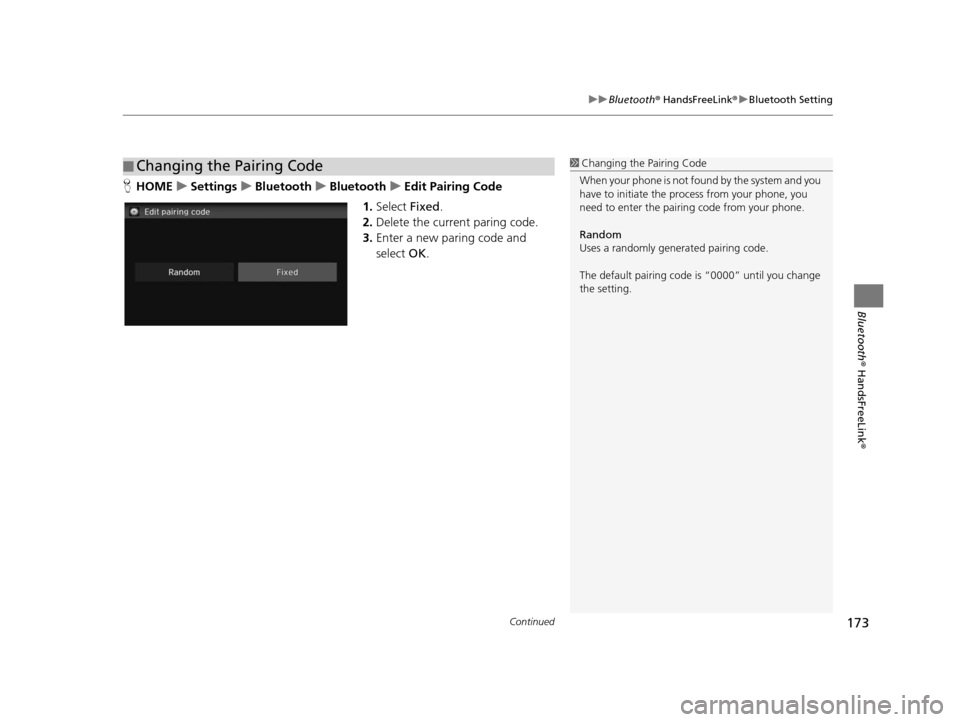
HHOME uSetting su Bluetooth uBluetooth uEdit Pairing Code
1. Select Fixed.
2. Delete the current paring code.
3. Enter a new paring code and
select OK.
■Changing the Pairing Code1
Changing the Pairing Code
When your phone is not found by the system and you
have to initiate the pr ocess from your phone, you
need to enter the pairin g code from your phone.
Random
Uses a randomly gene rated pairing code.
The default pairing code is “0000” until you change
the setting.
15 CIVIC NAVI-31TR38300.book 173 ページ 2014年8月7日 木曜日 午前11時49分
Page 175 of 253
174
uuBluetooth ® HandsFreeLink ®u Bluetooth Setting
Bluetooth ® HandsFreeLink ®
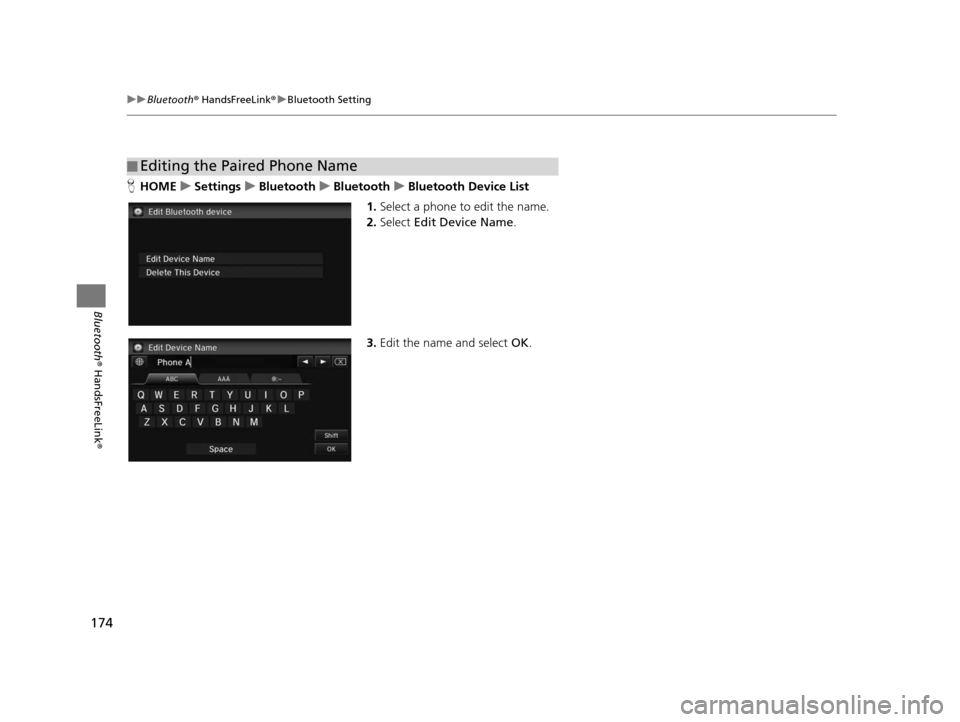
HHOME uSetting su Bluetooth uBluetooth uBluetooth Device Li st
1. Select a phone to edit the name.
2. Select Edit Device Name .
3. Edit the name and select OK.
■Editing the Paired Phone Name
15 CIVIC NAVI-31TR38300.book 174 ページ 2014年8月7日 木曜日 午前11時49分