phone HONDA CIVIC COUPE 2015 9.G Navigation Manual
[x] Cancel search | Manufacturer: HONDA, Model Year: 2015, Model line: CIVIC COUPE, Model: HONDA CIVIC COUPE 2015 9.GPages: 253, PDF Size: 8.81 MB
Page 99 of 253
98
Navigation
Calculating the Route
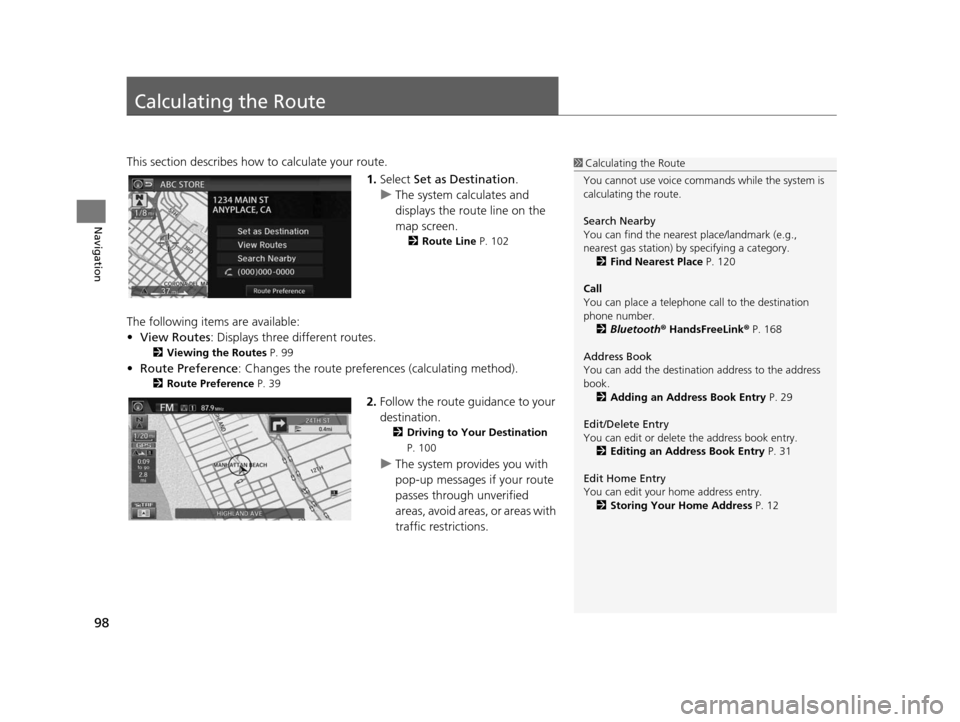
This section describes how to calculate your route.1.Select Set as Destination .
u The system calculates and
displays the route line on the
map screen.
2 Route Line P. 102
The following items are available:
•View Routes: Displays three different routes.
2 Viewing the Routes P. 99
•Route Preference : Changes the route preferen ces (calculating method).
2Route Preference P. 39
2.Follow the route guidance to your
destination.
2 Driving to Your Destination
P. 100
u The system provides you with
pop-up messages if your route
passes through unverified
areas, avoid areas, or areas with
traffic restrictions.
1Calculating the Route
You cannot use voice commands while the system is
calculating the route.
Search Nearby
You can find the nearest place/landmark (e.g.,
nearest gas station) by specifying a category. 2 Find Neare st Place P. 120
Call
You can place a telephone call to the destination
phone number.
2 Bluetooth® HandsFreeLink ® P. 168
Address Book
You can add the destinati on address to the address
book. 2 Adding an Addre ss Book Entry P. 29
Edit/Delete Entry
You can edit or delete the address book entry.
2 Editing an Addre ss Book Entry P. 31
Edit Home Entry
You can edit your home address entry. 2 Storing Your Home Addre ss P. 12
15 CIVIC NAVI-31TR38300.book 98 ページ 2014年8月7日 木曜日 午前11時49分
Page 124 of 253
123
Navigation
Resuming Your Trip
Stop your vehicle en route (e.g., to rest, stop for gas, etc.), and then continue on
your route.
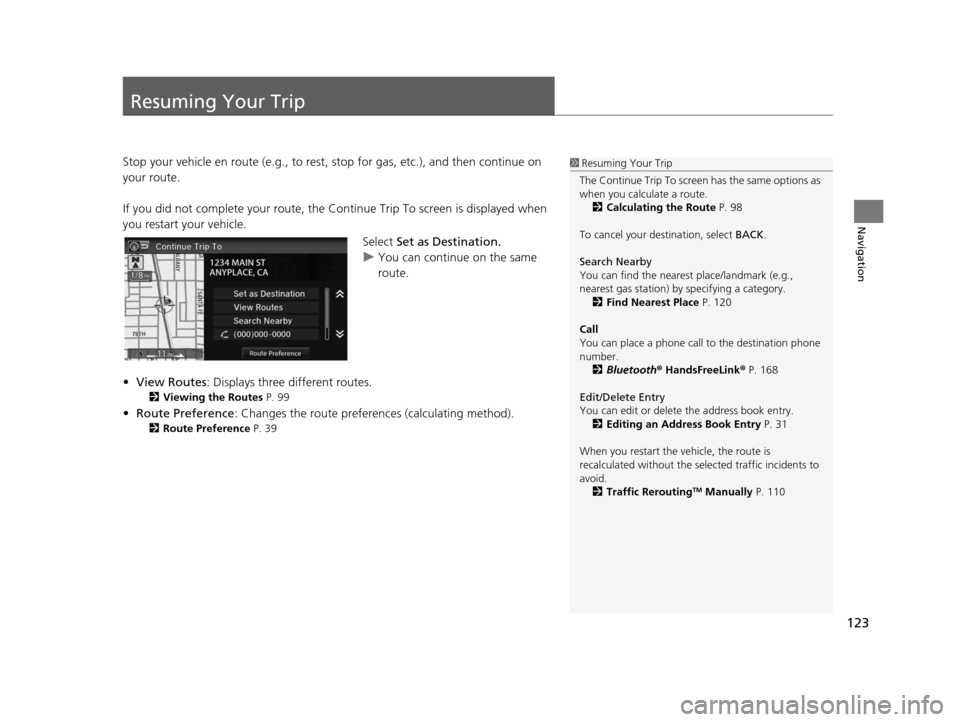
If you did not complete your route, the Co ntinue Trip To screen is displayed when
you restart your vehicle.
Select Set as Destination.
u You can continue on the same
route.
• View Routes : Displays three different routes.
2Viewing the Route s P. 99
•Route Preference : Changes the route preferen ces (calculating method).
2Route Preference P. 39
1Resuming Your Trip
The Continue Trip To screen has the same options as
when you calculate a route. 2 Calculating the Route P. 98
To cancel your de stination, select BACK.
Search Nearby
You can find the nearest place/landmark (e.g.,
nearest gas station) by specifying a category. 2 Find Neare st Place P. 120
Call
You can place a phone call to the destination phone
number.
2 Bluetooth® HandsFreeLink ® P. 168
Edit/Delete Entry
You can edit or delete the address book entry.
2 Editing an Addre ss Book Entry P. 31
When you restart the vehicle, the route is
recalculated without the sele cted traffic incidents to
avoid. 2 Traffic Rerouting
TM Manually P. 110
15 CIVIC NAVI-31TR38300.book 123 ページ 2014年8月7日 木曜日 午前11時49分
Page 127 of 253
126
Audio
Audio System
About Your Audio System
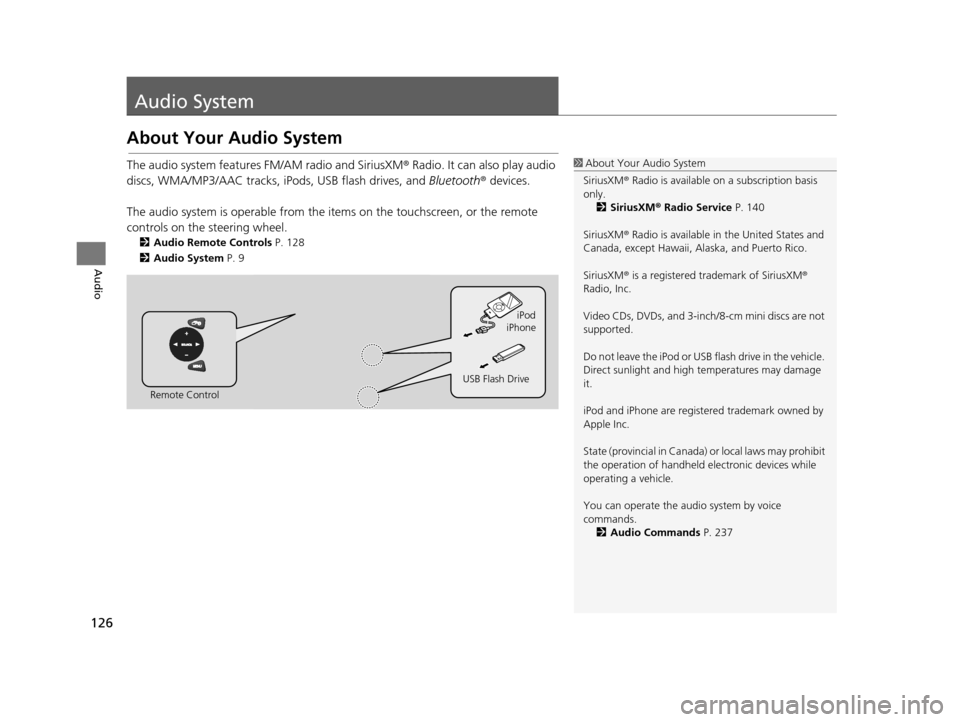
The audio system features FM/AM radio and SiriusXM ® Radio. It can also play audio
discs, WMA/MP3/AAC tracks, iP ods, USB flash drives, and Bluetooth® devices.
The audio system is operable from the it ems on the touchscreen, or the remote
controls on the steering wheel.
2 Audio Remote Control s P. 128
2 Audio Sy stem P. 9
1About Your Audio System
SiriusXM ® Radio is available on a subscription basis
only. 2 Siriu sXM® Radio Service P. 140
SiriusXM ® Radio is available in the United States and
Canada, except Ha waii, Alaska, and Puerto Rico.
SiriusXM ® is a registered trademark of SiriusXM ®
Radio, Inc.
Video CDs, DVDs, and 3-inch /8-cm mini discs are not
supported.
Do not leave the iPod or USB flash drive in the vehicle.
Direct sunlight and high temperatures may damage
it.
iPod and iPhone are regist ered trademark owned by
Apple Inc.
State (provincial in Canada) or local laws may prohibit
the operation of handheld electronic devices while
operating a vehicle.
You can operate the audio system by voice
commands. 2 Audio Commands P. 237
Remote Control iPod
USB Flash Drive iPhone
15 CIVIC NAVI-31TR38300.book 126 ページ 2014年8月7日 木曜日 午前11時49分
Page 129 of 253
128
Audio
Audio Remote Controls
Steering Wheel Controls
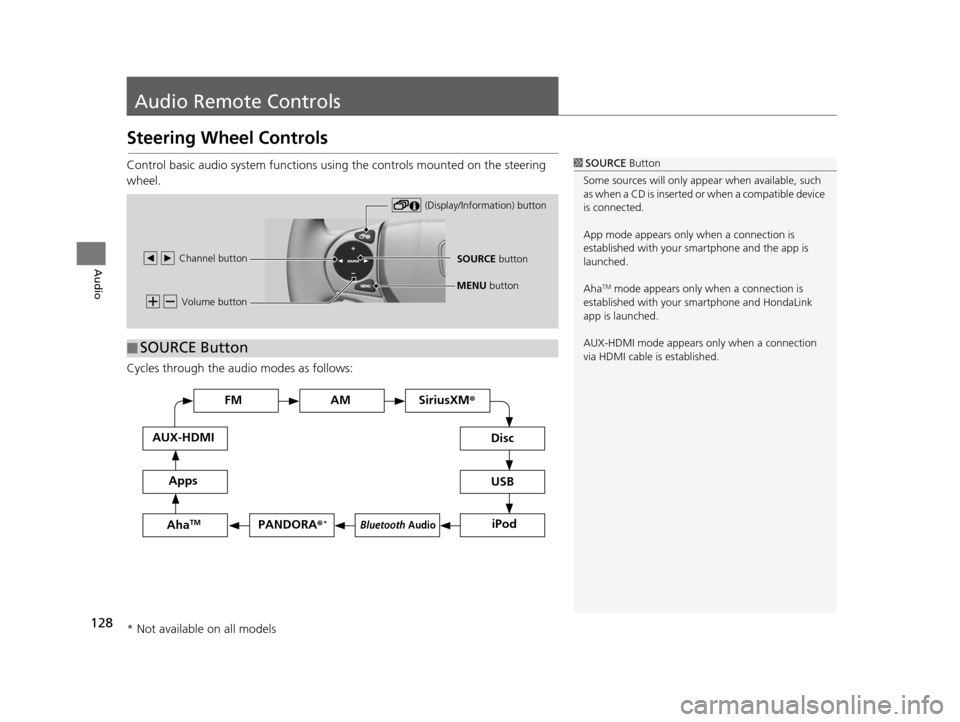
Control basic audio system functions using the controls mounted on the steering
wheel.
Cycles through the audio modes as follows:1SOURCE Button
Some sources will only appe ar when available, such
as when a CD is inserted or when a compatible device
is connected.
App mode appears only when a connection is
established with your smartphone and the app is
launched.
Aha
TM mode appears only when a connection is
established with your smartphone and HondaLink
app is launched.
AUX-HDMI mode appears only when a connection
via HDMI cable is established. Volume button
SOURCE button
Channel button
(Display/Information) button
MENU
button
■SOURCE Button
FM
PANDORA
®*
AM SiriusXM®
iPod
Di
sc
USBBluetooth Audio
App s
AUX-HDMI
Aha
TM
* Not available on all models
15 CIVIC NAVI-31TR38300.book 128 ページ 2014年8月7日 木曜日 午前11時49分
Page 130 of 253
129
uuAudio Remote Controls uSteering Wheel Controls
Continued
Audio
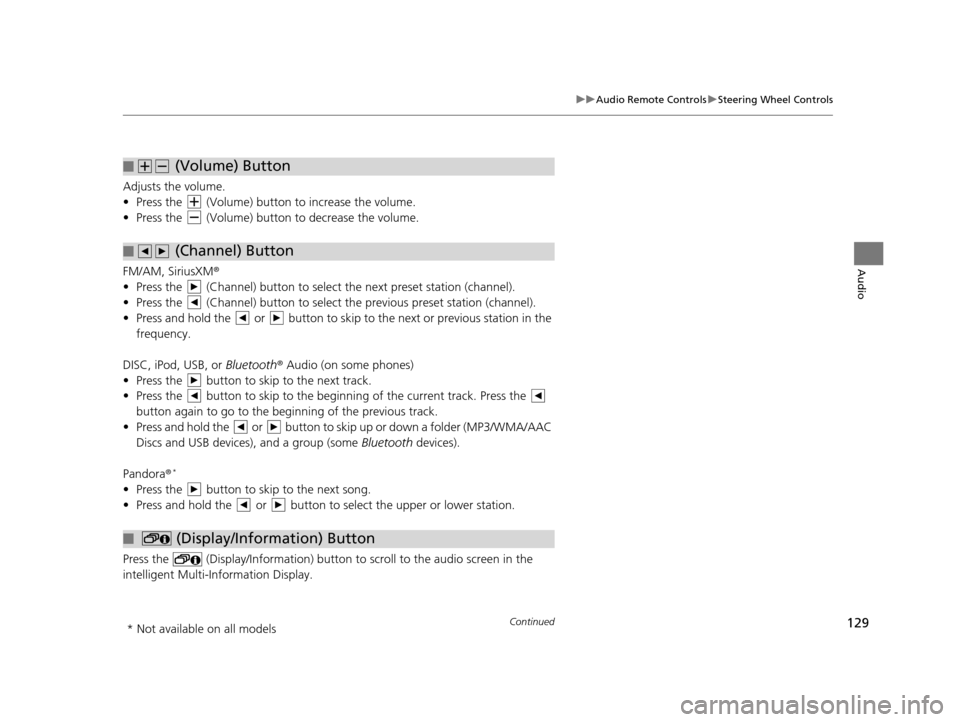
Adjusts the volume.
• Press the (Volume) butto n to increase the volume.
• Press the (Volume) butto n to decrease the volume.
FM/AM, SiriusXM ®
• Press the (Channel) button to select the next preset station (channel).
• Press the (Channel) button to select the previous preset station (channel).
• Press and hold the or button to skip to the next or previous station in the frequency.
DISC, iPod, USB, or Bluetooth® Audio (on some phones)
• Press the button to skip to the next track.
• Press the button to skip to the beginn ing of the current track. Press the
button again to go to the be ginning of the previous track.
• Press and hold the or button to skip up or down a folder (MP3/WMA/AAC Discs and USB devices), and a group (some Bluetooth devices).
Pandora ®
*
• Press the button to skip to the next song.
• Press and hold the or button to select the upper or lower station.
Press the (Display/Information) button to scroll to the audio screen in the
intelligent Multi-Information Display.
■ (Volume) Button
■ (Channel) Button
■ (Display/Information) Button
* Not available on all models
15 CIVIC NAVI-31TR38300.book 129 ページ 2014年8月7日 木曜日 午前11時49分
Page 136 of 253
Continued135
uuPlaying FM/AM Radio uAudio Menu
Audio
• Scan : Scans for stations with a strong sign al in the current band and plays a 10-
second sample. Select Cancel to stop scanning and play the current selection.
Audio Menu
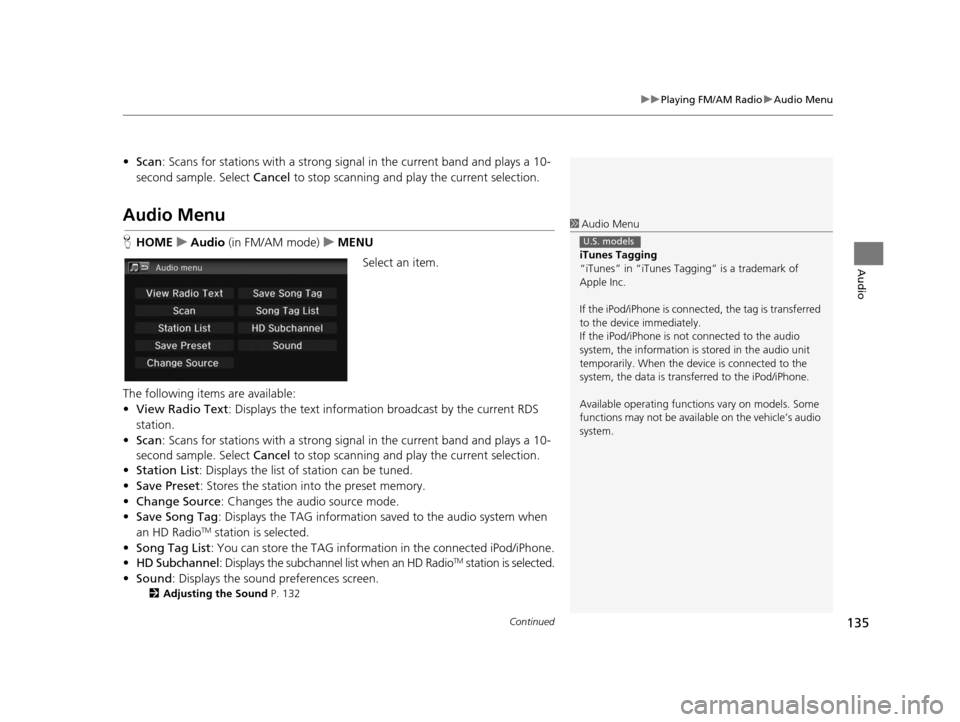
HHOME uAudio (in FM/AM mode) uMENU
Select an item.
The following items are available:
• View Radio Text : Displays the text informatio n broadcast by the current RDS
station.
• Scan : Scans for stations with a strong sign al in the current band and plays a 10-
second sample. Select Cancel to stop scanning and pl ay the current selection.
• Station List : Displays the list of station can be tuned.
• Save Preset : Stores the station into the preset memory.
• Change Source : Changes the audio source mode.
• Save Song Tag : Displays the TAG information sa ved to the audio system when
an HD Radio
TM station is selected.
• Song Tag List : You can store the TAG information in the connected iPod/iPhone.
• HD Subchannel : Displays the subchannel list when an HD Radio
TM station is selected.
• Sound : Displays the sound preferences screen.
2Adju sting the Sound P. 132
1Audio Menu
iTune s Tagging
“iTunes” in “iTunes Ta gging” is a trademark of
Apple Inc.
If the iPod/iPhone is connect ed, the tag is transferred
to the device immediately.
If the iPod/iPhone is not connected to the audio
system, the information is stored in the audio unit
temporarily. When the device is connected to the
system, the data is transferred to the iPod/iPhone.
Available operating function s vary on models. Some
functions may not be availa ble on the vehicle’s audio
system.
U.S. models
15 CIVIC NAVI-31TR38300.book 135 ページ 2014年8月7日 木曜日 午前11時49分
Page 147 of 253
146
Audio
Playing an iPod
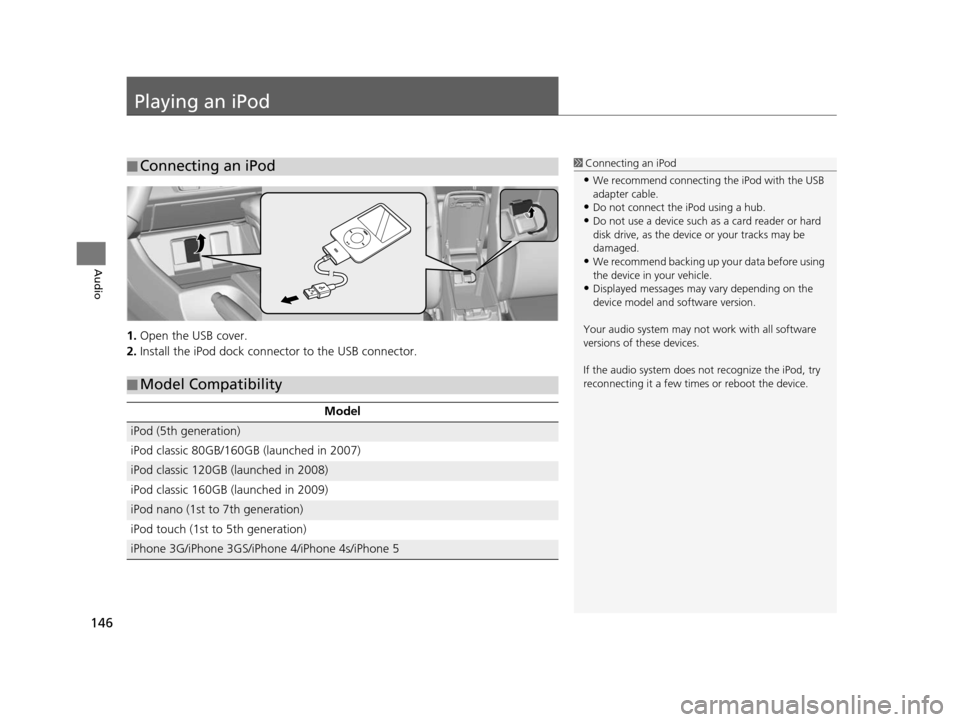
1.Open the USB cover.
2. Install the iPod dock connector to the USB connector.
■Connecting an iPod1
Connecting an iPod
•We recommend connecting the iPod with the USB
adapter cable.
•Do not connect the iPod using a hub.
•Do not use a device such as a card reader or hard
disk drive, as the device or your tracks may be
damaged.
•We recommend backing up yo ur data before using
the device in your vehicle.
•Displayed messages may vary depending on the
device model and software version.
Your audio system may not work with all software
versions of these devices.
If the audio system does not recognize the iPod, try
reconnecting it a few time s or reboot the device.
■Model Compatibility
Model
iPod (5th generation)
iPod classic 80GB/160GB (launched in 2007)
iPod classic 120GB (launched in 2008)
iPod classic 160GB (launched in 2009)
iPod nano (1st to 7th generation)
iPod touch (1st to 5th generation)
iPhone 3G/iPhone 3GS/iPhone 4/iPhone 4s/iPhone 5
15 CIVIC NAVI-31TR38300.book 146 ページ 2014年8月7日 木曜日 午前11時49分
Page 152 of 253
151
uuPlaying an iPod uSong By VoiceTM (SBV)
Continued
Audio
Song By VoiceTM (SBV)
Use SBV to search for and play music from your iPod or USB flash drive using voice
commands.
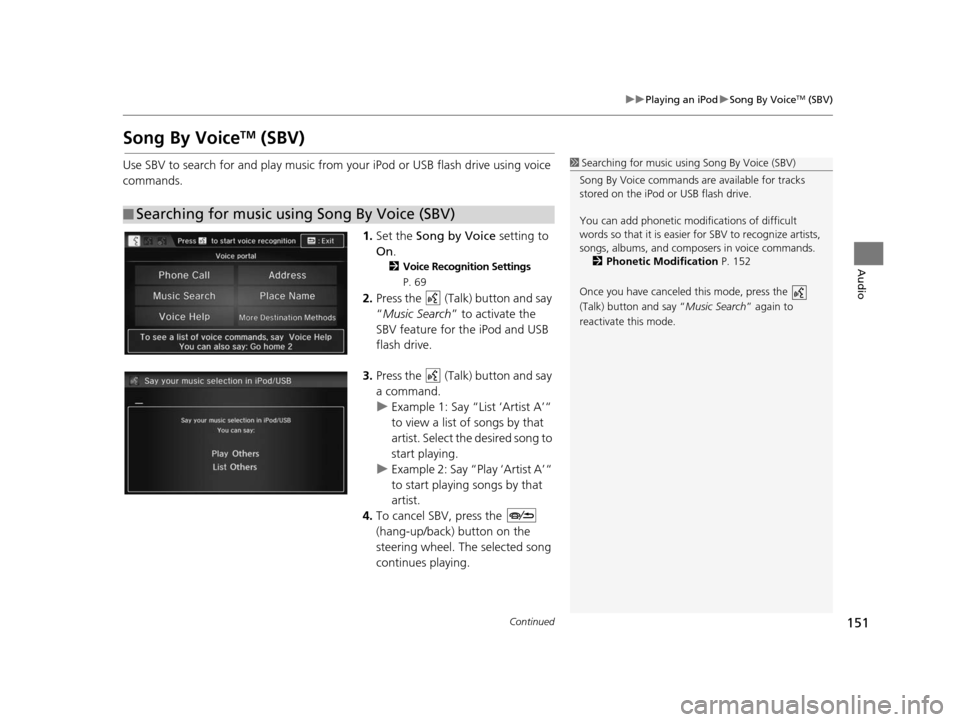
1.Set the Song by Voice setting to
On .
2Voice Recognition Setting s
P. 69
2. Press the (Talk) button and say
“Music Search ” to activate the
SBV feature for the iPod and USB
flash drive.
3. Press the (Talk) button and say
a command.
u Example 1: Say “List ‘Artist A’“
to view a list of songs by that
artist. Select the desired song to
start playing.
u Example 2: Say “Play ‘Artist A’“
to start playing songs by that
artist.
4. To cancel SBV, press the
(hang-up/back) button on the
steering wheel. The selected song
continues playing.
■Searching for music using Song By Voice (SBV)
1
Searching for music using Song By Voice (SBV)
Song By Voice commands are available for tracks
stored on the iPod or USB flash drive.
You can add phonetic modi fications of difficult
words so that it is easier for SBV to recognize artists,
songs, albums, and composers in voice commands.
2 Phonetic Modification P. 152
Once you have canceled this mode, press the
(Talk) button and say “Music Search ” again to
reactivate this mode.
15 CIVIC NAVI-31TR38300.book 151 ページ 2014年8月7日 木曜日 午前11時49分
Page 153 of 253
uuPlaying an iPod uSong By VoiceTM (SBV)
152
Audio
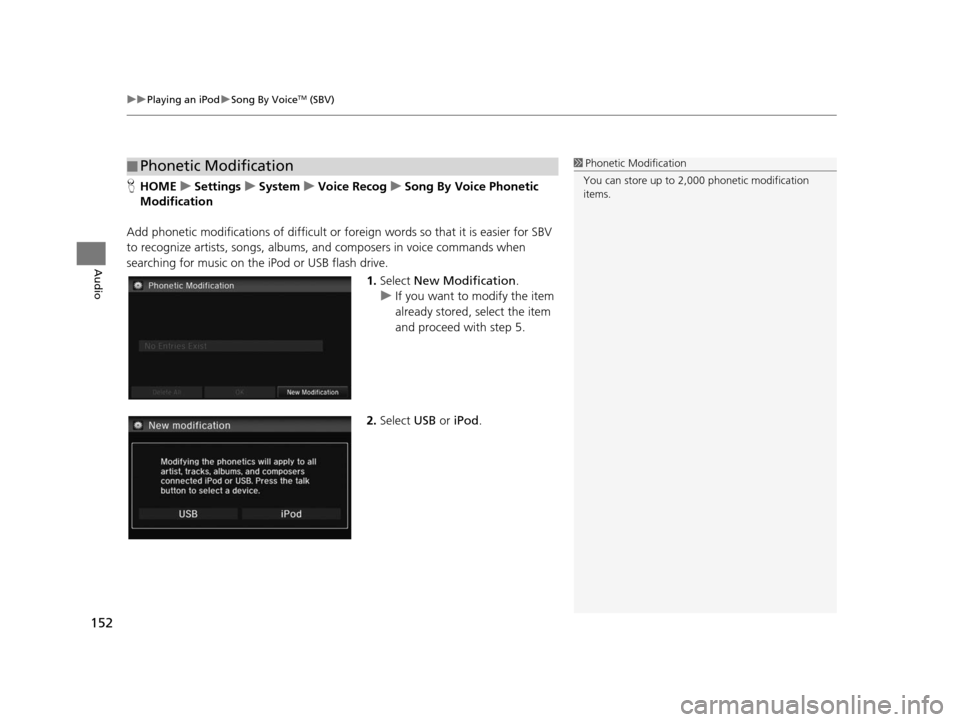
H HOME uSetting su Sys tem uVoice Recog uSong By Voice Phonetic
Modification
Add phonetic modifications of difficult or foreign words so that it is easier for SBV
to recognize artists, songs, albums, and composers in voice commands when
searching for music on the iPod or USB flash drive.
1.Select New Modification .
u If you want to modify the item
already stored, select the item
and proceed with step 5.
2. Select USB or iPod .
■Phonetic Modification1
Phonetic Modification
You can store up to 2, 000 phonetic modification
items.
15 CIVIC NAVI-31TR38300.book 152 ページ 2014年8月7日 木曜日 午前11時49分
Page 154 of 253
153
uuPlaying an iPod uSong By VoiceTM (SBV)
Audio
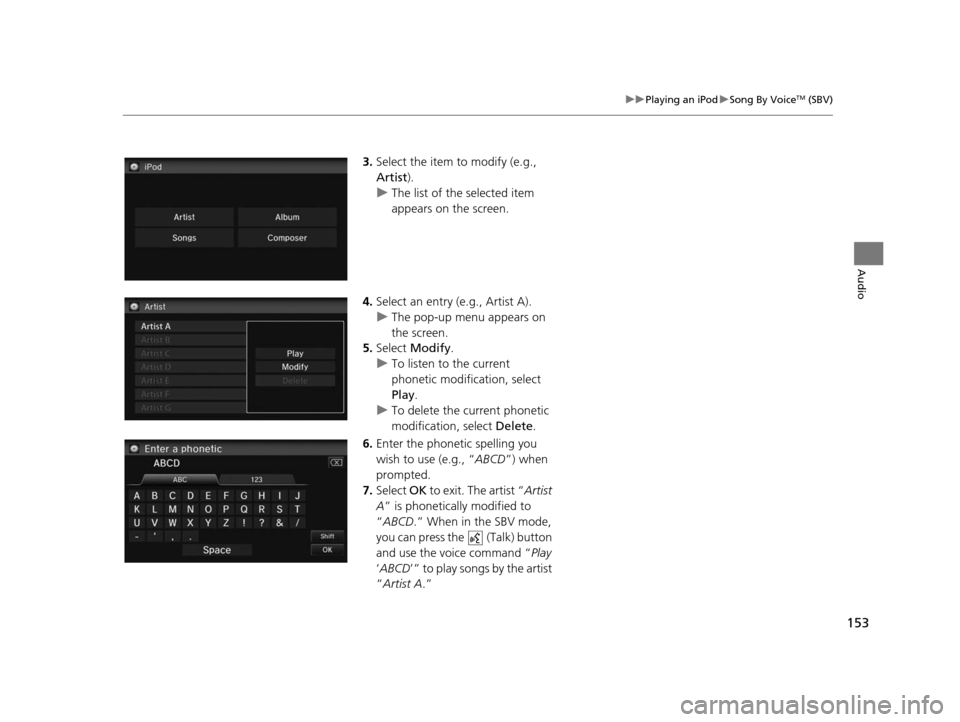
3. Select the item to modify (e.g.,
Artist ).
u The list of the selected item
appears on the screen.
4. Select an entry (e.g., Artist A).
u The pop-up menu appears on
the screen.
5. Select Modify .
u To listen to the current
phonetic modification, select
Play .
u To delete the current phonetic
modification, select Delete .
6. Enter the phonetic spelling you
wish to use (e.g., “ ABCD”) when
prompted.
7. Select OK to exit. The artist “ Artist
A” is phonetically modified to
“ ABCD .” When in the SBV mode,
you can press the (Talk) button
and use the voice command “ Play
‘ ABCD ’” to play songs by the artist
“ Artist A .”
15 CIVIC NAVI-31TR38300.book 153 ページ 2014年8月7日 木曜日 午前11時49分