display HONDA CIVIC COUPE 2016 10.G Repair Manual
[x] Cancel search | Manufacturer: HONDA, Model Year: 2016, Model line: CIVIC COUPE, Model: HONDA CIVIC COUPE 2016 10.GPages: 585, PDF Size: 17.41 MB
Page 205 of 585
204
uuAudio System Basic OperationuPlaying an iPod
Features
Playing an iPod
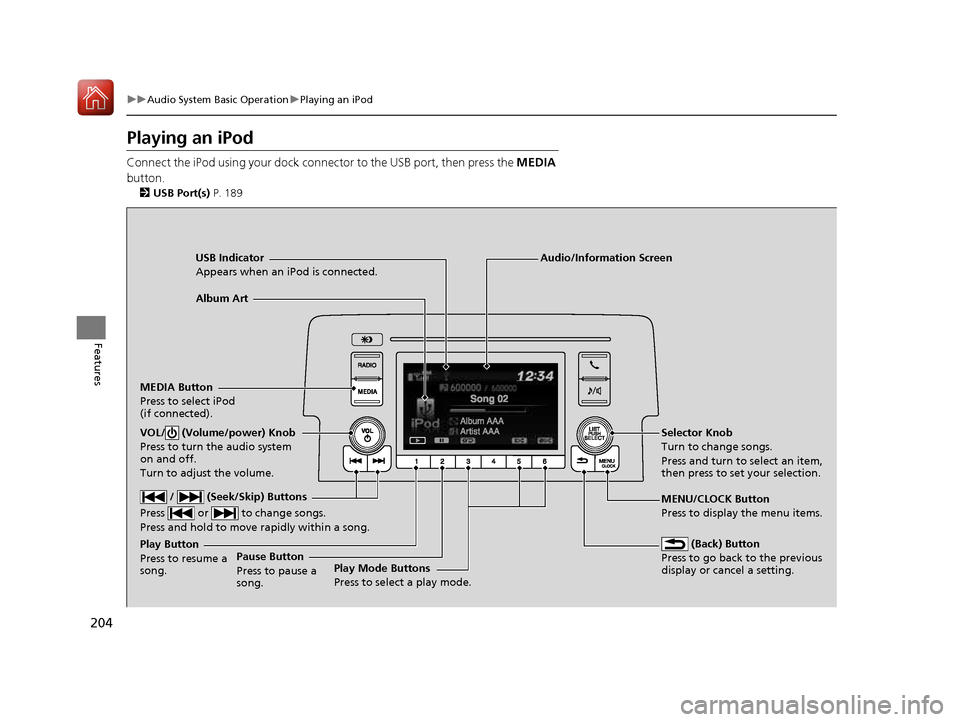
Connect the iPod using your dock connector to the USB port, then press the MEDIA
button. 2 USB Port(s) P. 189
USB Indicator
Appears when an iPod is connected.
MEDIA ButtonPress to select iPod
(if connected).
(Back) Button
Press to go back to the previous display or cancel a setting.
/ (Seek/Skip) Buttons
Press or to change songs. Press and hold to move rapidly within a song.
VOL/ (Volume/power) Knob
Press to turn the audio system
on and off.
Turn to adjust the volume.Selector Knob
Turn to change songs.
Press and turn to select an item,
then press to set your selection.
MENU/CLOCK Button Press to display the menu items.
Audio/Information Screen
Album Art
Play Mode Buttons
Press to select a play mode.
Play Button Press to resume a song.Pause Button
Press to pause a
song.
16 CIVIC 2D HC2 (0A 01 0C)-31TBG6000.book 204 ページ >0>.>/6年>0月>/>0日
金曜日 午後4時>/6分
Page 206 of 585
Continued205
uuAudio System Basic OperationuPlaying an iPod
Features
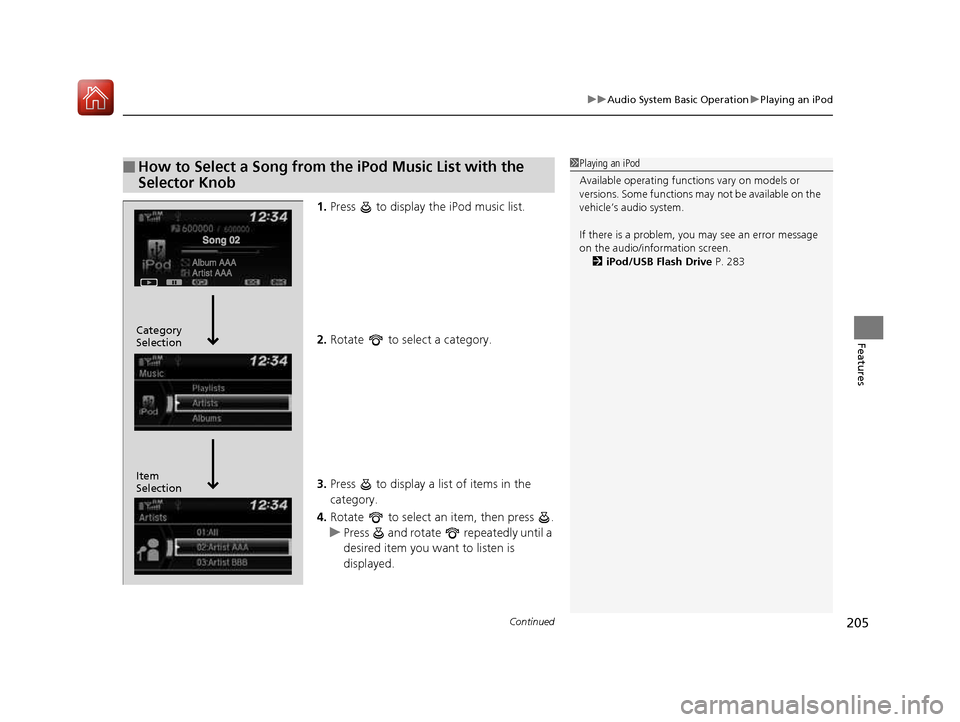
1.Press to display the iPod music list.
2. Rotate to select a category.
3. Press to display a list of items in the category.
4. Rotate to select an item, then press .
uPress and rotate repeatedly until a
desired item you want to listen is
displayed.
■How to Select a Song from the iPod Music List with the
Selector Knob1Playing an iPod Available operating functi ons vary on models or
versions. Some functions ma y not be available on the
vehicle’s audio system.
If there is a problem, you may see an error message
on the audio/information screen. 2 iPod/USB Flash Drive P. 283
Item Selection
Category Selection
16 CIVIC 2D HC2 (0A 01 0C)-31TBG6000.book 205 ページ >0>.>/6年>0月>/>0日
金曜日 午後4時>/6分
Page 208 of 585
207
uuAudio System Basic OperationuPlaying a USB Flash Drive
Continued
Features
Playing a USB Flash Drive
Your audio system reads and plays sound files on a USB flash drive in either MP3,
WMA or AAC *1
format.
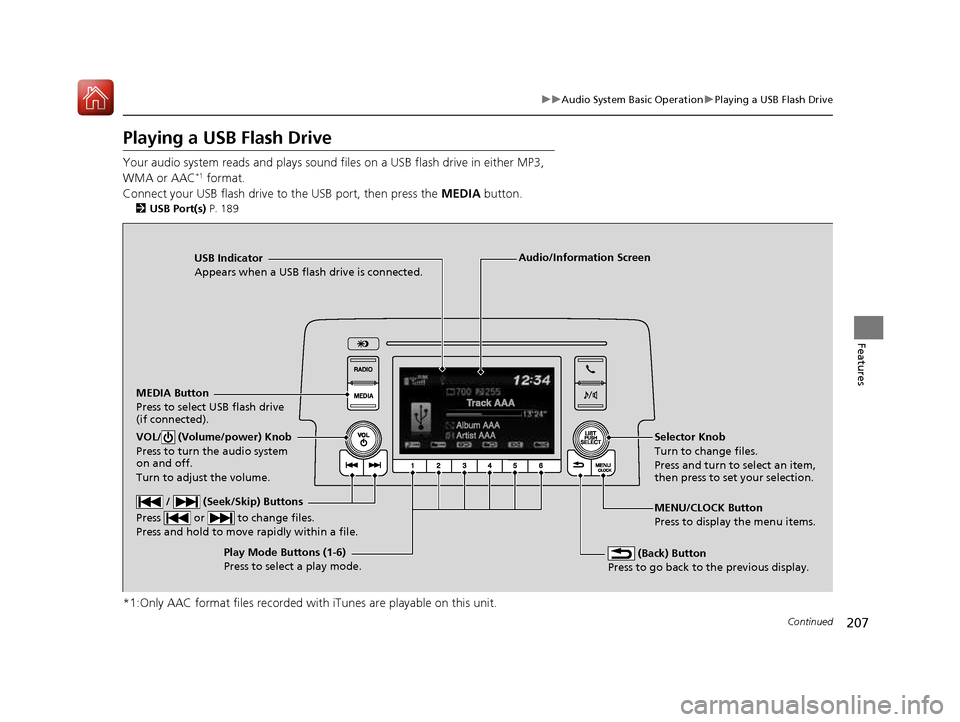
Connect your USB flash drive to the USB port, then press the MEDIA button.
2 USB Port(s) P. 189
*1:Only AAC format files recorded with iTunes are playable on this unit.
USB Indicator
Appears when a USB flash drive is connected.
MEDIA Button
Press to select USB flash drive
(if connected).
(Back) Button
Press to go back to the previous display.
/ (Seek/Skip) Buttons
Press or to change files.
Press and hold to move rapidly within a file.
VOL/ (Volume/power) Knob
Press to turn the audio system
on and off.
Turn to adjust the volume.Selector Knob
Turn to change files.
Press and turn to select an item,
then press to set your selection.
MENU/CLOCK Button Press to display the menu items.
Audio/Information Screen
Play Mode Buttons (1-6)
Press to select a play mode.
16 CIVIC 2D HC2 (0A 01 0C)-31TBG6000.book 207 ページ >0>.>/6年>0月>/>0日 金曜日 午後4時>/6分
Page 209 of 585
uuAudio System Basic OperationuPlaying a USB Flash Drive
208
Features
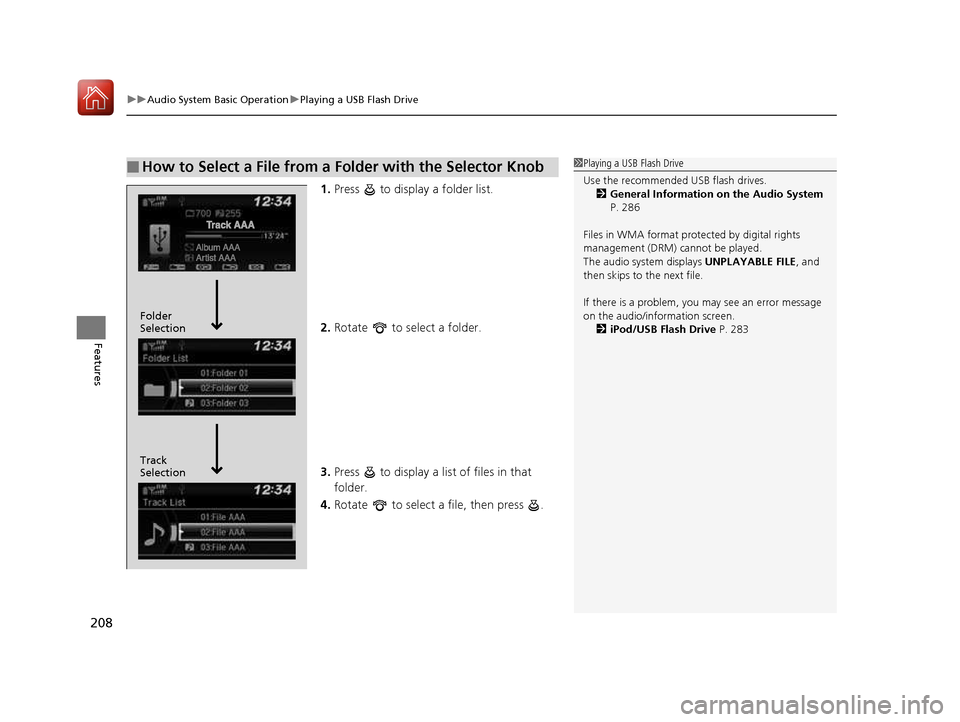
1. Press to display a folder list.
2. Rotate to select a folder.
3. Press to display a list of files in that folder.
4. Rotate to select a file, then press .
■How to Select a File from a Folder with the Selector Knob1Playing a USB Flash Drive
Use the recommended USB flash drives.
2 General Information on the Audio System
P. 286
Files in WMA format prot ected by digital rights
management (DRM) cannot be played.
The audio system displays UNPLAYABLE FILE, and
then skips to the next file.
If there is a problem, you may see an error message
on the audio/information screen.
2 iPod/USB Flash Drive P. 283
Track Selection
Folder Selection
16 CIVIC 2D HC2 (0A 01 0C)-31TBG6000.book 208 ページ >0>.>/6年>0月>/>0日
金曜日 午後4時>/6分
Page 211 of 585
210
uuAudio System Basic OperationuPlaying Bluetooth ® Audio
Features
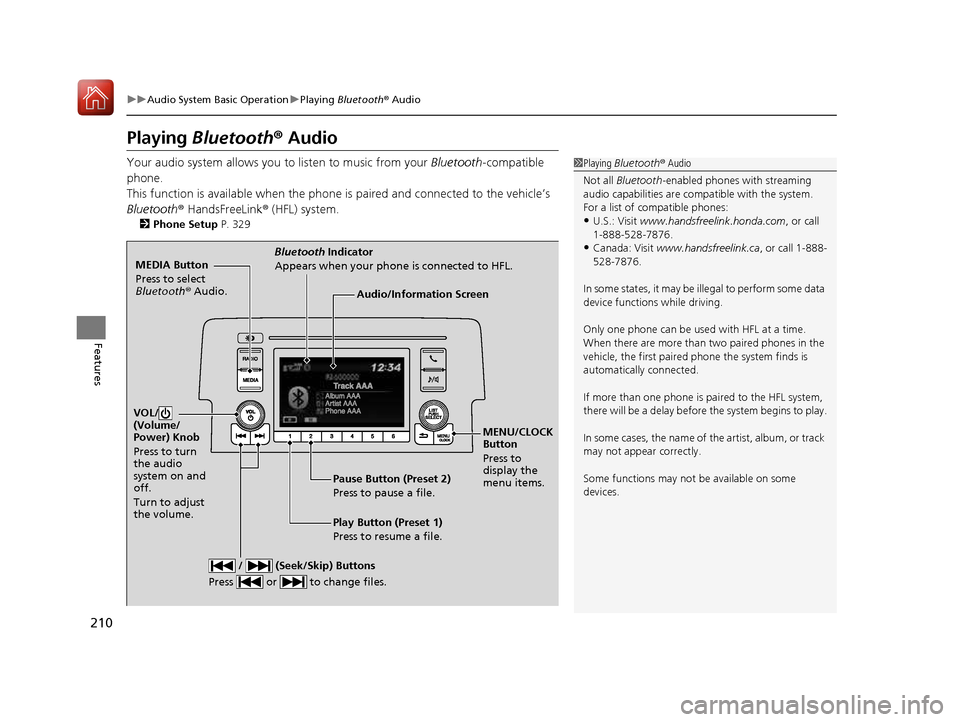
Playing Bluetooth ® Audio
Your audio system allows you to listen to music from your Bluetooth-compatible
phone.
This function is available when the phone is paired and connected to the vehicle’s
Bluetooth ® HandsFreeLink ® (HFL) system.
2 Phone Setup P. 329
1Playing Bluetooth ® Audio
Not all Bluetooth -enabled phones with streaming
audio capabilities are comp atible with the system.
For a list of compatible phones: • U.S.: Visit www.handsfreelink.honda.com , or call
1-888-528-7876.
• Canada: Visit www.handsfreelink.ca , or call 1-888-
528-7876.
In some states, it may be il legal to perform some data
device functions while driving. Only one phone can be used with HFL at a time.
When there are more than two paired phones in the
vehicle, the first paired phone the system finds is
automatically connected.
If more than one phone is paired to the HFL system,
there will be a delay before the system begins to play.
In some cases, the name of the artist, album, or track
may not appear correctly.
Some functions may not be available on some
devices.
MEDIA Button
Press to select
Bluetooth ® Audio.
VOL/
(Volume/
Power) Knob
Press to turn
the audio
system on and off.
Turn to adjust the volume.
MENU/CLOCK Button
Press to display the
menu items.
Audio/Information Screen
Bluetooth
Indicator
Appears when your phone is connected to HFL.
/ (Seek/Skip) Buttons
Press or to change files.
Play Button (Preset 1)
Press to resume a file.
Pause Button (Preset 2)
Press to pause a file.
16 CIVIC 2D HC2 (0A 01 0C)-31TBG6000.book 210 ページ >0>.>/6年>0月>/>0日
金曜日 午後4時>/6分
Page 213 of 585
uuAudio System Basic OperationuPlaying Bluetooth ® Audio
212
Features
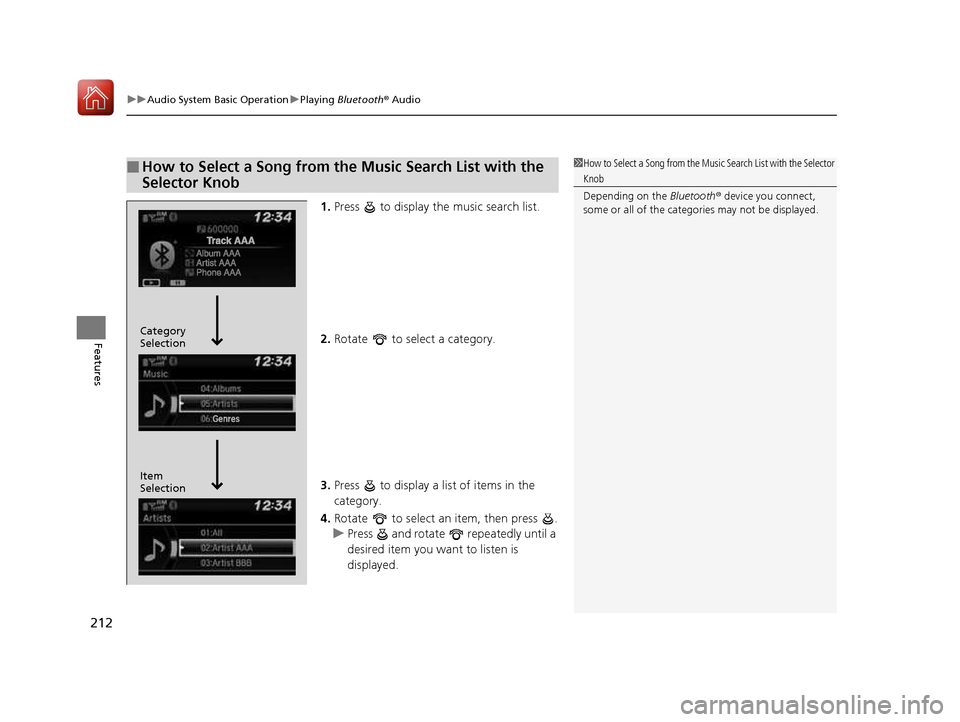
1. Press to display the music search list.
2. Rotate to select a category.
3. Press to display a list of items in the
category.
4. Rotate to select an item, then press .
uPress and rotate repeatedly until a
desired item you want to listen is
displayed.
■How to Select a Song from the Music Search List with the
Selector Knob1How to Select a Song from the Music Search List with the Selector
Knob Depending on the Bluetooth® device you connect,
some or all of the catego ries may not be displayed.
Item Selection
Category Selection
16 CIVIC 2D HC2 (0A 01 0C)-31TBG6000.book 212 ページ >0>.>/6年>0月>/>0日
金曜日 午後4時>/6分
Page 214 of 585
213
Features
Audio System Basic Operation
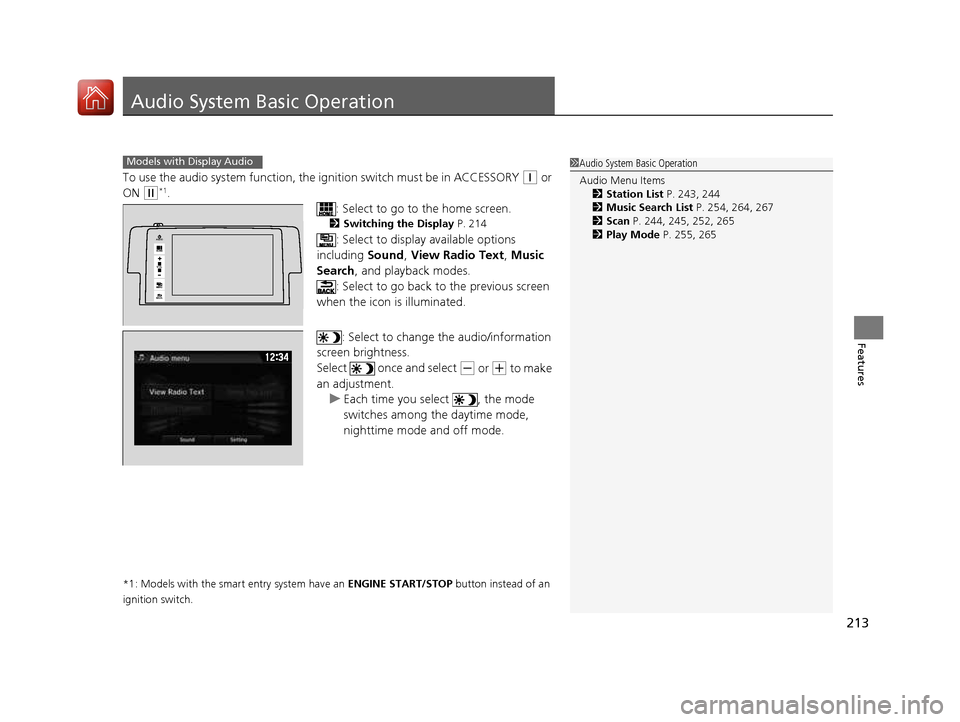
To use the audio system function, the ignition swit ch must be in ACCESSORY (q or
ON
(w *1
.
: Select to go to the home screen.
2 Switching the Display P. 214
: Select to display available options
including Sound, View Radio Text , Music
Search , and playback modes.
: Select to go back to the previous screen
when the icon is illuminated.
: Select to change the audio/information
screen brightness.
Select once and select
(- or (+ to make
an adjustment.
uEach time you select , the mode
switches among the daytime mode,
nighttime mode and off mode.
*1: Models with the smart entry system have an ENGINE START/STOP button instead of an
ignition switch.
1Audio System Basic Operation Audio Menu Items 2 Station List P. 243, 244
2 Music Search List P. 254, 264, 267
2 Scan P. 244, 245, 252, 265
2 Play Mode P. 255, 265Models with Display Audio
VOL
HOME
MENU
BACK
AUDIO
16 CIVIC 2D HC2 (0A 01 0C)-31TBG6000.book 213 ページ >0>.>/6年>0月>/>0日 金曜日 午後4時>/6分
Page 215 of 585
214
uuAudio System Basic OperationuAudio/Information Screen
Features
Audio/Information Screen
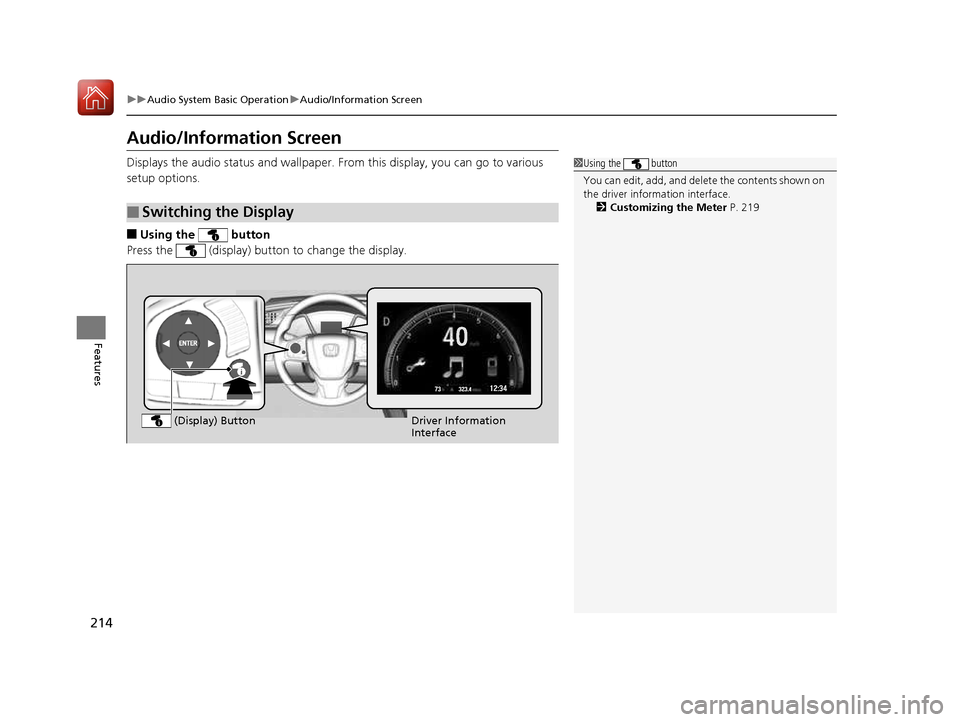
Displays the audio status and wallpaper. From this display, you can go to various
setup options. ■ Using the button
Press the (display) butto n to change the display.
■Switching the Display
1Using the button
You can edit, add, and delete the contents shown on
the driver information interface. 2 Customizing the Meter P. 219
Driver Information
Interface
(Display) Button
16 CIVIC 2D HC2 (0A 01 0C)-31TBG6000.book 214 ページ >0>.>/6年>0月>/>0日
金曜日 午後4時>/6分
Page 216 of 585
215
uuAudio System Basic OperationuAudio/Information Screen
Continued
Features
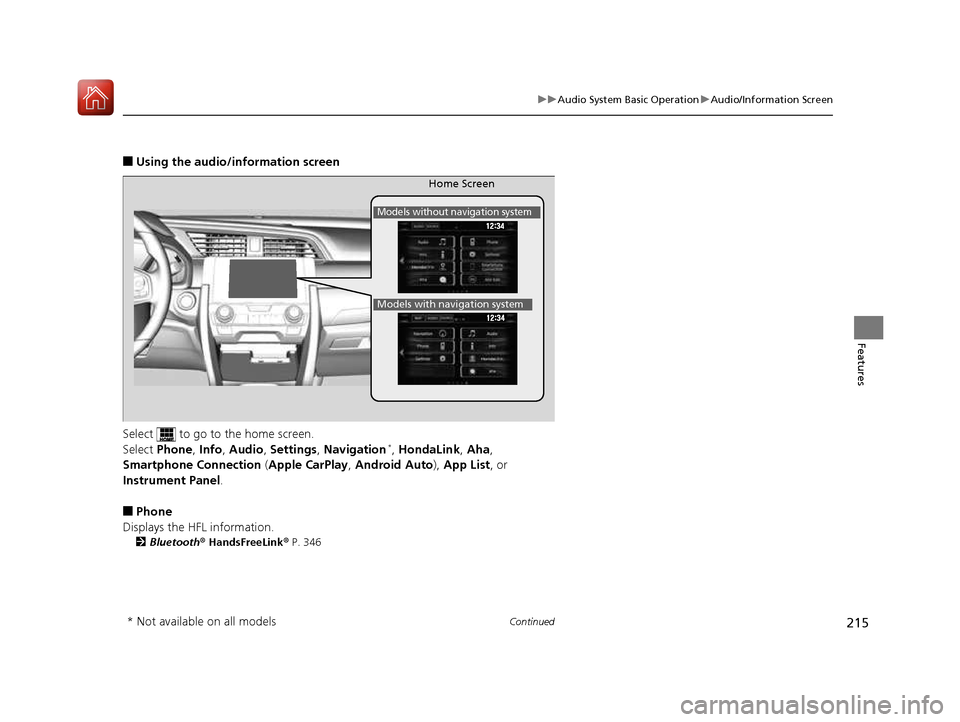
■Using the audio/in formation screen
Select to go to the home screen.
Select Phone , Info , Audio , Settings , Navigation *
, HondaLink , Aha ,
Smartphone Connection (Apple CarPlay , Android Auto ), App List , or
Instrument Panel .
■ Phone
Displays the HFL information. 2 Bluetooth ® HandsFreeLink ® P. 346
Home Screen
Models without navigation system
Models with navigation system
* Not available on all models
16 CIVIC 2D HC2 (0A 01 0C)-31TBG6000.book 215 ページ >0>.>/6年>0月>/>0日 金曜日 午後4時>/6分
Page 217 of 585
216
uuAudio System Basic OperationuAudio/Information Screen
Features
■Info
Displays Trip Computer or Clock/Wallpaper . Select on the Info Menu screen
to see all available options: Trip Computer, Voice Info , Clock/Wallpaper and
System/Device Information .
Trip Computer :
• Current Drive tab: Displays the current trip information.
• History of Trip A tab: Displays information for the three previous drives. The
information is stored every time you reset Trip A.
To delete the history manually, select Delete History on the History of Trip A
tab. The confirmation message ap pears on the screen, then select Yes.
Voice Info : Displays the all commands list.
Clock/Wallpaper :
Displays the cloc k and wallpaper.
System/Device Information :
• System Info : Displays the software version of the audio system.
• USB Info : Displays the memory usage of the USB device.
■ Audio
Displays the current audio information.
■ Settings
Enters the customiz ing menu screen.
2 Customized Features P. 292
■ Navigation *
Displays the navigation screen. 2 Refer to the Navigation System Manual
* Not available on all models
16 CIVIC 2D HC2 (0A 01 0C)-31TBG6000.book 216 ページ >0>.>/6年>0月>/>0日 金曜日 午後4時>/6分