display HONDA CIVIC COUPE 2016 10.G Manual Online
[x] Cancel search | Manufacturer: HONDA, Model Year: 2016, Model line: CIVIC COUPE, Model: HONDA CIVIC COUPE 2016 10.GPages: 585, PDF Size: 17.41 MB
Page 245 of 585
uuAudio System Basic OperationuPlaying AM/FM Radio
244
Features
Samples each of the strongest stations on th e selected band for 10 seconds. To turn
off scan, select Cancel or .
Displays the subchannel list when an HD Radio TM
station is selected while listening to
an FM station. 1. Select .
2. Select HD Subchannel .
3. Select the channel number.
Provides text data information related to your selected RDS-capable FM station.
■ To find an RDS station from Station List
1. Select the open/close icon to display a list while listening to an FM station.
2. Select the Station List tab.
3. Select the station.
■ Manual update
Updates your available station list at any time. 1. Select the open/close icon to display a list while listening to an FM station.
2. Select the Station List tab.
3. Select Refresh .
■Scan
■HD Subchannel
■Radio Data System (RDS)
Models with HD Radio TM
1Radio Data System (RDS)
When you select an RDS-capable FM station, the RDS
automatically turns on, and the frequency display
changes to the station name. However, when the
signals of that station
become weak, the display
changes from the statio n name to the frequency.
16 CIVIC 2D HC2 (0A 01 0C)-31TBG6000.book 244 ページ >0>.>/6年>0月>/>0日 金曜日 午後4時>/6分
Page 246 of 585
245
uuAudio System Basic OperationuPlaying AM/FM Radio
Features
■Radio text
Displays the radio text information of the selected RDS station. 1. Select .
2. Select View Radio Text .
■ Scan
Samples each of the strongest stations on the selected band for 10 seconds.
To turn off scan, select Cancel or .
16 CIVIC 2D HC2 (0A 01 0C)-31TBG6000.book 245 ページ >0>.>/6年>0月>/>0日 金曜日 午後4時>/6分
Page 247 of 585
246
uuAudio System Basic OperationuPlaying SiriusXM® Radio *
Features
Playing SiriusXM
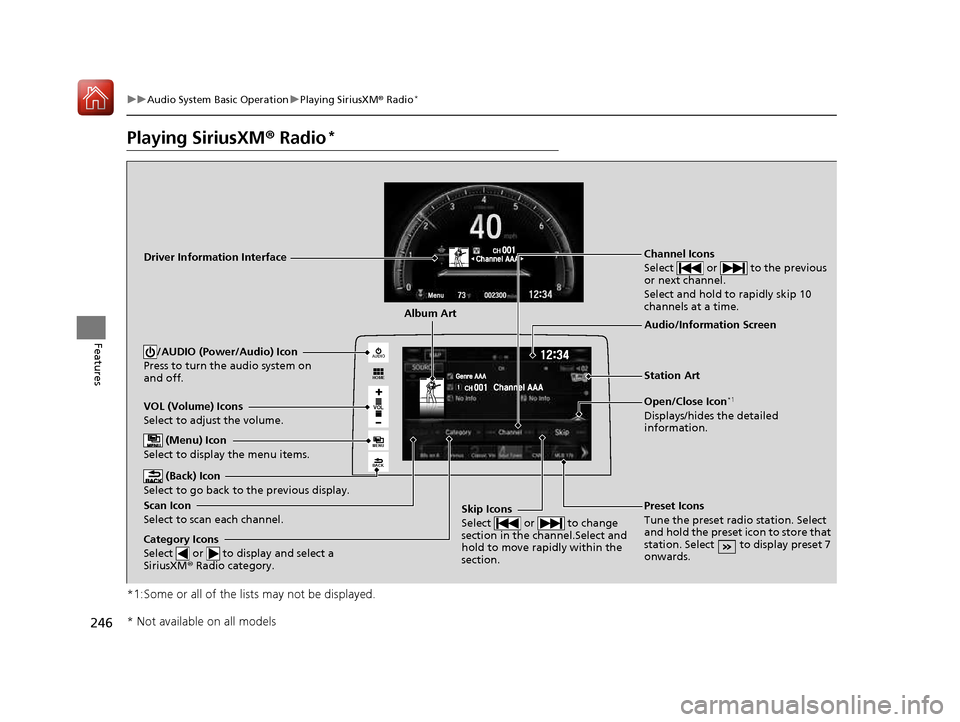
® Radio *
*1:Some or all of the lists may not be displayed.
VOL
HOME
MENU
BACK
AUDIO
VOL (Volume) Icons
Select to adjust the volume.
(Back) Icon
Select to go back to the previous display.
Channel Icons
Select or to the previous
or next channel.
Select and hold to rapidly skip 10
channels at a time.
/AUDIO (Power/Audio) Icon
Press to turn the audio system on
and off.
Open/Close Icon *1
Displays/hides the detailed
information.
(Menu) Icon
Select to display the menu items.
Category Icons
Select or to display and select a
SiriusXM ® Radio category.
Audio/Information Screen
Scan Icon
Select to scan each channel. Preset Icons
Tune the preset radio station. Select
and hold the preset icon to store that
station. Select to display preset 7 onwards.Skip Icons
Select or to change
section in the channel.Select and
hold to move rapidly within the section.
Driver Information Interface
Album Art
Station Art
* Not available on all models
16 CIVIC 2D HC2 (0A 01 0C)-31TBG6000.book 246 ページ >0>.>/6年>0月>/>0日 金曜日 午後4時>/6分
Page 249 of 585
uuAudio System Basic OperationuPlaying SiriusXM® Radio *
248
Features
To store a channel: 1. Tune to the selected channel.
2. Press and hold the preset number for the station you want to store.
3. Select OK.
You can also store a channel by the following procedure.1. Tune to the selected channel.
2. Select the open/close ic on to display a list.
3. Select the Preset tab.
4. Select and hold the preset number fo r the station you want to store.
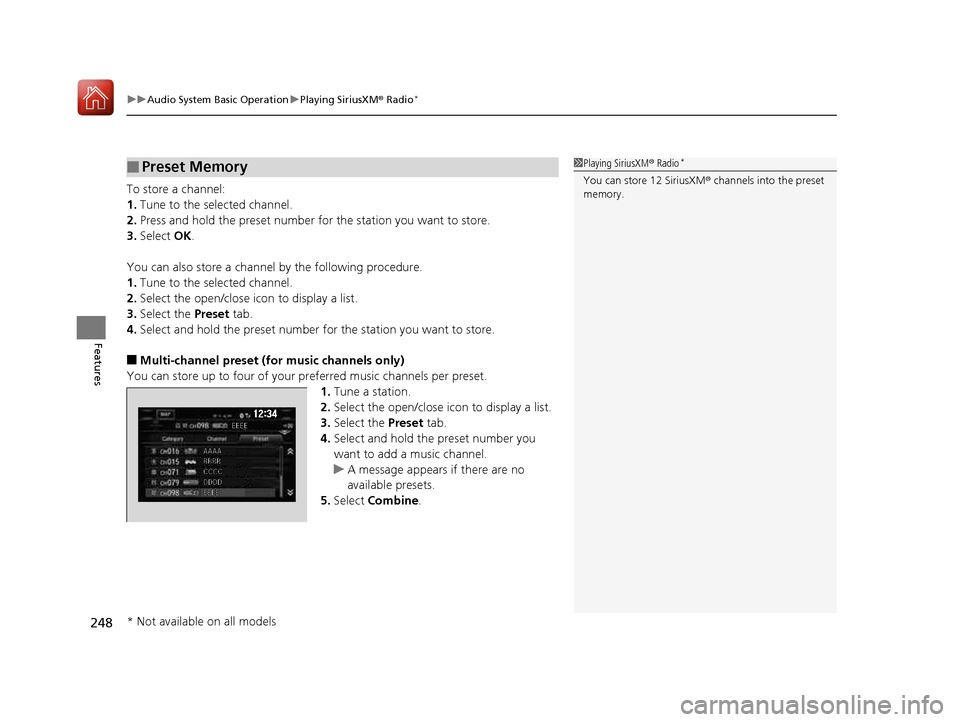
■ Multi-channel preset (for music channels only)
You can store up to four of your pr eferred music channels per preset.
1. Tune a station.
2. Select the open/close ic on to display a list.
3. Select the Preset tab.
4. Select and hold the preset number you
want to add a music channel.
uA message appears if there are no
available presets.
5. Select Combine .
■Preset Memory1Playing SiriusXM ® Radio *
You can store 12 SiriusXM ® channels into the preset
memory.
* Not available on all models
16 CIVIC 2D HC2 (0A 01 0C)-31TBG6000.book 248 ページ >0>.>/6年>0月>/>0日 金曜日 午後4時>/6分
Page 250 of 585
Continued249
uuAudio System Basic OperationuPlaying SiriusXM® Radio *
Features
Suggested channel listing received from SiriusXM
® can be displayed and selected.
1. Select the open/close icon to display a channel list.
2. Select the Channel tab.
3. Select the featured channel list title you want to listen to.
uThe selected channel list of the title is displayed.
4. Select the channel.
■Listening to Featured Channels1Listening to Featured Channels
Up to three featured channels by SiriusXM ® can be
displayed.
Featured channel lists are at the top of the channel
list.
16 CIVIC 2D HC2 (0A 01 0C)-31TBG6000.book 249 ページ >0>.>/6年>0月>/>0日 金曜日 午後4時>/6分
Page 254 of 585
253
uuAudio System Basic OperationuPlaying an iPod
Continued
Features
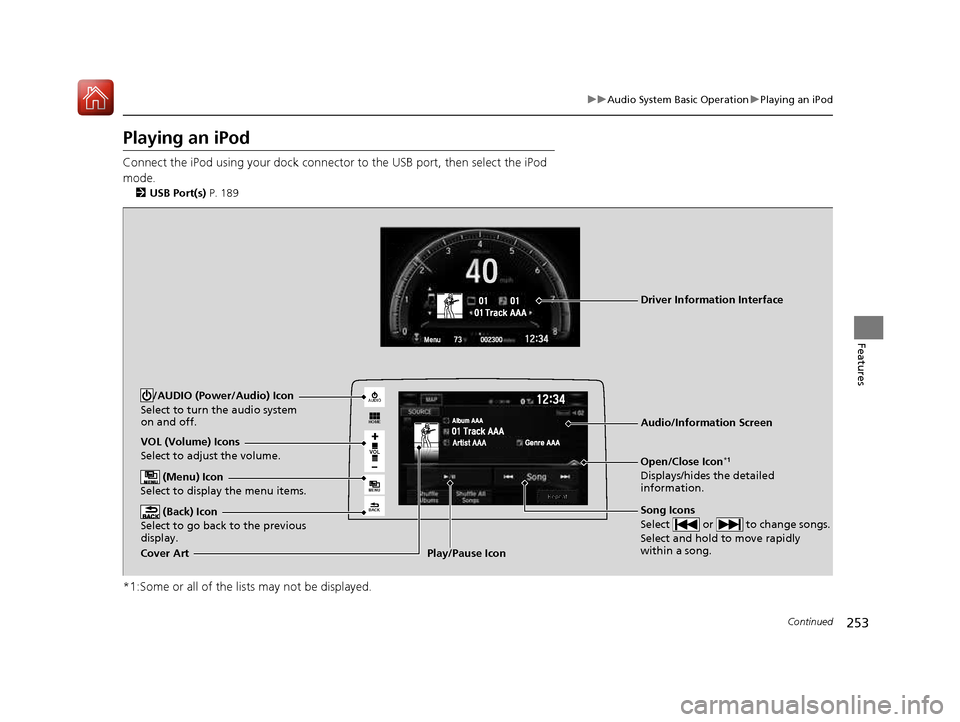
Playing an iPod
Connect the iPod using your dock connector to the USB port, then select the iPod
mode.2 USB Port(s) P. 189
*1:Some or all of the lists may not be displayed.
VOL
HOME
MENU
BACK
AUDIO
VOL (Volume) Icons
Select to adjust the volume.
(Back) Icon
Select to go back to the previous
display.
Song Icons
Select or to change songs.
Select and hold to move rapidly within a song.
/AUDIO (Power/Audio) Icon
Select to turn the audio system
on and off.
Open/Close Icon *1
Displays/hides the detailed information.
(Menu) Icon
Select to display the menu items.
Cover Art Audio/Information ScreenPlay/Pause Icon
Driver Information Interface
16 CIVIC 2D HC2 (0A 01 0C)-31TBG6000.book 253 ページ >0>.>/6年>0月>/>0日
金曜日 午後4時>/6分
Page 261 of 585
260
uuAudio System Basic OperationuPlaying Pandora®*
Features
Playing Pandora
®*
Your audio system allows you to listen to music from the Pandora ® app on a
compatible smartphone.
This function is available when the phone is paired and connected to the vehicle’s
Bluetooth ® HandsFreeLink ® (HFL) system, or with an iPhone, you can connect using
your USB cable to the USB port. 2 Phone Setup P. 354
2 USB Port(s) P. 189
*1:Some or all of the lists may not be displayed.
U.S. models
1Playing Pandora ®*
Pandora ®, the Pandora logo, and the Pandora trade
dress are trademarks or registered trademarks of
Pandora Media, Inc., used with permission. Pandora
is only available in certain countries. Visit the Pandora
website for more information.
To find out if your phone is compatible with this
feature, visit www.handsfreelink.honda.com , or call
1-888-528-7876.
To use this service in your vehicle, the Pandora ® app
must first be installed on your phone. Visit www.pandora.com . for more information.
Pandora ® is free, personalized radio that plays music
and comedy you’ll love. Just start with the name of
one of your favorite arti sts, songs, comedians or
composers and Pandora ® will create a custom station
that plays similar tracks. Pandora ® also features
hundreds of genre stations ranging from Dubstep to
Smooth Jazz to Power Workout. If you cannot operate Pandora ® through the audio
system, it may be streaming through Bluetooth®
Audio. Make sure Pandora ® mode on your audio
system is selected.
If your phone is connecte d to Android Auto, Pandora
is only available through the Android Auto interface.
Visit the Android Auto website to check
compatibility.
VO L
HOME
MENU
BACK
AUDIO
Audio/Information Screen
Cover Art
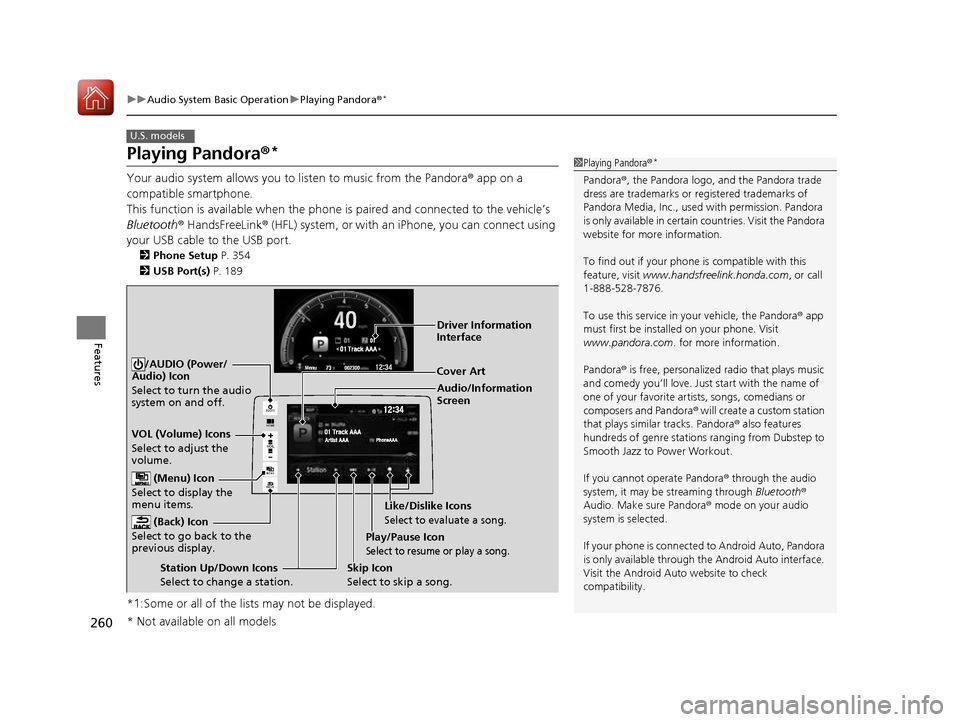
VOL (Volume) Icons
Select to adjust the
volume. (Back) Icon
Select to go back to the
previous display.
/AUDIO (Power/
Audio) Icon
Select to turn the audio
system on and off.
(Menu) Icon
Select to display the
menu items.
Play/Pause Icon
Select to resume or play a song.
Station Up/Down Icons Select to change a station. Skip Icon
Select to skip a song.Like/Dislike Icons
Select to evaluate a song.
Driver Information
Interface
* Not available on all models
16 CIVIC 2D HC2 (0A 01 0C)-31TBG6000.book 260 ページ >0>.>/6年>0月>/>0日
金曜日 午後4時>/6分
Page 263 of 585
262
uuAudio System Basic OperationuPlaying AhaTM
Features
Playing Aha TM
Aha TM
can be displayed and operated on the audio/information screen when your
smartphone is connected to the audio system by Wi-Fi or through Bluetooth® with
the HondaLink ® app downloaded to your smartphone.
2 Wi-Fi Connection P. 273
2 HondaLink ® P. 268
1Playing Aha TM
Aha TM
by Harman is a clou d-based service that
organizes your favorite we b content into live radio
stations. You can access podcasts, internet radio,
location-based services , and audio updates from
social media sites. Available operating functi ons vary on software
versions. Some functions ma y not be available on the
vehicle’s audio system.
The menu items vary depending on the station you
selected.
You must have a previously set up Aha TM
account
prior to using the service in your vehicle. Visit
www.aharadio.com for more information.
You want to select a nother source, select SOURCE
on the upper left of the screen. The source select
screen will appear. Sele ct the source you want.
When Apple CarPlay or Android Auto is connected to
the audio system, Aha TM
can be accessed even
without a Wi-Fi connection.
VOL
HOME
MENU
BACK
AUDIO
Audio/Information Screen
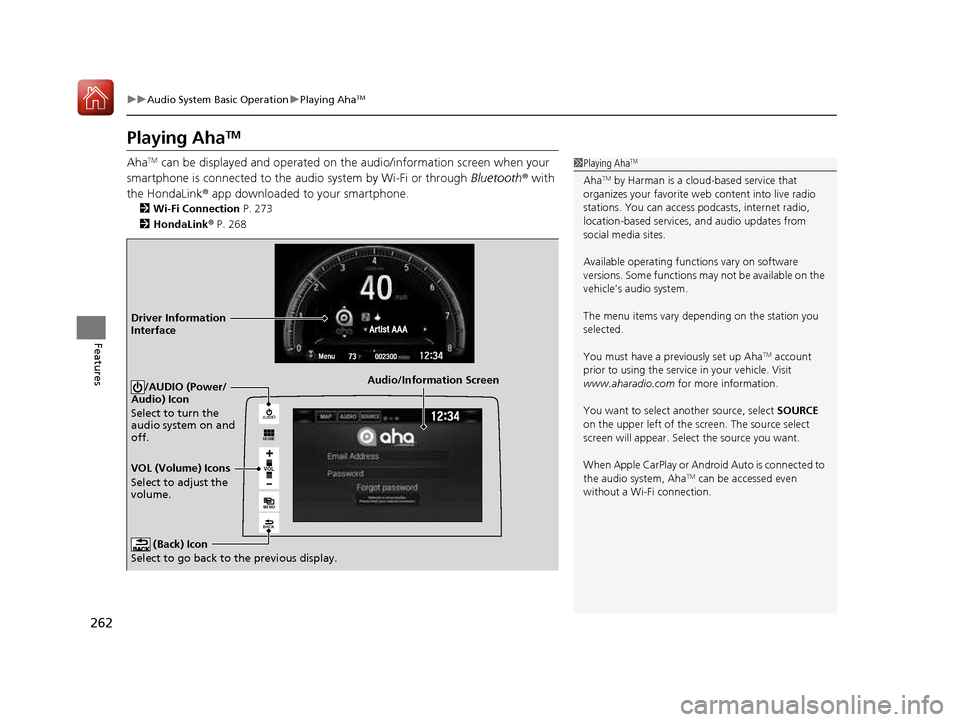
VOL (Volume) Icons
Select to adjust the
volume. (Back) Icon
Select to go back to the previous display./AUDIO (Power/
Audio) Icon
Select to turn the
audio system on and off.
Driver Information Interface
16 CIVIC 2D HC2 (0A 01 0C)-31TBG6000.book 262 ページ >0>.>/6年>0月>/>0日 金曜日 午後4時>/6分
Page 264 of 585
263
uuAudio System Basic OperationuPlaying a USB Flash Drive
Continued
Features
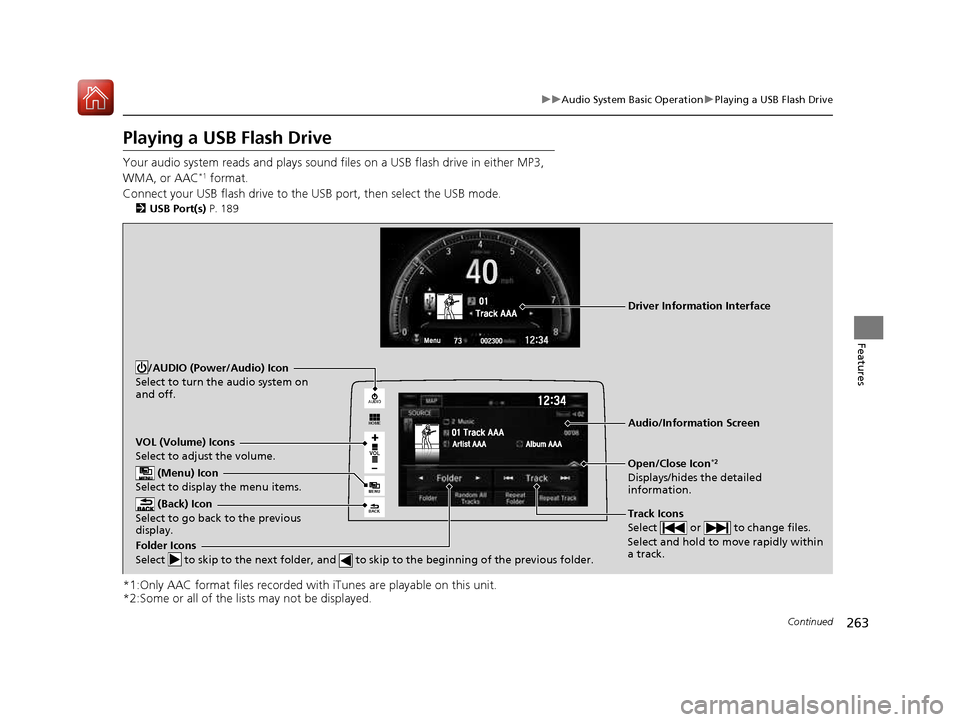
Playing a USB Flash Drive
Your audio system reads and plays sound files on a USB flash drive in either MP3,
WMA, or AAC *1
format.
Connect your USB flash drive to the USB port, then select the USB mode. 2 USB Port(s) P. 189
*1:Only AAC format files recorded with iTunes are playable on this unit.
*2:Some or all of the lists may not be displayed.
VOL
HOME
MENU
BACK
AUDIO
VOL (Volume) Icons
Select to adjust the volume.
(Back) Icon
Select to go back to the previous
display.
Track Icons
Select or to change files.
Select and hold to move rapidly within a track.
/AUDIO (Power/Audio) Icon
Select to turn the audio system on and off.
Open/Close Icon *2
Displays/hides the detailed information.
(Menu) Icon
Select to display the menu items.
Folder Icons
Select to skip to the next folder, and to skip to the beginning of the previous folder.
Audio/Information Screen
Driver Information Interface
16 CIVIC 2D HC2 (0A 01 0C)-31TBG6000.book 263 ページ >0>.>/6年>0月>/>0日 金曜日 午後4時>/6分
Page 265 of 585
uuAudio System Basic OperationuPlaying a USB Flash Drive
264
Features
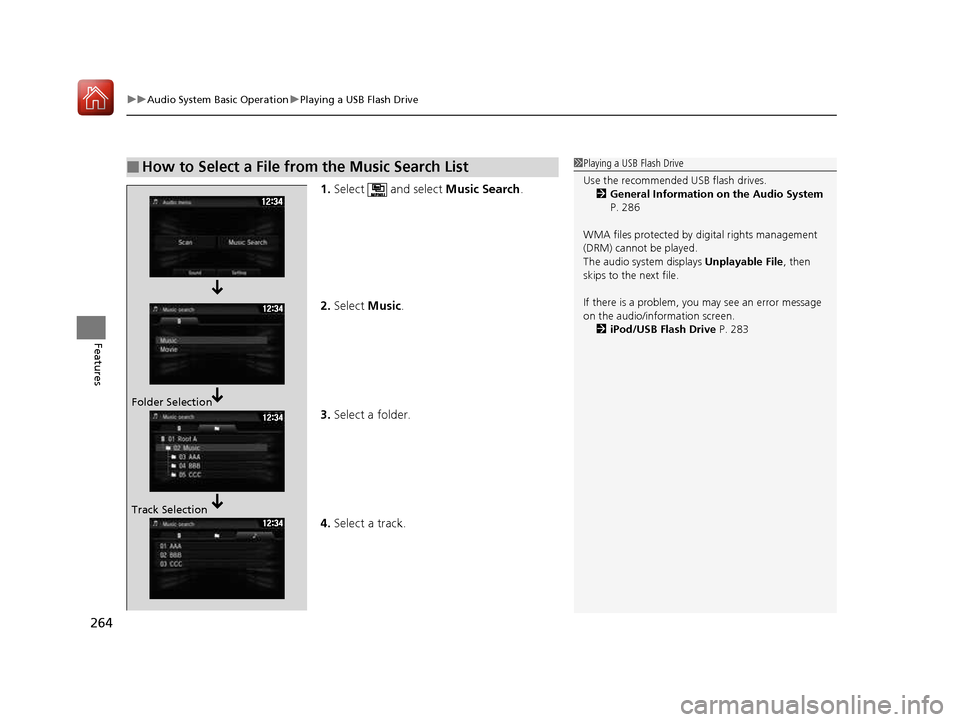
1. Select and select Music Search.
2. Select Music.
3. Select a folder.
4. Select a track.
■How to Select a File from the Music Search List1Playing a USB Flash Drive
Use the recommended USB flash drives.
2 General Information on the Audio System
P. 286
WMA files protected by di gital rights management
(DRM) cannot be played.
The audio system displays Unplayable File, then
skips to the next file.
If there is a problem, you may see an error message
on the audio/information screen.
2 iPod/USB Flash Drive P. 283
Folder Selection
Track Selection
16 CIVIC 2D HC2 (0A 01 0C)-31TBG6000.book 264 ページ >0>.>/6年>0月>/>0日 金曜日 午後4時>/6分