USB HONDA CIVIC SEDAN 2014 Navigation Manual (in English)
[x] Cancel search | Manufacturer: HONDA, Model Year: 2014, Model line: CIVIC SEDAN, Model: HONDA CIVIC SEDAN 2014Pages: 253, PDF Size: 58.94 MB
Page 147 of 253
146
Audio
Playing an iPod
■Connecting an iPod1
Connecting an iPod
•We recommend connecting the iPod with the USB
adapter cable.
•Do not connect the iPod using a hub.
•Do not use a device such as a card reader or hard
disk drive, as the device or your tracks may be
damaged.
•We recommend backing up yo ur data before using
the device in your vehicle.
•Displayed messages may vary depending on the
device model and software version.
Your audio system may not work with all software
versions of these devices.
If the audio system does not recognize the iPod, try
reconnecting it a few time s or reboot the device.
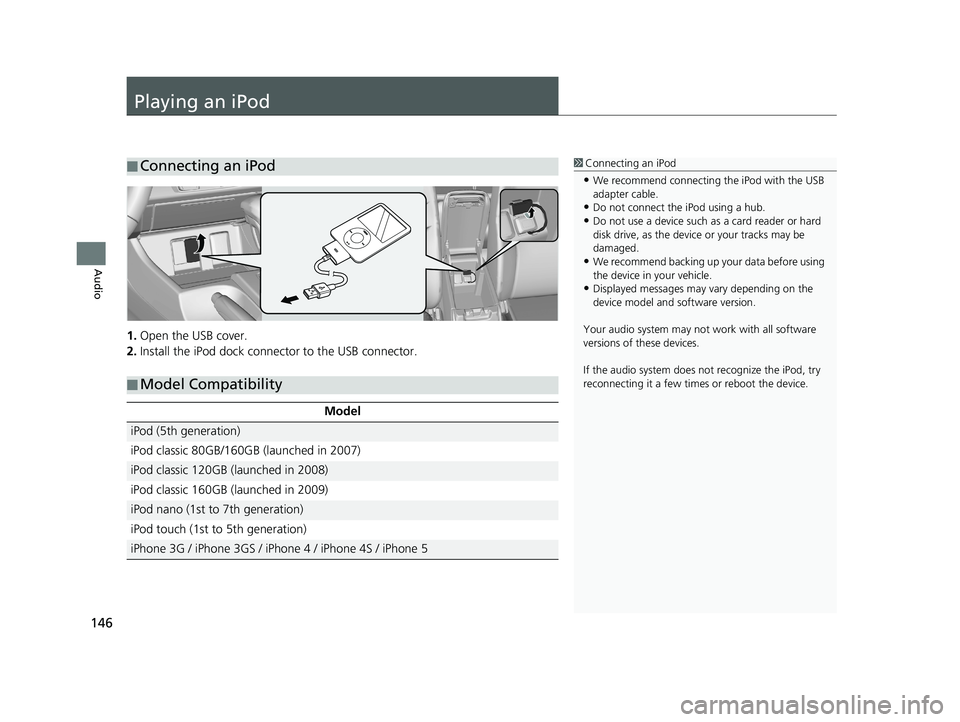
1.Open the USB cover.
2. Install the iPod dock connect
or to the USB connector.
■Model Compatibility
Model
iPod (5th generation)
iPod classic 80GB/160GB (launched in 2007)
iPod classic 120GB (launched in 2008)
iPod classic 160GB (launched in 2009)
iPod nano (1st to 7th generation)
iPod touch (1st to 5th generation)
iPhone 3G / iPhone 3GS / iPhone 4 / iPhone 4S / iPhone 5
14 CIVIC 2D 4D IMA NAVI-31TR38200.book 146 ページ 2014年3月21日 金曜日 午後3時20分
Page 152 of 253
151
uu Playing an iPod u Song By VoiceTM (SBV)
Continued
Audio
Song By VoiceTM (SBV)
Use SBV to search for and play music from your iPod or USB flash drive using voice
commands.
■ Searching for music using Song By Voice (SBV)
1
Searching for music using Song By Voice (SBV)
Song By Voice commands are available for tracks
stored on the iPod or USB flash drive.
You can add phonetic modi fications of difficult
words so that it is easier for SBV to recognize artists,
songs, albums, and composers in voice commands.
2 Phonetic Modification P. 152
Once you have canceled this mode, press the
(Talk) button and say “Music Search ” again to
reactivate this mode.
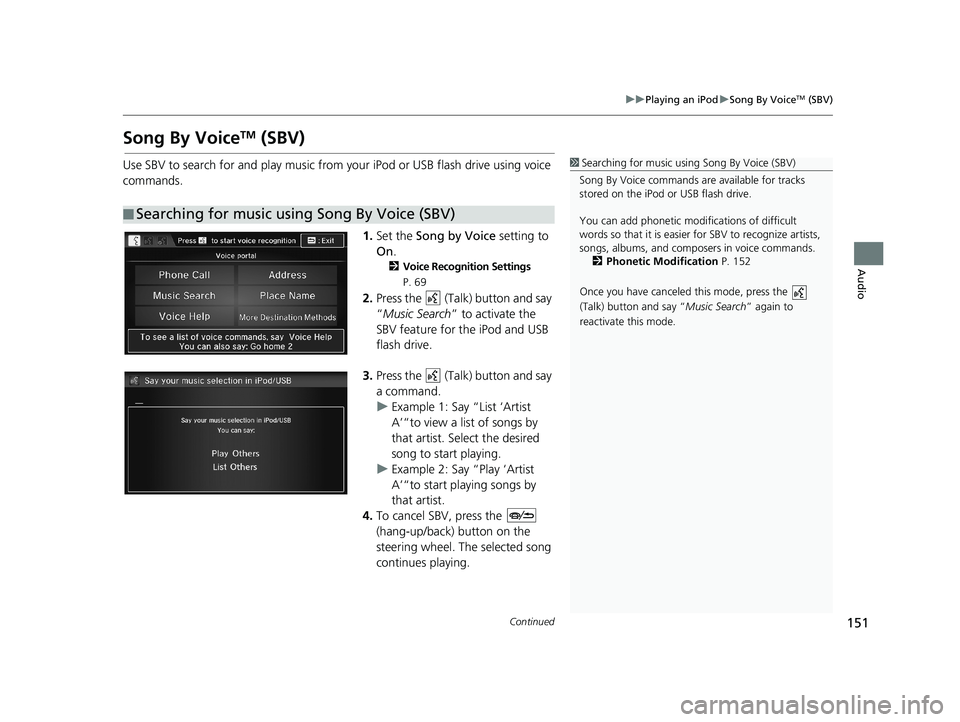
1. Set the Song by Voice setting to
On .
2Voice Recognition Settings
P. 69
2. Press the (Talk) button and say
“Music Search ” to activate the
SBV feature for the iPod and USB
flash drive.
3. Press the (Talk) button and say
a command.
uExample
1: Say “List ‘Artist
A’“to view a list of songs by
that artist. Select the desired
song to start playing.
u Example
2: Say “Play ‘Artist
A’“to start playing songs by
that artist.
4. To cancel SBV, press the
(hang-up/back) button on the
steering wheel. The selected song
continues playing.
14 CIVIC 2D 4D IMA NAVI-31TR38200.book 151 ページ 2014年3月21日 金曜日 午後3時20分
Page 153 of 253
■Phonetic Modification1
Phonetic Modification
You can store up to 2, 000 phonetic modification
items.
uu Playing an iPod u Song By VoiceTM (SBV)
152
Audio
H HOME u Settings u System u Voice Recog u Song By Voice Phonetic
Mo
dification
Add phonetic modifications of difficult or foreign
words so that it is easier for SBV
to recognize artists, songs, albums, and composers in voice commands when
searching for music on the iPod or USB flash drive.
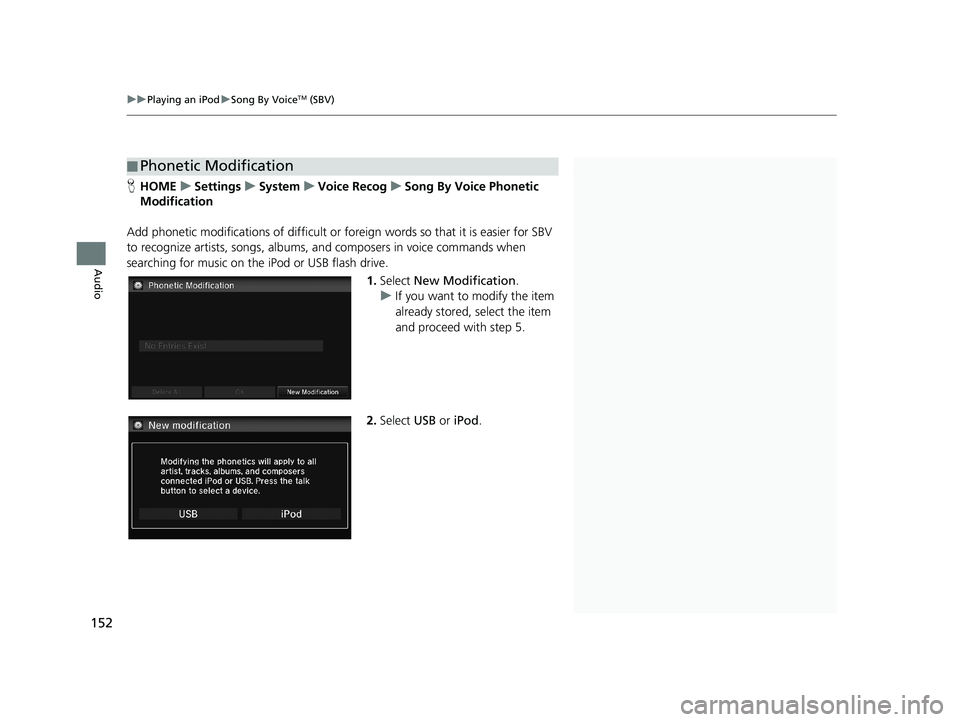
1. Select New Modification .
u If yo
u want to modify the item
already stored, select the item
and proceed with step 5.
2.Select USB or iPod .
14 CIVIC 2D 4D IMA NAVI-31TR38200.book 152 ページ 2014年3月21日 金曜日 午後3時20分
Page 155 of 253
154
Audio
Playing Pandora®
1Playing Pandora ®
“ Pandora play”
Pandora is available on U.S. models only.
You can control Pandora using voice commands. 2 Pandora ® Commands P. 239
A visual guide helps you operate the audio system.
2 System Controls P. 4
2 Basic Operation P. 9
Pandora, the Pandora logo, and the Pandora trade
dress are trademarks or registered trademarks of
Pandora Media, Inc., used with permission. Pandora
is currently available exclusively in the United States.
To use this service in your vehicle, the Pandora app
must first be installed on your smartphone. Visit
www.pandora.com for more information.
If there is a problem, you may see an error message
on the display. 2 Error Messages P. 214Pandora is a personalized Internet radio serv ice that selects music based on an artist,
song, or genre a user enters, and stream s what is likely to be of interest.
Selecting Pandora® Mode
1.Connect a compatible phone through Bluetooth®.
u You c
an also connect the phone using your dock connector to the USB port if
you use the iPhone.
2. Select Audio o
n the HOME screen.
3. Select SOURCE .
4. Select
the PANDORA icon.
u A
pop-up message may appear on your phone requesting you to allow access
for the app to launch.
u The curre
nt station name, artist name, rating, and track name are displayed.
14 CIVIC 2D 4D IMA NAVI-31TR38200.book 154 ページ 2014年3月21日 金曜日 午後3時20分
Page 158 of 253

157
Audio
Playing a USB Flash Drive
■Connecting a USB Flash Drive1
Connecting a USB Flash Drive
•We recommend connecting the USB flash drive
with the USB adapter cable.
•Do not connect the USB flash drive using a hub.
•Do not use a device such as a card reader or hard
disk drive, as the device or your tracks may be
damaged.
•We recommend backing up yo ur data before using
the device in your vehicle.
•Up to two USB devices can be connected.
1. Open the USB cover.
2. Install the U
SB flash drive to the USB connector.
■USB Flash Drives
Use a recommended USB flash drive of 256 MB or higher.
Some digital audio players may not be compatible.
Some USB flash drives (e.g., a device
with securit
y lockout) may not work.
Some software files may not allow for aud
io play or text data display.
Some versions of MP3, WMA, or AAC formats may be unsupported.
14 CIVIC 2D 4D IMA NAVI-31TR38200.book 157 ページ 2014年3月21日 金曜日 午後3時20分
Page 159 of 253
158
uu Playing a USB Flash Drive u Selecting USB Mode
Audio
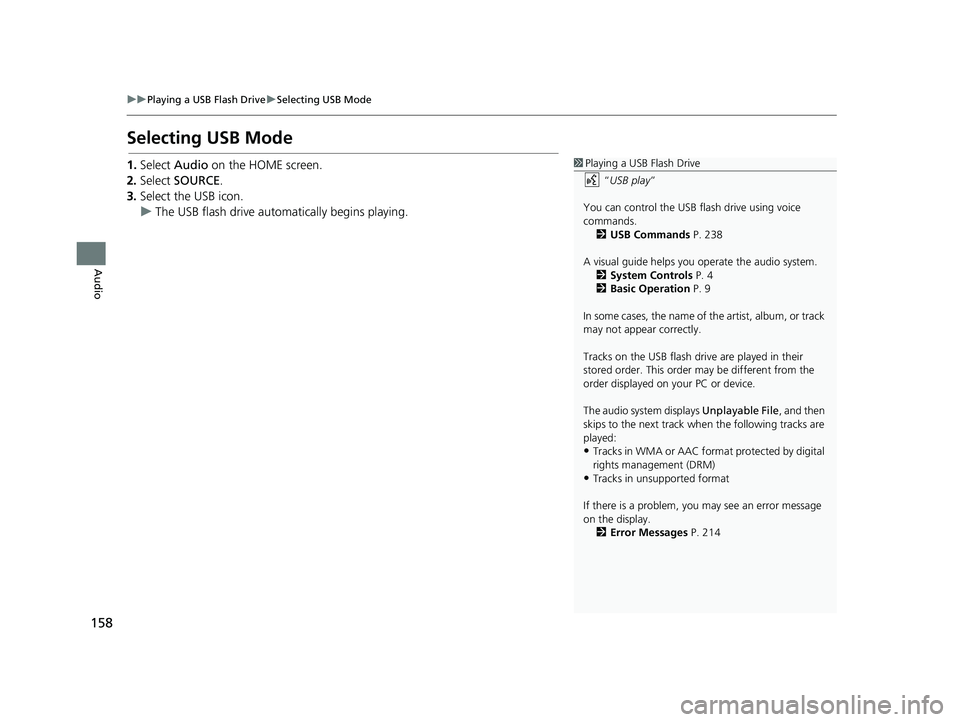
Selecting USB Mode
1 Playing a USB Flash Drive
“USB play ”
You can control the USB flash drive using voice
commands. 2 USB Commands P. 238
A visual guide helps you operate the audio system.
2 System Controls P. 4
2 Basic Operation P. 9
In some cases, the name of the artist, album, or track
may not appear correctly.
Tracks on the USB flash drive are played in their
stored order. This order may be different from the
order displayed on your PC or device.
The audio system displays Unplayable File, and then
skips to the next track when the following tracks are
played:
•Tracks in WMA or AAC form at protected by digital
rights management (DRM)
•Tracks in unsupported format
If there is a problem, you may see an error message
on the display. 2 Error Messages P. 214
1.Select Audio on the HOME screen.
2. Select SOURCE .
3. Select
the USB icon.
u The USB flash driv
e automatically begins playing.
14 CIVIC 2D 4D IMA NAVI-31TR38200.book 158 ページ 2014年3月21日 金曜日 午後3時20分
Page 160 of 253
159
uu Playing a USB Flash Drive u Audio Screen Control
Audio
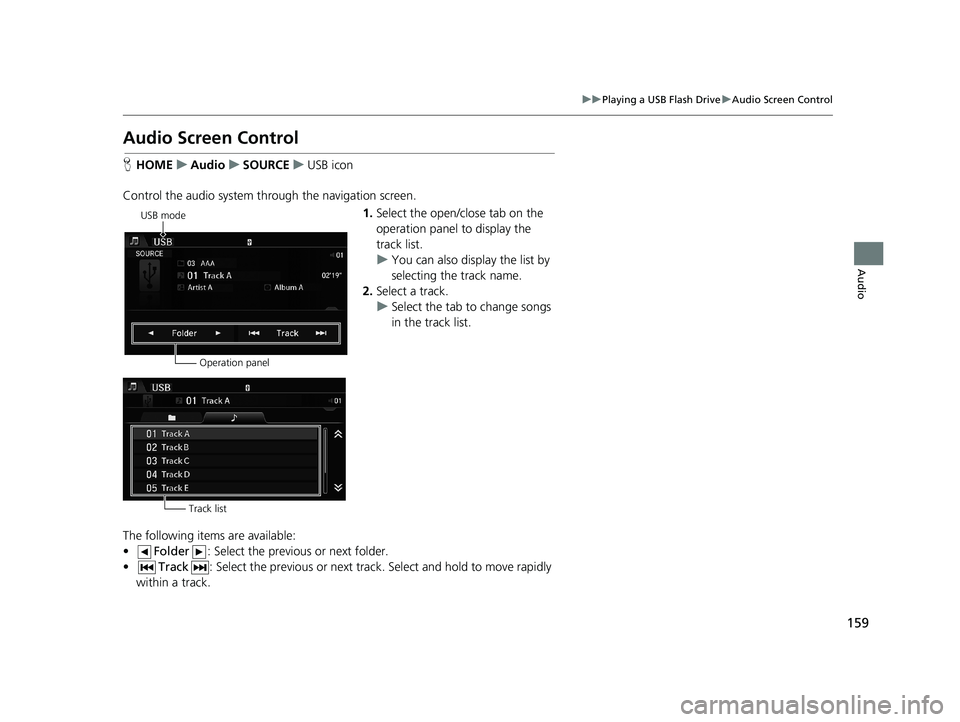
Audio Screen Control
H HOME u Audio u SOURCE u USB icon
Control the audio system thro ugh t
he navigation screen.
USB mode
Operation panel1.Select the open/close tab on the
operation panel to display the
track list.
u Yo
u can also display the list by
selecting the track name.
2. Select a
track.
u Select the t
ab to change songs
in the track list.
Track list
The following items are available:
• Folder : Select the previous or next folder.
•Track : Select the previous or next track. Sel ect and hold to move rapidly
within a track.
14 CIVIC 2D 4D IMA NAVI-31TR38200.book 159 ページ 2014年3月21日 金曜日 午後3時20分
Page 161 of 253
160
uu Playing a USB Flash Drive u Audio Menu
Audio
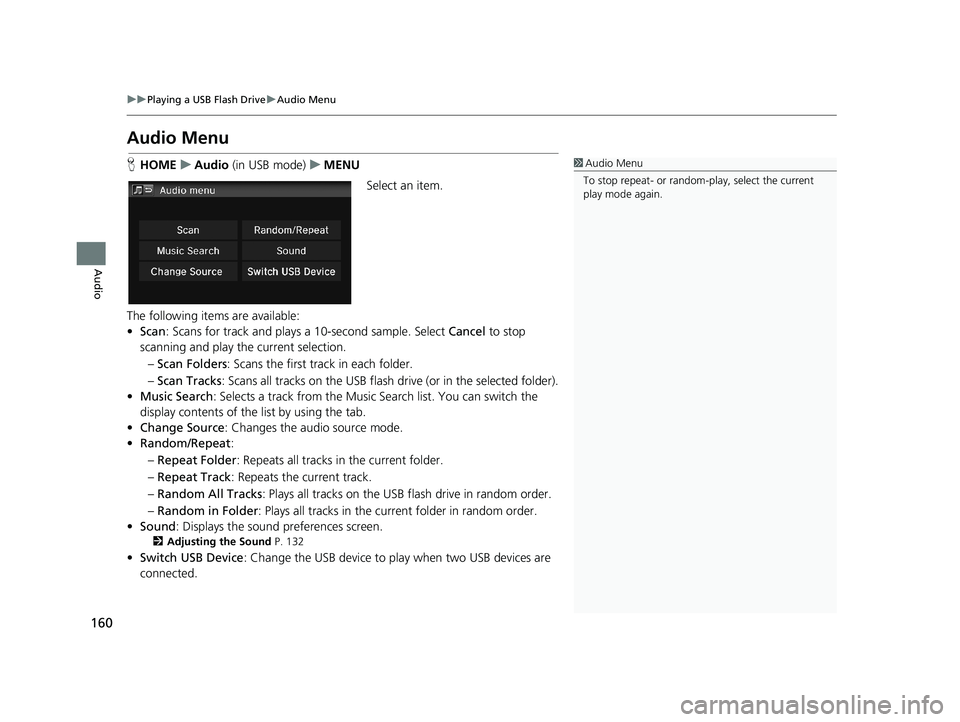
Audio Menu
1 Audio Menu
To stop repeat- or random-play, select the current
play mode again.H HOME u Audio (in USB mode) u MENU
Select an item.
The following items are available:
• Scan : Scans
for track and plays a 10-second sample. Select Cancel to stop
scanning and play th e current selection.
– Scan Folders :
Scans the first track in each folder.
– Sca
n Tracks : Scans all tracks on the USB flash drive (or in the selected folder).
• Mu
sic Search : Selects a track from the Music Search list. You can switch the
display contents of the list by using the tab.
• Ch
ange Source: Changes the audio source mode.
•R
andom/Repeat :
– Re
peat Folder : Repeats all tracks in the current folder.
– Re
peat Track : Repeats the current track.
– Ra
ndom All Tracks : Plays all tracks on the USB flash drive in random order.
– Ra
ndom in Folder : Plays all tracks in the curr ent folder in random order.
• Sound : Displa
ys the sound preferences screen.
2Adjusting the Sound P. 132
•Switch USB Device : Change the USB device to play when two USB devices are
connected.
14 CIVIC 2D 4D IMA NAVI-31TR38200.book 160 ページ 2014年3月21日 金曜日 午後3時20分
Page 200 of 253
199
Other Features
Information Functions
1Information Functions
Info Screen Preference
You can set the Info screen type.
1. Select HOME and then select Settings.
2. Select Info. Select Others, and then select Info
Screen Preference .
3. Select one of the following options:
•Info Top : Displays the pop-up window to prompt
you to select Trip Computer or Clock/Wallpaper.
•Info Menu: Displays the pop-up window of the
Info Menu.
•Off (factory default): Does not display any pop-up
window.
If you set Remember Last Screen to On , the pop-up
windows are not displayed on some screens.
Traffic Incidents is available on U.S. models only.
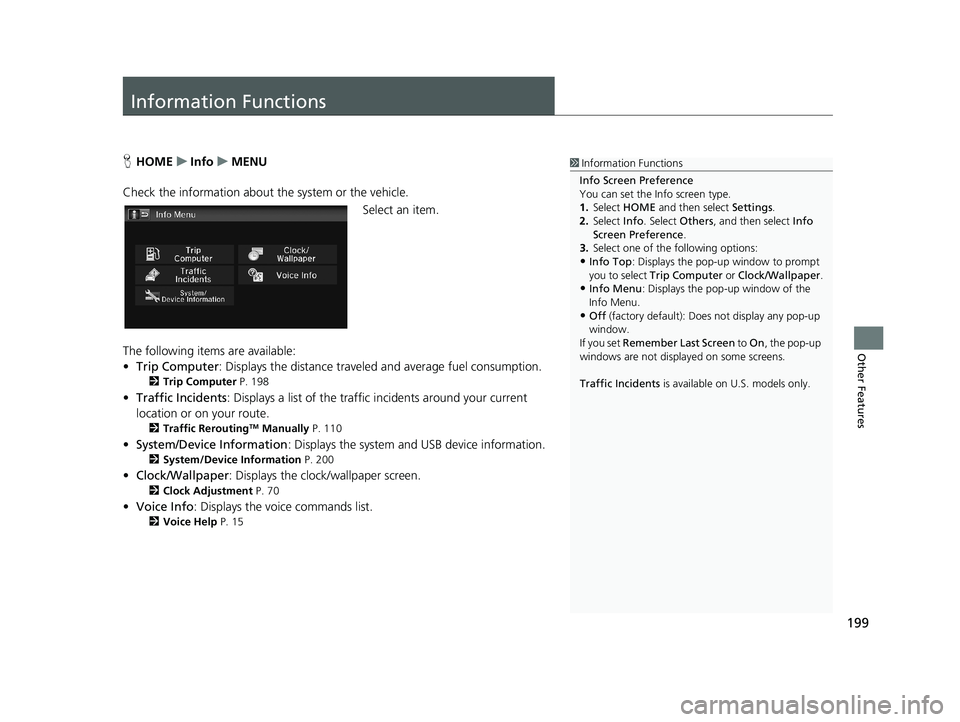
HHOME u Info u MENU
Check the information about th e system or the
vehicle.
Select an item.
The following items are available:
• Tri
p Computer : Displays the distance traveled and average fuel consumption.
2Trip Computer P. 198
• Traffic Incidents : Displays a list of the traffic incidents around your current
location or on your route.
2 Traffic ReroutingTM Manually P. 110
• System/Device Information : Displays the system and USB device information.
2System/Device Information P. 200
• Clock/Wallpaper : Displays the clock/wallpaper screen.
2Clock Adjustment P. 70
• Voice Info : Displays the voice commands list.
2Voice Help P. 15
14 CIVIC 2D 4D IMA NAVI-31TR38200.book 199 ページ 2014年3月21日 金曜日 午後3時20分
Page 201 of 253
200
uu Information Functions u System/Device Information
Other Features
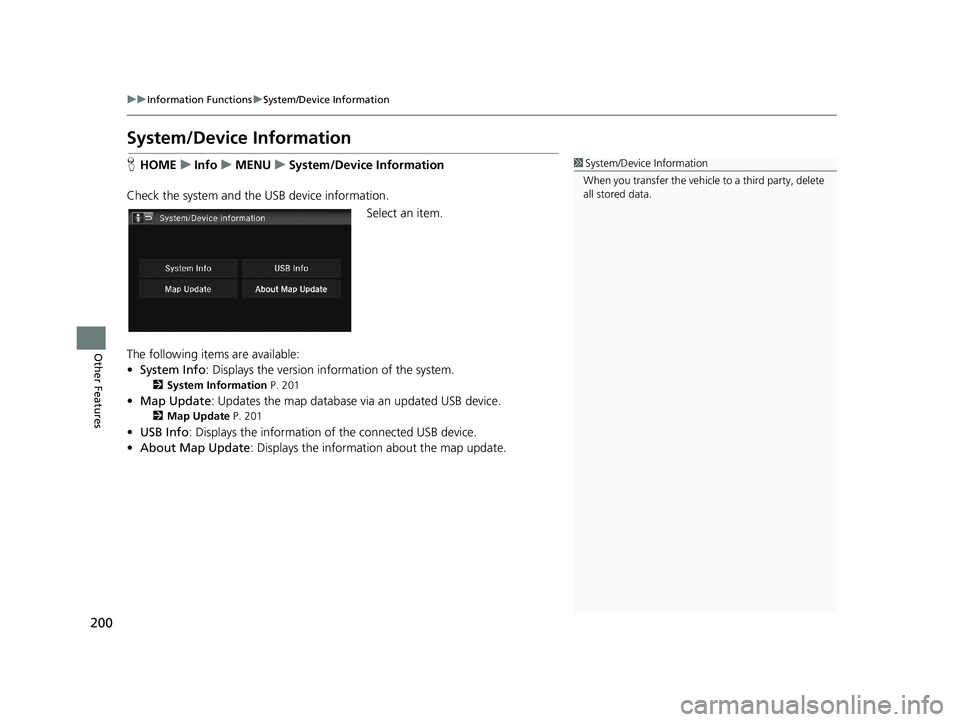
System/Device Information
1 System/Device Information
When you transfer the vehicle to a third party, delete
all stored data.H HOME u Info u MENU u System/Device Information
Check the system and the USB device information.
Select an item.
The following items are available:
• Syst
em Info : Displays the version in formation of the system.
2System Information P. 201
• Map Update : Updates the map database via an updated USB device.
2Map Update P. 201
• USB Info : Displays the information of the connected USB device.
• Abou
t Map Update : Displays the information about the map update.
14 CIVIC 2D 4D IMA NAVI-31TR38200.book 200 ページ 2014年3月21日 金曜日 午後3時20分