radio HONDA CR-V 2017 RM1, RM3, RM4 / 4.G Owners Manual
[x] Cancel search | Manufacturer: HONDA, Model Year: 2017, Model line: CR-V, Model: HONDA CR-V 2017 RM1, RM3, RM4 / 4.GPages: 657
Page 4 of 657
Contents
Child Safety P. 63Exhaust Gas Hazard P. 76Safety Labels P. 77
Opening and Closing the Tailgate P. 147 Security System P. 158 Opening and Closing the Windows P. 161
Operating the Switches Around the Steering Wheel P. 168 Adjusting the Mirrors P. 192
Interior Lights/Interior Convenience It ems P. 203 Climate Control System P. 221
Audio Error Messages P. 325General Information on the Audio System P. 330
Bluetooth® HandsFreeLink ® P. 371, 394 Compass* P. 428
Off-Highway Driving Guidelines P. 442 When Driving P. 444 Braking P. 506
Refueling P. 531 Fuel Economy and CO
2 Emissions P. 534 Turbo Engine Vehicle* P. 535
Maintenance Under the Hood P. 551 Replacing Light Bulbs P. 568
Checking and Maintaining Tires P. 579 Battery P. 588 Remote Transmitter Care P. 590
Cleaning P. 593 Accessories and Modifications P. 598
Engine Does Not Start P. 608Jump Starting P. 611 Shift Lever Does Not Move P. 614
Fuses P. 625 Emergency Towing P. 629
When You Cannot Open the Tailgate P. 630 Refueling P. 631
Devices that Emit Radio Waves P. 638 Reporting Safety Defects P. 639
Authorized Manuals P. 644 Customer Service Information P. 645
Quick Reference GuideP. 4
Safe DrivingP. 33
Instrument PanelP. 79
ControlsP. 131
FeaturesP. 227
DrivingP. 431
MaintenanceP. 537
Handling the UnexpectedP. 599
InformationP. 633
IndexP. 647
17 CR-V-31TLA6000.book 3 ページ 2016年10月11日 火曜日 午後6時37分
Page 20 of 657
Quick Reference Guide
19
Features (P227)
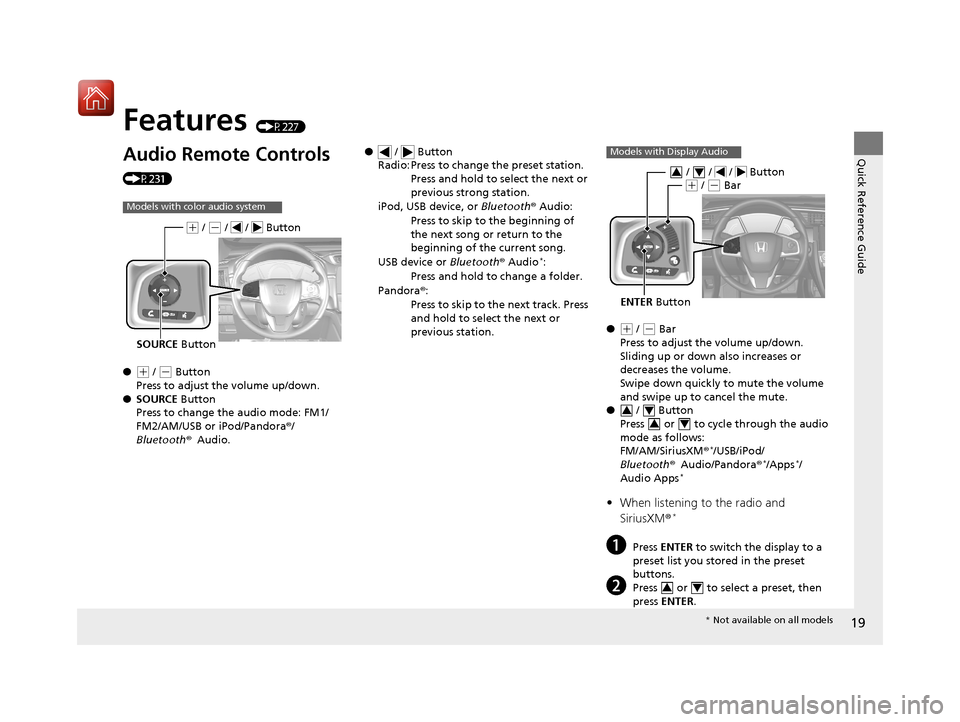
Audio Remote Controls
(P231)
●
(+ / (- Button
Press to adjust the volume up/down.
● SOURCE Button
Press to change the audio mode: FM1/
FM2/AM/USB or iPod/Pandora ®/
Bluetooth ®Audio.
Models with color audio system
SOURCE Button
(+ / (- / / Button
● / Button
Radio: Press to change the preset station.
Press and hold to select the next or
previous strong station.
iPod, USB device, or Bluetooth® Audio:
Press to skip to the beginning of
the next song or return to the
beginning of the current song.
USB device or Bluetooth® Audio
*:
Press and hold to change a folder.
Pandora ®:
Press to skip to the next track. Press
and hold to select the next or
previous station.
●( + / (- Bar
Press to adjust the volume up/down.
Sliding up or down also increases or
decreases the volume.
Swipe down quickly to mute the volume
and swipe up to cancel the mute.
● / Button
Press or to cycl e through the audio
mode as follows:
FM/AM/SiriusXM ®
*/USB/iPod/
Bluetooth ®Audio/Pandora®*/Apps*/
Audio Apps*
• When listening to the radio and
SiriusXM ®*
aPress ENTER to switch the display to a
preset list you stored in the preset
buttons.
bPress or to select a preset, then
press ENTER .
Models with Display Audio
ENTER Button
/ / / Button34(+ / (- Bar
34
34
34
* Not available on all models
17 CR-V-31TLA6000.book 19 ページ 2016年10月11日 火曜日 午後6時37分
Page 21 of 657
20
Quick Reference Guide
•When listening to a USB flash drive
aPress ENTER to display the folder list.
bPress or to select a folder.
cPress ENTER to display a list of tracks in
that folder.
dPress or to select a track, then
press ENTER .
You can also swipe up or down to scroll
through the list of tra cks alphabetically.
•When listening to an iPod
aPress ENTER to display the iPod music
list.
bPress or to select a category.
cPress ENTER to display a list of items in
the category.
dPress or to select an item, then
press ENTER .
uPress ENTER and press or
repeatedly until a desired item you
want to listen is displayed.
You can also swipe up or down to scroll
through the list of tra cks alphabetically.
34
34
34
34
34
•When listening to Pandora ®*
aPress ENTER to display the station list.
bPress or to select an item, then
press ENTER .
•When listening to Bluetooth®Audio
aPress ENTER to display the track list.
bPress or to select a track, then
press ENTER .
34
34
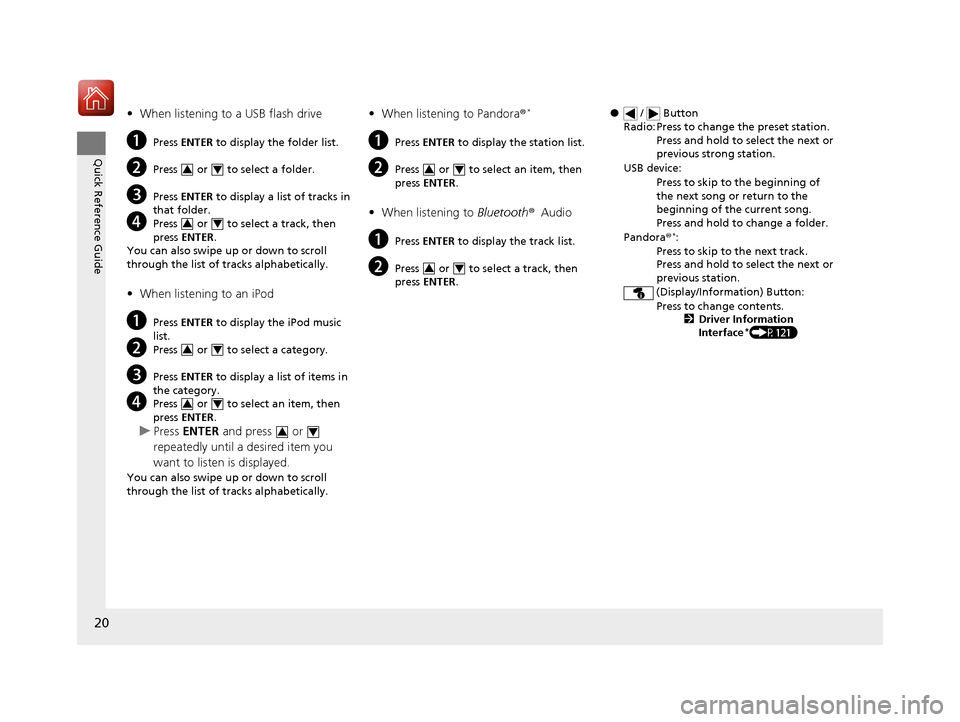
● / Button
Radio: Press to change the preset station. Press and hold to select the next or
previous strong station.
USB device: Press to skip to the beginning of
the next song or return to the
beginning of the current song.
Press and hold to change a folder.
Pandora®
*:
Press to skip to the next track.
Press and hold to select the next or
previous station.
(Display/Information) Button: Press to change contents. 2Driver Information
Interface
*(P121)
17 CR-V-31TLA6000.book 20 ページ 2016年10月11日 火曜日 午後6時37分
Page 22 of 657
21
Quick Reference Guide
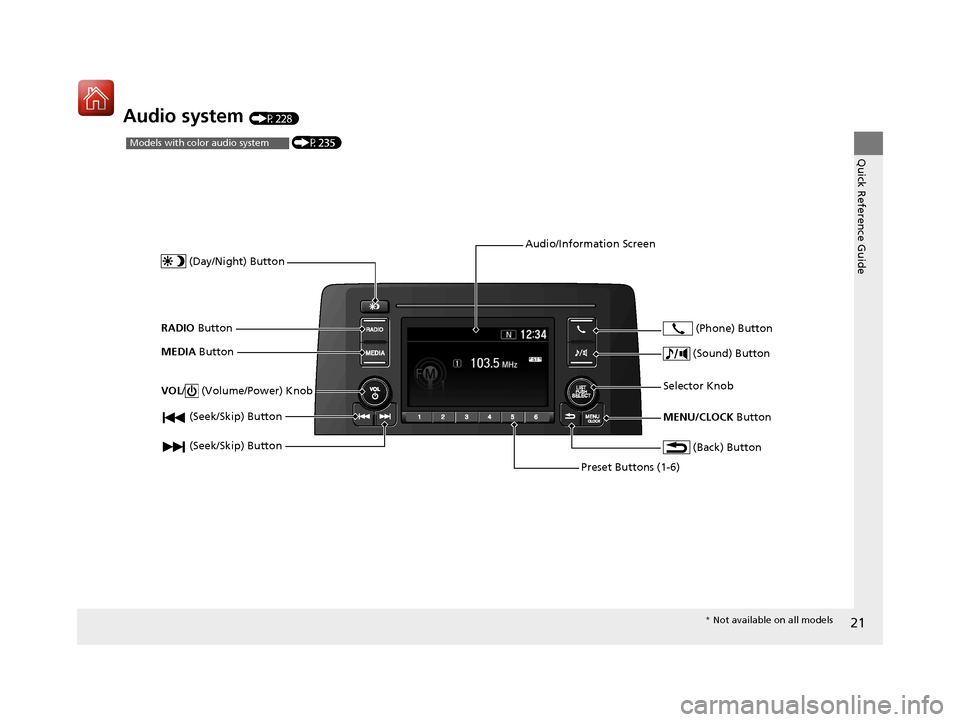
Audio system (P228)
(P235)Models with color audio system
(Seek/Skip) Button
RADIO Button
(Day/Night) Button
MEDIA Button
Preset Buttons (1-6)
(Seek/Skip) Button
VOL
/ (Volume/Power) Knob
Audio/Information Screen
(Back) Button
(Sound) Button
MENU/CLOCK Button
Selector Knob (Phone) Button
*
Not available on all models
17 CR-V-31TLA6000.book 21 ページ 2016年10月11日 火曜日 午後6時37分
Page 137 of 657
uuLocking and Unlocking the Doors uLow Smart Entry Remote Signal Strength*
136
Controls
Contains a number that you will need if you
purchase a replacement key.
Low Smart Entry Remo te Signal Strength*
The vehicle transmits radio waves to loca te the smart entry remote when locking/
unlocking the doors, opening the ta ilgate, or to start the engine.
In the following cases, locking/unlocking th e doors, opening the tailgate, or starting
the engine may be inhibited or operation may be unstable:
• Strong radio waves are being tra nsmitted by nearby equipment.
• You are carrying the smart entry remote together with telecommunications
equipment, laptop computers, ce ll phones, or wireless devices.
• A metallic object is touching or covering the smart entry remote.
■Key Number Tag1Key Number Tag
Keep the key number tag separate from the key in a
safe place outside of your vehicle.
If you wish to purchase an additional key, contact a
dealer.
If you lose your key and you cannot start the engine,
contact a dealer.
1 Low Smart Entry Remote Signal Strength*
Communication between the smart entry remote and
the vehicle consumes the smart entry remote’s
battery.
Battery life is about two years, but this varies
depending on regularity of use.
The battery is consumed whenever the smart entry
remote is receivi ng strong radio wave s. Avoid placing
it near electrical appliances such as televisions and
personal computers.
* Not available on all models
17 CR-V-31TLA6000.book 136 ページ 2016年10月11日 火曜日 午後6時37分
Page 159 of 657
158
Controls
Security System
Immobilizer System
The immobilizer system prevents a key that has not been pre-registered from
starting the engine. Each key contains electronic transmitters that use electronic
signals to verify the key.
Pay attention to the following when inserti ng the key into the ignition switch or
pressing the ENGINE START/STOP button
*:
• Do not allow objects that emit strong radio waves near the ignition switch*1.
• Make sure the key is not covered by or touching a metal object.
• Do not bring a key from another vehicle's immobilizer system near the ignition
switch.
Security System Alarm*
The security system alarm activates when the tailgate, hood or doors are forcibly
opened. The alarm does not go off if the tailgate or doors are opened with the key,
remote transmitter or smart entry system.
However, the alarm goes off if a door is ope ned with the key, then the shift lever is
moved out of
(P or the hood is opened before the power mode is set to ON.
■When the security sy stem alarm activates
The horn sounds intermittently and all the exterior lights flash.
*1: Models with the smart entry system have an ENGINE START/STOP button
instead of an ignition switch.
1 Immobilizer System
NOTICE
Leaving the key in the vehicl e can result in theft or
accidental movement of the vehicle.
Always take the key with you whenever you leave the
vehicle unattended.
Do not alter the system or add other devices to it.
Doing so may damage the system and make your
vehicle inoperable.
Canadian models only: Apply and hold the brake
pedal before turning the vehicle on the first time after
the battery has been disconnected.
1 Security System Alarm*
The security alarm continues for a maximum of two
minutes until the security system deactivates.
* Not available on all models
17 CR-V-31TLA6000.book 158 ページ 2016年10月11日 火曜日 午後6時37分
Page 228 of 657
227
Features
This chapter describes how to operate technology features.
Audio SystemAbout Your Audio System ................ 228
USB Port(s) ....................................... 229
Audio System Theft Protection ......... 230
Audio Remote Controls .................... 231
Audio System Basic Operation Audio/Information Screen ................ 236
Adjusting the Sound ........................ 240
Display Setup ................................... 241
Playing AM/FM Radio ....................... 242
Playing an iPod ................................ 244
Playing Pandora ®.............................. 247
Playing a USB Flash Drive ................. 249
Models with color audio system
Playing Bluetooth ® Audio................. 252
Siri ® Eyes Free .................................. 255
Audio System Basic Operation Audio/Information Screen ................ 257
Adjusting the Sound ........................ 278
Display Setup ................................... 279
Voice Control Operation .................. 281
Playing AM/FM Radio ....................... 285
Playing SiriusXM ® Radio
*................. 289
Playing an iPod ................................ 296
Song By Voice
TM (SBV) ...................... 299
Playing Pandora ®*............................ 303
Playing a USB Flash Drive ................. 305
Models with Display Audio
Playing Bluetooth ® Audio ................ 308
HondaLink ®..................................... 310
Wi-Fi Connection ............................. 315
Siri ® Eyes Free .................................. 317
Apple CarPlay
TM............................... 318
Android AutoTM............................... 321
Audio Error Messages ...................... 325
General Information on the Audio System ............................................. 330
Customized Features ........................ 335
HomeLink ® Universal Transceiver
*.. 368
Bluetooth ® HandsFreeLink® ..... 371, 394
Compass
*.......................................... 428
* Not available on all models
17 CR-V-31TLA6000.book 227 ページ 2016年10月11日 火曜日 午後6時37分
Page 229 of 657
228
Features
Audio System
About Your Audio System
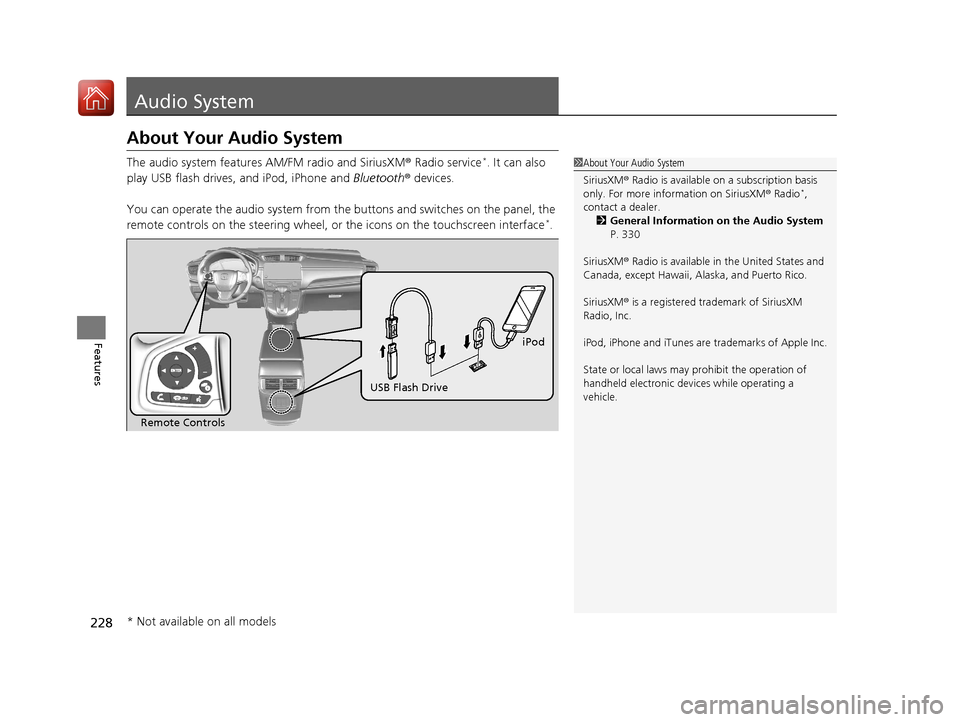
The audio system features AM/FM radio and SiriusXM ® Radio service*. It can also
play USB flash drives, and iPod, iPhone and Bluetooth® devices.
You can operate the audio system from the buttons and switches on the panel, the
remote controls on the steering wheel, or the icons on the touchscreen interface
*.
1About Your Audio System
SiriusXM ® Radio is available on a subscription basis
only. For more information on SiriusXM ® Radio
*,
contact a dealer.
2 General Information on the Audio System
P. 330
SiriusXM ® Radio is available in the United States and
Canada, except Ha waii, Alaska, and Puerto Rico.
SiriusXM ® is a registered trademark of SiriusXM
Radio, Inc.
iPod, iPhone and iTunes are trademarks of Apple Inc.
State or local laws may pr ohibit the operation of
handheld electronic devi ces while operating a
vehicle.
Remote Controls iPod
USB Flash Drive
* Not available on all models
17 CR-V-31TLA6000.book 228 ページ 2016年10月11日 火曜日 午後6時37分
Page 230 of 657
229
uuAudio System uUSB Port(s)
Features
USB Port(s)
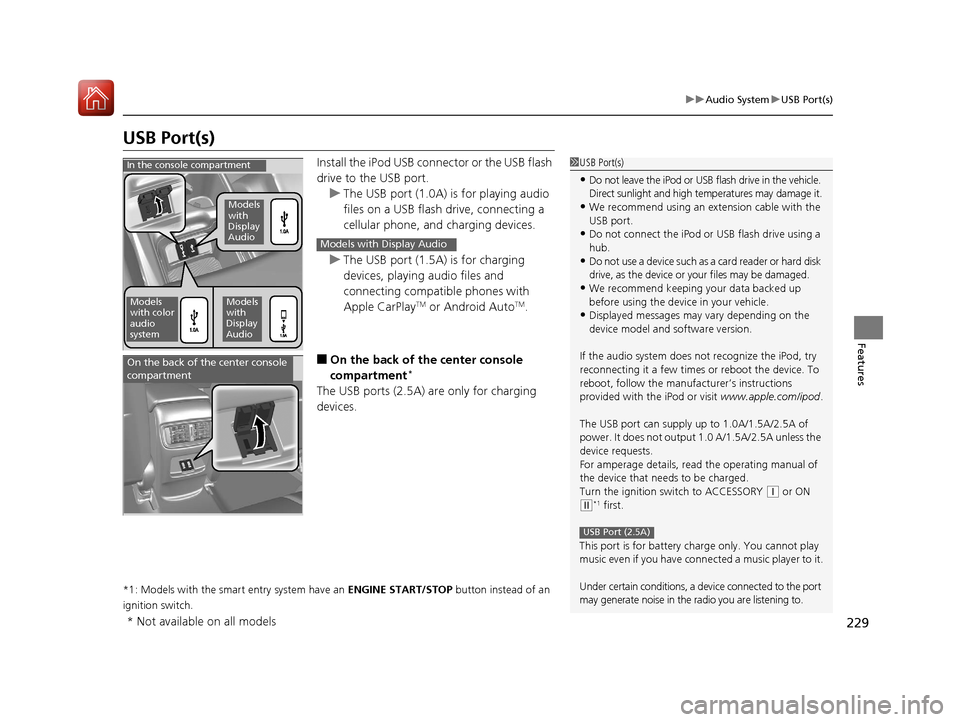
Install the iPod USB connector or the USB flash
drive to the USB port.
u The USB port (1.0A) is for playing audio
files on a USB flash drive, connecting a
cellular phone, and charging devices.
u The USB port (1.5A) is for charging
devices, playing audio files and
connecting compatib le phones with
Apple CarPlay
TM or Android AutoTM.
■On the back of the center console
compartment*
The USB ports (2.5A) are only for charging
devices.
*1: Models with the smart entry system have an ENGINE START/STOP button instead of an
ignition switch.
1 USB Port(s)
•Do not leave the iPod or USB flash drive in the vehicle.
Direct sunlight and high te mperatures may damage it.
•We recommend using an extension cable with the
USB port.
•Do not connect the iPod or USB flash drive using a
hub.
•Do not use a device such as a card reader or hard disk
drive, as the device or your files may be damaged.
•We recommend keeping y our data backed up
before using the device in your vehicle.
•Displayed messages may vary depending on the
device model and software version.
If the audio system does not recognize the iPod, try
reconnecting it a few times or reboot the device. To
reboot, follow the manufac turer’s instructions
provided with the iPod or visit www.apple.com/ipod.
The USB port can supply up to 1.0A/1.5A/2.5A of
power. It does not output 1.0 A/1.5A/2.5A unless the
device requests.
For amperage details, read the operating manual of
the device that ne eds to be charged.
Turn the ignition switch to ACCESSORY
( q or ON
(w*1 first.
This port is for battery charge only. You cannot play
music even if you have conne cted a music player to it.
Under certain conditions, a de vice connected to the port
may generate noise in the radio you are listening to.
USB Port (2.5A)
In the console compartment
Models
with
Display
Audio
Models
with color
audio
systemModels
with
Display
Audio
Models with Display Audio
On the back of the center console
compartment
* Not available on all models
17 CR-V-31TLA6000.book 229 ページ 2016年10月11日 火曜日 午後6時37分
Page 232 of 657
231
uuAudio System uAudio Remote Controls
Continued
Features
Audio Remote Controls
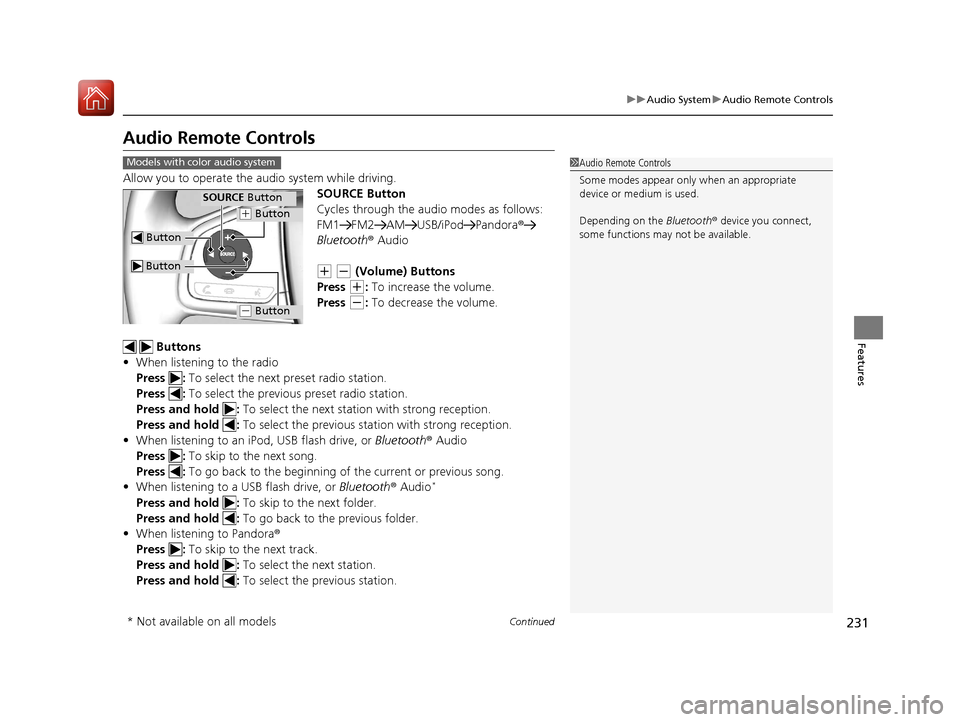
Allow you to operate the au dio system while driving.
SOURCE Button
Cycles through the audio modes as follows:
FM1 FM2 AM USB/iPod Pandora ®
Bluetooth ® Audio
(+ (- (Volume) Buttons
Press
(+: To increase the volume.
Press
(-: To decrease the volume.
Buttons
• When listening to the radio
Press : To select the next preset radio station.
Press : To select the previous preset radio station.
Press and hold : To select the next statio n with strong reception.
Press and hold : To select the previous station with strong reception.
• When listening to an iPod, USB flash drive, or Bluetooth® Audio
Press : To skip to the next song.
Press : To go back to the beginning of the current or previous song.
• When listening to a USB flash drive, or Bluetooth® Audio
*
Press and hold : To skip to the next folder.
Press and hold : To go back to the previous folder.
• When listening to Pandora®
Press : To skip to the next track.
Press and hold : To select the next station.
Press and hold : To select the previous station.
1Audio Remote Controls
Some modes appear only when an appropriate
device or medium is used.
Depending on the Bluetooth® device you connect,
some functions may not be available.Models with color audio system
Button
SOURCE Button
Button
(+ Button
(- Button
* Not available on all models
17 CR-V-31TLA6000.book 231 ページ 2016年10月11日 火曜日 午後6時37分