clock setting HONDA CROSSTOUR 2013 1.G User Guide
[x] Cancel search | Manufacturer: HONDA, Model Year: 2013, Model line: CROSSTOUR, Model: HONDA CROSSTOUR 2013 1.GPages: 573, PDF Size: 25.21 MB
Page 190 of 573
Continued189
uuAudio System Basic OperationuAudio/Information Screen
Features
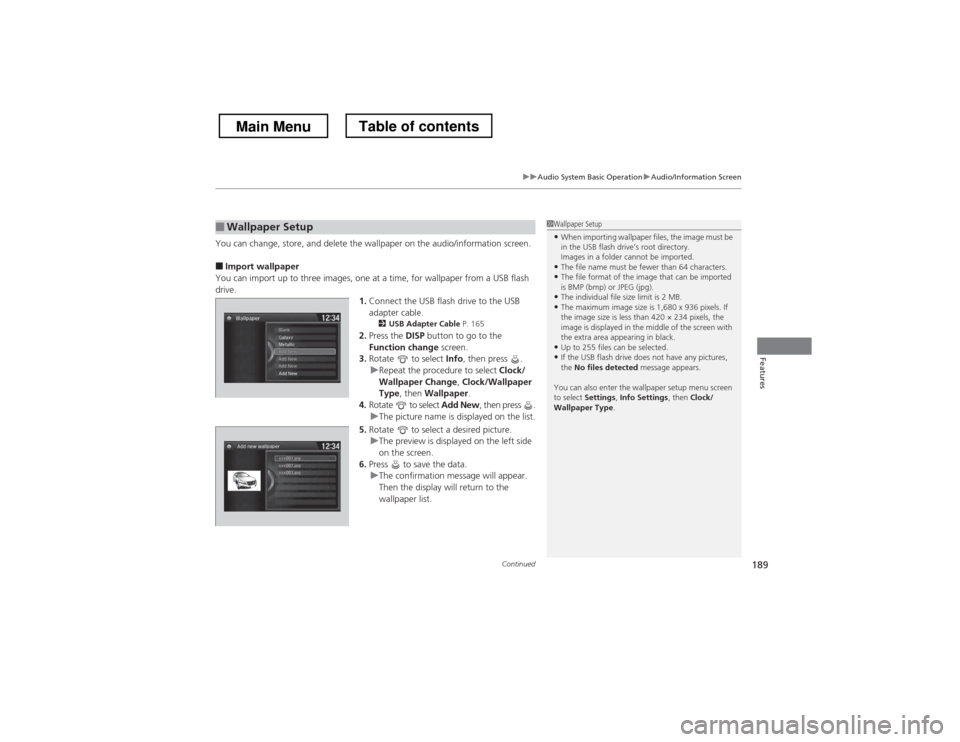
You can change, store, and delete the wallpaper on the audio/information screen. ■Import wallpaper
You can import up to three images, one at a time, for wallpaper from a USB flash drive. 1.Connect the USB flash drive to the USB
adapter cable.
2 USB Adapter Cable P. 165
2. Press the DISP button to go to the
Function change screen.
3. Rotate to select Info, then press .
uRepeat the procedure to select Clock/
Wallpaper Change , Clock/Wallpaper
Type , then Wallpaper .
4. Rotate to select Add New, then press .
uThe picture name is displayed on the list.
5. Rotate to select a desired picture.
uThe preview is displayed on the left side
on the screen.
6. Press to save the data.
uThe confirmation message will appear.
Then the display will return to the
wallpaper list.
■Wallpaper Setup1Wallpaper Setup
• When importing wallpaper files, the image must be
in the USB flash drive’s root directory.
Images in a folder cannot be imported.
• The file name must be fewer than 64 characters.
• The file format of the image that can be imported
is BMP (bmp) or JPEG (jpg).
• The individual file size limit is 2 MB.
• The maximum image size is 1,680 x 936 pixels. If
the image size is less than 420 × 234 pixels, the
image is displayed in the middle of the screen with
the extra area appearing in black.
• Up to 255 files can be selected.
• If the USB flash drive does not have any pictures, the No files detected message appears.
You can also enter the wallpaper setup menu screen
to select Settings , Info Settings , then Clock/
Wallpaper Type .
Main MenuTable of contents
Page 221 of 573
uuAudio System Basic OperationuAudio/Information Screen
220
Features
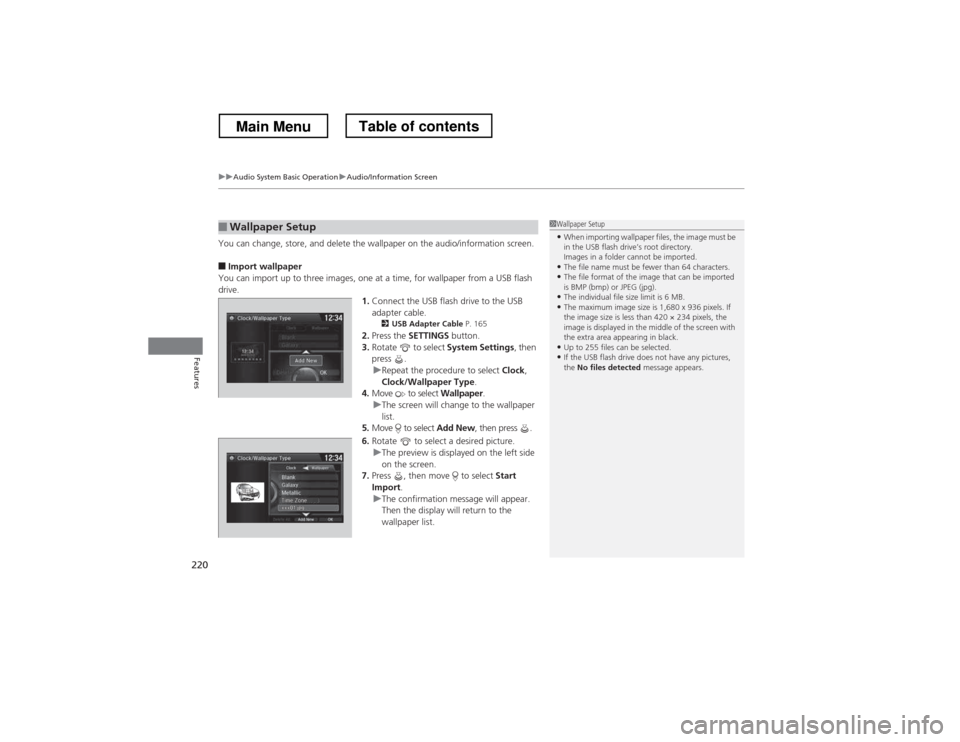
You can change, store, and delete the wallpaper on the audio/information screen. ■ Import wallpaper
You can import up to three images, one at a time, for wallpaper from a USB flash
drive. 1.Connect the USB flash drive to the USB adapter cable.
2 USB Adapter Cable P. 165
2. Press the SETTINGS button.
3. Rotate to select System Settings, then
press .
uRepeat the procedure to select Clock,
Clock/Wallpaper Type .
4. Move to select Wallpaper.
uThe screen will change to the wallpaper
list.
5. Move to select Add New, then press .
6. Rotate to select a desired picture.
uThe preview is displayed on the left side
on the screen.
7. Press , then move to select Start
Import .
uThe confirmation message will appear.
Then the display will return to the
wallpaper list.
■Wallpaper Setup1Wallpaper Setup
• When importing wallpaper files, the image must be
in the USB flash drive’s root directory.
Images in a folder cannot be imported.
• The file name must be fewer than 64 characters.
• The file format of the image that can be imported
is BMP (bmp) or JPEG (jpg).
• The individual file size limit is 6 MB.
• The maximum image size is 1,680 x 936 pixels. If
the image size is less than 420 × 234 pixels, the
image is displayed in the middle of the screen with
the extra area appearing in black.
• Up to 255 files can be selected.
• If the USB flash drive does not have any pictures, the No files detected message appears.
Main MenuTable of contents
Page 222 of 573
221
uuAudio System Basic OperationuAudio/Information Screen
Features
■Select wallpaper
1. Press the SETTINGS button.
2. Rotate to select System Settings, then press .
uRepeat the procedure to select Clock/Wallpaper Type.
3. Move to select Wallpaper.
uThe screen changes to the wallpaper list.
4. Rotate to select a desired wallpaper.
uThe preview is displayed on the left side on the screen.
5. Press .
uThe pop-up menu appears on the screen.
6. Rotate to select Set, then press .
uThe display will return to the wallpaper list.
■ Delete wallpaper
1. Press the SETTINGS button.
2. Rotate to select System Settings, then press .
uRepeat the procedure to select Clock/Wallpaper Type.
3. Move to select Wallpaper.
uThe screen changes to the wallpaper list.
4. Rotate to select a wallpaper that you want to delete, then press .
uThe preview is displayed on the left side on the screen.
5. Press .
uThe pop-up menu appears on the screen.
6. Rotate to select Delete, then press .
uThe confirmation message will appear.
7. Rotate to select Yes, then press to delete completely.
uThe display will return to the wallpaper list.
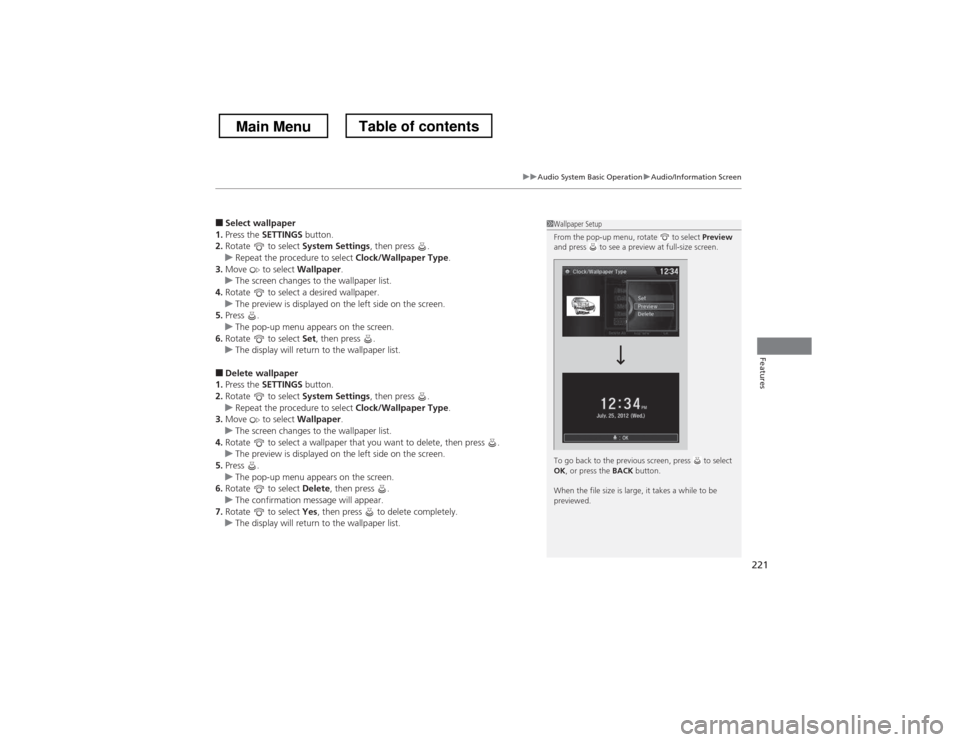
1Wallpaper Setup
From the pop-up menu, rotate to select Preview
and press to see a preview at full-size screen.
To go back to the previous screen, press to select OK , or press the BACK button.
When the file size is large, it takes a while to be
previewed.
Main MenuTable of contents
Page 284 of 573
283
uuCustomized Features*u
Continued
Features
■
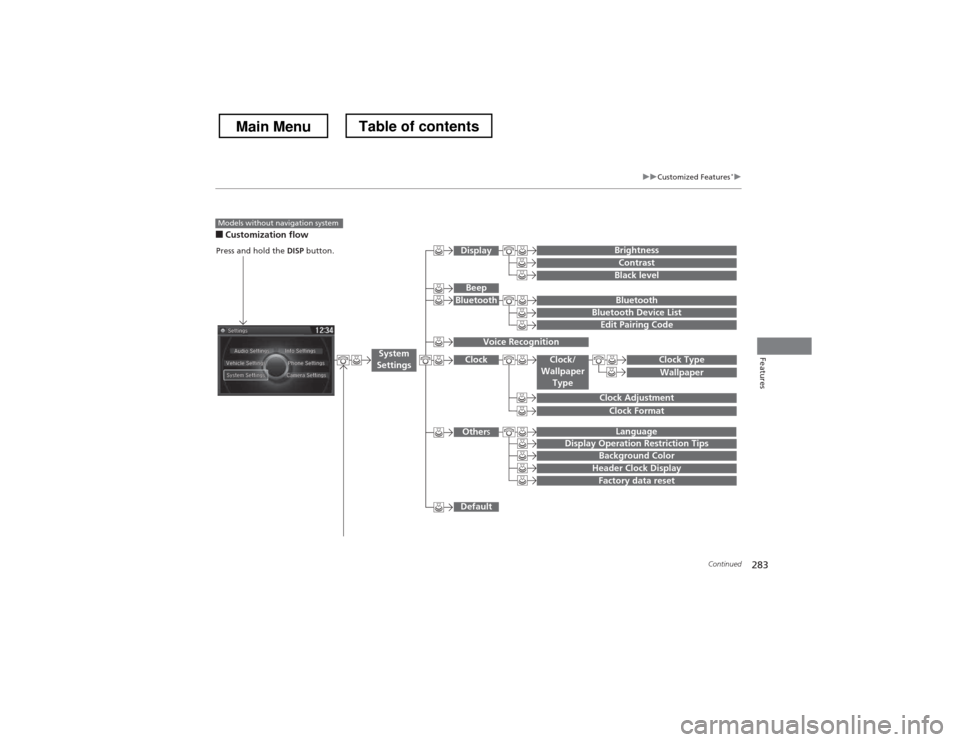
Customization flow
Models without navigation system
Clock Format
Background Color
Header Clock Display
Factory data reset
Clock Adjustment
Press and hold the DISP button.
Language
Default
Edit Pairing Code
Bluetooth
Bluetooth Device List
Brightness
Contrast
Black level
Beep
Clock/
Wallpaper
TypeClock Type
Wallpaper
System
Settings
Bluetooth
Display
Clock
Other s
Display Operation Restriction Tips
Voice Recognition
Main MenuTable of contents
Page 286 of 573
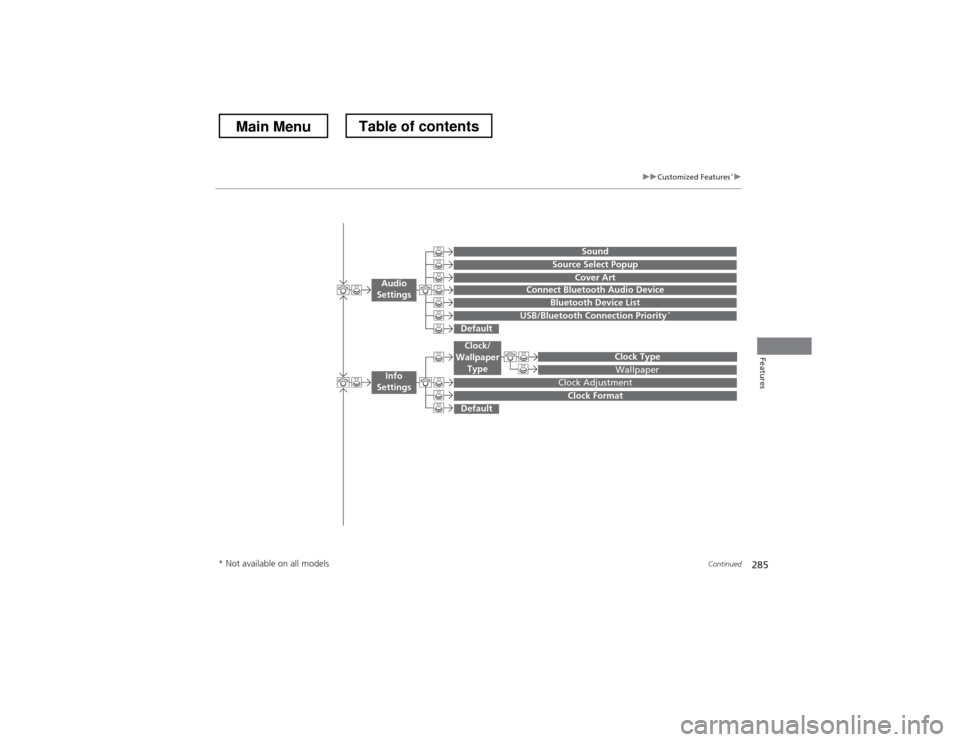
285
uuCustomized Features*u
Continued
Features
Wallpaper
Source Select Popup
Clock Type
Sound
Default
Cover Art
Connect Bluetooth Audio Device
Bluetooth Device List
USB/Bluetooth Connection Priority *
Default
Clock Adjustment
Clock Format
Audio
Settings
Clock/
Wallpaper Type
Info
Settings
* Not available on all models
Main MenuTable of contents
Page 294 of 573
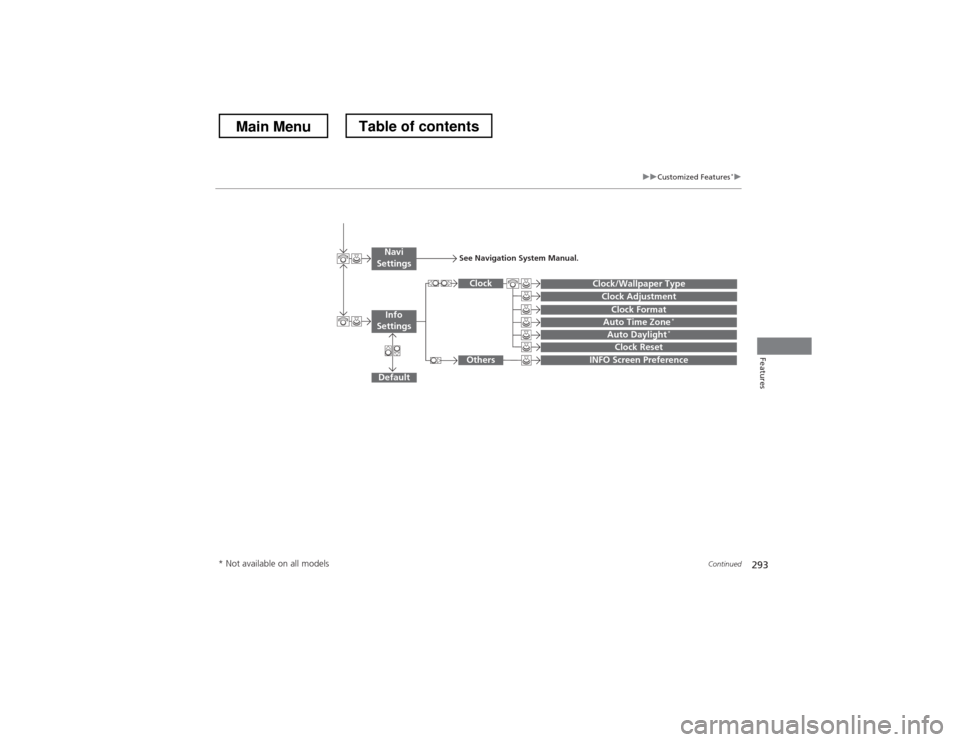
293
uuCustomized Features*u
Continued
Features
Auto Daylight*
Clock Reset
INFO Screen Preference
Clock Format
Auto Time Zone *
Clock/Wallpaper Type
Clock Adjustment
Clock
Default
Others
Info
Settings
Navi
SettingsSee Navigation System Manual.
* Not available on all models
Main MenuTable of contents
Page 296 of 573
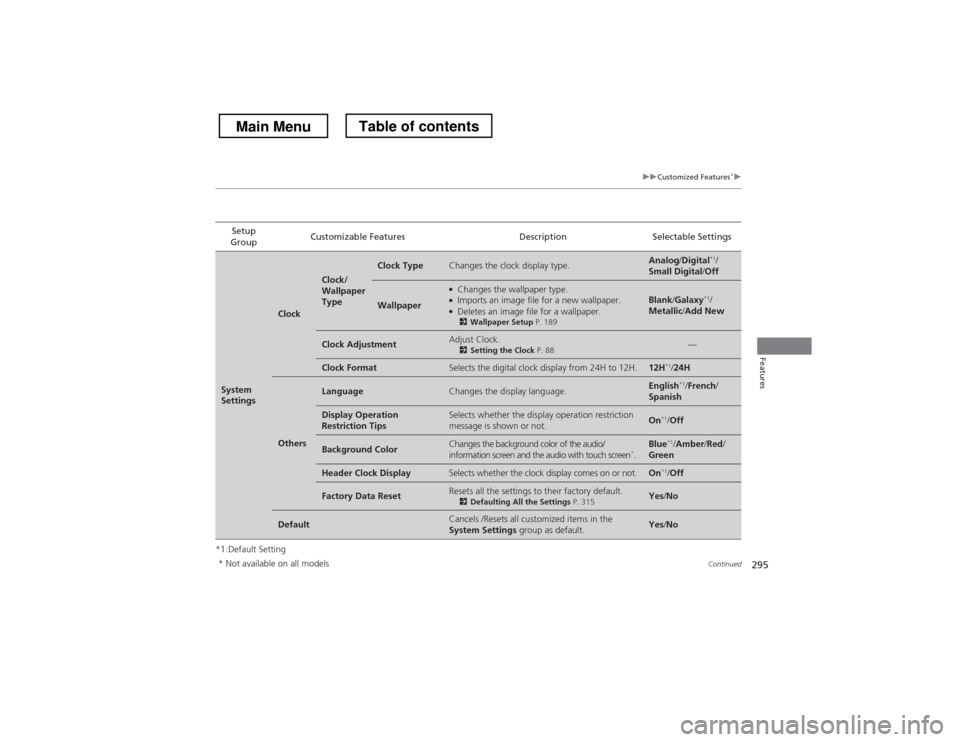
295
uuCustomized Features*u
Continued
Features
*1:Default SettingSetup
Group Customizable Features Description Selectable Settings
System
Settings
Clock
Clock/
Wallpaper
Type
Clock TypeChanges the clock display type.Analog
/Digital *1
/
Small Digital /Off
Wallpaper
●
Changes the wallpaper type.
● Imports an image file for a new wallpaper.
● Deletes an image file for a wallpaper.
2 Wallpaper Setup P. 189Blank/Galaxy *1
/
Metallic /Add New
Clock AdjustmentAdjust Clock.
2Setting the Clock P. 88—
Clock FormatSelects the digital clock display from 24H to 12H.12H*1
/24H
Others
LanguageChanges the display language.English *1
/French /
Spanish
Display Operation
Restriction TipsSelects whether the display operation restriction
message is shown or not.On *1
/Off
Background ColorChanges the background color of the audio/
information screen and the audio with touch screen *
.Blue *1
/Amber /Red /
Green
Header Clock DisplaySelects whether the clock display comes on or not.On *1
/Off
Factory Data ResetResets all the settings to their factory default.
2Defaulting All the Settings P. 315Yes/No
DefaultCancels /Resets all customized items in the
System Settings group as default.Yes/No
* Not available on all models
Main MenuTable of contents
Page 301 of 573
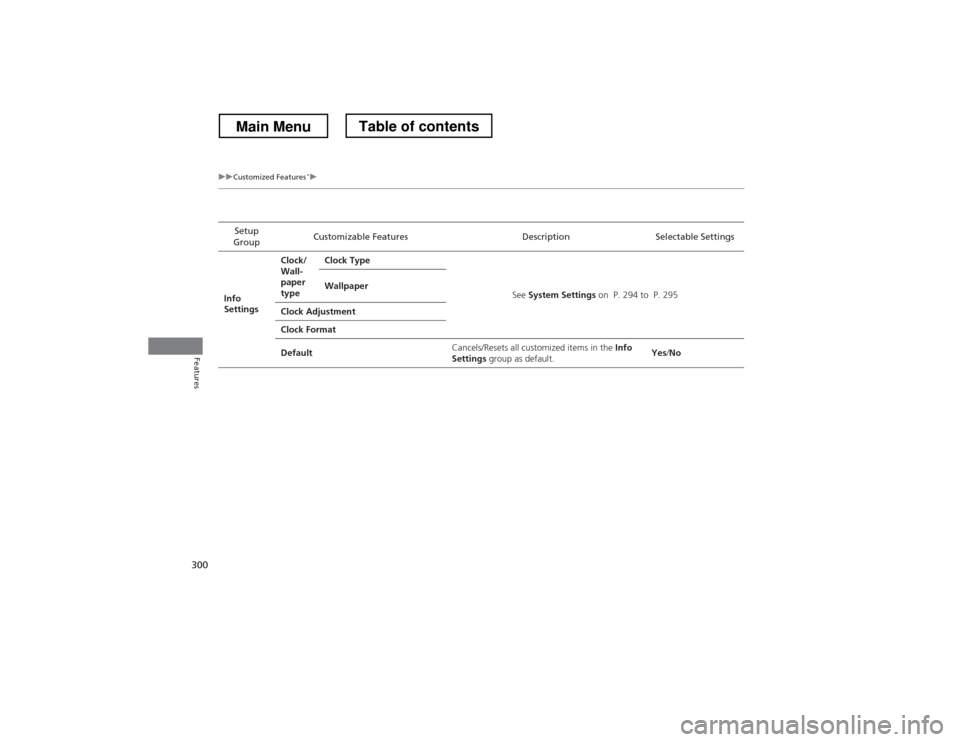
300
uuCustomized Features*u
Features
Setup
Group Customizable Features Description Selectable Settings
Info
Settings Clock/
Wall-
paper
type
Clock Type
See System Settings on P. 294 to P. 295
Wallpaper
Clock Adjustment
Clock Format
Default Cancels/Resets all customized items in the
Info
Settings group as default. Yes
/No
Main MenuTable of contents
Page 306 of 573
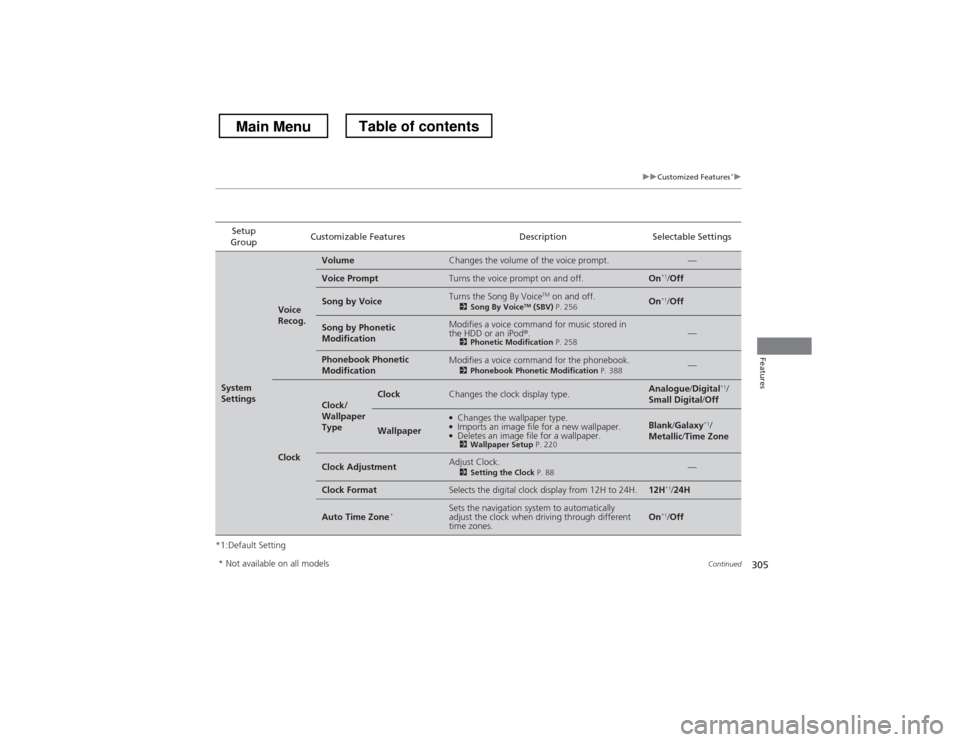
305
uuCustomized Features*u
Continued
Features
*1:Default SettingSetup
Group Customizable Features Description Selectable Settings
System
Settings
Voice
Recog.
VolumeChanges the volume of the voice prompt.—
Voice PromptTurns the voice prompt on and off.On
*1
/Off
Song by VoiceTurns the Song By Voice TM
on and off.
2 Song By Voice TM
(SBV) P. 256On*1
/Off
Song by Phonetic
ModificationModifies a voice command for music stored in
the HDD or an iPod ®.
2 Phonetic Modification P. 258—
Phonebook Phonetic
ModificationModifies a voice command for the phonebook.
2Phonebook Phonetic Modification P. 388—
Clock
Clock/
Wallpaper
TypeClockChanges the clock display type.Analogue/Digital *1
/
Small Digital /Off
Wallpaper
●
Changes the wallpaper type.
● Imports an image file for a new wallpaper.
● Deletes an image file for a wallpaper.
2 Wallpaper Setup P. 220Blank/Galaxy *1
/
Metallic /Time Zone
Clock AdjustmentAdjust Clock.
2Setting the Clock P. 88—
Clock FormatSelects the digital clock display from 12H to 24H.12H*1
/24H
Auto Time Zone *Sets the navigation system to automatically
adjust the clock when driving through different time zones.On*1
/Off
* Not available on all models
Main MenuTable of contents
Page 307 of 573
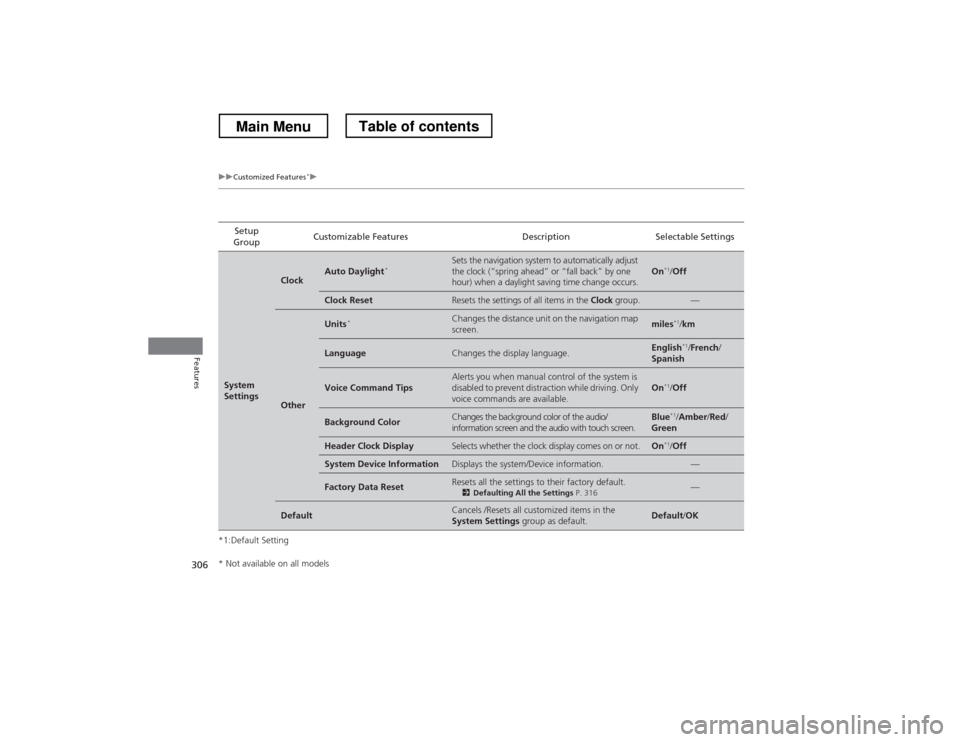
306
uuCustomized Features*u
Features
*1:Default SettingSetup
Group Customizable Features Description Selectable Settings
System
Settings
ClockAuto Daylight
*Sets the navigation system to automatically adjust
the clock (“spring ahead” or “fall back” by one
hour) when a daylight saving time change occurs.On*1
/Off
Clock ResetResets the settings of all items in the Clock group.—
Other
Units *Changes the distance unit on the navigation map screen.miles*1
/km
LanguageChanges the display language.English *1
/French /
Spanish
Voice Command TipsAlerts you when manual control of the system is
disabled to prevent distraction while driving. Only
voice commands are available.On *1
/Off
Background ColorChanges the background color of the audio/
information screen and the audio with touch screen.Blue *1
/Amber /Red /
Green
Header Clock DisplaySelects whether the clock display comes on or not.On *1
/Off
System Device InformationDisplays the system/Device information.—
Factory Data ResetResets all the settings to their factory default.
2Defaulting All the Settings P. 316—
DefaultCancels /Resets all customized items in the
System Settings group as default.Default/OK
* Not available on all models
Main MenuTable of contents