lock HONDA CROSSTOUR 2013 1.G Owner's Manual
[x] Cancel search | Manufacturer: HONDA, Model Year: 2013, Model line: CROSSTOUR, Model: HONDA CROSSTOUR 2013 1.GPages: 573, PDF Size: 25.21 MB
Page 77 of 573
76
uuIndicatorsu
Instrument Panel
*1:Models with the smart entry system have an ENGINE START/STOP button instead of an ignition switch.
IndicatorNameOn/BlinkingExplanationMessage
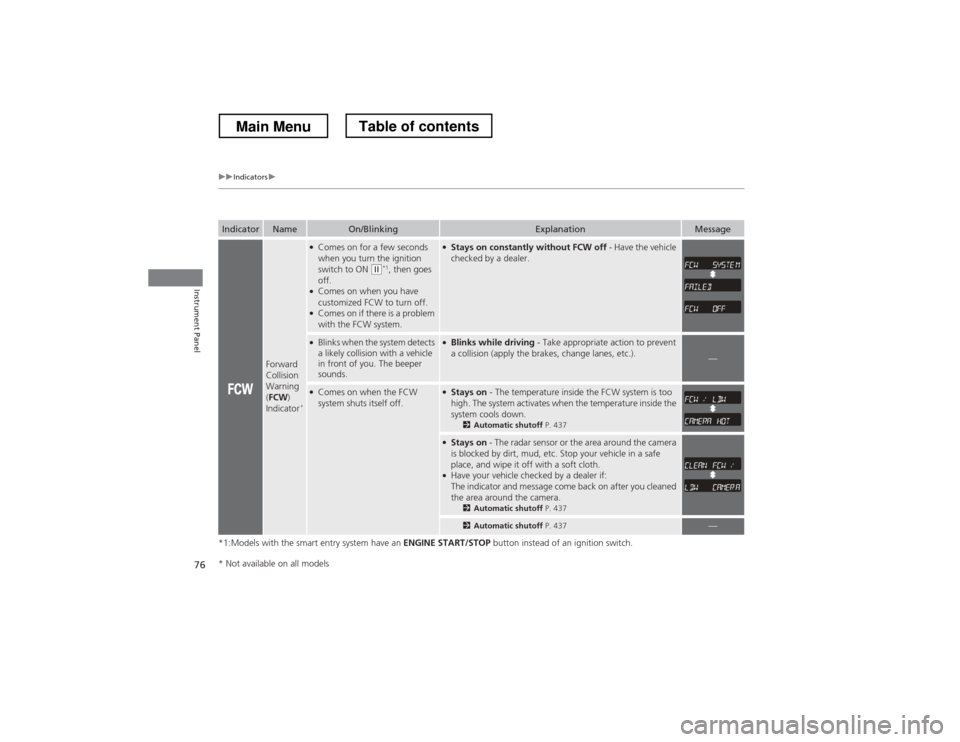
Forward
Collision
Warning (FCW )
Indicator *
●
Comes on for a few seconds
when you turn the ignition
switch to ON
(w *1
, then goes
off.
● Comes on when you have
customized FCW to turn off.
● Comes on if there is a problem
with the FCW system.
●Stays on constantly without FCW off - Have the vehicle
checked by a dealer.
● Blinks when the system detects
a likely collision with a vehicle
in front of you. The beeper
sounds.●Blinks while driving - Take appropriate action to prevent
a collision (apply the brakes, change lanes, etc.).
—
● Comes on when the FCW
system shuts itself off.●Stays on - The temperature inside the FCW system is too
high. The system activates when the temperature inside the
system cools down. 2Automatic shutoff P. 437
●
Stays on - The radar sensor or the area around the camera
is blocked by dirt, mud, etc. Stop your vehicle in a safe
place, and wipe it off with a soft cloth.
● Have your vehicle checked by a dealer if:
The indicator and message come back on after you cleaned
the area around the camera.
2Automatic shutoff P. 437
2Automatic shutoff P. 437—
* Not available on all models
Main MenuTable of contents
Page 78 of 573
77
uuIndicatorsu
Continued
Instrument Panel
*1:Models with the smart entry system have an ENGINE START/STOP button instead of an ignition switch.
IndicatorNameOn/BlinkingExplanationMessage
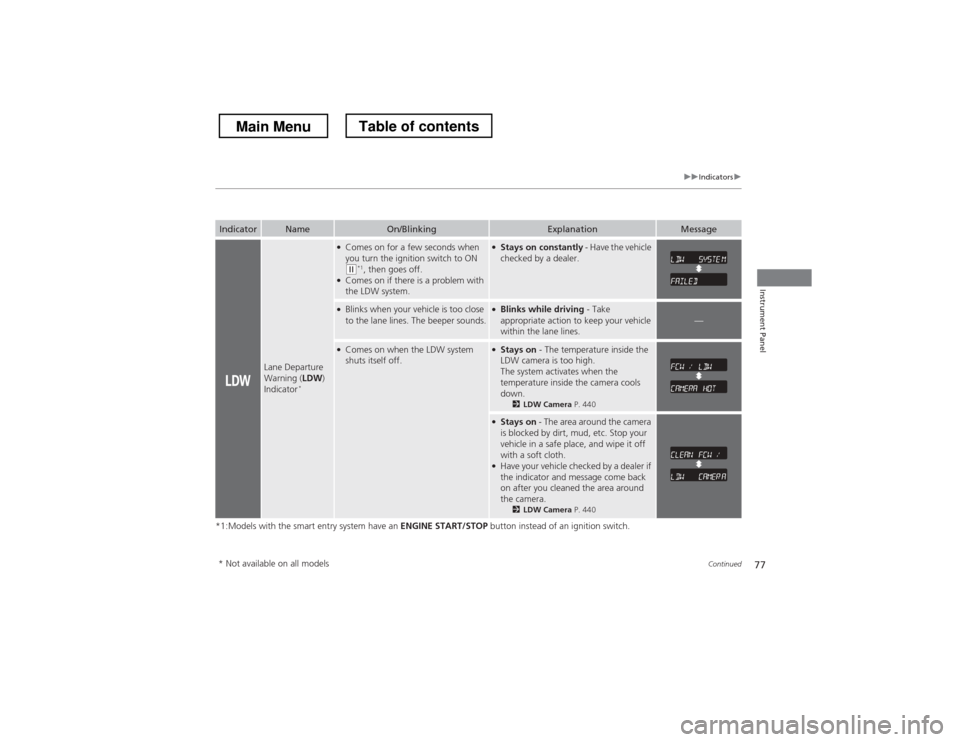
Lane Departure
Warning (LDW)
Indicator *
●
Comes on for a few seconds when
you turn the ignition switch to ON
(w *1
, then goes off.
● Comes on if there is a problem with
the LDW system.
● Stays on constantly - Have the vehicle
checked by a dealer.
● Blinks when your vehicle is too close
to the lane lines. The beeper sounds.● Blinks while driving - Take
appropriate action to keep your vehicle
within the lane lines.
—
● Comes on when the LDW system
shuts itself off.● Stays on - The temperature inside the
LDW camera is too high.
The system activates when the
temperature inside the camera cools
down. 2LDW Camera P. 440
●
Stays on - The area around the camera
is blocked by dirt, mud, etc. Stop your
vehicle in a safe place, and wipe it off with a soft cloth.
● Have your vehicle checked by a dealer if
the indicator and message come back
on after you cleaned the area around
the camera.
2LDW Camera P. 440
* Not available on all models
Main MenuTable of contents
Page 80 of 573
79
uuIndicatorsu
Continued
Instrument Panel
*1:Models with the smart entry system have an ENGINE START/STOP button instead of an ignition switch.
IndicatorNameOn/BlinkingExplanation
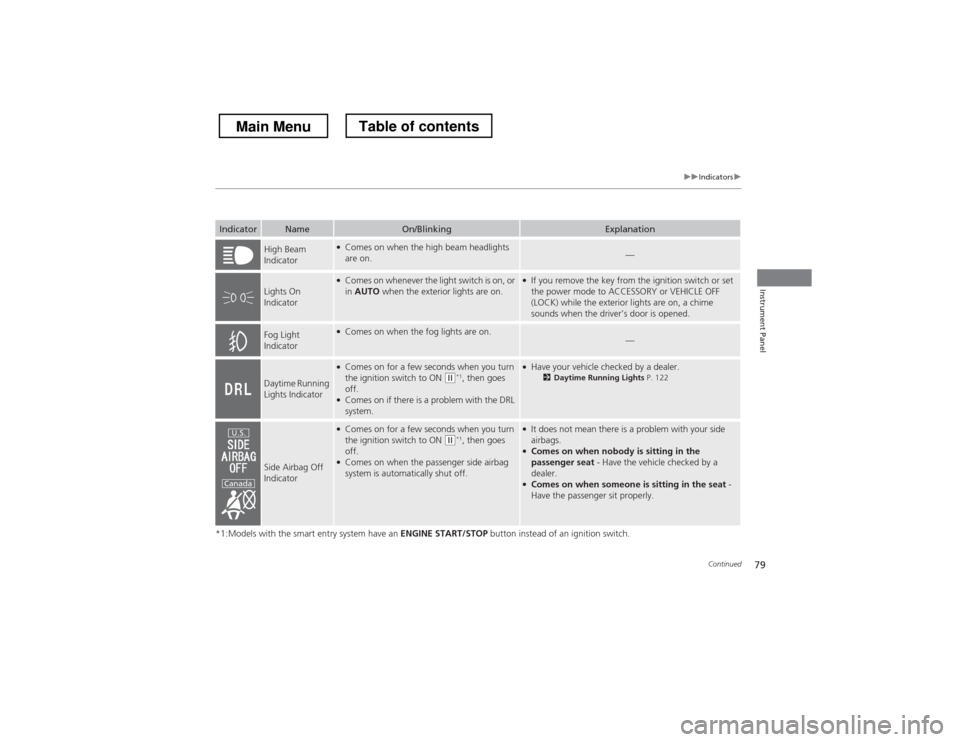
High Beam
Indicator●
Comes on when the high beam headlights are on.—
Lights On
Indicator
●Comes on whenever the light switch is on, or in AUTO when the exterior lights are on.●
If you remove the key from the ignition switch or set
the power mode to ACCESSORY or VEHICLE OFF
(LOCK) while the exterior lights are on, a chime
sounds when the driver’s door is opened.
Fog Light
Indicator● Comes on when the fog lights are on.—
Daytime Running
Lights Indicator
●Comes on for a few seconds when you turn
the ignition switch to ON
(w *1
, then goes
off.
● Comes on if there is a problem with the DRL system.
●Have your vehicle checked by a dealer.
2Daytime Running Lights P. 122
Side Airbag Off
Indicator
●
Comes on for a few seconds when you turn
the ignition switch to ON
(w *1
, then goes
off.
● Comes on when the passenger side airbag
system is automatically shut off.
●It does not mean there is a problem with your side airbags.
● Comes on when nobody is sitting in the
passenger seat - Have the vehicle checked by a
dealer.
● Comes on when someone is sitting in the seat -
Have the passenger sit properly.U.S.
Canada
Main MenuTable of contents
Page 81 of 573
80
uuIndicatorsu
Instrument Panel
*1:Models with the smart entry system have an ENGINE START/STOP button instead of an ignition switch.
IndicatorNameOn/BlinkingExplanation
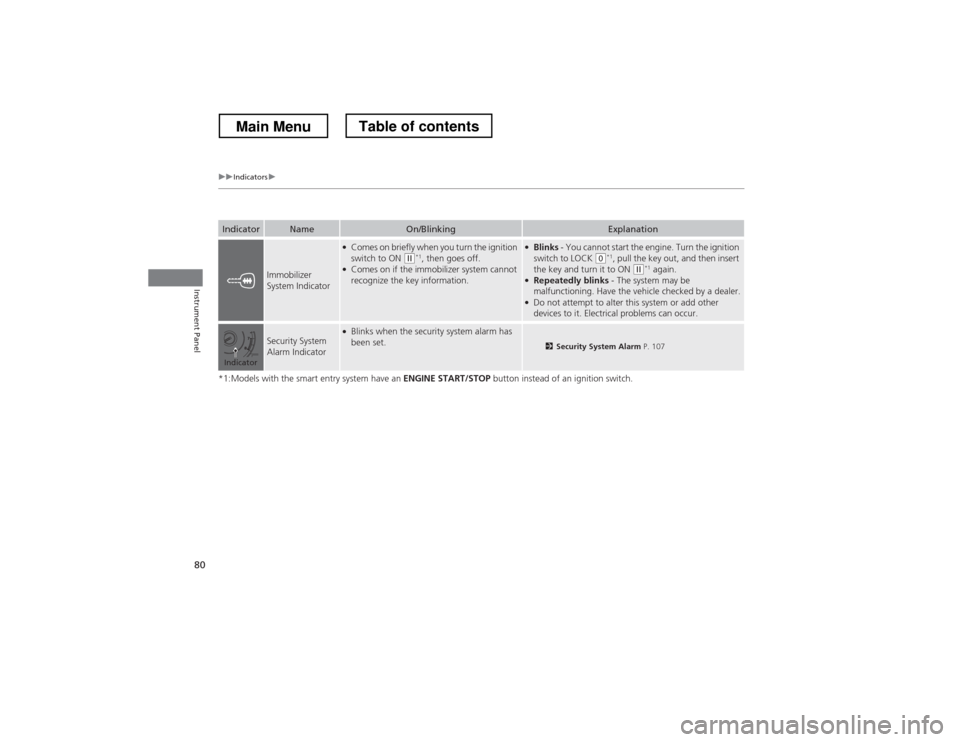
Immobilizer
System Indicator
●
Comes on briefly when you turn the ignition
switch to ON
(w *1
, then goes off.
● Comes on if the immobilizer system cannot recognize the key information.
●Blinks - You cannot start the engine. Turn the ignition
switch to LOCK
(0 *1
, pull the key out, and then insert
the key and turn it to ON (w *1
again.
● Repeatedly blinks - The system may be
malfunctioning. Have the vehicle checked by a dealer.
● Do not attempt to alter this system or add other
devices to it. Electrical problems can occur.
Security System
Alarm Indicator●Blinks when the security system alarm has been set.
2 Security System Alarm P. 107
Indicator
Main MenuTable of contents
Page 83 of 573
82
uuIndicatorsuInformation Display Warning and Information Messages
Instrument Panel
Information Display Warning and Information Messages
The following messages appear only on the information display.
MessageConditionExplanation
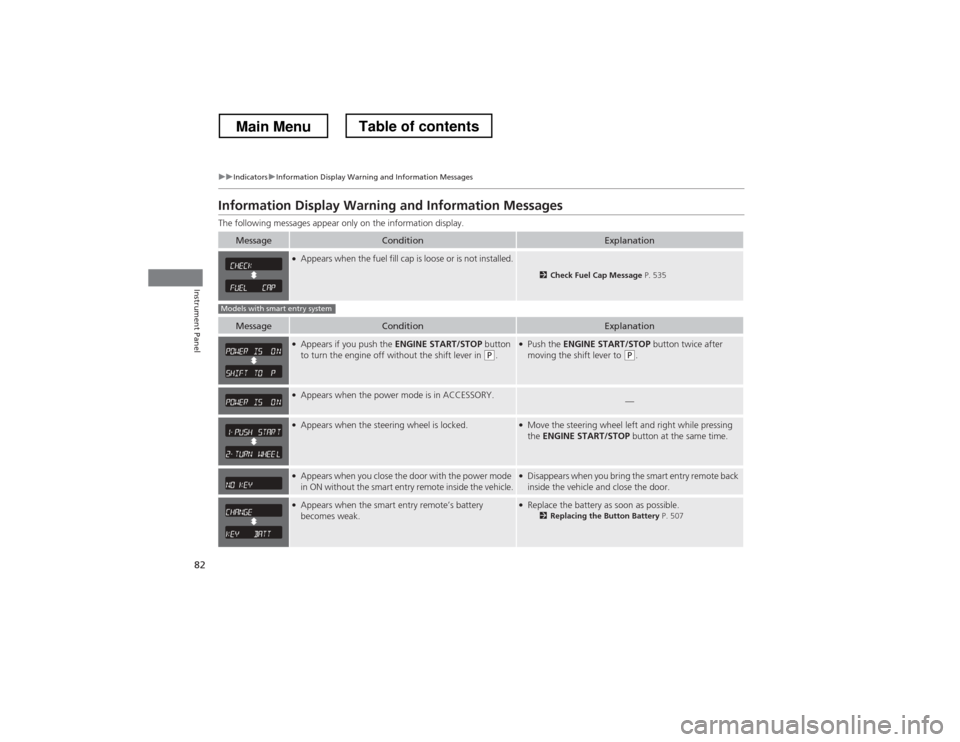
●Appears when the fuel fill cap is loose or is not installed.
2 Check Fuel Cap Message P. 535
MessageConditionExplanation
●
Appears if you push the ENGINE START/STOP button
to turn the engine off without the shift lever in
(P .
●
Push the ENGINE START/STOP button twice after
moving the shift lever to
(P .
●
Appears when the power mode is in ACCESSORY.—
●Appears when the steering wheel is locked.●Move the steering wheel left and right while pressing the ENGINE START/STOP button at the same time.
●
Appears when you close the door with the power mode
in ON without the smart entry remote inside the vehicle.●Disappears when you bring the smart entry remote back
inside the vehicle and close the door.
●Appears when the smart entry remote’s battery becomes weak.●Replace the battery as soon as possible.
2Replacing the Button Battery P. 507
Models with smart entry system
Main MenuTable of contents
Page 88 of 573
87
Controls
This chapter explains how to operate the various controls necessary for driving.
Setting the Clock ................................ 88
Locking and Unlocking the Doors Key Types and Functions ... ................. 91
Low Smart Entry Remote Signal Strength*.. 93Locking/Unlocking the Doors from the
Outside ............................................ 94
Locking/Unlocking the Doors from the
Inside ............................................... 99
Childproof Door Locks ..................... 100
Auto Door Locking/Unlocking .......... 101
Opening and Closing the Tailgate ... 105
Security System ................................ 107
Immobilizer System .......................... 107
Security System Alarm ...................... 107
Opening and Closing the Windows ..... 110
Opening and Closing the Moonroof.. 113Operating the Switches Around the
Steering Wheel
Ignition Switch *
............................... 114
ENGINE START/STOP Button *
........... 115
Ignition Switch and Power Mode Comparison ................................... 118
Turn Signals ..................................... 119
Light Switches.................................. 119
Fog Lights ........................................ 122
Daytime Running Lights ................... 122
Wipers and Washers ........................ 123
Brightness Control ........................... 125
Rear Defogger/Heated Door Mirror Button.. 126Driving Position Memory System *
.... 127 Adjusting the Steering Wheel .......... 129
Adjusting the Mirrors ....................... 130
Interior Rearview Mirror ................... 130
Power Door Mirrors ......................... 131
Adjusting the Seats .......................... 133
Adjusting the Seat Positions ............. 133
Interior Lights/Interior Convenience Items ................................................ 142
Interior Lights .................................. 142
Interior Convenience Items .............. 144
Heating and Cooling System *
......... 154
Using Vents, Heating and A/C.......... 154
Climate Control System *
.................. 157
Using Automatic Climate Control .... 157
Automatic Climate Control Sensors ... 162
* Not available on all models
Main Menu
Page 89 of 573
88
Controls
Setting the Clock
Clock
You can adjust the time in the clock display with the ignition switch is in ON
(w*1
.
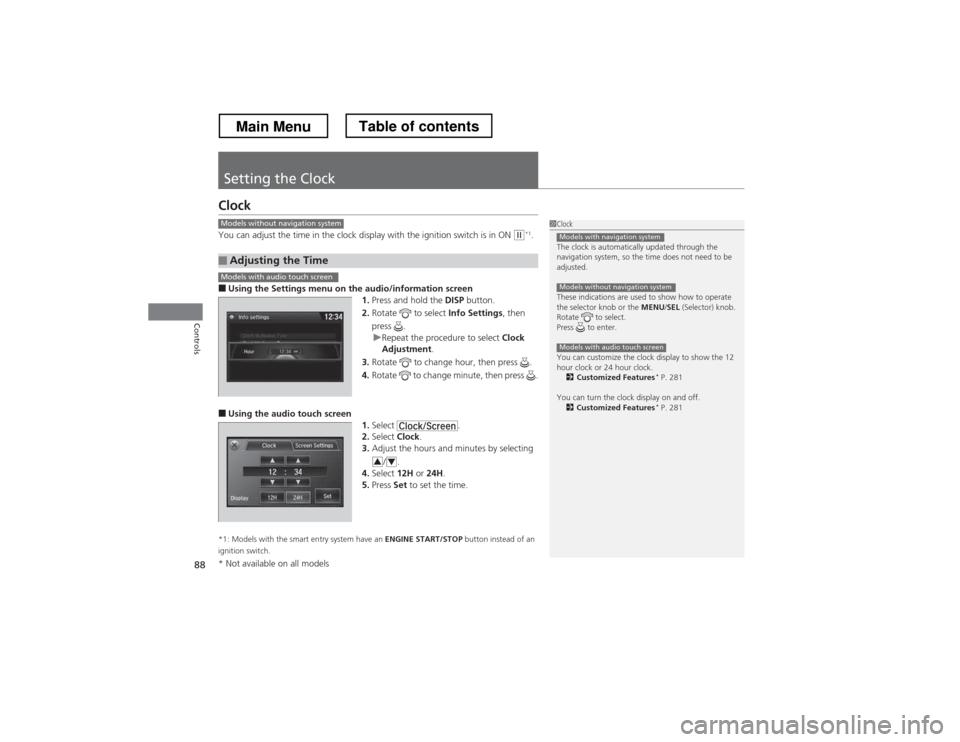
■ Using the Settings menu on th e audio/information screen
1. Press and hold the DISP button.
2. Rotate to select Info Settings, then
press .
uRepeat the procedure to select Clock
Adjustment .
3. Rotate to change hour, then press .
4. Rotate to change minute, then press .
■ Using the audio touch screen
1.Select .
2. Select Clock.
3. Adjust the hours and minutes by selecting
/.
4. Select 12H or 24H .
5. Press Set to set the time.
*1: Models with the smart entry system have an ENGINE START/STOP button instead of an
ignition switch.
■Adjusting the Time
1Clock
The clock is automatically updated through the
navigation system, so the time does not need to be
adjusted.
These indications are used to show how to operate
the selector knob or the MENU/SEL (Selector) knob.
Rotate to select.
Press to enter.
You can customize the clock display to show the 12
hour clock or 24 hour clock. 2 Customized Features *
P. 281
You can turn the clock display on and off. 2 Customized Features *
P. 281
Models with navigation system
Models without navigation system
Models with audio touch screen
Models without navigation system
Models with audio touch screen
34
* Not available on all models
Main MenuTable of contents
Page 90 of 573
Continued89
uuSetting the ClockuClock
Controls
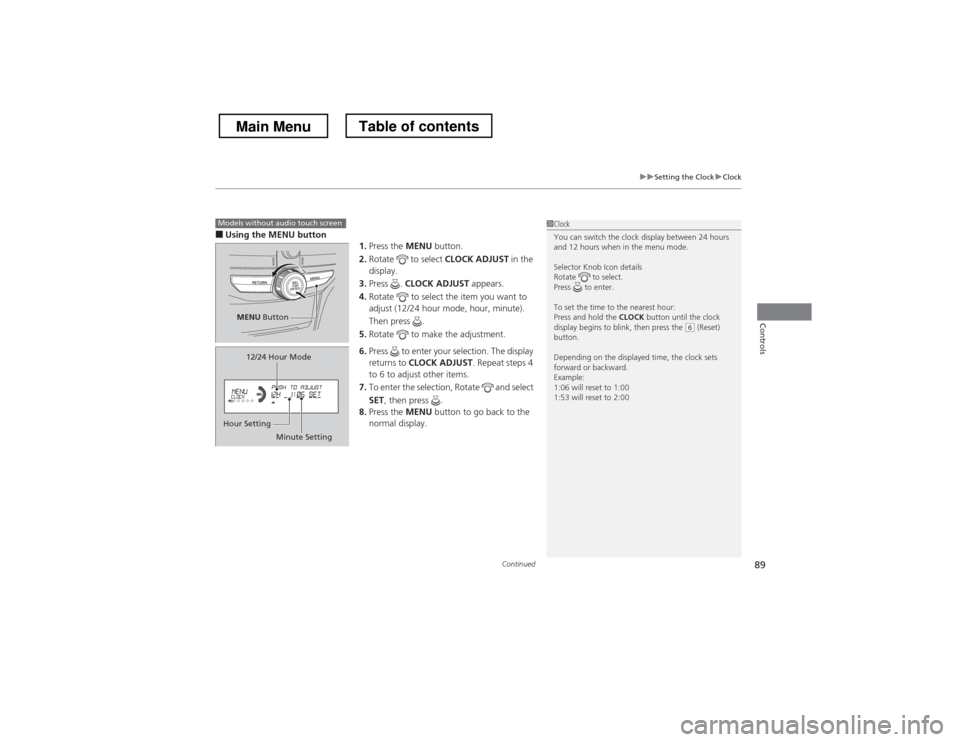
■Using the MENU button
1.Press the MENU button.
2. Rotate to select CLOCK ADJUST in the
display.
3. Press . CLOCK ADJUST appears.
4. Rotate to select the item you want to
adjust (12/24 hour mode, hour, minute).
Then press .
5. Rotate to make the adjustment.
6. Press to enter your selection. The display returns to CLOCK ADJUST . Repeat steps 4
to 6 to adjust other items.
7. To enter the selection, Rotate and select SET , then press .
8. Press the MENU button to go back to the
normal display.1Clock
You can switch the clock display between 24 hours
and 12 hours when in the menu mode.
Selector Knob Icon details
Rotate to select.
Press to enter.
To set the time to the nearest hour: Press and hold the CLOCK button until the clock
display begins to blink, then press the
(6 (Reset)
button.
Depending on the displayed time, the clock sets
forward or backward.
Example:
1:06 will reset to 1:00
1:53 will reset to 2:00
Models without audio touch screen
MENU Button
Minute Setting
Hour Setting 12/24 Hour Mode
Main MenuTable of contents
Page 91 of 573
90
uuSetting the ClockuClock
Controls
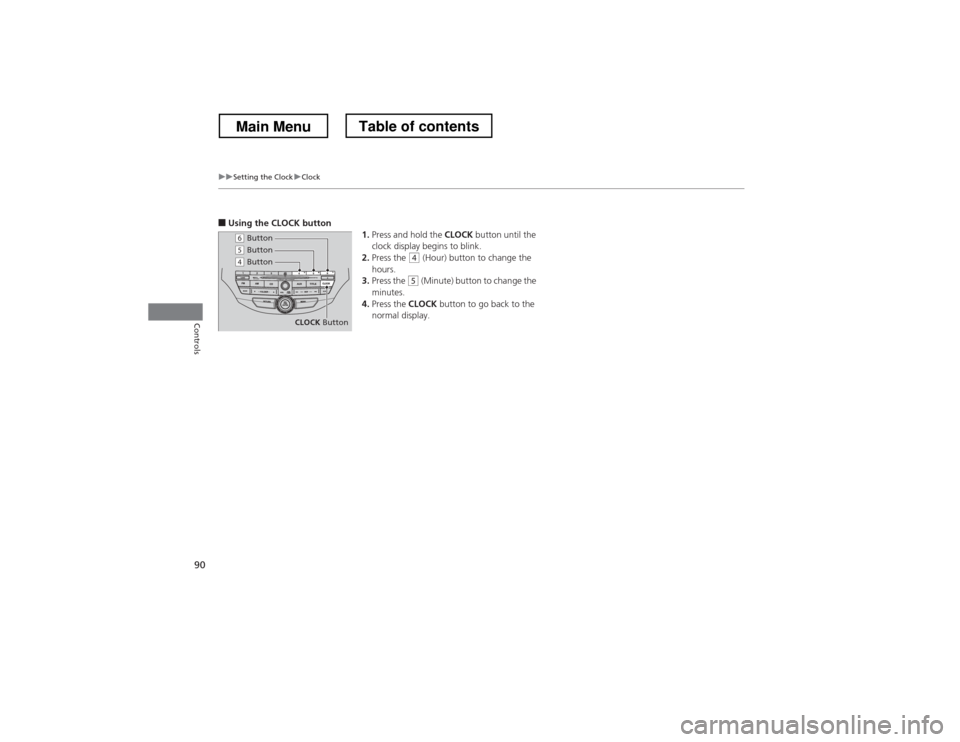
■Using the CLOCK button
1.Press and hold the CLOCK button until the
clock display begins to blink.
2. Press the
(4 (Hour) button to change the
hours.
3. Press the
(5 (Minute) button to change the
minutes.
4. Press the CLOCK button to go back to the
normal display.
CLOCK Button
(6 Button
(4 Button(5 Button
Main MenuTable of contents
Page 92 of 573
91
Continued
Controls
Locking and Unlocking the Doors
Key Types and Functions
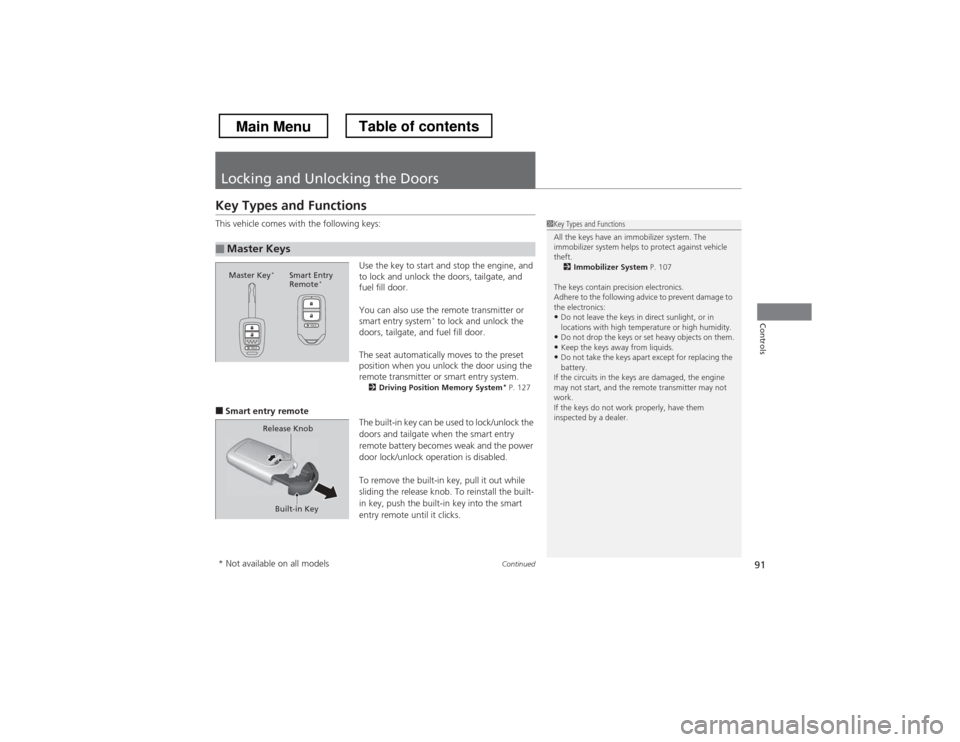
This vehicle comes with the following keys:
Use the key to start and stop the engine, and
to lock and unlock the doors, tailgate, and
fuel fill door.
You can also use the remote transmitter or
smart entry system*
to lock and unlock the
doors, tailgate, and fuel fill door.
The seat automatically moves to the preset
position when you unlock the door using the
remote transmitter or smart entry system. 2 Driving Posi tion Memory System *
P. 127
■ Smart entry remote
The built-in key can be used to lock/unlock the
doors and tailgate when the smart entry
remote battery becomes weak and the power
door lock/unlock operation is disabled.
To remove the built-in key, pull it out while
sliding the release knob. To reinstall the built-
in key, push the built-in key into the smart
entry remote until it clicks.
■Master Keys
1Key Types and Functions
All the keys have an immobilizer system. The
immobilizer system helps to protect against vehicle theft.2 Immobilizer System P. 107
The keys contain precision electronics.
Adhere to the following advice to prevent damage to the electronics: • Do not leave the keys in direct sunlight, or in
locations with high temperature or high humidity.
• Do not drop the keys or set heavy objects on them.
• Keep the keys away from liquids.
• Do not take the keys apart except for replacing the
battery.
If the circuits in the keys are damaged, the engine
may not start, and the remote transmitter may not work.
If the keys do not work properly, have them
inspected by a dealer.
Master Key *
Smart Entry
Remote *
Built-in Key
Release Knob
* Not available on all models
Main MenuTable of contents