reset HONDA CROSSTOUR 2013 1.G Owners Manual
[x] Cancel search | Manufacturer: HONDA, Model Year: 2013, Model line: CROSSTOUR, Model: HONDA CROSSTOUR 2013 1.GPages: 573, PDF Size: 25.21 MB
Page 4 of 573
3
Quick Reference Guide
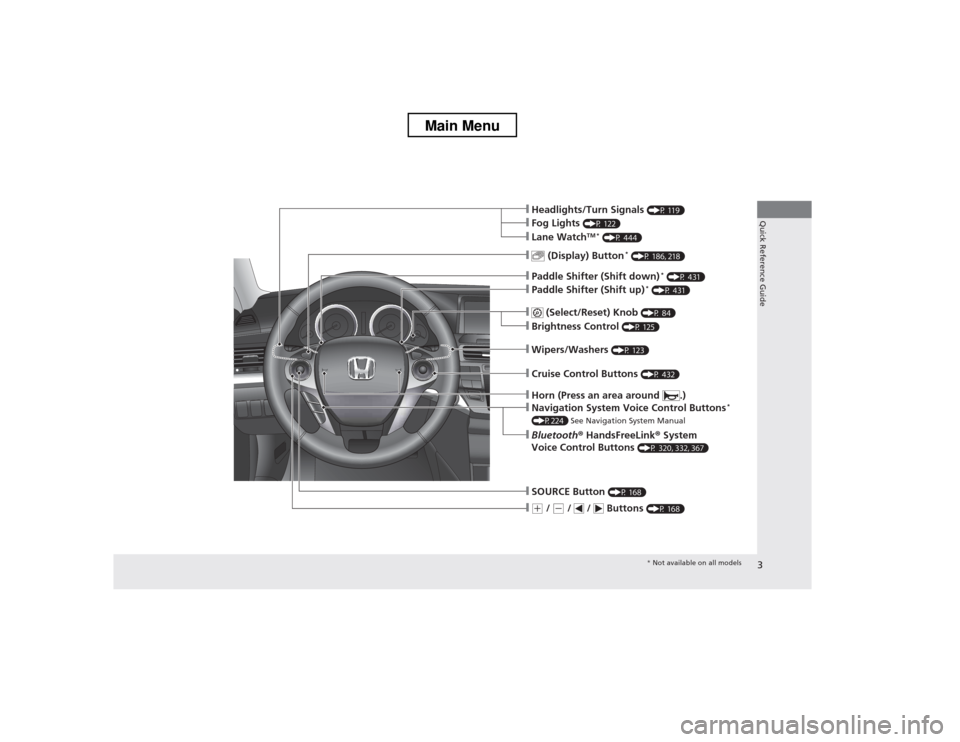
❙Wipers/Washers (P 123)
❙Navigation System Voice Control Buttons *
(P224) See Navigation System Manual
❙(+ / (- / / Buttons (P 168)
❙SOURCE Button (P 168)
❙ (Display) Button *
(P 186, 218)
❙Headlights/Turn Signals (P 119)
❙Fog Lights (P 122)
❙Paddle Shifter (Shift down) *
(P 431)
❙Paddle Shifter (Shift up) *
(P 431)
❙Lane Watch TM *
(P 444)
❙Horn (Press an area around .)
❙Bluetooth ® HandsFreeLink ® System
Voice Control Buttons (P 320, 332, 367)
❙ (Select/Reset) Knob
(P 84)
❙Brightness Control (P 125)
❙Cruise Control Buttons (P 432)
* Not available on all models
Main Menu
Page 10 of 573
9
Quick Reference Guide
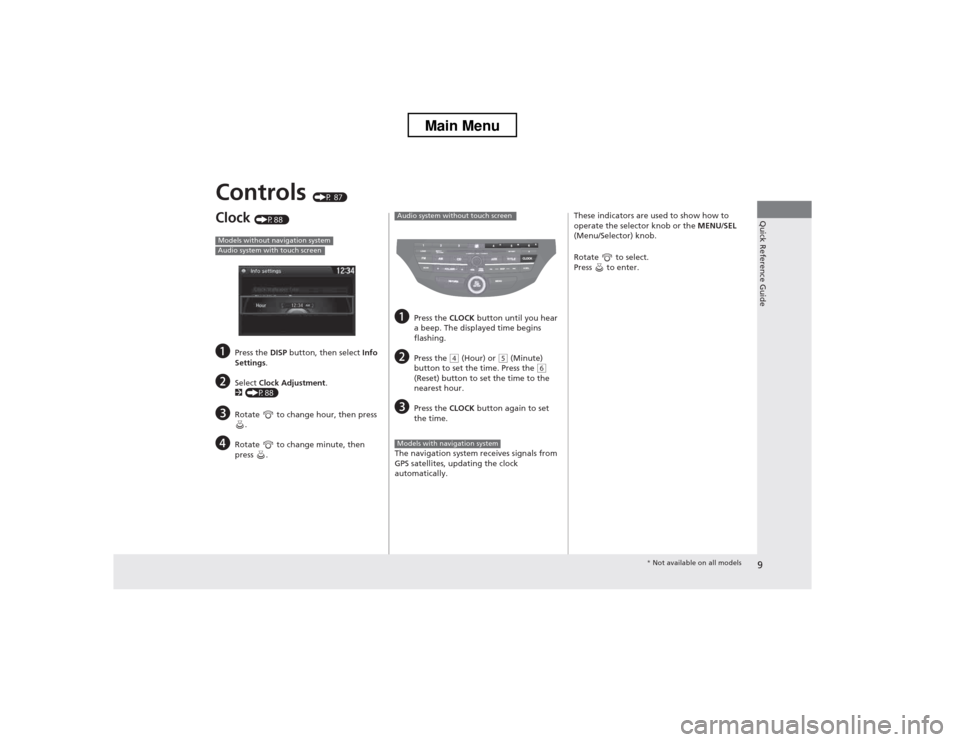
Controls (P 87)
Clock (P88 )
a Press the DISP button, then select Info
Settings .
b Select Clock Adjustment .
2 (P88)
c Rotate to change hour, then press
.
d Rotate to change minute, then
press .
Models without navigation systemAudio system with touch screen
aPress the CLOCK button until you hear
a beep. The displayed time begins
flashing.
b Press the
(4 (Hour) or (5 (Minute)
button to set the time. Press the (6
(Reset) button to set the time to the nearest hour.
c Press the CLOCK button again to set
the time.
The navigation system receives signals from
GPS satellites, updating the clock
automatically.
Audio system without touch screen
Models with navigation system
These indicators are used to show how to
operate the selector knob or the MENU/SEL
(Menu/Selector) knob.
Rotate to select.
Press to enter.
* Not available on all models
Main Menu
Page 16 of 573
15
Quick Reference Guide
Features (P 163)
Audio Remote Controls
(P 168) ●
(+ / (- Button
Press and release to adjust the volume up/
down.
● SOURCE Button
Press and release to change the audio
mode: FM/AM/CD/XM ®*
/HDD *
/USB/iPod ®/
Bluetooth/Pandora ®*
/Aha TM *
/AUX.
● / Button
Radio: Press and release to change the
preset station.
Press and hold to select the next or
previous strong station.
CD/HDD *
/USB device:
Press and release to skip to the
beginning of the next song or
return to the beginning of the
current song.
Press and hold to change a folder.
(+ / (- / / Button
SOURCE
Button
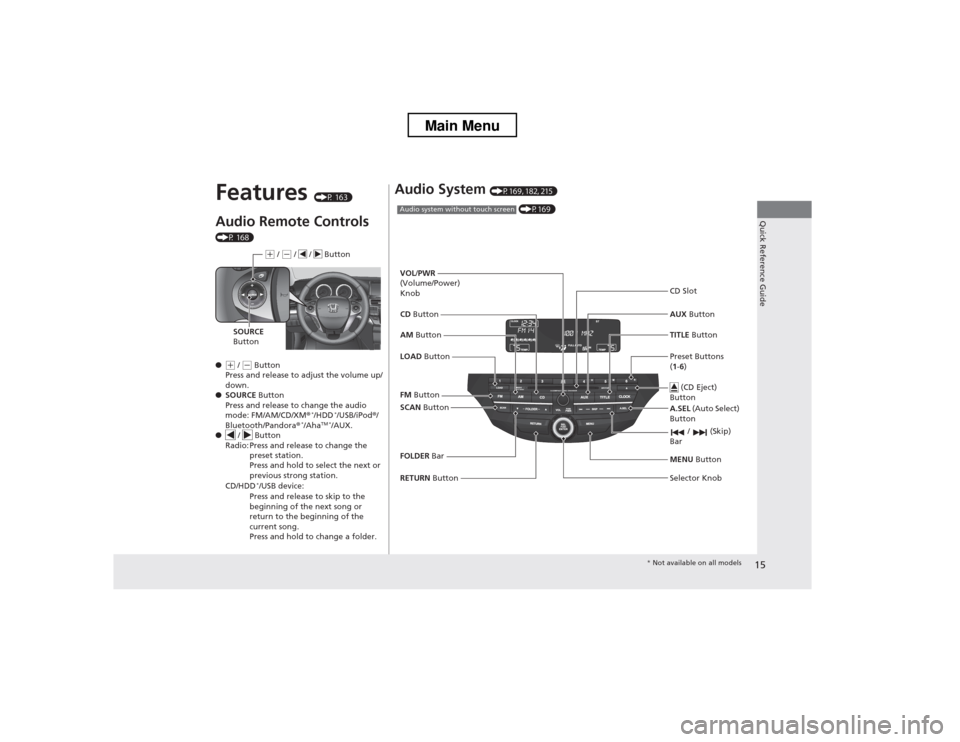
Audio System (P169, 182, 215)
(P169)Audio system without touch screen
RETURN Button
FM
Button
SCAN Button
Selector Knob
AM
Button
VOL
/PWR
(Volume/Power) Knob CD Button AUX Button
CD Slot
(CD Eject)
Button
Preset Buttons ( 1 -6 )
TITLE
Button
/ (Skip)
Bar
MENU Button
LOAD Button
FOLDER Bar A.SEL
(Auto Select)
Button
* Not available on all models
Main Menu
Page 17 of 573
16
Quick Reference Guide
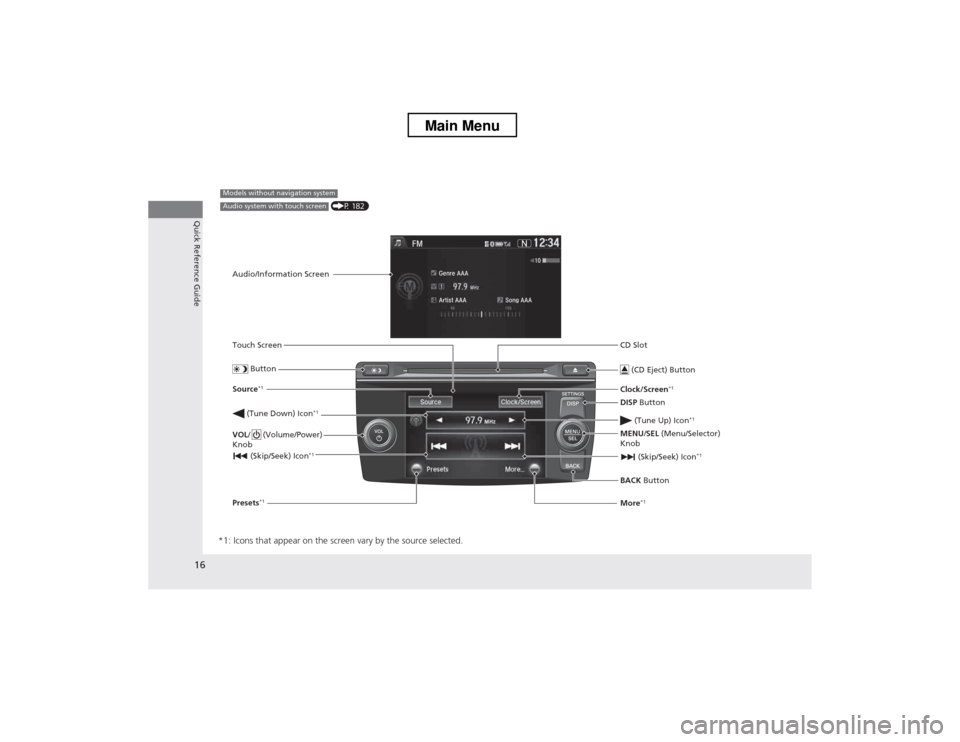
*1: Icons that appear on the screen vary by the source selected.
CD Slot (CD Eject) Button
BACK Button
MENU
/SEL (Menu/Selector)
Knob
(Tune Down) Icon
*1
(Skip/Seek) Icon*1
Models without navigation system
Audio/Information Screen
Touch Screen
Button
Source *1
VOL / (Volume/Power)
Knob
(Skip/Seek) Icon *1
Presets*1 Clock/Screen
*1
DISP Button
(Tune Up) Icon *1More*1
(P 182)Audio system with touch screen
Main Menu
Page 18 of 573
17
Quick Reference Guide
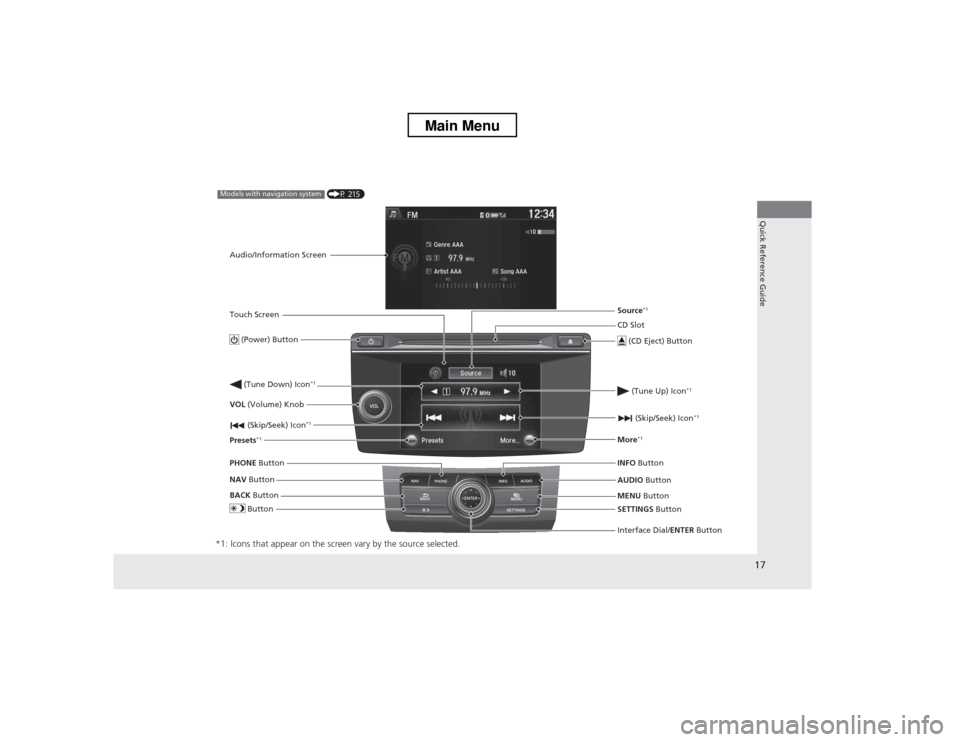
*1: Icons that appear on the screen vary by the source selected.
CD Slot (CD Eject) Button
MENU Button
Interface Dial/ ENTER Button
(Skip/Seek) Icon
*1
(P 215)Models with navigation system
Audio/Information Screen
Touch Screen
Button
Source *1
VOL (Volume) Knob
(Skip/Seek) Icon *1
Presets*1 (Tune Up) Icon
*1More*1
(Power) Button
(Tune Down) Icon *1
INFO
Button
AUDIO Button
SETTINGS Button
BACK
Button
NAV
Button
PHONE
Button
Main Menu
Page 85 of 573
84
uuGauges and DisplaysuInformation Display
Instrument Panel
Information Display
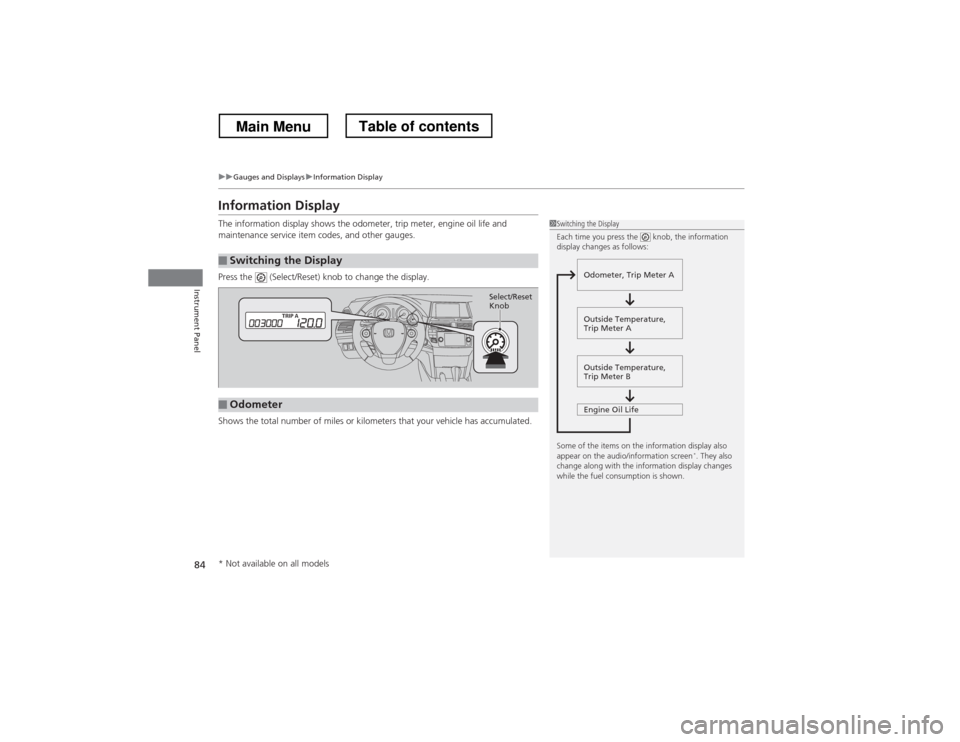
The information display shows the odometer, trip meter, engine oil life and
maintenance service item codes, and other gauges.
Press the (Select/Reset) knob to change the display.
Shows the total number of miles or kilometers that your vehicle has accumulated.
■Switching the Display
1Switching the Display
Each time you press the knob, the information
display changes as follows:
Some of the items on the information display also
appear on the audio/information screen *
. They also
change along with the information display changes
while the fuel consumption is shown.
Outside Temperature,
Trip Meter B
Engine Oil Life
Odometer, Trip Meter A
Outside Temperature,
Trip Meter A
■Odometer
Select/Reset Knob
* Not available on all models
Main MenuTable of contents
Page 86 of 573
Continued85
uuGauges and DisplaysuInformation Display
Instrument Panel
Shows the total number of miles (U.S.) or kilometers (Canada) driven since the last
reset. Meters A and B can be used to measure two separate trips. ■Resetting a trip meter
To reset a trip meter, display it, then press and hold the knob. The trip meter is
reset to 0.0.
Shows the remaining oil life and Maintenance Minder TM
.
2 Maintenance Minder
Page 90 of 573
Continued89
uuSetting the ClockuClock
Controls
■Using the MENU button
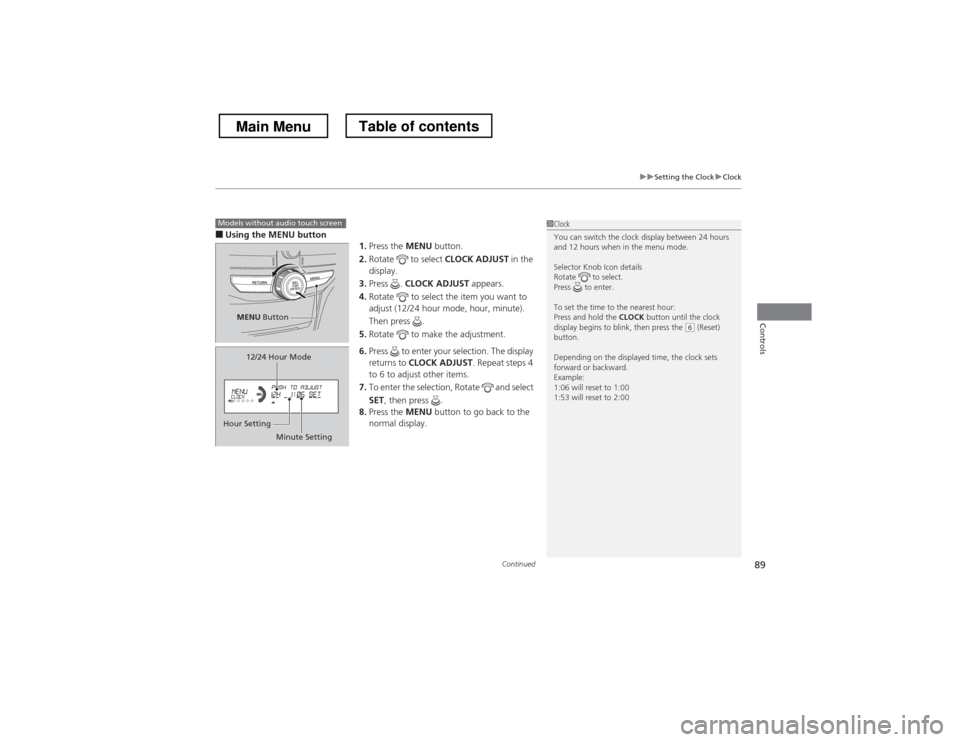
1.Press the MENU button.
2. Rotate to select CLOCK ADJUST in the
display.
3. Press . CLOCK ADJUST appears.
4. Rotate to select the item you want to
adjust (12/24 hour mode, hour, minute).
Then press .
5. Rotate to make the adjustment.
6. Press to enter your selection. The display returns to CLOCK ADJUST . Repeat steps 4
to 6 to adjust other items.
7. To enter the selection, Rotate and select SET , then press .
8. Press the MENU button to go back to the
normal display.1Clock
You can switch the clock display between 24 hours
and 12 hours when in the menu mode.
Selector Knob Icon details
Rotate to select.
Press to enter.
To set the time to the nearest hour: Press and hold the CLOCK button until the clock
display begins to blink, then press the
(6 (Reset)
button.
Depending on the displayed time, the clock sets
forward or backward.
Example:
1:06 will reset to 1:00
1:53 will reset to 2:00
Models without audio touch screen
MENU Button
Minute Setting
Hour Setting 12/24 Hour Mode
Main MenuTable of contents
Page 92 of 573
91
Continued
Controls
Locking and Unlocking the Doors
Key Types and Functions
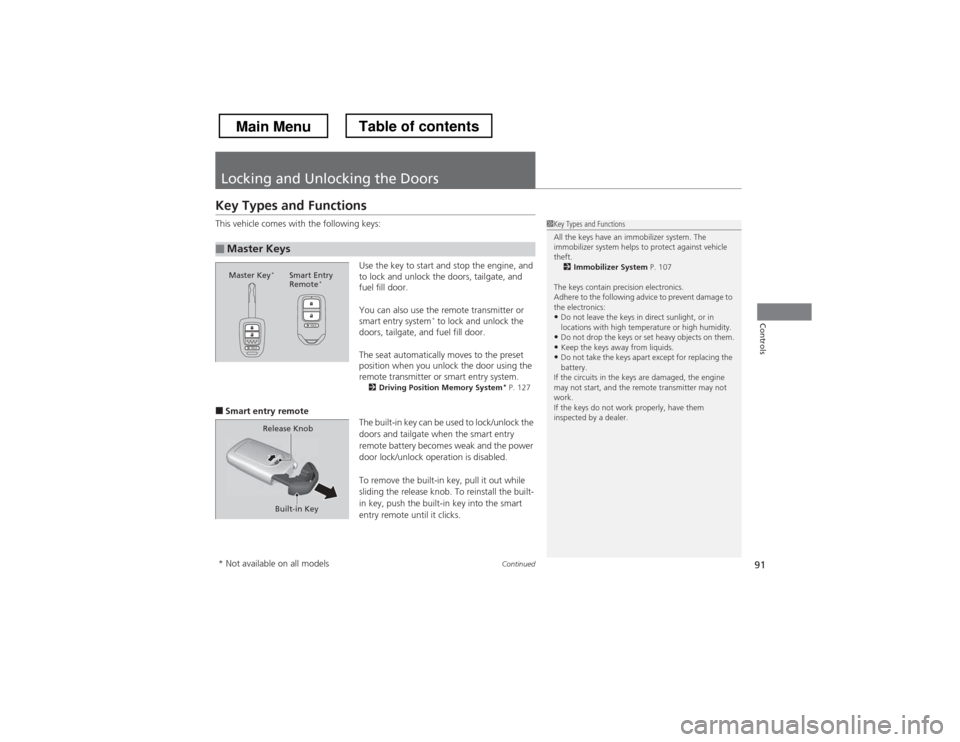
This vehicle comes with the following keys:
Use the key to start and stop the engine, and
to lock and unlock the doors, tailgate, and
fuel fill door.
You can also use the remote transmitter or
smart entry system*
to lock and unlock the
doors, tailgate, and fuel fill door.
The seat automatically moves to the preset
position when you unlock the door using the
remote transmitter or smart entry system. 2 Driving Posi tion Memory System *
P. 127
■ Smart entry remote
The built-in key can be used to lock/unlock the
doors and tailgate when the smart entry
remote battery becomes weak and the power
door lock/unlock operation is disabled.
To remove the built-in key, pull it out while
sliding the release knob. To reinstall the built-
in key, push the built-in key into the smart
entry remote until it clicks.
■Master Keys
1Key Types and Functions
All the keys have an immobilizer system. The
immobilizer system helps to protect against vehicle theft.2 Immobilizer System P. 107
The keys contain precision electronics.
Adhere to the following advice to prevent damage to the electronics: • Do not leave the keys in direct sunlight, or in
locations with high temperature or high humidity.
• Do not drop the keys or set heavy objects on them.
• Keep the keys away from liquids.
• Do not take the keys apart except for replacing the
battery.
If the circuits in the keys are damaged, the engine
may not start, and the remote transmitter may not work.
If the keys do not work properly, have them
inspected by a dealer.
Master Key *
Smart Entry
Remote *
Built-in Key
Release Knob
* Not available on all models
Main MenuTable of contents
Page 126 of 573
125
uuOperating the Switches Around the Steering WheeluBrightness Control
Controls
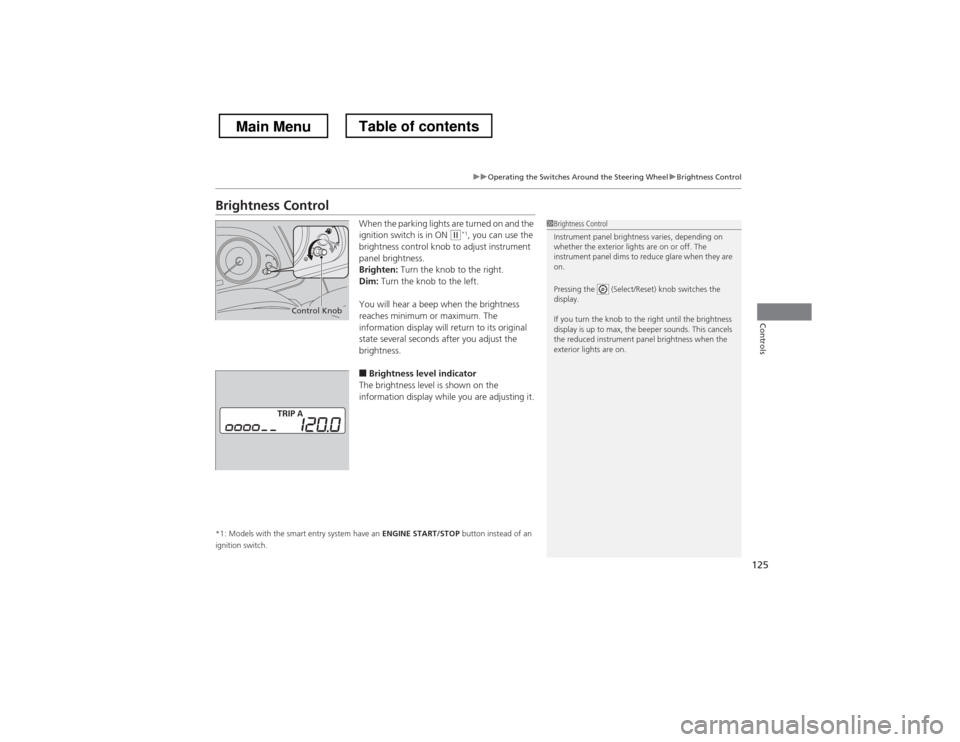
Brightness ControlWhen the parking lights are turned on and the
ignition switch is in ON
(w*1
, you can use the
brightness control knob to adjust instrument
panel brightness.
Brighten: Turn the knob to the right.
Dim: Turn the knob to the left.
You will hear a beep when the brightness
reaches minimum or maximum. The
information display will return to its original
state several seconds after you adjust the
brightness.
■ Brightness level indicator
The brightness level is shown on the
information display while you are adjusting it.
*1: Models with the smart entry system have an ENGINE START/STOP button instead of an
ignition switch.1Brightness Control
Instrument panel brightness varies, depending on
whether the exterior lights are on or off. The
instrument panel dims to reduce glare when they are on.
Pressing the (Select/Reset) knob switches the
display.
If you turn the knob to the right until the brightness
display is up to max, the beeper sounds. This cancels
the reduced instrument panel brightness when the
exterior lights are on.
Control Knob
Main MenuTable of contents