bluetooth HONDA CROSSTOUR 2014 1.G Owner's Manual
[x] Cancel search | Manufacturer: HONDA, Model Year: 2014, Model line: CROSSTOUR, Model: HONDA CROSSTOUR 2014 1.GPages: 573, PDF Size: 21.2 MB
Page 289 of 573
288
uuCustomized Features
*u
Features
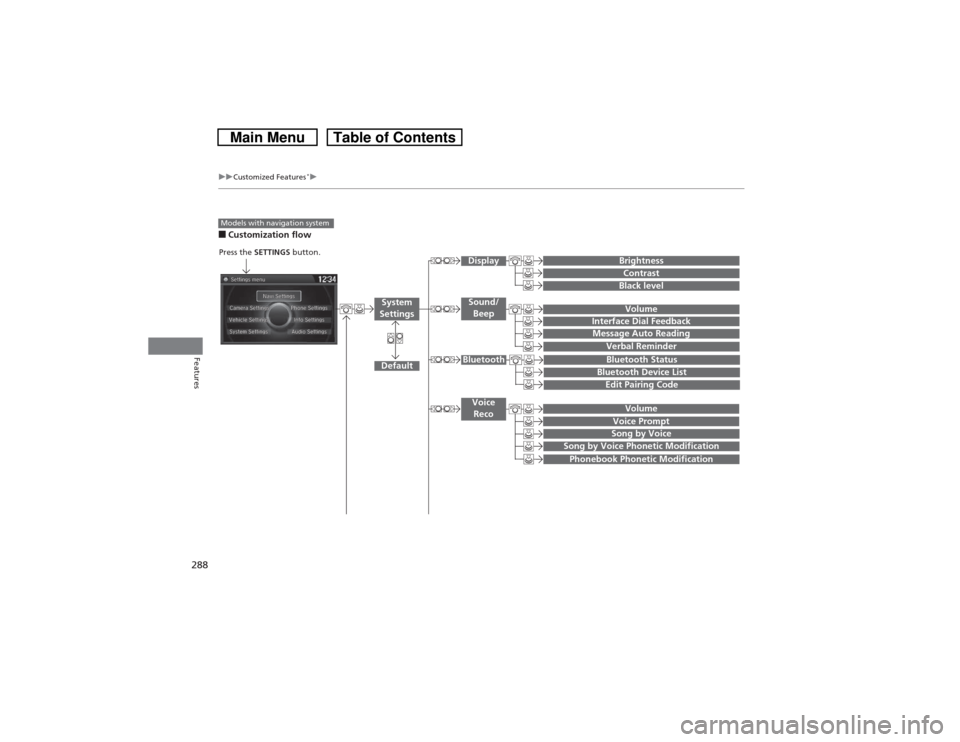
■Customization flowModels with navigation system
Song by Voice
Song by Voice Phonetic ModificationPhonebook Phonetic Modification
Press the SETTINGS button.
VolumeVoice Prompt
Message Auto Reading
Volume
Interface Dial Feedback
Verbal Reminder
BrightnessContrastBlack level
Bluetooth StatusBluetooth Device ListEdit Pairing Code
Default
Sound/
BeepDisplay
System
Settings
BluetoothVoice
Reco
Page 292 of 573
291
uuCustomized Features
*u
Continued
Features
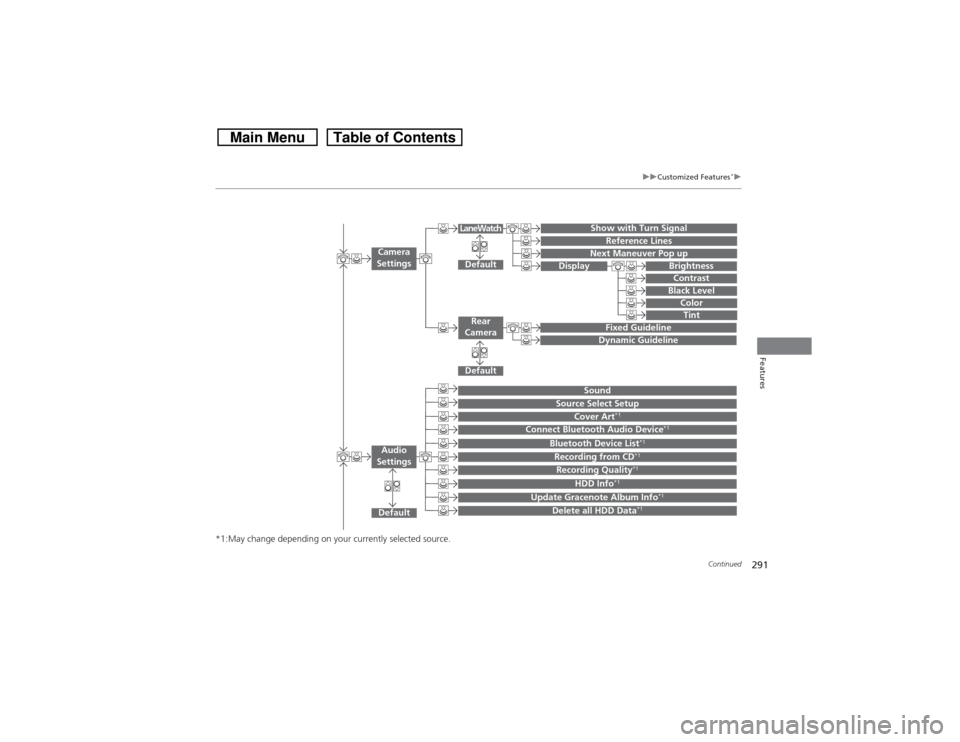
*1:May change depending on your currently selected source.
Show with Turn Signal
Reference Lines
Next Maneuver Pop up
Default
Fixed GuidelineDynamic Guideline
Default
Default
Sound
Source Select Setup
Cover Art
*1
Connect Bluetooth Audio Device
*1
Bluetooth Device List
*1
Recording from CD
*1
Recording Quality
*1
HDD Info
*1
Update Gracenote Album Info
*1
Delete all HDD Data
*1
Camera
Settings
Rear
CameraLaneWatch
Audio
Settings
Display
BrightnessContrastBlack Level
ColorTint
Page 293 of 573
292
uuCustomized Features
*u
Features
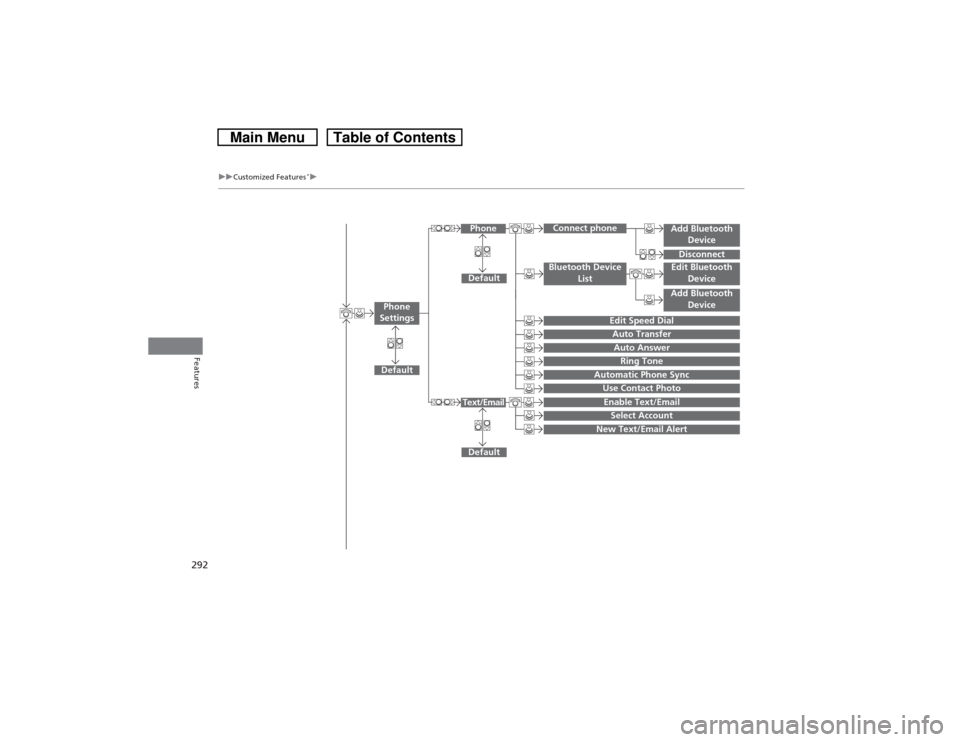
Add Bluetooth
DeviceDisconnect
Default
Phone
Connect phone
Edit Bluetooth
DeviceAdd Bluetooth
Device
Bluetooth Device
List
Edit Speed DialAuto TransferAuto AnswerRing Tone
Automatic Phone SyncUse Contact Photo
Default
Default
Enable Text/EmailSelect Account
New Text/Email Alert
Text/Email
Phone
Settings
Page 295 of 573
294
uuCustomized Features
*u
Features
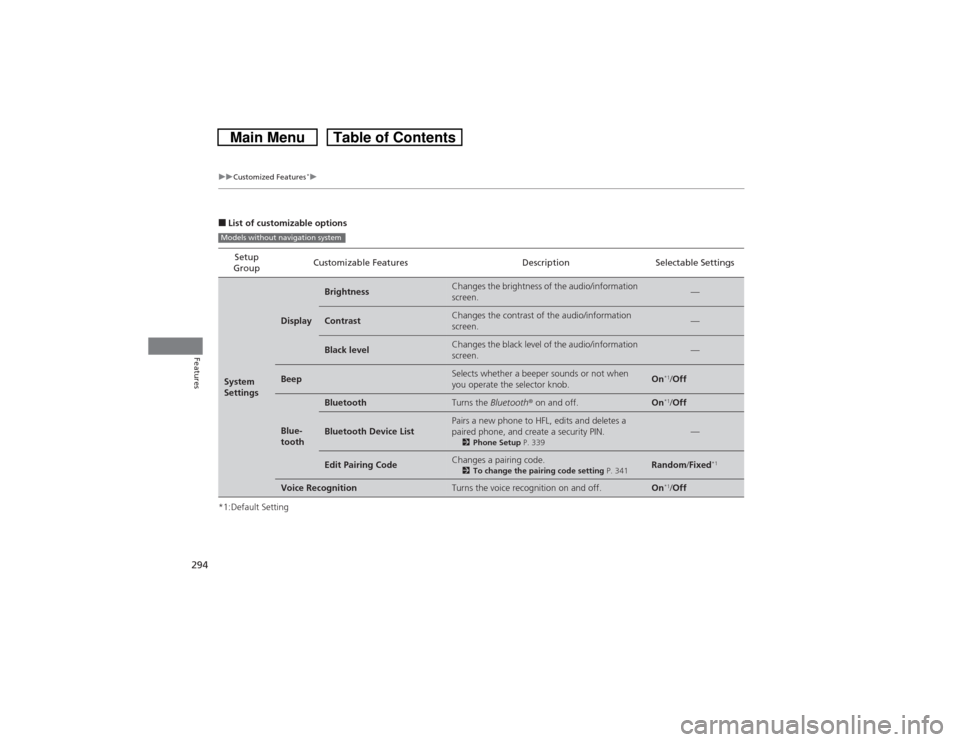
■List of customizable options
*1:Default SettingSetup
GroupCustomizable Features Description Selectable SettingsSystem
Settings
Display
Brightness
Changes the brightness of the audio/information
screen.
—
Contrast
Changes the contrast of the audio/information
screen.
—
Black level
Changes the black level of the audio/information
screen.
—
Beep
Selects whether a beeper sounds or not when
you operate the selector knob.
On
*1/Off
Blue-
tooth
Bluetooth
Turns the Bluetooth® on and off.
On
*1/Off
Bluetooth Device List
Pairs a new phone to HFL, edits and deletes a
paired phone, and create a security PIN.2Phone Setup P. 339
—
Edit Pairing Code
Changes a pairing code.2To change the pairing code setting P. 341
Random/Fixed
*1
Voice Recognition
Turns the voice recognition on and off.
On
*1/Off
Models without navigation system
Page 300 of 573
299
uuCustomized Features
*u
Continued
Features
*1:Default SettingSetup
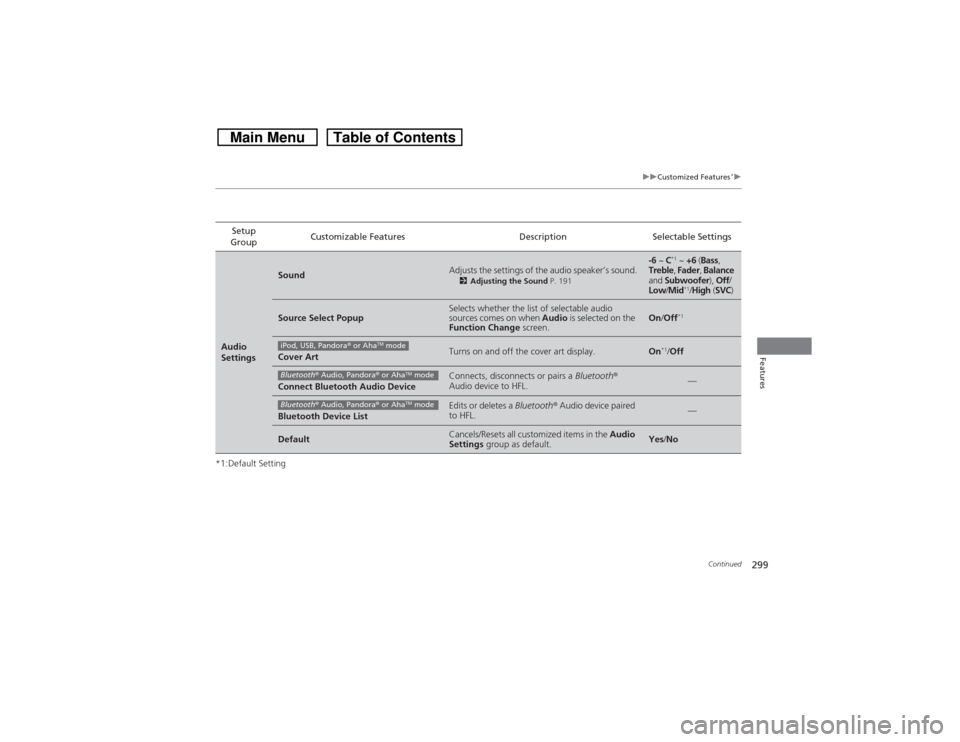
GroupCustomizable Features Description Selectable SettingsAudio
Settings
Sound
Adjusts the settings of the audio speaker’s sound.2Adjusting the Sound P. 191
-6 ~ C
*1 ~ +6 (Bass,
Treble, Fader, Balance
and Subwoofer), Off/
Low/Mid*1/High (SVC)
Source Select Popup
Selects whether the list of selectable audio
sources comes on when Audio is selected on the
Function Change screen.
On/Off
*1
Cover Art
Turns on and off the cover art display.
On
*1/Off
Connect Bluetooth Audio Device
Connects, disconnects or pairs a Bluetooth®
Audio device to HFL.
—
Bluetooth Device List
Edits or deletes a Bluetooth® Audio device paired
to HFL.
—
Default
Cancels/Resets all customized items in the Audio
Settings group as default.
Yes/No
iPod, USB, Pandora® or Aha
TM mode
Bluetooth® Audio, Pandora® or Aha
TM mode
Bluetooth® Audio, Pandora® or Aha
TM mode
Page 302 of 573
301
uuCustomized Features
*u
Continued
Features
*1:Default SettingSetup
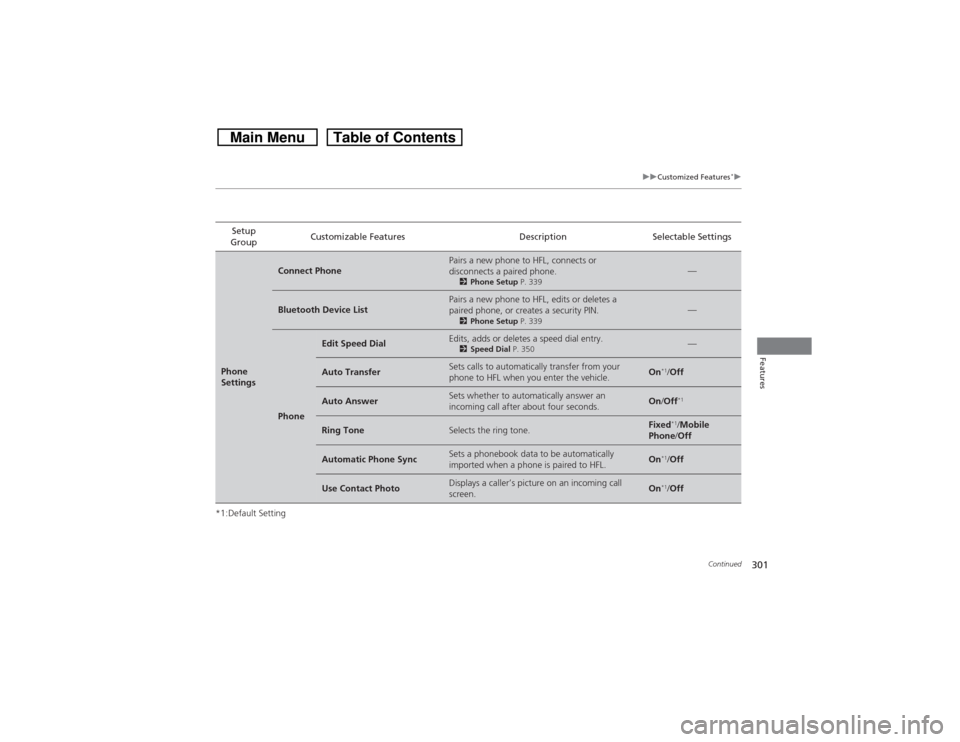
GroupCustomizable Features Description Selectable SettingsPhone
Settings
Connect Phone
Pairs a new phone to HFL, connects or
disconnects a paired phone.2Phone Setup P. 339
—
Bluetooth Device List
Pairs a new phone to HFL, edits or deletes a
paired phone, or creates a security PIN.2Phone Setup P. 339
—
Phone
Edit Speed Dial
Edits, adds or deletes a speed dial entry.2Speed Dial P. 350
—
Auto Transfer
Sets calls to automatically transfer from your
phone to HFL when you enter the vehicle.
On
*1/Off
Auto Answer
Sets whether to automatically answer an
incoming call after about four seconds.
On/Off
*1
Ring Tone
Selects the ring tone.
Fixed
*1/Mobile
Phone/Off
Automatic Phone Sync
Sets a phonebook data to be automatically
imported when a phone is paired to HFL.
On
*1/Off
Use Contact Photo
Displays a caller’s picture on an incoming call
screen.
On
*1/Off
Page 305 of 573
304
uuCustomized Features
*u
Features
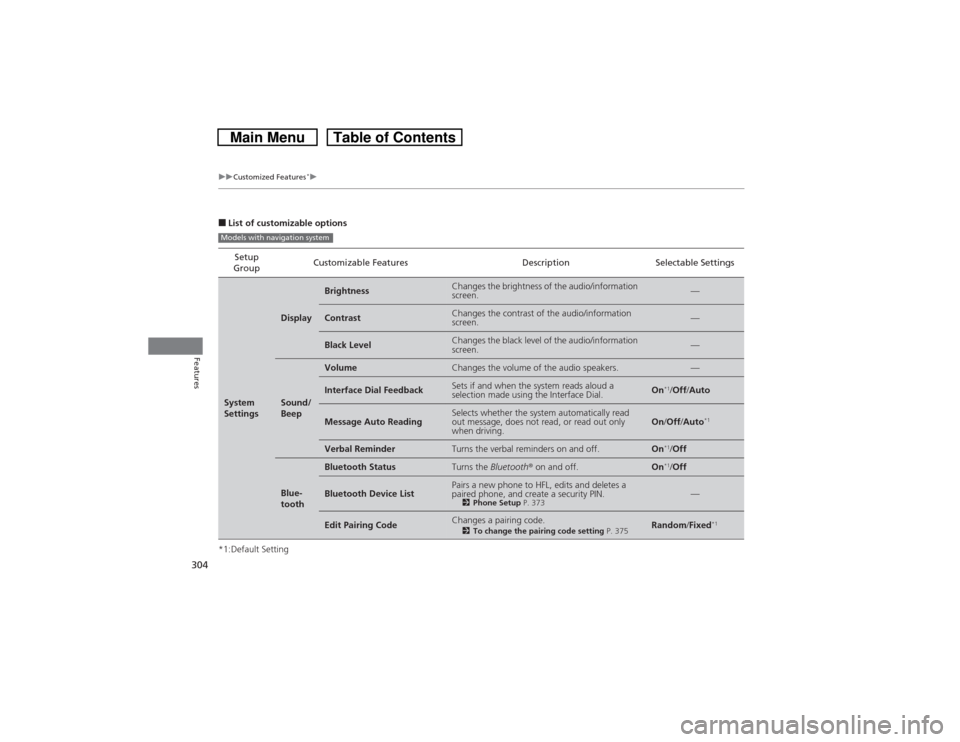
■List of customizable options
*1:Default SettingSetup
GroupCustomizable Features Description Selectable SettingsSystem
Settings
Display
Brightness
Changes the brightness of the audio/information
screen.
—
Contrast
Changes the contrast of the audio/information
screen.
—
Black Level
Changes the black level of the audio/information
screen.
—
Sound/
Beep
Volume
Changes the volume of the audio speakers.
—
Interface Dial Feedback
Sets if and when the system reads aloud a
selection made using the Interface Dial.
On
*1/Off/Auto
Message Auto Reading
Selects whether the system automatically read
out message, does not read, or read out only
when driving.
On/Off/Auto
*1
Verbal Reminder
Turns the verbal reminders on and off.
On
*1/Off
Blue-
tooth
Bluetooth Status
Turns the Bluetooth® on and off.
On
*1/Off
Bluetooth Device List
Pairs a new phone to HFL, edits and deletes a
paired phone, and create a security PIN.2Phone Setup P. 373
—
Edit Pairing Code
Changes a pairing code.2To change the pairing code setting P. 375
Random/Fixed
*1
Models with navigation system
Page 312 of 573
311
uuCustomized Features
*u
Continued
Features
*1:Default SettingSetup
GroupCustomizable Features Description Selectable Settings
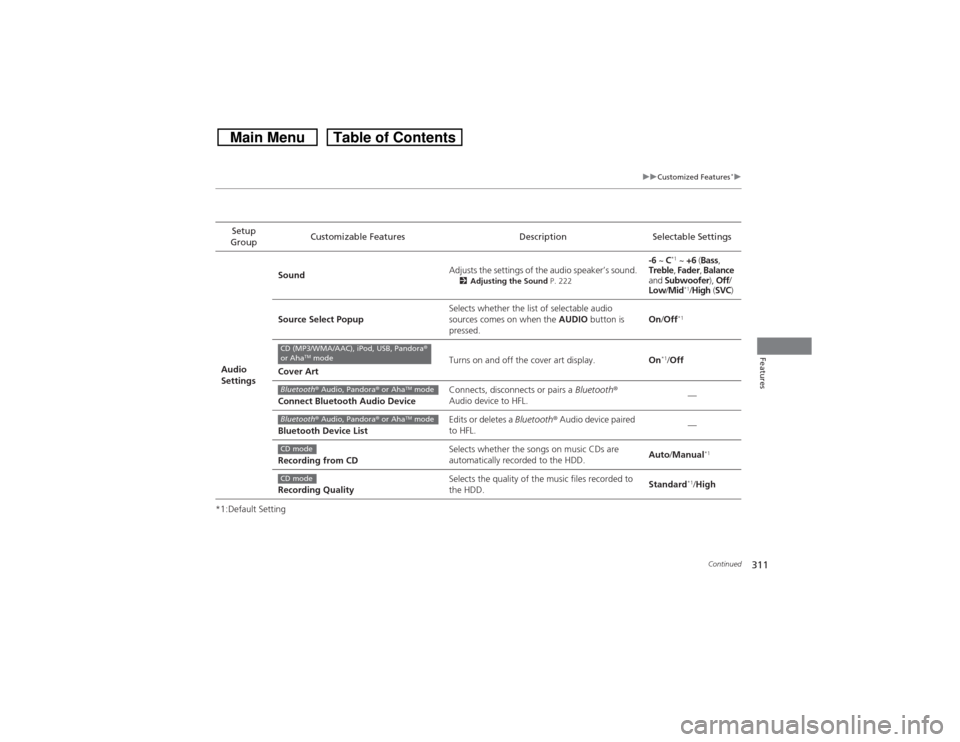
Audio
SettingsSoundAdjusts the settings of the audio speaker’s sound.
2Adjusting the Sound P. 222
-6 ~ C
*1 ~ +6 (Bass,
Treble, Fader, Balance
and Subwoofer), Off/
Low/Mid*1/High (SVC)
Source Select PopupSelects whether the list of selectable audio
sources comes on when the AUDIO button is
pressed.On/Off*1
Cover ArtTurns on and off the cover art display.On
*1/Off
Connect Bluetooth Audio DeviceConnects, disconnects or pairs a Bluetooth®
Audio device to HFL.—
Bluetooth Device ListEdits or deletes a Bluetooth® Audio device paired
to HFL.—
Recording from CDSelects whether the songs on music CDs are
automatically recorded to the HDD.Auto/Manual
*1
Recording QualitySelects the quality of the music files recorded to
the HDD.Standard
*1/High
CD (MP3/WMA/AAC), iPod, USB, Pandora®
or Aha
TM mode
Bluetooth® Audio, Pandora® or Aha
TM mode
Bluetooth® Audio, Pandora® or Aha
TM mode
CD modeCD mode
Page 313 of 573
312
uuCustomized Features
*u
Features
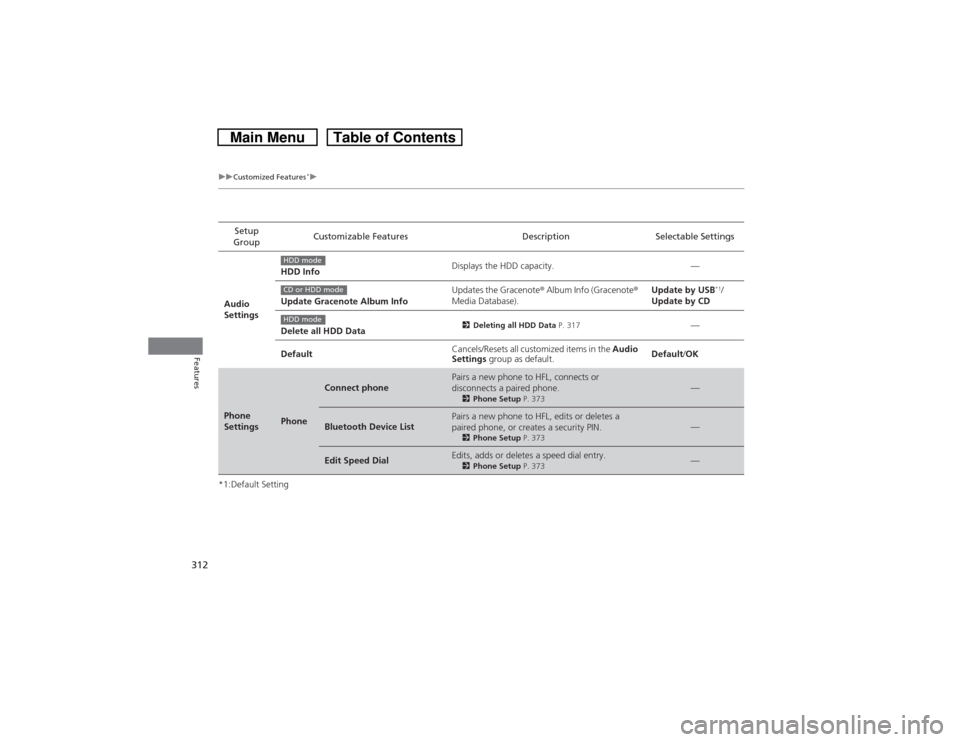
*1:Default SettingSetup
GroupCustomizable Features Description Selectable Settings
Audio
SettingsHDD InfoDisplays the HDD capacity. —
Update Gracenote Album InfoUpdates the Gracenote® Album Info (Gracenote®
Media Database).Update by USB
*1/
Update by CD
Delete all HDD Data
2Deleting all HDD Data P. 317
—
DefaultCancels/Resets all customized items in the Audio
Settings group as default.Default/OK
Phone
Settings
Phone
Connect phone
Pairs a new phone to HFL, connects or
disconnects a paired phone.2Phone Setup P. 373
—
Bluetooth Device List
Pairs a new phone to HFL, edits or deletes a
paired phone, or creates a security PIN.2Phone Setup P. 373
—
Edit Speed Dial
Edits, adds or deletes a speed dial entry.2Phone Setup P. 373
—
HDD modeCD or HDD modeHDD mode
Page 321 of 573
320Features
Bluetooth® HandsFreeLink®Bluetooth® HandsFreeLink® (HFL) allows you to place and receive phone calls using
your vehicle’s audio system, without handling your cell phone.Using HFL
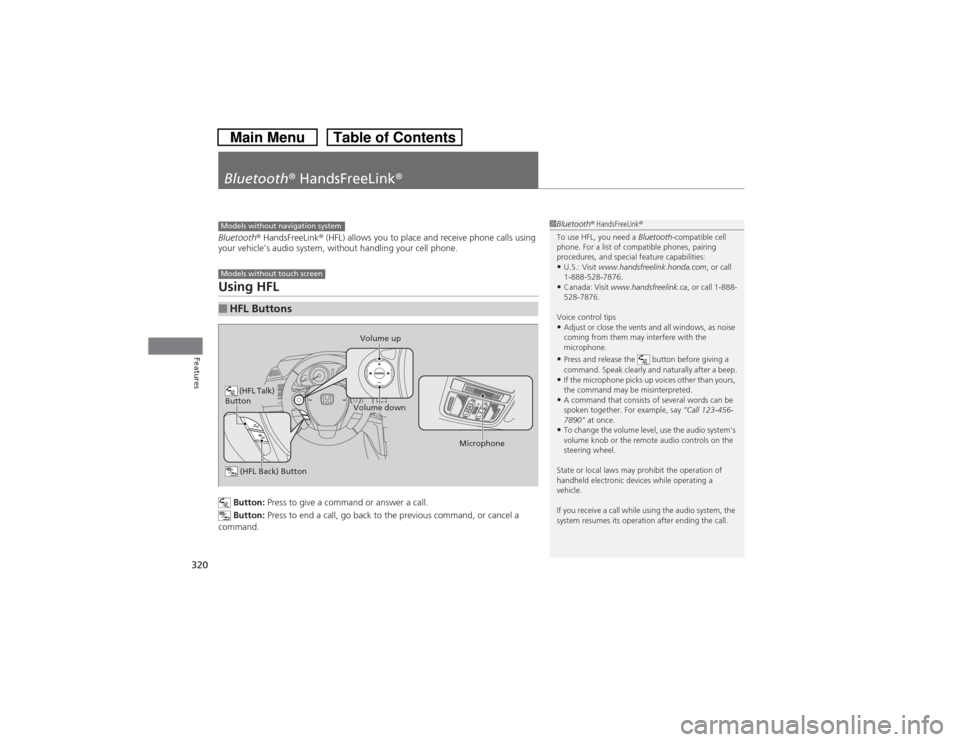
Button: Press to give a command or answer a call.
Button: Press to end a call, go back to the previous command, or cancel a
command.
■HFL ButtonsModels without navigation systemModels without touch screen
(HFL Talk)
Button
Volume up
Microphone
(HFL Back) ButtonVolume down
1Bluetooth® HandsFreeLink®
To use HFL, you need a Bluetooth-compatible cell
phone. For a list of compatible phones, pairing
procedures, and special feature capabilities:•U.S.: Visit www.handsfreelink.honda.com, or call
1-888-528-7876.•Canada: Visit www.handsfreelink.ca, or call 1-888-
528-7876.
Voice control tips•Adjust or close the vents and all windows, as noise
coming from them may interfere with the
microphone.•Press and release the button before giving a
command. Speak clearly and naturally after a beep.•If the microphone picks up voices other than yours,
the command may be misinterpreted.•A command that consists of several words can be
spoken together. For example, say “Call 123-456-
7890” at once.•To change the volume level, use the audio system’s
volume knob or the remote audio controls on the
steering wheel.
State or local laws may prohibit the operation of
handheld electronic devices while operating a
vehicle.
If you receive a call while using the audio system, the
system resumes its operation after ending the call.