display HONDA CROSSTOUR 2015 1.G Owners Manual
[x] Cancel search | Manufacturer: HONDA, Model Year: 2015, Model line: CROSSTOUR, Model: HONDA CROSSTOUR 2015 1.GPages: 573
Page 309 of 573
308
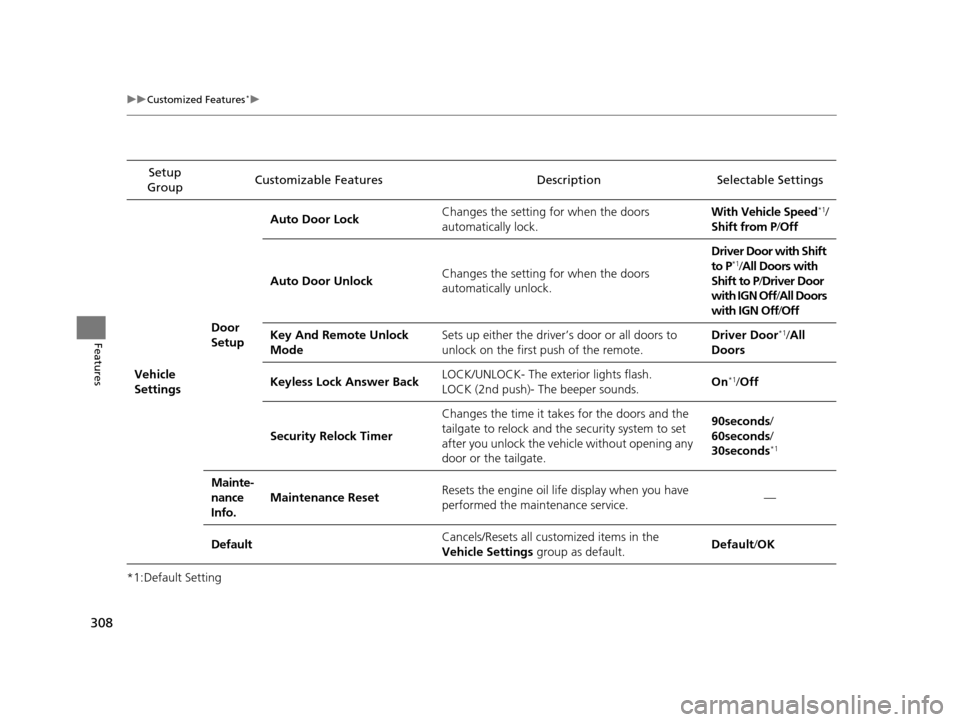
uuCustomized Features*u
Features
*1:Default SettingSetup
Group Customizable Features Descri
ption Selectable Settings
Vehicle
Settings Door
SetupAuto Door Lock
Changes the setting for when the doors
automatically lock. With Vehicle Speed
*1/
Shift from P/ Off
Auto Door Unlock Changes the setting for when the doors
automatically unlock. Driver Door with Shift
to P
*1/
All Doors with
Shift to P /Driver Door
with IGN Off /All Doors
with IGN Off /Off
Key And Remote Unlock
Mode Sets up either the driver
’s door or all doors to
unlock on the first push of the remote. Driver Door
*1/
All
Doors
Keyless Lock Answer Back LOCK/UNLOCK- The exterior lights flash.
LOCK (2nd push)- The beeper sounds. On
*1/
Off
Security Relock Timer Changes the time it takes for the doors and the
tailgate to relock and the security system to set
after you unlock the vehicle without opening any
door or the tailgate. 90seconds/
60seconds/
30seconds
*1
Mainte-
nance
Info.
Maintenance Reset
Resets the engine oil life display when you have
performed the maintenance service. —
Default Cancels/Resets all cust
omized items in the
Vehicle Settings group as default. Default
/OK
15 CROSSTOUR-31TP66500.book 308 ページ 2014年7月31日 木曜日 午後3時23分
Page 310 of 573
309
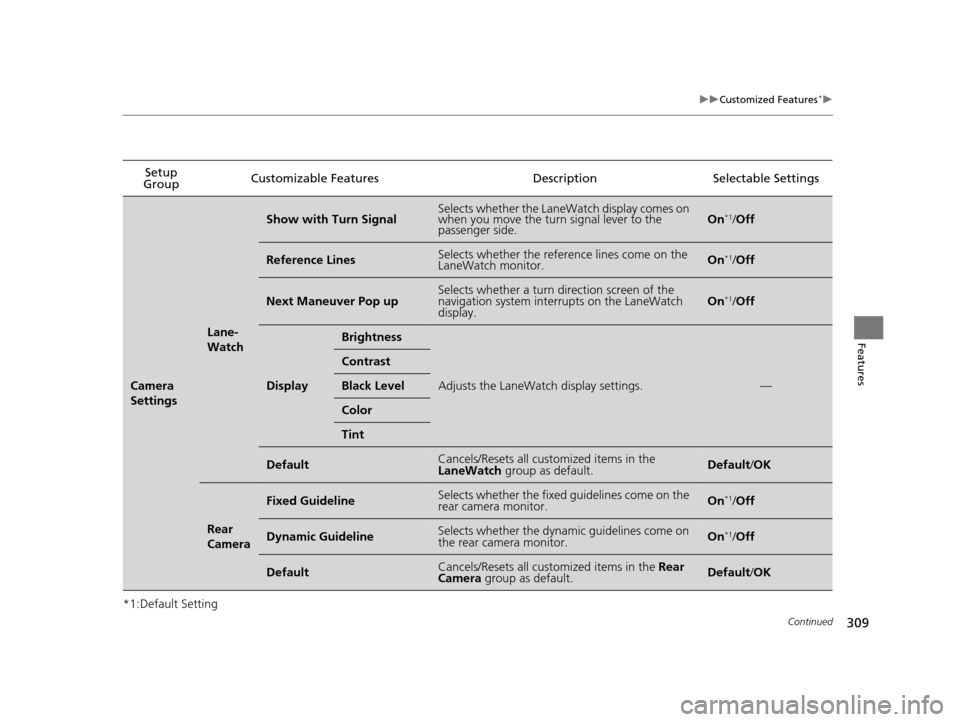
uuCustomized Features*u
Continued
Features
*1:Default SettingSetup
Group Customizable Features
DescriptionSelectable Settings
Camera
Settings
Lane-
Watch
Show with Turn SignalSelects whether the LaneWatch display comes on
when you move the turn signal lever to the
passenger side.On*1/Off
Reference LinesSelects whether the reference lines come on the
LaneWatch monitor.On*1/Off
Next Maneuver Pop upSelects whether a turn direction screen of the
navigation system interrupts on the LaneWatch
display.On*1/Off
Display
Brightness
Adjusts the LaneWatch display settings.—
Contrast
Black Level
Color
Tint
DefaultCancels/Resets all customized items in the
LaneWatch group as default.Default/OK
Rear
Camera
Fixed GuidelineSelects whether the fixed guidelines come on the
rear camera monitor.On*1/ Off
Dynamic GuidelineSelects whether the dynamic guidelines come on
the rear camera monitor.On*1/Off
DefaultCancels/Resets all customized items in the Rear
Camera group as default.Default/ OK
15 CROSSTOUR-31TP66500.book 309 ページ 2014年7月31日 木曜日 午後3時23分
Page 311 of 573
310
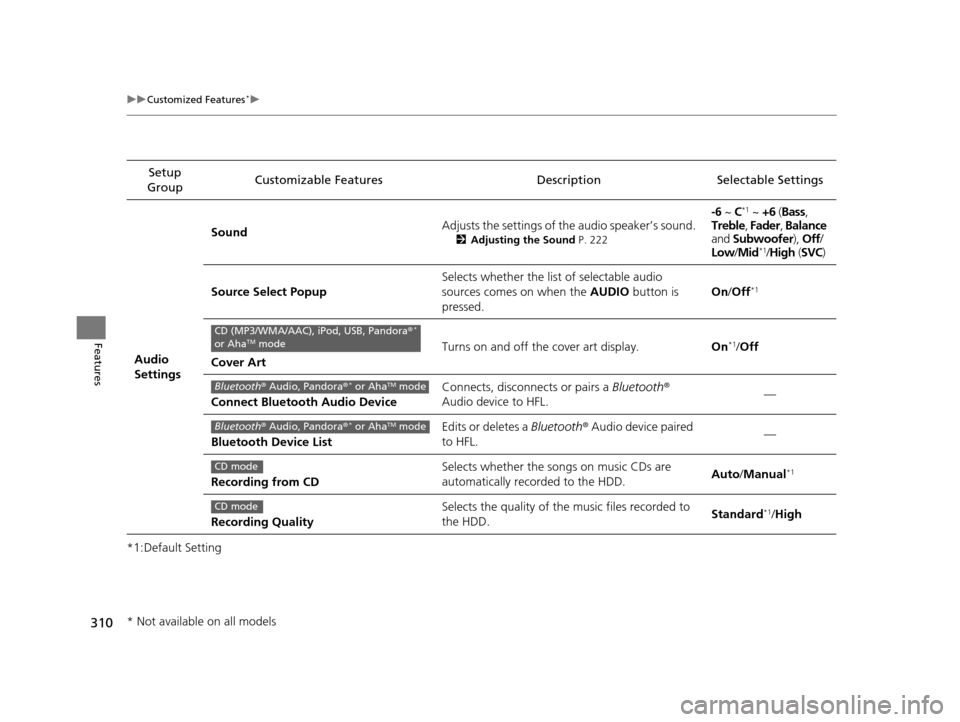
uuCustomized Features*u
Features
*1:Default SettingSetup
Group Customizable Features Descri
ption Selectable Settings
Audio
Settings Sound
Adjusts the settings of th
e audio speaker’s sound.
2Adjusting the Sound P. 222
-6 ~ C*1 ~ +6 (Bass ,
Treble , Fader , Balance
and Subwoofer ), Off/
Low /Mid
*1/High (SVC)
Source Select Popup Selects whether the list of selectable audio
sources comes on when the
AUDIO button is
pressed. On
/Off
*1
Cover Art Turns on and off the cover art display.
On
*1/Off
Connect Bluetooth Audio Device Connects, disconnects or pairs a
Bluetooth®
Audio device to HFL. —
Bluetooth Device List Edits or deletes a
Bluetooth® Audio device paired
to HFL. —
Recording from CD Selects whether the songs on music CDs are
automatically recorded to the HDD.
Auto
/Manual
*1
Recording Quality Selects the quality of the music files recorded to
the HDD.
Standard*1/
High
CD (MP3/WMA/AAC), iPod, USB, Pandora ®*
or AhaTM mode
Bluetooth ® Audio, Pandora ®* or AhaTM mode
Bluetooth® Audio, Pandora ®* or AhaTM mode
CD mode
CD mode
* Not available on all models
15 CROSSTOUR-31TP66500.book 310 ページ 2014年7月31日 木曜日 午後3時23分
Page 312 of 573
311
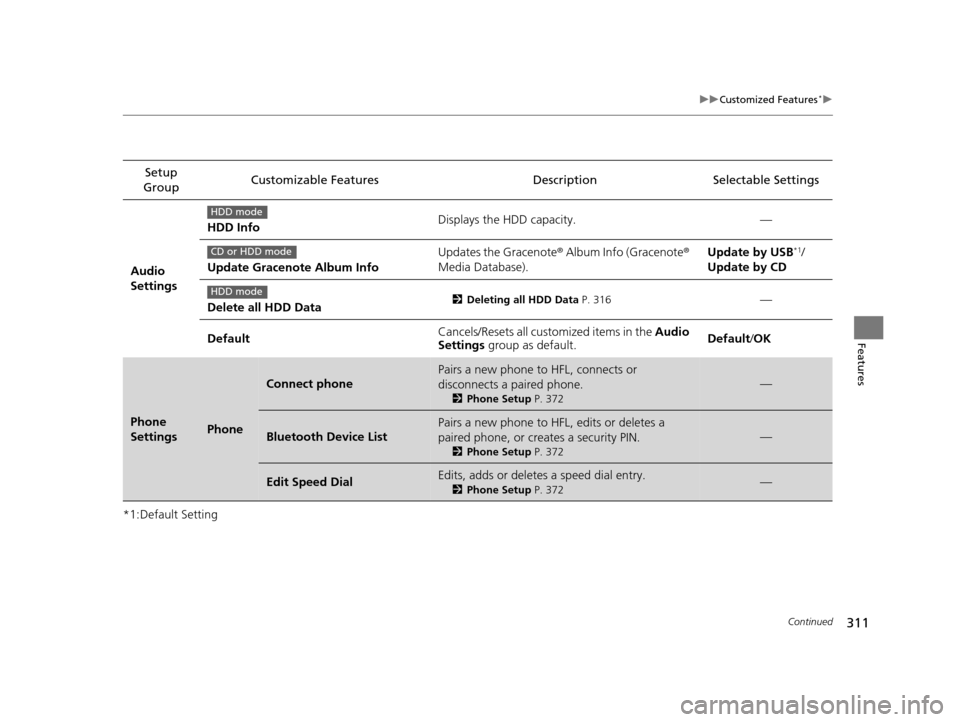
uuCustomized Features*u
Continued
Features
*1:Default SettingSetup
Group Customizable Features Description Selectable Settings
Audio
Settings HDD Info
Displays the HDD capacity. —
Update Gracenote Album Info Updates the Gracenote
® Album Info (Gracenote ®
Media Database). Update by USB
*1/
Update by CD
Delete all HDD Data
2 Deleting all HDD Data P. 316—
Default Cancels/Resets all customized items in the
Audio
Settings group as default. Default/
OK
Phone
SettingsPhone
Connect phone
Pairs a new phone to HFL, connects or
disconnects a paired phone.
2Phone Setup P. 372
—
Bluetooth Device List
Pairs a new phone to HFL, edits or deletes a
paired phone, or creates a security PIN.
2Phone Setup P. 372
—
Edit Speed DialEdits, adds or deletes a speed dial entry.
2Phone Setup P. 372—
HDD mode
CD or HDD mode
HDD mode
15 CROSSTOUR-31TP66500.book 311 ページ 2014年7月31日 木曜日 午後3時23分
Page 313 of 573
312
uuCustomized Features*u
Features
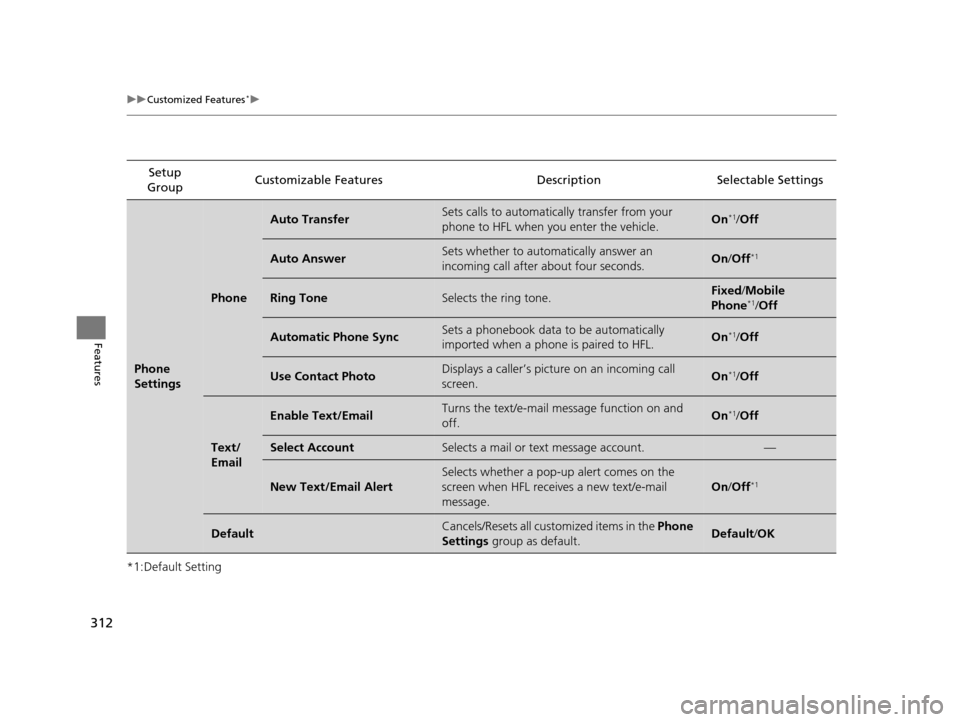
*1:Default SettingSetup
Group Customizable Features Descri
ption Selectable Settings
Phone
Settings
Phone
Auto TransferSets calls to automatically transfer from your
phone to HFL when you enter the vehicle.On*1/Off
Auto AnswerSets whether to automatically answer an
incoming call after about four seconds.On /Off*1
Ring ToneSelects the ring tone.Fixed /Mobile
Phone*1/ Off
Automatic Phone SyncSets a phonebook data to be automatically
imported when a phone is paired to HFL.On*1/Off
Use Contact PhotoDisplays a caller’s picture on an incoming call
screen.On*1/Off
Text/
Email
Enable Text/EmailTurns the text/e-mail me ssage function on and
off.On*1/ Off
Select AccountSelects a mail or text message account.—
New Text/Email Alert
Selects whether a pop-up alert comes on the
screen when HFL receiv es a new text/e-mail
message.
On /Off*1
DefaultCancels/Resets all customized items in the Phone
Settings group as default.Default/OK
15 CROSSTOUR-31TP66500.book 312 ページ 2014年7月31日 木曜日 午後3時23分
Page 314 of 573
313
uuCustomized Features*u
Features
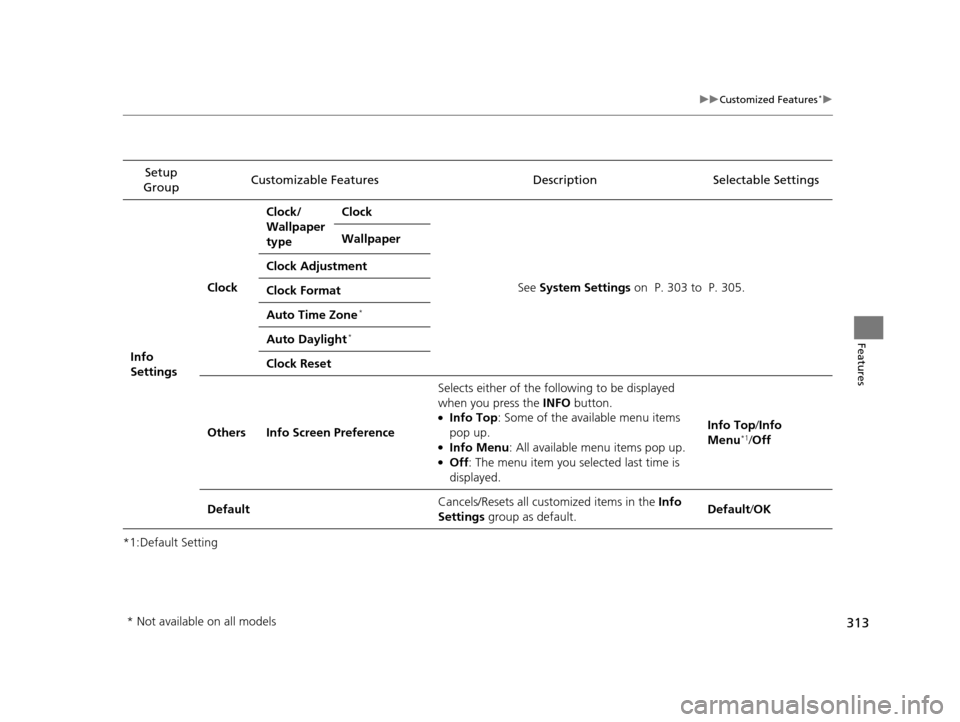
*1:Default SettingSetup
Group Customizable Features Description Selectable Settings
Info
Settings Clock
Clock/
Wallpaper
type
Clock
See System Settings on P. 303 to P. 305.
Wallpaper
Clock Adjustment
Clock Format
Auto Time Zone
*
Auto Daylight*
Clock Reset
Others Info Screen Preference Selects either of the following to be displayed
when you press the INFO
button.
●Info Top: Some of the available menu items
pop up.
●Info Menu : All available menu items pop up.●Off: The menu item you selected last time is
displayed. Info Top
/Info
Menu
*1/ Off
Default Cancels/Resets all customized items in the
Info
Settings group as default. Default/
OK
* Not available on all models
15 CROSSTOUR-31TP66500.book 313 ページ 2014年7月31日 木曜日 午後3時23分
Page 315 of 573
314
uuCustomized Features*uDefaulting All the Settings
Features
Defaulting All the Settings
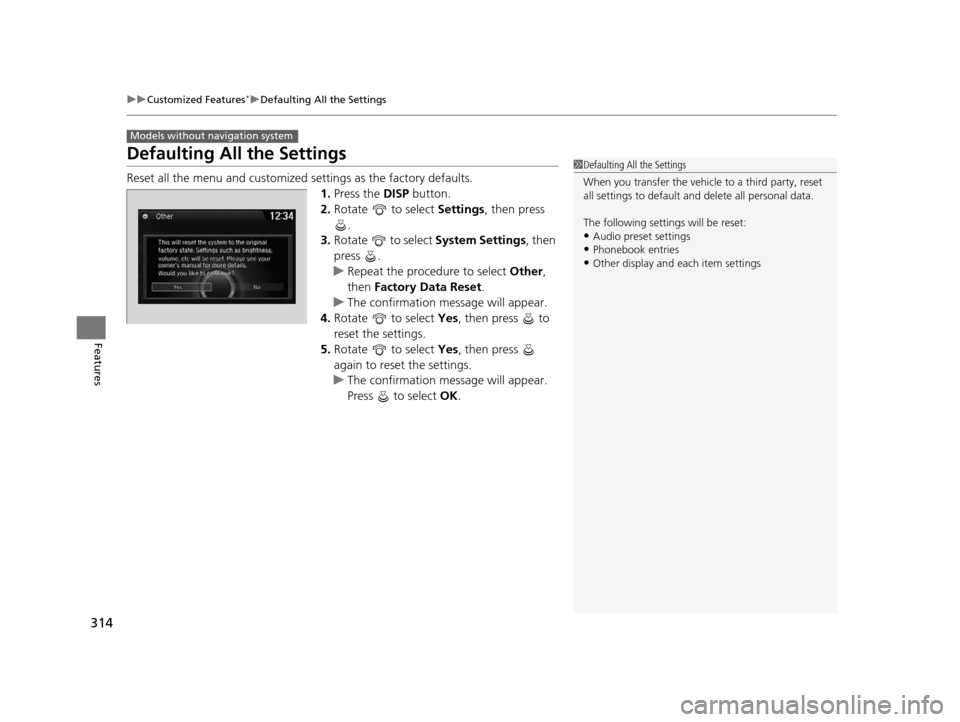
Reset all the menu and customized settings as the factory defaults.
1. Press the DISP button.
2. Rotate to select Settings, then press
.
3. Rotate to select System Settings, then
press .
u Repeat the procedure to select Other,
then Factory Data Reset .
u The confirmation message will appear.
4. Rotate to select Yes, then press to
reset the settings.
5. Rotate to select Yes, then press
again to reset the settings.
u The confirmation message will appear.
Press to select OK.
Models without navigation system
1Defaulting All the Settings
When you transfer the vehicle to a third party, reset
all settings to default a nd delete all personal data.
The following settin gs will be reset:
•Audio preset settings
•Phonebook entries•Other display and each item settings
15 CROSSTOUR-31TP66500.book 314 ページ 2014年7月31日 木曜日 午後3時23分
Page 316 of 573
315
uuCustomized Features*uDefaulting All the Settings
Features
Defaulting All the Settings
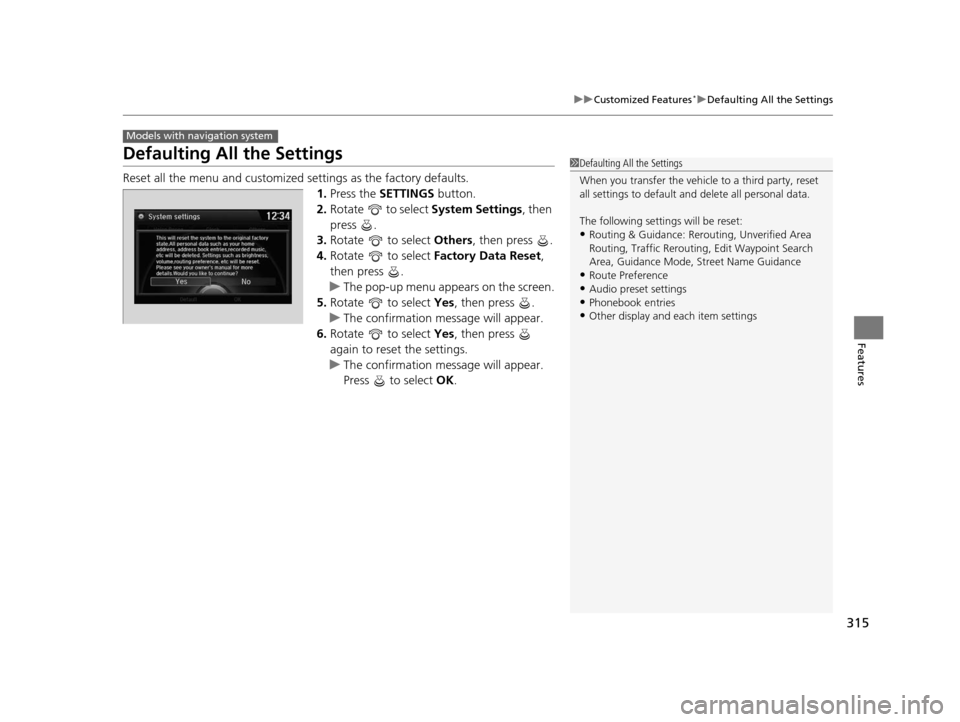
Reset all the menu and customized settings as the factory defaults.
1.Press the SETTINGS button.
2. Rotate to select System Settings, then
press .
3. Rotate to select Others, then press .
4. Rotate to select Factory Data Reset ,
then press .
u The pop-up menu appears on the screen.
5. Rotate to select Yes, then press .
u The confirmation message will appear.
6. Rotate to select Yes, then press
again to reset the settings.
u The confirmation message will appear.
Press to select OK.
Models with navigation system
1Defaulting All the Settings
When you transfer the vehicle to a third party, reset
all settings to default a nd delete all personal data.
The following settin gs will be reset:
•Routing & Guidance: Rerout ing, Unverified Area
Routing, Traffic Re routing, Edit Waypoint Search
Area, Guidance Mode, Street Name Guidance
•Route Preference
•Audio preset settings
•Phonebook entries•Other display and each item settings
15 CROSSTOUR-31TP66500.book 315 ページ 2014年7月31日 木曜日 午後3時23分
Page 321 of 573
uuBluetooth ® HandsFreeLink ®u Using HFL
320
Features
• To hear general HFL information and help, say “Tutorial.”
• Say “Hands-free help” or “Help” any time to get help or hear a list of commands.
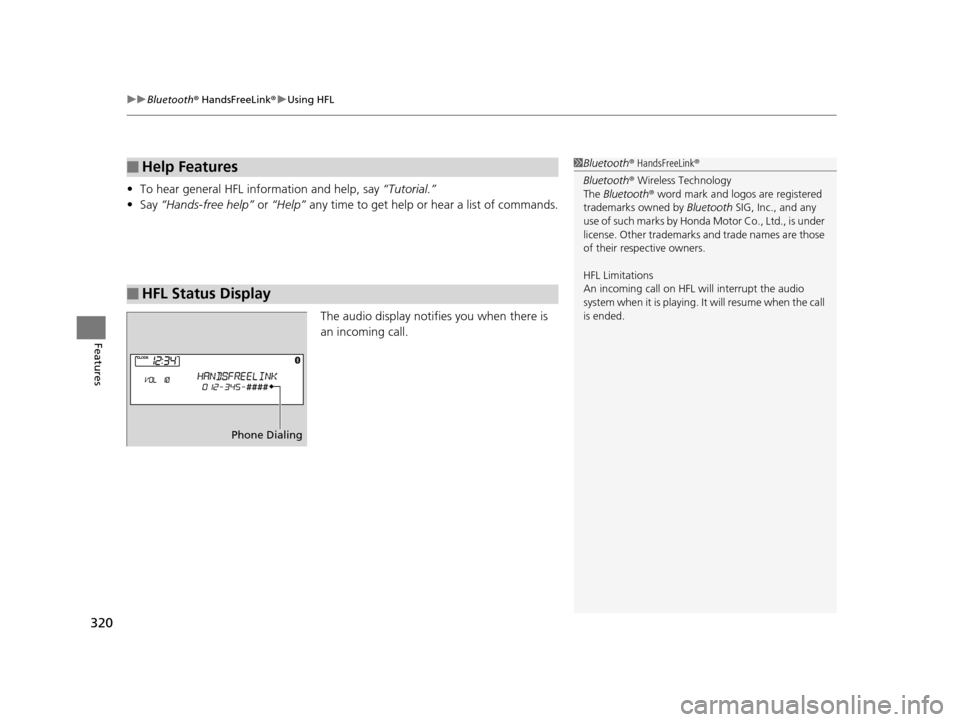
The audio display notifies you when there is
an incoming call.
■Help Features
■HFL Status Display
1Bluetooth ® HandsFreeLink ®
Bluetooth ® Wireless Technology
The Bluetooth ® word mark and logos are registered
trademarks owned by Bluetooth SIG, Inc., and any
use of such marks by Honda Motor Co., Ltd., is under
license. Other trademarks and trade names are those
of their respective owners.
HFL Limitations
An incoming call on HFL will interrupt the audio
s y s t e m wh e n it is p la y i n g . It wi ll r e s u m e w h en t h e c a l l
is ended.
Phone Dialing
15 CROSSTOUR-31TP66500.book 320 ページ 2014年7月31日 木曜日 午後3時23分
Page 332 of 573
331Continued
Features
Bluetooth® HandsFreeLink ®
Bluetooth® HandsFreeLink ® (HFL) allows you to place and receive phone calls using
your vehicle’s audio system, without handling your cell phone.
Using HFL
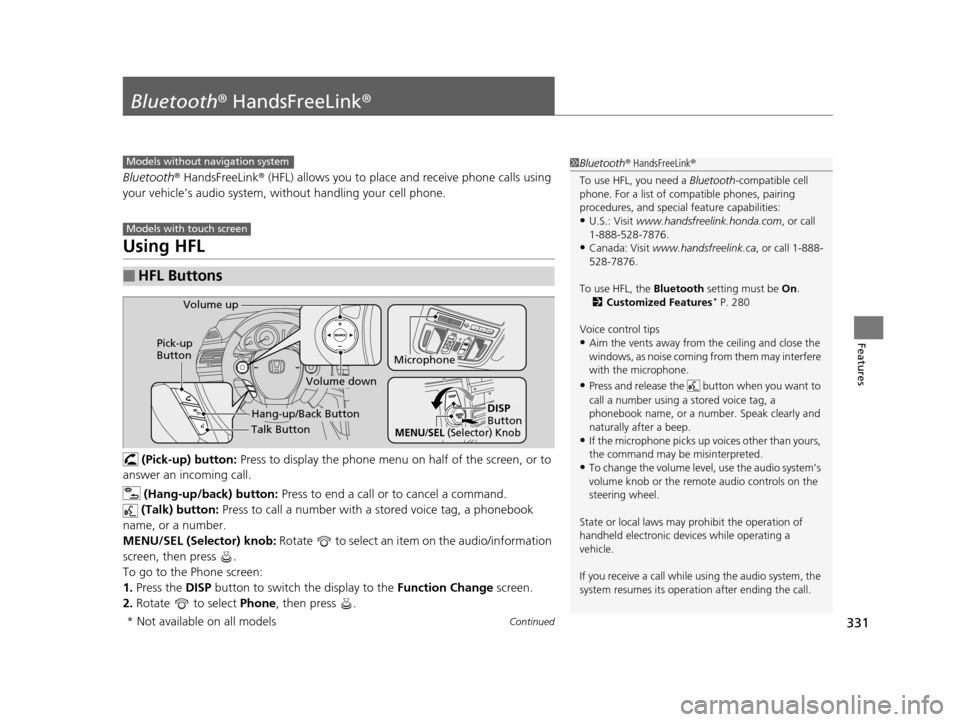
(Pick-up) button: Press to display the phone menu on half of the screen, or to
answer an incoming call.
(Hang-up/back) button: Press to end a call or to cancel a command.
(Talk) button: Press to call a number with a stored voice tag, a phonebook
name, or a number.
MENU/SEL (Selector) knob: Rotate to select an item on the audio/information
screen, then press .
To go to the Phone screen:
1. Press the DISP button to switch the display to the Function Change screen.
2. Rotate to select Phone, then press .
■HFL Buttons
1Bluetooth ® HandsFreeLink ®
To use HFL, you need a Bluetooth-compatible cell
phone. For a list of compatible phones, pairing
procedures, and special feature capabilities:
•U.S.: Visit www.handsfreelink.honda.com , or call
1-888-528-7876.
•Canada: Visit www.handsfreelink.ca , or call 1-888-
528-7876.
To use HFL, the Bluetooth setting must be On.
2 Customized Features
* P. 280
Voice control tips
•Aim the vents away from the ceiling and close the
windows, as noise coming fr om them may interfere
with the microphone.
•Press and release the but ton when you want to
call a number using a stored voice tag, a
phonebook name, or a numbe r. Speak clearly and
naturally after a beep.
•If the microphone picks up vo ices other than yours,
the command may be misinterpreted.
•To change the volume level, use the audio system’s
volume knob or the remote audio controls on the
steering wheel.
State or local laws may pr ohibit the operation of
handheld electronic devi ces while operating a
vehicle.
If you receive a call while using the audio system, the
system resumes its operati on after ending the call.
Models without navigation system
Models with touch screen
Talk Button
Volume up
Microphone
Hang-up/Back Button
Pick-up
Button
Volume down
DISP
Button
MENU/SEL (Selector) Knob
* Not available on all models
15 CROSSTOUR-31TP66500.book 331 ページ 2014年7月31日 木曜日 午後3時23分