ad blue HONDA CRV 2022 Owner's Manual
[x] Cancel search | Manufacturer: HONDA, Model Year: 2022, Model line: CRV, Model: HONDA CRV 2022Pages: 692, PDF Size: 22.05 MB
Page 333 of 692
331
uuAudio System Basic Operation uWi-Fi Connection
Features
Wi-Fi Connection
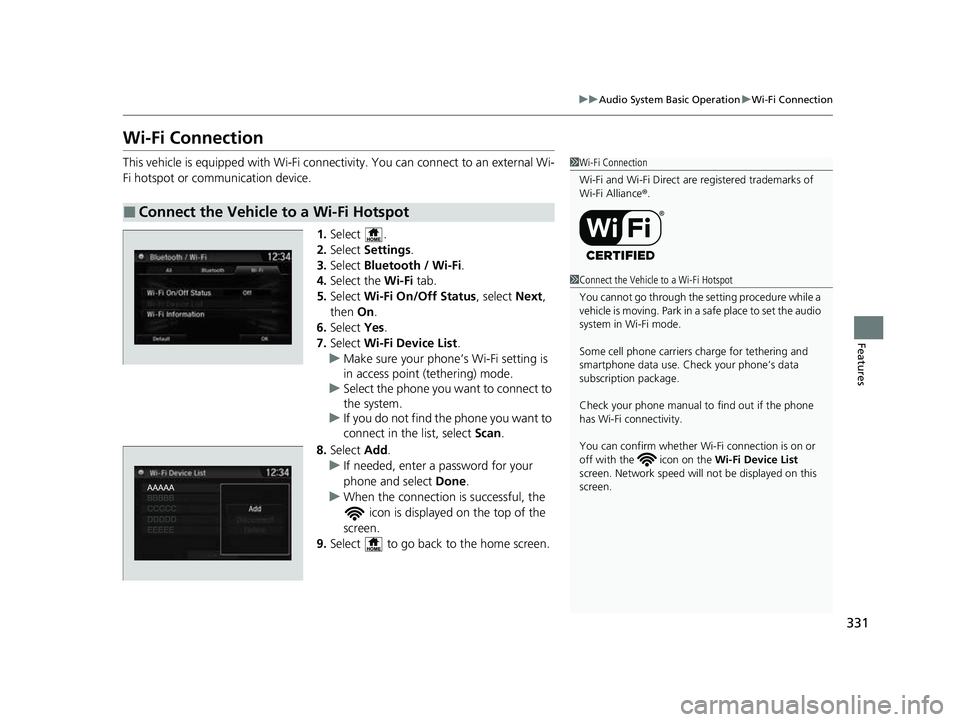
This vehicle is equipped with Wi-Fi connectivity. You can connect to an external Wi-
Fi hotspot or communication device.
1.Select .
2. Select Settings .
3. Select Bluetooth / Wi-Fi .
4. Select the Wi-Fi tab.
5. Select Wi-Fi On/Off Status , select Next,
then On.
6. Select Yes.
7. Select Wi-Fi Device List .
u Make sure your phone’ s Wi-Fi setting is
in access point (tethering) mode.
u Select the phone you want to connect to
the system.
u If you do not find the phone you want to
connect in the list, select Scan.
8. Select Add.
u If needed, enter a password for your
phone and select Done.
u When the connection is successful, the
icon is displayed on the top of the
screen.
9. Select to go back to the home screen.
■Connect the Vehicle to a Wi-Fi Hotspot
1Wi-Fi Connection
Wi-Fi and Wi-Fi Direct are registered trademarks of
Wi-Fi Alliance ®.
1 Connect the Vehicle to a Wi-Fi Hotspot
You cannot go through the setting procedure while a
vehicle is moving. Park in a safe place to set the audio
system in Wi-Fi mode.
Some cell phone carriers charge for tethering and
smartphone data use. Check your phone’s data
subscription package.
Check your phone manual to find out if the phone
has Wi-Fi connectivity.
You can confirm whether Wi -Fi connection is on or
off with the icon on the Wi-Fi Device List
screen. Network speed will not be displayed on this
screen.
22 CR-V HEV ELP-31TPG6200.book 331 ページ 2021年6月30日 水曜日 午前11時6分
Page 334 of 692
332
uuAudio System Basic Operation uSiri ® Eyes Free
Features
Siri ® Eyes Free
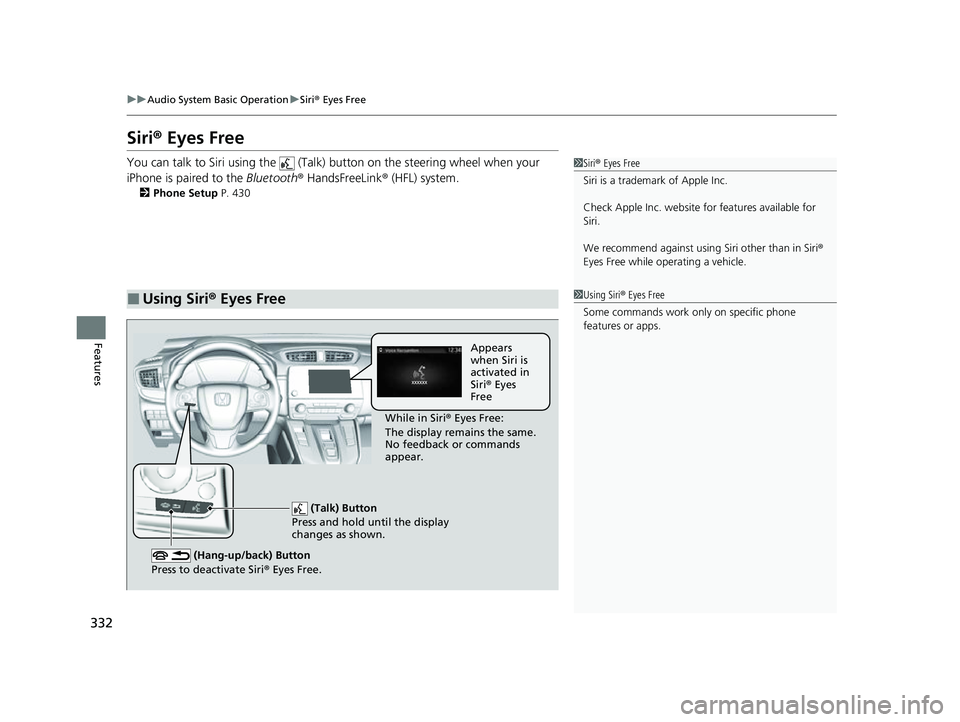
You can talk to Siri using the (Talk) button on the steering wheel when your
iPhone is paired to the Bluetooth® HandsFreeLink ® (HFL) system.
2Phone Setup P. 430
■Using Siri® Eyes Free
1 Siri ® Eyes Free
Siri is a trademark of Apple Inc.
Check Apple Inc. website for features available for
Siri.
We recommend against using Siri other than in Siri ®
Eyes Free while operating a vehicle.
1 Using Siri ® Eyes Free
Some commands work only on specific phone
features or apps.
(Talk) Button
Press and hold until the display
changes as shown.
(Hang-up/back) Button
Press to deactivate Siri ® Eyes Free.
While in Siri ® Eyes Free:
The display remains the same.
No feedback or commands
appear. Appears
when Siri is
activated in
Siri
® Eyes
Free
22 CR-V HEV ELP-31TPG6200.book 332 ページ 2021年6月30日 水曜日 午前11時6分
Page 335 of 692
333
uuAudio System Basic Operation uApple CarPlayTM
Continued
Features
Apple CarPlayTM
If you connect an Apple CarPlayTM-compatible iPhone to the system via the 1.5A USB
port, you can use the audio/information screen, instead of the iPhone display, to
make a phone call, listen to music, view maps (navigation), and access messages.
2USB Port(s) P. 245
■Phone
Access the contact list, make phone ca lls, or listen to voice mail.
■Messages
Check and reply to text messages, or have messages read to you.
■Music
Play music stored on your iPhone.
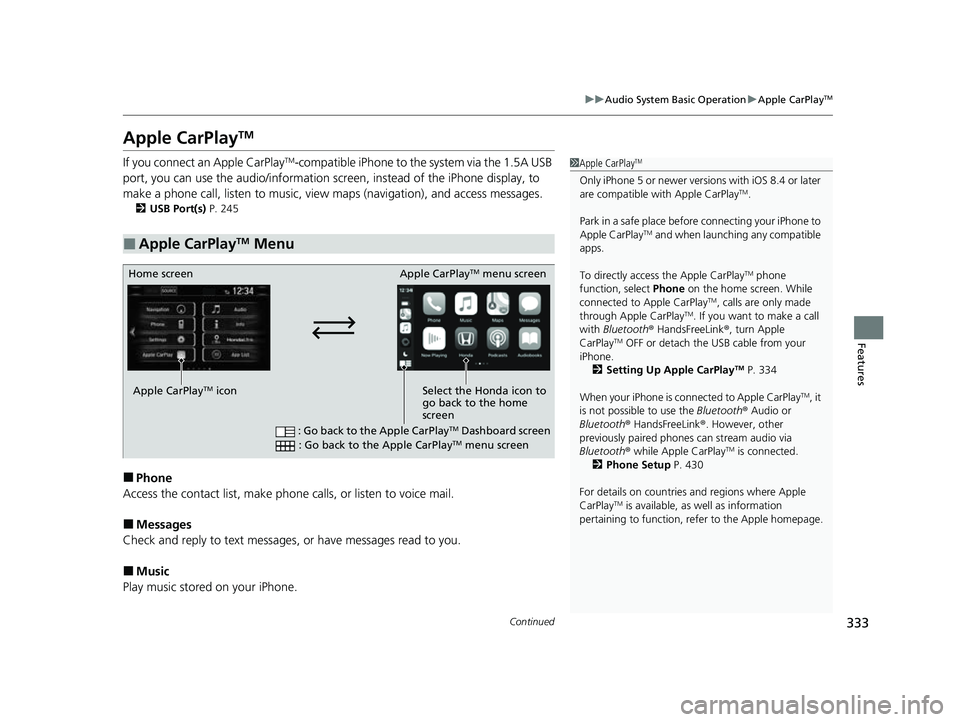
■Apple CarPlayTM Menu
1 Apple CarPlayTM
Only iPhone 5 or newer versi ons with iOS 8.4 or later
are compatible with Apple CarPlayTM.
Park in a safe place before connecting your iPhone to
Apple CarPlay
TM and when launching any compatible
apps.
To directly access the Apple CarPlay
TM phone
function, select Phone on the home screen. While
connected to Apple CarPlay
TM, calls are only made
through Apple CarPlayTM. If you want to make a call
with Bluetooth ® HandsFreeLink ®, turn Apple
CarPlay
TM OFF or detach the USB cable from your
iPhone.
2 Setting Up Apple CarPlay
TM P. 334
When your iPhone is connected to Apple CarPlay
TM, it
is not possible to use the Bluetooth® Audio or
Bluetooth ® HandsFreeLink ®. However, other
previously paired phones can stream audio via
Bluetooth ® while Apple CarPlay
TM is connected.
2 Phone Setup P. 430
For details on c ountries and regions where Apple
CarPlay
TM is available, as well as information
pertaining to function, refer to the Apple homepage.
Home screen
Apple CarPlay
TM icon Apple CarPlay
TM menu screen
Select the Honda icon to
go back to the home
screen
: Go back to the Apple CarPlayTM Dashboard screen
: Go back to the Apple CarPlayTM menu screen
22 CR-V HEV ELP-31TPG6200.book 333 ページ 2021年6月30日 水曜日 午前11時6分
Page 338 of 692
336
uuAudio System Basic Operation uAndroid AutoTM
Features
Android AutoTM
When you connect an Android phone to the Display Audio system via the 1.5A USB
port, Android AutoTM is automatically initiated. When connected via Android
AutoTM, you can use the audio/information screen to access the Phone, Google
Maps (Navigation), Google Play Music, and Google Now functions. When you first
use Android Auto
TM, a tutorial will appear on the screen.
We recommend that you complete this tuto rial while safely parked before using
Android Auto
TM.
2 USB Port(s) P. 245
2 Auto Pairing Connection P. 338
1Android AutoTM
To use Android AutoTM, you need to download the
Android AutoTM app from Google Play to your
smartphone.
Only Android 5.0 (Lollipop) or later versions are
compatible with Android Auto
TM.
Bluetooth A2DP cannot be used while your phone is
connected to Android Auto.
Park in a safe place befo re connecting your Android
phone to Android Auto
TM and when launching any
compatible apps.
When your Android phone is connected to Android
Auto
TM, it is not possible to use the Bluetooth® Audio.
However, other previously paired phones can stream
audio via Bluetooth ® while Android Auto
TM is
connected. 2 Phone Setup P. 430
22 CR-V HEV ELP-31TPG6200.book 336 ページ 2021年6月30日 水曜日 午前11時6分
Page 344 of 692
342
uuAudio Error Messages uPandora ®
Features
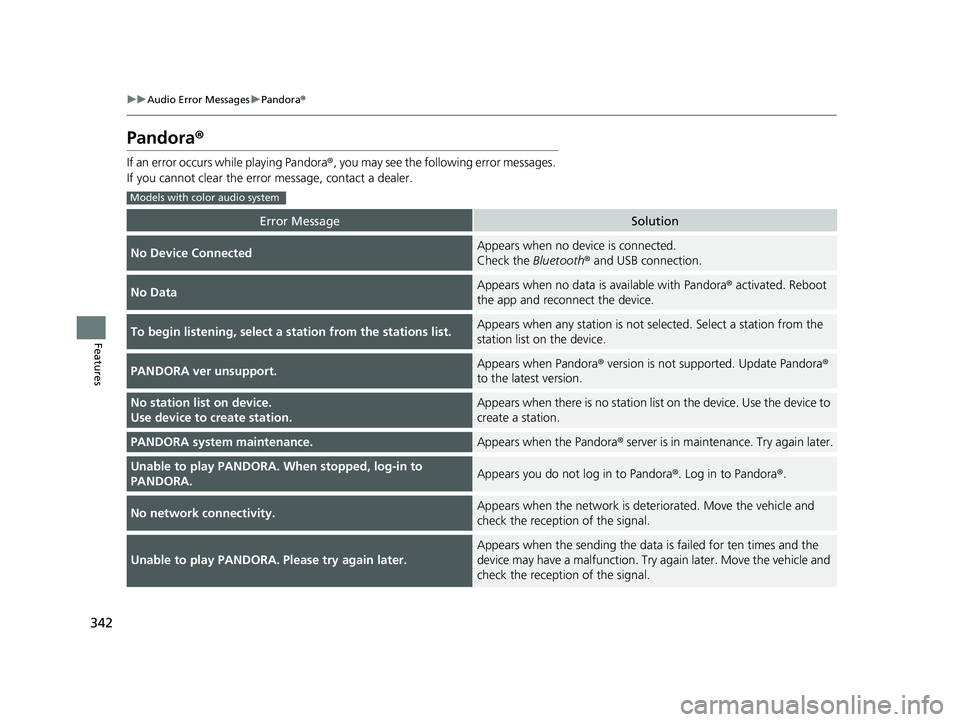
Pandora ®
If an error occurs while playing Pandora®, you may see the following error messages.
If you cannot clear the error message, contact a dealer.
Error MessageSolution
No Device ConnectedAppears when no device is connected.
Check the Bluetooth® and USB connection.
No DataAppears when no data is available with Pandora ® activated. Reboot
the app and reconnect the device.
To begin listening, select a st ation from the stations list.Appears when any station is not selected. Select a station from the
station list on the device.
PANDORA ver unsupport.Appears when Pandora® version is not supported. Update Pandora ®
to the latest version.
No station list on device.
Use device to create station.Appears when there is no station list on the device. Use the device to
create a station.
PANDORA system maintenance.Appears when the Pandora ® server is in maintenance. Try again later.
Unable to play PANDORA. When stopped, log-in to
PANDORA.Appears you do not log in to Pandora ®. Log in to Pandora®.
No network connectivity.Appears when the network is deteriorated. Move the vehicle and
check the reception of the signal.
Unable to play PANDORA. Please try again later.
Appears when the sending the data is failed for ten times and the
device may have a malfunction. Try again later. Move the vehicle and
check the reception of the signal.
Models with color audio system
22 CR-V HEV ELP-31TPG6200.book 342 ページ 2021年6月30日 水曜日 午前11時6分
Page 365 of 692
363
uuCustomized Features u
Continued
Features
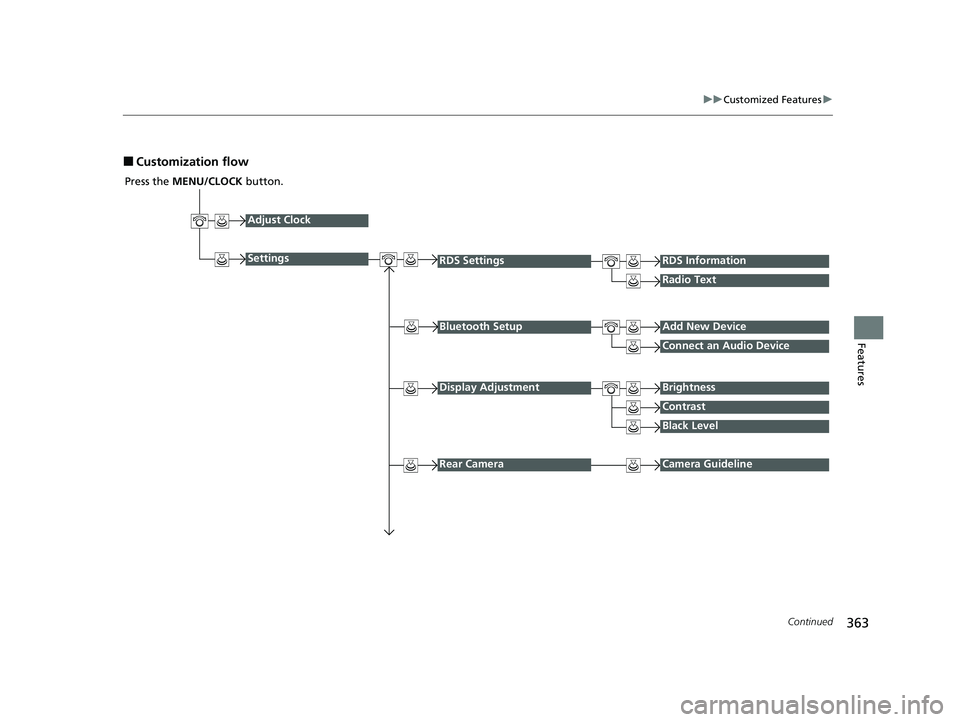
■Customization flow
Press the MENU/CLOCK button.
Adjust Clock
Settings
Bluetooth SetupAdd New Device
Connect an Audio Device
Display AdjustmentBrightness
Contrast
Black Level
Rear CameraCamera Guideline
RDS SettingsRDS Information
Radio Text
22 CR-V HEV ELP-31TPG6200.book 363 ページ 2021年6月30日 水曜日 午前11時6分
Page 366 of 692
364
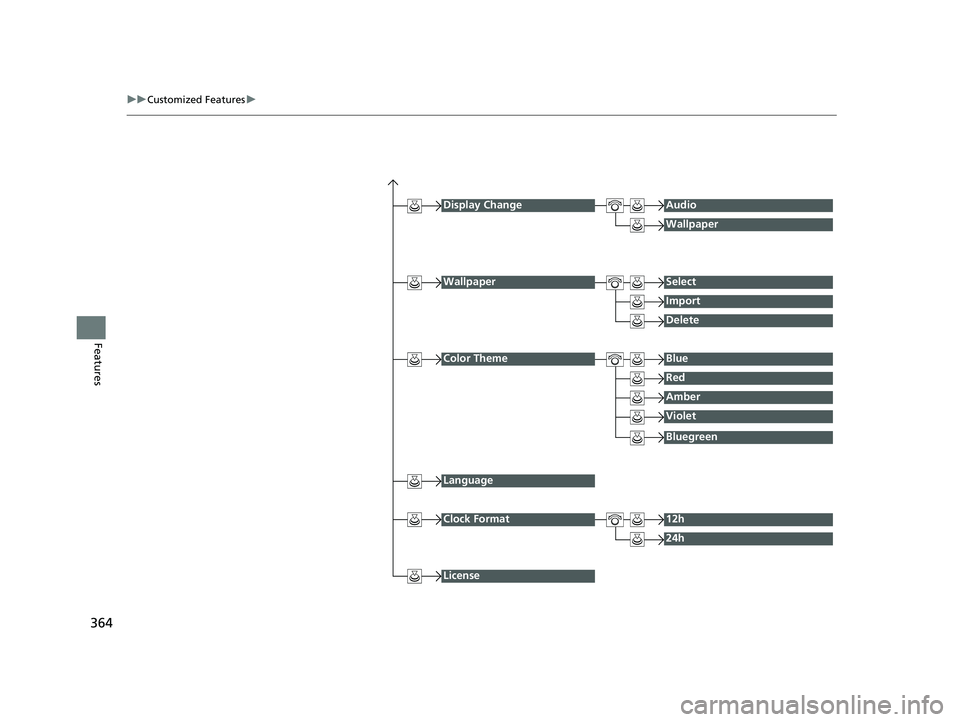
uuCustomized Features u
Features
Display ChangeAudio
Wallpaper
WallpaperSelect
Import
Delete
Color ThemeBlue
Red
Amber
Violet
Language
Clock Format12h
24h
License
Bluegreen
22 CR-V HEV ELP-31TPG6200.book 364 ページ 2021年6月30日 水曜日 午前11時6分
Page 367 of 692
365
uuCustomized Features u
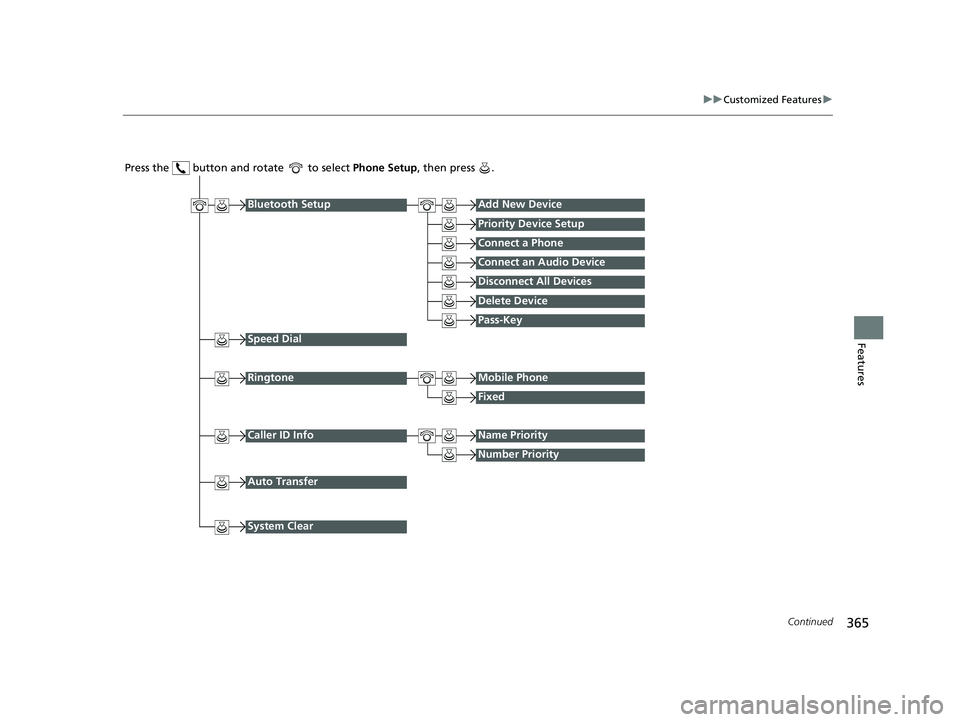
Continued
Features
Press the button and rotate to select Phone Setup, then press .
RingtoneMobile Phone
Fixed
Bluetooth SetupAdd New Device
Priority Device Setup
Connect a Phone
Connect an Audio Device
Disconnect All Devices
Delete Device
Speed Dial
Caller ID InfoName Priority
Number Priority
System Clear
Pass-Key
Auto Transfer
22 CR-V HEV ELP-31TPG6200.book 365 ページ 2021年6月30日 水曜日 午前11時6分
Page 368 of 692
366
uuCustomized Features u
Features
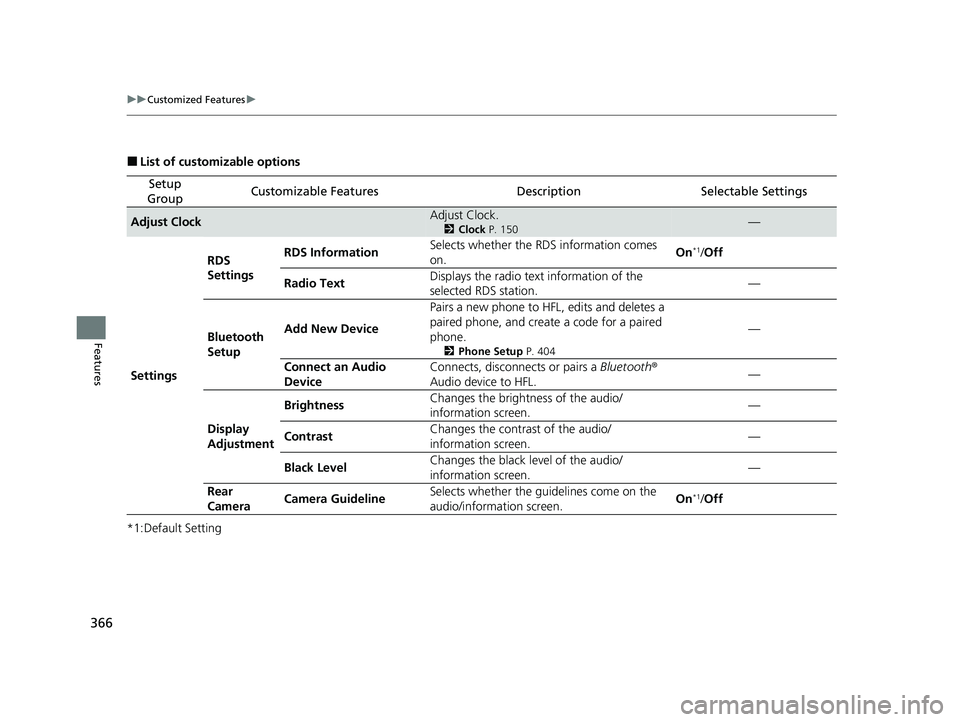
■List of customizable options
*1:Default Setting
Setup
GroupCustomizable FeaturesDescriptionSelectable Settings
Adjust ClockAdjust Clock.
2 Clock P. 150—
Settings RDS
Settings
RDS Information
Selects whether the RDS information comes
on. On
*1/
Off
Radio Text Displays the radio text information of the
selected RDS station. —
Bluetooth
Setup Add New Device
Pairs a new phone to HFL, edits and deletes a
paired phone, and create a code for a paired
phone.
2
Phone Setup P. 404
—
Connect an Audio
Device Connects, disconnects or pairs a
Bluetooth®
Audio device to HFL. —
Display
Adjustment Brightness
Changes the brightness of the audio/
information screen. —
Contrast Changes the contrast of the audio/
information screen.
—
Black Level Changes the black level of the audio/
information screen. —
Rear
Camera Camera Guideline
Selects whether the guidelines come on the
audio/information screen. On
*1/
Off
22 CR-V HEV ELP-31TPG6200.book 366 ページ 2021年6月30日 水曜日 午前11時6分
Page 369 of 692
367
uuCustomized Features u
Continued
Features
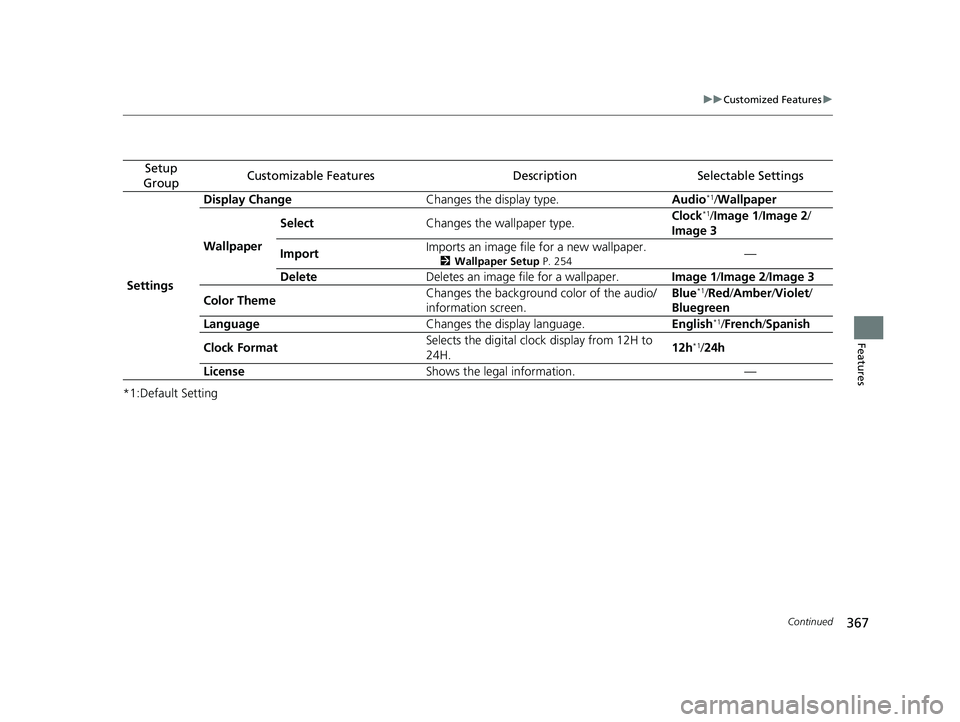
*1:Default Setting
Setup
GroupCustomizable FeaturesDescriptionSelectable Settings
Settings Display Change
Changes the display type. Audio
*1/Wallpaper
Wallpaper Select
Changes the wallpaper type. Clock*1/
Image 1/ Image 2/
Image 3
Import Imports an image file for a new wallpaper.
2
Wallpaper Setup P. 254—
Delete Deletes an image file for a wallpaper. Image 1/Image 2/Image 3
Color Theme Changes the background color of the audio/
information screen. Blue
*1/
Red /Amber /Violet /
Bluegreen
Language Changes the display language. English
*1/French /Spanish
Clock Format Selects the digital clock display from 12H to
24H. 12h
*1/
24h
License Shows the legal information. —
22 CR-V HEV ELP-31TPG6200.book 367 ページ 2021年6月30日 水曜日 午前11時6分