app HONDA CRV 2022 Repair Manual
[x] Cancel search | Manufacturer: HONDA, Model Year: 2022, Model line: CRV, Model: HONDA CRV 2022Pages: 692, PDF Size: 22.05 MB
Page 206 of 692
uuOperating the Switches Around the Steering Wheel uDriving Position Memory System*
204
Controls
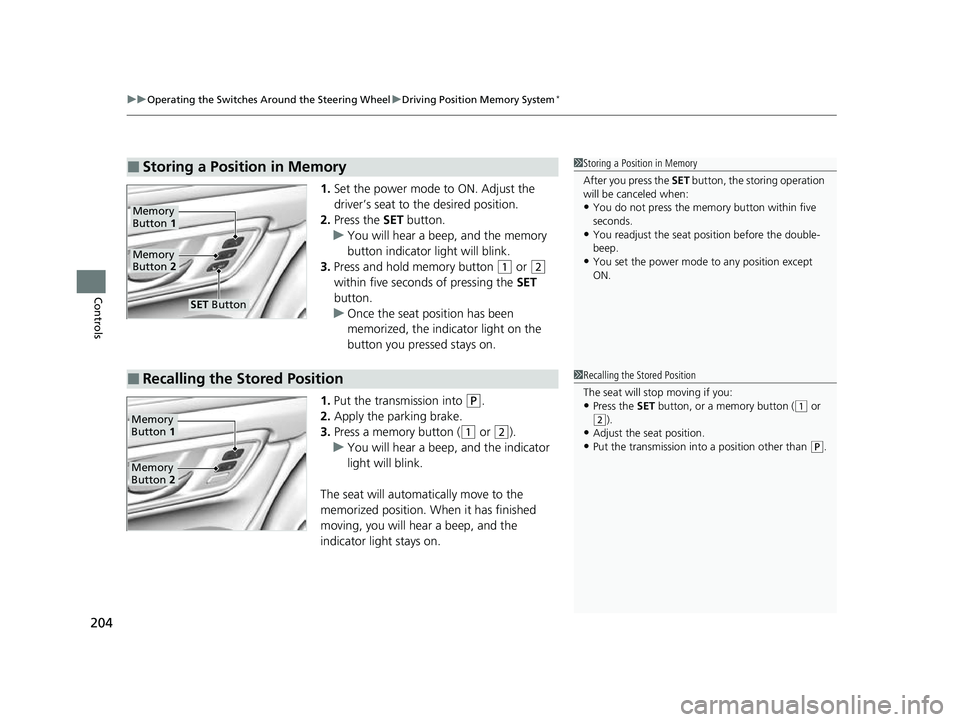
1. Set the power mode to ON. Adjust the
driver’s seat to the desired position.
2. Press the SET button.
u You will hear a beep, and the memory
button indicator light will blink.
3. Press and hold memory button
(1 or (2
within five seconds of pressing the SET
button.
u Once the seat position has been
memorized, the indicator light on the
button you pressed stays on.
1. Put the transmission into
(P.
2. Apply the parking brake.
3. Press a memory button (
(1 or (2).
u You will hear a beep, and the indicator
light will blink.
The seat will automatically move to the
memorized position. When it has finished
moving, you will hear a beep, and the
indicator light stays on.
■Storing a Position in Memory1 Storing a Position in Memory
After you press the SET button, the storing operation
will be canceled when:
•You do not press the memory button within five
seconds.
•You readjust the seat position before the double-
beep.
•You set the power mode to any position except
ON.
Memory
Button 1
Memory
Button 2
SET Button
■Recalling the Stored Position1Recalling the Stored Position
The seat will st op moving if you:
•Press the SET button, or a memory button ((1 or
(2).•Adjust the seat position.
•Put the transmission into a position other than ( P.
Memory
Button 1
Memory
Button 2
22 CR-V HEV ELP-31TPG6200.book 204 ページ 2021年6月30日 水曜日 午前11時6分
Page 207 of 692
205
uuOperating the Switches Around the Steering Wheel uAdjusting the Steering Wheel
Controls
Adjusting the Steering Wheel
The steering wheel height and distance from your body can be adjusted so that you
can comfortably grip the steering wheel in an appropriate driving posture.
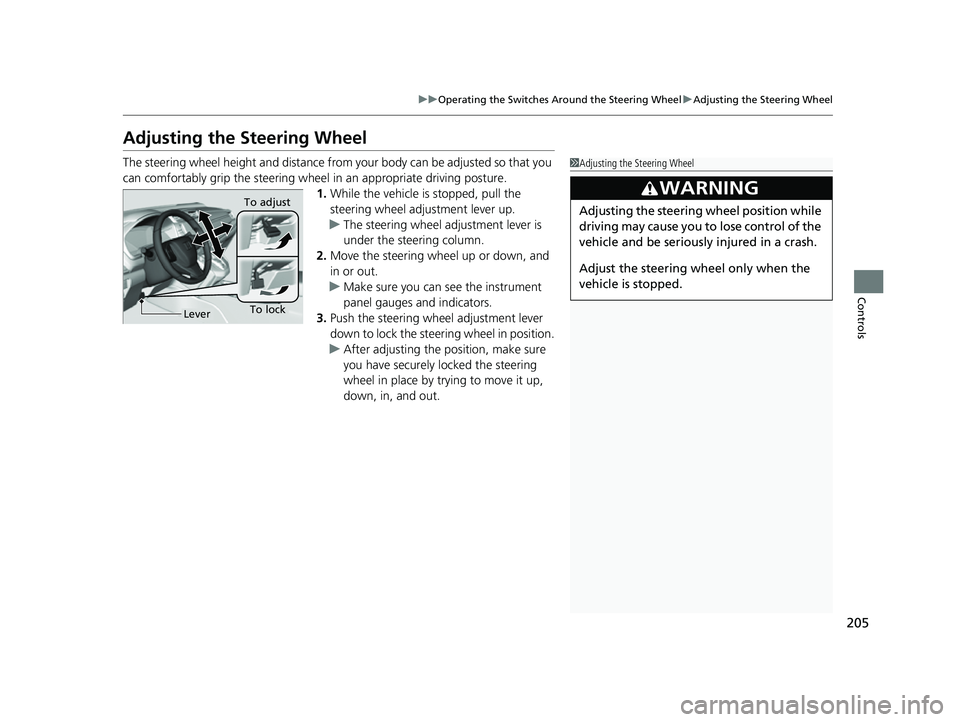
1. While the vehicle is stopped, pull the
steering wheel adjustment lever up.
u The steering wheel adjustment lever is
under the steering column.
2. Move the steering wheel up or down, and
in or out.
u Make sure you can see the instrument
panel gauges and indicators.
3. Push the steering wheel adjustment lever
down to lock the steering wheel in position.
u After adjusting the position, make sure
you have securely locked the steering
wheel in place by trying to move it up,
down, in, and out.1Adjusting the Steering Wheel
3WARNING
Adjusting the steering wheel position while
driving may cause you to lose control of the
vehicle and be seriously injured in a crash.
Adjust the steering wheel only when the
vehicle is stopped.
To lockLever To adjust
22 CR-V HEV ELP-31TPG6200.book 205 ページ 2021年6月30日 水曜日 午前11時6分
Page 218 of 692
uuSeats uHead Restraints
216
Controls
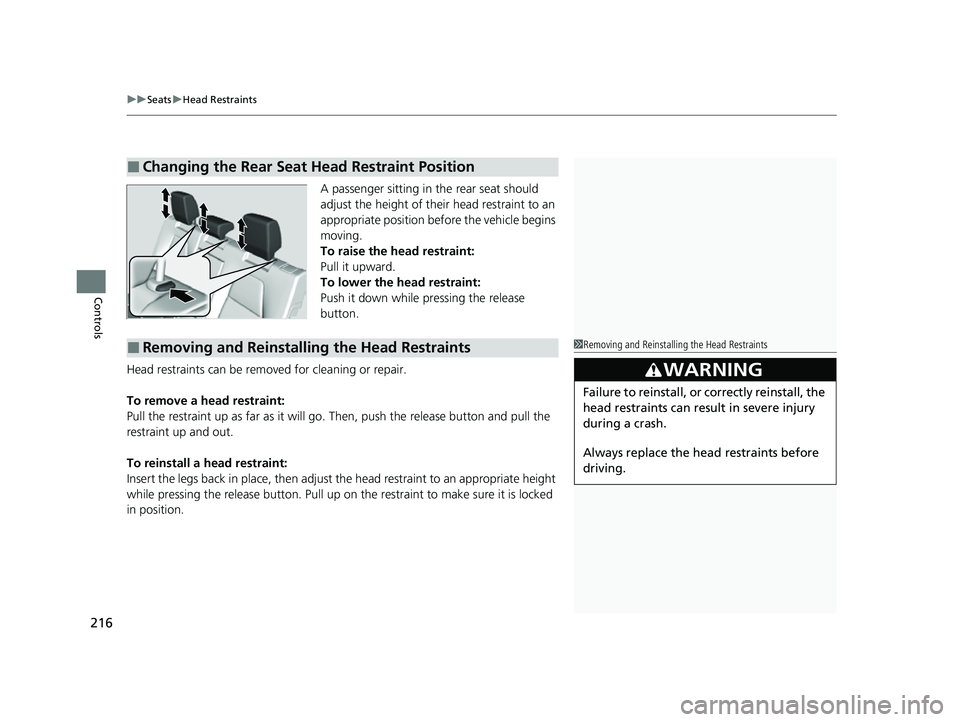
A passenger sitting in the rear seat should
adjust the height of their head restraint to an
appropriate position befo re the vehicle begins
moving.
To raise the head restraint:
Pull it upward.
To lower the head restraint:
Push it down while pressing the release
button.
Head restraints can be removed for cleaning or repair.
To remove a head restraint:
Pull the restraint up as far as it will go. Then, push the release button and pull the
restraint up and out.
To reinstall a head restraint:
Insert the legs back in place, then adjust the head restraint to an appropriate height
while pressing the release button. Pull up on the restraint to make sure it is locked
in position.
■Changing the Rear Seat Head Restraint Position
■Removing and Reinstalling the Head Restraints1 Removing and Reinstalling the Head Restraints
3WARNING
Failure to reinstall, or correctly reinstall, the
head restraints can result in severe injury
during a crash.
Always replace the he ad restraints before
driving.
22 CR-V HEV ELP-31TPG6200.book 216 ページ 2021年6月30日 水曜日 午前11時6分
Page 234 of 692
uuInterior Convenience Items uOther Interior Convenience Items
232
Controls
■FCC statement
RF Exposure Notice:
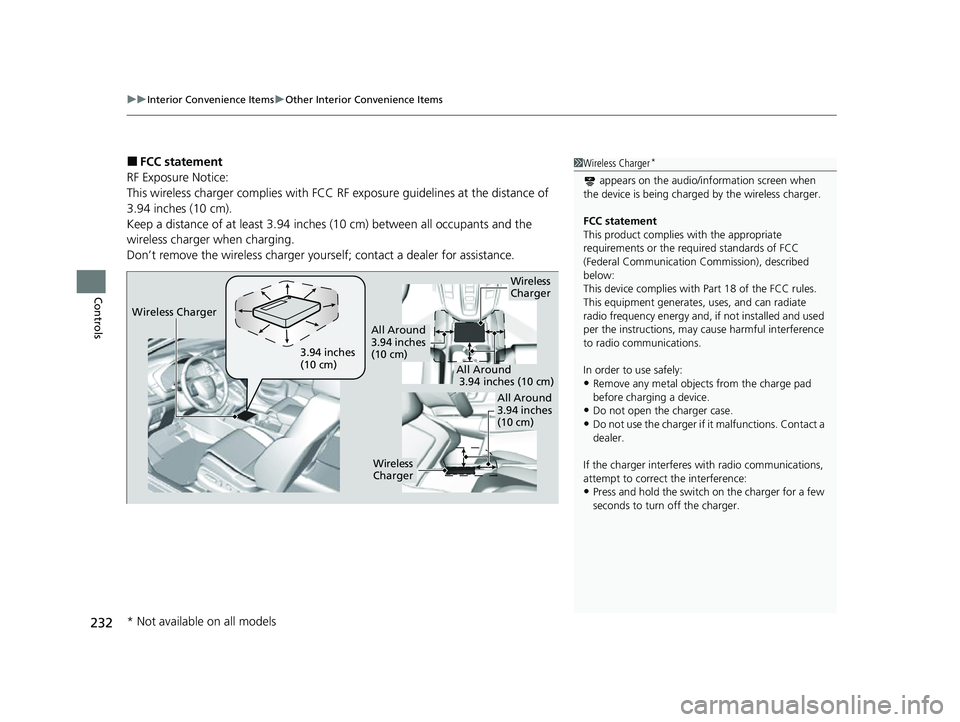
This wireless charger complies with FCC RF exposure guidelines at the distance of
3.94 inches (10 cm).
Keep a distance of at least 3.94 inches (10 cm) between all occupants and the
wireless charger when charging.
Don’t remove the wireless charger yourse lf; contact a dealer for assistance.1Wireless Charger*
appears on the audio/information screen when
the device is being charge d by the wireless charger.
FCC statement
This product complies with the appropriate
requirements or the requ ired standards of FCC
(Federal Communication Commission), described
below:
This device complies with Part 18 of the FCC rules.
This equipment generates, uses, and can radiate
radio frequency energy and, if not installed and used
per the instructions, may cause harmful interference
to radio communications.
In order to use safely:
•Remove any metal objects from the charge pad
before charging a device.
•Do not open the charger case.
•Do not use the charger if it malfunctions. Contact a
dealer.
If the charger interferes with radio communications,
attempt to correct the interference:
•Press and hold the switch on the charger for a few
seconds to turn off the charger.
Wireless
Charger
3.94 inches
(10 cm)
All Around
3.94 inches
(10 cm)
All Around
3.94 inches (10 cm)
All Around
3.94 inches
(10 cm)
Wireless
Charger
Wireless Charger
* Not available on all models
22 CR-V HEV ELP-31TPG6200.book 232 ページ 2021年6月30日 水曜日 午前11時6分
Page 245 of 692
243
Features
This chapter describes how to operate technology features.
Audio SystemAbout Your Audio System ................ 244
USB Port(s) ....................................... 245
Audio System Theft Protection ......... 247
Audio Remote Controls .................... 248
Audio System Basic Operation Audio/Information Screen ................ 252
Adjusting the Sound ........................ 256
Display Setup ................................... 257
Playing AM/FM Radio ....................... 258
Playing an iPod ................................ 260
Playing Pandora ®.............................. 263
Playing a USB Flash Drive ................. 265
Models with color audio system
Playing Bluetooth ® Audio................. 268
Siri ® Eyes Free .................................. 271
Audio System Basic Operation Audio/Information Screen ................ 273
Adjusting the Sound ........................ 294
Display Setup ................................... 295
Voice Control Operation .................. 297
Playing AM/FM Radio ....................... 301
Playing SiriusXM ® Radio ................... 305
Playing an iPod ................................ 312
Song By Voice
TM (SBV) ...................... 315
Playing Pandora ®............................. 319
Playing a USB Flash Drive ................. 321
Models with Display Audio
Playing Bluetooth ® Audio ................ 324
HondaLink ®..................................... 326
Wi-Fi Connection ............................. 331
Siri ® Eyes Free .................................. 332
Apple CarPlay
TM............................... 333
Android AutoTM............................... 336
Audio Error Messages ...................... 340
General Information on the Audio System ............................................. 345
Customized Features ................ 362, 369
HomeLink ® Universal Transceiver
*.. 395
Bluetooth® HandsFreeLink® ..... 398, 422
Compass
*.......................................... 456
* Not available on all models
22 CR-V HEV ELP-31TPG6200.book 243 ページ 2021年6月30日 水曜日 午前11時6分
Page 246 of 692
244
Features
Audio System
About Your Audio System
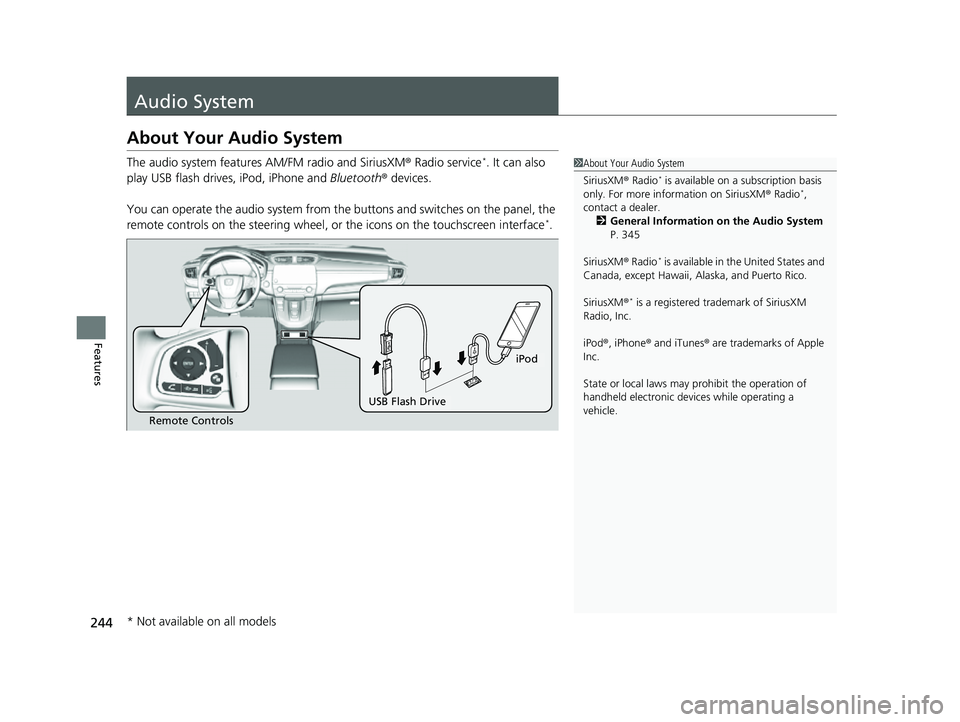
The audio system features AM/FM radio and SiriusXM® Radio service*. It can also
play USB flash drives, iPod, iPhone and Bluetooth® devices.
You can operate the audio system from the buttons and switches on the panel, the
remote controls on the steering wheel, or the icons on the touchscreen interface
*.
1 About Your Audio System
SiriusXM ® Radio
* is available on a subscription basis
only. For more information on SiriusXM ® Radio*,
contact a dealer. 2 General Information on the Audio System
P. 345
SiriusXM ® Radio
* is available in the United States and
Canada, except Ha waii, Alaska, and Puerto Rico.
SiriusXM ®
* is a registered tra demark of SiriusXM
Radio, Inc.
iPod ®, iPhone ® and iTunes ® are trademarks of Apple
Inc.
State or local laws may pr ohibit the operation of
handheld electronic devices while operating a
vehicle.
Remote Controls
iPod
USB Flash Drive
* Not available on all models
22 CR-V HEV ELP-31TPG6200.book 244 ページ 2021年6月30日 水曜日 午前11時6分
Page 247 of 692
245
uuAudio System uUSB Port(s)
Continued
Features
USB Port(s)
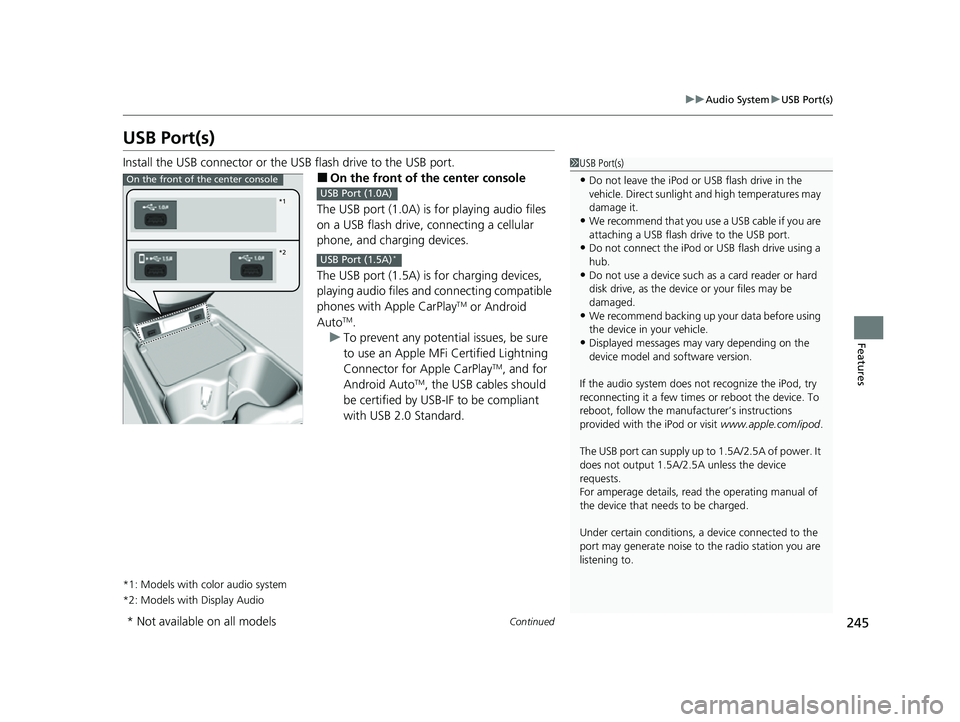
Install the USB connector or the USB flash drive to the USB port.
■On the front of the center console
The USB port (1.0A) is for playing audio files
on a USB flash drive, connecting a cellular
phone, and charging devices.
The USB port (1.5A) is for charging devices,
playing audio files and connecting compatible
phones with Apple CarPlay
TM or Android
AutoTM.
u To prevent any potenti al issues, be sure
to use an Apple MFi Certified Lightning
Connector for Apple CarPlay
TM, and for
Android AutoTM, the USB cables should
be certified by USB-IF to be compliant
with USB 2.0 Standard.
*1: Models with color audio system
*2: Models with Display Audio
1 USB Port(s)
•Do not leave the iPod or USB flash drive in the
vehicle. Direct sunlight and high temperatures may
damage it.
•We recommend that you us e a USB cable if you are
attaching a USB flash drive to the USB port.
•Do not connect the iPod or USB flash drive using a
hub.
•Do not use a device such as a card reader or hard
disk drive, as the device or your files may be
damaged.
•We recommend backing up yo ur data before using
the device in your vehicle.
•Displayed messages may vary depending on the
device model and software version.
If the audio system does not recognize the iPod, try
reconnecting it a few times or reboot the device. To
reboot, follow the manufac turer’s instructions
provided with the iPod or visit www.apple.com/ipod.
The USB port can supply up to 1.5A/2.5A of power. It
does not output 1.5A/2.5A unless the device
requests.
For amperage details, read the operating manual of
the device that ne eds to be charged.
Under certain condi tions, a device connected to the
port may generate noise to the radio station you are
listening to.
On the front of the center console
*1
*2
USB Port (1.0A)
USB Port (1.5A)*
* Not available on all models
22 CR-V HEV ELP-31TPG6200.book 245 ページ 2021年6月30日 水曜日 午前11時6分
Page 250 of 692
248
uuAudio System uAudio Remote Controls
Features
Audio Remote Controls
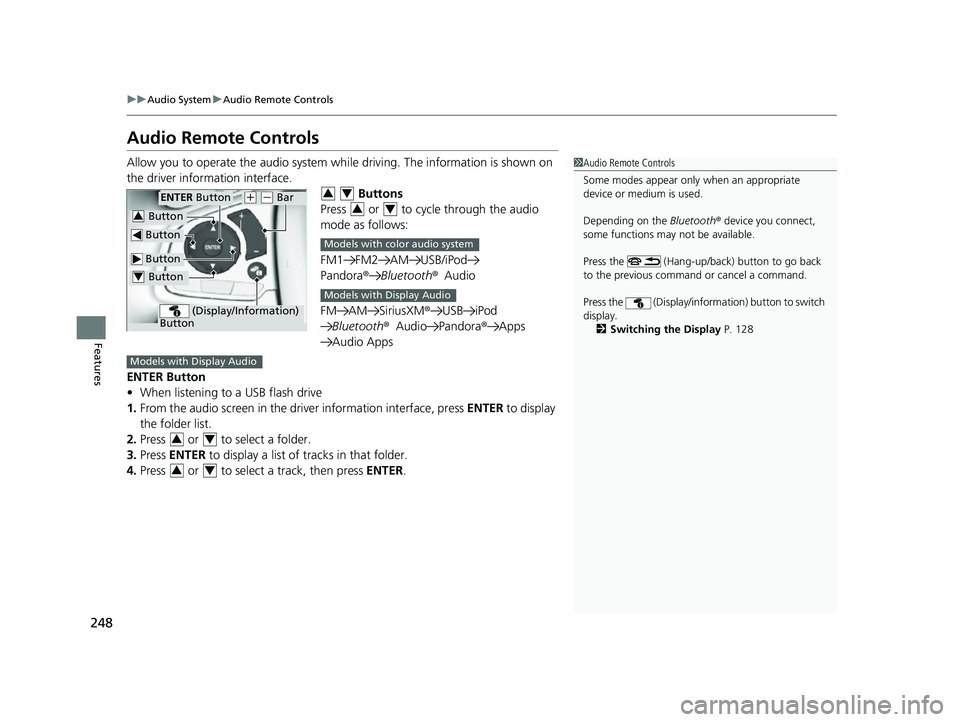
Allow you to operate the audio system wh ile driving. The information is shown on
the driver information interface. Buttons
Press or to cycle through the audio
mode as follows:
FM1 FM2 AM USB/iPod
Pandora ®Bluetooth ®Audio
FM AM SiriusXM® USB iPod
Bluetooth ®Audio Pandora ®Apps
Audio Apps
ENTER Button
• When listening to a USB flash drive
1. From the audio screen in the dr iver information interface, press ENTER to display
the folder list.
2. Press or to select a folder.
3. Press ENTER to display a list of tracks in that folder.
4. Press or to select a track, then press ENTER.1Audio Remote Controls
Some modes appear only when an appropriate
device or medium is used.
Depending on the Bluetooth® device you connect,
some functions may not be available.
Press the (Hang-up/back) button to go back
to the previous command or cancel a command.
Press the (Display/informa tion) button to switch
display. 2 Switching the Display P. 128
Button
ENTER Button
Button
(+ (- Bar
(Display/Information)
Button
Button3
Button4
34
34
Models with color audio system
Models with Display Audio
Models with Display Audio
34
34
22 CR-V HEV ELP-31TPG6200.book 248 ページ 2021年6月30日 水曜日 午前11時6分
Page 256 of 692
uuAudio System Basic Operation uAudio/Information Screen
254
Features
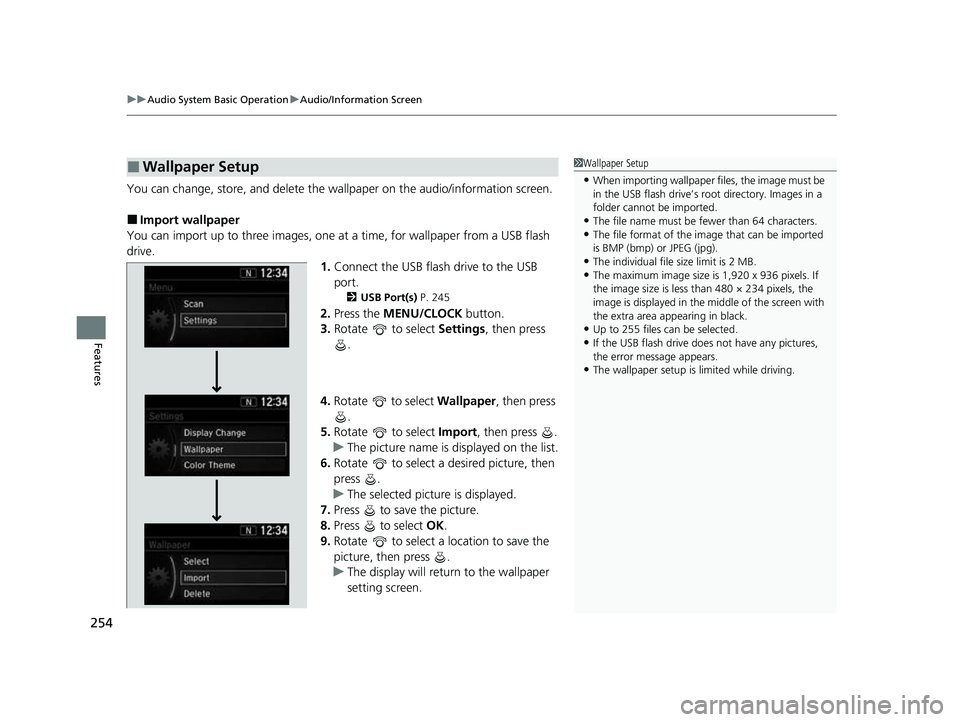
You can change, store, and delete the wallpaper on the audio/information screen.
■Import wallpaper
You can import up to three images, one at a time, for wallpaper from a USB flash
drive. 1.Connect the USB flash drive to the USB
port.
2 USB Port(s) P. 245
2.Press the MENU/CLOCK button.
3. Rotate to select Settings, then press
.
4. Rotate to select Wallpaper , then press
.
5. Rotate to select Import, then press .
u The picture name is displayed on the list.
6. Rotate to select a desired picture, then
press .
u The selected picture is displayed.
7. Press to save the picture.
8. Press to select OK.
9. Rotate to select a location to save the
picture, then press .
u The display will return to the wallpaper
setting screen.
■Wallpaper Setup1Wallpaper Setup
•When importing wallpaper f iles, the image must be
in the USB flash drive’s root directory. Images in a
folder cannot be imported.
•The file name must be fewer than 64 characters.•The file format of the im age that can be imported
is BMP (bmp) or JPEG (jpg).
•The individual file size limit is 2 MB.•The maximum image size is 1,920 x 936 pixels. If
the image size is less than 480 × 234 pixels, the
image is displayed in the middle of the screen with
the extra area appearing in black.
•Up to 255 files can be selected.
•If the USB flash drive doe s not have any pictures,
the error message appears.
•The wallpaper setup is limited while driving.
22 CR-V HEV ELP-31TPG6200.book 254 ページ 2021年6月30日 水曜日 午前11時6分
Page 261 of 692
259
uuAudio System Basic Operation uPlaying AM/FM Radio
Features
Provides text data information related to your selected RDS capable FM station.
■To find an RDS station from Station List
1. Press while listening to an FM station.
2. Rotate to select the station, then press .
■Update List
Updates your available st ation list at any time.
1. Press while listening to an FM station.
2. Rotate to select Update List, then press .
■Radio text
Displays the radio text information of the selected RDS station.
1. Press the MENU/CLOCK button.
2. Rotate to select Settings, then press .
3. Rotate to select RDS Settings, then press .
4. Rotate to select Radio Text, then press .
■Scan
Samples each of the strongest stations on the selected band for 10 seconds.
1. Press the MENU/CLOCK button.
2. Rotate to select Scan, then press .
To turn off scan, press .
■Radio Data System (RDS)1 Playing AM/FM Radio
The ST indicator appears on the display indicating
stereo FM broadcasts.
Stereo reproduction in AM is not available.
You can store 6 AM stations and 12 FM stations into
the preset memory. FM1 and FM2 let you store 6
stations each.
Switching the Audio Mode
Press the audio source selecting buttons on the
steering wheel. 2 Audio Remote Controls P. 248
1Radio Data System (RDS)
When you select an RDS-capable FM station, the RDS
automatically turns on, and the frequency display
changes to the station name. However, when the
signals of that station become weak, the display
changes from the statio n name to the frequency.
22 CR-V HEV ELP-31TPG6200.book 259 ページ 2021年6月30日 水曜日 午前11時6分