audio HONDA CRV 2023 Owners Manual
[x] Cancel search | Manufacturer: HONDA, Model Year: 2023, Model line: CRV, Model: HONDA CRV 2023Pages: 719, PDF Size: 13.43 MB
Page 531 of 719
uuHonda Sensing ®u Adaptive Cruise Control (ACC) with Low Speed Follow
530
Driving
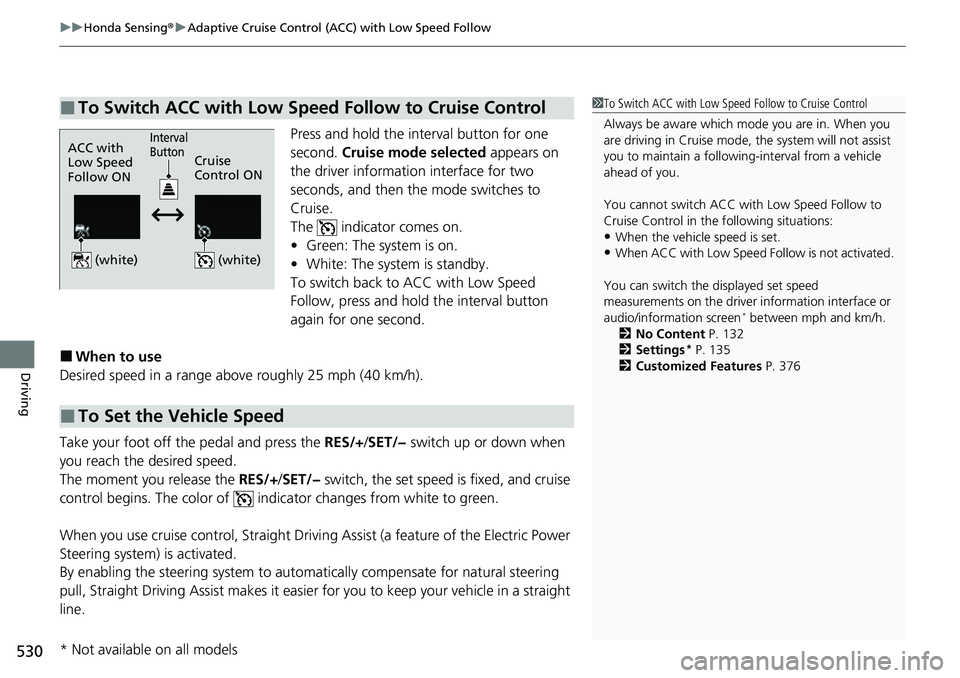
Press and hold the interval button for one
second. Cruise mode selected appears on
the driver information interface for two
seconds, and then the mode switches to
Cruise.
The indicator comes on.
• Green: The system is on.
• White: The system is standby.
To switch back to ACC with Low Speed
Follow, press and hold the interval button
again for one second.
■When to use
Desired speed in a range above roughly 25 mph (40 km/h).
Take your foot off the pedal and press the RES/+ /SET/− switch up or down when
you reach the desired speed.
The moment you release the RES/+/SET/− switch, the set speed is fixed, and cruise
control begins. The color of indicator changes from white to green.
When you use cruise control, Straight Driving Assist (a feature of the Electric Power
Steering system) is activated.
By enabling the steering system to automa tically compensate for natural steering
pull, Straight Driving Assist makes it easier for you to keep your vehicle in a straight
line.
■To Switch ACC with Low Speed Follow to Cruise Control1 To Switch ACC with Low Speed Follow to Cruise Control
Always be aware which mode you are in. When you
are driving in Cruise mode, the system will not assist
you to maintain a following-interval from a vehicle
ahead of you.
You cannot switch ACC with Low Speed Follow to
Cruise Control in the following situations:
•When the vehicle speed is set.
•When ACC with Low Speed Follow is not activated.
You can switch the displayed set speed
measurements on the driver information interface or
audio/information screen
* between mph and km/h.
2 No Content P. 132
2 Settings
* P. 135
2 Customized Features P. 376
ACC with
Low Speed
Follow ON Cruise
Control ON
(white)
(white)
Interval
Button
■To Set the Vehicle Speed
* Not available on all models
Page 550 of 719
Continued549
uuHonda Sensing ®u Traffic Jam Assist
Driving
Press the LKAS button to ca ncel Traffic Jam Assist.
■Traffic Jam Assist may be au tomatically suspended when:
The system is automatically temporarily canceled under the fo llowing circumstances.
• The system fails to detect lane lines.
• The steering wheel is turned sharply.
• You fail to steer the vehicle.
• You are driving through a sharp curve.
• The brake pedal is depressed.
Once these conditions no longer exist, Traffic Jam Assist automatically resumes.
■Traffic Jam Assist may be au tomatically canceled when:
The traffic lane lines will disappear from the screen, the beeper may sound, and
Traffic Jam Assist will be canceled under the following circumstances:
• The temperature of the camera is too high.
• The camera behind the rearview mirror, or the area around the camera, including
the windshield, is dirty.
*1 : Models with 7-in. Color Touchscreen
*2 : Models with 9-in. Color Touchscreen
■Canceling Traffic Jam Assist
1Traffic Jam Assist may be au tomatically suspended when:
You are traveling over 45 mph (72 km/h).
u When the speed of the vehicle reaches 45 mph
(72 km/h), Traffic Jam Assist is deactivated. Once
the speed of the vehicle drops to under 40 mph
(64 km/h), Traffic Jam As sist is reactivated.
You can change the setting for the Traffic Jam Assist.
Traffic Jam Assist suspende d beep on and off can be
changed when you select the Lane keeping assist
suspend beep
*1/Lane Keeping Assist Suspend
Beep*2 on the driver information interface* or audio/
information screen*.
2 Settings* P. 135
2 Customized Features P. 376
* Not available on all models
Page 585 of 719
584
uuParking Your Vehicle uParking Sensor System*
Driving
Parking Sensor System*
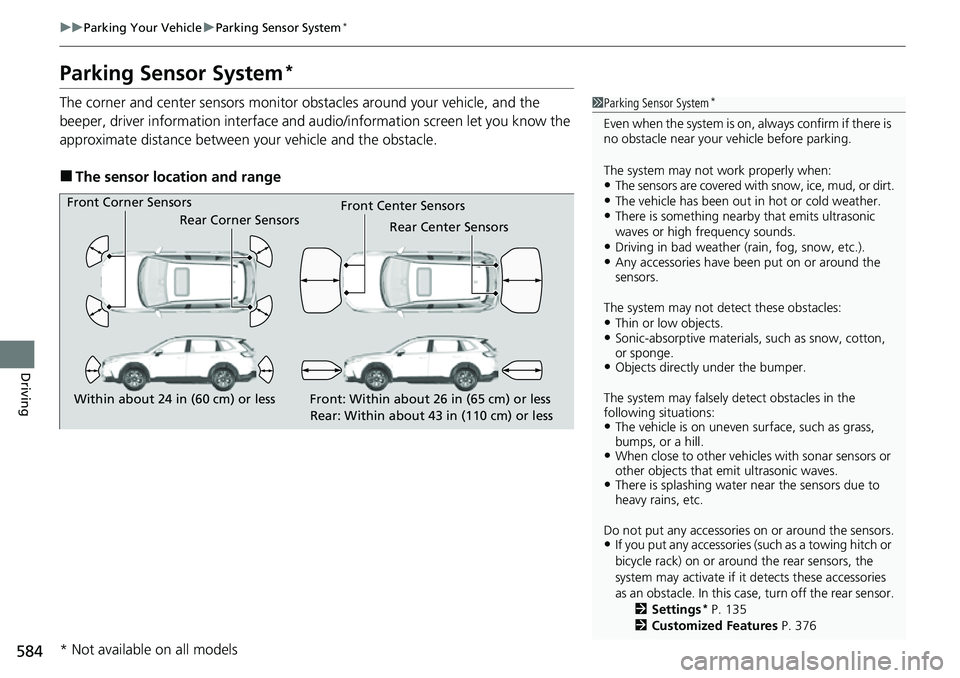
The corner and center sensors monitor obstacles around your vehicle, and the
beeper, driver information interface and audio/informatio n screen let you know the
approximate distance between your vehicle and the obstacle.
■The sensor location and range
1 Parking Sensor System*
Even when the system is on, always confirm if there is
no obstacle near your ve hicle before parking.
The system may not work properly when:
•The sensors are covered with snow, ice, mud, or dirt.•The vehicle has been out in hot or cold weather.•There is something nearby that emits ultrasonic
waves or high frequency sounds.
•Driving in bad weather (rain, fog, snow, etc.).•Any accessories have been put on or around the
sensors.
The system may not de tect these obstacles:
•Thin or low objects.•Sonic-absorptive materials, such as snow, cotton,
or sponge.
•Objects directly under the bumper.
The system may falsely de tect obstacles in the
following situations:
•The vehicle is on uneven su rface, such as grass,
bumps, or a hill.
•When close to other vehicl es with sonar sensors or
other objects that em it ultrasonic waves.
•There is splashing water near the sensors due to
heavy rains, etc.
Do not put any accessories on or around the sensors.
•If you put any accessories (such as a towing hitch or
bicycle rack) on or around the rear sensors, the
system may activate if it detects these accessories
as an obstacle. In this case, turn off the rear sensor. 2Settings
* P. 135
2 Customized Features P. 376
Front Corner Sensors
Rear Corner Sensors Rear Center Sensors
Front Center Sensors
Within about 24 in (60 cm) or less Front: Within about 26 in (65 cm) or less
Rear: Within about 43 in (110 cm) or less
* Not available on all models
Page 586 of 719
Continued585
uuParking Your Vehicle uParking Sensor System*
Driving
■Parking sensor system on and off
You can turn the system on and off using the driver information interface.
2 Switching the Display P. 117
2 Safety Support P. 130
The front corner, rear corner and rear cent er sensors start to detect an obstacle
when the transmission is in
(R, and the vehicle speed is less than 5 mph (8 km/h).
The front corner and front center sensor s start to detect an obstacle when the
transmission is in any position other than
(P or (R, and the vehicle speed is less
than 5 mph (8 km/h).
1 Parking Sensor System*
When you set the power mode to ON, the system will
be in the previously selected condition.
You can turn the rear park ing sensor system on and
off using the audio/information screen.
2 Customized Features P. 376
* Not available on all models
Page 588 of 719
587
uuParking Your Vehicle uParking Sensor System*
Continued
Driving
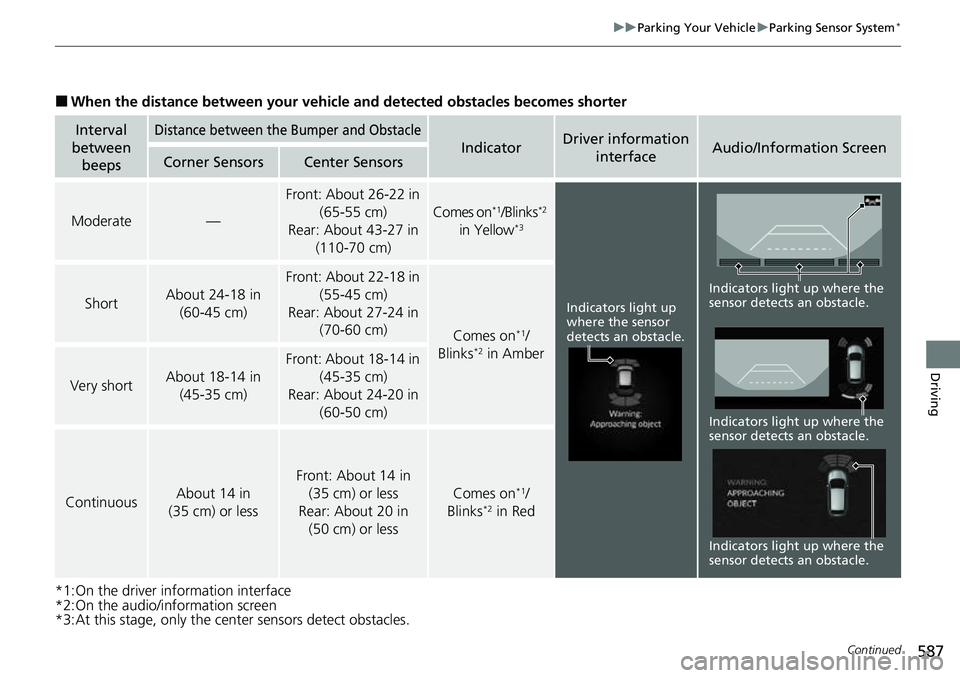
■When the distance between your vehicle and detected obstacles becomes shorter
*1:On the driver information interface
*2:On the audio/information screen
*3:At this stage, only the center sensors detect obstacles.
Interval
between beepsDistance between the Bumper and Obstacle
IndicatorDriver information
interfaceAudio/Information ScreenCorner SensorsCenter Sensors
Moderate—
Front: About 26-22 in (65-55 cm)
Rear: About 43-27 in (110-70 cm)
Comes on*1/Blinks*2
in Yellow*3
ShortAbout 24-18 in (60-45 cm)
Front: About 22-18 in
(55-45 cm)
Rear: About 27-24 in (70-60 cm)
Comes on*1/
Blinks*2 in Amber
Very shortAbout 18-14 in (45-35 cm)
Front: About 18-14 in
(45-35 cm)
Rear: About 24-20 in (60-50 cm)
ContinuousAbout 14 in
(35 cm) or less
Front: About 14 in (35 cm) or less
Rear: About 20 in (50 cm) or less
Comes on*1/
Blinks*2 in Red
Indicators light up
where the sensor
detects an obstacle.
Indicators light up where the
sensor detects an obstacle. Indicators light up where the
sensor detects an obstacle.
Indicators light up where the
sensor detects an obstacle.
Page 592 of 719
Continued591
uuParking Your Vehicle uCross Traffic Monitor
Driving
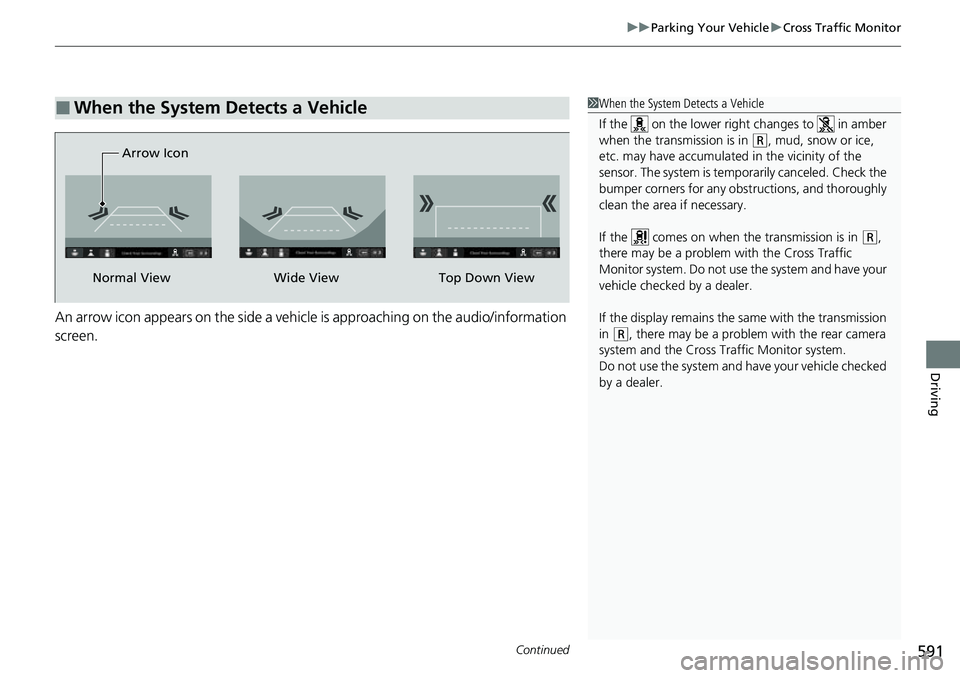
An arrow icon appears on the side a vehicle is approaching on the audio/information
screen.
■When the System Detects a Vehicle1When the System Detects a Vehicle
If the on the lower right changes to in amber
when the transmission is in
( R, mud, snow or ice,
etc. may have accumulated in the vicinity of the
sensor. The system is temporarily canceled. Check the
bumper corners for any obs tructions, and thoroughly
clean the area if necessary.
If the comes on when the transmission is in
( R,
there may be a problem with the Cross Traffic
Monitor system. Do not use the system and have your
vehicle checked by a dealer.
If the display remains the same with the transmission
in
( R, there may be a problem with the rear camera
system and the Cross Traffic Monitor system.
Do not use the system and have your vehicle checked
by a dealer.
Wide View
Normal View Arrow IconTop Down View
Page 593 of 719
592
uuParking Your Vehicle uCross Traffic Monitor
Driving
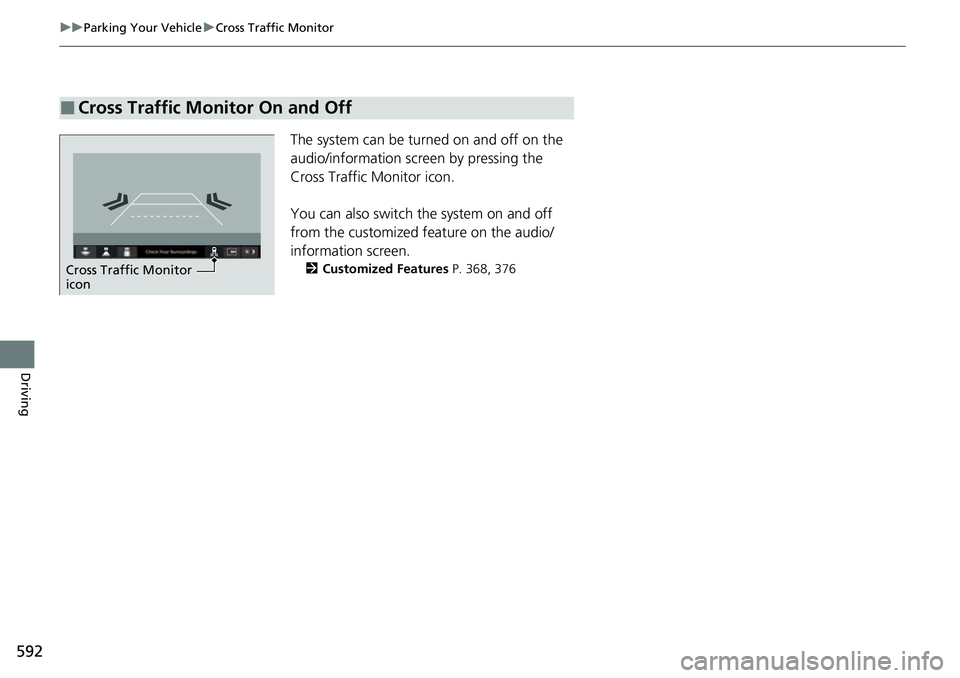
The system can be turned on and off on the
audio/information screen by pressing the
Cross Traffic Monitor icon.
You can also switch the system on and off
from the customized feature on the audio/
information screen.
2 Customized Features P. 368, 376
■Cross Traffic Monitor On and Off
Cross Traffic Monitor
icon
Page 594 of 719
593Continued
Driving
Multi-View Rear Camera
About Your Multi-View Rear Camera
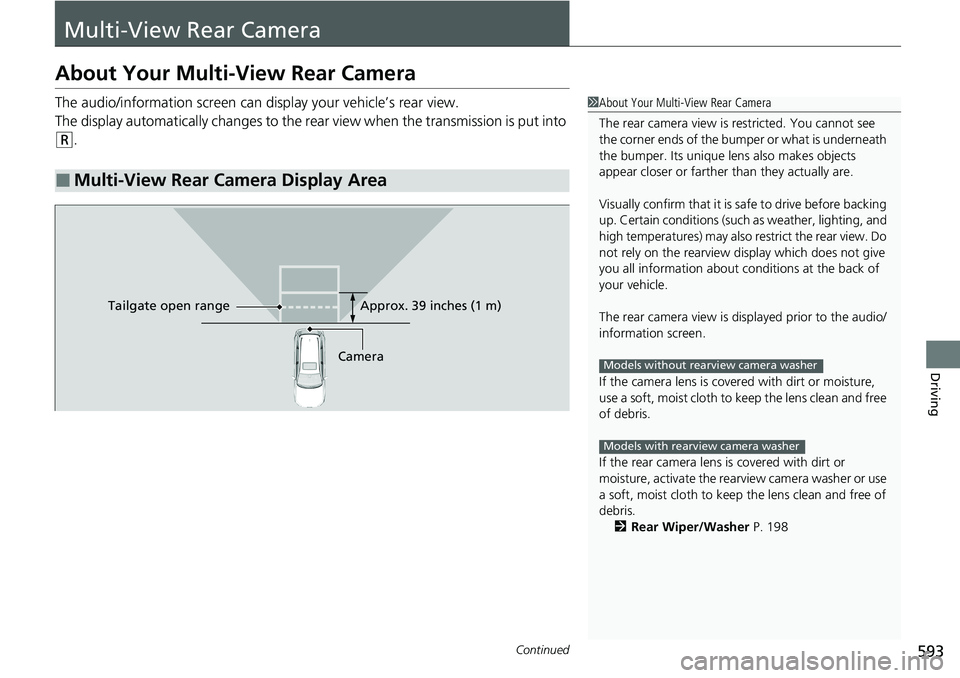
The audio/information screen can display your vehicle’s rear view.
The display automatically changes to the rear view when the transmission is put into
(R.
■Multi-View Rear Camera Display Area
1About Your Multi-View Rear Camera
The rear camera view is restricted. You cannot see
the corner ends of the bumper or what is underneath
the bumper. Its unique le ns also makes objects
appear closer or farther than they actually are.
Visually confirm that it is safe to drive before backing
up. Certain conditions (such as weather, lighting, and
high temperatures) may also restrict the rear view. Do
not rely on the rearview display which does not give
you all information about conditions at the back of
your vehicle.
The rear camera view is di splayed prior to the audio/
information screen.
If the camera lens is cove red with dirt or moisture,
use a soft, moist cloth to keep the lens clean and free
of debris.
If the rear camera lens is covered with dirt or
moisture, activate the rearview camera washer or use
a soft, moist cloth to keep the lens clean and free of
debris.
2 Rear Wiper/Washer P. 198
Models without rearview camera washer
Models with rearview camera washer
CameraApprox. 39 inches (1 m)
Ta ilgate o
pen range
Page 595 of 719
uuMulti-View Rear Camera uAbout Your Multi-View Rear Camera
594
Driving
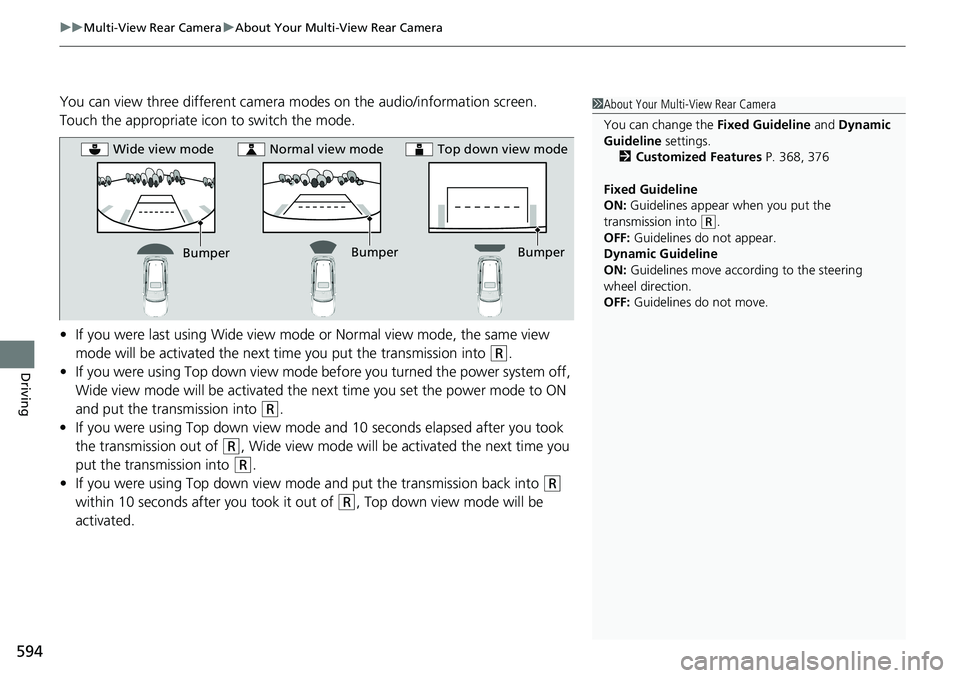
You can view three different camera modes on the audio/information screen.
Touch the appropriate icon to switch the mode.
• If you were last using Wide view mode or Normal view mode, the same view
mode will be activated the next time you put the transmission into
(R.
• If you were using Top down view mode be fore you turned the power system off,
Wide view mode will be activated the ne xt time you set the power mode to ON
and put the transmission into
(R.
• If you were using Top down view mode and 10 seconds elapsed after you took
the transmission out of
(R, Wide view mode will be activated the next time you
put the transmission into
(R.
• If you were using Top down view mode and put the transmission back into
(R
within 10 seconds after you took it out of
(R, Top down view mode will be
activated.
1 About Your Multi-View Rear Camera
You can change the Fixed Guideline and Dynamic
Guideline settings. 2 Customized Features P. 368, 376
Fixed Guideline
ON: Guidelines appear when you put the
transmission into
( R.
OFF: Guidelines do not appear.
Dynamic Guideline
ON: Guidelines move according to the steering
wheel direction.
OFF: Guidelines do not move.
Bumper
Wide view mode
Normal view mode Top down view mode
Bumper
Bumper
Page 611 of 719
uuMaintenance MinderTMuTo Use Maintenance MinderTM
610
Maintenance
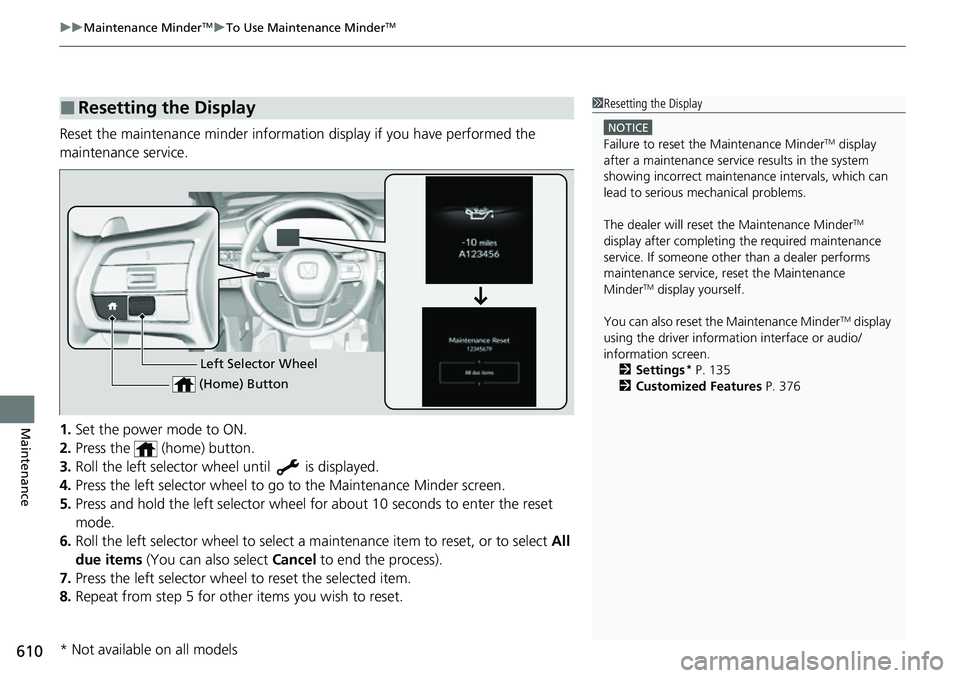
Reset the maintenance minder informat ion display if you have performed the
maintenance service.
1. Set the power mode to ON.
2. Press the (home) button.
3. Roll the left selector wheel until is displayed.
4. Press the left selector wheel to go to the Maintenance Minder screen.
5. Press and hold the left selector wheel fo r about 10 seconds to enter the reset
mode.
6. Roll the left selector wheel to select a ma intenance item to reset, or to select All
due items (You can also select Cancel to end the process).
7. Press the left selector wheel to reset the selected item.
8. Repeat from step 5 for other items you wish to reset.
■Resetting the Display1Resetting the Display
NOTICE
Failure to reset the Maintenance MinderTM display
after a maintenance servic e results in the system
showing incorrect maintenance intervals, which can
lead to serious mechanical problems.
The dealer will reset the Maintenance Minder
TM
display after completing th e required maintenance
service. If someone other than a dealer performs
maintenance service, reset the Maintenance
Minder
TM display yourself.
You can also reset the Maintenance Minder
TM display
using the driver information interface or audio/
information screen. 2 Settings
* P. 135
2 Customized Features P. 376Left Selector Wheel
(Home) Button
* Not available on all models