audio HONDA CRV 2023 Owners Manual
[x] Cancel search | Manufacturer: HONDA, Model Year: 2023, Model line: CRV, Model: HONDA CRV 2023Pages: 719, PDF Size: 13.43 MB
Page 419 of 719
uuBluetooth ® HandsFreeLink ®u HFL Menus
418
Features
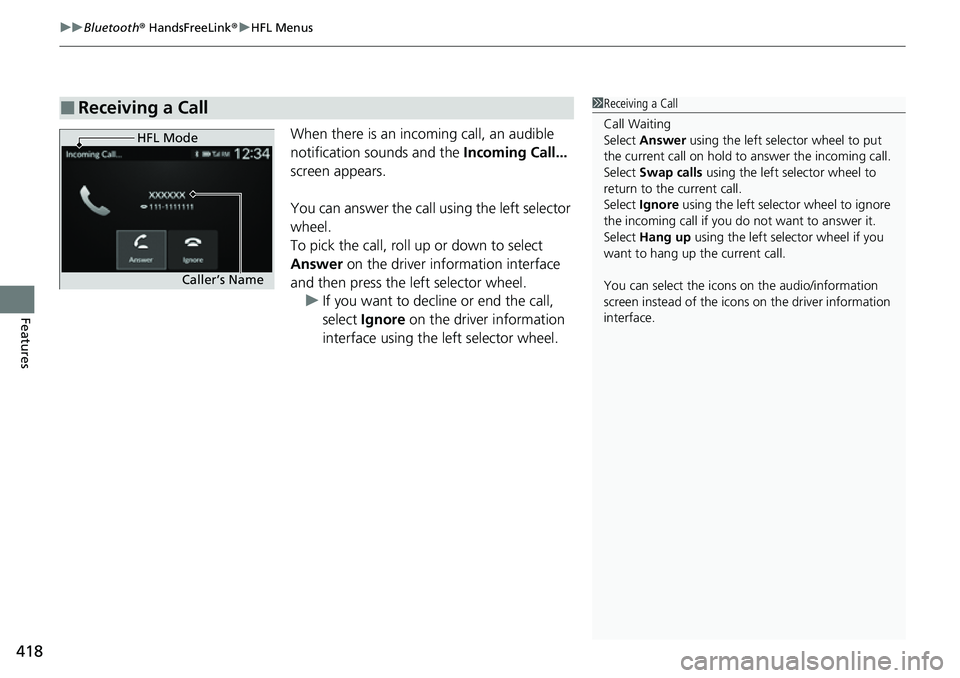
When there is an incoming call, an audible
notification sounds and the Incoming Call...
screen appears.
You can answer the call using the left selector
wheel.
To pick the call, roll up or down to select
Answer on the driver information interface
and then press the left selector wheel. u If you want to decline or end the call,
select Ignore on the driver information
interface using the left selector wheel.
■Receiving a Call1 Receiving a Call
Call Waiting
Select Answer using the left selector wheel to put
the current call on hold to answer the incoming call.
Select Swap calls using the left selector wheel to
return to the current call.
Select Ignore using the left selector wheel to ignore
the incoming call if you do not want to answer it.
Select Hang up using the left selector wheel if you
want to hang up the current call.
You can select the icons on the audio/information
screen instead of the icons on the driver information
interface.
HFL Mode
Caller’s Name
Page 421 of 719
420
Features
Bluetooth® HandsFreeLink ®
Bluetooth® HandsFreeLink ® (HFL) allows you to place and receive phone calls using
your vehicle’s audio system, without handling your cell phone.
Using HFL
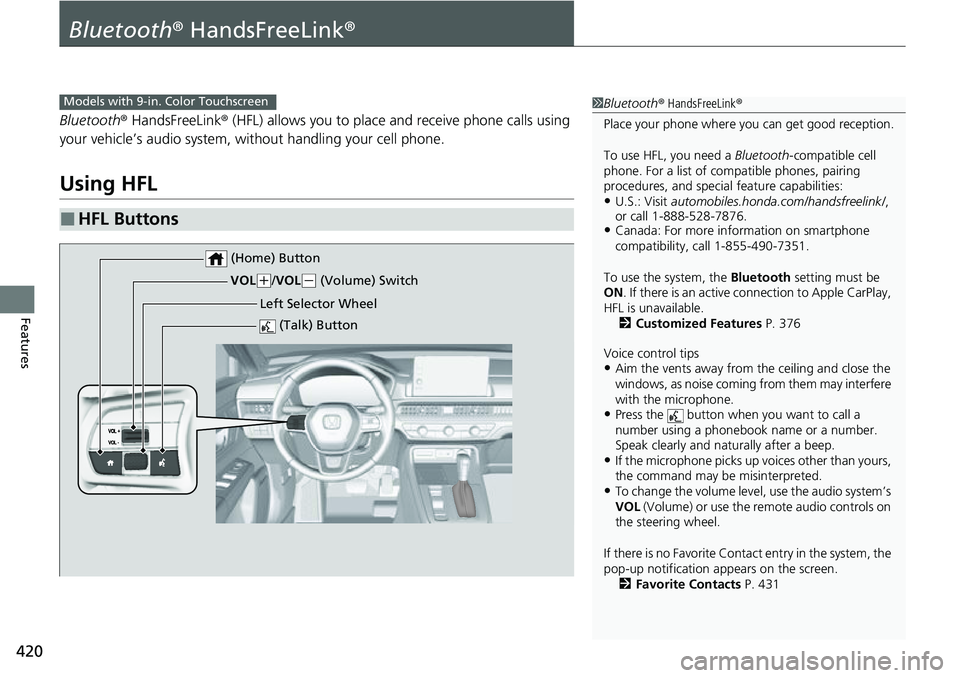
■HFL Buttons
1 Bluetooth ® HandsFreeLink ®
Place your phone where y ou can get good reception.
To use HFL, you need a Bluetooth-compatible cell
phone. For a list of compatible phones, pairing
procedures, and special feature capabilities:
•U.S.: Visit automobiles.honda.com/handsfreelink/ ,
or call 1-888-528-7876.
•Canada: For more info rmation on smartphone
compatibility, call 1-855-490-7351.
To use the system, the Bluetooth setting must be
ON . If there is an active c onnection to Apple CarPlay,
HFL is unavailable. 2 Customized Features P. 376
Voice control tips
•Aim the vents away from the ceiling and close the
windows, as noise coming from them may interfere
with the microphone.
•Press the button when you want to call a
number using a phonebook name or a number.
Speak clearly and naturally after a beep.
•If the microphone picks up vo ices other than yours,
the command may be misinterpreted.
•To change the volume level, use the audio system’s
VOL (Volume) or use the remote audio controls on
the steering wheel.
If there is no Favorite Contact entry in the system, the
pop-up notification appears on the screen. 2 Favorite Contacts P. 431
Models with 9-in. Color Touchscreen
(Talk) Button
Left Selector Wheel
VOL
(
+/ VOL(- (Volume) Switch
(Home) Button
Page 422 of 719
Continued421
uuBluetooth ® HandsFreeLink ®u Using HFL
Features
(Talk) button: Press to access Voice Portal.
(Home) button: Press to go back to the home screen of the driver information
interface.
Left Selector Wheel: Press the (home) button. Roll up or down to select
Phone on the driver information interface, and then press the left selector wheel.
While receiving a call, the incoming call scr een is displayed on the driver information
interface. You can pick up the call using the left selector wheel.
2 Receiving a Call P. 435
To go to the phone screen:
1.Press the button.
2. Select Phone to switch the displa y to the phone screen.
1Bluetooth ® HandsFreeLink ®
Bluetooth ® Wireless Technology
The Bluetooth ® word mark and logos are registered
trademarks owned by Bluetooth SIG, Inc., and any
use of such marks by Honda Motor Co., Ltd., is under
license. Other trademarks and trade names are those
of their respective owners.
HFL Limitations
An incoming call on HFL will interrupt the audio
system when it is playing. It will resume when the call
is ended.
Page 423 of 719
uuBluetooth ® HandsFreeLink ®u Using HFL
422
Features
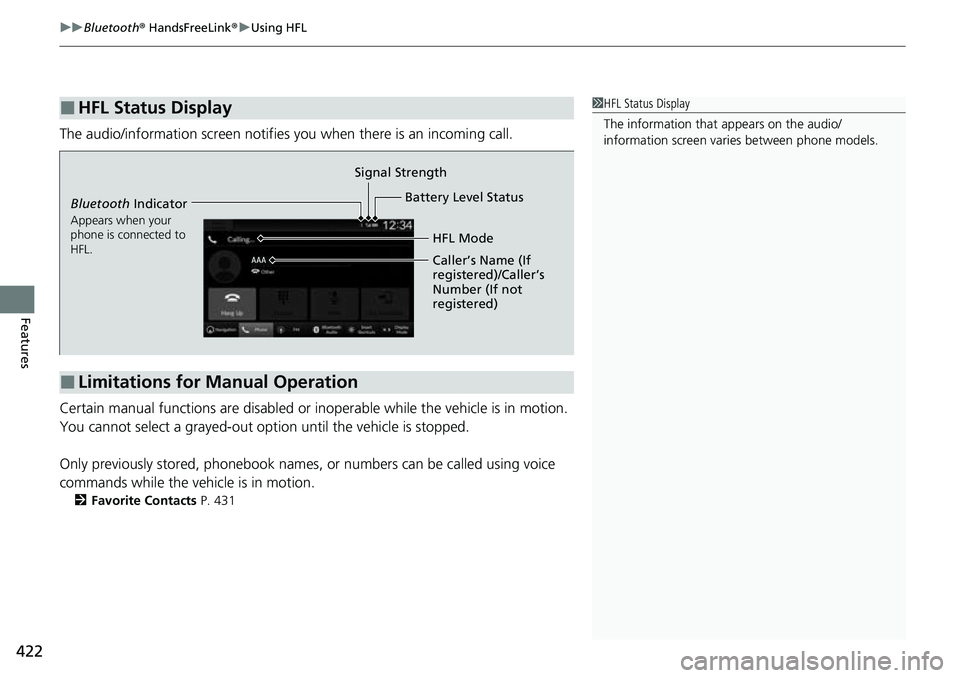
The audio/information screen notifies you when there is an incoming call.
Certain manual functions are disabled or i noperable while the vehicle is in motion.
You cannot select a grayed-out option until the vehicle is stopped.
Only previously stored, phonebook names, or numbers can be called using voice
commands while the vehicle is in motion.
2 Favorite Contacts P. 431
■HFL Status Display1HFL Status Display
The information that appears on the audio/
information screen vari es between phone models.
■Limitations for Manual Operation
Bluetooth Indicator
Appears when your
phone is connected to
HFL.
Signal Strength
HFL Mode
Battery Level Status
Caller’s Name (If
registered)/Caller’s
Number (If not
registered)
Page 426 of 719
Continued425
uuBluetooth ® HandsFreeLink ®u HFL Menus
Features
■Bluetooth ® setup
You can turn Bluetooth® function on and off.
1. Press the button.
2. Select General Settings .
3. Select Connections .
4. Select Bluetooth .
5. Select Options.
6. Select Bluetooth , then select ON.
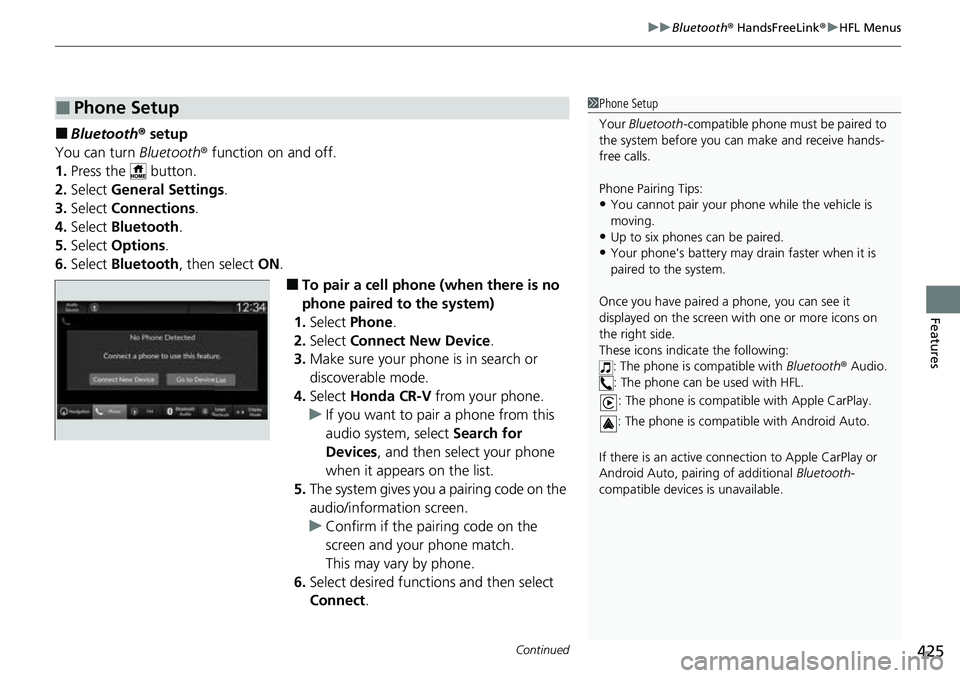
■To pair a cell phone (when there is no
phone paired to the system)
1. Select Phone .
2. Select Connect New Device .
3. Make sure your phone is in search or
discoverable mode.
4. Select Honda CR-V from your phone.
u If you want to pair a phone from this
audio system, select Search for
Devices , and then select your phone
when it appears on the list.
5. The system gives you a pairing code on the
audio/information screen.
u Confirm if the pairing code on the
screen and your phone match.
This may vary by phone.
6. Select desired functions and then select
Connect .
■Phone Setup1Phone Setup
Your Bluetooth -compatible phone must be paired to
the system before you ca n make and receive hands-
free calls.
Phone Pairing Tips:
•You cannot pair your phone while the vehicle is
moving.
•Up to six phones can be paired.
•Your phone's battery may dr ain faster when it is
paired to the system.
Once you have paired a phone, you can see it
displayed on the screen with one or more icons on
the right side.
These icons indicate the following: : The phone is compatible with Bluetooth® Audio.
: The phone can be used with HFL.
: The phone is compatib le with Apple CarPlay.
: The phone is compatible with Android Auto.
If there is an active connection to Appl e CarPlay or
Android Auto, pairing of additional Bluetooth-
compatible devices is unavailable.
Page 434 of 719
Continued433
uuBluetooth ® HandsFreeLink ®u HFL Menus
Features
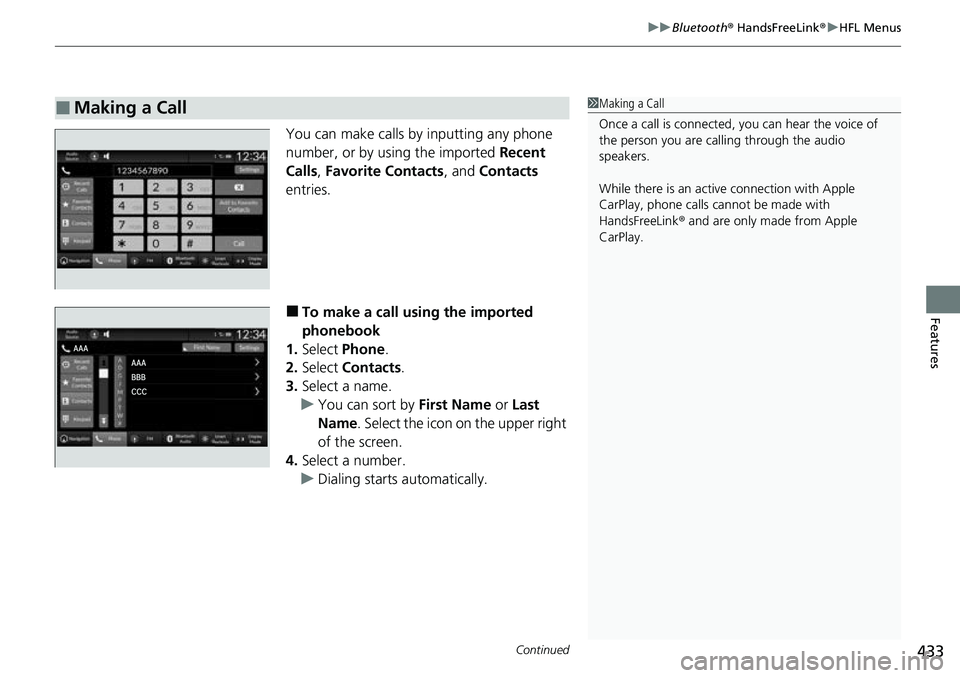
You can make calls by inputting any phone
number, or by using the imported Recent
Calls , Favorite Contacts , and Contacts
entries.
■To make a call using the imported
phonebook
1. Select Phone .
2. Select Contacts .
3. Select a name.
u You can sort by First Name or Last
Name . Select the icon on the upper right
of the screen.
4. Select a number.
u Dialing starts automatically.
■Making a Call1Making a Call
Once a call is connected, you can hear the voice of
the person you are call ing through the audio
speakers.
While there is an active connection with Apple
CarPlay, phone calls ca nnot be made with
HandsFreeLink ® and are only made from Apple
CarPlay.
Page 436 of 719
Continued435
uuBluetooth ® HandsFreeLink ®u HFL Menus
Features
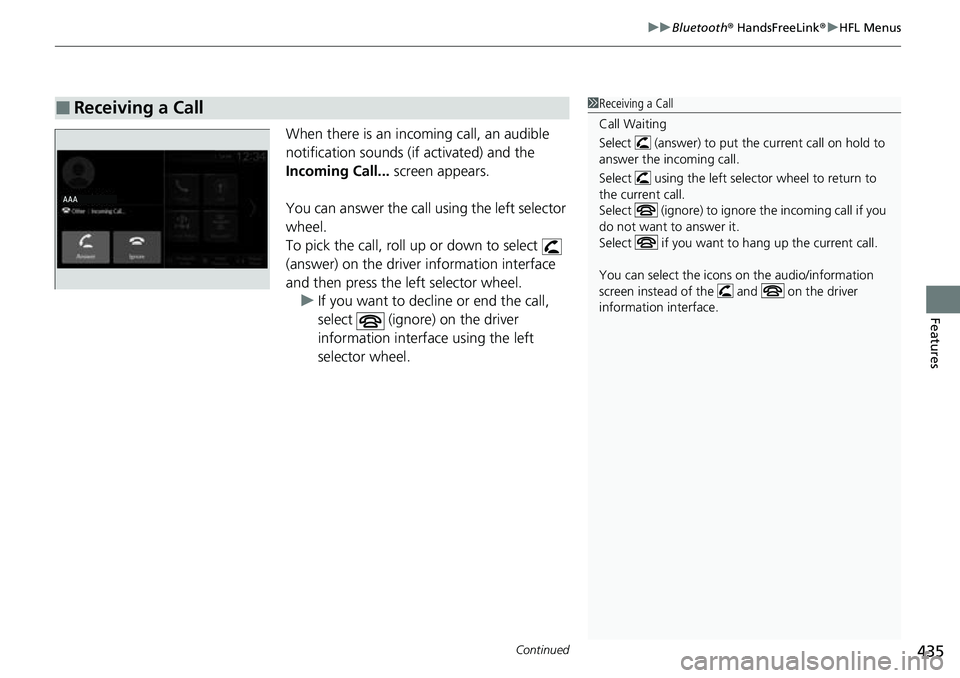
When there is an inco ming call, an audible
notification sounds (if activated) and the
Incoming Call... screen appears.
You can answer the call using the left selector
wheel.
To pick the call, roll up or down to select
(answer) on the driver information interface
and then press the left selector wheel. u If you want to decline or end the call,
select (ignore) on the driver
information interface using the left
selector wheel.
■Receiving a Call1Receiving a Call
Call Waiting
Select (answer) to put the current call on hold to
answer the incoming call.
Select using the left selector wheel to return to
the current call.
Select (ignore) to ignor e the incoming call if you
do not want to answer it.
Select if you want to hang up the current call.
You can select the icons on the audio/information
screen instead of the and on the driver
information interface.
Page 437 of 719
uuBluetooth ® HandsFreeLink ®u HFL Menus
436
Features
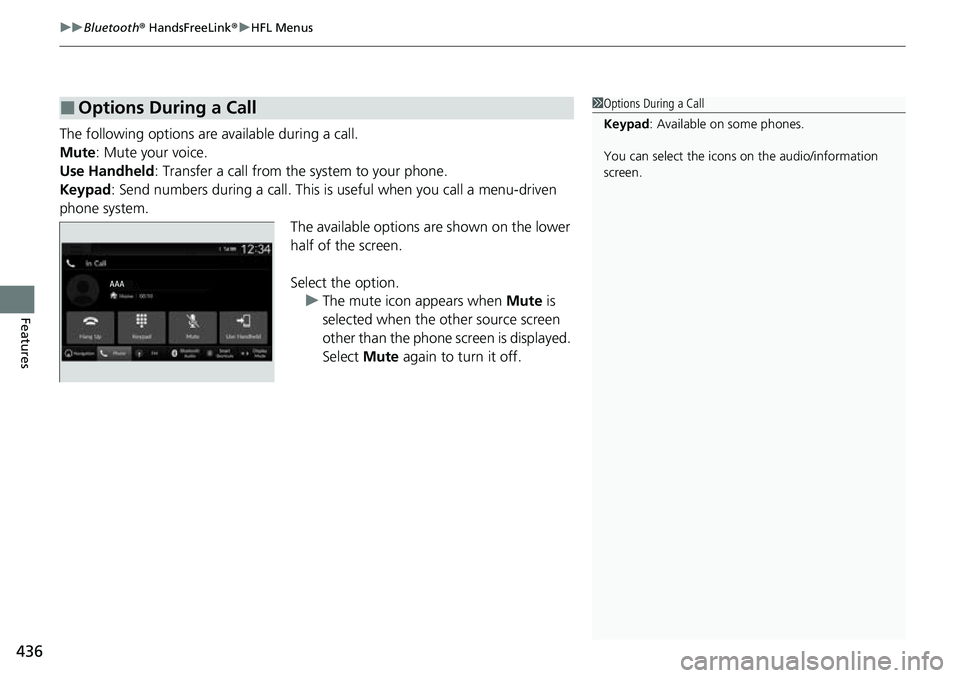
The following options are available during a call.
Mute: Mute your voice.
Use Handheld : Transfer a call from the system to your phone.
Keypad : Send numbers during a call. This is useful when you call a menu-driven
phone system. The available options are shown on the lower
half of the screen.
Select the option. u The mute icon appears when Mute is
selected when the other source screen
other than the phone screen is displayed.
Select Mute again to turn it off.
■Options During a Call1Options During a Call
Keypad : Available on some phones.
You can select the icons on the audio/information
screen.
Page 485 of 719
484
uuWhen Driving uTire Pressure Monitoring System (TPMS)
Driving
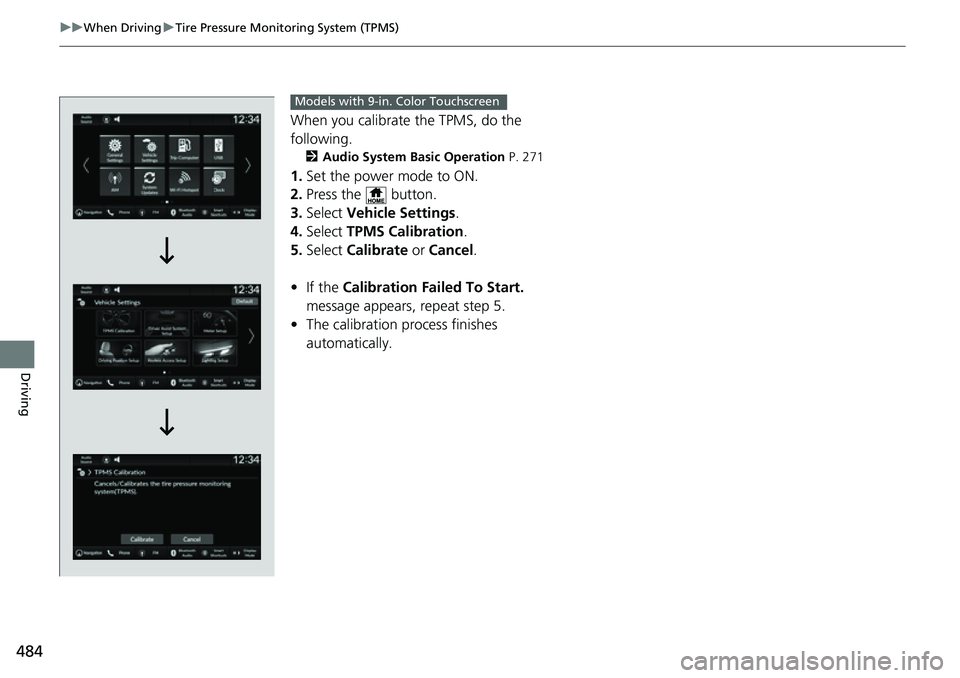
When you calibrate the TPMS, do the
following.
2 Audio System Basic Operation P. 271
1.Set the power mode to ON.
2. Press the button.
3. Select Vehicle Settings .
4. Select TPMS Calibration .
5. Select Calibrate or Cancel .
• If the Calibration Failed To Start.
message appears, repeat step 5.
• The calibration pr ocess finishes
automatically.
Models with 9-in. Color Touchscreen
Page 516 of 719
Continued515
uuHonda Sensing ®u Adaptive Cruise Control (ACC) with Low Speed Follow
Driving
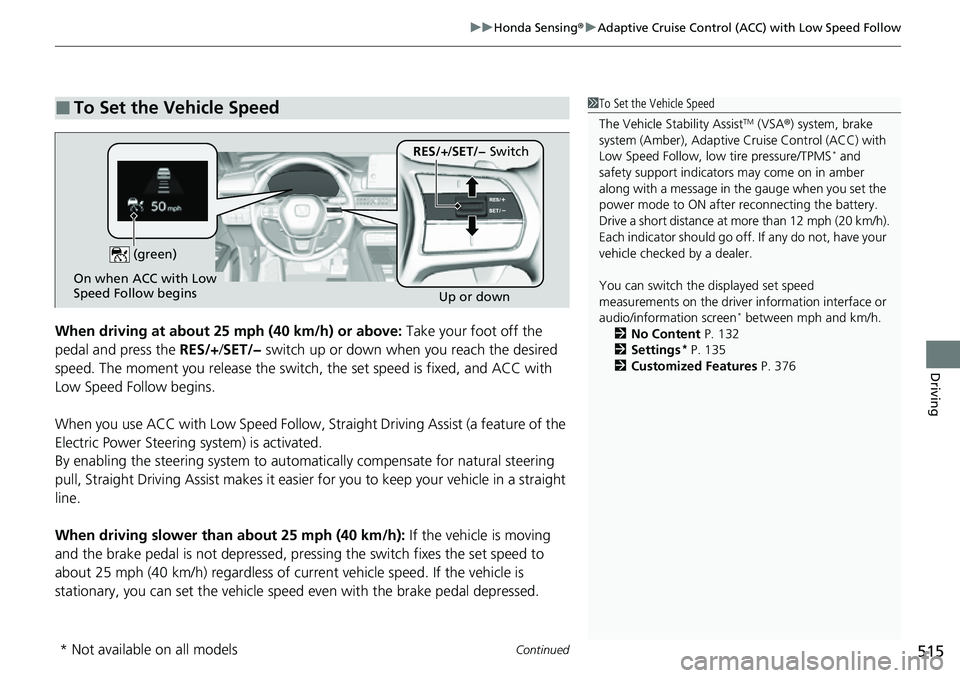
When driving at about 25 mph (40 km/h) or above: Take your foot off the
pedal and press the RES/+/SET/− switch up or down when you reach the desired
speed. The moment you release the switch , the set speed is fixed, and ACC with
Low Speed Follow begins.
When you use ACC with Low Sp eed Follow, Straight Driving Assist (a feature of the
Electric Power Steering system) is activated.
By enabling the steering system to automa tically compensate for natural steering
pull, Straight Driv ing Assist makes it easier for you to keep your vehicle in a straight
line.
When driving slower than about 25 mph (40 km/h): If the vehicle is moving
and the brake pedal is not depressed, pressing the switch fixes the set speed to
about 25 mph (40 km/h) regardless of current vehicle speed. If the vehicle is
stationary, you can set the vehicle speed even with the brake pedal depressed.
■To Set the Vehicle Speed1 To Set the Vehicle Speed
The Vehicle Stability Assist
TM (VSA ®) system, brake
system (Amber), Adaptive Cruise Control (ACC) with
Low Speed Follow, low tire pressure/TPMS
* and
safety support indicators may come on in amber
along with a message in the gauge when you set the
power mode to ON after reconnecting the battery.
Drive a short distance at more than 12 mph (20 km/h).
Each indicator should go off. If any do not, have your
vehicle checked by a dealer.
You can switch the displayed set speed
measurements on the driver information interface or
audio/information screen
* between mph and km/h.
2 No Content P. 132
2 Settings
* P. 135
2 Customized Features P. 376
On when ACC with Low
Speed Follow begins
Up or down
(green)
RES/+
/SET/− Switch
* Not available on all models