Parking HONDA CRV 2023 User Guide
[x] Cancel search | Manufacturer: HONDA, Model Year: 2023, Model line: CRV, Model: HONDA CRV 2023Pages: 719, PDF Size: 13.43 MB
Page 107 of 719
106
uuIndicators u
Instrument Panel
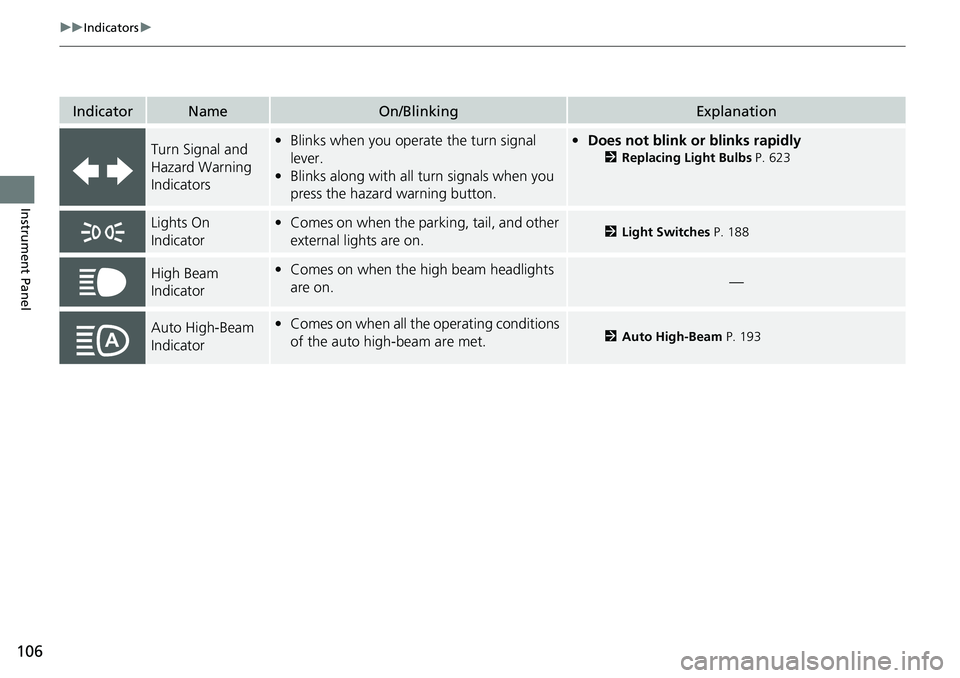
IndicatorNameOn/BlinkingExplanation
Turn Signal and
Hazard Warning
Indicators•Blinks when you oper ate the turn signal
lever.
• Blinks along with all turn signals when you
press the hazard warning button.•Does not blink or blinks rapidly
2 Replacing Light Bulbs P. 623
Lights On
Indicator•Comes on when the parking, tail, and other
external lights are on.2 Light Switches P. 188
High Beam
Indicator•Comes on when the high beam headlights
are on.—
Auto High-Beam
Indicator•Comes on when all the operating conditions
of the auto high-beam are met.2 Auto High-Beam P. 193
Page 112 of 719
111
uuIndicators u
Continued
Instrument Panel
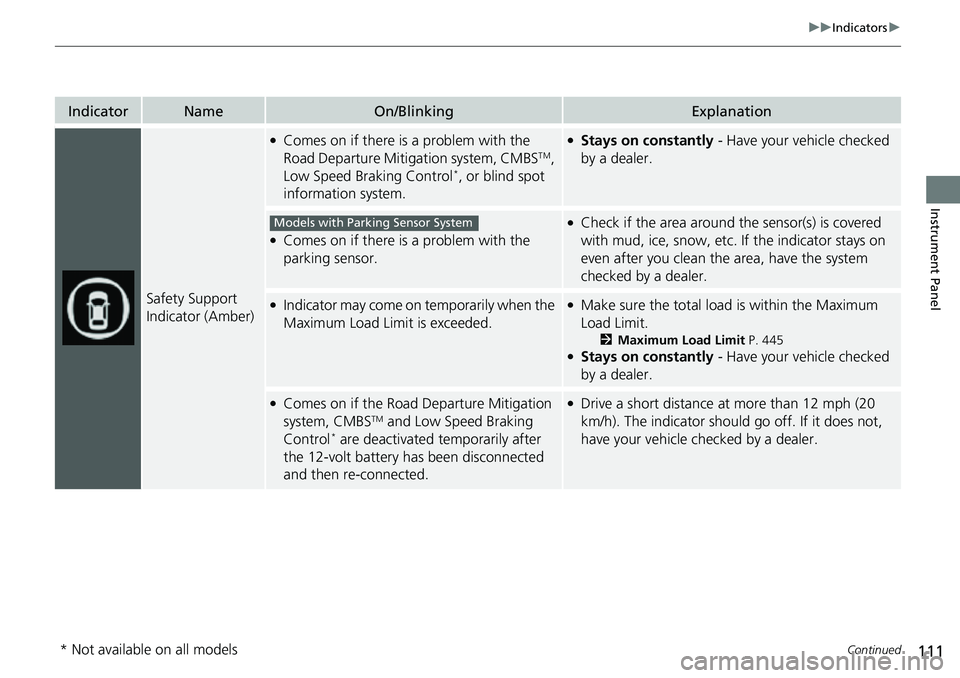
IndicatorNameOn/BlinkingExplanation
Safety Support
Indicator (Amber)
●Comes on if there is a problem with the
Road Departure Mitigation system, CMBSTM,
Low Speed Braking Control*, or blind spot
information system.
●Stays on constantly - Have your vehicle checked
by a dealer.
●Comes on if there is a problem with the
parking sensor.
●Check if the area around the sensor(s) is covered
with mud, ice, sn ow, etc. If the indicator stays on
even after you clean the area, have the system
checked by a dealer.
●Indicator may come on temporarily when the
Maximum Load Limit is exceeded.●Make sure the total load is within the Maximum
Load Limit.
2 Maximum Load Limit P. 445●Stays on constantly - Have your vehicle checked
by a dealer.
●Comes on if the Road Departure Mitigation
system, CMBSTM and Low Speed Braking
Control* are deactivated temporarily after
the 12-volt battery has been disconnected
and then re-connected.
●Drive a short distance at more than 12 mph (20
km/h). The indicator should go off. If it does not,
have your vehicle checked by a dealer.
Models with Parking Sensor System
* Not available on all models
Page 114 of 719
113
uuIndicators u
Instrument Panel
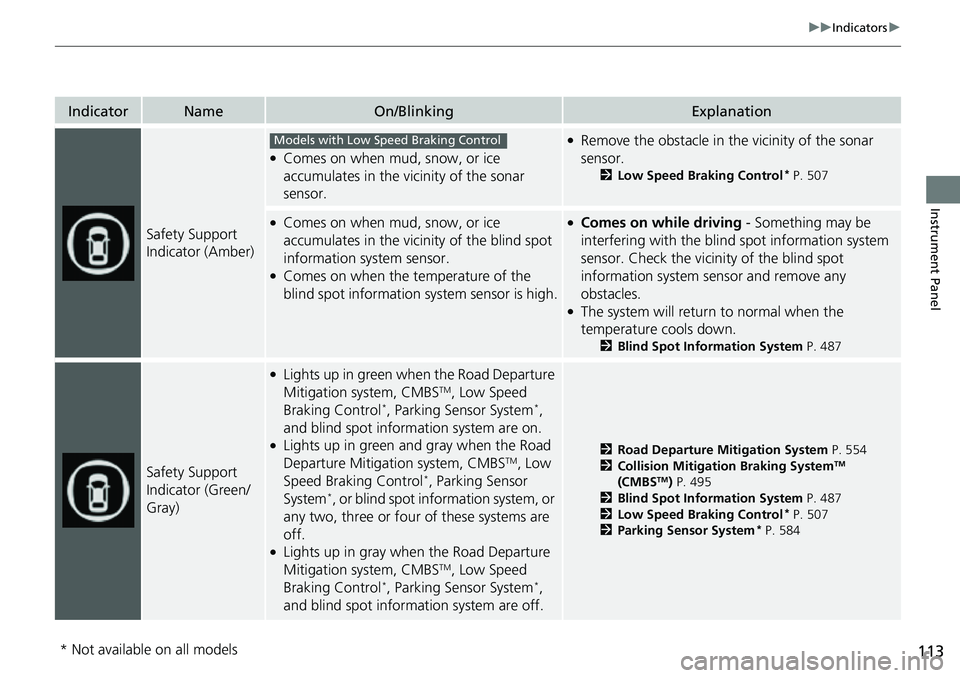
IndicatorNameOn/BlinkingExplanation
Safety Support
Indicator (Amber)
●Comes on when mud, snow, or ice
accumulates in the vicinity of the sonar
sensor.
●Remove the obstacle in the vicinity of the sonar
sensor.
2Low Speed Braking Control* P. 507
●Comes on when mud, snow, or ice
accumulates in the vicinity of the blind spot
information system sensor.
●Comes on when the temperature of the
blind spot information system sensor is high.
●Comes on while driving - Something may be
interfering with the blind spot information system
sensor. Check the vicinity of the blind spot
information system sensor and remove any
obstacles.
●The system will return to normal when the
temperature cools down.
2 Blind Spot Information System P. 487
Safety Support
Indicator (Green/
Gray)
●Lights up in green when the Road Departure
Mitigation system, CMBSTM, Low Speed
Braking Control*, Parking Sensor System*,
and blind spot information system are on.
●Lights up in green and gray when the Road
Departure Mitigation system, CMBSTM, Low
Speed Braking Control*, Parking Sensor
System*, or blind spot information system, or
any two, three or four of these systems are
off.
●Lights up in gray when the Road Departure
Mitigation system, CMBSTM, Low Speed
Braking Control*, Parking Sensor System*,
and blind spot information system are off.
2 Road Departure Mitigation System P. 554
2 Collision Mitigation Braking SystemTM
(CMBSTM) P. 495
2 Blind Spot Information System P. 487
2 Low Speed Braking Control
* P. 507
2 Parking Sensor System* P. 584
Models with Low Speed Braking Control
* Not available on all models
Page 131 of 719
uuGauges and Driver Information Interface uDriver Information Interface
130
Instrument Panel
Occurs, under specified conditions, when seat belts are latched or unlatched.
2 Seat Belt Reminder P. 51
Shows the remaining oil life and Maintenance MinderTM.
2Maintenance MinderTM P. 603
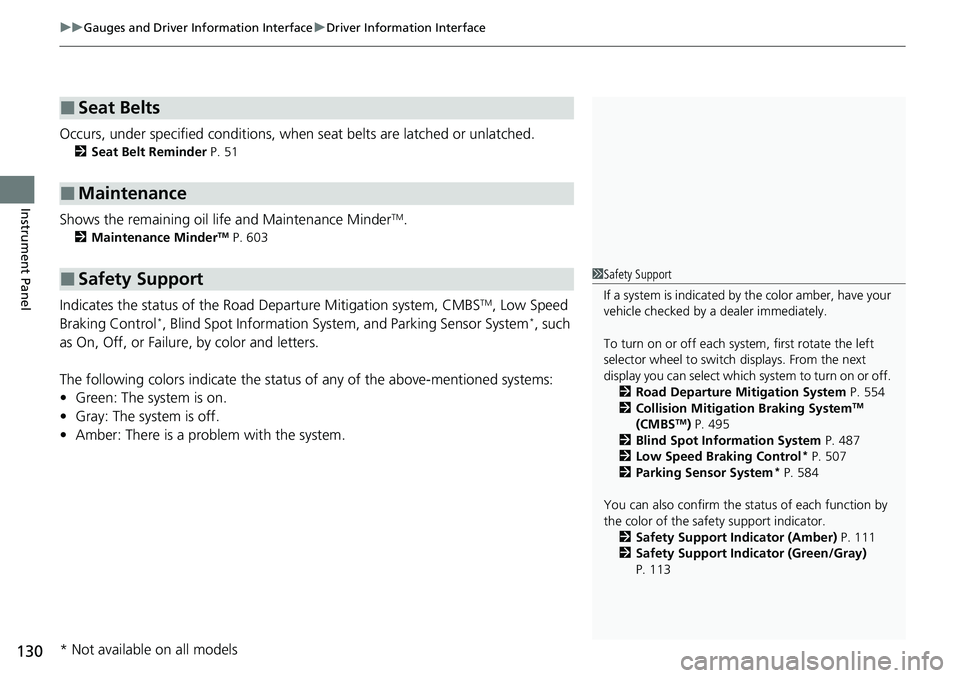
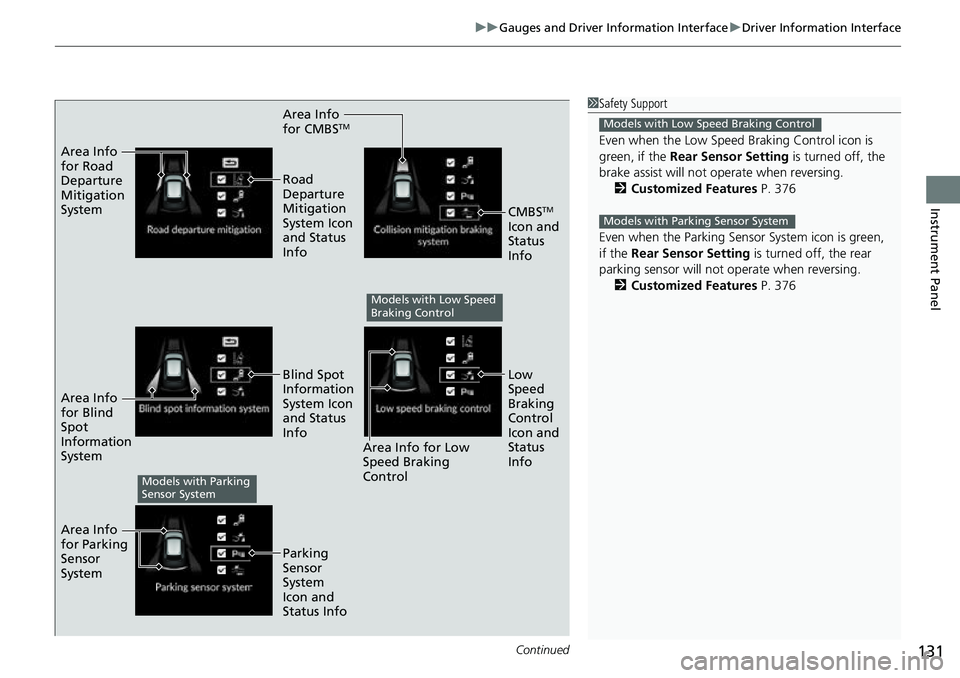
Indicates the status of the Road Departure Mitigation system, CMBSTM, Low Speed
Braking Control*, Blind Spot Information Syst em, and Parking Sensor System*, such
as On, Off, or Failure, by color and letters.
The following colors indica te the status of any of the above-mentioned systems:
• Green: The system is on.
• Gray: The system is off.
• Amber: There is a probl em with the system.
■Seat Belts
■Maintenance
■Safety Support1Safety Support
If a system is indicated by the color amber, have your
vehicle checked by a dealer immediately.
To turn on or off each system, first rotate the left
selector wheel to switch displays. From the next
display you can select which system to turn on or off. 2 Road Departure Mitigation System P. 554
2 Collision Mitigation Braking System
TM
(CMBSTM) P. 495
2 Blind Spot Information System P. 487
2 Low Speed Braking Control
* P. 507
2 Parking Sensor System* P. 584
You can also confirm the st atus of each function by
the color of the safe ty support indicator.
2 Safety Support Indicator (Amber) P. 111
2 Safety Support Indicator (Green/Gray)
P. 113
* Not available on all models
Page 132 of 719
Continued131
uuGauges and Driver Information Interface uDriver Information Interface
Instrument Panel
Area Info
for CMBSTM
Area Info
for Road
Departure
Mitigation
System
Area Info
for Blind
Spot
Information
System
Area Info
for Parking
Sensor
System Road
Departure
Mitigation
System Icon
and Status
Info
Area Info for Low
Speed Braking
Control
Blind Spot
Information
System Icon
and Status
Info
Parking
Sensor
System
Icon and
Status Info
CMBSTM
Icon and
Status
Info
Low
Speed
Braking
Control
Icon and
Status
Info
Models with Low Speed
Braking Control
Models with Parking
Sensor System
1 Safety Support
Even when the Low Speed Braking Control icon is
green, if the Rear Sensor Setting is turned off, the
brake assist will not operate when reversing.
2 Customized Features P. 376
Even when the Parking Sensor System icon is green,
if the Rear Sensor Setting is turned off, the rear
parking sensor will not operate when reversing. 2 Customized Features P. 376
Models with Low Speed Braking Control
Models with Parking Sensor System
Page 189 of 719
188
uuOperating the Switches Around the Steering Wheel uLight Switches
Controls
Light Switches
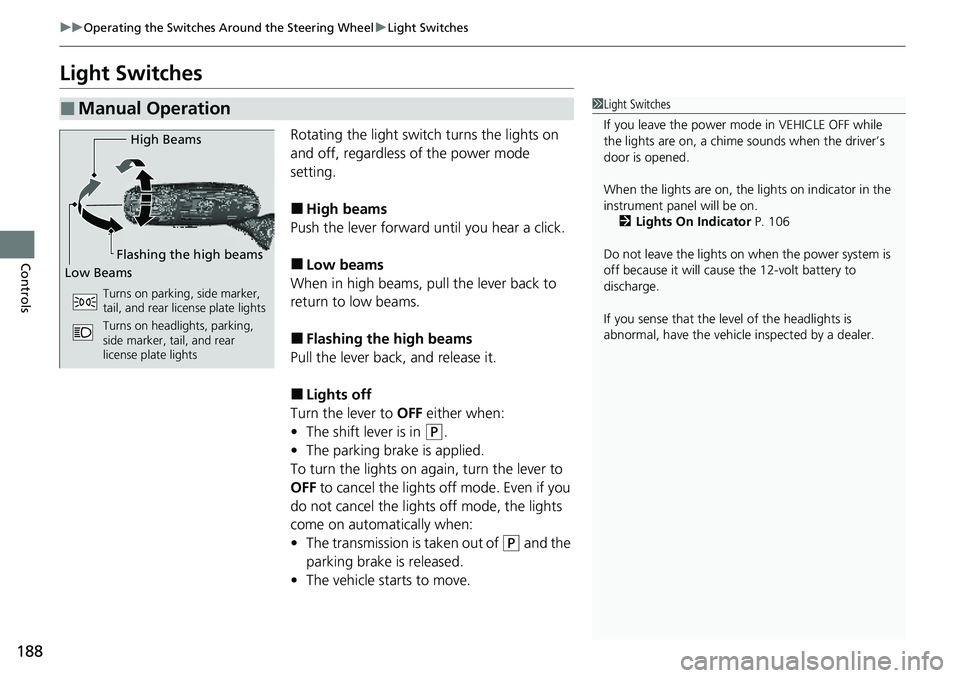
Rotating the light switch turns the lights on
and off, regardless of the power mode
setting.
■High beams
Push the lever forward until you hear a click.
■Low beams
When in high beams, pull the lever back to
return to low beams.
■Flashing the high beams
Pull the lever back, and release it.
■Lights off
Turn the lever to OFF either when:
• The shift lever is in
(P.
• The parking brake is applied.
To turn the lights on again, turn the lever to
OFF to cancel the lights off mode. Even if you
do not cancel the lights off mode, the lights
come on automatically when:
• The transmission is taken out of
(P and the
parking brake is released.
• The vehicle starts to move.
■Manual Operation1Light Switches
If you leave the power mode in VEHICLE OFF while
the lights are on, a chime sounds when the driver’s
door is opened.
When the lights are on, the lights on indicator in the
instrument pane l will be on.
2 Lights On Indicator P. 106
Do not leave the lights on when the power system is
off because it will caus e the 12-volt battery to
discharge.
If you sense that the le vel of the headlights is
abnormal, have the vehicl e inspected by a dealer.
High Beams
Flashing the high beams
Low Beams
Turns on parking, side marker,
tail, and rear license plate lights
Turns on headlights, parking,
side marker, tail, and rear
license plate lights
Page 190 of 719
Continued189
uuOperating the Switches Around the Steering Wheel uLight Switches
Controls
Automatic lighting control can be used when
the power mode is in ON.
When the light switch is in AUTO, the
headlights and other exterior lights will switch
on and off automatically depending on the
ambient brightness.
The headlights come on when you unlock a
door in dark areas with the headlight switch in
AUTO .
u Once you lock the door, the headlights
will go off.
■Automatic Operation (automatic lighting control)1Automatic Operation (aut omatic lighting control)
We recommend that you tu rn on the lights manually
when driving at night, in a de nse fog, or in dark areas
such as long tunnels or parking facilities.
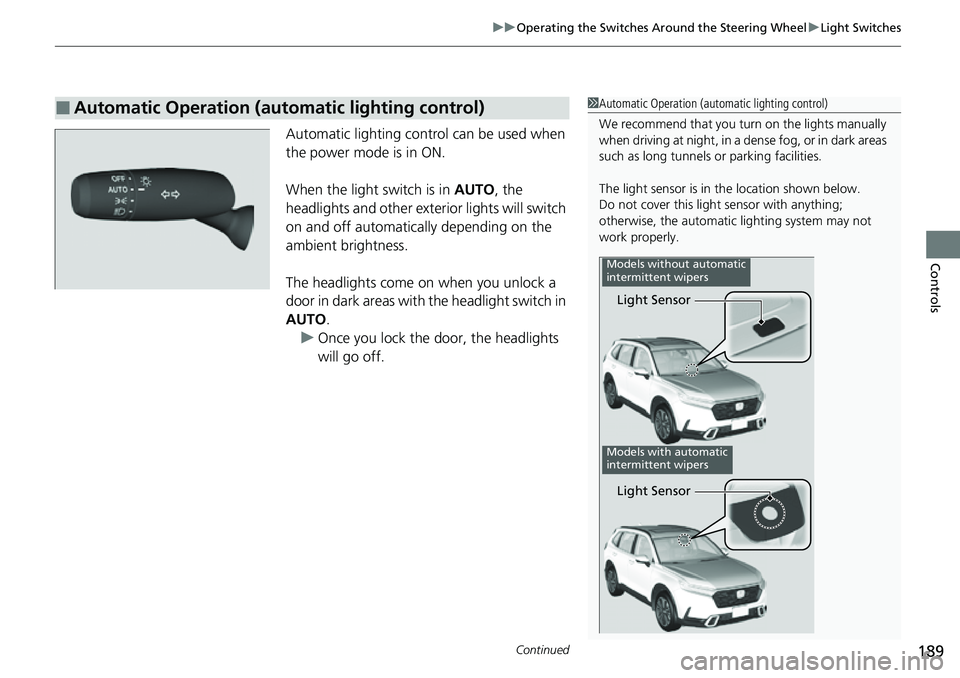
The light sensor is in the location shown below.
Do not cover this light sensor with anything;
otherwise, the automatic lighting system may not
work properly.
Light Sensor
Models without automatic
intermittent wipers
Models with automatic
intermittent wipers
Light Sensor
Page 193 of 719
192
uuOperating the Switches Around the Steering Wheel uDaytime Running Lights
Controls
Daytime Running Lights
The parking/daytime running lights come on when the following conditions have
been met:
• The power mode is in ON.
• The headlight switch is AUTO or .
• The parking brake is released.
The lights remain on even if you set the parking brake. Setting the power mode to
VEHICLE OFF will turn off the daytime running lights.
The daytime running lights are off once the headlight switch is turned on, or when
the headlight switch is in AUTO and it is getting darker outside.
Page 202 of 719
201
uuOperating the Switches Around the Steering Wheel uDriving Position Memory System*
Controls
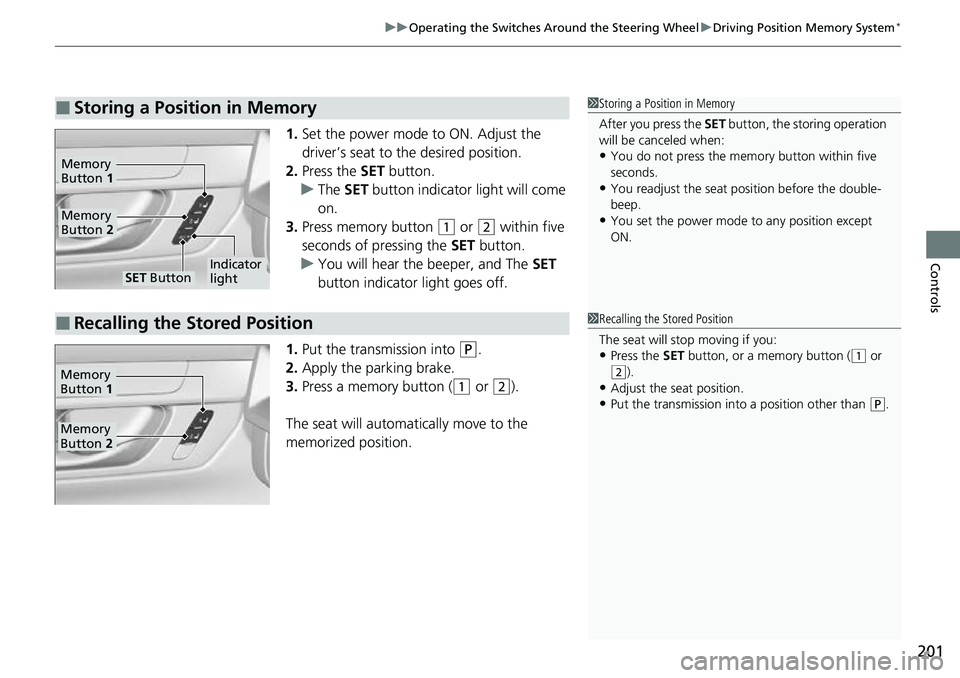
1. Set the power mode to ON. Adjust the
driver’s seat to the desired position.
2. Press the SET button.
u The SET button indicator light will come
on.
3. Press memory button
(1 or (2 within five
seconds of pressing the SET button.
u You will hear the beeper, and The SET
button indicator light goes off.
1. Put the transmission into
(P.
2. Apply the parking brake.
3. Press a memory button (
(1 or (2).
The seat will automatically move to the
memorized position.
■Storing a Position in Memory1 Storing a Position in Memory
After you press the SET button, the storing operation
will be canceled when:
•You do not press the memory button within five
seconds.
•You readjust the seat position before the double-
beep.
•You set the power mode to any position except
ON.
SET ButtonIndicator
light
Memory
Button 2
Memory
Button 1
■Recalling the Stored Position1Recalling the Stored Position
The seat will st op moving if you:
•Press the SET button, or a memory button ((1 or (2).
•Adjust the seat position.
•Put the transmission into a position other than (P.
Memory
Button 1
Memory
Button 2
Page 394 of 719
393
uuCustomized Features u
Continued
Features
*1:Default Setting
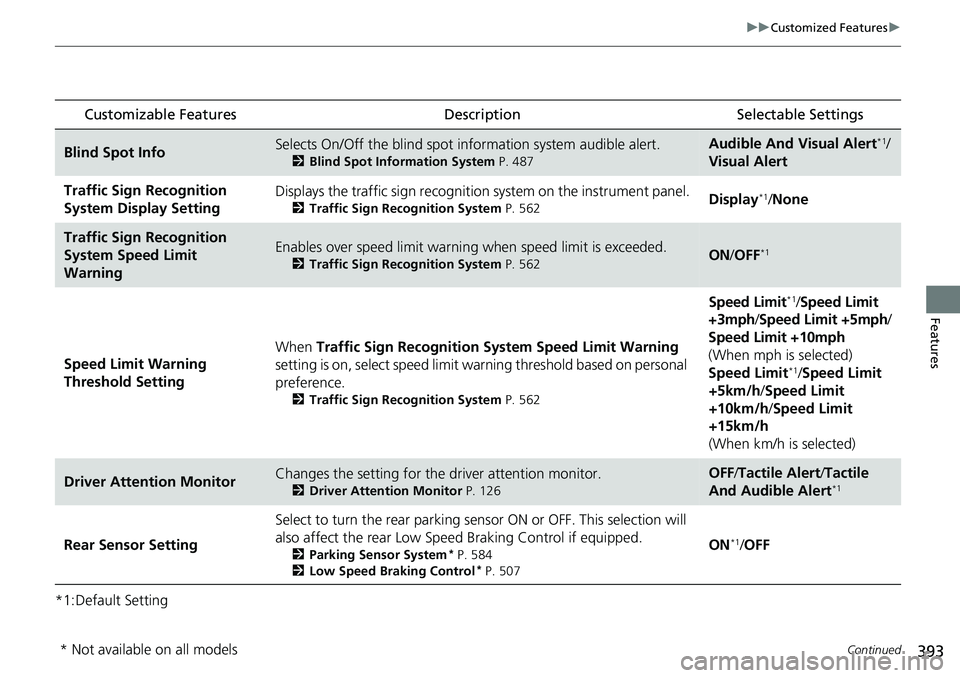
Customizable Features Description Selectable Settings
Blind Spot InfoSelects On/Off the blind spot information system audible alert.
2Blind Spot Information System P. 487
Audible And Visual Alert*1/
Visual Alert
Traffic Sign Recognition
System Display SettingDisplays the traffic sign recognition system on the instrument panel.
2 Traffic Sign Recognition System P. 562Display*1/None
Traffic Sign Recognition
System Speed Limit
WarningEnables over speed limit warning when speed limit is exceeded.
2Traffic Sign Recognition System P. 562ON/OFF*1
Speed Limit Warning
Threshold Setting When
Traffic Sign Recognition Sy stem Speed Limit Warning
setting is on, select speed limit warning threshold based on personal
preference.
2 Traffic Sign Recognition System P. 562
Speed Limit*1/Speed Limit
+3mph/ Speed Limit +5mph /
Speed Limit +10mph
(When mph is selected)
Speed Limit
*1/ Speed Limit
+5km/h /Speed Limit
+10km/h /Speed Limit
+15km/h
(When km/h is selected)
Driver Attention MonitorChanges the setting for the driver attention monitor.
2Driver Attention Monitor P. 126
OFF/Tactile Alert /Tactile
And Audible Alert*1
Rear Sensor Setting Select to turn the rear parking sens
or ON or OFF. This selection will
also affect the rear Low Speed Braking Control if equipped.2Parking Sensor System* P. 584
2 Low Speed Braking Control* P. 507
ON*1/OFF
* Not available on all models