display HONDA CRV 2023 Repair Manual
[x] Cancel search | Manufacturer: HONDA, Model Year: 2023, Model line: CRV, Model: HONDA CRV 2023Pages: 719, PDF Size: 13.43 MB
Page 287 of 719
286
uuAudio System Basic Operation uSystem Updates
Features
■Connection setup
Use the following procedure to connect to the Internet via a Wi-Fi network.
1. Press the button.
2. Select System Updates .
u If System Updates is not displayed on th e home screen, select All Apps.
3. Select Settings .
4. Select Connection Setup .
5. Select OK.
6. Select an access point from the network list.
u To connect to a hotspot that is not automatically detected, select Options
then Add Network .
7. Enter the password.
u If you check the Use this network to automa tically download system
updates box, you can set the network to be used for system updates.
8. Select Connect .
■Automatic upda te settings*
Use the following procedure to cha nge to the automatic update setting.
1. Press the button.
2. Select System Updates .
u If System Updates is not displayed on th e home screen, select All Apps.
3. Select Settings .
4. Select Automatic Update.
5. Select Accept .
u If you do not want to system update automatically, select Decline.
* Not available on all models
Page 288 of 719
287
uuAudio System Basic Operation uSystem Updates
Continued
Features
■View the update history
Use the following procedure to confirm the update history.
1. Press the button.
2. Select System Updates .
u If System Updates is not displayed on the home screen, select All Apps.
3. Select Settings .
4. Select Update History .
Page 289 of 719
288
uuAudio System Basic Operation uSystem Updates
Features
■Wireless connecti on mode setup
1. Press the button.
2. Select System Updates .
u If System Updates is not displayed on th e home screen, select All Apps.
3. Select Settings .
4. Select Connection Setup .
5. Select OK.
6. Select an access point from the network list.
u To connect to a hotspot that is not automatically detected, select Options
then Add Network .
7. Enter the password.
u If you check the Use this network to automa tically download system
updates box, you can set the network to be used for system updates.
8. Select Connect .
■How to update
1. Press the button.
2. Select System Updates .
u If System Updates is not displayed on th e home screen, select All Apps.
3. Select via Wireless .
4. Select Download .
u A notification appears on the screen if n eed to user acceptance for download.
5. Select Install Now or Install While Vehicle Off .
u A notification appears on the screen if the update is successful.
■How to Update Wirelessly
Page 290 of 719
289
uuAudio System Basic Operation uSystem Updates
Features
■Download the up date files from the server
1. Press the button.
2. Select System Updates .
u If System Updates is not displayed on the home screen, select All Apps.
3. Select Other Methods.
4. Select Via USB .
u A notification appears on the screen.
5. Connect a USB device into the USB port.
u The inventory data is copied into the USB device.
2 USB Ports P. 239
6.Remove the USB device from the USB port.
7. Connect the USB device into your computer, and then download the update files.
u Follow the link to download the required software update files. Refer to
https://usb.honda.com for instructions.
■Update the audio system
1. Press the button.
2. Select System Updates .
3. Select Other Methods.
4. Select Via USB .
u A notification appears on the screen.
5. Connect the USB device with the update files into the USB port.
u A notification appears on the screen.
2 USB Ports P. 239
6.Select Install Now .
u A notification appears on the screen if the update is successful.
■How to Update with a USB Device1How to Update with a USB Device
A USB device with a minimum of 8 GB of free space
or more is recommended.
Be sure to delete any pr evious inventory or update
files from the USB before starting the USB update
process.
Page 292 of 719
291
uuAudio System Basic Operation uDisplay Setup
Continued
Features
Display Setup
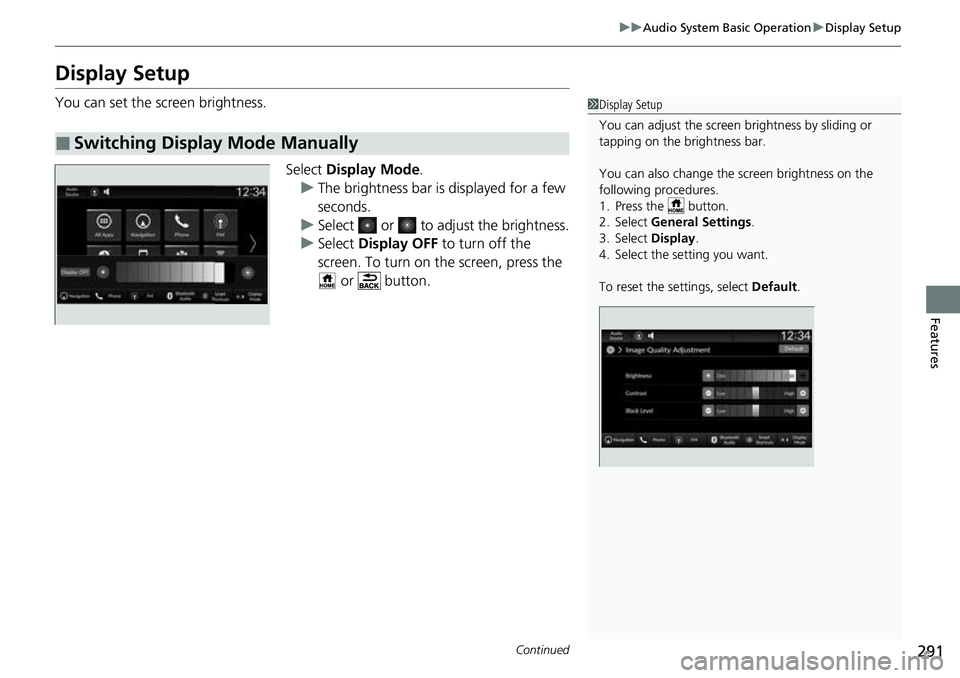
You can set the screen brightness.
Select Display Mode .
u The brightness bar is displayed for a few
seconds.
u Select or to adjust the brightness.
u Select Display OFF to turn off the
screen. To turn on the screen, press the
or button.
■Switching Display Mode Manually
1 Display Setup
You can adjust the screen brightness by sliding or
tapping on the brightness bar.
You can also change the screen brightness on the
following procedures.
1. Press the button.
2. Select General Settings.
3. Select Display .
4. Select the setting you want.
To reset the settings, select Default.
Page 293 of 719
292
uuAudio System Basic Operation uDisplay Setup
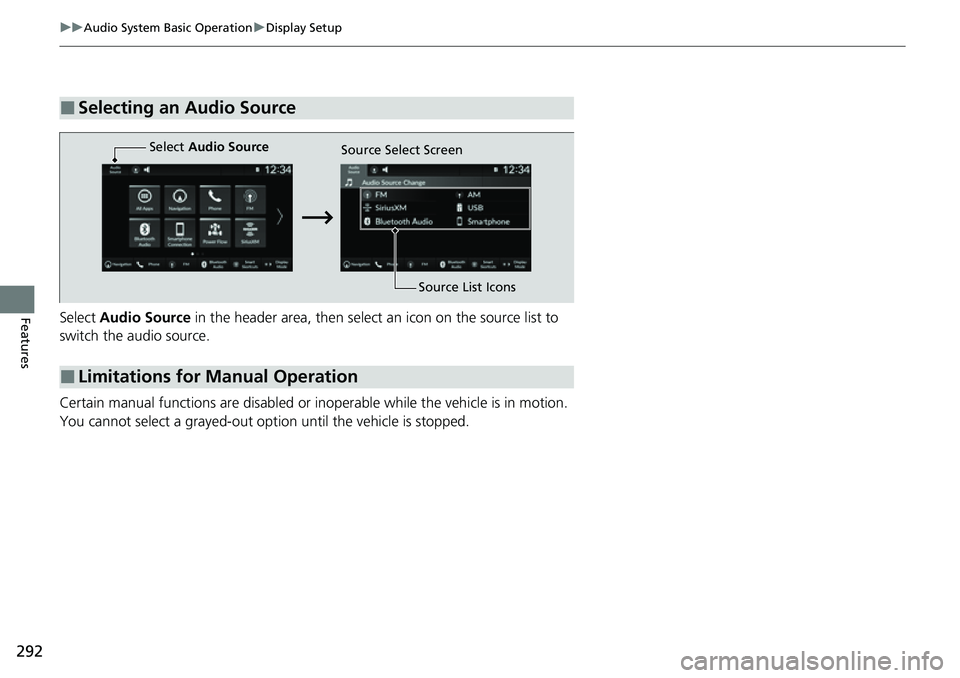
FeaturesSelect Audio Source in the header area, then select an icon on the source list to
switch the audio source.
Certain manual functions are disabled or inoperable while the vehicle is in motion.
You cannot select a grayed-out option until the vehicle is stopped.
■Selecting an Audio Source
■Limitations for Manual Operation
Select Audio Source
Source Select Screen
Source List Icons
Page 295 of 719
294
uuAudio System Basic Operation uVoice Control Operation
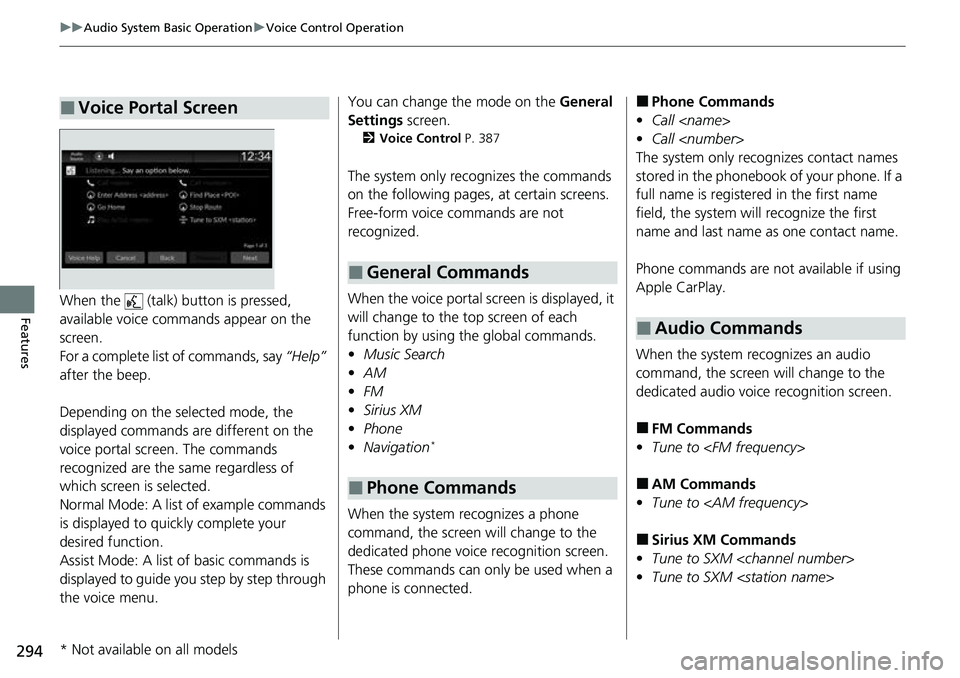
FeaturesWhen the (talk) button is pressed,
available voice commands appear on the
screen.
For a complete list of commands, say “Help”
after the beep.
Depending on the selected mode, the
displayed commands are different on the
voice portal scr een. The commands
recognized are the same regardless of
which screen is selected.
Normal Mode: A list of example commands
is displayed to quickly complete your
desired function.
Assist Mode: A list of basic commands is
displayed to guide you step by step through
the voice menu.
■Voice Portal ScreenYou can change the mode on the General
Settings screen.
2Voice Control P. 387
The system only rec ognizes the commands
on the following pages, at certain screens.
Free-form voice commands are not
recognized.
When the voice portal screen is displayed, it
will change to the top screen of each
function by using the global commands.
• Music Search
• AM
• FM
• Sirius XM
• Phone
• Navigation
*
When the system recognizes a phone
command, the screen will change to the
dedicated phone voice recognition screen.
These commands can only be used when a
phone is connected.
■General Commands
■Phone Commands
■Phone Commands
• Call
• Call
The system only recognizes contact names
stored in the phonebook of your phone. If a
full name is registered in the first name
field, the system will recognize the first
name and last name as one contact name.
Phone commands are not available if using
Apple CarPlay.
When the system re cognizes an audio
command, the screen will change to the
dedicated audio voice recognition screen.
■FM Commands
• Tune to
■AM Commands
• Tune to
■Sirius XM Commands
• Tune to SXM
• Tune to SXM
■Audio Commands
* Not available on all models
Page 297 of 719
296
uuAudio System Basic Operation uPlaying AM/FM Radio
Features
Playing AM/FM Radio
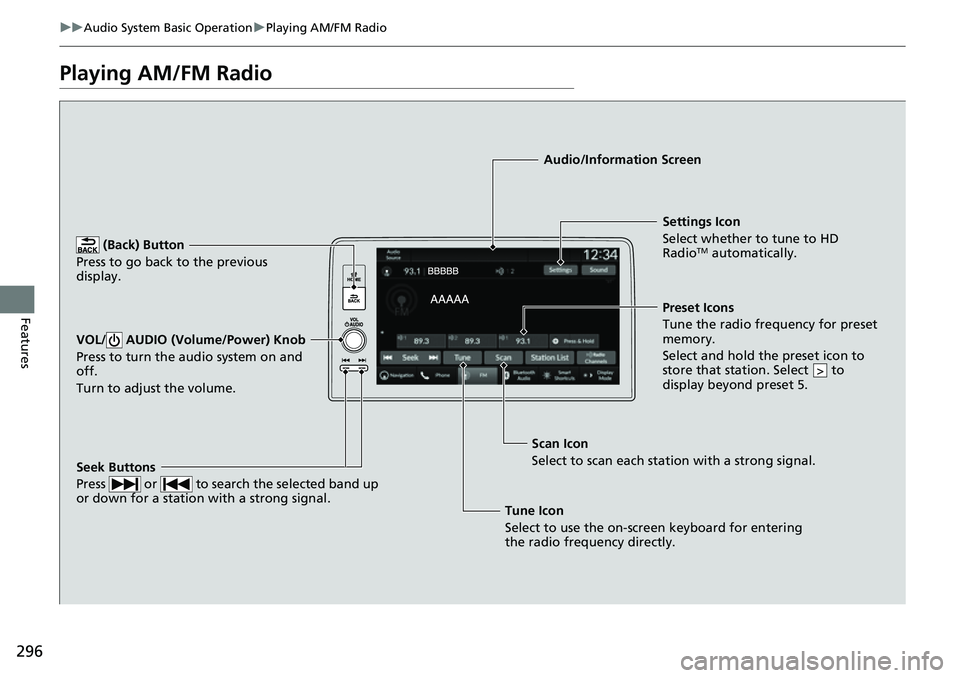
(Back) Button
Press to go back to the previous
display.
Seek Buttons
Press or to search the selected band up
or down for a station with a strong signal.
VOL/ AUDIO (Volume/Power) Knob
Press to turn the audio system on and
off.
Turn to adjust the volume.
Settings Icon
Select whether to tune to HD
Radio
TM automatically.
Tune Icon
Select to use the on-scr een keyboard for entering
the radio frequency directly. Audio/Information Screen
Scan Icon
Select to sca n each stat
ion with a strong signal.
Preset Icons
Tune the radio frequency for preset
memory.
Select and hold the preset icon to
store that station. Select to
display beyond preset 5.
>
Page 298 of 719
Continued297
uuAudio System Basic Operation uPlaying AM/FM Radio
Features
To store a station:
1. Tune to the selected station.
2. Select and hold the preset ic on to store that station.
u Selecting Press & Hold can be set a new preset station.
Lists the strongest stations on the selected band.
1. Select Station List to display a list.
2. Select the station.
■Manual update
Updates your available st ation list at any time.
1. Select Station List to display a list.
2. Select Refresh .
■Preset Memory
■Station List
1Preset Memory
The ST indicator appears on the display indicating
stereo FM broadcasts.
Stereo reproduction in AM is not available.
Switching the Audio Mode
Roll the left selector wheel or select Audio Source
on the screen. 2 Audio Remote Controls P. 242
You can store 12 AM/FM st ations into preset
memory.
HD Radio Technology manufactured under license
from iBiquity Digi tal Corporation. U.S. and Foreign
Patents. For patents see http://dts.com/patents. HD
Radio, Artist Experience, and the HD, HD Radio, and
“ARC” logos are registered trademarks or
trademarks of iBiquity Di gital Corporation in the
United States and/ or other countries.
Page 299 of 719
uuAudio System Basic Operation uPlaying AM/FM Radio
298
Features
Samples each of the strongest stations on th e selected band for 10 seconds. To turn
off scan, select Stop or press the button.
Displays the subchannel list when an HD Radio
TM station is selected while listening to
an FM station.
1. Select HD Radio Channels.
2. Select the channel number.
Provides text data information related to your selected RDS-capable FM station.
■To find an RDS station from Station List
1. Select Station List to display a list while listening to an FM station.
2. Select the station.
■Manual update
Updates your available station list at any time.
1. Select Station List to display a list while listening to an FM station.
2. Select Refresh .
■Scan
■HD Subchannel
■Radio Data System (RDS)1Radio Data System (RDS)
When you select an RDS-capable FM station, the RDS
automatically turns on, and the frequency display
changes to the station name. However, when the
signals of that station become weak, the display
changes from the statio n name to the frequency.