reset HONDA FIT 2010 2.G User Guide
[x] Cancel search | Manufacturer: HONDA, Model Year: 2010, Model line: FIT, Model: HONDA FIT 2010 2.GPages: 351, PDF Size: 5.67 MB
Page 160 of 351

SEEK-The SEEK function
searches up and down from the
current frequency to find a station
with a strong signal. To activate it,
press and hold the
orside of the
TUNE bar until you hear a beep,
then release it. SCAN -The SCAN function
samples all stations with strong
signals on the selected band. To
activate it, press the SCAN button,
then release it. You will see SCAN in
the display. The system will scan for
a station with a strong signal. When
it finds one, it will stop and play that
station for about 10 seconds. If you do nothing, the system will
then scan for the next strong station
and play it for 10 seconds. When it
plays a station you want to listen to,
press the SCAN button again. Preset
-Each preset button can
store one frequency on AM and two
frequencies on FM.
1. Select the desired band, AM or FM. FM1 and FM2 let you store
two frequencies with each presetbutton.
2. Use the tune, seek, or scan function to tune the radio to a
desired station.
3. Pick a preset button, and hold it until you hear a beep.
4. Repeat steps 1 through 3 to store a total of six stations on AM and
twelve stations on FM. Each preset button's frequency is
shown on the bottom of the audiodisplay.
CONTINUED
Playing the AM/FM Radio (Models with navigation system)
145
Features
Table of Contents
Page 161 of 351
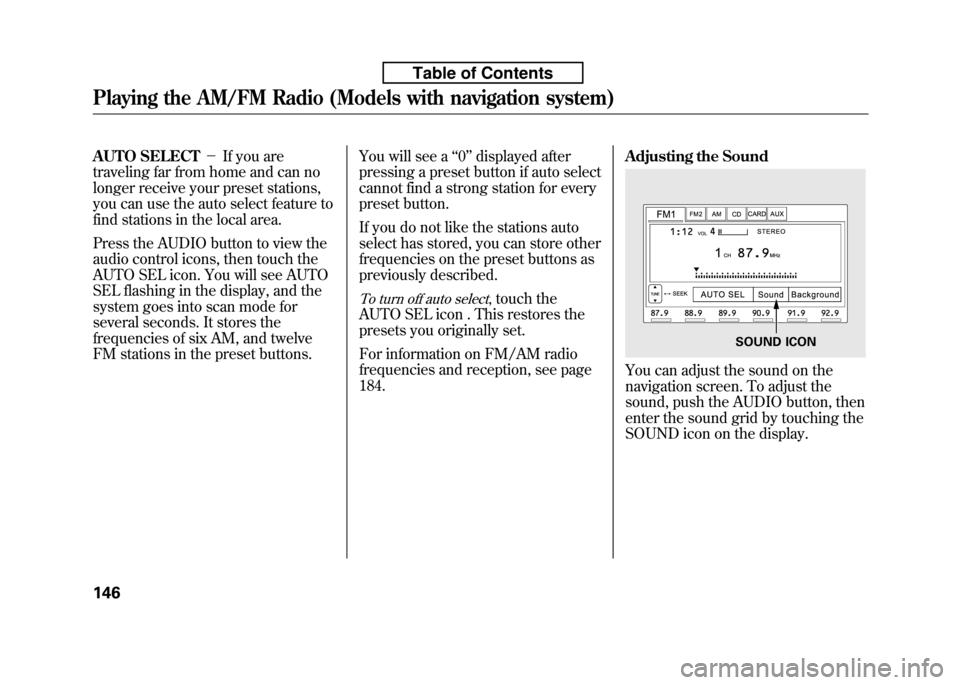
AUTO SELECT-If you are
traveling far from home and can no
longer receive your preset stations,
you can use the auto select feature to
find stations in the local area.
Press the AUDIO button to view the
audio control icons, then touch the
AUTO SEL icon. You will see AUTO
SEL flashing in the display, and the
system goes into scan mode for
several seconds. It stores the
frequencies of six AM, and twelve
FM stations in the preset buttons. You will see a
‘‘0 ’’ displayed after
pressing a preset button if auto select
cannot find a strong station for every
preset button.
If you do not like the stations auto
select has stored, you can store other
frequencies on the preset buttons as
previously described.
To turn off auto select, touch the
AUTO SEL icon . This restores the
presets you originally set.
For information on FM/AM radio
frequencies and reception, see page184. Adjusting the Sound
You can adjust the sound on the
navigation screen. To adjust the
sound, push the AUDIO button, then
enter the sound grid by touching the
SOUND icon on the display.
SOUND ICON
Playing the AM/FM Radio (Models with navigation system)
146
Table of Contents
Page 167 of 351
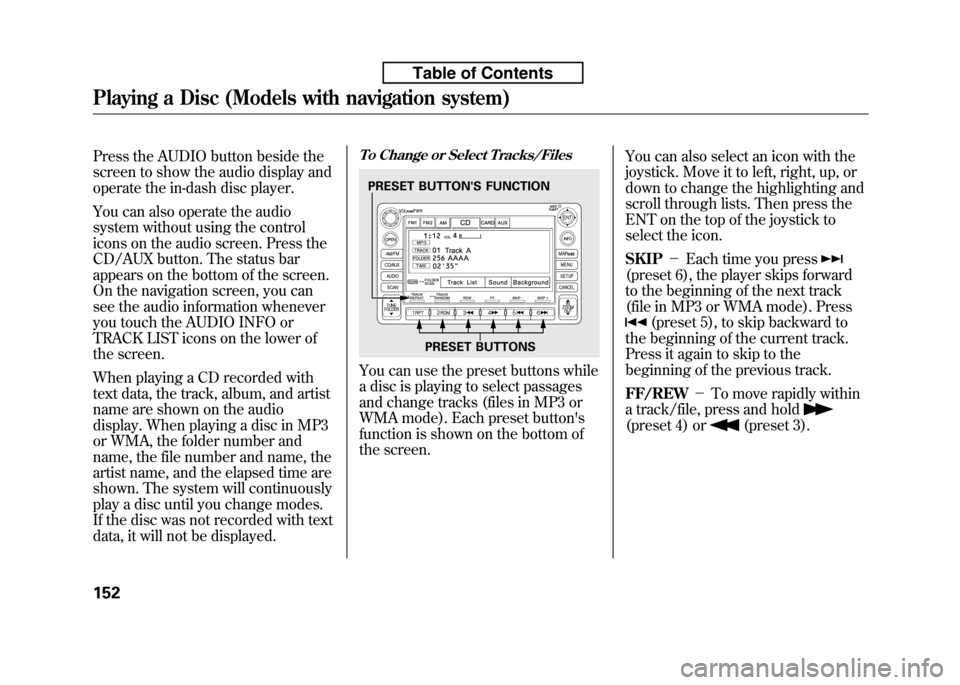
Press the AUDIO button beside the
screen to show the audio display and
operate the in-dash disc player.
You can also operate the audio
system without using the control
icons on the audio screen. Press the
CD/AUX button. The status bar
appears on the bottom of the screen.
On the navigation screen, you can
see the audio information whenever
you touch the AUDIO INFO or
TRACK LIST icons on the lower of
the screen.
When playing a CD recorded with
text data, the track, album, and artist
name are shown on the audio
display. When playing a disc in MP3
or WMA, the folder number and
name, the file number and name, the
artist name, and the elapsed time are
shown. The system will continuously
play a disc until you change modes.
If the disc was not recorded with text
data, it will not be displayed.To Change or Select Tracks/Files
You can use the preset buttons while
a disc is playing to select passages
and change tracks (files in MP3 or
WMA mode). Each preset button's
function is shown on the bottom of
the screen.You can also select an icon with the
joystick. Move it to left, right, up, or
down to change the highlighting and
scroll through lists. Then press the
ENT on the top of the joystick to
select the icon. SKIP
-Each time you press
(preset 6), the player skips forward
to the beginning of the next track
(file in MP3 or WMA mode). Press
(preset 5), to skip backward to
the beginning of the current track.
Press it again to skip to the
beginning of the previous track. FF/REW -To move rapidly within
a track/file, press and hold
(preset 4) or(preset 3).
PRESET BUTTON'S FUNCTION
PRESET BUTTONS
Playing a Disc (Models with navigation system)
152
Table of Contents
Page 168 of 351

In MP3 or WMA mode
FOLDER SELECTION-To select
a different folder, press either side of
the TUNE FOLDER bar to move to
the beginning of the next folder.
Press the
side of the TUNE
FOLDER bar to skip to the next
folder, and the
side to move to the
beginning of the current folder.
Press it again to skip to the
beginning of the previous folder.
TRACK REPEAT (FILE REPEAT) - To continuously replay a track
(file in MP3 or WMA mode), press
the RPT button (preset 1). You willsee ‘‘TRACK REPEAT ’’in the
display. Press the RPT button again
to turn it off.
In MP3 or WMA mode
FOLDER REPEAT -This feature,
when activated, replays all files on
the selected folder in the order they
are compressed. To activate folder
repeat, press and hold the RPT
button (preset 1) for 2 seconds. You
will see ‘‘FOLDER REPEAT ’’in the
display. The system continuously
replays the current folder. Press the
RPT button again to turn it off.
Selecting a different folder with the
TUNE FOLDER bar also turns off
folder repeat.
TRACK RANDOM (Random
within a disc/folder) -This
feature plays the tracks/files within a
disc in random order. To activate
track random, press the RDM button
(preset 2). You will see ‘‘TRACK
RANDOM ’’in the display. Press the
RDM button again to return to
normal play.
In MP3 or WMA mode
FOLDER RANDOM -This
feature, when activated, plays all files
in the selected folder in random
order, rather than in the order they
are compressed. To activate folder
random, press and hold the RDM
button. You will see ‘‘FOLDER
RANDOM ’’in the display. The
system then selects and plays files
randomly. This continues until you
deactivate folder random by pressing
the RDM button again, or if you
select a different folder with the
TUNE FOLDER bar.
CONTINUED
Playing a Disc (Models with navigation system)
153
Features
Table of Contents
Page 169 of 351
SCAN (TRACK/FILE SCAN)-
The scan function samples all tracks
(files in MP3 or WMA) in the order
they were recorded. To activate scan,
press the SCAN button. You will see‘‘ TRACK SCAN ’’in the display. You
will get a 10 second sampling of each
track/file on the disc. Press the
SCAN button to get out of scan mode
and play the last track/file sampled.
Pressing either SKIP button (preset
5 or 6) also turns off scan.In MP3 or WMA mode
FOLDER SCAN -This feature,
when activated, samples all the first
files in each folder on the disc in
order. To activate folder scan, press
and hold the SCAN button for 2
seconds. You will see ‘‘FOLDER
SCAN ’’in the display.
The system plays the first file in each
folder for about 10 seconds. If you do
nothing, the system then plays the
first file in each folder for 10 seconds
each. After playing the first file of the
last folder, the system goes to normalplaying.
Pressing either SKIP button (preset
5 or 6), or selecting a different folder
with the TUNE FOLDER bar, or
pressing the SCAN button, also turns
off folder scan.
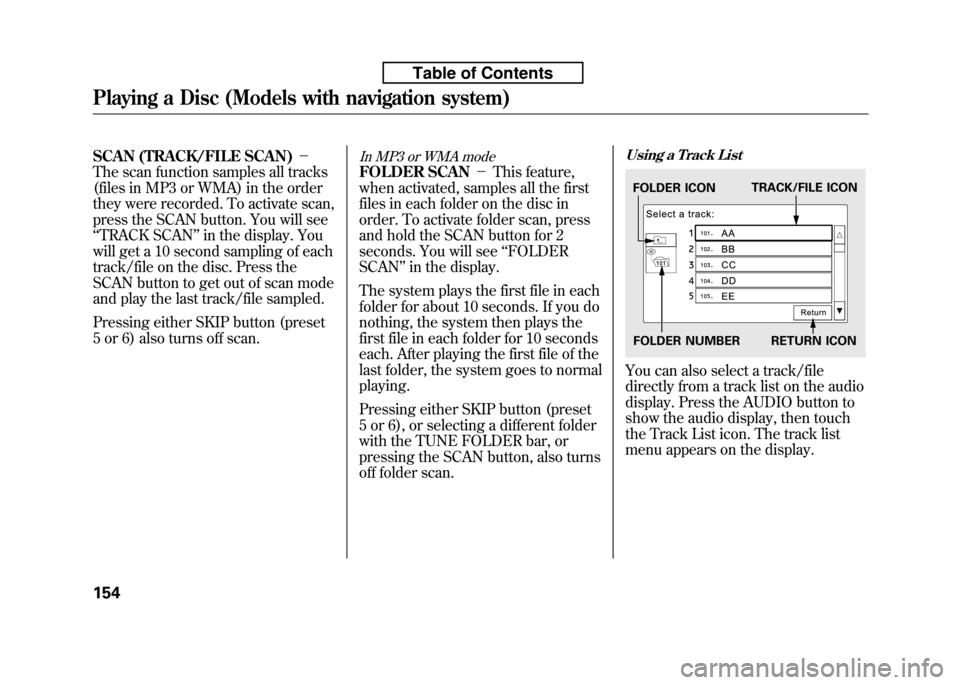
Using a Track List
You can also select a track/file
directly from a track list on the audio
display. Press the AUDIO button to
show the audio display, then touch
the Track List icon. The track list
menu appears on the display.
FOLDER ICON TRACK/FILE ICON
FOLDER NUMBER RETURN ICON
Playing a Disc (Models with navigation system)
154
Table of Contents
Page 178 of 351
If you select‘‘Play a new track list, ’’
the system goes into the selected
play mode immediately and begins to
play the new track list.
To go back to the previous screen,
press the CANCEL button on the
right side of the screen. To exit the
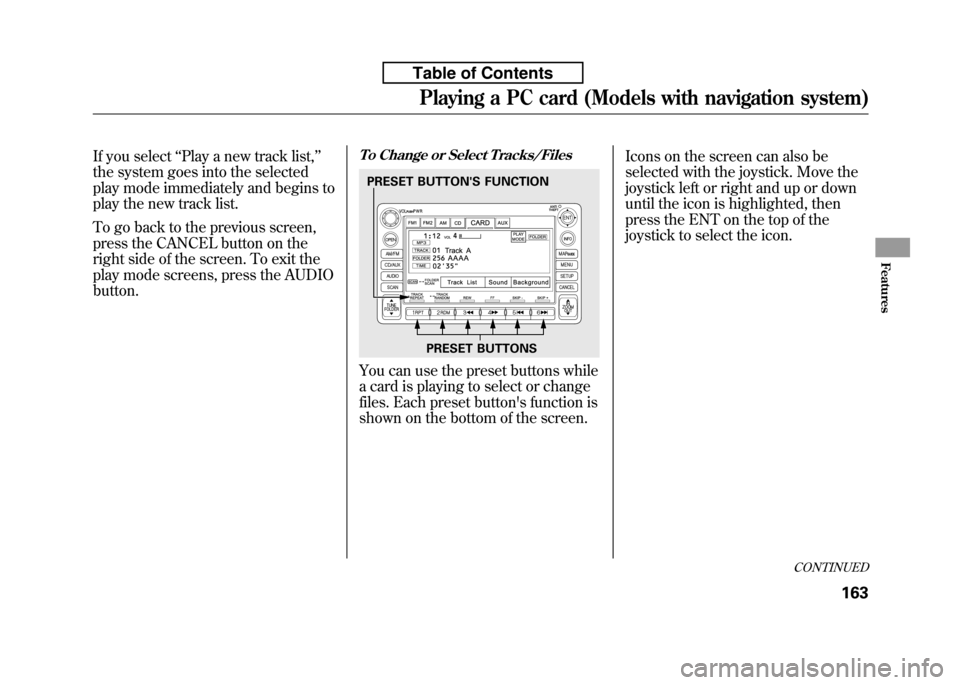
play mode screens, press the AUDIObutton.To Change or Select Tracks/Files
You can use the preset buttons while
a card is playing to select or change
files. Each preset button's function is
shown on the bottom of the screen. Icons on the screen can also be
selected with the joystick. Move the
joystick left or right and up or down
until the icon is highlighted, then
press the ENT on the top of the
joystick to select the icon.
PRESET BUTTONS
PRESET BUTTON'S FUNCTION
CONTINUED
Playing a PC card (Models with navigation system)
163
Features
Table of Contents
Page 179 of 351

SKIP-Each time you press
(preset 6), the player skips forward
to the beginning of the next file.Press
(preset 5), to skip
backward to the beginning of the
current file. Press it again to skip to
the beginning of the previous file. FF/REW -To move rapidly within
a file, press and hold
(preset 4)
or
(preset 3).
FOLDER SELECTION -To select
a different folder, press either side of
the TUNE FOLDER bar to move the
beginning of the next folder. Pressthe
side of the TUNE FOLDER
bar to skip the next folder, and to the
side to move the beginning of the
current folder. Press it again to skip
to the beginning of the previousfolder. TRACK REPEAT (FILE REPEAT)-
To continuously replay a file,
press the RPT button (preset 1). You
will see ‘‘TRACK REPEAT ’’in the
display. Press the RPT button again
to turn it off.
FOLDER/ARTIST/ALBUM REPEAT -This feature, when
activated, replays all the files on the
selected folder/artist/album in the
order they are recorded or listed. To
activate each repeat mode, press and
hold the RPT button (preset 1) for 2
seconds. You will see ‘‘FOLDER
REPEAT, ARTIST REPEAT or
ALBUM REPEAT ’’in the display.
The system continuously replays the
current folder/artist/album. Press
and hold the RPT button again to
turn it off. Pressing the RDM button,
or selecting a different folder/artist/
album with the TUNE FOLDER bar
also turns off the repeat feature. TRACK RANDOM (Random
within a folder)
-This feature
plays the files within a folder in
random order. To activate random
play, press the RDM button (preset
2). You will see ‘‘TRACK RANDOM ’’
in the display. Press the RDM button
again to return to normal play.
FOLDER/ARTIST/ALBUM RANDOM -This feature, when
activated, plays all files in each
folder/artist/album in random order,
rather than in the order they are
recorded or listed. To activate each
random play, push and hold the
RDM button (preset 2) for 2 seconds.
You will see ‘‘FOLDER RANDOM,
ARTIST RANDOM or ALBUMRANDOM ’’in the display.
Playing a PC card (Models with navigation system)
164
Table of Contents
Page 180 of 351

The system then selects and plays
files randomly. This continues until
you deactivate each random play by
pressing the RDM button again. SCAN-The SCAN function
samples all the files on the PC card in
the order they are recorded. To
activate the scan feature, press the
SCAN button. You will see ‘‘TRACK
SCAN ’’in the display. You will get a
10 second sampling of each file on
the PC card. Press the SCAN button
again to get out of scan mode and
play the last file sampled.
Pressing either of the SKIP buttons
(preset 5 or 6) also turns off the scanfeature. FOLDER/ARTIST/ALBUM SCAN-
This feature, when activated,
samples the first file in each folder/
artist/album on the PC card in order.
To activate each scan feature, press
and hold the SCAN button. You willsee ‘‘FOLDER SCAN, ARTIST SCAN
or ALBUM SCAN ’’in the display.
The system plays the first file in the
folder for about 10 seconds. If you do
nothing, the system plays the first
file in each folder, in order, for 10
seconds each. After playing the first
file of the last folder/artist/album,
the system returns to normal play. Pressing either of the SKIP buttons
(preset 5 or 6), selecting a different
folder/artist/album with the TUNE
FOLDER bar, or pressing the SCAN
button, also turns off the scanfeature.
CONTINUED
Playing a PC card (Models with navigation system)
165
Features
Table of Contents
Page 187 of 351
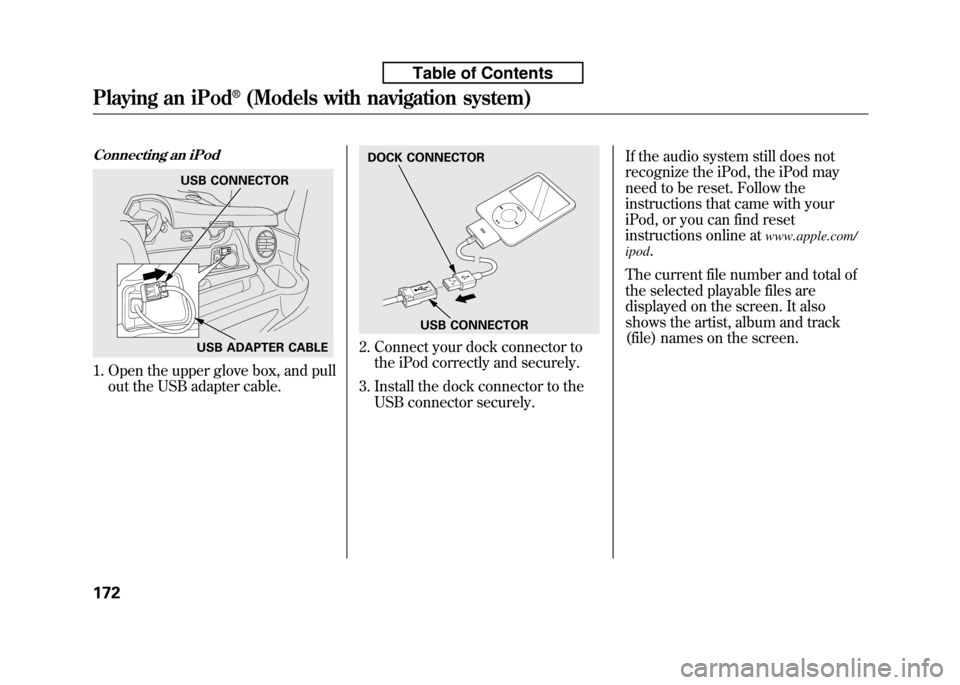
Connecting an iPod
1. Open the upper glove box, and pullout the USB adapter cable.
2. Connect your dock connector tothe iPod correctly and securely.
3. Install the dock connector to the USB connector securely. If the audio system still does not
recognize the iPod, the iPod may
need to be reset. Follow the
instructions that came with your
iPod, or you can find reset
instructions online at
www.apple.com/
ipod .
The current file number and total of
the selected playable files are
displayed on the screen. It also
shows the artist, album and track
(file) names on the screen.
USB CONNECTOR
USB ADAPTER CABLE
DOCK CONNECTOR
USB CONNECTOR
Playing an iPod®(Models with navigation system)
172
Table of Contents
Page 188 of 351
To Change or Select Files
Use the SKIP button while an iPod is
playing to select passages and
change files. SKIP-Each time you press the
SKIP +button (Preset 6), the
system skips forward to the
beginning of the next file. Press theSKIP -button (Preset 5), to skip
backward to the beginning of the
current file. Press it again to skip to
the beginning of the previous file.
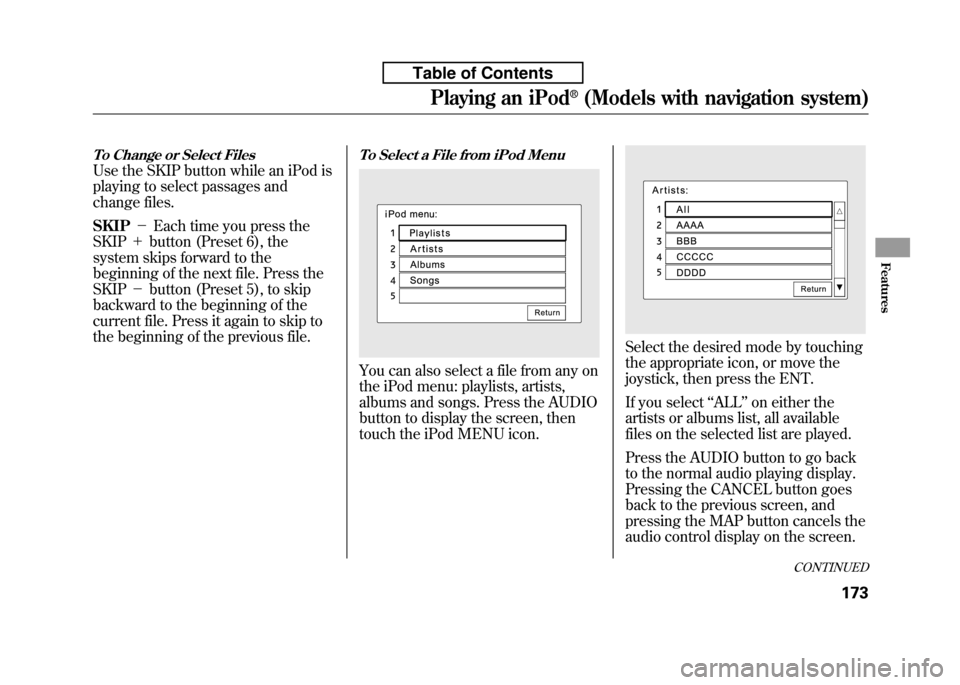
To Select a File from iPod Menu
You can also select a file from any on
the iPod menu: playlists, artists,
albums and songs. Press the AUDIO
button to display the screen, then
touch the iPod MENU icon.
Select the desired mode by touching
the appropriate icon, or move the
joystick, then press the ENT.
If you select ‘‘ALL ’’on either the
artists or albums list, all available
files on the selected list are played.
Press the AUDIO button to go back
to the normal audio playing display.
Pressing the CANCEL button goes
back to the previous screen, and
pressing the MAP button cancels the
audio control display on the screen.
CONTINUED
Playing an iPod®(Models with navigation system)
173
Features
Table of Contents