AUX HONDA FIT 2010 2.G Owner's Manual
[x] Cancel search | Manufacturer: HONDA, Model Year: 2010, Model line: FIT, Model: HONDA FIT 2010 2.GPages: 351, PDF Size: 5.67 MB
Page 197 of 351

FOLDER SCAN-This feature
samples the first file in each folder in
the order they are stored. To activate
the folder scan feature, press and
hold the SCAN button. You will see‘‘ FOLDER SCAN ’’in the display. You
will also see the folder number
blinking. You will get a 10 second
sampling of each first file in the
folder(s). Press the SCAN button to
get out of the scan mode. The system
plays the last file sampled. To Stop Playing a USB Flash
Memory Device
To play the radio when a USB flash
memory device is playing, press the
FM/AM button or touch the FM1,
FM2, or AM icon. If a disc is in the
audio unit, press the CD/AUX button
or touch the CD icon to play the disc.
If a PC card is in the audio unit, press
the CD/AUX button or touch the
CARD icon to play a PC card.
Press the CD/AUX button again or
touch the AUX icon to switch back to
the USB flash memory device.Disconnecting a USB Flash Memory
Device
You can disconnect the USB flash
memory device in any time even if
the USB mode is selected on the
audio system. Always follow the USB
flash memory device's instructions
when you remove it.
When you disconnect the USB flash
memory device while it is playing,
the navigation screen shows ‘‘NO
DATA. ’’
If you reconnect the same USB flash
memory device, the system will
begin playing where it left off.
USB Flash Memory Device Error Messages
If you see an error message on the
screen, see page 183.
Playing a USB Flash Memory Device (Models with navigation system)
182
Table of Contents
Page 204 of 351
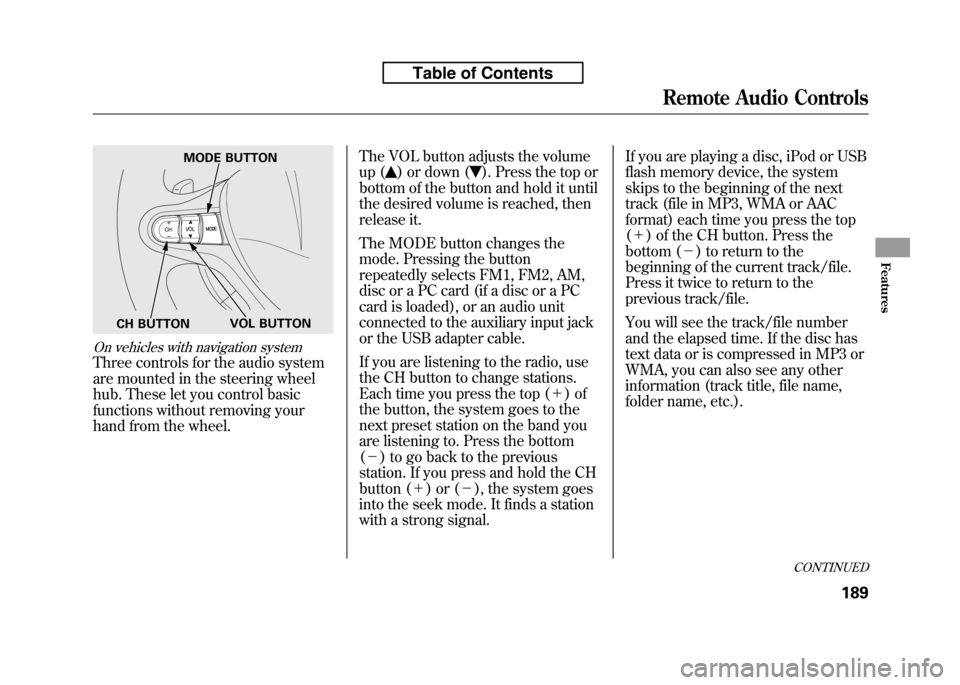
On vehicles with navigation system
Three controls for the audio system
are mounted in the steering wheel
hub. These let you control basic
functions without removing your
hand from the wheel.The VOL button adjusts the volume
up (
) or down (). Press the top or
bottom of the button and hold it until
the desired volume is reached, then
release it.
The MODE button changes the
mode. Pressing the button
repeatedly selects FM1, FM2, AM,
disc or a PC card (if a disc or a PC
card is loaded), or an audio unit
connected to the auxiliary input jack
or the USB adapter cable.
If you are listening to the radio, use
the CH button to change stations.
Each time you press the top ( +)of
the button, the system goes to the
next preset station on the band you
are listening to. Press the bottom( - ) to go back to the previous
station. If you press and hold the CH
button ( +)or( -), the system goes
into the seek mode. It finds a station
with a strong signal. If you are playing a disc, iPod or USB
flash memory device, the system
skips to the beginning of the next
track (file in MP3, WMA or AAC
format) each time you press the top(
+ ) of the CH button. Press the
bottom ( -) to return to the
beginning of the current track/file.
Press it twice to return to the
previous track/file.
You will see the track/file number
and the elapsed time. If the disc has
text data or is compressed in MP3 or
WMA, you can also see any other
information (track title, file name,
folder name, etc.).
MODE BUTTON
VOL BUTTON
CH BUTTON
CONTINUED
Remote Audio Controls
189
Features
Table of Contents
Page 205 of 351
In MP3 or WMA mode, you can use
the skip function to select folders.
Press and hold the top (+) of the CH
button until you hear a beep, to skip
forward to the first file of the next
folder. Press the bottom ( -) to skip
backward to the previous folder.
If you are playing a PC card, press
the top ( +) of the CH button to
advance to the next file. Press the
bottom ( -) to go back to the
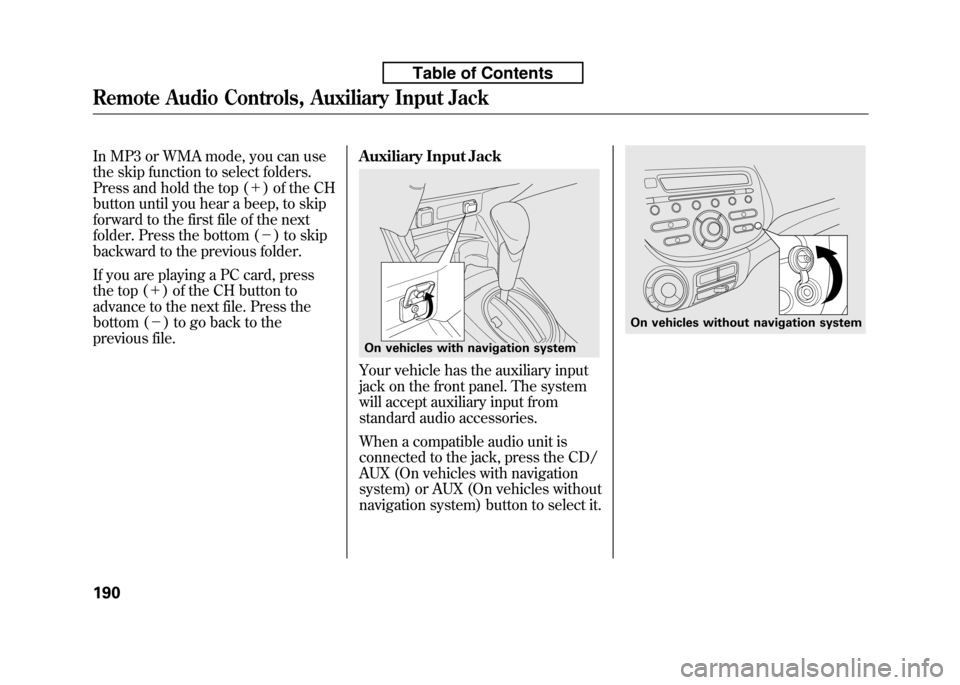
previous file. Auxiliary Input Jack
Your vehicle has the auxiliary input
jack on the front panel. The system
will accept auxiliary input from
standard audio accessories.
When a compatible audio unit is
connected to the jack, press the CD/
AUX (On vehicles with navigation
system) or AUX (On vehicles without
navigation system) button to select it.
On vehicles with navigation system
On vehicles without navigation system
Remote Audio Controls, Auxiliary Input Jack
190
Table of Contents