phone HONDA FIT 2011 2.G Navigation Manual
[x] Cancel search | Manufacturer: HONDA, Model Year: 2011, Model line: FIT, Model: HONDA FIT 2011 2.GPages: 152, PDF Size: 6.63 MB
Page 98 of 152
Navigation System97
System Initialization
GPS Initialization
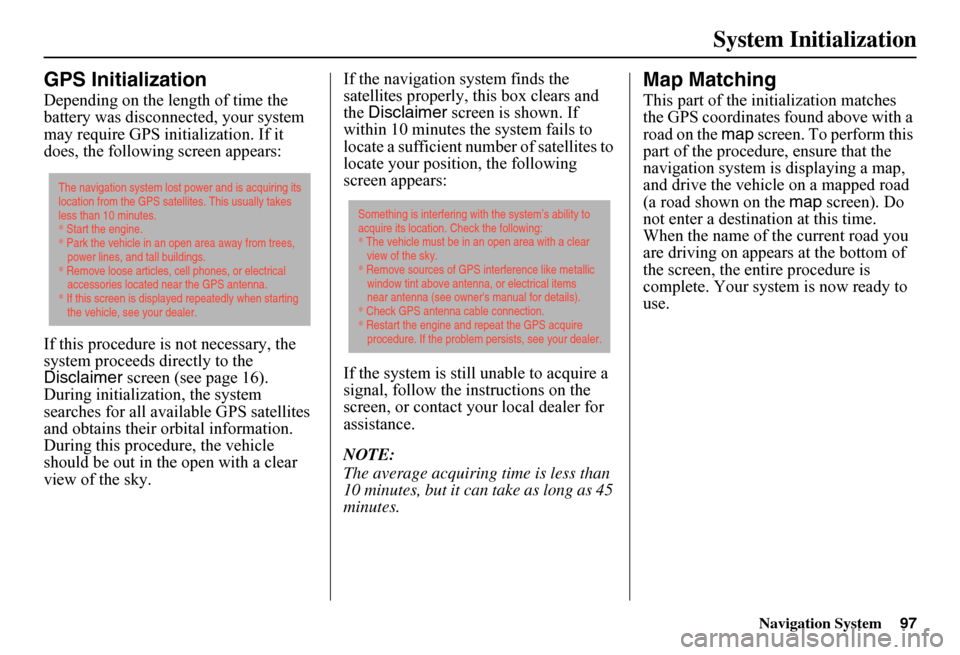
Depending on the length of time the battery was disconnected, your system may require GPS initialization. If it does, the following screen appears:
If this procedure is not necessary, the system proceeds directly to the Disclaimer screen (see page 16). During initialization, the system searches for all available GPS satellites and obtains their orbital information. During this procedure, the vehicle should be out in th e open with a clear view of the sky.
If the navigation system finds the satellites properly, this box clears and the Disclaimer screen is shown. If within 10 minutes the system fails to locate a sufficient number of satellites to locate your position, the following screen appears:
If the system is still unable to acquire a signal, follow the in structions on the screen, or contact you r local dealer for assistance.
NOTE:
The average acquiring time is less than 10 minutes, but it can take as long as 45 minutes.
Map Matching
This part of the initialization matches the GPS coordinates found above with a road on the map screen. To perform this part of the procedure, ensure that the navigation system is displaying a map, and drive the vehicle on a mapped road (a road shown on the map screen). Do not enter a destina tion at this time. When the name of the current road you are driving on appears at the bottom of the screen, the entire procedure is complete. Your system is now ready to use.
The navigation system lost power and is acquiring its location from the GPS satellites. This usually takes less than 10 minutes.* Start the engine. * Park the vehicle in an open area away from trees, power lines, and tall buildings.* Remove loose articles, cell phones, or electrical accessories located near the GPS antenna.* If this screen is displayed repeatedly when starting the vehicle, see your dealer.
Something is interfering with the system’s ability to acquire its location. Check the following:* The vehicle must be in an open area with a clear view of the sky.* Remove sources of GPS interference like metallic window tint above antenna, or electrical items near antenna (see owner's manual for details).* Check GPS antenna cable connection. * Restart the engine and repeat the GPS acquire procedure. If the problem persists, see your dealer.
Page 99 of 152
98Navigation System
System Limitations
Although your navigation system is one of the most highly sophisticated pieces of equipment you will find in a modern automobile, you may find during its use that it has certain limitations.
The system uses Gl obal Positioning System (GPS) signals to aid in determining its current location. The GPS is operated by the U.S.Department of Defense. For security reasons, there are certain inaccuracies built into the GPS that the navigation system must constantly compensate for. This can cause occasional positioning errors of up to se veral hundred feet.
For example, in urban areas where streets are close together, this could cause the system to show that you are traveling on a street that parallels the street you are actually on. The system will, under most circumstances, correct itself while you drive.
Depending on your current view of the sky and the position of the satellites, the elevation may be shown incorrectly. You may also notice some delay of the vehicle position icon at intersections; this is normal.
GPS Reception Issues
The signals received from the GPS satellites are extremely weak (less than a millionth of the strength of a local FM station) and requir e an unobstructed view of the sky. The signal can easily be interrupted or interfered with by the following:
• Aftermarket metallic window tint above or to the sides of the GPS antenna (located under the dashboard)
• Cell phones, PDAs, or other electronic devices docked in a cradle or lying loose on the dashboard
• Radar detectors mounted on the dashboard
• Remote starters, or “hidden” vehicle tracking systems mounted near the navigation unit
• Other aftermarket audio electronic devices mounted near the navigation unit
• Trees, tall buildings, freeway overpasses, tunnels, or overhead electrical power wires
Although the system will direct you to your desired destination, it may not always generate what you consider to be the most direct rout e. Try changing the method of routing. See Changing the Routing Method on page 46. You may also have Unverified Area Routing set to OFF. See Unverified Area Routing on page 83.
Additionally, the mapping database contains verified and unverified maps. See Map Overview on page 6. A Disclaimer screen will warn you if your route includes unverified streets.Unverified streets may be missing from the map, in the wrong location, or have an incorrect name or address range.Exercise addition al caution when driving in these unverified areas.
Page 103 of 152
102Navigation System
Customer Assistance
Reporting Errors
Occasionally, you may encounter database errors.
• If the error pertains to freeways and main “verified” roads shown in black on the map, then report it either online athttp://update.navteq.com/ , or to Honda Customer Service.
• If the error involves a light brown “unverified” road, then do not report it. These areas have not been verified, and are provided for reference only (see Map Overview on page 6).
• For errors in points of interest (POI), like a business that has changed its name, do not report them. Keep in mind that depending on when the data was collected and when your DVD was purchased, the database can be out of date. The business may have not reported the change(s), or not be in the database at all. Update Navigation DVDs are available for purchase, usually in the fall of each year.
• If the error does not involve the database, such as vehicle position icon errors, screen error messages, or other GPS-related errors, see Frequently Asked Questions on page 123, System Limitations on page 98, or Troubleshooting on page 133.
Honda Automobile
Customer Service
Telephone: (800) 999-1009 Fax: (310) 783-3273
Mail: Honda NaviAmerica Honda Motor Co., Inc.Honda Customer ServiceMS 500-2N-7A1919 Torrance Blvd.Torrance, CA 90501-2746
Page 124 of 152
Navigation System123
Frequently Asked Questions
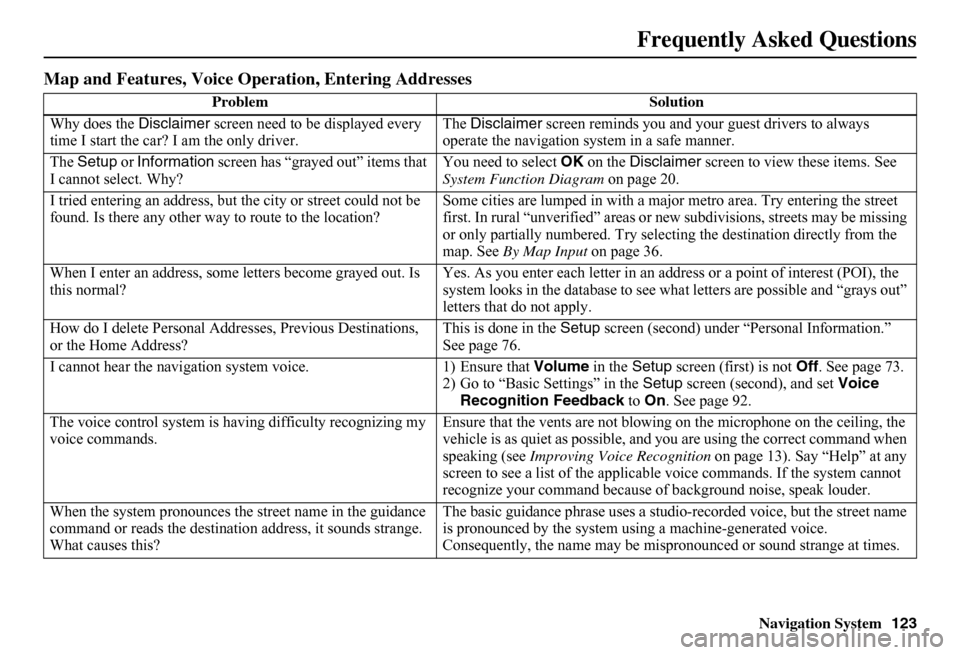
Map and Features, Voice Operation, Entering Addresses
Problem Solution
Why does the Disclaimer screen need to be displayed every time I start the car? I am the only driver. The Disclaimer screen reminds you and your guest drivers to always operate the navigation sy stem in a safe manner.
The Setup or Information screen has “grayed out” items that I cannot select. Why? You need to select OK on the Disclaimer screen to view these items. See System Function Diagram on page 20.
I tried entering an address, but th e city or street could not be found. Is there any other way to route to the location? Some cities are lumped in with a major metro area. Try entering the street first. In rural “unverified” areas or ne w subdivisions, streets may be missing or only partially numbered. Try selecting the destination directly from the map. See By Map Input on page 36.
When I enter an address, some letters become grayed out. Is this normal? Yes. As you enter each letter in an addr ess or a point of interest (POI), the system looks in the databa se to see what letters are possible and “grays out” letters that do not apply.
How do I delete Personal Addre sses, Previous Destinations, or the Home Address? This is done in the Setup screen (second) under “Personal Information.” See page 76.
I cannot hear the navigation system voice. 1) Ensure that Volume in the Setup screen (first) is not Off. See page 73. 2) Go to “Basic Settings” in the Setup screen (second), and set Voice Recognition Feedback to On. See page 92.
The voice control system is ha ving difficulty recognizing my voice commands. Ensure that the vents are not blowi ng on the microphone on the ceiling, the vehicle is as quiet as possible, and you are using the correct command when speaking (see Improving Voice Recognition on page 13). Say “Help” at any screen to see a list of the applicable voice commands. If the system cannot recognize your command because of background noise, speak louder.
When the system pronounces the street name in the guidance command or reads the destinati on address, it sounds strange. What causes this?
The basic guidance phrase uses a studio -recorded voice, but the street name is pronounced by the system us ing a machine-generated voice. Consequently, the name may be misp ronounced or sound strange at times.
Page 126 of 152
Navigation System125
Frequently Asked Questions
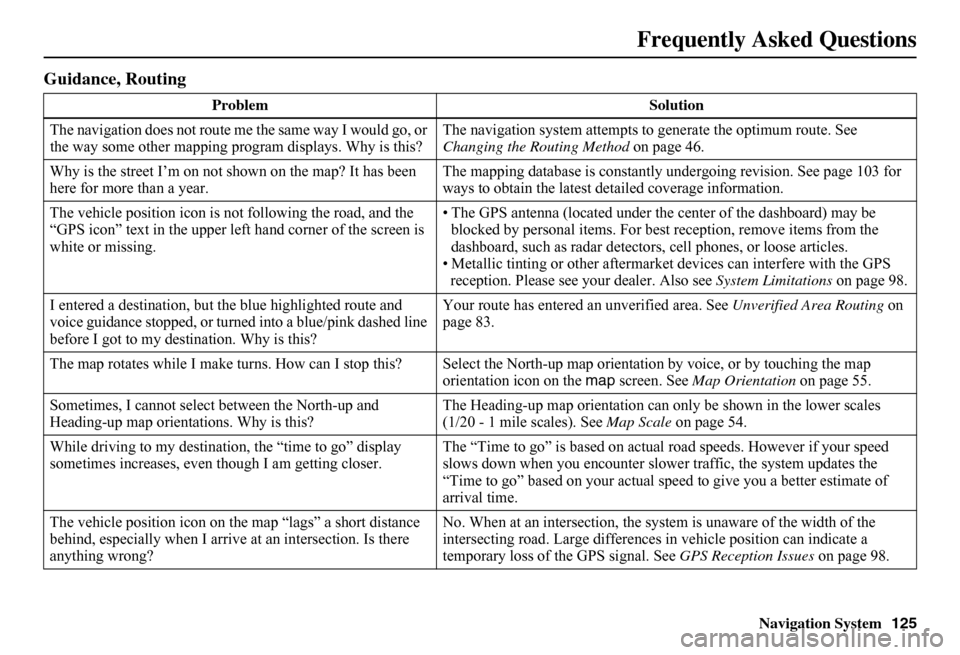
Guidance, Routing
Problem Solution
The navigation does not route me the same way I would go, or the way some other mapping progr am displays. Why is this? The navigation system attempts to generate the optimum route. See Changing the Routing Method on page 46.
Why is the street I’m on not s hown on the map? It has been here for more than a year. The mapping database is constantly undergoing revision. See page 103 for ways to obtain the latest de tailed coverage information.
The vehicle position icon is not following the road, and the “GPS icon” text in the upper left hand corner of the screen is white or missing.
• The GPS antenna (located under th e center of the dashboard) may be blocked by personal items. For best reception, remove items from the dashboard, such as radar detector s, cell phones, or loose articles. • Metallic tinting or other aftermarke t devices can interfere with the GPS reception. Please see your dealer. Also see System Limitations on page 98.
I entered a destination, but th e blue highlighted route and voice guidance stopped, or turned into a blue/pink dashed line before I got to my dest ination. Why is this?
Your route has entered an unverified area. See Unverified Area Routing on page 83.
The map rotates while I make turns. How can I stop this? Select the North-up map orientation by voice, or by touching the map orientation icon on the map screen. See Map Orientation on page 55.
Sometimes, I cannot select between the North-up and Heading-up map orienta tions. Why is this? The Heading-up map orient ation can only be shown in the lower scales (1/20 - 1 mile scales). See Map Scale on page 54.
While driving to my destinati on, the “time to go” display sometimes increases, even though I am getting closer. The “Time to go” is based on actual road speeds. However if your speed slows down when you encounter slower traffic, the system updates the “Time to go” based on your actual spee d to give you a better estimate of arrival time.
The vehicle position icon on the map “lags” a short distance behind, especially when I arrive at an intersection. Is there anything wrong?
No. When at an intersection, the syst em is unaware of the width of the intersecting road. Large differences in vehicle position can indicate a temporary loss of the GPS signal. See GPS Reception Issues on page 98.
Page 134 of 152
Navigation System133
Troubleshooting
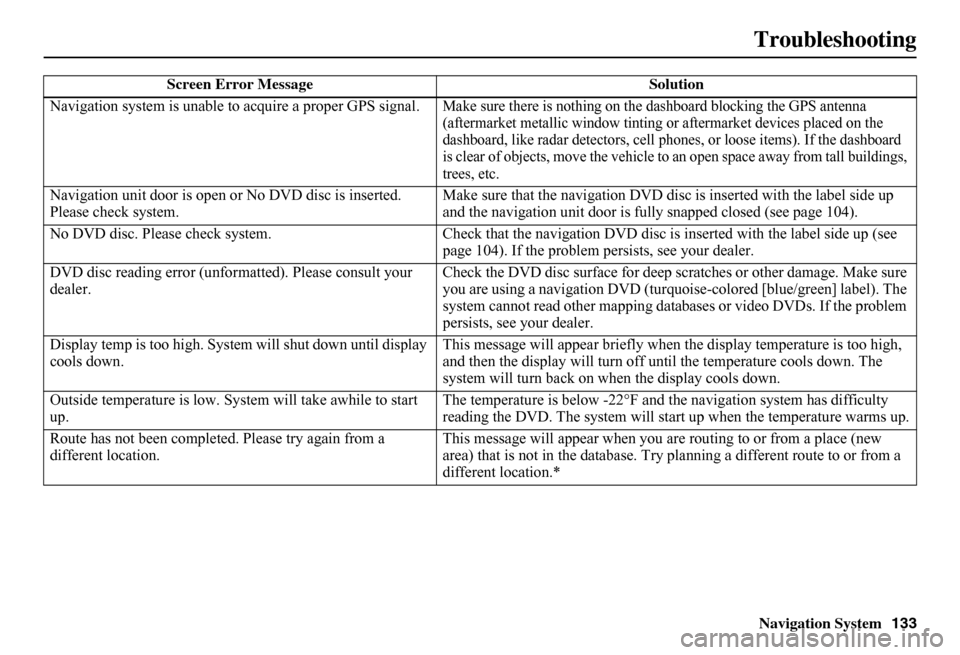
Screen Error Message Solution
Navigation system is unable to acquire a proper GPS signal.Make sure there is nothing on the dashboard blocking the GPS antenna (aftermarket metallic wi ndow tinting or aftermarket devices placed on the dashboard, like radar detectors, cell phones, or loose items). If the dashboard is clear of objects, move the vehicle to an open space away from tall buildings, trees, etc.
Navigation unit door is open or No DVD disc is inserted. Please check system. Make sure that the navigation DVD disc is inserted with the label side up and the navigation unit door is fully snapped closed (see page 104).
No DVD disc. Please check system. Check that the navigation DVD disc is inserted with the label side up (see page 104). If the problem persists, see your dealer.
DVD disc reading error (unfor matted). Please consult your dealer. Check the DVD disc surface for deep scratches or other damage. Make sure you are using a navigation DVD (turquoise -colored [blue/green] label). The system cannot read other mapping data bases or video DVDs. If the problem persists, see your dealer.
Display temp is too high. Syst em will shut down until display cools down. This message will appear briefly when the display temperature is too high, and then the display will turn off until the temperature cools down. The system will turn back on when the display cools down.
Outside temperature is low. System will take awhile to start up. The temperature is below -22°F and the navigation system has difficulty reading the DVD. The system will st art up when the temperature warms up.
Route has not been complete d. Please try again from a different location. This message will appear when you are routing to or from a place (new area) that is not in the database. Try planning a different route to or from a different location.*
Page 137 of 152
136Navigation System
Glossary
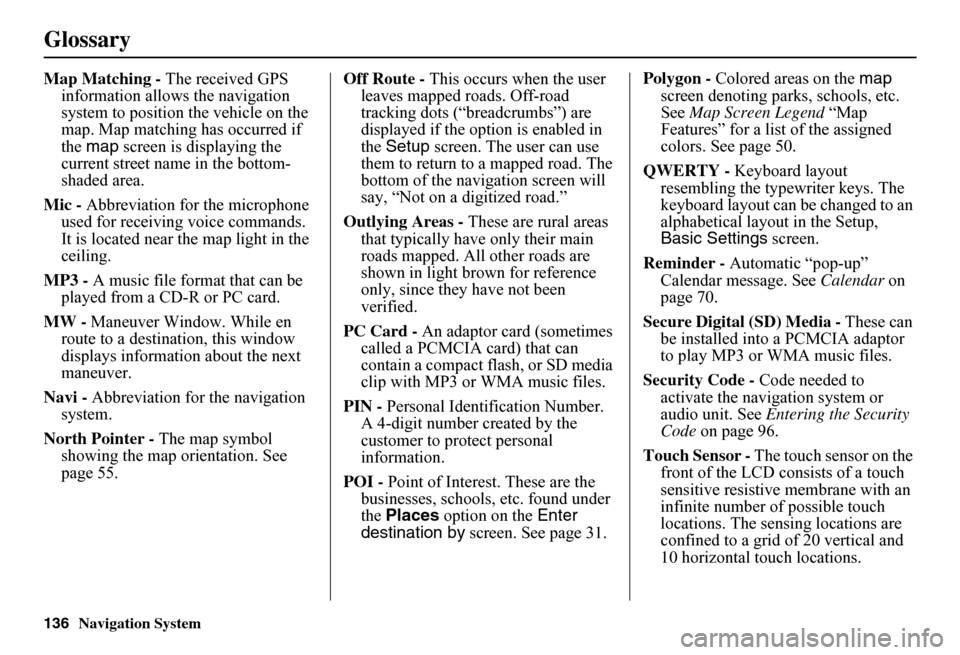
Map Matching - The received GPS information allows the navigation system to position the vehicle on the map. Map matching has occurred if the map screen is displaying the current street name in the bottom-shaded area.
Mic - Abbreviation for the microphone used for receiving voice commands. It is located near the map light in the ceiling.
MP3 - A music file format that can be played from a CD-R or PC card.
MW - Maneuver Window. While en route to a destination, this window displays informatio n about the next maneuver.
Navi - Abbreviation for the navigation system.
North Pointer - The map symbol showing the map orientation. See page 55.
Off Route - This occurs when the user leaves mapped roads. Off-road tracking dots (“breadcrumbs”) are displayed if the option is enabled in the Setup screen. The user can use them to return to a mapped road. The bottom of the navigation screen will say, “Not on a digitized road.”
Outlying Areas - These are rural areas that typically have only their main roads mapped. All other roads are shown in light brown for reference only, since they have not been verified.
PC Card - An adaptor card (sometimes called a PCMCIA card) that can contain a compact flash, or SD media clip with MP3 or WMA music files.
PIN - Personal Identification Number. A 4-digit number created by the customer to protect personal information.
POI - Point of Interest. These are the businesses, schools, etc. found under the Places option on the Enter destination by screen. See page 31.
Polygon - Colored areas on the map screen denoting parks, schools, etc. See Map Screen Legend “Map Features” for a list of the assigned colors. See page 50.
QWERTY - Keyboard layout resembling the typewriter keys. The keyboard layout can be changed to an alphabetical layout in the Setup, Basic Settings screen.
Reminder - Automatic “pop-up” Calendar message. See Calendar on page 70.
Secure Digital (SD) Media - These can be installed into a PCMCIA adaptor to play MP3 or WMA music files.
Security Code - Code needed to activate the navigation system or audio unit. See Entering the Security Code on page 96.
Touch Sensor - The touch sensor on the front of the LCD consists of a touch sensitive resistive membrane with an infinite number of possible touch locations. The sensing locations are confined to a grid of 20 vertical and 10 horizontal touch locations.
Page 138 of 152
Navigation System137
Glossary
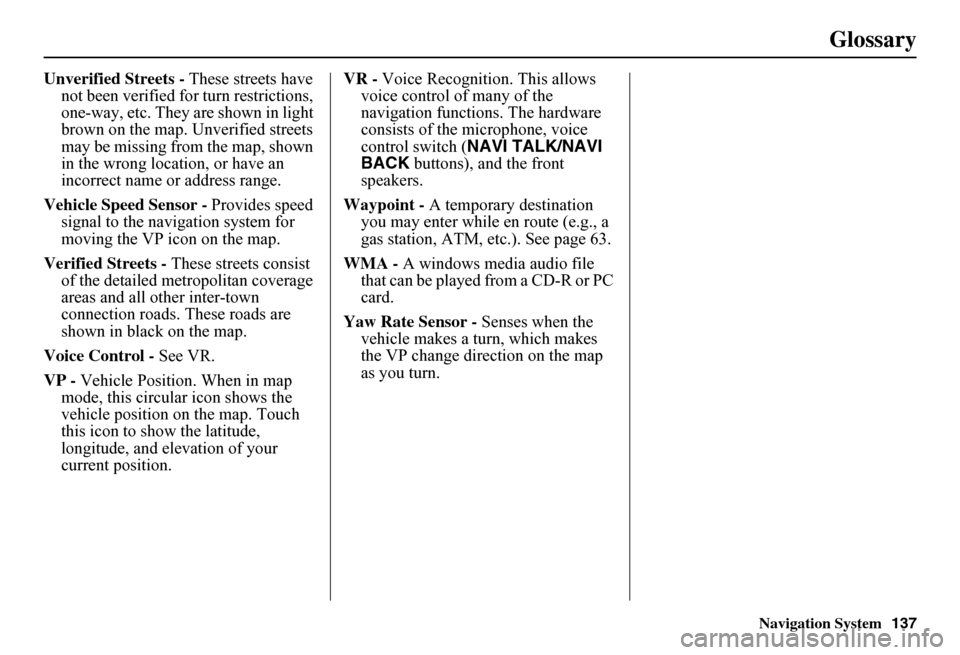
Unverified Streets - These streets have not been verified for turn restrictions, one-way, etc. They are shown in light brown on the map. Unverified streets may be missing from the map, shown in the wrong location, or have an incorrect name or address range.
Vehicle Speed Sensor - Provides speed signal to the navigation system for moving the VP icon on the map.
Verified Streets - These streets consist of the detailed metropolitan coverage areas and all other inter-town connection roads. These roads are shown in black on the map.
Voice Control - See VR.
VP - Vehicle Position. When in map mode, this circular icon shows the vehicle position on the map. Touch this icon to show the latitude, longitude, and elevation of your current position.
VR - Voice Recognition. This allows voice control of many of the navigation functions. The hardware consists of the microphone, voice control switch ( NAVI TALK/NAVI BACK buttons), and the front speakers.
Waypoint - A temporary destination you may enter while en route (e.g., a gas station, ATM, etc.). See page 63.
WMA - A windows media audio file that can be played from a CD-R or PC card.
Yaw Rate Sensor - Senses when the vehicle makes a turn, which makes the VP change direction on the map as you turn.
Page 148 of 152
Navigation System147
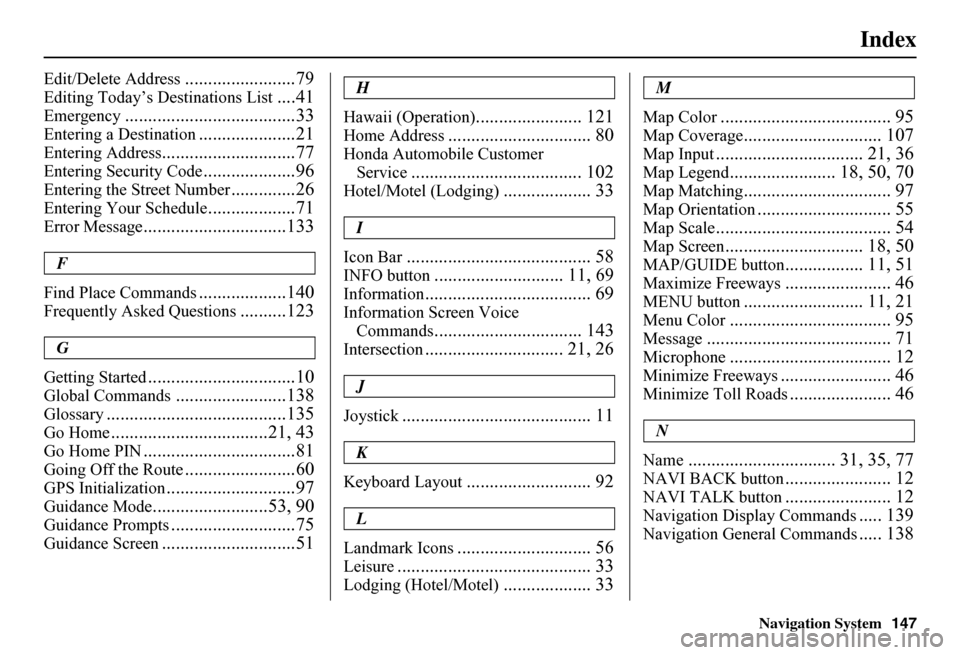
Index
Edit/Delete Address........................79
Editing Today’s Destinations List....41
Emergency.....................................33
Entering a Destination.....................21
Entering Address.............................77
Entering Security Code....................96
Entering the Street Number..............26
Entering Your Schedule...................71
Error Message...............................133
F
Find Place Commands...................140
Frequently Asked Questions..........123
G
Getting Started................................10
Global Commands........................138
Glossary.......................................135
Go Home..................................21, 43
Go Home PIN.................................81
Going Off the Route........................60
GPS Initialization............................97
Guidance Mode.........................53, 90
Guidance Prompts...........................75
Guidance Screen.............................51
H
Hawaii (Operation)....................... 121
Home Address............................... 80
Honda Automobile Customer
Service..................................... 102
Hotel/Motel (Lodging)................... 33
I
Icon Bar........................................ 58
INFO button............................ 11, 69
Information.................................... 69
Information Screen Voice
Commands................................ 143
Intersection.............................. 21, 26
J
Joystick......................................... 11
K
Keyboard Layout........................... 92
L
Landmark Icons............................. 56
Leisure.......................................... 33
Lodging (Hotel/Motel)................... 33
M
Map Color..................................... 95
Map Coverage.............................. 107
Map Input................................ 21, 36
Map Legend....................... 18, 50, 70
Map Matching................................ 97
Map Orientation............................. 55
Map Scale...................................... 54
Map Screen.............................. 18, 50
MAP/GUIDE button................. 11, 51
Maximize Freeways....................... 46
MENU button.......................... 11, 21
Menu Color................................... 95
Message........................................ 71
Microphone................................... 12
Minimize Freeways........................ 46
Minimize Toll Roads...................... 46
N
Name................................ 31, 35, 77
NAVI BACK button....................... 12
NAVI TALK button....................... 12
Navigation Display Commands..... 139
Navigation General Commands..... 138
Page 149 of 152
148Navigation System
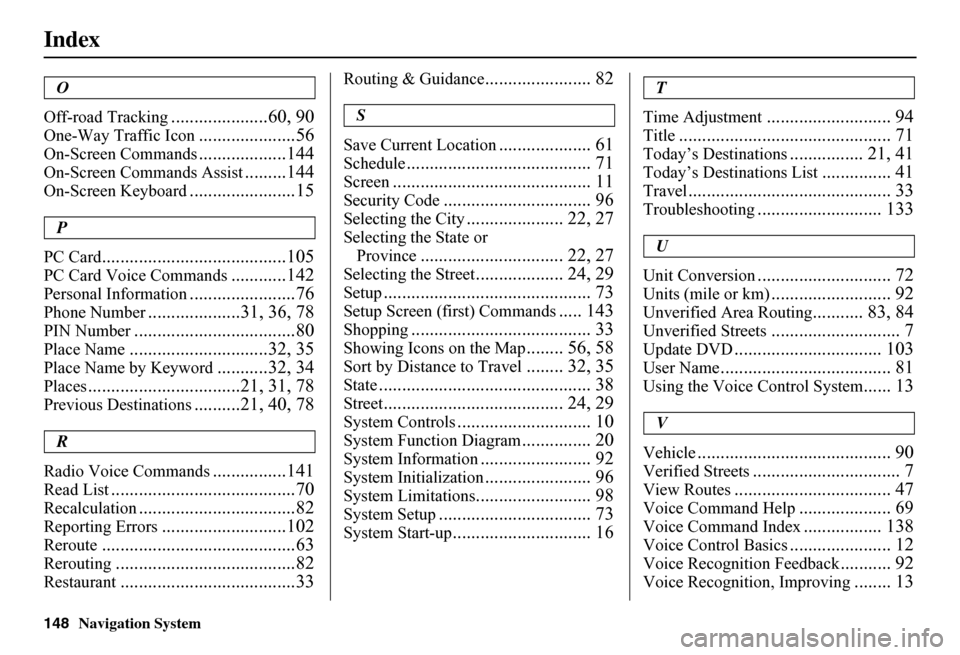
Index
O
Off-road Tracking.....................60, 90
One-Way Traffic Icon.....................56
On-Screen Commands...................144
On-Screen Commands Assist.........144
On-Screen Keyboard.......................15
P
PC Card........................................105
PC Card Voice Commands............142
Personal Information.......................76
Phone Number....................31, 36, 78
PIN Number...................................80
Place Name..............................32, 35
Place Name by Keyword...........32, 34
Places.................................21, 31, 78
Previous Destinations..........21, 40, 78
R
Radio Voice Commands................141
Read List........................................70
Recalculation..................................82
Reporting Errors...........................102
Reroute..........................................63
Rerouting.......................................82
Restaurant......................................33
Routing & Guidance....................... 82
S
Save Current Location.................... 61
Schedule........................................ 71
Screen........................................... 11
Security Code................................ 96
Selecting the City..................... 22, 27
Selecting the State or
Province............................... 22, 27
Selecting the Street................... 24, 29
Setup............................................. 73
Setup Screen (first) Commands..... 143
Shopping....................................... 33
Showing Icons on the Map........ 56, 58
Sort by Distance to Travel........ 32, 35
State.............................................. 38
Street....................................... 24, 29
System Controls............................. 10
System Function Diagram............... 20
System Information........................ 92
System Initialization....................... 96
System Limitations......................... 98
System Setup................................. 73
System Start-up.............................. 16
T
Time Adjustment........................... 94
Title.............................................. 71
Today’s Destinations................ 21, 41
Today’s Destinations List............... 41
Travel............................................ 33
Troubleshooting........................... 133
U
Unit Conversion............................. 72
Units (mile or km).......................... 92
Unverified Area Routing........... 83, 84
Unverified Streets............................ 7
Update DVD................................ 103
User Name..................................... 81
Using the Voice Control System...... 13
V
Vehicle.......................................... 90
Verified Streets................................ 7
View Routes.................................. 47
Voice Command Help.................... 69
Voice Command Index................. 138
Voice Control Basics...................... 12
Voice Recognition Feedback........... 92
Voice Recognition, Improving........ 13