phone HONDA FIT 2011 2.G Navigation Manual
[x] Cancel search | Manufacturer: HONDA, Model Year: 2011, Model line: FIT, Model: HONDA FIT 2011 2.GPages: 152, PDF Size: 6.63 MB
Page 2 of 152
Navigation System1
Table of Contents
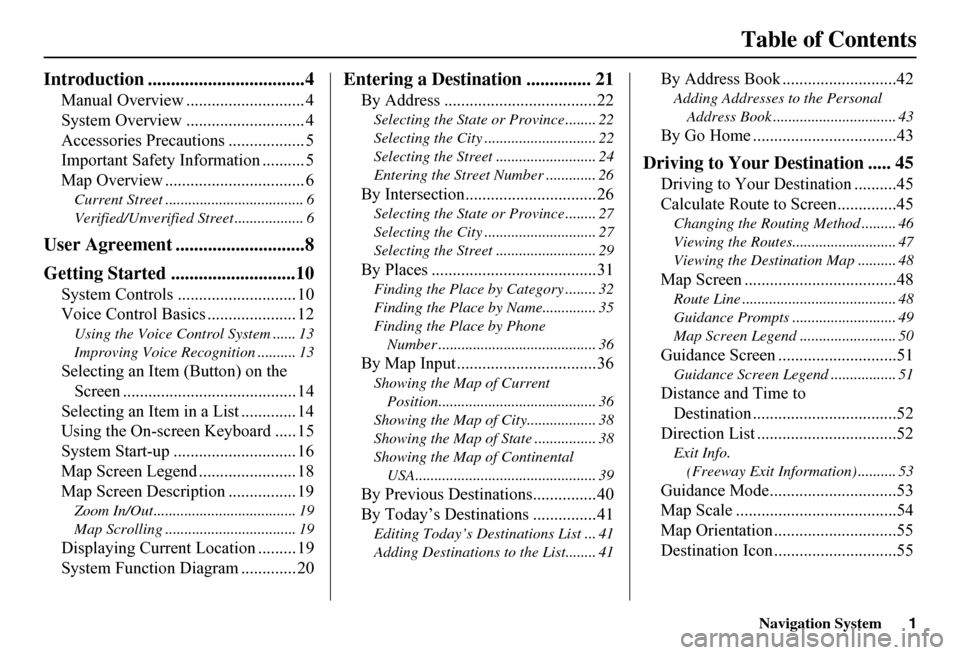
Introduction ..................................4
Manual Overview ............................ 4
System Overview ............................ 4
Accessories Precautions .................. 5
Important Safety Information .......... 5
Map Overview ................................. 6
Current Street .................................... 6
Verified/Unverified Street .................. 6
User Agreement ............................8
Getting Started ...........................10
System Controls ............................ 10
Voice Control Basics ..................... 12
Using the Voice Control System ...... 13
Improving Voice Rec ognition .......... 13
Selecting an Item (Button) on the
Screen ......................................... 14
Selecting an Item in a List ............. 14
Using the On-screen Keyboard ..... 15
System Start-up ............................. 16
Map Screen Legend ....................... 18
Map Screen Description ................ 19
Zoom In/Out..................................... 19
Map Scrolling .................................. 19
Displaying Current Location ......... 19
System Function Diagram ............. 20
Entering a Destination .............. 21
By Address ....................................22
Selecting the State or Province ........ 22
Selecting the City ............................. 22
Selecting the Street .......................... 24
Entering the Street Number ............. 26
By Intersection...............................26
Selecting the State or Province ........ 27
Selecting the City ............................. 27
Selecting the Street .......................... 29
By Places .......................................31
Finding the Place by Category ........ 32
Finding the Place by Name.............. 35
Finding the Place by Phone
Number ......................................... 36
By Map Input .................................36
Showing the Map of Current
Position......................................... 36
Showing the Map of City .................. 38
Showing the Map of Stat e ................ 38
Showing the Map of Continental
USA............................................... 39
By Previous Destinations...............40
By Today’s Destinations ...............41
Editing Today’s Dest inations List ... 41
Adding Destinations to the List........ 41
By Address Book ...........................42
Adding Addresses to the Personal
Address Book ................................ 43
By Go Home ..................................43
Driving to Your Destination ..... 45
Driving to Your Destination ..........45
Calculate Route to Screen..............45
Changing the Routing Method ......... 46
Viewing the Routes........................... 47
Viewing the Destination Map .......... 48
Map Screen ....................................48
Route Line ........................................ 48
Guidance Prompts ...... ..................... 49
Map Screen Legend ......................... 50
Guidance Screen ............................51
Guidance Screen Legend ................. 51
Distance and Time to
Destination ..................................52
Direction List .................................52
Exit Info.
(Freeway Exit Information) .......... 53
Guidance Mode..............................53
Map Scale ......................................54
Map Orientation .............................55
Destination Icon .............................55
Page 6 of 152
Navigation System5
Introduction
The navigation system applies this location, direction, and speed information to the maps and calculates a route to the destination you enter. As you drive to that destination, the system provides map and voice guidance.
The navigation system is easy to use. The locations of many places of business and entertainment are already entered in the syst em. You can select any of them as a destination by using the touch screen, joystick, or voice control.
There are several ways to enter a destination, such as by point of interest (POI), by address, by phone number, and by selecting it from the map. The last 50 destinations are saved for reuse at a later date. The system also allows you to store a home address to simplify returning home from your destination.
Accessories Precautions
If you have front or side window tinting installed, be aware that if the tint has metallic properties, it can seriously degrade or prevent GPS reception. This is because the GPS antenna is located under the dashboard.
If you plan to install electronic components, such as radar detectors, vehicle tracking devices, remote starters, additional amplifiers, or other audio components, ensure that they are not located near the navigation control unit under the dashboard, near the navigation screen in the dash, or near the GPS antenna under the dashboard. Signal noise emanating from these devices can cause intermittent disruption of the navigation system.
Important Safety Information
The navigation system can distract your attention from the road if you focus on the screen or operate the system’s controls while driving.
Enter as much information as possible into the system before you begin driving, or when the vehicle is stopped. Then, as you drive, listen to the audio instructions and use voice commands when possible.
Page 13 of 152
12Navigation System
Getting Started
Voice Control Basics
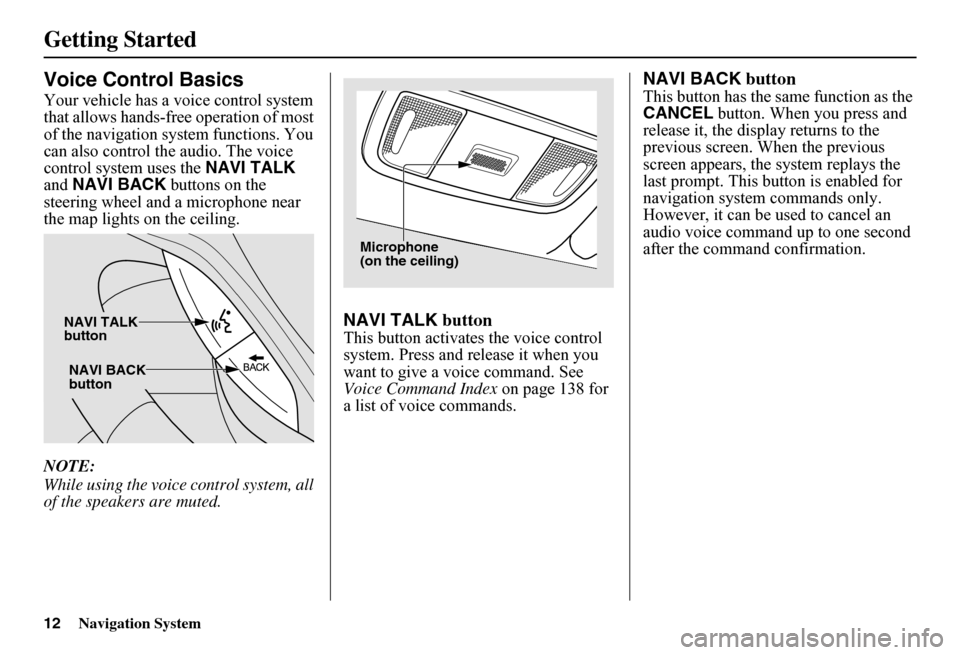
Your vehicle has a voice control system that allows hands-free operation of most of the navigation system functions. You can also control th e audio. The voice control system uses the NAVI TALK and NAVI BACK buttons on the steering wheel and a microphone near the map lights on the ceiling.
NOTE:
While using the voice control system, all of the speakers are muted.
NAVI TALK button
This button activates the voice control system. Press and release it when you want to give a voice command. See Voice Command Index on page 138 for a list of voice commands.
NAVI BACK button
This button has the same function as the CANCEL button. When you press and release it, the disp lay returns to the previous screen. When the previous screen appears, the system replays the last prompt. This button is enabled for navigation system commands only. However, it can be used to cancel an audio voice command up to one second after the command confirmation.
NAVI BACK button
NAVI TALK button
Microphone(on the ceiling)
Page 14 of 152
Navigation System13
Getting Started
Using the Voice Control System
You should use the voice control system as much as possible, and consider manual entry using the joystick as a backup method of entry.
Most of the system’s functions can be controlled by voice commands activated with the NAVI TALK button. To control the navigation system by voice:
• Press and release the NAVI TALK button.
• Wait for the beep.
• Give a voice command.
Once the microphone picks up your command, the system changes the display in response to the command and prompts you for the next command. Using the NAVI TALK button, answer the prompts as required.
If the system does not understand a command or you wait too long to give a command, it responds with “Pardon,” “Please repeat,” or “Would you say again.” If the system cannot perform a command or the command is not appropriate for the screen you are on, it sounds a beep.
Anytime you are unsure of what voice commands are available on a screen, you can always say “Help.” The system will then read the list of available commands to you.
When you give a command, the system generally either repeats the command as a confirmation or asks you for further information. If you do not wish to hear this feedback, you can turn it off. However, hearing the feedback will familiarize you with the way the system expects commands to be phrased. See the Voice Recognition Feedback setting in Setup.
If you hear a prompt such as “Please use the touch screen to...” or “Please choose an area with the joystick,” the system is asking for input that cannot be performed using the voice control system.
Improving Voice Recognition
To achieve optimum voice recognition, the following guide lines should be followed:
NOTE:
Make sure the correct screen is displayed for the vo ice command that you are using. See Voice Command Index on page 138.
• Adjust the dashboard and side vents so air does not blow against the microphone on the ceiling.
• Close the windows.
Page 22 of 152
Navigation System21
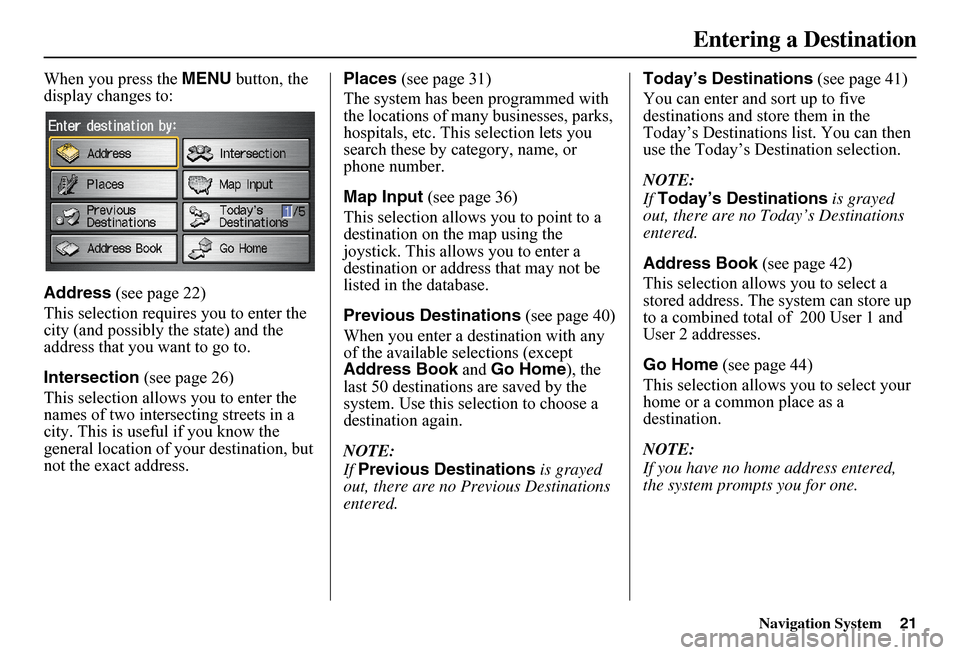
When you press the MENU button, the display changes to:
Address (see page 22)
This selection requires you to enter the city (and possibly the state) and the address that you want to go to.
Intersection (see page 26)
This selection allows you to enter the names of two intersecting streets in a city. This is useful if you know the general location of your destination, but not the exact address.
Places (see page 31)
The system has been programmed with the locations of many businesses, parks, hospitals, etc. This selection lets you search these by category, name, or phone number.
Map Input (see page 36)
This selection allows you to point to a destination on th e map using the joystick. This allows you to enter a destination or address that may not be listed in the database.
Previous Destinations (see page 40)
When you enter a destination with any of the available se lections (except Address Book and Go Home), the last 50 destinations are saved by the system. Use this selection to choose a destination again.
NOTE:
If Previous Destinations is grayed out, there are no Previous Destinations entered.
Today’s Destinations (see page 41)
You can enter and sort up to five destinations and store them in the Today’s Destinations list. You can then use the Today’s Destination selection.
NOTE:
If Today’s Destinations is grayed out, there are no Today’s Destinations entered.
Address Book (see page 42)
This selection allows you to select a stored address. The system can store up to a combined total of 200 User 1 and User 2 addresses.
Go Home (see page 44)
This selection allows you to select your home or a common place as a destination.
NOTE:
If you have no home address entered, the system prompts you for one.
Entering a Destination
Page 32 of 152
Navigation System31
By Places
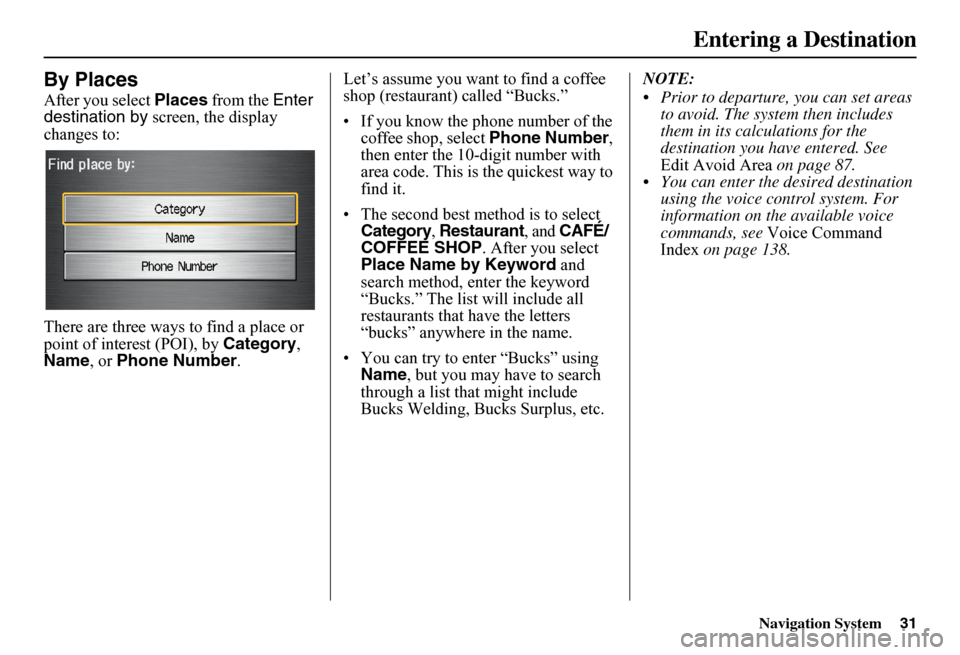
After you select Places from the Enter destination by screen, the display changes to:
There are three ways to find a place or point of interest (POI), by Category, Name , or Phone Number.
Let’s assume you want to find a coffee shop (restaurant) called “Bucks.”
• If you know the phone number of the coffee shop, select Phone Number, then enter the 10-digit number with area code. This is the quickest way to find it.
• The second best me thod is to select Category , Restaurant, and CAFÉ/ COFFEE SHOP . After you select Place Name by Keyword and search method, enter the keyword “Bucks.” The list will include all restaurants that have the letters “bucks” anywhere in the name.
• You can try to enter “Bucks” using Name , but you may have to search through a list that might include Bucks Welding, Bucks Surplus, etc.
NOTE:
Prior to departure, you can set areas to avoid. The system then includes them in its calculations for the destination you have entered. See Edit Avoid Area on page 87. You can enter the desired destination using the voice control system. For information on the available voice commands, see Voice Command Index on page 138.
Entering a Destination
Page 37 of 152
36Navigation System
Finding the Place by Phone
Number
The Phone Number option allows you to select a destination by its telephone number. Only telephone numbers stored in the system under the Places (of business) option are recognized. The system does not contain residential telephone numbers, or numbers you may have entered in your personal Address Book.
Tip:
If you know the phone number of a point of interest (POI), its uniqueness makes it the fastest entry meth od. When using the voice control system, the entry should be spoken as a continuous string of numbers. For example, the telephone number (310) 555-4000 should be spoken as “Three, one, zero, five, five, five, four, zero, zero, zero.”
By Map Input
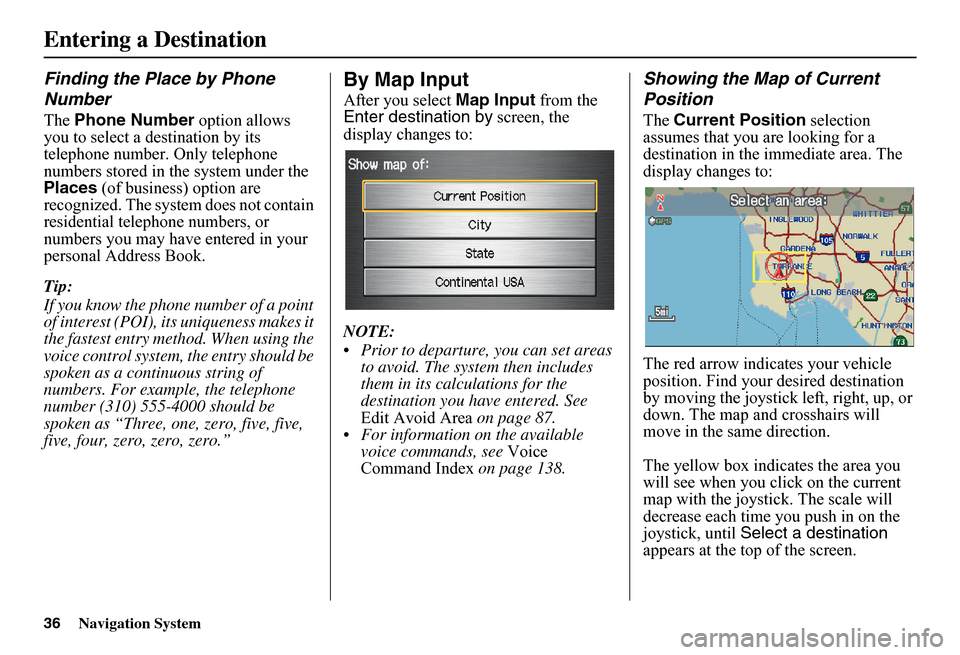
After you select Map Input from the Enter destination by screen, the display changes to:
NOTE:
Prior to departure, you can set areas to avoid. The system then includes them in its calculations for the destination you have entered. See Edit Avoid Area on page 87. For information on the available voice commands, see Voice Command Index on page 138.
Showing the Map of Current
Position
The Current Position selection assumes that you are looking for a destination in the immediate area. The display changes to:
The red arrow indicates your vehicle position. Find your desired destination by moving the joystick left, right, up, or down. The map and crosshairs will move in the same direction.
The yellow box indicates the area you will see when you click on the current map with the joystick. The scale will decrease each time you push in on the joystick, until Select a destination appears at the top of the screen.
Entering a Destination
Page 62 of 152
Navigation System61
Viewing/Saving the Current
Location
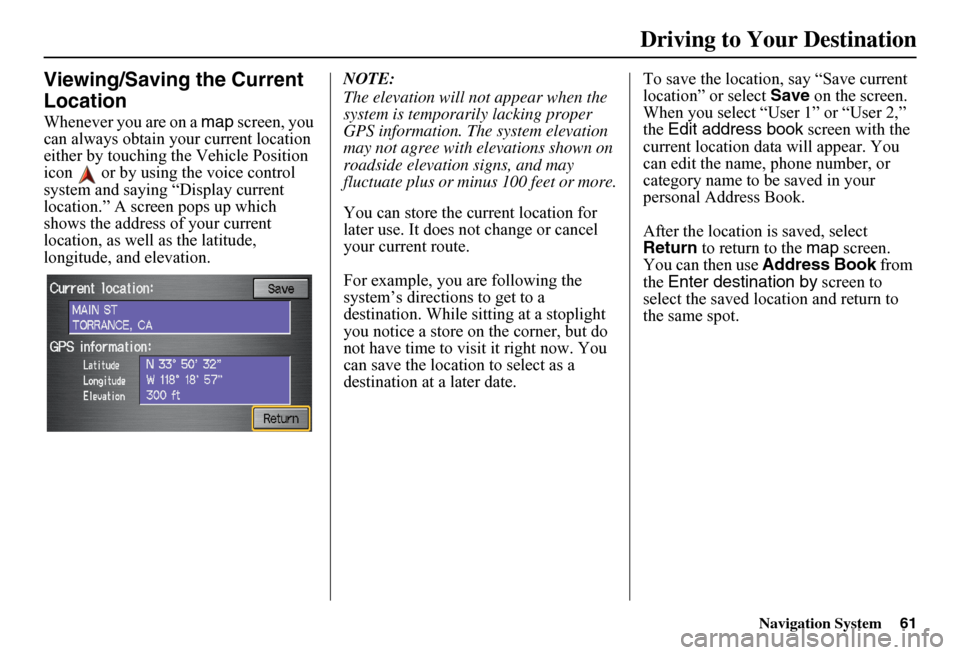
Whenever you are on a map screen, you can always obtain your current location either by touching the Vehicle Position icon or by using the voice control system and saying “Display current location.” A screen pops up which shows the address of your current location, as well as the latitude, longitude, and elevation.
NOTE:
The elevation will not appear when the system is temporarily lacking proper GPS information. The system elevation may not agree with elevations shown on roadside elevation signs, and may fluctuate plus or minus 100 feet or more.
You can store the current location for later use. It does not change or cancel your current route.
For example, you are following the system’s directions to get to a destination. While sitting at a stoplight you notice a store on the corner, but do not have time to visit it right now. You can save the location to select as a destination at a later date.
To save the location, say “Save current location” or select Save on the screen. When you select “User 1” or “User 2,” the Edit address book screen with the current location data will appear. You can edit the name, phone number, or category name to be saved in your personal Address Book.
After the location is saved, select Return to return to the map screen. You can then use Address Book from the Enter destination by screen to select the saved location and return to the same spot.
Driving to Your Destination
Page 79 of 152
78Navigation System
System Setup
Edit Address
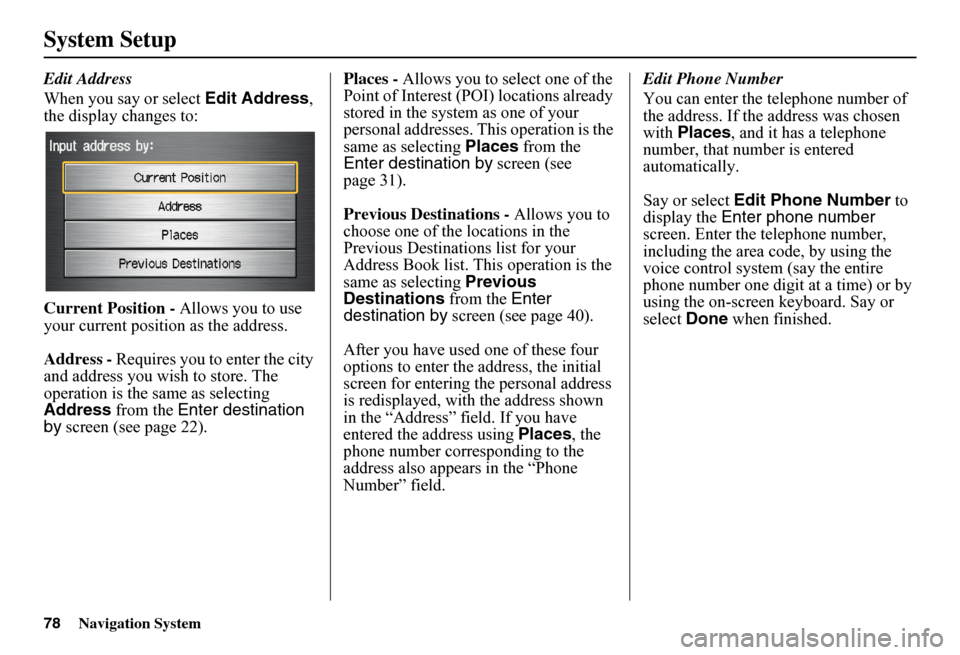
When you say or select Edit Address, the display changes to:
Current Position - Allows you to use your current position as the address.
Address - Requires you to enter the city and address you wish to store. The operation is the same as selecting Address from the Enter destination by screen (see page 22).
Places - Allows you to select one of the Point of Interest (POI) locations already stored in the system as one of your personal addresses. This operation is the same as selecting Places from the Enter destination by screen (see page 31).
Previous Destinations - Allows you to choose one of the locations in the Previous Destinations list for your Address Book list. Th is operation is the same as selecting Previous Destinations from the Enter destination by screen (see page 40).
After you have used one of these four options to enter the address, the initial screen for entering the personal address is redisplayed, with the address shown in the “Address” field. If you have entered the address using Places, the phone number corresponding to the address also appears in the “Phone Number” field.
Edit Phone Number
You can enter the telephone number of the address. If the address was chosen with Places, and it has a telephone number, that number is entered automatically.
Say or select Edit Phone Number to display the Enter phone number screen. Enter the telephone number, including the area code, by using the voice control system (say the entire phone number one digit at a time) or by using the on-screen keyboard. Say or select Done when finished.
Page 81 of 152
80Navigation System
System Setup
Home Address
This feature lets you return “Home” from any location simply by saying “Go home” at the map screen. Alternatively, you can select Go Home on the Enter destination by screen (see By Go Home on page 44).
Enter the name, address, and phone number in the same way as entering a personal address, then say or select Done . To leave the screen, press the CANCEL button.
NOTE:
If your Home address cannot be found in the system, while lo cated on the street close to your home, select “Current Position” when entering the “Edit Address” field.
PIN Number
You can set a four-digit PIN (Personal Identification Number) for accessing and changing personal addresses and your home address if desired. Once you set the PIN on this screen, the system asks you to enter the PIN when you access a personal address or your home address.
NOTE:
PINs are optional. If you choose to use a PIN, make sure you remember it. If you forget your PIN, the dealer will have to reset it for you.
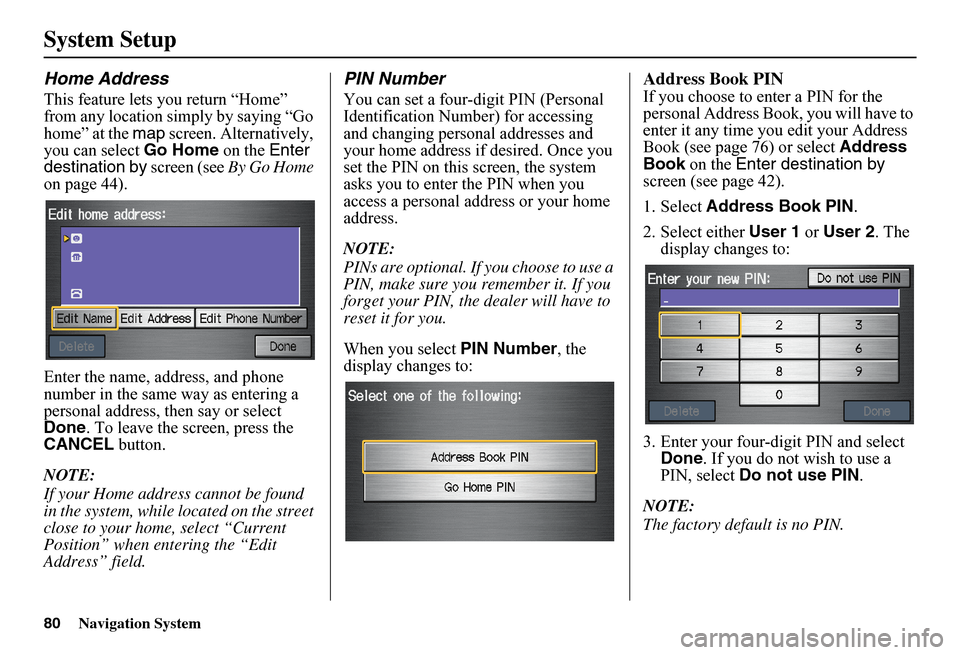
When you select PIN Number, the display changes to:
Address Book PIN
If you choose to enter a PIN for the personal Address Book, you will have to enter it any time you edit your Address Book (see page 76) or select Address Book on the Enter destination by screen (see page 42).
1. Select Address Book PIN.
2. Select either User 1 or User 2. The display changes to:
3. Enter your four-digit PIN and select Done . If you do not wish to use a PIN, select Do not use PIN.
NOTE:
The factory default is no PIN.