change time HONDA FIT 2011 2.G Navigation Manual
[x] Cancel search | Manufacturer: HONDA, Model Year: 2011, Model line: FIT, Model: HONDA FIT 2011 2.GPages: 152, PDF Size: 6.63 MB
Page 125 of 152
124Navigation System
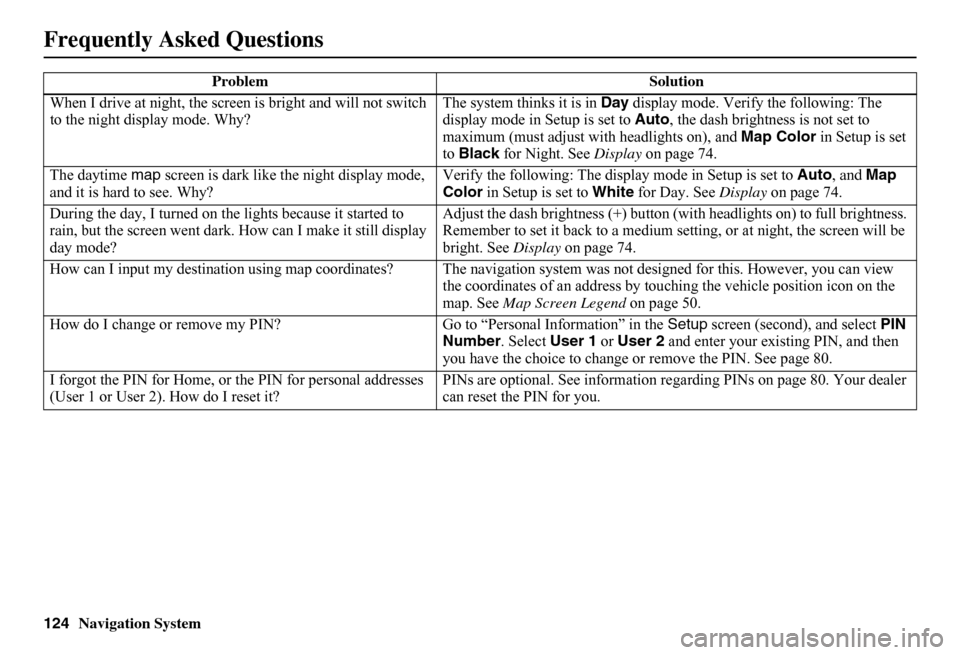
When I drive at night, the screen is bright and will not switch to the night display mode. Why? The system thinks it is in Day display mode. Verify the following: The display mode in Setup is set to Auto, the dash brightness is not set to maximum (must adjust with headlights on), and Map Color in Setup is set to Black for Night. See Display on page 74.
The daytime map screen is dark like the night display mode, and it is hard to see. Why? Verify the following: The disp lay mode in Setup is set to Auto, and Map Color in Setup is set to White for Day. See Display on page 74.
During the day, I turned on the lights because it started to rain, but the screen went dark. How can I make it still display day mode?
Adjust the dash brightness (+) button (with headlights on) to full brightness. Remember to set it back to a medium set ting, or at night, the screen will be bright. See Display on page 74.
How can I input my destination using map coordinates? The navigation system was not designed for this. However, you can view the coordinates of an address by touching the vehicle position icon on the map. See Map Screen Legend on page 50.
How do I change or remove my PIN? Go to “Personal Information” in the Setup screen (second), and select PIN Number . Select User 1 or User 2 and enter your existing PIN, and then you have the choice to change or remove the PIN. See page 80.
I forgot the PIN for Home, or the PIN for personal addresses (User 1 or User 2). How do I reset it? PINs are optional. See information re garding PINs on page 80. Your dealer can reset the PIN for you.
Problem Solution
Frequently Asked Questions
Page 132 of 152
Navigation System131
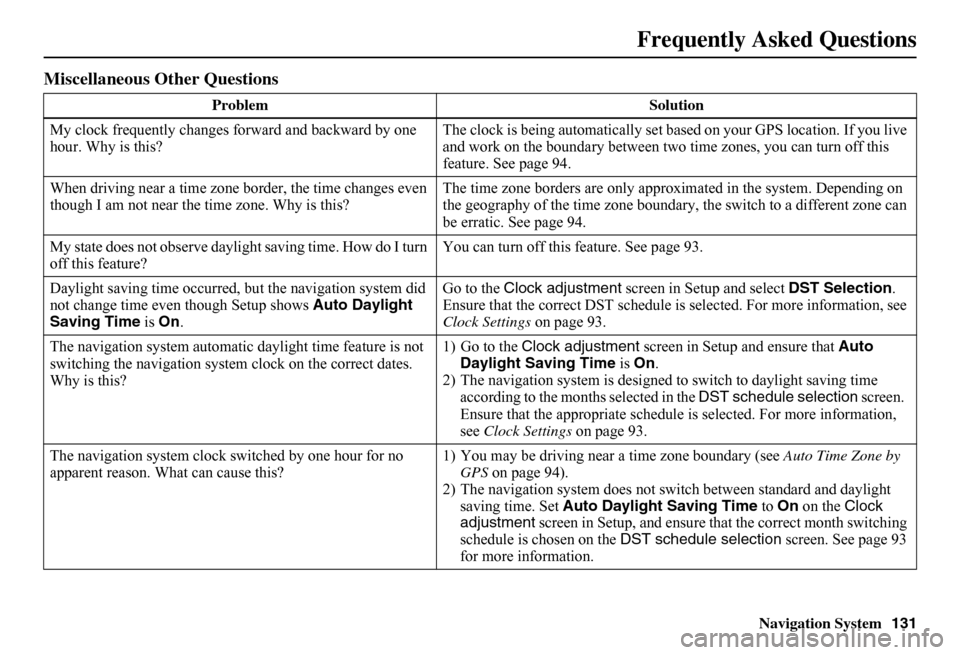
Miscellaneous Other Questions
Problem Solution
My clock frequently changes forward and backward by one hour. Why is this? The clock is being auto matically set based on your GPS location. If you live and work on the boundary between two time zones, you can turn off this feature. See page 94.
When driving near a time zone border, the time changes even though I am not near the time zone. Why is this? The time zone borders are only appr oximated in the system. Depending on the geography of the time zone boundary, the switch to a different zone can be erratic. See page 94.
My state does not observe dayli ght saving time. How do I turn off this feature? You can turn off this feature. See page 93.
Daylight saving time occurred, but the navigation system did not change time even though Setup shows Auto Daylight Saving Time is On.
Go to the Clock adjustment screen in Setup and select DST Selection. Ensure that the correct DST schedule is selected. For more information, see Clock Settings on page 93.
The navigation system automatic daylight time feature is not switching the navigation system clock on the correct dates. Why is this?
1) Go to the Clock adjustment screen in Setup and ensure that Auto Daylight Saving Time is On. 2) The navigation system is designed to switch to daylight saving time according to the months selected in the DST schedule selection screen. Ensure that the appropriate schedule is selected. For more information, see Clock Settings on page 93.
The navigation system clock switched by one hour for no apparent reason. Wh at can cause this? 1) You may be driving near a time zone boundary (see Auto Time Zone by GPS on page 94). 2) The navigation system does not switc h between standard and daylight saving time. Set Auto Daylight Saving Time to On on the Clock adjustment screen in Setup, and ensure that the correct month switching schedule is chosen on the DST schedule selection screen. See page 93 for more information.
Frequently Asked Questions
Page 137 of 152
136Navigation System
Glossary
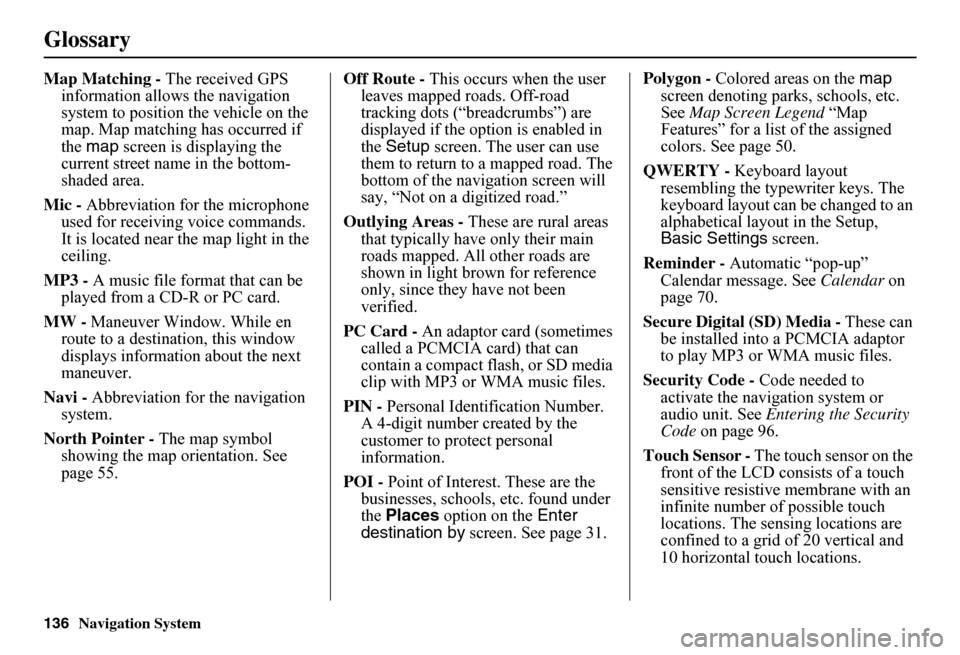
Map Matching - The received GPS information allows the navigation system to position the vehicle on the map. Map matching has occurred if the map screen is displaying the current street name in the bottom-shaded area.
Mic - Abbreviation for the microphone used for receiving voice commands. It is located near the map light in the ceiling.
MP3 - A music file format that can be played from a CD-R or PC card.
MW - Maneuver Window. While en route to a destination, this window displays informatio n about the next maneuver.
Navi - Abbreviation for the navigation system.
North Pointer - The map symbol showing the map orientation. See page 55.
Off Route - This occurs when the user leaves mapped roads. Off-road tracking dots (“breadcrumbs”) are displayed if the option is enabled in the Setup screen. The user can use them to return to a mapped road. The bottom of the navigation screen will say, “Not on a digitized road.”
Outlying Areas - These are rural areas that typically have only their main roads mapped. All other roads are shown in light brown for reference only, since they have not been verified.
PC Card - An adaptor card (sometimes called a PCMCIA card) that can contain a compact flash, or SD media clip with MP3 or WMA music files.
PIN - Personal Identification Number. A 4-digit number created by the customer to protect personal information.
POI - Point of Interest. These are the businesses, schools, etc. found under the Places option on the Enter destination by screen. See page 31.
Polygon - Colored areas on the map screen denoting parks, schools, etc. See Map Screen Legend “Map Features” for a list of the assigned colors. See page 50.
QWERTY - Keyboard layout resembling the typewriter keys. The keyboard layout can be changed to an alphabetical layout in the Setup, Basic Settings screen.
Reminder - Automatic “pop-up” Calendar message. See Calendar on page 70.
Secure Digital (SD) Media - These can be installed into a PCMCIA adaptor to play MP3 or WMA music files.
Security Code - Code needed to activate the navigation system or audio unit. See Entering the Security Code on page 96.
Touch Sensor - The touch sensor on the front of the LCD consists of a touch sensitive resistive membrane with an infinite number of possible touch locations. The sensing locations are confined to a grid of 20 vertical and 10 horizontal touch locations.
Page 139 of 152
138Navigation System
Voice Command Index
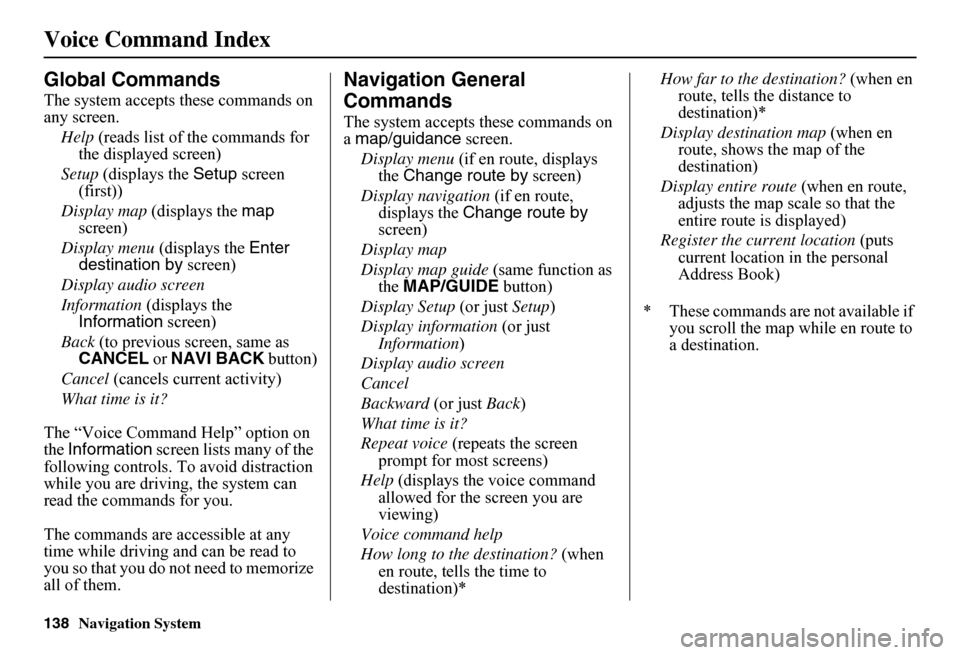
Global Commands
The system accepts these commands on any screen.
Help (reads list of the commands for the displayed screen)
Setup (displays the Setup screen (first))
Display map (displays the map screen)
Display menu (displays the Enter destination by screen)
Display audio screen
Information (displays the Information screen)
Back (to previous screen, same as CANCEL or NAVI BACK button)
Cancel (cancels current activity)
What time is it?
The “Voice Command Help” option on the Information screen lists many of the following controls. To avoid distraction while you are driving, the system can read the commands for you.
The commands are accessible at any time while driving and can be read to you so that you do not need to memorize all of them.
Navigation General
Commands
The system accepts these commands on a map/guidance screen.
Display menu (if en route, displays the Change route by screen)
Display navigation (if en route, displays the Change route by screen)
Display map
Display map guide (same function as the MAP/GUIDE button)
Display Setup (or just Setup)
Display information (or just Information )
Display audio screen
Cancel
Backward (or just Back)
What time is it?
Repeat voice (repeats the screen prompt for most screens)
Help (displays the voice command allowed for the screen you are viewing)
Voice command help
How long to the destination? (when en route, tells the time to destination)*
How far to the destination? (when en route, tells th e distance to destination)*
Display destination map (when en route, shows the map of the destination)
Display entire route (when en route, adjusts the map scale so that the entire route is displayed)
Register the current location (puts current location in the personal Address Book)
* These commands are not available if you scroll the map while en route to a destination.
Page 147 of 152
146Navigation System
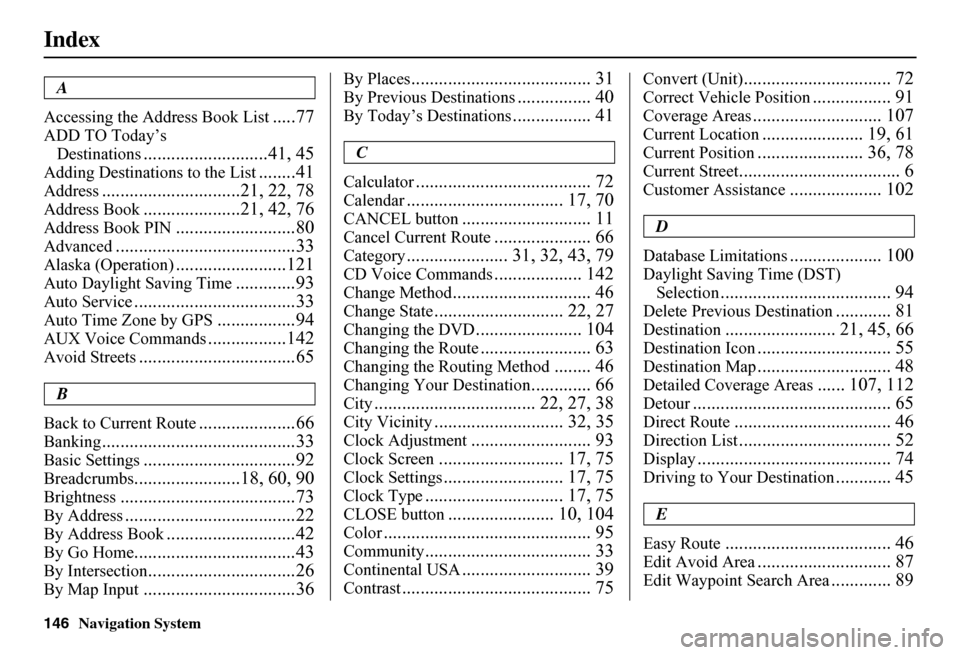
Index
A
Accessing the Address Book List.....77
ADD TO Today’s
Destinations...........................41, 45
Adding Destinations to the List........41
Address..............................21, 22, 78
Address Book.....................21, 42, 76
Address Book PIN..........................80
Advanced.......................................33
Alaska (Operation)........................121
Auto Daylight Saving Time.............93
Auto Service...................................33
Auto Time Zone by GPS.................94
AUX Voice Commands.................142
Avoid Streets..................................65
B
Back to Current Route.....................66
Banking..........................................33
Basic Settings.................................92
Breadcrumbs.......................18, 60, 90
Brightness......................................73
By Address.....................................22
By Address Book............................42
By Go Home...................................43
By Intersection................................26
By Map Input.................................36
By Places....................................... 31
By Previous Destinations................ 40
By Today’s Destinations................. 41
C
Calculator...................................... 72
Calendar.................................. 17, 70
CANCEL button............................ 11
Cancel Current Route..................... 66
Category...................... 31, 32, 43, 79
CD Voice Commands................... 142
Change Method.............................. 46
Change State............................ 22, 27
Changing the DVD....................... 104
Changing the Route........................ 63
Changing the Routing Method........ 46
Changing Your Destination............. 66
City................................... 22, 27, 38
City Vicinity............................ 32, 35
Clock Adjustment.......................... 93
Clock Screen........................... 17, 75
Clock Settings.......................... 17, 75
Clock Type.............................. 17, 75
CLOSE button....................... 10, 104
Color............................................. 95
Community.................................... 33
Continental USA............................ 39
Contrast......................................... 75
Convert (Unit)................................ 72
Correct Vehicle Position................. 91
Coverage Areas............................ 107
Current Location...................... 19, 61
Current Position....................... 36, 78
Current Street................................... 6
Customer Assistance.................... 102
D
Database Limitations.................... 100
Daylight Saving Time (DST)
Selection..................................... 94
Delete Previous Destination............ 81
Destination........................ 21, 45, 66
Destination Icon............................. 55
Destination Map............................. 48
Detailed Coverage Areas...... 107, 112
Detour........................................... 65
Direct Route.................................. 46
Direction List................................. 52
Display.......................................... 74
Driving to Your Destination............ 45
E
Easy Route.................................... 46
Edit Avoid Area............................. 87
Edit Waypoint Search Area............. 89