switch HONDA FIT 2015 3.G Repair Manual
[x] Cancel search | Manufacturer: HONDA, Model Year: 2015, Model line: FIT, Model: HONDA FIT 2015 3.GPages: 453, PDF Size: 21.19 MB
Page 157 of 453
uuHeating and Cooling System*uUsing Vents, Heating and A/C*
156
Controls
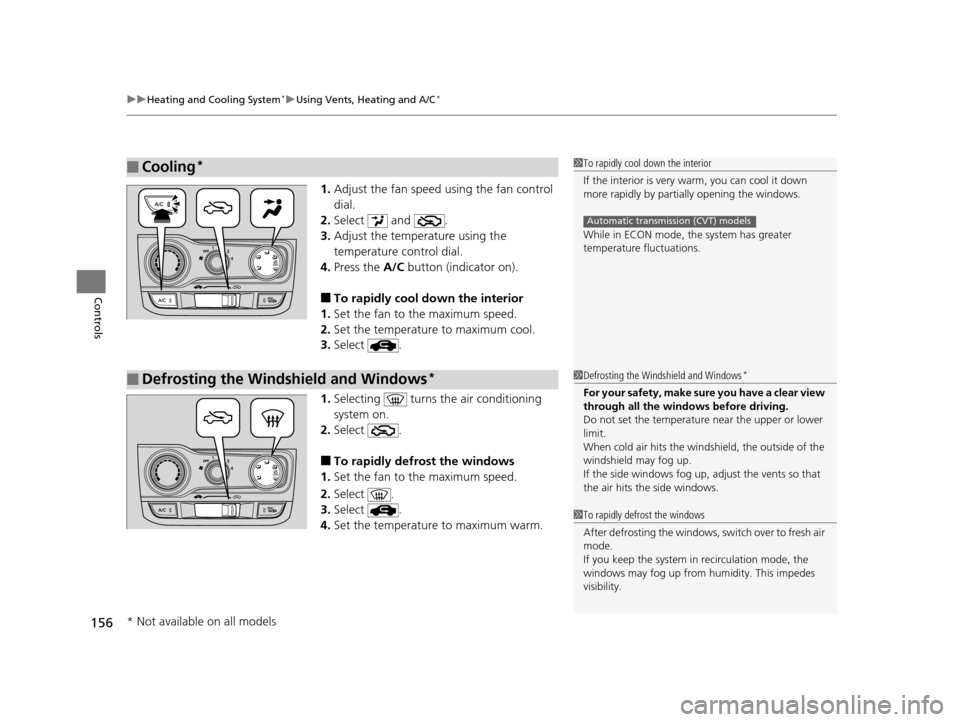
1. Adjust the fan speed using the fan control
dial.
2. Select and .
3. Adjust the temperature using the
temperature control dial.
4. Press the A/C button (indicator on).
■To rapidly cool down the interior
1. Set the fan to the maximum speed.
2. Set the temperature to maximum cool.
3. Select .
1. Selecting turns th e air conditioning
system on.
2. Select .
■To rapidly defrost the windows
1. Set the fan to the maximum speed.
2. Select .
3. Select .
4. Set the temperature to maximum warm.
■Cooling*1To rapidly cool down the interior
If the interior is very warm, you can cool it down
more rapidly by parti ally opening the windows.
While in ECON mode, the system has greater
temperature fluctuations.
Automatic transmission (CVT) models
■Defrosting the Windshield and Windows*1 Defrosting the Windshield and Windows*
For your safety, make sure you have a clear view
through all the windows before driving.
Do not set the temperatur e near the upper or lower
limit.
When cold air hits the windshield, the outside of the
windshield may fog up.
If the side windows fog up, adjust the vents so that
the air hits th e side windows.
1To rapidly defrost the windows
After defrosting the windows, switch over to fresh air
mode.
If you keep the system in recirculation mode, the
windows may fog up from humidity. This impedes
visibility.
* Not available on all models
15 US FIT-31T5A6000.book 156 ページ 2014年3月6日 木曜日 午後7時5分
Page 159 of 453
uuClimate Control System*uUsing Automatic Climate Control
158
Controls
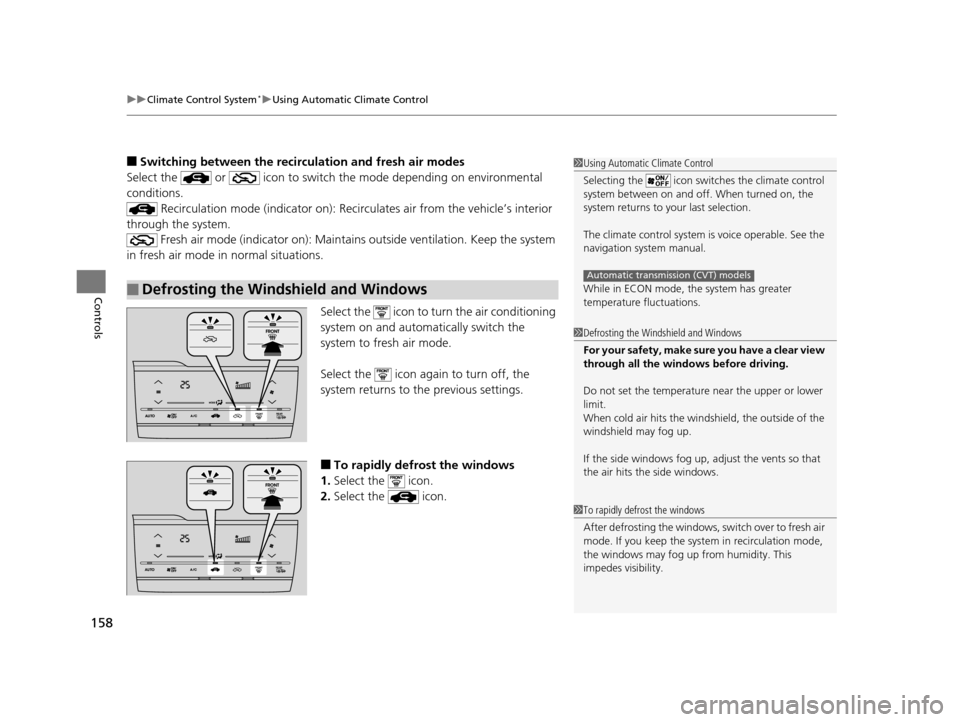
■Switching between the recirculation and fresh air modes
Select the or icon to switch the mode depending on environmental
conditions.
Recirculation mode (indicator on): Reci rculates air from the vehicle’s interior
through the system. Fresh air mode (indicator on): Maintain s outside ventilation. Keep the system
in fresh air mode in normal situations.
Select the icon to turn the air conditioning
system on and automa tically switch the
system to fresh air mode.
Select the icon again to turn off, the
system returns to the previous settings.
■To rapidly defrost the windows
1. Select the icon.
2. Select the icon.
■Defrosting the Windshield and Windows
1Using Automatic Climate Control
Selecting the icon switches the climate control
system between on and off. When turned on, the
system returns to your last selection.
The climate control system is voice operable. See the
navigation sy stem manual.
While in ECON mode, the system has greater
temperature fluctuations.
Automatic transmission (CVT) models
1 Defrosting the Windshield and Windows
For your safety, make sure you have a clear view
through all the windows before driving.
Do not set the temperatur e near the upper or lower
limit.
When cold air hits the windshield, the outside of the
windshield may fog up.
If the side windows fog up, adjust the vents so that
the air hits th e side windows.
1To rapidly defrost the windows
After defrosting the windows, switch over to fresh air
mode. If you keep the syst em in recirculation mode,
the windows may fog up from humidity. This
impedes visibility.
15 US FIT-31T5A6000.book 158 ページ 2014年3月6日 木曜日 午後7時5分
Page 163 of 453
162
Features
Audio System
About Your Audio System
See the navigation system manual for operation of the audio system.
The audio system features AM/FM radio. It can also play audio CDs, WMA/MP3/AAC
files, USB flash drives, and iPod, iPhone and Bluetooth® devices.
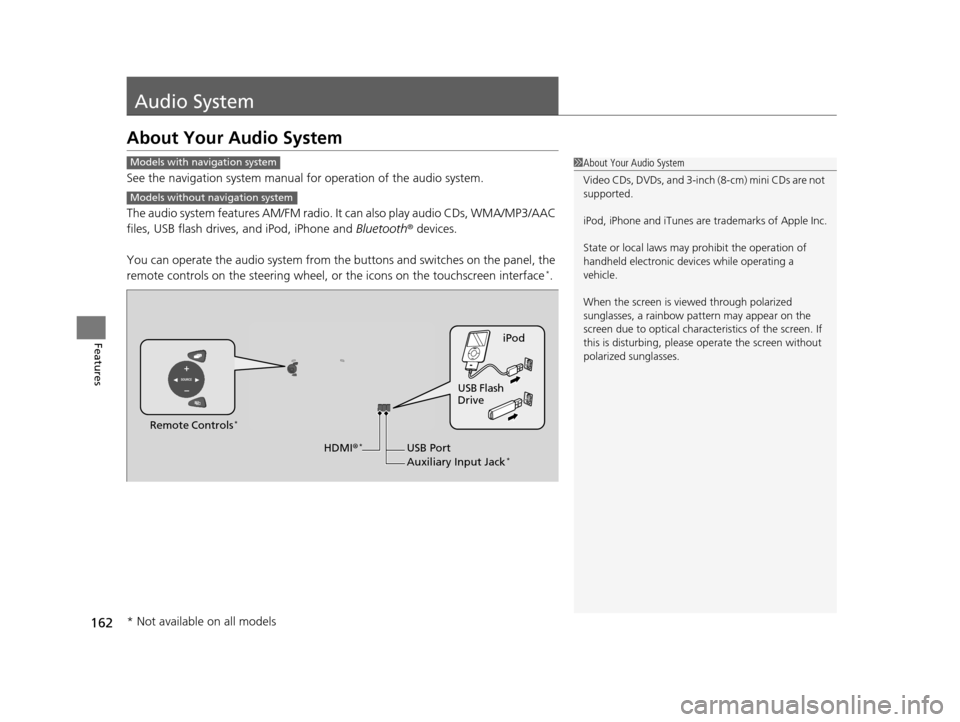
You can operate the audio system from the buttons and switches on the panel, the
remote controls on the steering wheel, or the icons on the touchscreen interface
*.
1About Your Audio System
Video CDs, DVDs, and 3-inch (8-cm) mini CDs are not
supported.
iPod, iPhone and iTunes are trademarks of Apple Inc.
State or local laws may pr ohibit the operation of
handheld electronic devi ces while operating a
vehicle.
When the screen is vi ewed through polarized
sunglasses, a rainbow pa ttern may appear on the
screen due to optical characteristics of the screen. If
this is disturbing, please operate the screen without
polarized sunglasses.Models with navigation system
Models without navigation system
iPod
USB Flash
Drive
USB Port
Auxiliary Input Jack
*
Remote Controls*
HDMI ®*
* Not available on all models
15 US FIT-31T5A6000.book 162 ページ 2014年3月6日 木曜日 午後7時5分
Page 166 of 453
165
uuAudio System uAuxiliary Input Jack*
Features
Auxiliary Input Jack*
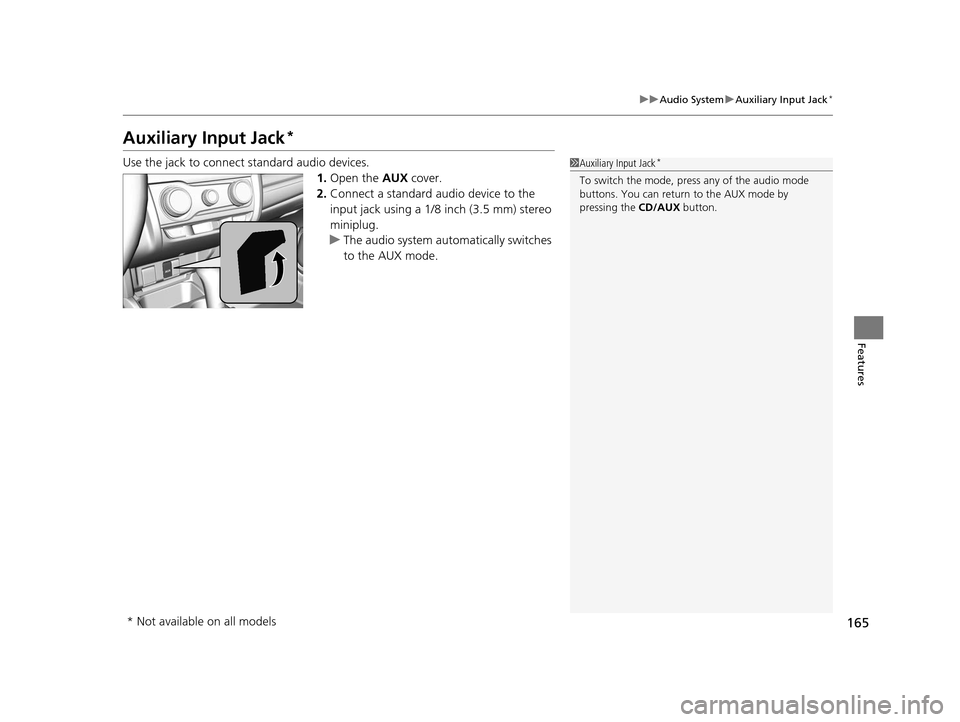
Use the jack to connect standard audio devices.
1.Open the AUX cover.
2. Connect a standard audio device to the
input jack using a 1/8 inch (3.5 mm) stereo
miniplug.
u The audio system auto matically switches
to the AUX mode.1 Auxiliary Input Jack*
To switch the mode, pres s any of the audio mode
buttons. You can return to the AUX mode by
pressing the CD/AUX button.
* Not available on all models
15 US FIT-31T5A6000.book 165 ページ 2014年3月6日 木曜日 午後7時5分
Page 168 of 453
167
uuAudio System uAudio System Theft Protection
Features
Audio System Theft Protection
The audio system is disabled when it is disconnected from the power source, such as
when the battery is disconnected or goes dead. In certain conditions, the system
may display ENTER CODE
*2/Enter code*3. If this occurs, r eactivate the audio
system.
■Reactivating the audio system
1. Turn the ignition switch to ON
(w*1.
2. Turn on the audio system.
3. Press and hold the audio system powe r button for more than two seconds.
u The audio system is reac tivated when the audio co ntrol unit establishes a
connection with the vehicl e control unit. If the control unit fails to recognize
the audio unit, you must go to a deal er and have the audio unit checked.
*1 : Models with the smart entry system have an ENGINE START/STOP button instead of an ignition switch.
*2 : Models with color audio system.
*3 : Models with display audio system.
15 US FIT-31T5A6000.book 167 ページ 2014年3月6日 木曜日 午後7時5分
Page 171 of 453
170
Features
Audio System Basic Operation
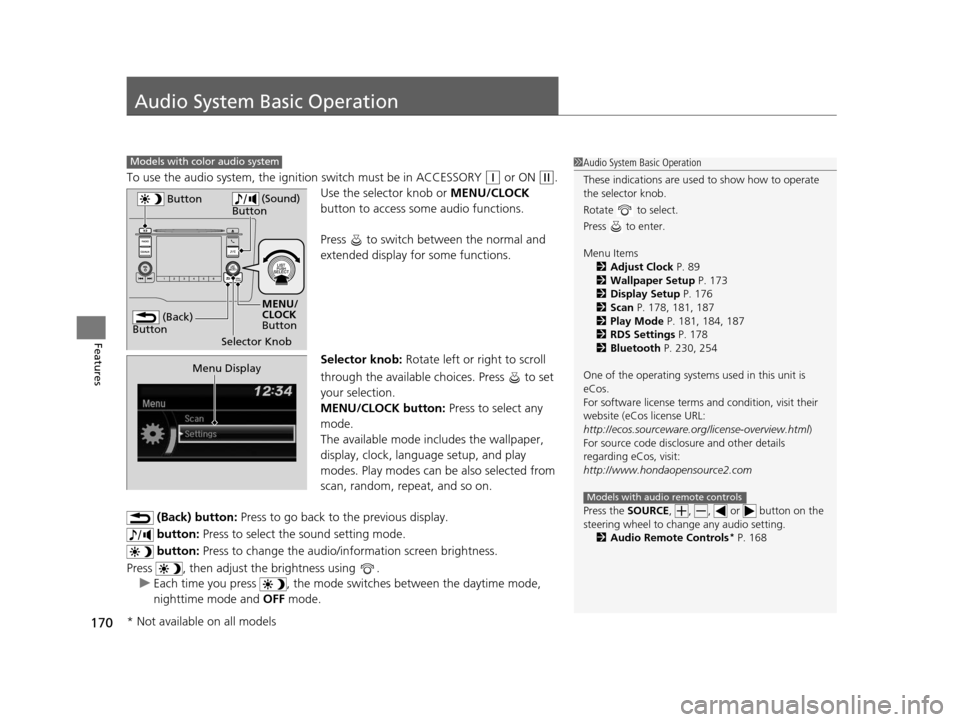
To use the audio system, the ignition switch must be in ACCESSORY (q or ON (w.
Use the selector knob or MENU/CLOCK
button to access some audio functions.
Press to switch between the normal and
extended display fo r some functions.
Selector knob: Rotate left or right to scroll
through the available choices. Press to set
your selection.
MENU/CLOCK button: Press to select any
mode.
The available mode includes the wallpaper,
display, clock, langu age setup, and play
modes. Play modes can be also selected from
scan, random, rep eat, and so on.
(Back) button: Press to go back to the previous display.
button: Press to select the sound setting mode.
button: Press to change the audio/information screen brightness.
Press , then adjust th e brightness using .
u Each time you press , the mode switches between the daytime mode,
nighttime mode and OFF mode.
Models with color audio system1Audio System Basic Operation
These indications are used to show how to operate
the selector knob.
Rotate to select.
Press to enter.
Menu Items 2 Adjust Clock P. 89
2 Wallpaper Setup P. 173
2 Display Setup P. 176
2 Scan P. 178, 181, 187
2 Play Mode P. 181, 184, 187
2 RDS Settings P. 178
2 Bluetooth P. 230, 254
One of the operating system s used in this unit is
eCos.
For software license terms and condition, visit their
website (eCos license URL:
http://ecos.sourceware.org/license-overview.html )
For source code disclo sure and other details
regarding eCos, visit:
http://www.hondaopensource2.com
Press the SOURCE, , , or button on the
steering wheel to cha nge any audio setting.
2 Audio Remote Controls
* P. 168
Models with audio remote controls
(Back)
Button
Selector Knob MENU/
CLOCK
Button
Button
(Sound)
Button
Menu Display
* Not available on all models
15 US FIT-31T5A6000.book 170 ページ 2014年3月6日 木曜日 午後7時5分
Page 172 of 453
171
uuAudio System Basic Operation uAudio/Information Screen
Continued
Features
Audio/Information Screen
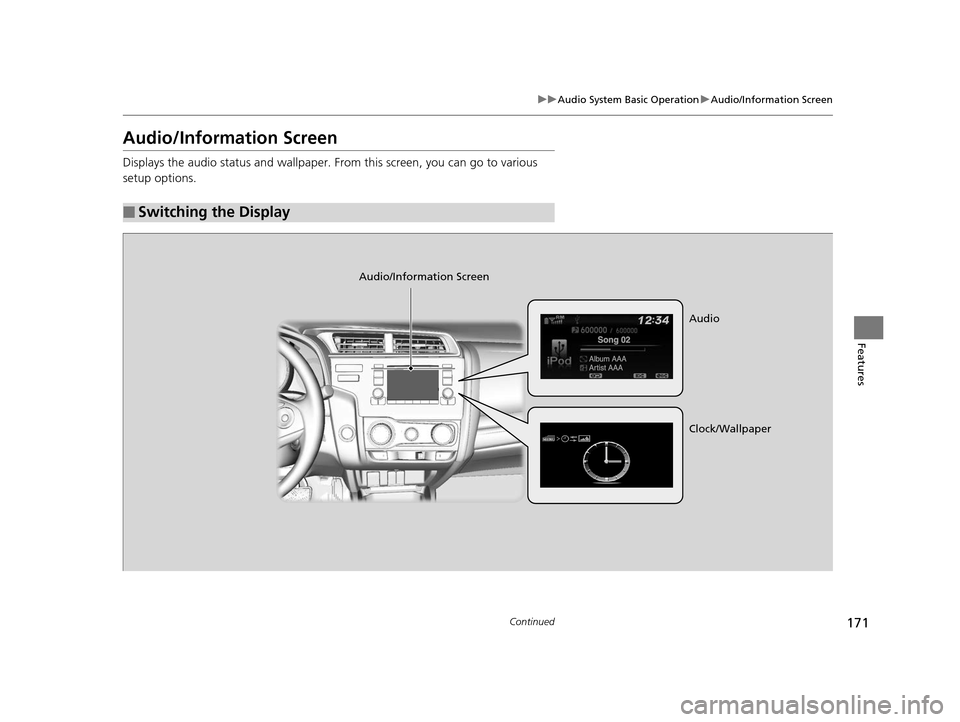
Displays the audio status and wallpaper. From this screen, you can go to various
setup options.
■Switching the Display
Audio/Information Screen
Audio
Clock/Wallpaper
15 US FIT-31T5A6000.book 171 ページ 2014年3月6日 木曜日 午後7時5分
Page 179 of 453
uuAudio System Basic Operation uPlaying the AM/FM Radio
178
Features
Provides text data information related to your selected RDS capable FM station.
■To find an RDS station from Station List
1. Press while listening to an FM station.
2. Rotate to select the station, then press .
■Update List
Updates your available station list at any time.
1. Press while listening to an FM station.
2. Rotate to select Update List, then press .
■Radio text
Displays the radio text informat ion of the selected RDS station.
1. Press the MENU/CLOCK button.
2. Rotate to select Settings, then press .
3. Rotate to select RDS Settings, then press .
4. Rotate to select Radio Text, then press .
■Scan
Samples each of the strongest stations on the selected band for 10 seconds.
1. Press the MENU/CLOCK button.
2. Rotate to select Scan, then press .
To turn off scan, press .
■Radio Data System (RDS)1 Playing the AM/FM Radio
The ST indicator appears on the display indicating
stereo FM broadcasts.
Stereo reproduction in AM is not available.
You can store 6 AM stations and 12 FM stations into
the preset memory.
Switching the Audio Mode
Press the SOURCE button on the steering wheel.
2 Audio Remote Controls
* P. 168
Models with audio remote controls
1Radio Data System (RDS)
When you select an RDS-capable FM station, the RDS
automatically turns on, and the frequency display
changes to the station name. However, when the
signals of that station become weak, the display
changes from the statio n name to the frequency.
* Not available on all models
15 US FIT-31T5A6000.book 178 ページ 2014年3月6日 木曜日 午後7時5分
Page 181 of 453
uuAudio System Basic Operation uPlaying a CD
180
Features
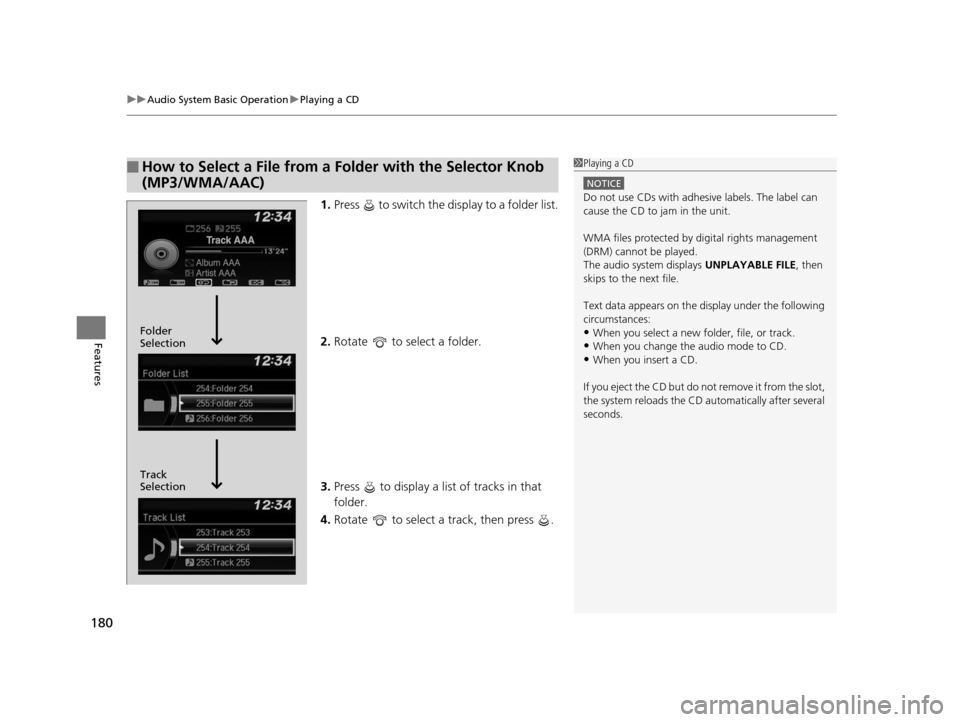
1. Press to switch the display to a folder list.
2. Rotate to select a folder.
3. Press to display a list of tracks in that
folder.
4. Rotate to select a track, then press .
■How to Select a File from a Fo lder with the Selector Knob
(MP3/WMA/AAC)1 Playing a CD
NOTICE
Do not use CDs with adhesive labels. The label can
cause the CD to jam in the unit.
WMA files protected by di gital rights management
(DRM) cannot be played.
The audio system displays UNPLAYABLE FILE, then
skips to the next file.
Text data appears on the di splay under the following
circumstances:
•When you select a new folder, file, or track.
•When you change the audio mode to CD.
•When you insert a CD.
If you eject the CD but do not remove it from the slot,
the system reloads the CD automatically after several
seconds.
Track
Selection Folder
Selection
15 US FIT-31T5A6000.book 180 ページ 2014年3月6日 木曜日 午後7時5分
Page 190 of 453
Continued189
uuAudio System Basic Operation uPlaying Bluetooth ® Audio
Features
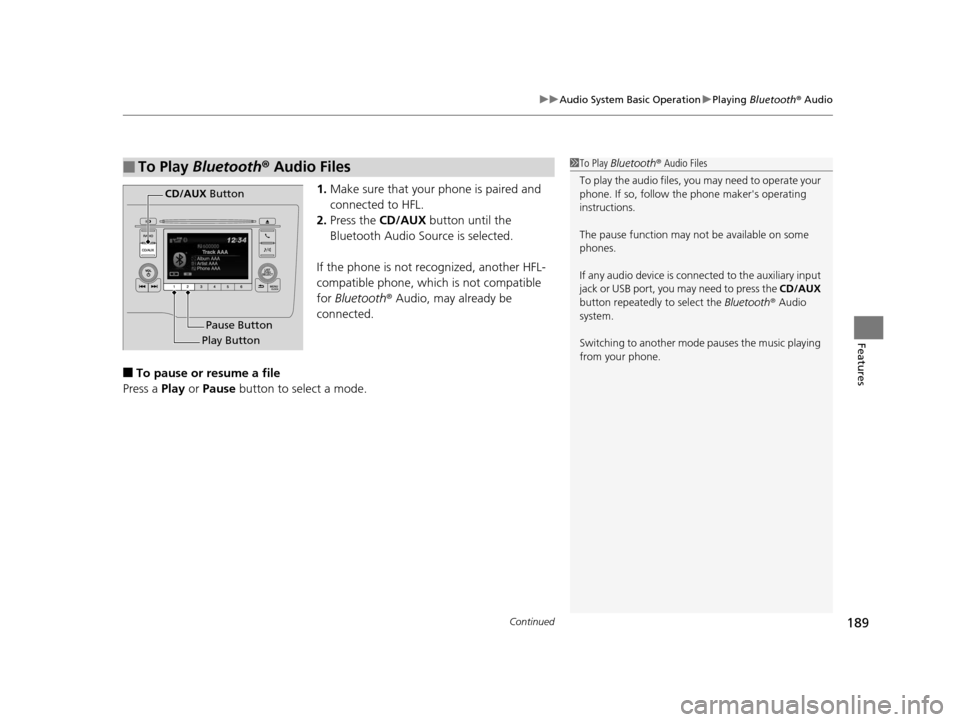
1. Make sure that your phone is paired and
connected to HFL.
2. Press the CD/AUX button until the
Bluetooth Audio Source is selected.
If the phone is not recognized, another HFL-
compatible phone, which is not compatible
for Bluetooth ® Audio, may already be
connected.
■To pause or resume a file
Press a Play or Pause button to select a mode.
■To Play Bluetooth ® Audio Files1 To Play Bluetooth ® Audio Files
To play the audio files, y ou may need to operate your
phone. If so, follow the phone maker's operating
instructions.
The pause function may no t be available on some
phones.
If any audio device is conne cted to the auxiliary input
jack or USB port, you may need to press the CD/AUX
button repeatedly to select the Bluetooth ® Audio
system.
Switching to another mode pauses the music playing
from your phone.
Play Button Pause Button
CD/AUX
Button
15 US FIT-31T5A6000.book 189 ページ 2014年3月6日 木曜日 午後7時5分