display HONDA FIT 2017 3.G Owner's Manual
[x] Cancel search | Manufacturer: HONDA, Model Year: 2017, Model line: FIT, Model: HONDA FIT 2017 3.GPages: 465, PDF Size: 26.52 MB
Page 161 of 465
160
Controls
Climate Control System*
Using Automatic Climate Control
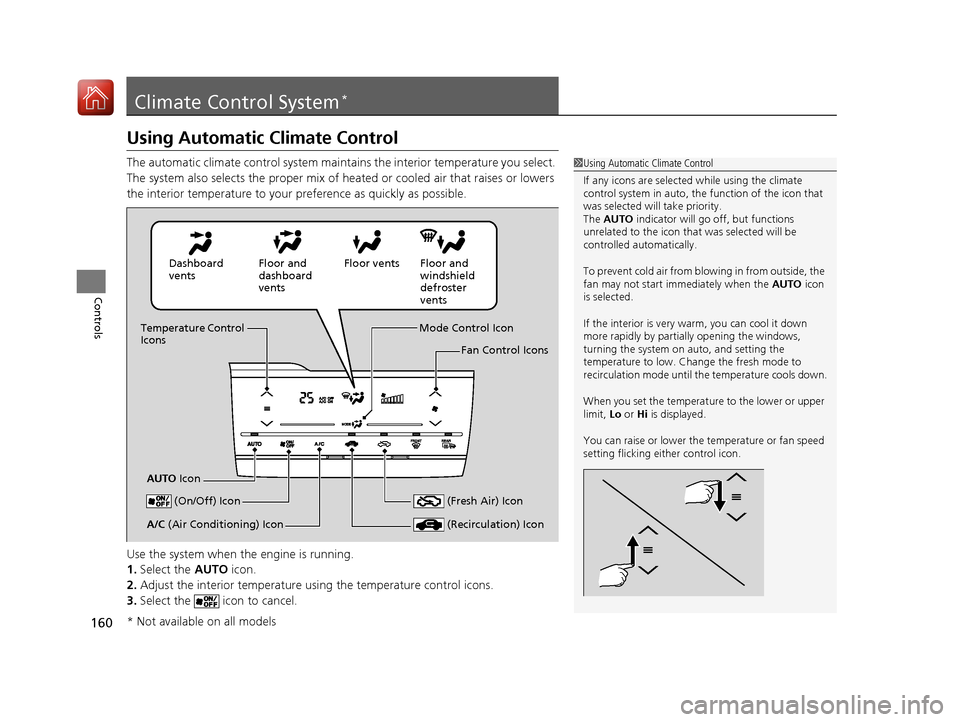
The automatic climate control system maintains the interior temperature you select.
The system also selects the proper mix of heated or cooled air that raises or lowers
the interior temperature to your preference as quickly as possible.
Use the system when the engine is running.
1. Select the AUTO icon.
2. Adjust the interior temperature us ing the temperature control icons.
3. Select the icon to cancel.1Using Automatic Climate Control
If any icons are selected while using the climate
control system in auto, the function of the icon that
was selected will take priority.
The AUTO indicator will go off, but functions
unrelated to the icon that was selected will be
controlled automatically.
To prevent cold air from bl owing in from outside, the
fan may not start i mmediately when the AUTO icon
is selected.
If the interior is very warm, you can cool it down
more rapidly by partial ly opening the windows,
turning the system on auto, and setting the
temperature to low. Change the fresh mode to
recirculation mode until the temperature cools down.
When you set the temperat ure to the lower or upper
limit, Lo or Hi is displayed.
You can raise or lower the temperature or fan speed
setting flicking either control icon.
Dashboard
vents Floor and
dashboard
ventsFloor vents Floor and
windshield
defroster
vents
Temperature Control
Icons
AUTO Icon Mode Control Icon
Fan Control Icons
(On/Off) Icon
(Recirculation) IconA/C (Air Conditioning) Icon (Fresh Air) Icon
* Not available on all models
17 FIT -31T5A6200.book 160 ページ 2016年5月27日 金曜日 午後6時33分
Page 163 of 465
uuClimate Control System*uUsing Automatic Climate Control
162
Controls
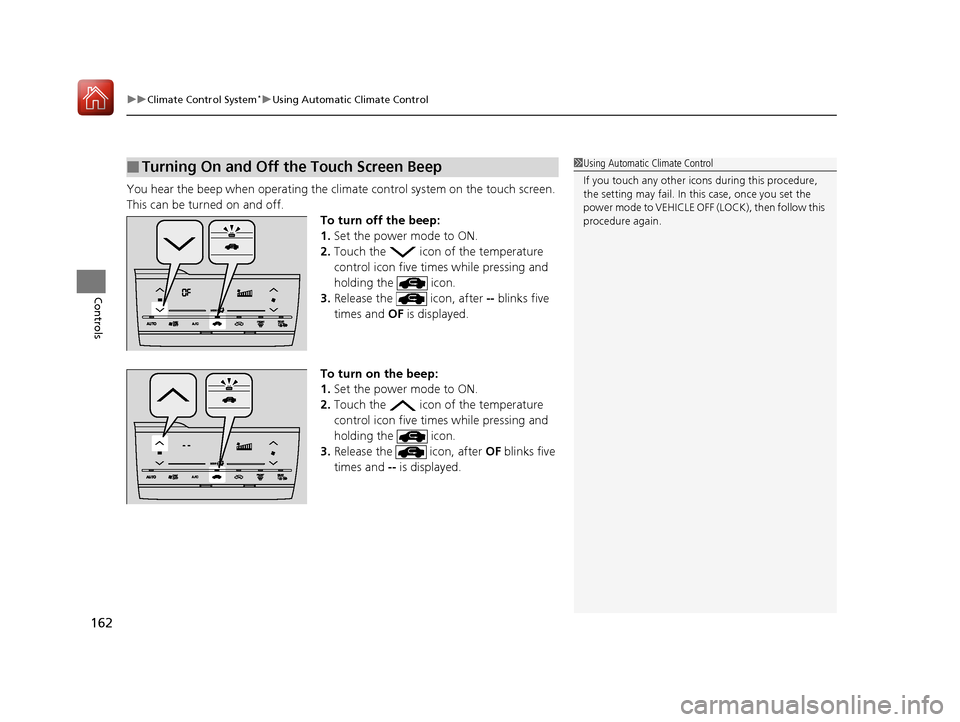
You hear the beep when operating the clim ate control system on the touch screen.
This can be turned on and off. To turn off the beep:
1.Set the power mode to ON.
2. Touch the icon of the temperature
control icon five times while pressing and
holding the icon.
3. Release the icon, after -- blinks five
times and OF is displayed.
To turn on the beep:
1. Set the power mode to ON.
2. Touch the icon of the temperature
control icon five times while pressing and
holding the icon.
3. Release the icon, after OF blinks five
times and -- is displayed.
■Turning On and Off the Touch Screen Beep1Using Automatic Climate Control
If you touch any other icon s during this procedure,
the setting may fail. In th is case, once you set the
power mode to VEHICLE OFF (LOCK), then follow this
procedure again.
17 FIT -31T5A6200.book 162 ページ 2016年5月27日 金曜日 午後6時33分
Page 166 of 465
165
Features
This chapter describes how to operate technology features.
Audio SystemAbout Your Audio System .................... 166
USB Port(s) ........................................... 167
HDMI ® Port
*........................................ 168
Auxiliary Input Jack*............................. 168
Audio Antenna .................................... 169
Audio System Theft Protection ............. 170
Audio Remote Controls
*...................... 171
Audio System Basic Operation ............. 173
Audio/Information Screen .................... 174
Adjusting the Sound ............................ 178
Display Setup ....................................... 179
Playing AM/FM Radio ........................... 180
Playing a CD ........................................ 182
Models with color audio system
Playing an iPod .................................... 185
Playing a USB Flash Drive ..................... 188
Playing Bluetooth® Audio..................... 191
Audio System Basic Operation ............ 194
Audio/Information Screen .................... 195
Adjusting the Sound ............................ 200
Display Setup ....................................... 201
Playing AM/FM Radio........................... 202
Playing a CD ........................................ 205
Playing an iPod .................................... 208
Playing Internet Radio .......................... 211
Playing a USB Flash Drive ..................... 213
Playing Bluetooth® Audio..................... 216
Playing a Video Using the HDMI ®......... 218
Models with display audio system
Smartphone Apps................................. 220
Siri ® Eyes Free ....................................... 221
Audio Error Messages ........................... 222
General Information on the Audio
System ............................................. 226
Customized Features ............................. 229
Bluetooth ® HandsFreeLink ®
Using HFL ............................................. 251
Using HFL ............................................. 276
Models with color audio system
Models with display audio system
* Not available on all models
17 FIT -31T5A6200.book 165 ページ 2016年5月27日 金曜日 午後6時33分
Page 168 of 465
167
uuAudio System uUSB Port(s)
Features
USB Port(s)
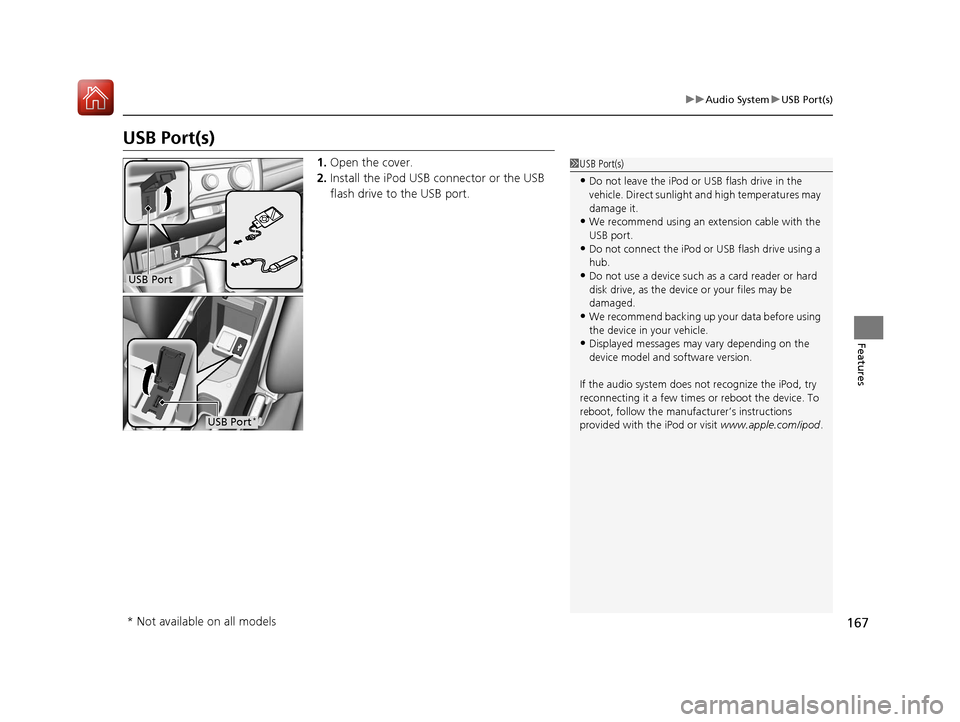
1. Open the cover.
2. Install the iPod USB connector or the USB
flash drive to the USB port.1USB Port(s)
•Do not leave the iPod or USB flash drive in the
vehicle. Direct sunlight and high temperatures may
damage it.
•We recommend using an ex tension cable with the
USB port.
•Do not connect the iPod or USB flash drive using a
hub.
•Do not use a device such as a card reader or hard
disk drive, as the device or your files may be
damaged.
•We recommend backing up yo ur data before using
the device in your vehicle.
•Displayed messages may vary depending on the
device model and software version.
If the audio system does not recognize the iPod, try
reconnecting it a few times or reboot the device. To
reboot, follow the manufac turer’s instructions
provided with the iPod or visit www.apple.com/ipod.
USB Port
USB Port*
* Not available on all models
17 FIT -31T5A6200.book 167 ページ 2016年5月27日 金曜日 午後6時33分
Page 169 of 465
168
uuAudio System uHDMI ® Port*
Features
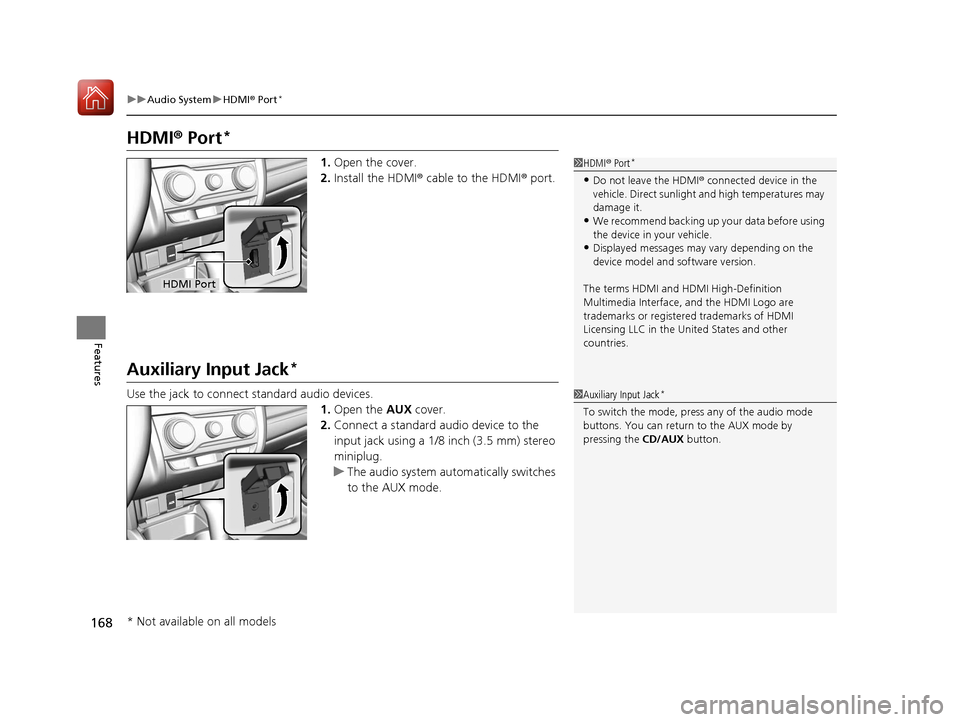
HDMI ® Port*
1. Open the cover.
2. Install the HDMI® cable to the HDMI ® port.
Auxiliary Input Jack*
Use the jack to connect standard audio devices.
1.Open the AUX cover.
2. Connect a standard audio device to the
input jack using a 1/8 inch (3.5 mm) stereo
miniplug.
u The audio system automatically switches
to the AUX mode.
1HDMI ® Port*
•Do not leave the HDMI ® connected device in the
vehicle. Direct sunlight and high temperatures may
damage it.
•We recommend backing up yo ur data before using
the device in your vehicle.
•Displayed messages may vary depending on the
device model and software version.
The terms HDMI and HDMI High-Definition
Multimedia Interface, and the HDMI Logo are
trademarks or registered trademarks of HDMI
Licensing LLC in the United States and other
countries.
HDMI Port
1 Auxiliary Input Jack*
To switch the mode, pres s any of the audio mode
buttons. You can return to the AUX mode by
pressing the CD/AUX button.
* Not available on all models
17 FIT -31T5A6200.book 168 ページ 2016年5月27日 金曜日 午後6時33分
Page 171 of 465
170
uuAudio System uAudio System Theft Protection
Features
Audio System Theft Protection
The audio system is disabled when it is di sconnected from the power source, such as
when the battery is disconnected or goes dead. In certain conditions, the system
may display a code entry screen. If this occurs, reactivate the audio system.
■Reactivating th e audio system
1. Turn the ignition switch to ON
(w*1.
2. Turn on the audio system.
3. Press and hold the audio system power button for more than two seconds.
u The audio system is reac tivated when the audio co ntrol unit establishes a
connection with the vehicle control unit. If the control unit fails to recognize
the audio unit, you must go to a dealer and have the audio unit checked.
*1 : Models with the smart entry system have an ENGINE START/STOP button instead of an ignition switch.
17 FIT -31T5A6200.book 170 ページ 2016年5月27日 金曜日 午後6時33分
Page 172 of 465
171
uuAudio System uAudio Remote Controls*
Continued
Features
Audio Remote Controls*
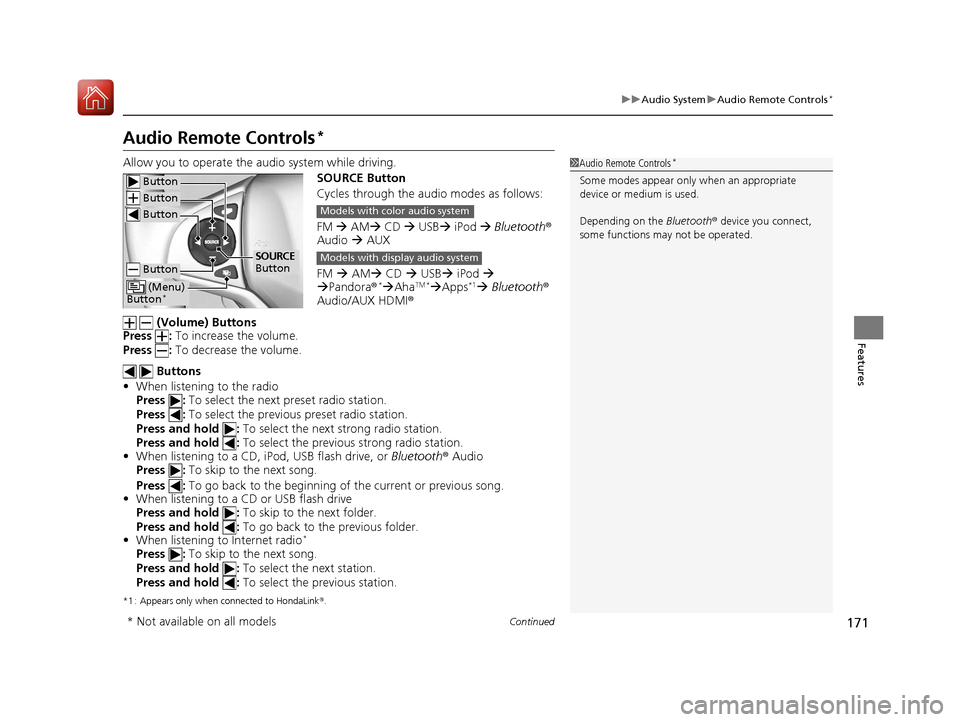
Allow you to operate the au dio system while driving.
SOURCE Button
Cycles through the audio modes as follows:
FM AM CD USB iPod Bluetooth ®
Audio AUX
FM AM CD USB iPod
Pandora®
*AhaTM *Apps*1 Bluetooth ®
Audio/AUX HDMI ®
(Volume) Buttons
Press : To increase the volume.
Press : To decrease the volume.
Buttons
• When listening to the radio
Press : To select the next preset radio station.
Press : To select the previous preset radio station.
Press and hold : To select the next strong radio station.
Press and hold : To select the previous strong radio station.
• When listening to a CD, iPod, USB flash drive, or Bluetooth® Audio
Press : To skip to the next song.
Press : To go back to the beginning of the current or previous song.
• When listening to a CD or USB flash drive
Press and hold : To skip to the next folder.
Press and hold : To go back to the previous folder.
• When listening to Internet radio
*
Press : To skip to the next song.
Press and hold : To select the next station.
Press and hold : To select the previous station.
*1 : Appears only when connected to HondaLink ®.
1 Audio Remote Controls*
Some modes appear only when an appropriate
device or medium is used.
Depending on the Bluetooth® device you connect,
some functions ma y not be operated. Button
Button
Button
Button
(Menu)
Button*
SOURCE
Button
Models with color audio system
Models with display audio system
* Not available on all models
17 FIT -31T5A6200.book 171 ページ 2016年5月27日 金曜日 午後6時33分
Page 173 of 465
uuAudio System uAudio Remote Controls*
172
Features
Steering Wheel (Menu) Button
• When listening to the radio
Press : To display the menu items. You can select Scan, Save Preset , or
Seek.
• When listening to a CD or USB flash drive
Press : To display the menu it ems. You can select Scan, Repeat , or Random .
• When listening to an iPod
Press : To display the menu items. You can select Repeat or Shuffle.
• When listening to a Bluetooth® Audio
Press : To display the menu items. You can select Pause or Play .
• When listening to a Pandora ®
*
Press : To display the menu items. You can select Bookmark, or Play/Pause .
1Audio Remote Controls*
The button is available only when the audio
mode is FM, AM, CD, USB, iPod, Pandora®*, AhaTM *,
or Bluetooth ® Audio.
Models with display audio system
* Not available on all models
17 FIT -31T5A6200.book 172 ページ 2016年5月27日 金曜日 午後6時33分
Page 174 of 465
173
Features
Audio System Basic Operation
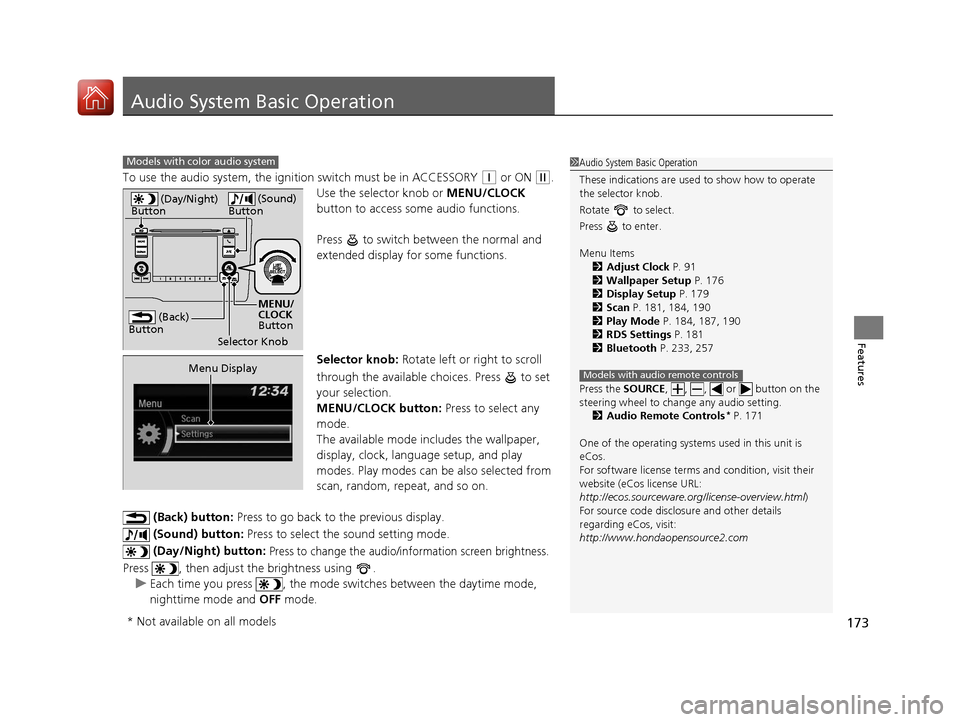
To use the audio system, the ignition switch must be in ACCESSORY (q or ON (w.
Use the selector knob or MENU/CLOCK
button to access some audio functions.
Press to switch between the normal and
extended display fo r some functions.
Selector knob: Rotate left or right to scroll
through the available choices. Press to set
your selection.
MENU/CLOCK button: Press to select any
mode.
The available mode in cludes the wallpaper,
display, clock, language setup, and play
modes. Play modes can be also selected from
scan, random, repeat, and so on.
(Back) button: Press to go back to the previous display.
(Sound) button: Press to select the sound setting mode.
(Day/Night) button:
Press to change the audio/information screen brightness.
Press , then adjust the brightness using . u Each time you press , the mode switches between the daytime mode,
nighttime mode and OFF mode.
Models with color audio system1Audio System Basic Operation
These indications are used to show how to operate
the selector knob.
Rotate to select.
Press to enter.
Menu Items 2 Adjust Clock P. 91
2 Wallpaper Setup P. 176
2 Display Setup P. 179
2 Scan P. 181, 184, 190
2 Play Mode P. 184, 187, 190
2 RDS Settings P. 181
2 Bluetooth P. 233, 257
Press the SOURCE , , , or button on the
steering wheel to cha nge any audio setting.
2 Audio Remote Controls
* P. 171
One of the operating system s used in this unit is
eCos.
For software license terms and condition, visit their
website (eCos license URL:
http://ecos.sourceware.org/license-overview.html )
For source code disclo sure and other details
regarding eCos, visit:
http://www.hondaopensource2.com
Models with audio remote controls
(Back)
Button
Selector Knob MENU/
CLOCK
Button
(Day/Night)
Button
(Sound)
Button
Menu Display
* Not available on all models
17 FIT -31T5A6200.book 173 ページ 2016年5月27日 金曜日 午後6時33分
Page 175 of 465
174
uuAudio System Basic Operation uAudio/Information Screen
Features
Audio/Information Screen
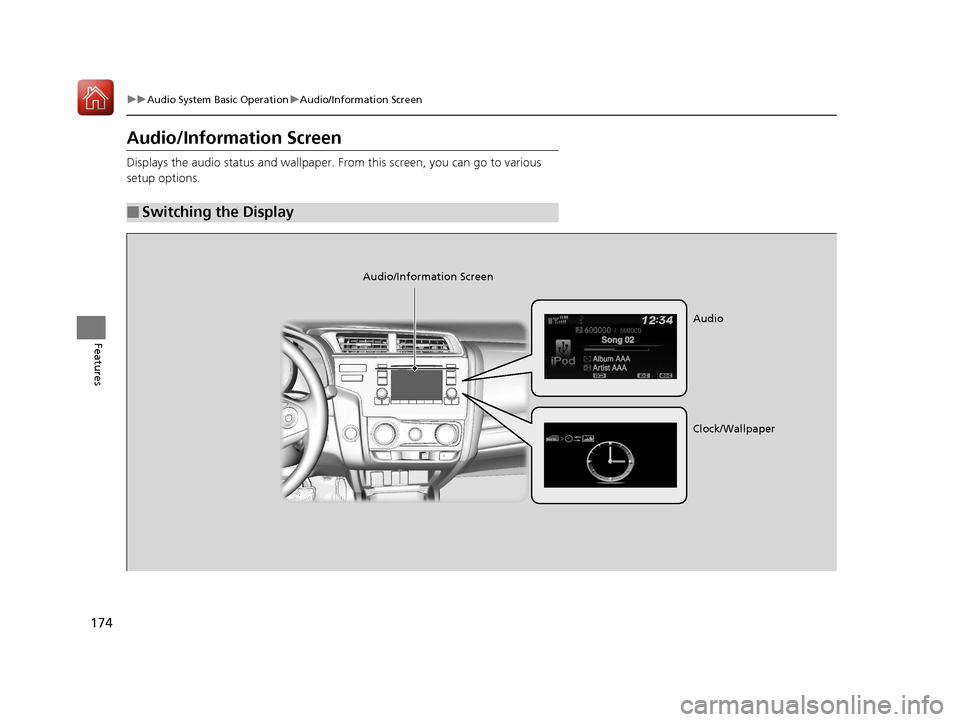
Displays the audio status and wallpaper. From this screen, you can go to various
setup options.
■Switching the Display
Audio/Information Screen
Audio
Clock/Wallpaper
17 FIT -31T5A6200.book 174 ページ 2016年5月27日 金曜日 午後6時33分