Home link HONDA INSIGHT 2019 Owner's Manual (in English)
[x] Cancel search | Manufacturer: HONDA, Model Year: 2019, Model line: INSIGHT, Model: HONDA INSIGHT 2019Pages: 675, PDF Size: 36.97 MB
Page 4 of 675
Contents
This owner’s manual should be considered a permanent part of the
vehicle and should remain with the vehicle when it is sold.
This owner’s manual covers all models of your vehicle. You may find
descriptions of equipment and features that are not on your
particular model.
Images throughout this owner’s manual (including the front cover)
represent features and equipment that are available on some, but
not all, models. Your particular mo del may not have some of these
features.
This owner’s manual is for vehicles sold in the United States and
Canada.
The information and specifications in cluded in this publication were
in effect at the time of approval for printing. Honda Motor Co., Ltd.
reserves the right, however, to discontinue or change specifications
or design at any time without notice and without incurring any
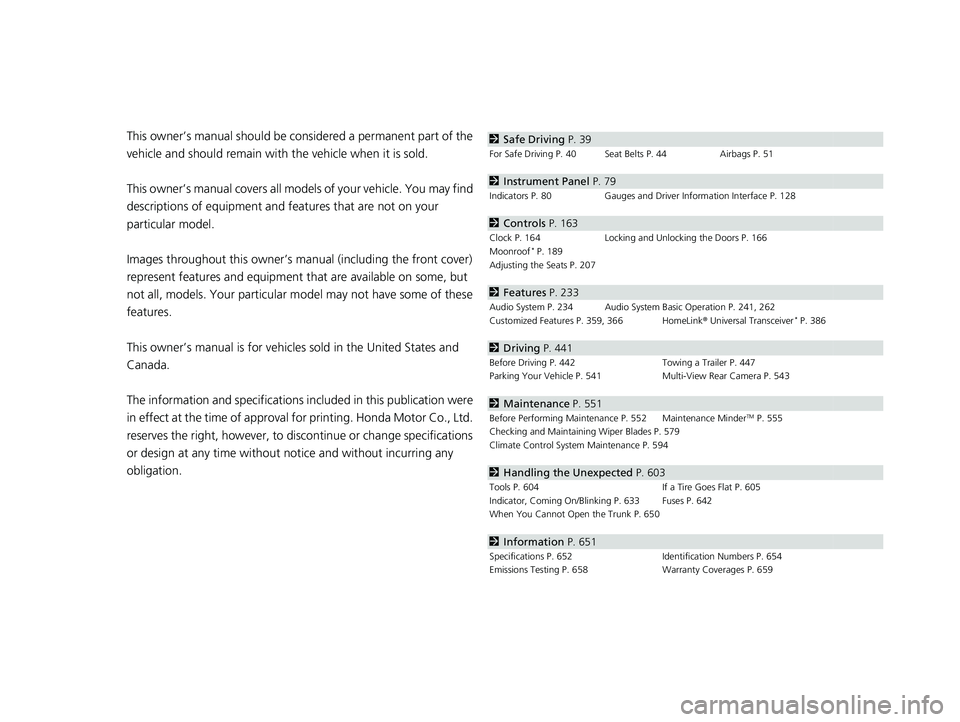
obligation.2 Safe Driving P. 39
For Safe Driving P. 40 Seat Belts P. 44 Airbags P. 51
2Instrument Panel P. 79
Indicators P. 80 Gauges and Driver Information Interface P. 128
2Controls P. 163
Clock P. 164 Locking and Unlocking the Doors P. 166
Moonroof* P. 189
Adjusting the Seats P. 207
2 Features P. 233
Audio System P. 234 Audio System Basic Operation P. 241, 262
Customized Features P. 359, 366 HomeLink ® Universal Transceiver* P. 386
2 Driving P. 441
Before Driving P. 442 Towing a Trailer P. 447
Parking Your Vehicle P. 541 Multi-View Rear Camera P. 543
2Maintenance P. 551
Before Performing Maintenance P. 552 Maintenance MinderTM P. 555
Checking and Maintaining Wiper Blades P. 579
Climate Control System Maintenance P. 594
2Handling the Unexpected P. 603
Tools P. 604 If a Tire Goes Flat P. 605
Indicator, Coming On/Blinking P. 633 Fuses P. 642
When You Cannot Open the Trunk P. 650
2 Information P. 651
Specifications P. 652 Identification Numbers P. 654
Emissions Testing P. 658 Warranty Coverages P. 659
19 INSIGHT HMIN-31TXM6000.book 2 ページ 2018年4月20日 金曜日 午後4時22分
Page 7 of 675
5
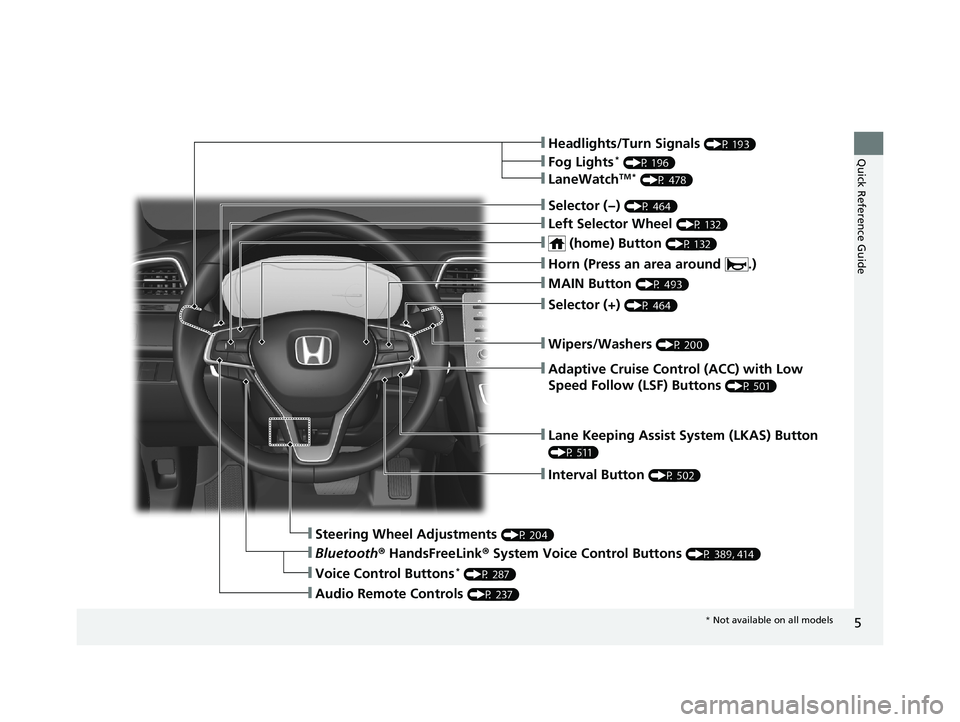
Quick Reference Guide❙Headlights/Turn Signals (P 193)
❙Fog Lights* (P 196)
❙LaneWatchTM * (P 478)
❙Lane Keeping Assist System (LKAS) Button
(P 511)
❙Interval Button (P 502)
❙Steering Wheel Adjustments (P 204)
❙Bluetooth® HandsFreeLink ® System Voice Control Buttons (P 389, 414)
❙Audio Remote Controls (P 237)
❙Voice Control Buttons* (P 287)
❙Selector (−) (P 464)
❙Left Selector Wheel (P 132)
❙ (home) Button (P 132)
❙MAIN Button (P 493)
❙Adaptive Cruise Control (ACC) with Low
Speed Follow (LSF) Buttons
(P 501)
❙Wipers/Washers (P 200)
❙Selector (+) (P 464)
❙Horn (Press an area around .)
* Not available on all models
19 INSIGHT HMIN-31TXM6000.book 5 ページ 2018年4月20日 金曜日 午後4時22分
Page 8 of 675
Visual Index
6
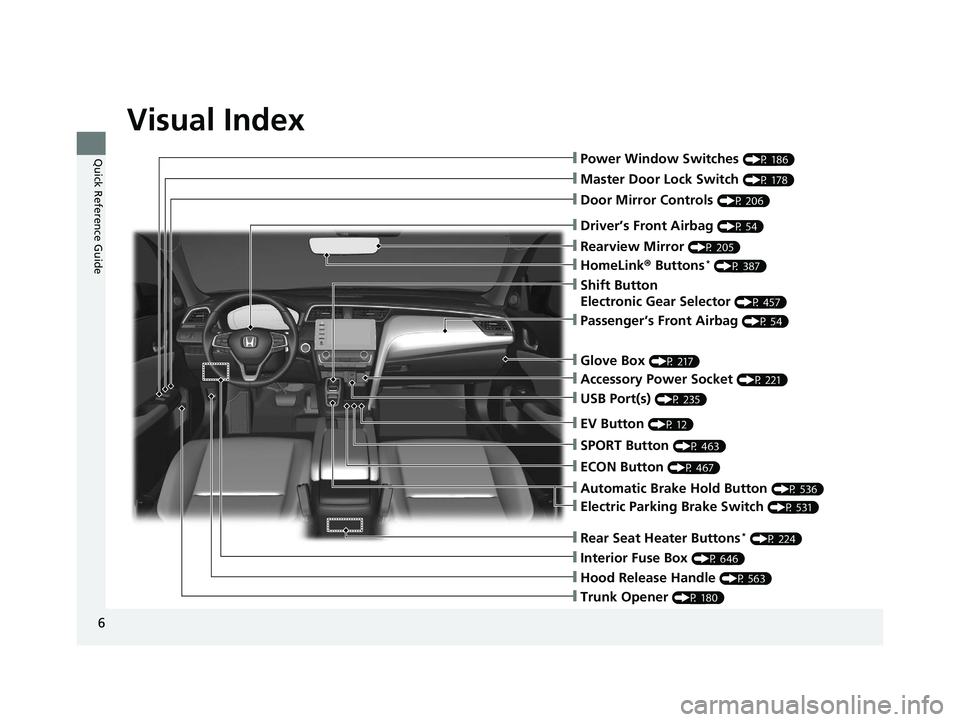
Quick Reference Guide❙Power Window Switches (P 186)
❙Master Door Lock Switch (P 178)
❙Door Mirror Controls (P 206)
❙Trunk Opener (P 180)
❙Interior Fuse Box (P 646)
❙Hood Release Handle (P 563)
❙Driver’s Front Airbag (P 54)
❙Rearview Mirror (P 205)
❙HomeLink® Buttons* (P 387)
❙Accessory Power Socket (P 221)
❙Passenger’s Front Airbag (P 54)
❙USB Port(s) (P 235)
❙Glove Box (P 217)
❙ECON Button (P 467)
❙SPORT Button (P 463)
❙EV Button (P 12)
❙Shift Button
Electronic Gear Selector
(P 457)
❙Rear Seat Heater Buttons* (P 224)
❙Automatic Brake Hold Button (P 536)
❙Electric Parking Brake Switch (P 531)
19 INSIGHT HMIN-31TXM6000.book 6 ページ 2018年4月20日 金曜日 午後4時22分
Page 98 of 675
96
uuIndicators u
Instrument Panel
IndicatorNameOn/BlinkingExplanationMessage
System
Message
Indicator
•Comes on along with a beep when
a problem is detected. A system
message on the driver information
interface appears at the same time.• While the indicator is on, press the
(home) button to see the message again.
2 Accessing contents in the main
display P. 131
•Refer to the Indicators information in this
chapter when a system message appears
on the driver information interface. Take
the appropriate action for the message.
• The driver information interface does not
return to the normal screen unless the
warning is canceled, or the left selector
wheel is pressed.
—
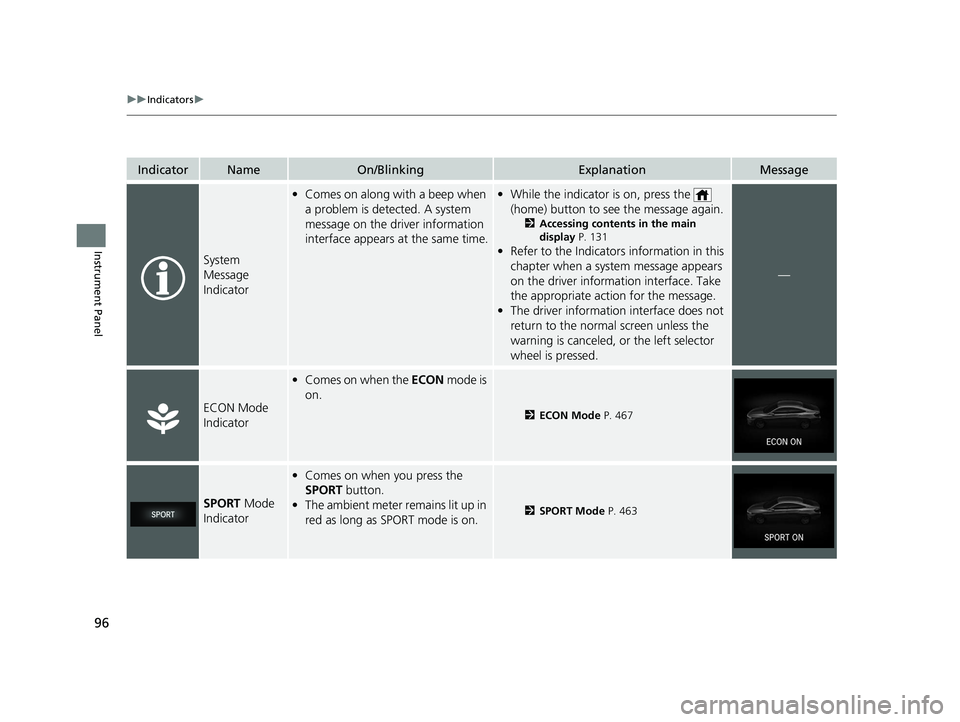
ECON Mode
Indicator
• Comes on when the ECON mode is
on.
2 ECON Mode P. 467
SPORT Mode
Indicator
• Comes on when you press the
SPORT button.
• The ambient meter remains lit up in
red as long as SPORT mode is on.
2 SPORT Mode P. 463
19 INSIGHT HMIN-31TXM6000.book 96 ページ 2018年4月20日 金曜日 午後4時22分
Page 235 of 675
233
Features
This chapter describes how to operate technology features.
Audio SystemAbout Your Audio System ................ 234
USB Port(s) ....................................... 235
Audio System Theft Protection ......... 236
Audio Remote Controls .................... 237
Audio System Basic Operation ........ 241
Audio/Information Screen ................ 242
Adjusting the Sound ........................ 246
Display Setup ................................... 247
Playing AM/FM Radio ....................... 248
Playing an iPod ................................ 250
Playing Pandora ®.............................. 253
Playing a USB Flash Drive ................. 255
Models with color audio
Playing Bluetooth ® Audio................. 258
Siri ® Eyes Free .................................. 261
Audio System Basic Operation ........ 262
Audio/Information Screen ................ 263
System Updates ............................... 278
Adjusting the Sound ........................ 284
Display Setup ................................... 285
Voice Control Operation .................. 287
Playing AM/FM Radio ....................... 290
Playing SiriusXM ® Radio
*................. 294
Playing an iPod ................................ 305
Playing a USB Flash Drive ................. 308
Playing Bluetooth ® Audio................. 311
Models with Display Audio
HondaLink ®..................................... 313
HondaLink ® Service*........................ 317
Wi-Fi Connection ............................. 322
Siri ® Eyes Free .................................. 324
Apple CarPlay
TM............................... 325
Android AutoTM............................... 328
Audio Error Messages ...................... 332
General Information on the Audio System ............................................. 337
Customized Features ................ 359, 366
HomeLink ® Universal Transceiver
*..... 386
Bluetooth® HandsFreeLink® ..... 389, 414
Refuel Recommend .............................. 439
* Not available on all models
19 INSIGHT HMIN-31TXM6000.book 233 ページ 2018年4月20日 金曜日 午後4時22分
Page 265 of 675

263
uuAudio System Basic Operation uAudio/Information Screen
Continued
Features
Audio/Information Screen
Displays the audio status and wallpaper. From this display, you can go to various
setup options.
■Using the audio/in formation screen
Press the button to go to the home screen.
Select the following icons on the home screen or after selecting All Apps.
■Phone
Displays the HFL information.
2 Bluetooth ® HandsFreeLink ® P. 414
■Switching the Display
1 Audio/Information Screen
Touchscreen Operation
•Use simple gestures - in cluding touching, swiping,
and scrolling - to operate certain audio functions.
•Some items may be grayed out during driving to
reduce the potential for distraction.
•You can select them when the vehicle is stopped or
use voice commands.
•Wearing gloves may limit or prevent touchscreen
response.
You can change the touchs creen sensitivity setting.
2 Customized Features P. 366
Home Screen
Models without
navigation system
Models with
navigation system
(Home) Button
All Apps
19 INSIGHT HMIN-31TXM6000.book 263 ページ 2018年4月20日 金曜日 午後4時22分
Page 327 of 675
325
uuAudio System Basic Operation uApple CarPlayTM
Continued
Features
Apple CarPlayTM
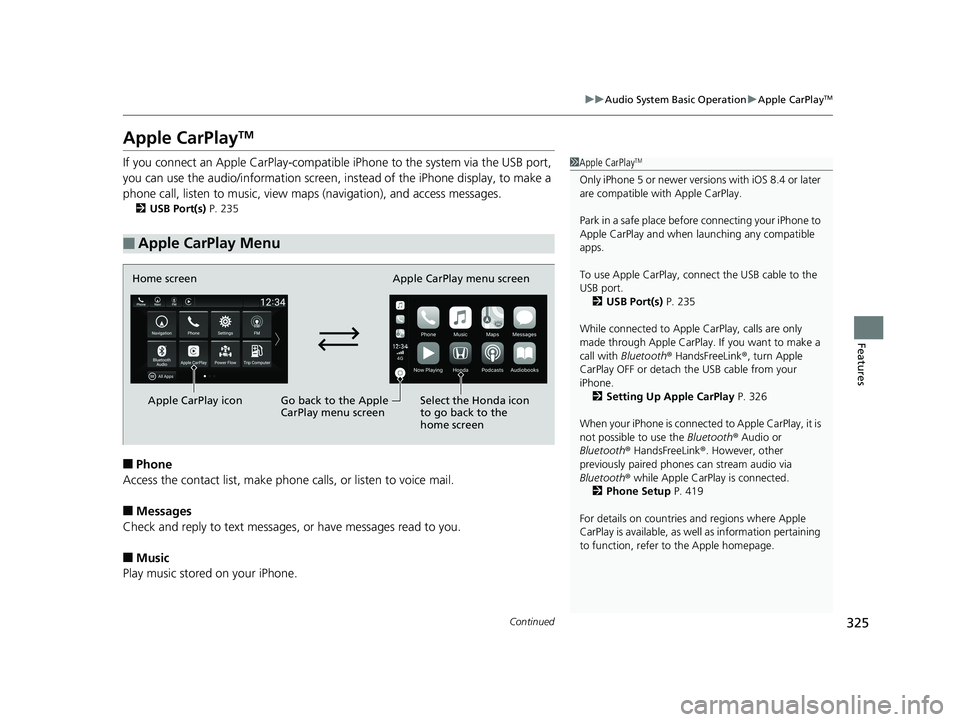
If you connect an Apple CarPlay-compatible iPhone to the system via the USB port,
you can use the audio/information screen, in stead of the iPhone display, to make a
phone call, listen to music, view maps (navigation), and access messages.
2USB Port(s) P. 235
■Phone
Access the contact list, make phone ca lls, or listen to voice mail.
■Messages
Check and reply to text messages, or have messages read to you.
■Music
Play music stored on your iPhone.
■Apple CarPlay Menu
1 Apple CarPlayTM
Only iPhone 5 or newer versi ons with iOS 8.4 or later
are compatible with Apple CarPlay.
Park in a safe place before connecting your iPhone to
Apple CarPlay and when launching any compatible
apps.
To use Apple CarPlay, connect the USB cable to the
USB port. 2 USB Port(s) P. 235
While connected to Apple CarPlay, calls are only
made through Apple CarPlay. If you want to make a
call with Bluetooth ® HandsFreeLink ®, turn Apple
CarPlay OFF or detach th e USB cable from your
iPhone.
2 Setting Up Apple CarPlay P. 326
When your iPhone is connected to Apple CarPlay, it is
not possible to use the Bluetooth® Audio or
Bluetooth ® HandsFreeLink ®. However, other
previously paired phones can stream audio via
Bluetooth ® while Apple CarPlay is connected.
2 Phone Setup P. 419
For details on c ountries and regions where Apple
CarPlay is available, as well as information pertaining
to function, refer to the Apple homepage.
Home screen
Apple CarPlay icon Apple CarPlay menu screen
Go back to the Apple
CarPlay menu screen
Select the Honda icon
to go back to the
home screen
19 INSIGHT HMIN-31TXM6000.book 325 ページ 2018年4月20日 金曜日 午後4時22分
Page 388 of 675
386
Features
HomeLink® Universal Transceiver*
The HomeLink ® Universal Transceiver can be pr ogrammed to operate up to three
remote controlled devices around your home , such as garage doors, lighting, or
home security systems.
Refer to the safety information that came wi th your garage door opener to test that
the safety features are functioning properly. If you do not have the safety
information, contac t the manufacturer.
Before programming HomeLink, make sure th at people and objects are out of the
way of the garage or gate to prevent potential injury or damage.
When programming a garage door opener, park just outside the garage door’s path.
■Important Safety Precautions
1HomeLink ® Universal Transceiver*
Before programming HomeLi nk to operate a garage
door opener, confirm that the opener has an external
entrapment protection system, such as an “electronic
eye,” or other safety and reverse stop features. If it
does not, HomeLink may not be able to operate it.
* Not available on all models
19 INSIGHT HMIN-31TXM6000.book 386 ページ 2018年4月20日 金曜日 午後4時22分
Page 389 of 675
387
uuHomeLink ® Universal Transceiver*u Training HomeLink
Continued
Features
Training HomeLink
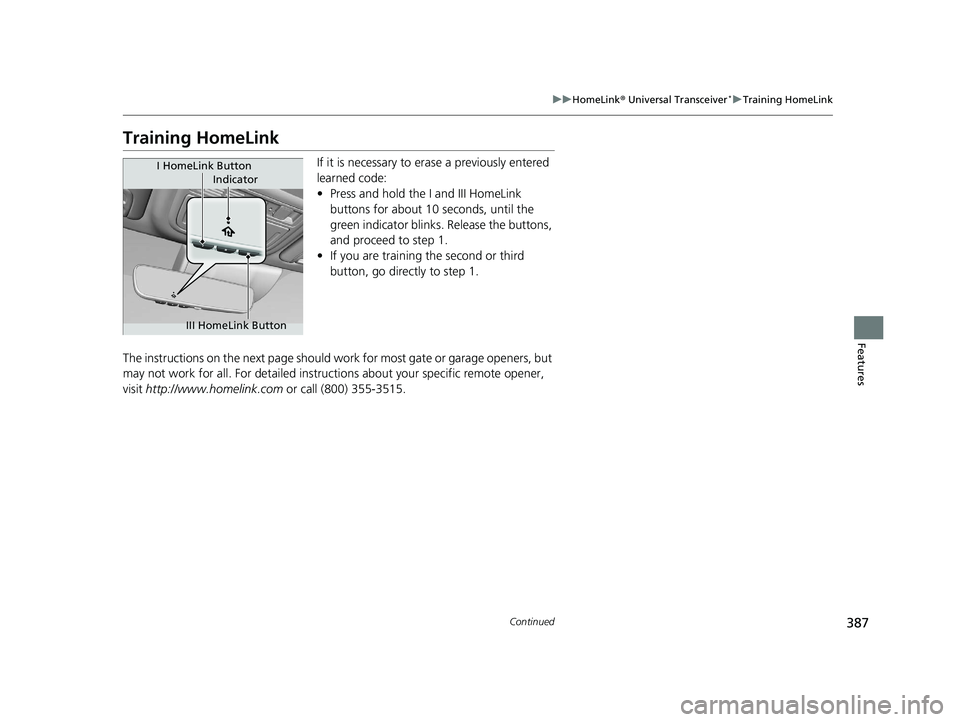
If it is necessary to er ase a previously entered
learned code:
• Press and hold the I and III HomeLink
buttons for about 10 seconds, until the
green indicator blinks. Release the buttons,
and proceed to step 1.
• If you are training the second or third
button, go directly to step 1.
The instructions on the next page should work for most gate or garage openers, but
may not work for all. For detailed instructions about your specific remote opener,
visit http://www.homelink.com or call (800) 355-3515.
Indicator
I HomeLink Button
III HomeLink Button
19 INSIGHT HMIN-31TXM6000.book 387 ページ 2018年4月20日 金曜日 午後4時22分
Page 390 of 675
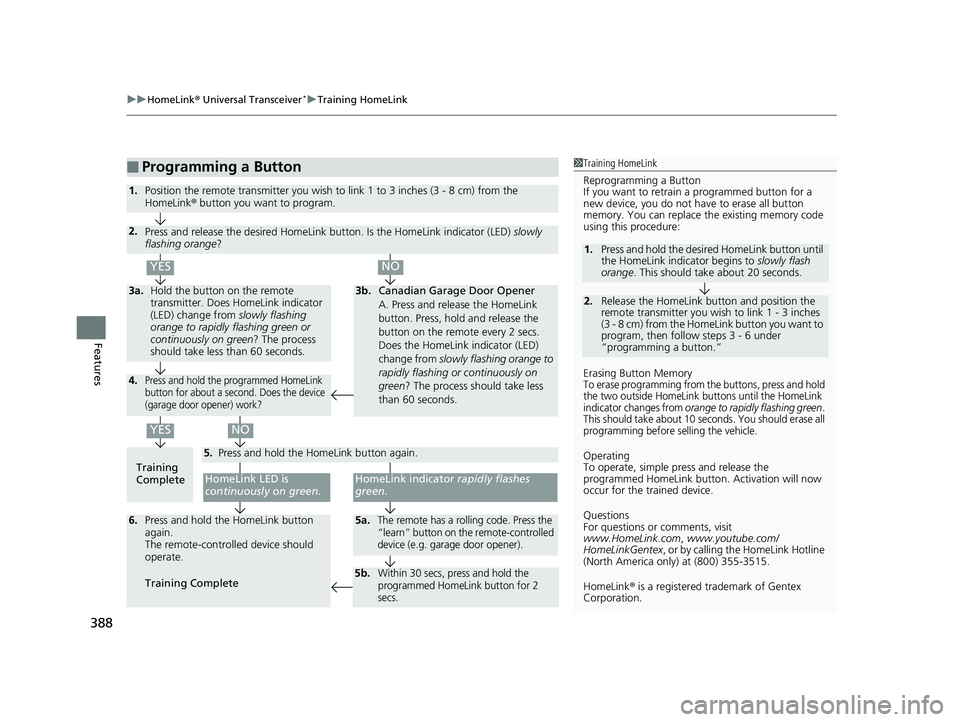
uuHomeLink ® Universal Transceiver*u Training HomeLink
388
Features
■Programming a Button1Training HomeLink
Reprogramming a Button
If you want to retrain a programmed button for a
new device, you do not ha ve to erase all button
memory. You can replace the existing memory code
using this procedure:
Erasing Button Memory
To erase programming from the buttons, press and hold
the two outside HomeLink buttons until the HomeLink
indicator changes from
orange to rapidly flashing green.
This should take about 10 seconds. You should erase all
programming before selling the vehicle.
Operating
To operate, simple pr ess and release the
programmed HomeLink butto n. Activation will now
occur for the trained device.
Questions
For questions or comments, visit
www.HomeLink.com , www.youtube.com/
HomeLinkGentex , or by calling the HomeLink Hotline
(North America only) at (800) 355-3515.
HomeLink® is a registered tra demark of Gentex
Corporation.
2.
1. Press and hold the desired HomeLink button until
the HomeLink indi
cator begins to slowly flash
orange . This should take about 20 seconds.
Release the HomeLink button and position the
remote transmitter you wish to link 1 - 3 inches
(3 - 8 cm) from the HomeLink button you want to
program, then follow steps 3 - 6 under
“programming a button.”
Training
CompleteHomeLink LED is
continuously on green .
YES
YES
1.Position the remote transmitter you wish to link 1 to 3 inches (3 - 8 cm) from the
HomeLink® button you want to program.
3b.Canadian Garage Door Opener
A. Press and release the HomeLink
button. Press, hold and release the
button on the remote every 2 secs.
Does the HomeLink indicator (LED)
change from slowly flashing orange to
rapidly flashing or continuously on
green ? The process should take less
than 60 seconds.
NO
2. Press and release the desired HomeLink but ton. Is the HomeLink indicator (LED) slowly
flashing orange ?
NO
3a.Hold the button on the remote
transmitter. Does HomeLink indicator
(LED) change from slowly flashing
orange to rapidly flashing green or
continuously on green? The process
should take less than 60 seconds.
5. Press and hold the HomeLink button again.
HomeLink indicator rapidly flashes
green .
5a.The remote has a rolling code. Press the
“learn” button on th e remote-controlled
device (e.g. garage door opener).6. Press and hold the HomeLink button
again.
The remote-controll ed device should
operate.
Training Complete
5b.Within 30 secs, press and hold the
programmed HomeLink button for 2
secs.
4.Press and hold the programmed HomeLink
button for about a second. Does the device
(garage door opener) work?
19 INSIGHT HMIN-31TXM6000.book 388 ページ 2018年4月20日 金曜日 午後4時22分